Getting comfortable with Growth360 is the fastest way to unlock what it can do for your business.
This guide walks you through the main areas of your Growth360 dashboard – what each section is for, how to navigate it, and how everything fits together. Bear in mind that some features depend on your plan, so not everything below may appear in your account.
Navigation Sidebar
The left-hand sidebar is your main navigation hub. Every section of Growth360 is accessible from here – contacts, opportunities, automations, reporting, and more. If you manage more than one account, you can switch between them using the drop-down menu at the top of the sidebar.
Search Bar
Just below the account selector is the search bar. Type a contact’s name to find them quickly, or use it to add new opportunities and pull up payment details linked to that contact.
Quick Actions
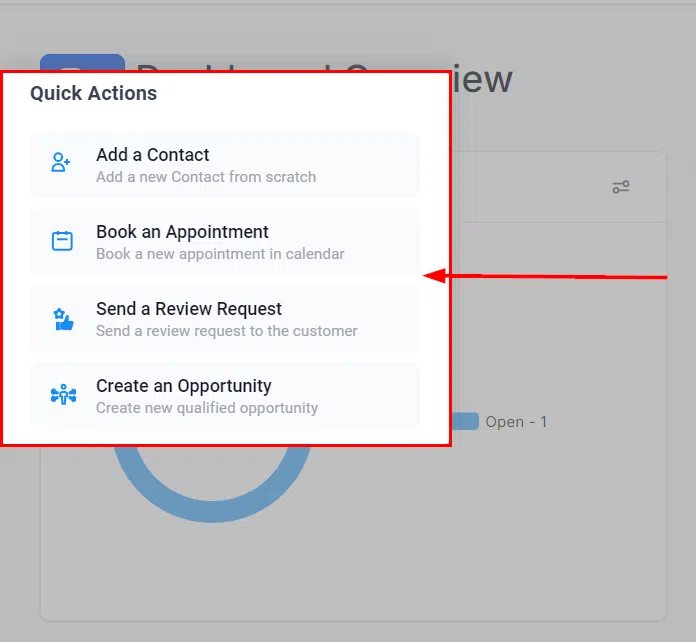
See the green lightning bolt icon to the right of the search bar? That’s Quick Actions. Click it for a shortcut menu to the tasks you’ll perform most often – adding a contact, booking an appointment, sending a review request, or creating an opportunity.
Dashboard
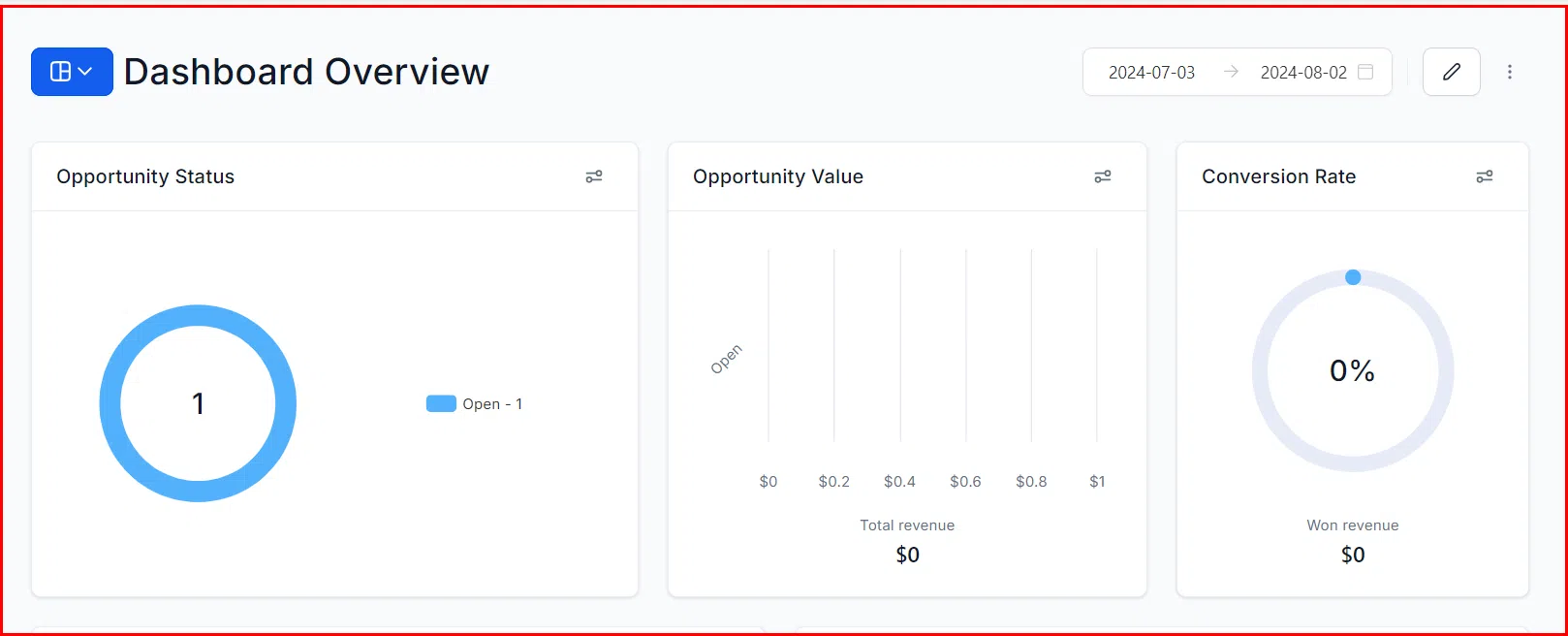
The Dashboard is your home base in Growth360. It’s the first thing you see after logging in, and it gives you an at-a-glance summary of your contacts, pipelines, and key business metrics. Click Dashboard in the sidebar any time to return here.
Conversations
Conversations brings all your contact communications into one place – emails, SMS, and other channels – so nothing slips through the cracks.
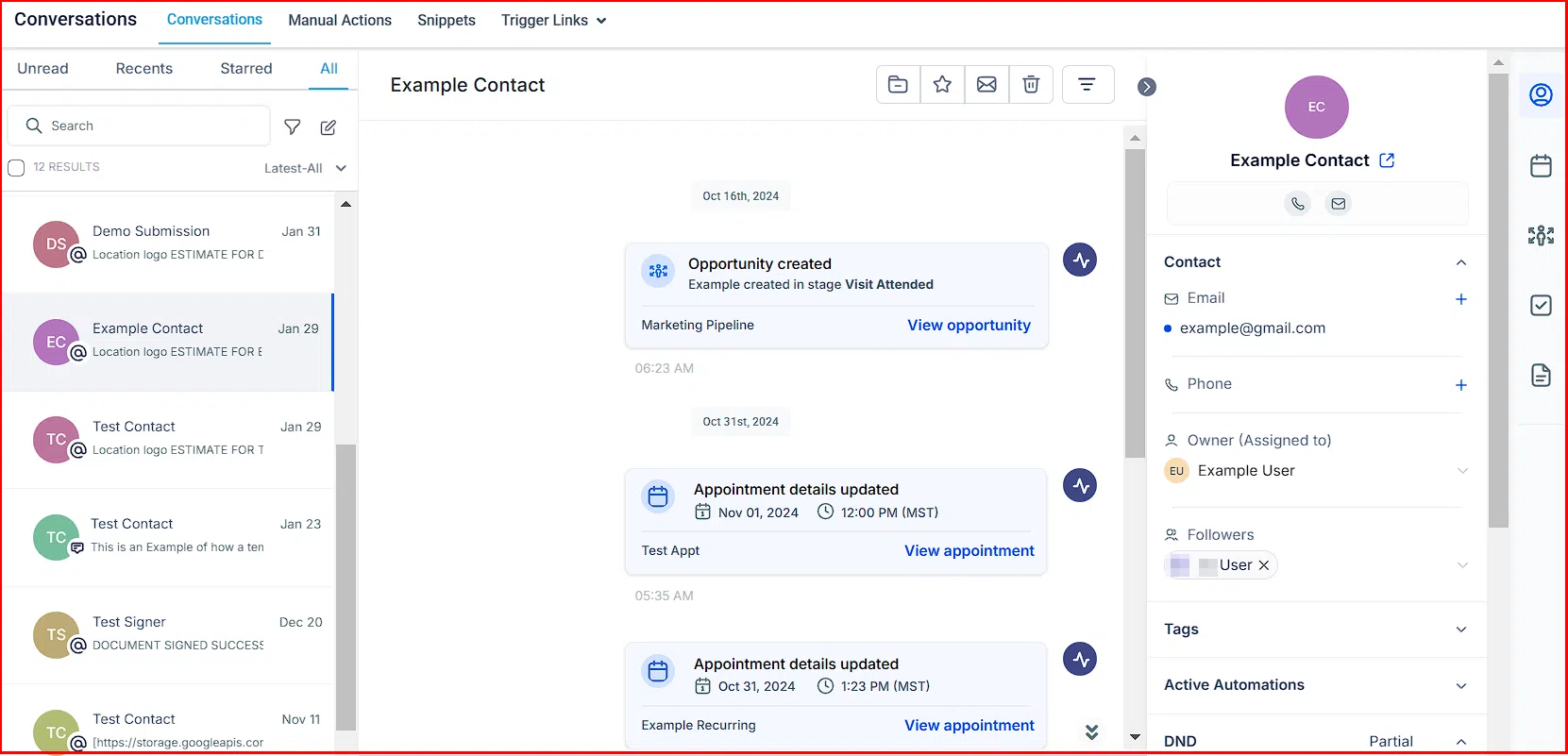
Inside Conversations you’ll find three tabs:
- Manual Actions: Set up call tasks and other manual follow-ups. Completing one automatically triggers the next step.
- Templates: Build reusable email and SMS templates to keep your messaging consistent across campaigns.
- Trigger Links: Create custom links that kick off automated actions when someone clicks them.
Calendar
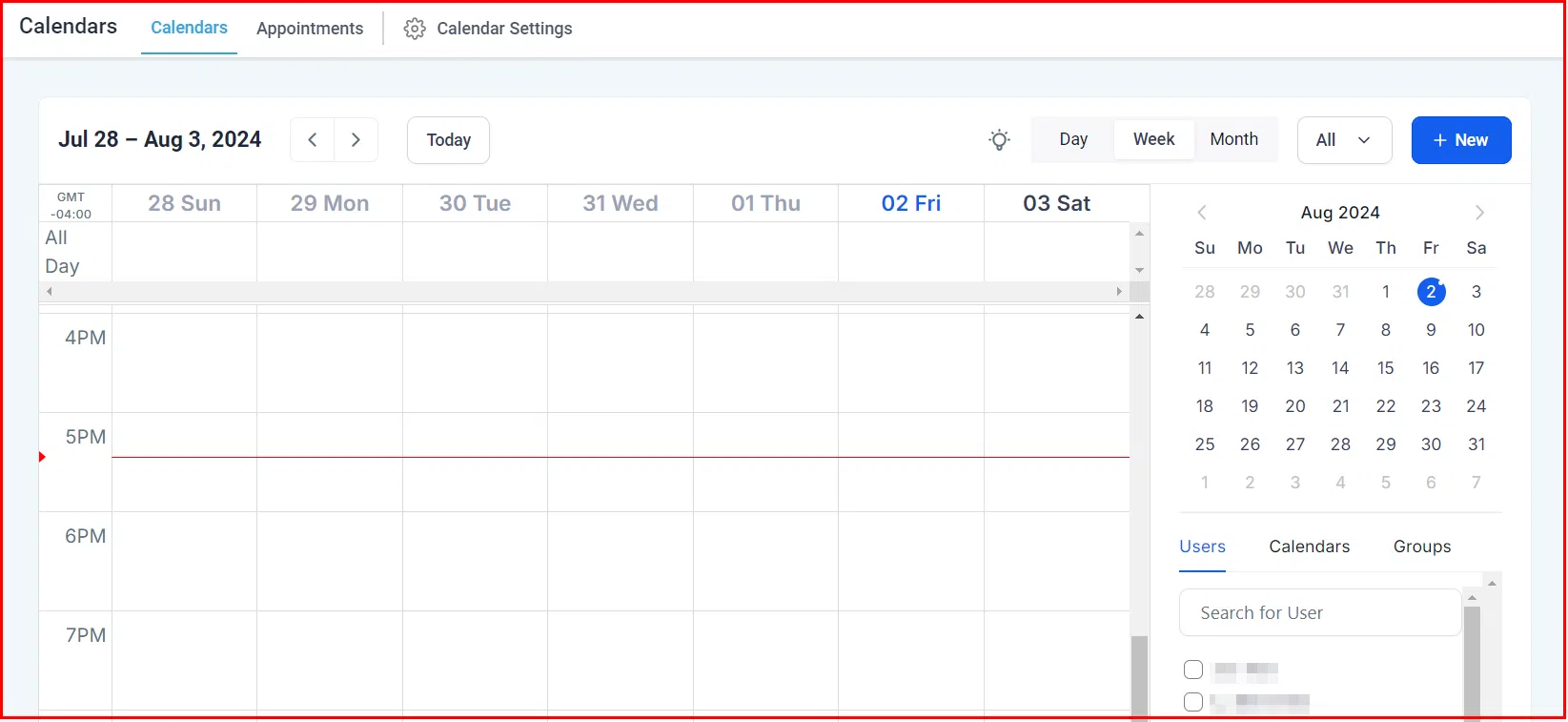
The Calendar section shows all your upcoming events and booked appointments in one view. Head to Calendars in the sidebar, then select the Appointments tab to see your full schedule.
Contacts
Contacts is where you store and manage everyone in your database. You can add contacts one at a time, import them in bulk, or collect them through marketing forms.
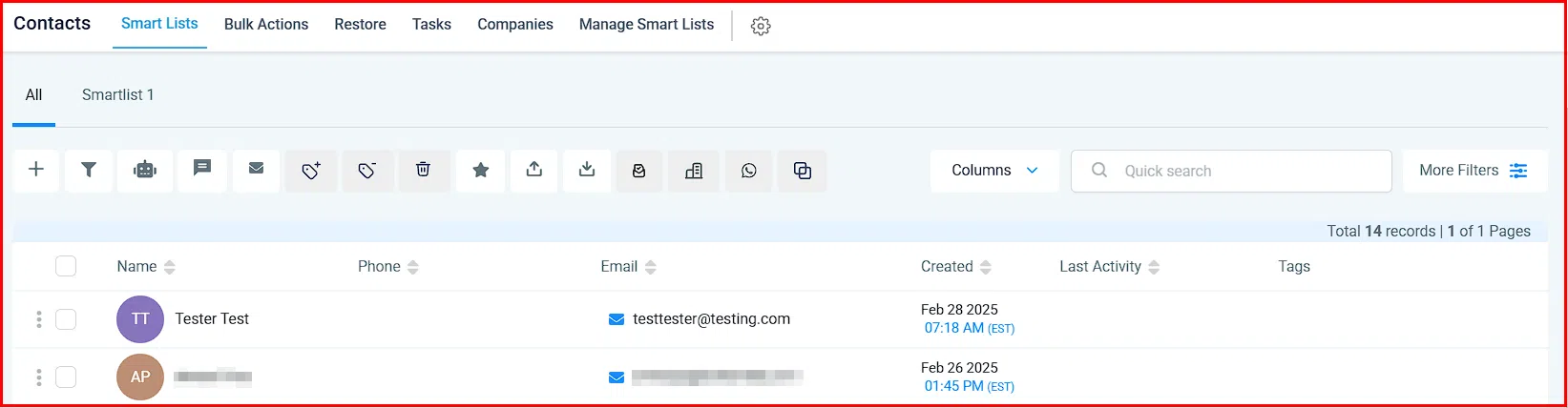 The key tabs within Contacts are:
- Bulk Actions: Apply campaigns to large groups of contacts at once.
- Restore: Recover any contacts you’ve accidentally deleted.
- Tasks: Create and assign tasks so important follow-ups don’t get missed.
- Companies: Store information about businesses linked to your contacts.
- Manage Smart Lists: Build dynamic, filter-based contact lists and save them for ongoing use.
Opportunities
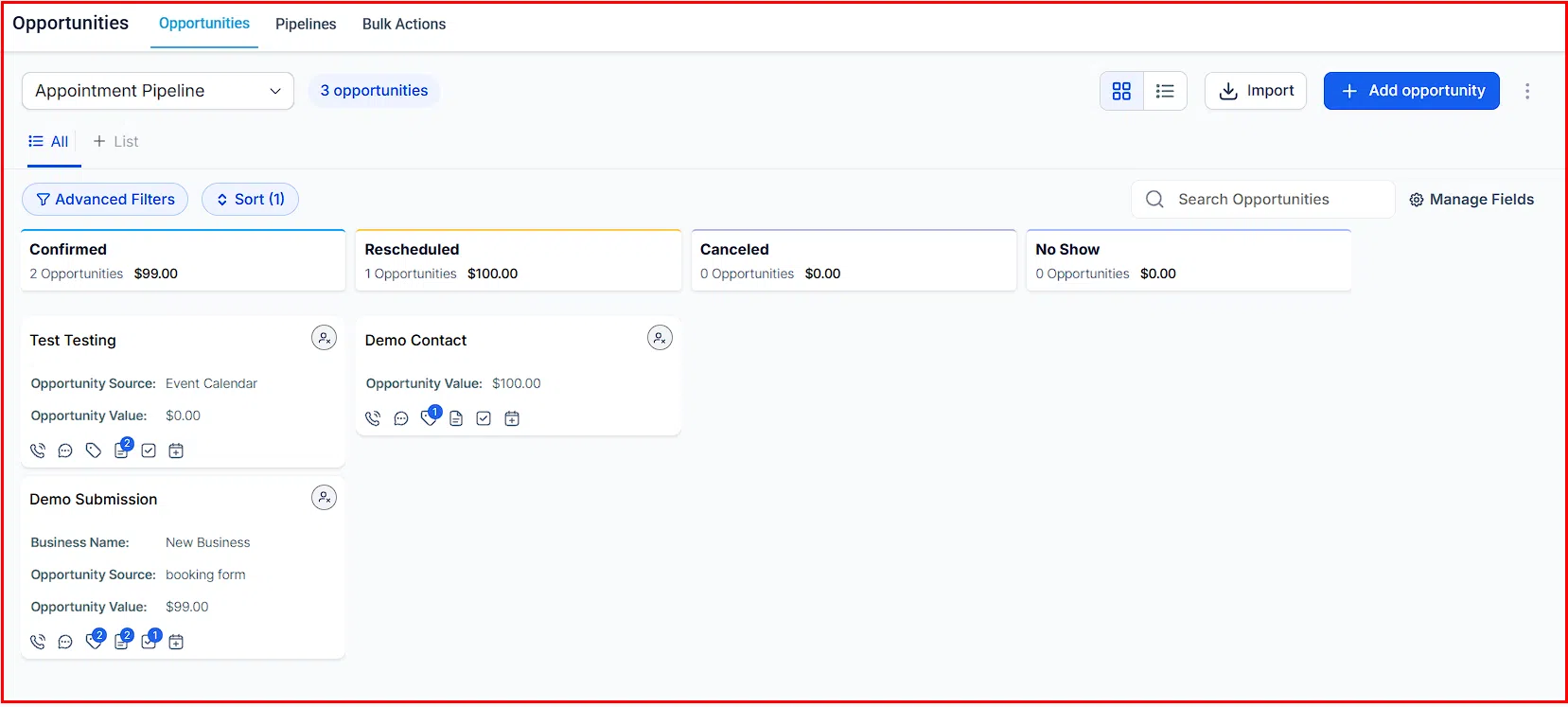
The Opportunities section – particularly the Pipelines tab – lets you track contacts as they move through your sales stages. You can see where every deal is at, manage your pipelines, and run bulk actions across multiple opportunities.
Payments
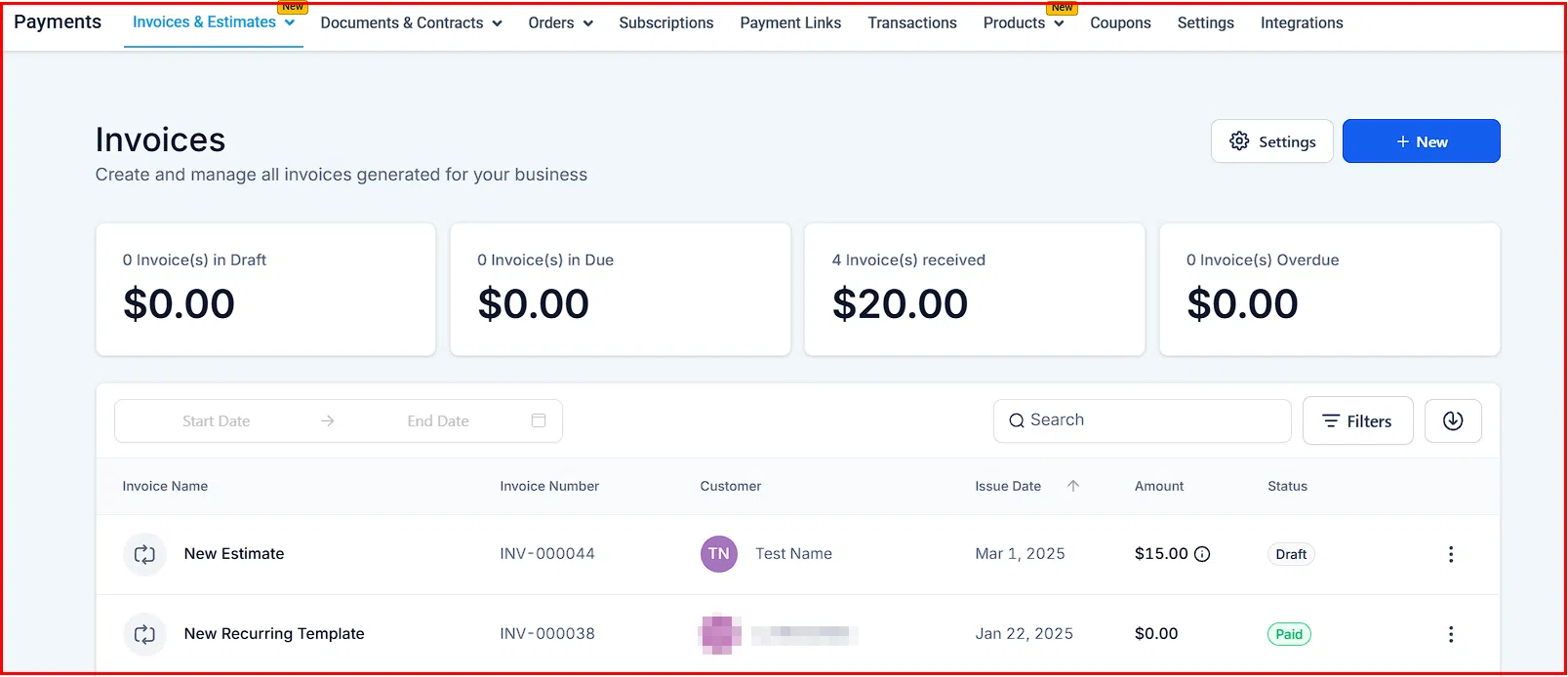
Manage your products, invoices, and payment integrations here. Growth360 connects with processors like Stripe and PayPal, and you can manage the full billing lifecycle from one place. The Payments area includes tabs for: Invoices, Documents and Contracts, Orders, Subscriptions, Payment Links, Transactions, Products, Coupons, Settings, and Integrations.
Marketing
Everything you need to run your marketing lives here:
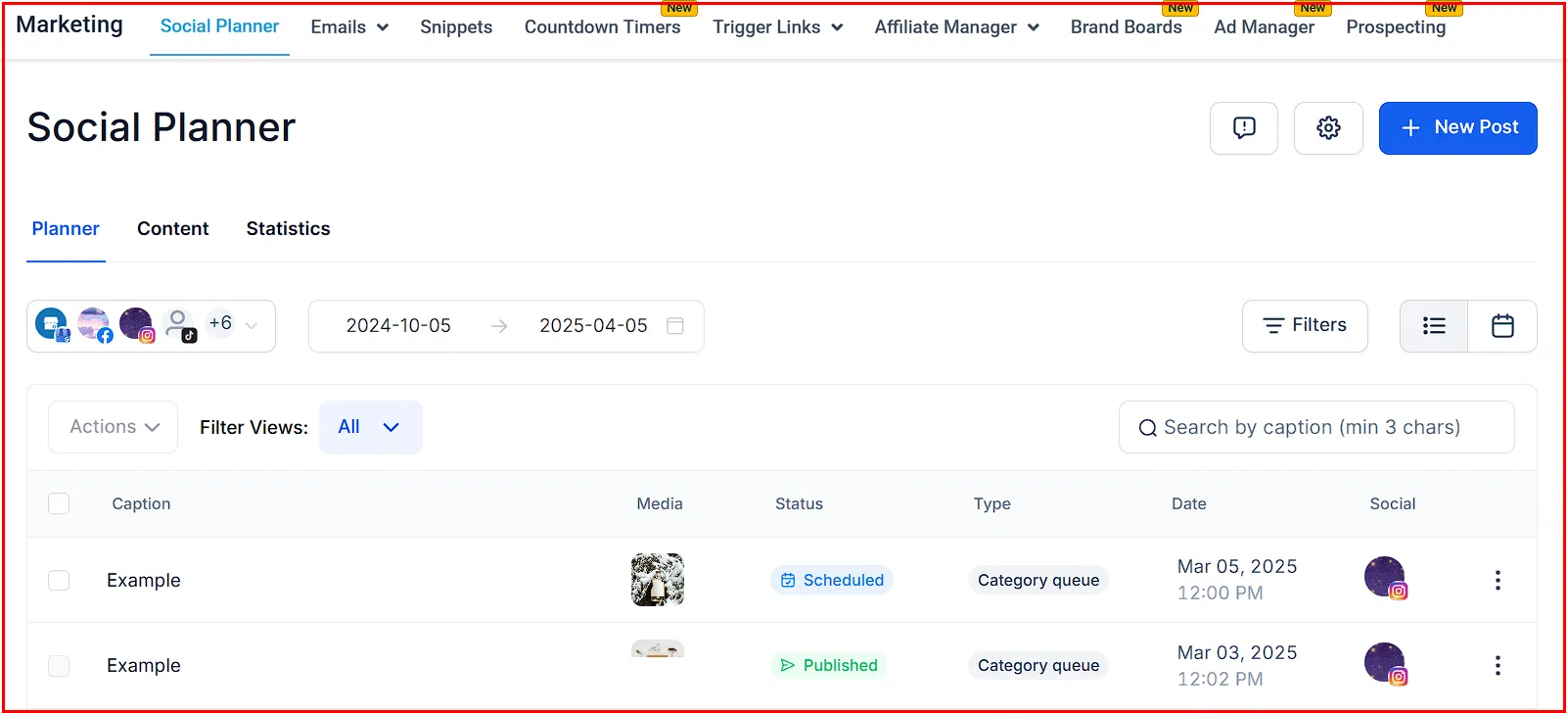
- Social Planner: Schedule social media posts across your connected accounts.
- Emails: Design and send email campaigns.
- Snippets: Pre-built blocks for email and SMS.
- Countdown Timers: Add live countdowns to your funnels and campaigns.
- Trigger Links: Automate actions based on link clicks within campaigns.
- Affiliate Manager: Track referrals, commissions, and payouts automatically.
- Brand Boards: Set up your brand colours, fonts, and other visual essentials.
- Ad Manager: Launch and manage ad campaigns from within Growth360.
- Prospecting: Identify and engage potential new leads.
Automation
Automation lets you build workflows that replace manual processes – think of it as setting up rules that run your follow-ups, notifications, and task triggers automatically. Navigate to Automation in the sidebar to access Workflows and Content AI.
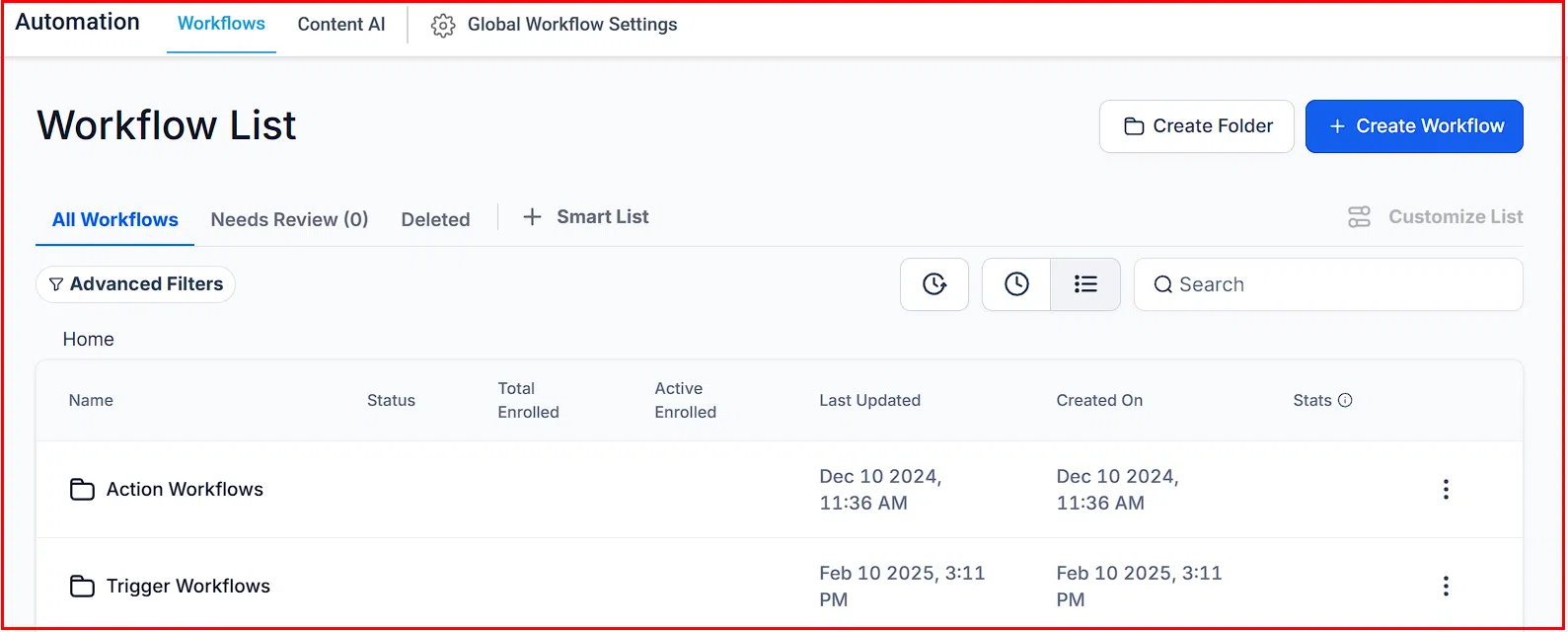
Note: If you’d prefer to use the traditional campaigns and triggers setup, you can re-enable it under Settings – Enable/Disable Deprecated Features.
Sites
The Sites section covers everything related to your online presence:
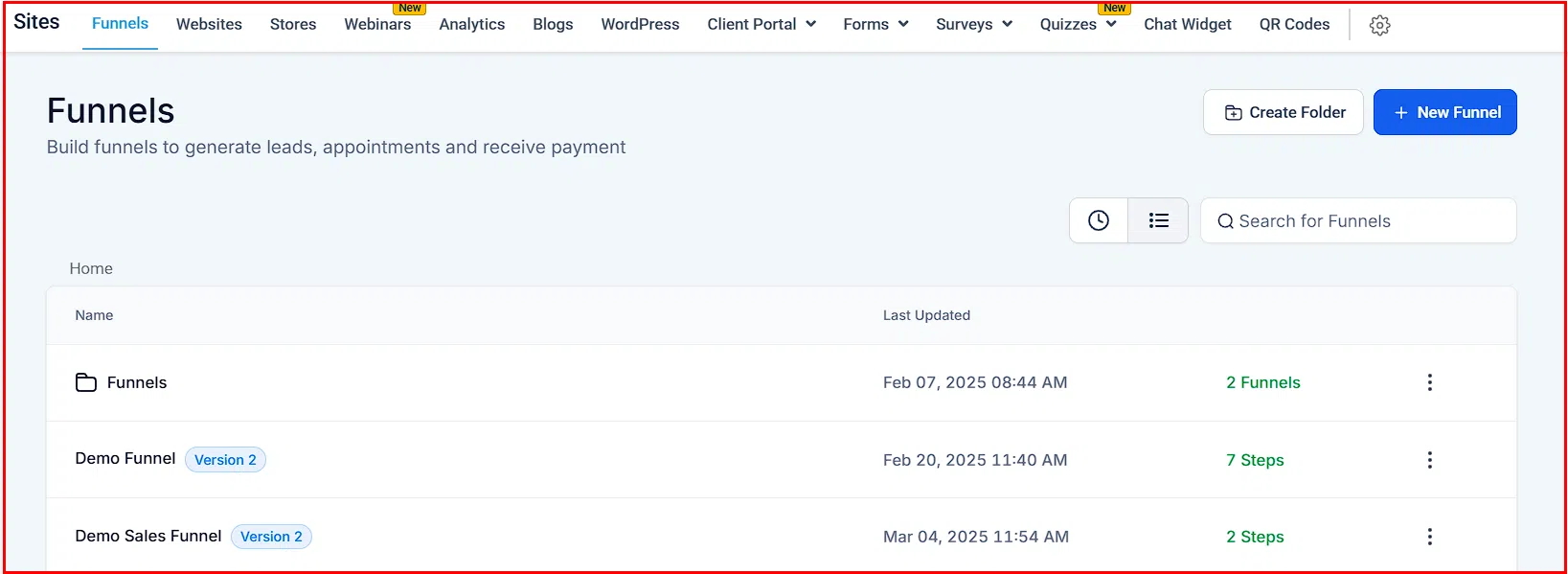
- Funnels and Websites: Build multi-page funnels and full websites.
- Stores: Set up and manage an online shop.
- Webinars: Host virtual events.
- Analytics: Track how your sites are performing.
- Blogs: Publish and organise blog content.
- WordPress: Integrate and manage your WordPress sites.
- Client Portal: Create a branded portal for your clients.
- Forms and Surveys: Collect visitor information and feedback.
- Quizzes: Add interactive quizzes to engage your audience.
- Chat Widget: Set up a live chat widget on your site.
- QR Codes: Generate QR codes that link to any destination.
Membership
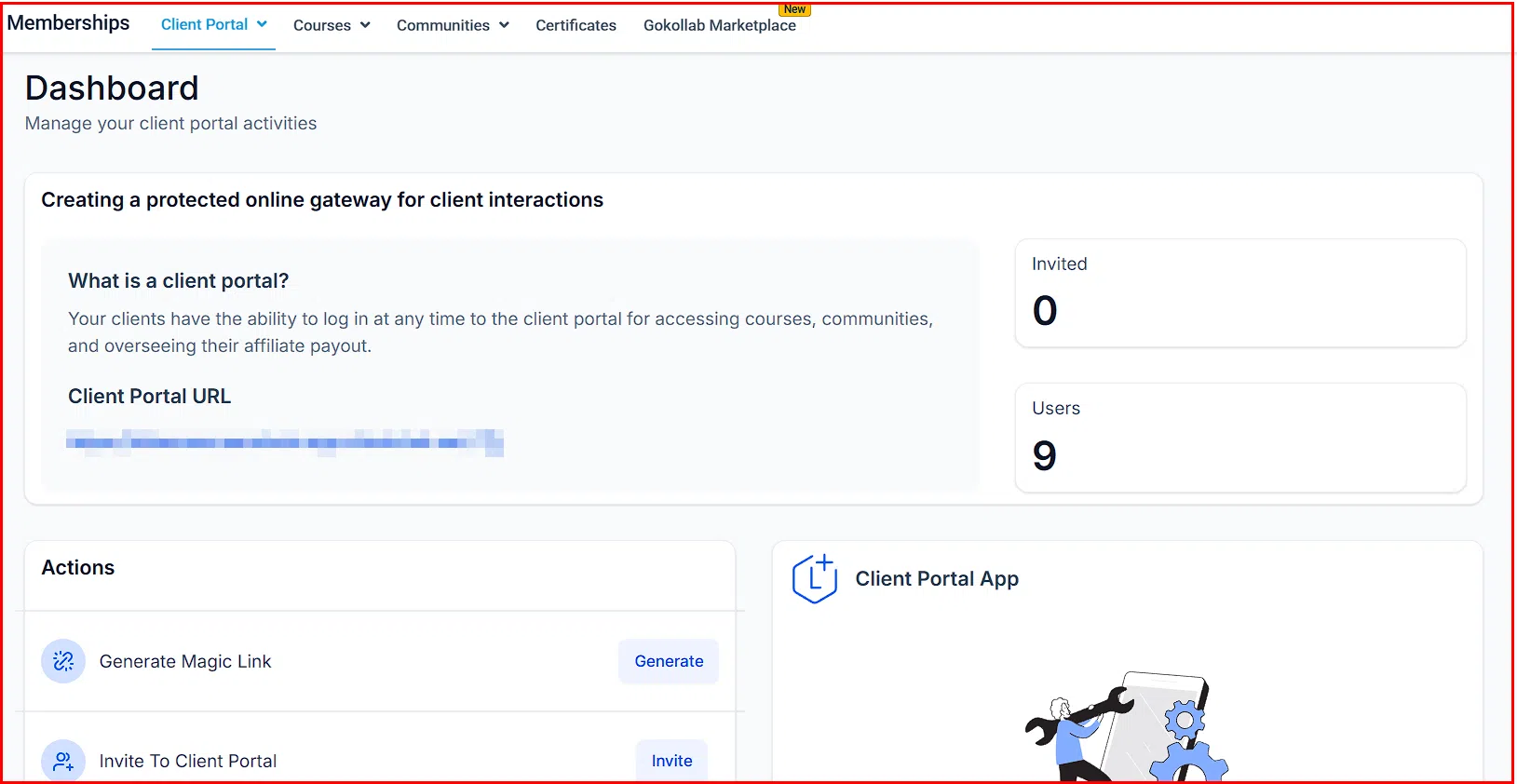
The Membership section is where you create and manage online courses and member content. It includes tools for the Client Portal, course building, content organisation, progress tracking, and certificate issuance.
Media Storage
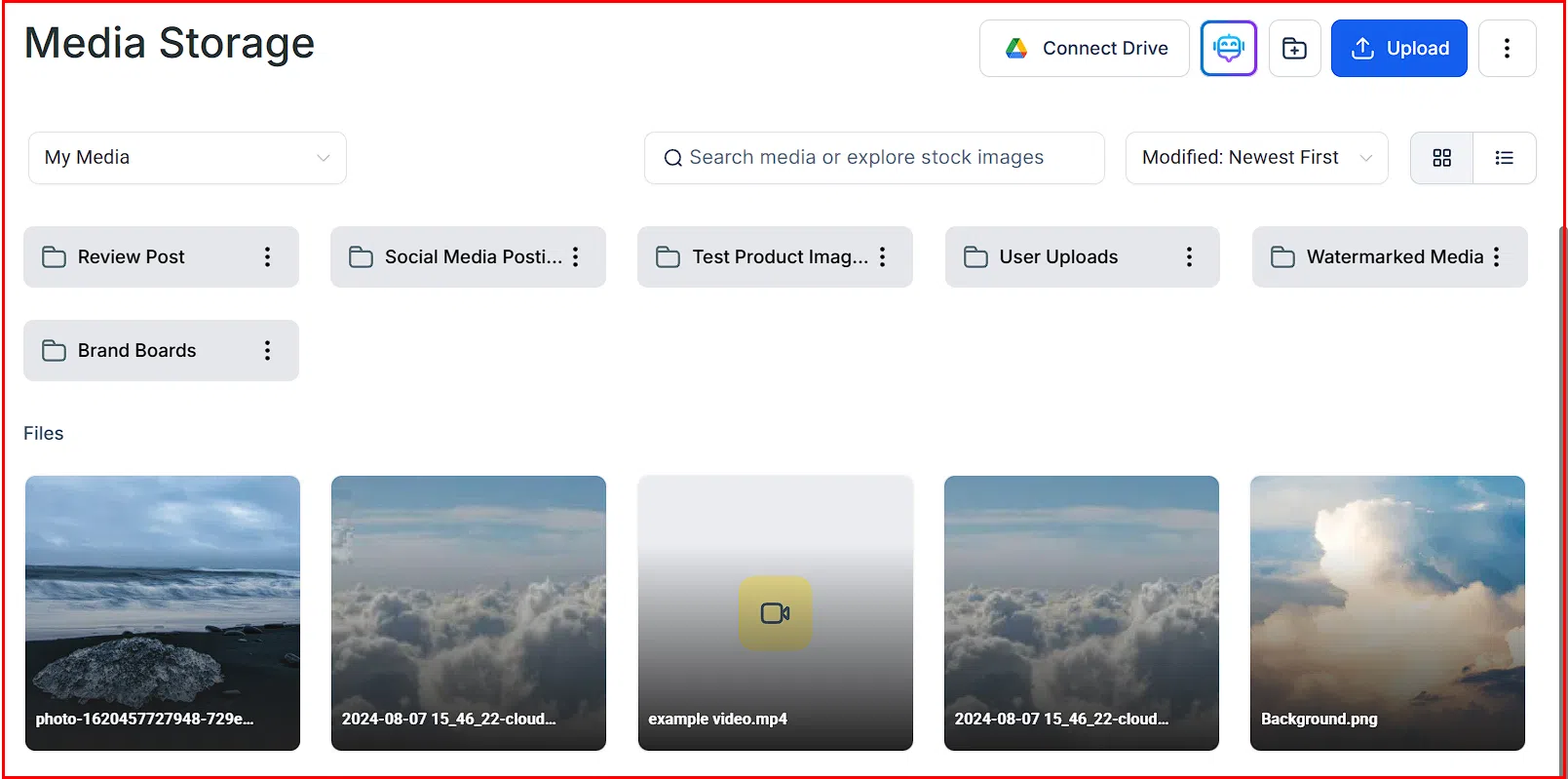
All your images and videos live here. Media Storage gives you a central place to organise and access digital assets so you can easily pull them into funnels, emails, and other areas of Growth360.
Reputation
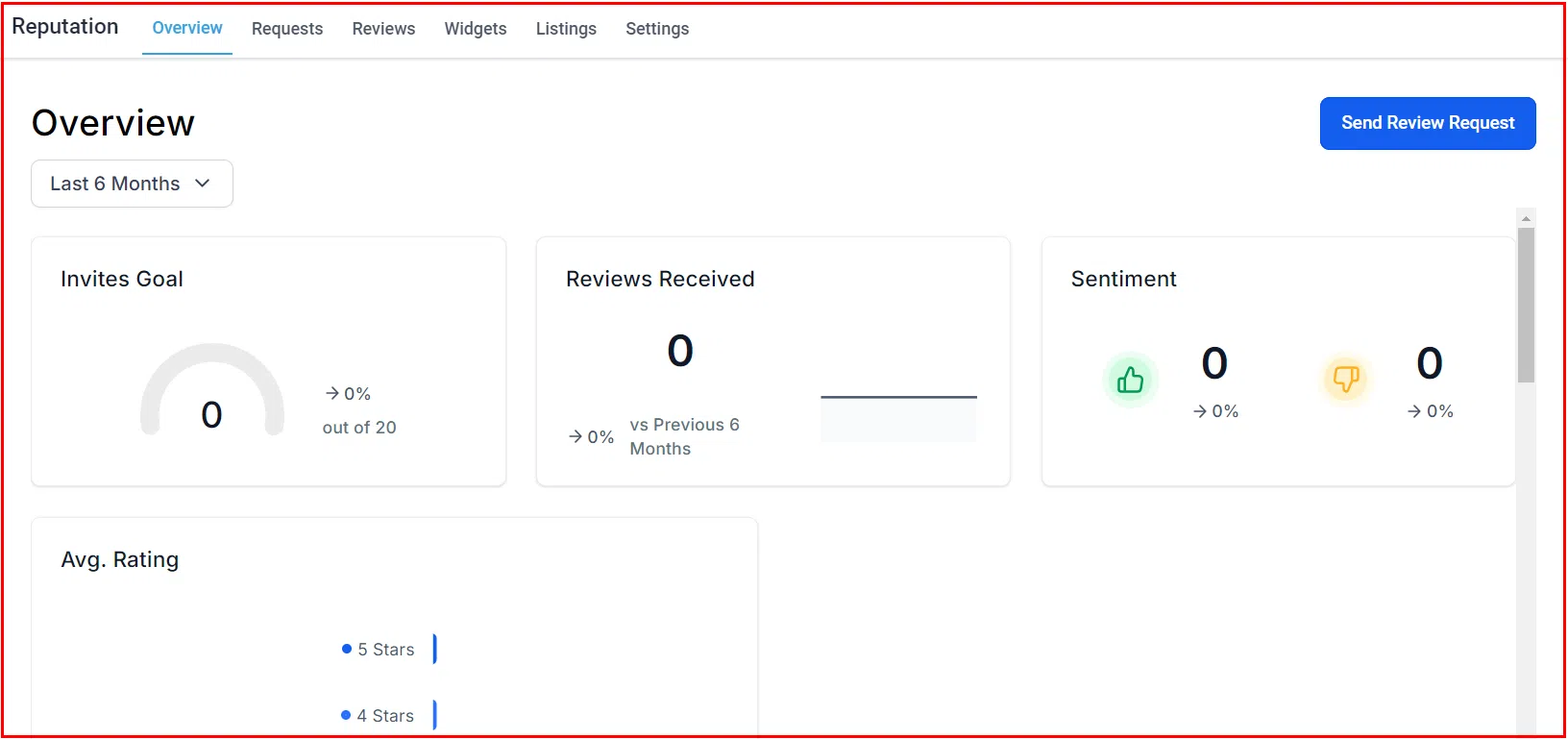
Your online reputation matters. This section gives you an overview of your reviews and review requests, with tools to send new requests, respond to reviews, and manage your business listings.
Reporting
The Reporting section gives you detailed analytics across your marketing and business activities:
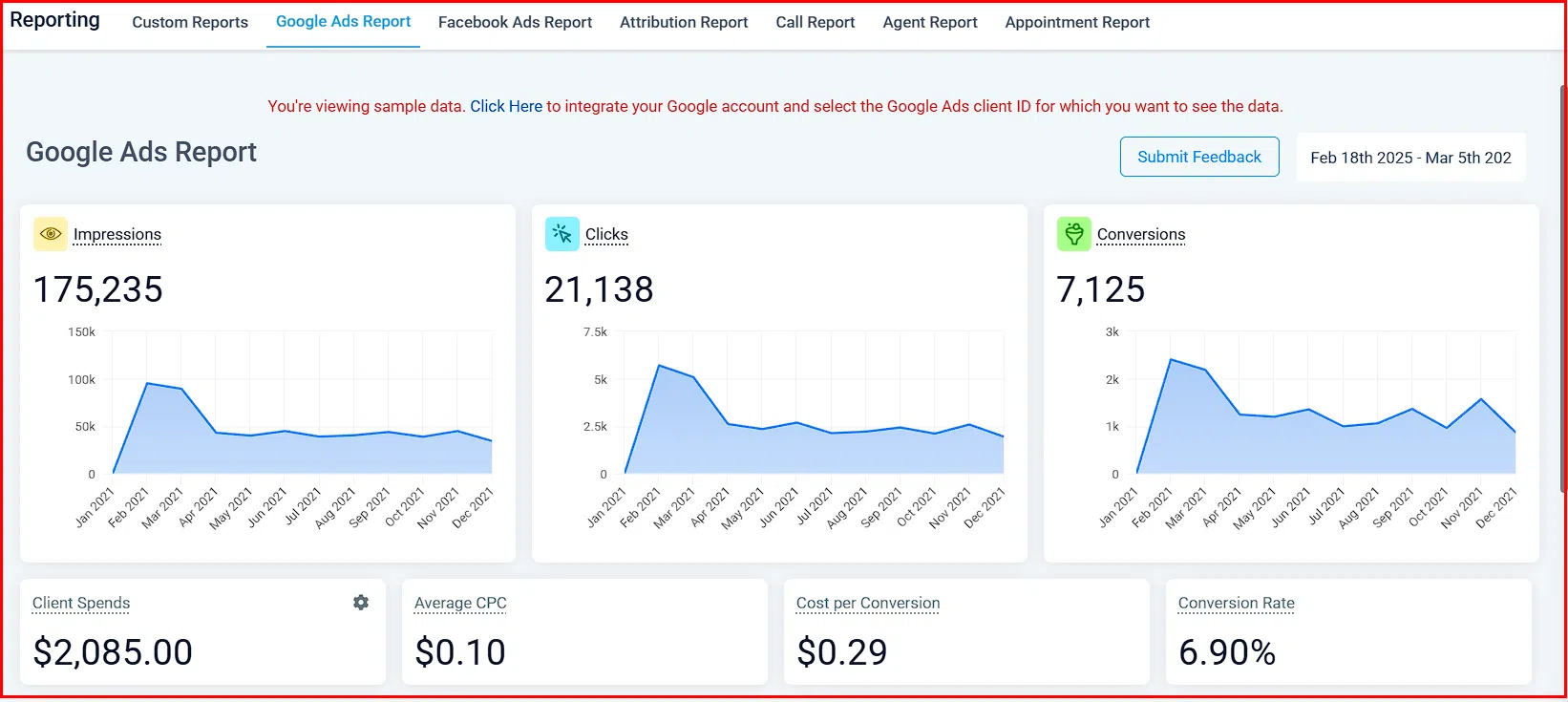
- Custom Reports: Build tailored reports around the KPIs that matter to you.
- Google Ads and Facebook Ads: Monitor ad campaign performance.
- Attribution Report: See where your leads are converting from.
- Call and Appointment Reports: Review call and booking metrics.
- Agent Report: Track individual user performance.
Settings
Settings is at the bottom of the left sidebar. This is where you configure Growth360 to match how your business operates – enabling features, connecting integrations, and customising the platform to suit your needs.
Once you’re familiar with how Growth360 is laid out, navigating it becomes second nature. Each section is designed to connect with the others, so the more you explore, the more you’ll see how the pieces work together to streamline your operations.
Go Deeper – Feature Overviews
Ready to explore specific features? Each of the guides below walks you through one section of Growth360 in detail:
- Conversations: Manage all your client messages in one inbox across SMS, email, Facebook, Instagram, and more.
- Calendars: Set up bookable calendars, manage appointments, and let clients self-schedule.
- Funnels: Build landing pages and sales funnels to capture and convert leads.
- Social Planner: Schedule and publish social media posts across all your connected accounts.
- Reputation Management: Request and manage Google and Facebook reviews from one place.
- Workflows (Automations): Build automated sequences that follow up, nurture, and move leads through your pipeline.