Tasks are crucial for maintaining organisation within your business, ensuring all responsibilities are consolidated in one central location.
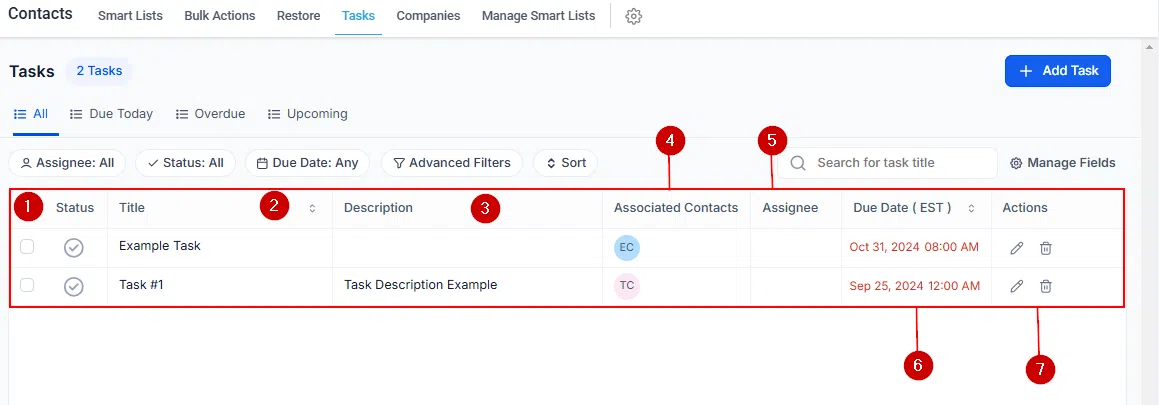
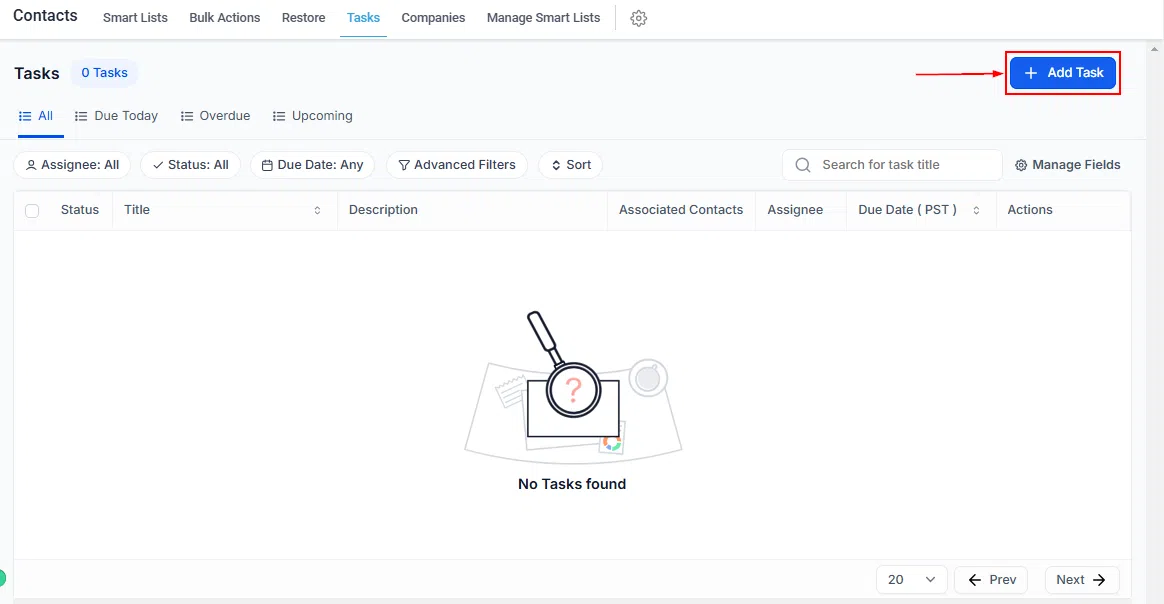
The Tasks section within the Contacts tab offers a comprehensive overview of tasks assigned to team members and linked to specific contacts, enabling you to efficiently manage responsibilities and enhance productivity.
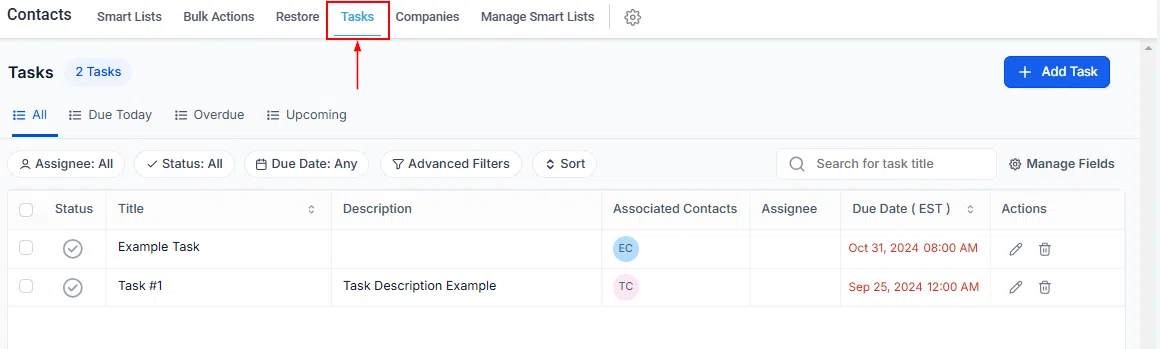
If you see the message No Tasks Found, your task list is currently empty. Tasks will appear here as you create them.
Task Categories
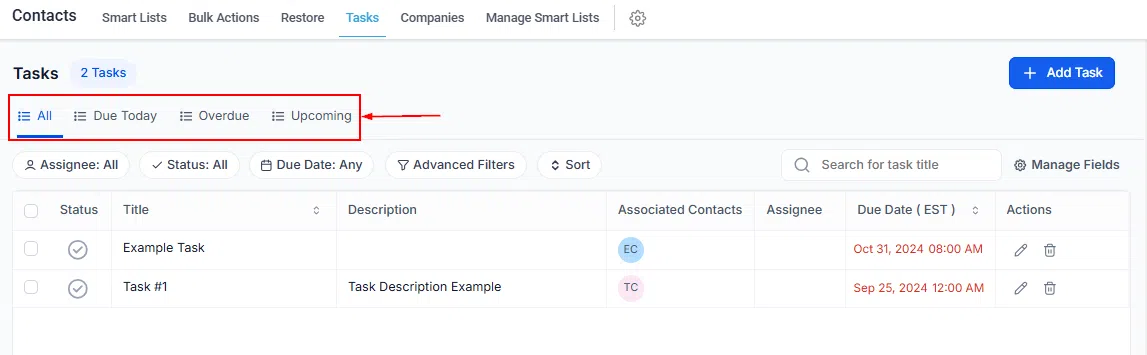
Use the category tabs to filter your task view:
- All: Displays all tasks created within your system.
- Due Today: Shows tasks due to be completed by the end of the current day.
- Overdue: Lists tasks that have passed their due date without being completed.
- Upcoming: Highlights tasks with future due dates to help you prepare in advance.
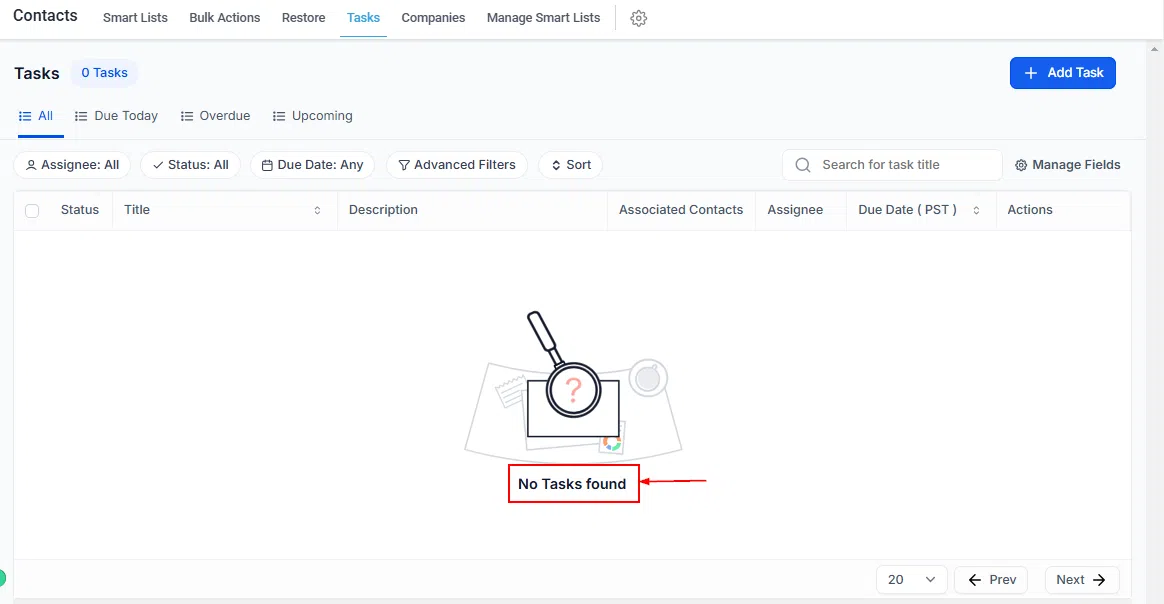
Filters
Filters let you quickly locate tasks based on specific criteria, helping you focus on priorities.
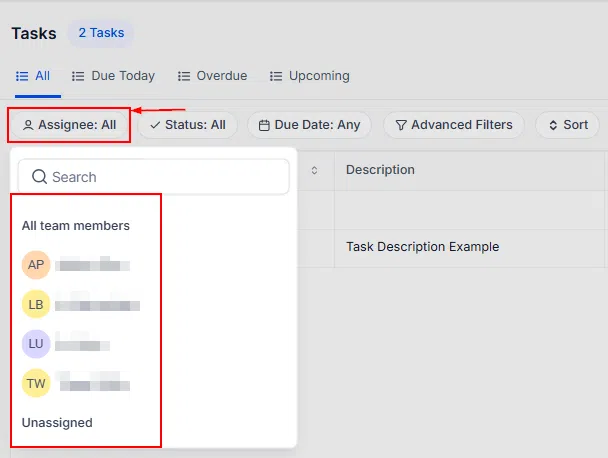
By Assignees
Display tasks assigned to specific team members or those that remain unassigned.
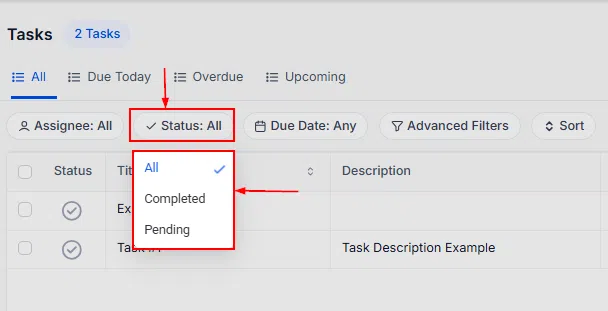
By Status
View tasks by their current status – such as pending or completed – to help prioritise your work.
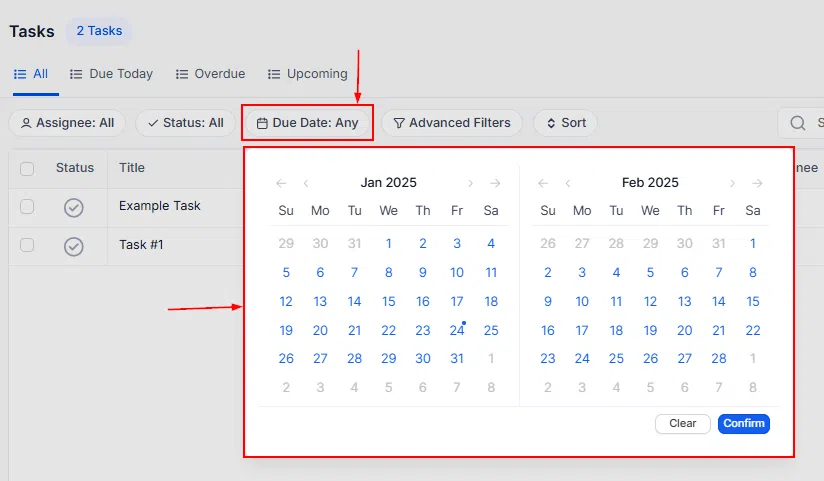
By Due Dates
Sort tasks by creation date or due date to manage deadlines more effectively.
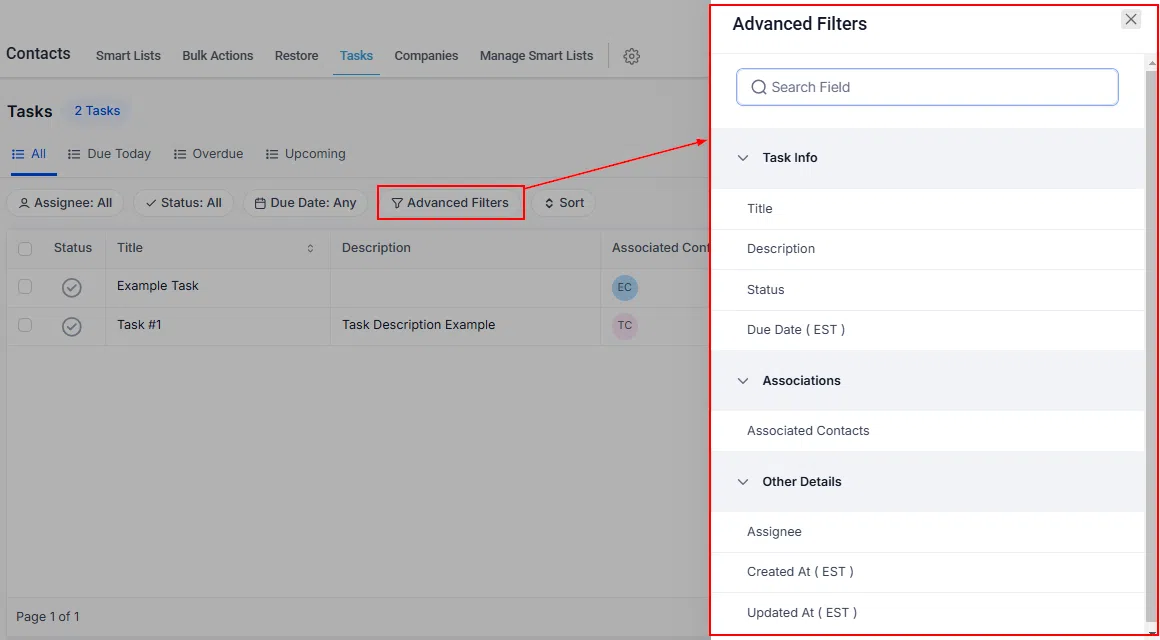
Advanced Filters
Advanced filters provide additional customisation for sorting tasks based on unique criteria, allowing for a more tailored view of your task list.
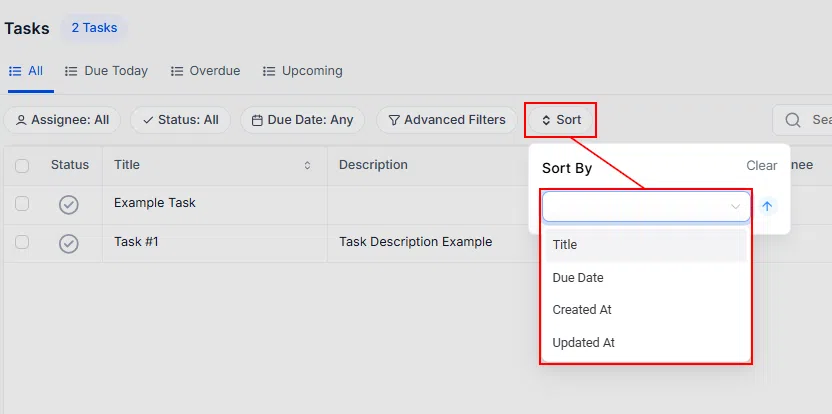
Sort
Sort your task list by Title, Due Date, Created At, or Updated At.
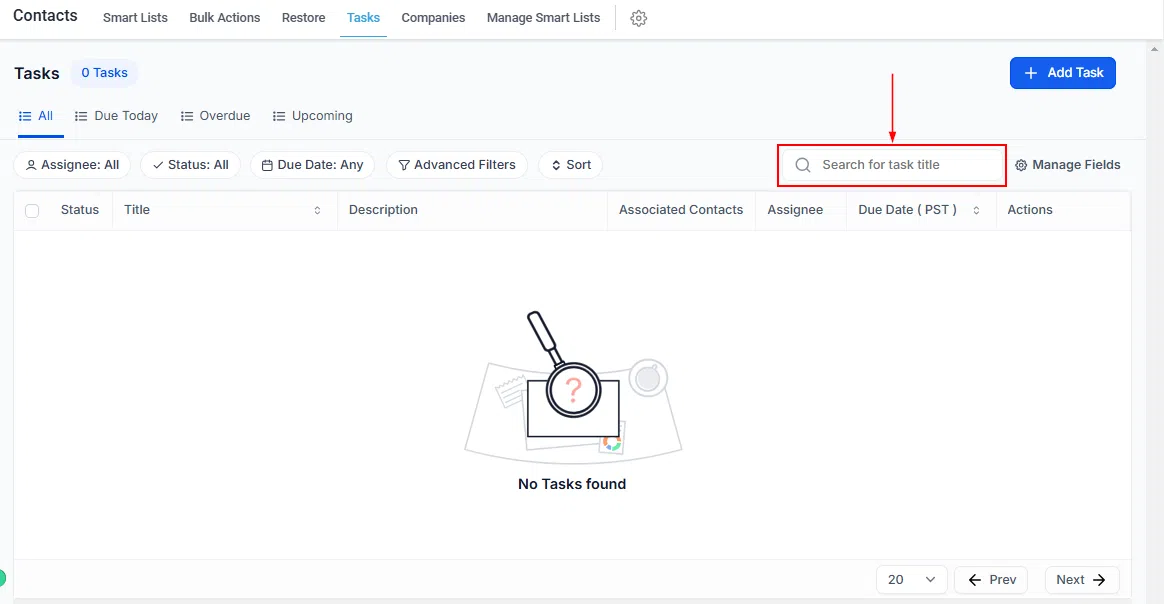
Search Bar
Use the search bar to quickly find specific tasks within your list.
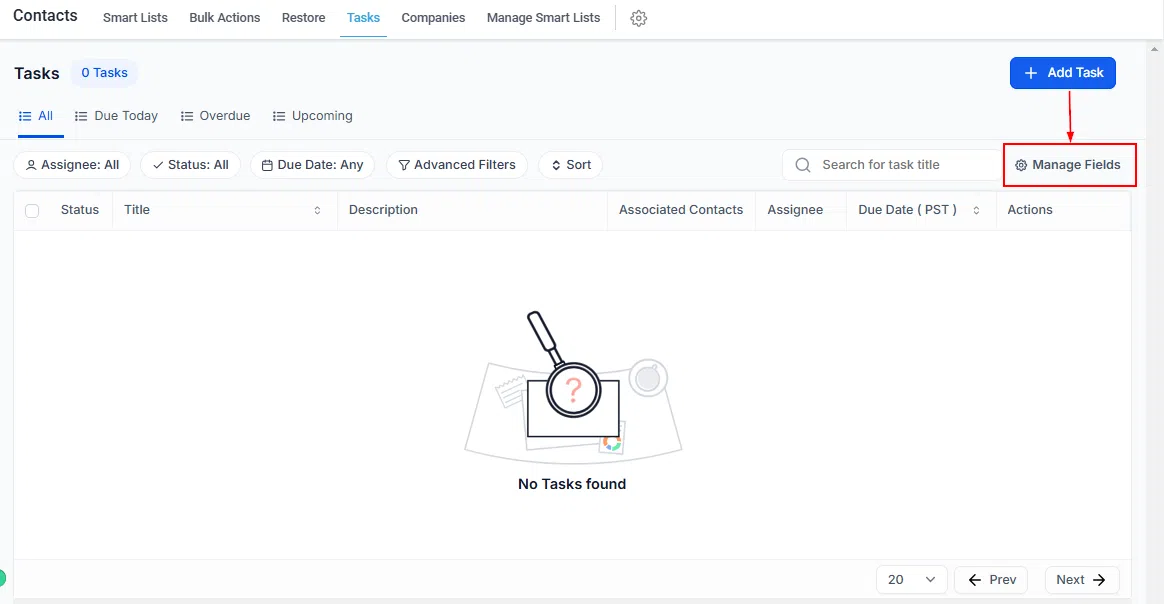
Manage Fields
Customise the fields displayed in your task table – add, remove, or rearrange fields to see the most relevant information at a glance.
Bulk Actions
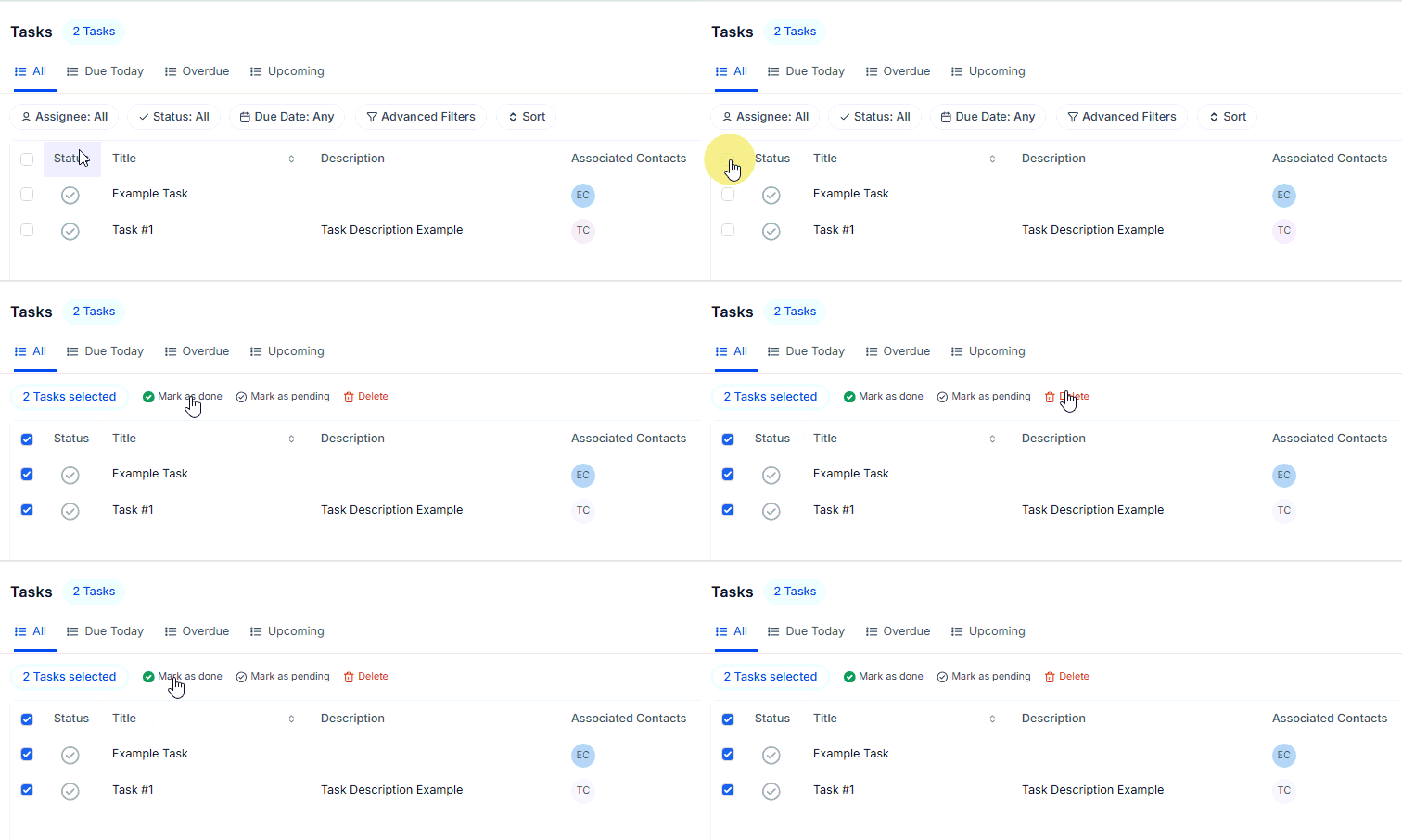
Use the master checkbox at the top-left of the task table to select all tasks at once, enabling efficient bulk task management.
Task Table Columns
- Description: An overview of the task’s details or requirements.
- Associated Contacts: The contact linked to the task, providing context for client-related responsibilities.
- Assignee: The team member assigned to the task.
- Due Date: The task’s deadline. Recurring tasks display a cycle icon beside the date – hover over it to view the recurrence frequency.
- Actions: Modify task details (title, description, due date, assignee) or permanently delete the task.