The Calendars section in Growth360 gives you a clean, at-a-glance view of your schedule. You can switch between your own calendar and your team’s calendars without leaving the page, and if you have Google or Outlook connected, any changes made in those apps sync through automatically.
Note: Access to some calendar features may depend on your user permissions.
In-App Calendar View
Use the My Calendar drop-down (blue button, top of the page) to choose which calendar to display. You can view your primary calendar, a specific team member’s calendar, a group calendar, or any other calendar set up in your Growth360 account. Click your selection and the calendar updates on the same page.

Change Date Range
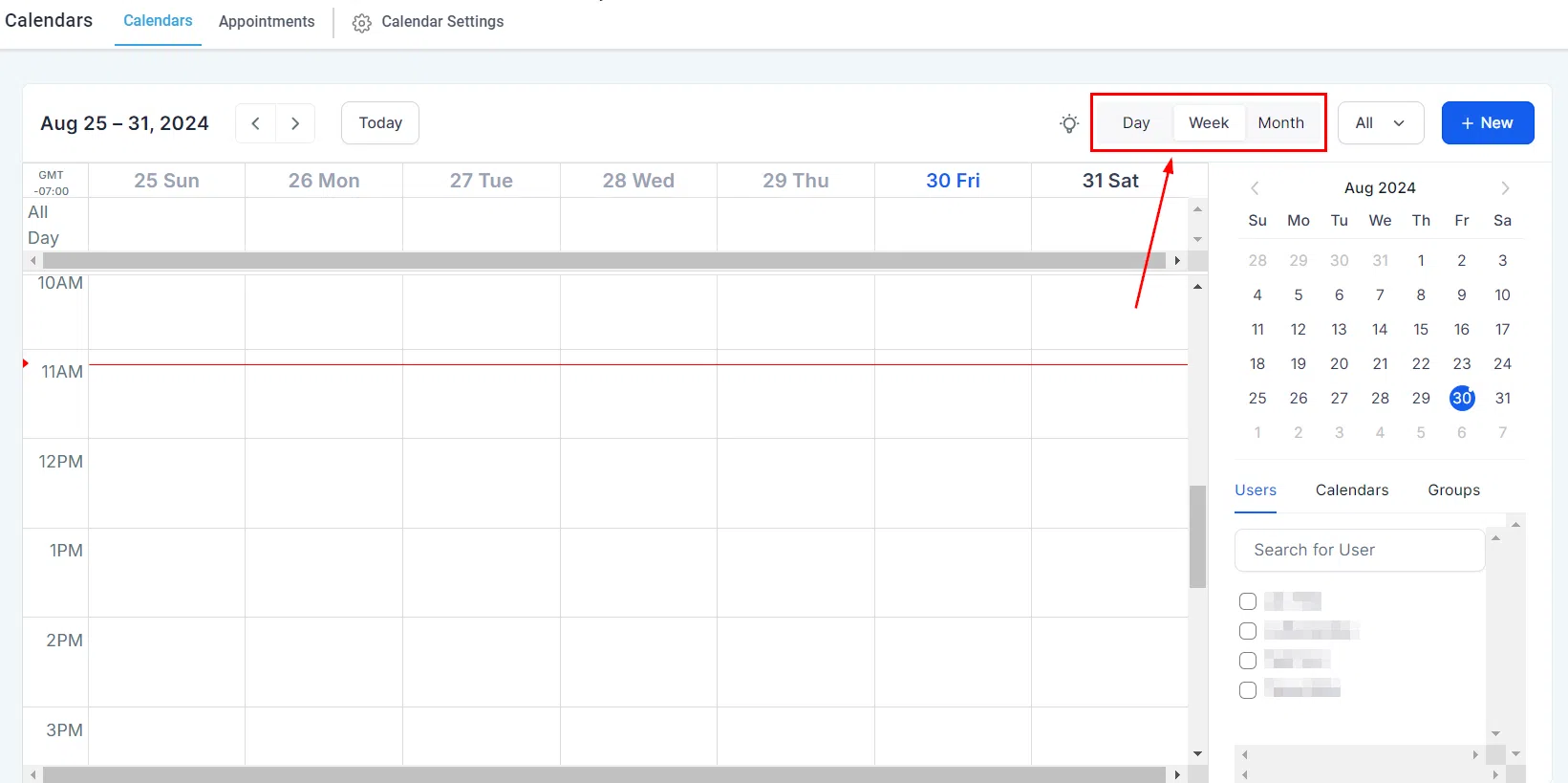
Switch between day, week, and month views using the blue Weekly button. The calendar defaults to the week view – just click and select the range that suits what you need to see.
Availability
Filter the calendar to show all events, appointments only, or blocked slots. Click the blue All button and choose your preferred view. This is handy when you only want to see confirmed bookings rather than every calendar entry.

Quick Action – Today
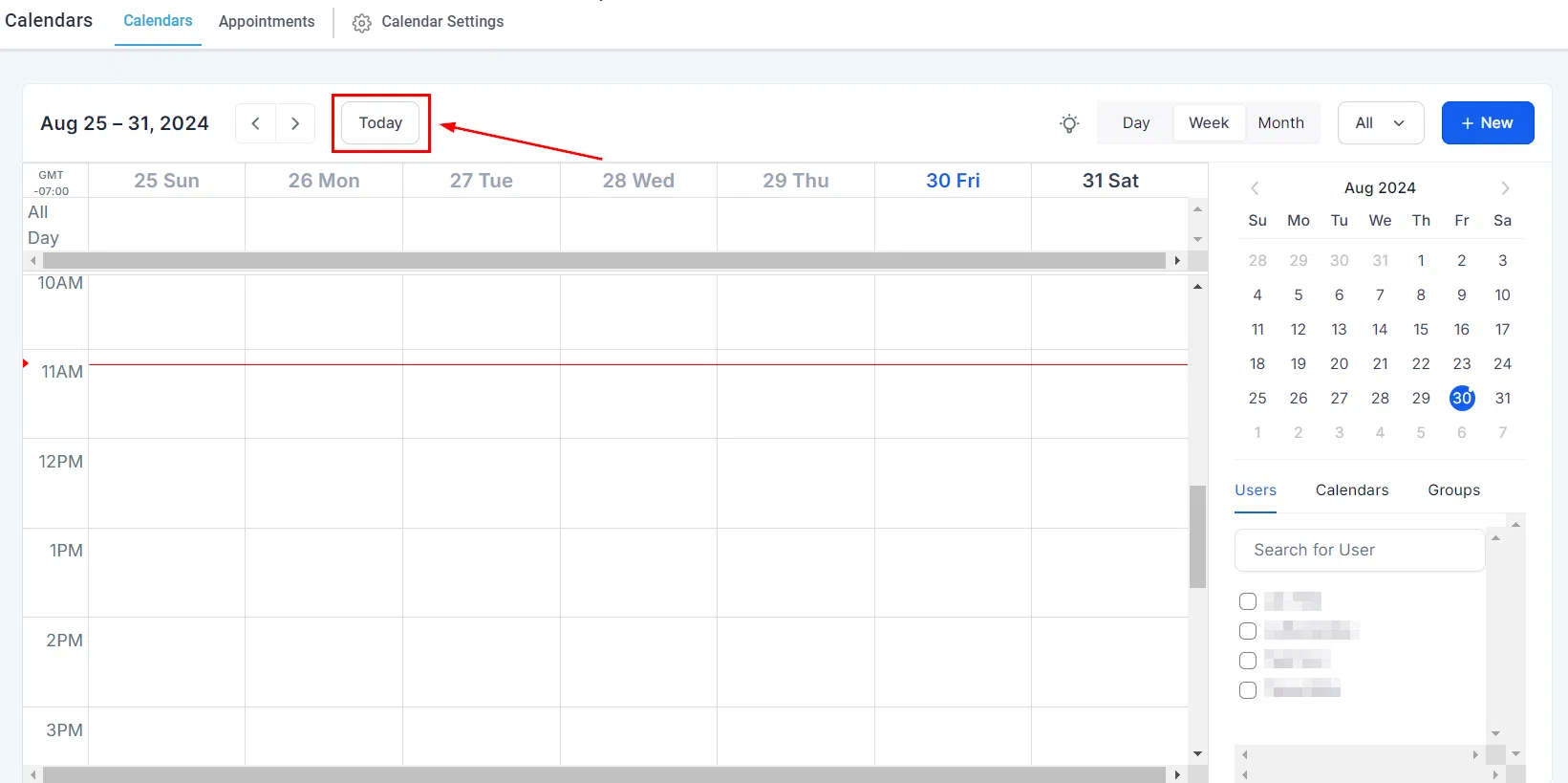
Click the Today button (top left) to jump straight back to today’s view. The current day is highlighted so you can immediately see what’s on your schedule right now.
Cycle Date Range
Use the left and right arrows (next to the Today button) to move forwards or backwards through days, weeks, or months – depending on your current view. A quick way to check upcoming appointments or review past ones.

Calendar Annotation
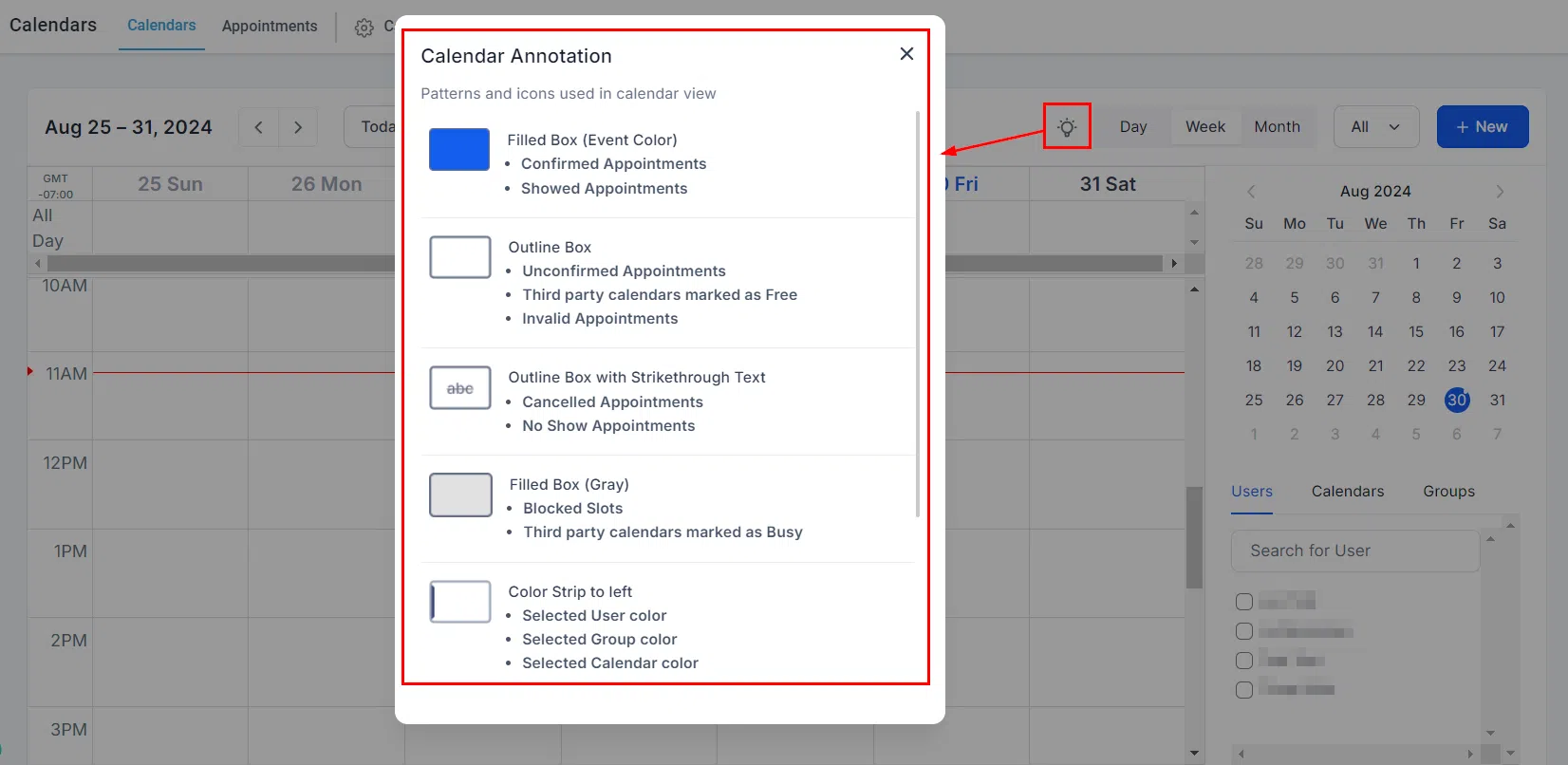
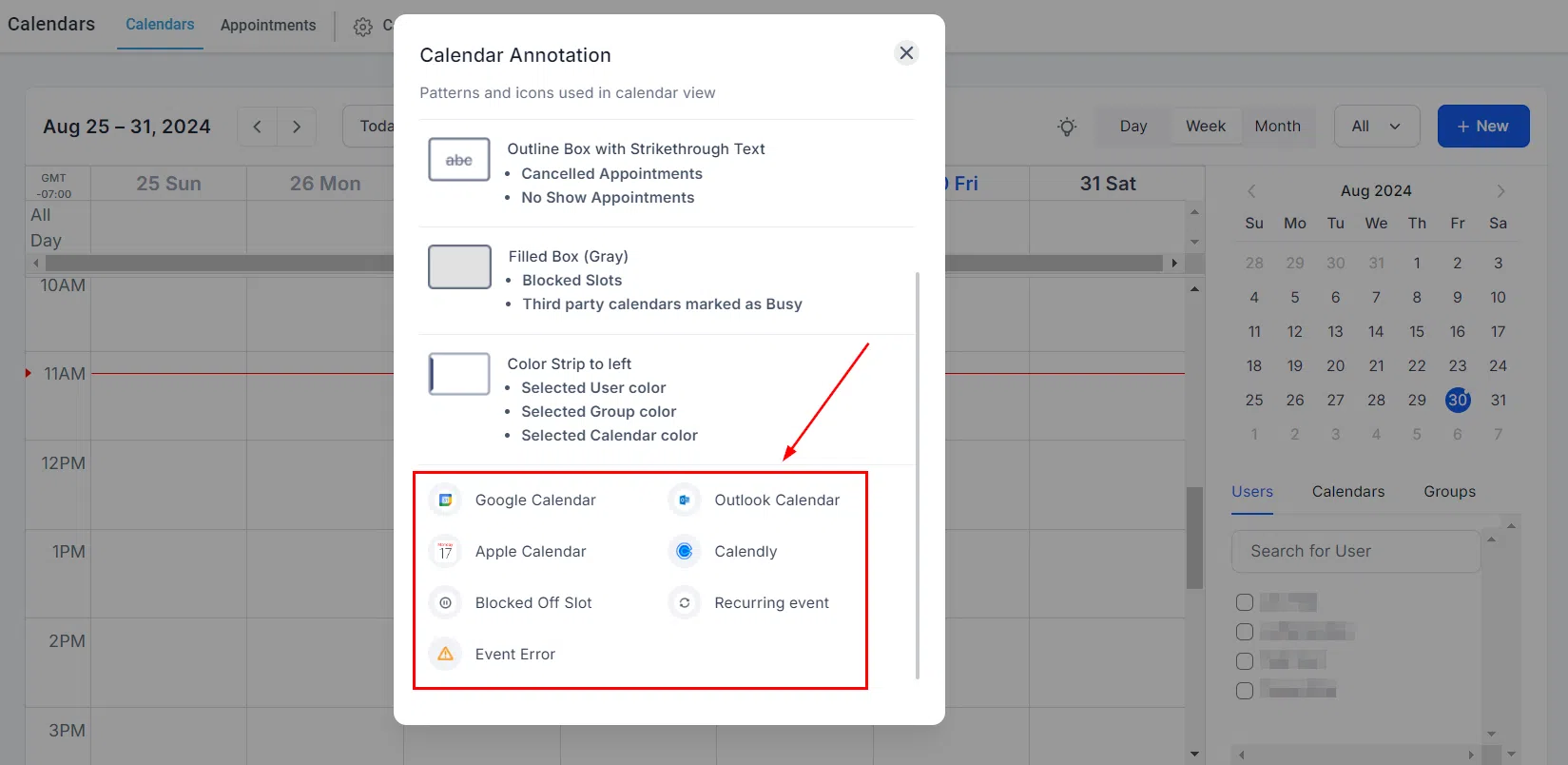
The calendar uses a set of patterns and icons to give you an instant read on each event – no need to click into every appointment to find out what’s what.
Filtering Options
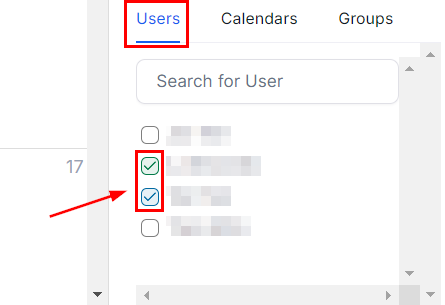
By User
Filter the calendar to show only a specific team member’s appointments. Useful for checking availability or reviewing someone’s schedule.
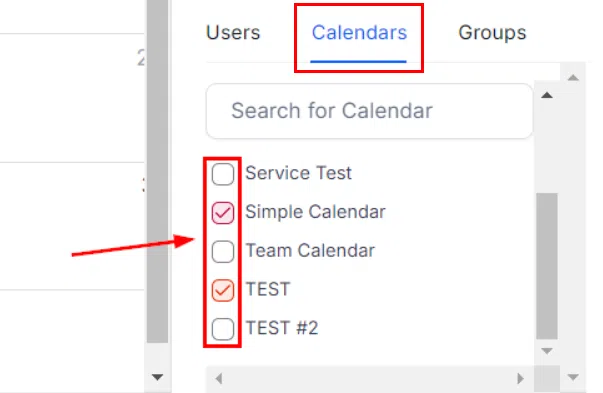
By Calendars
Narrow the view to a specific calendar for a chosen time period – helpful when you manage multiple calendars and only need to focus on one.
By Groups
Tick the box next to a group calendar to include its events in the view.

Colour Coding and Icons
Growth360 Calendars use colour and icons to make your schedule easier to read at speed:
- Users: Each team member’s appointments appear in their own colour for quick identification.
- Groups and Calendars: Events display in the colours set in your calendar settings.
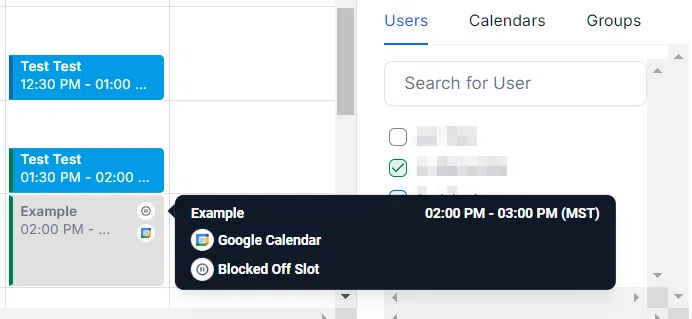
- Icons: Intuitive icons let you recognise event types instantly without opening each one.
- Persistent selection: Your chosen calendar and user filters are remembered, so your preferred view is ready each time you return.
Additional Info on Hover
Hover over any appointment to see a quick summary – event type, title, and start and end times – without having to click into it.