The Tasks section in Growth360 lets you create, assign, and track tasks linked to your contacts, keeping your team organised and on top of client commitments.
The Tasks Tab
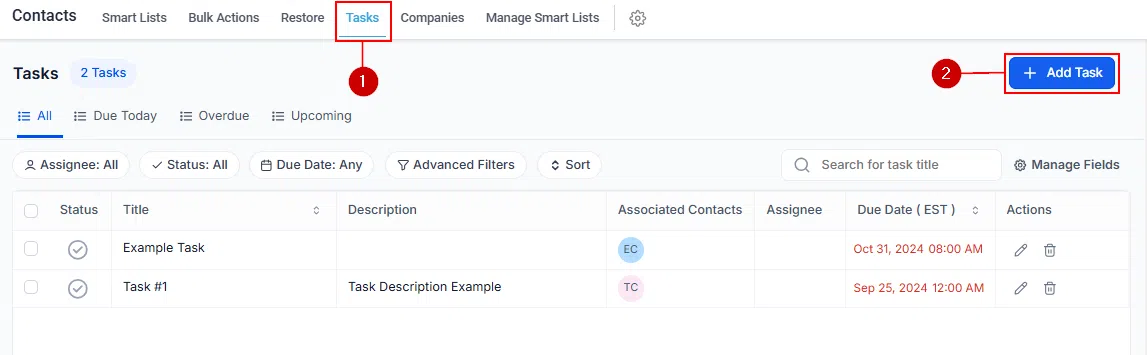
Access Tasks from the Contacts tab in Growth360. This section gives you a central view of all tasks assigned to your team members and linked to specific contacts, so nothing falls through the cracks.

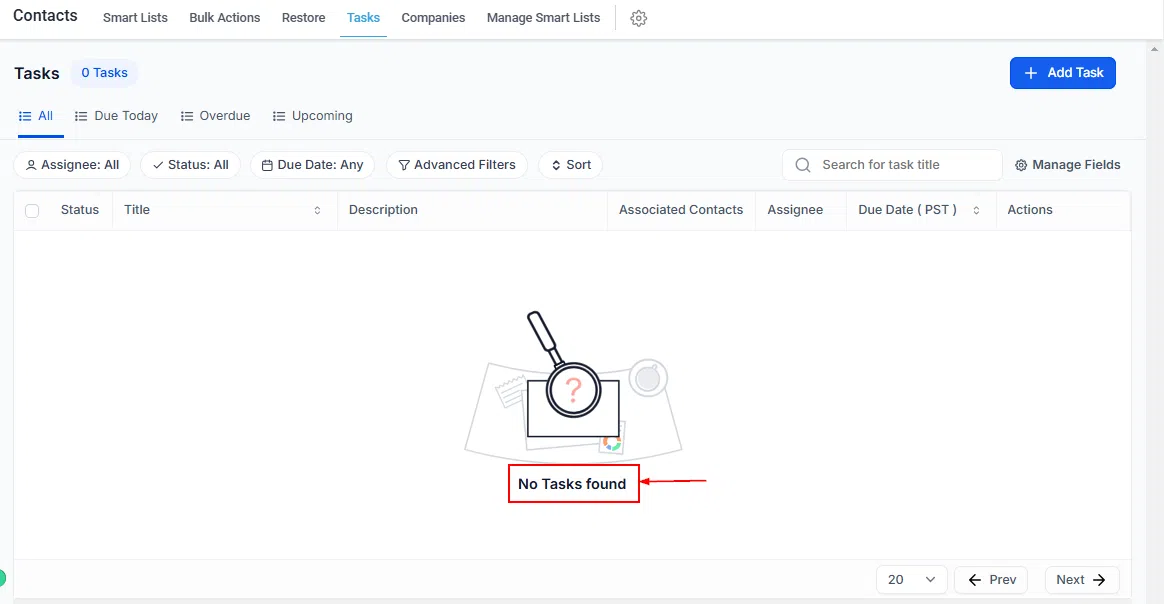
If no tasks have been created yet, you will see a “No Tasks Found” message. As tasks are added, they appear here in an organised list.
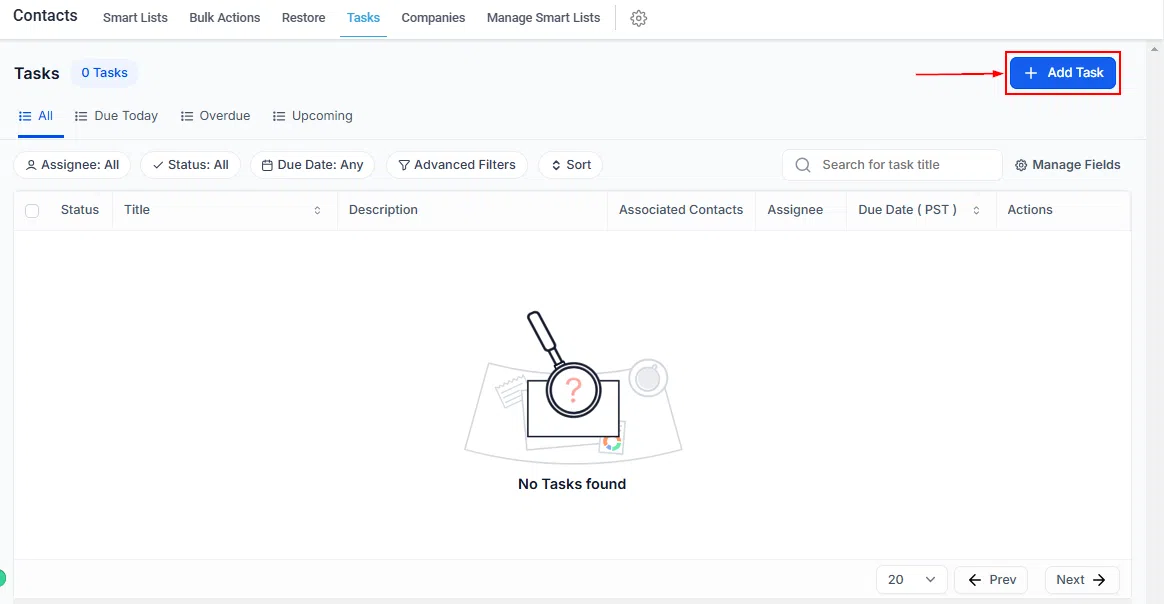
Click the Add New Task button to create a task directly from this section.
Filtering and Sorting Your Tasks
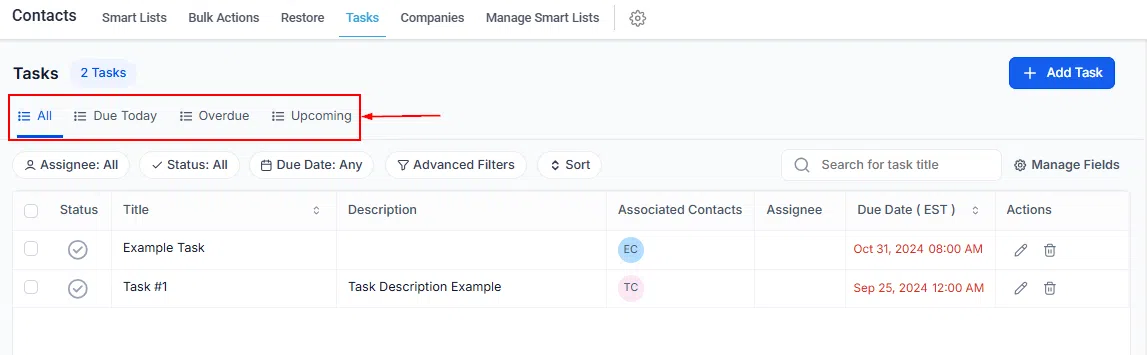
Use the filter tabs at the top of your task list to control which tasks are shown:
- All: displays every task in your account
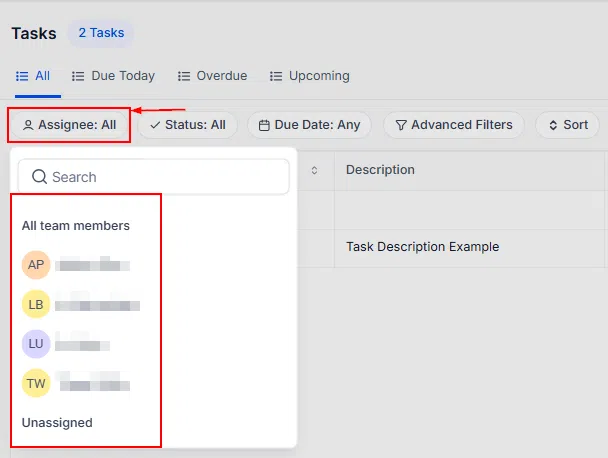
- Assigned: shows tasks linked to a specific team member
- Unassigned: shows tasks not yet allocated to anyone
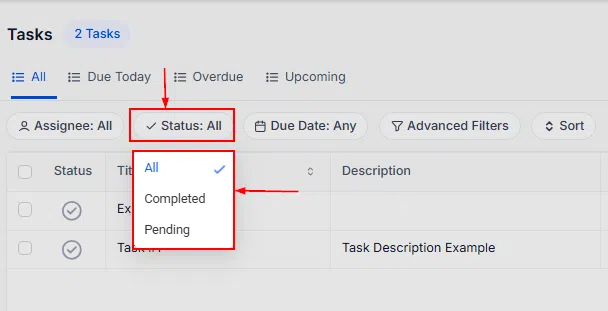
Filter by task status – such as pending or completed – to help prioritise what needs attention.
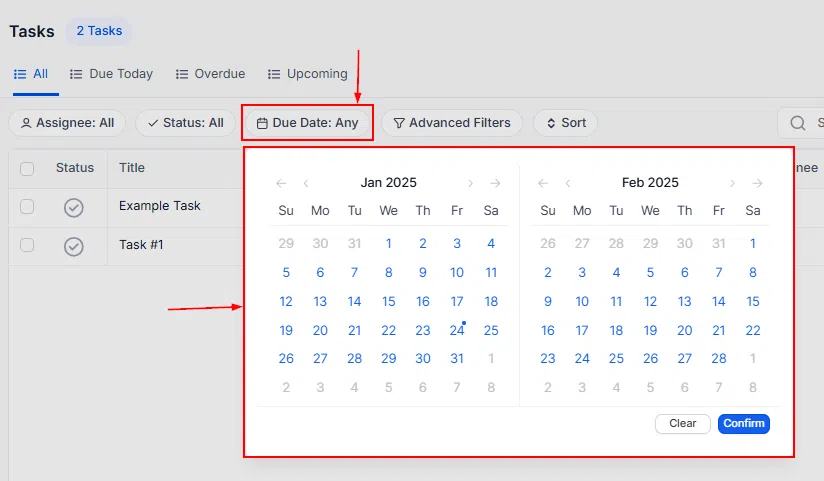
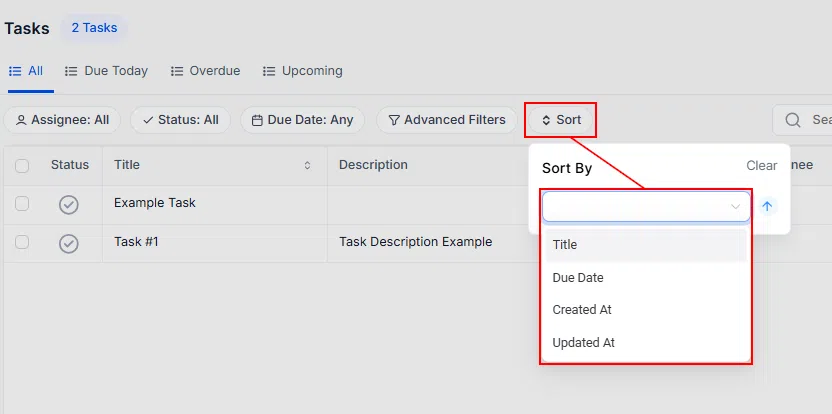
Sort tasks by creation date or due date to manage deadlines more effectively.
Advanced Filters
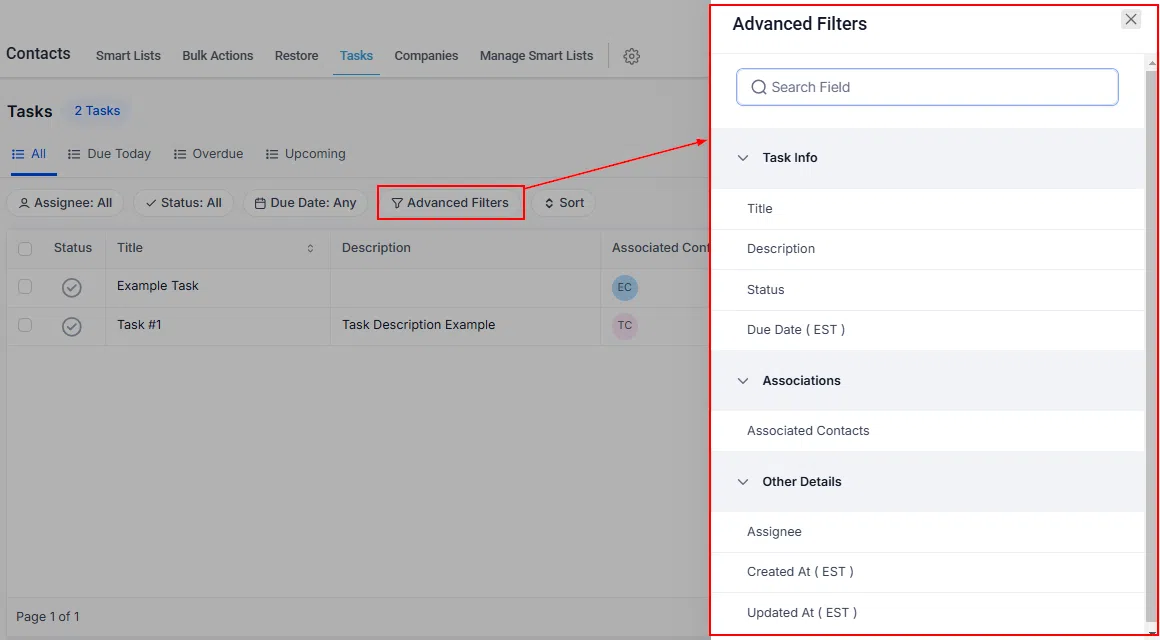
Advanced filters give you additional control over how tasks are sorted. Options include:
- Title: sort tasks alphabetically
- By Due Date: arrange tasks by their deadline
- Created At: sort by when each task was created
- Updated At: order by the most recent update to each task
Search and Column Customisation
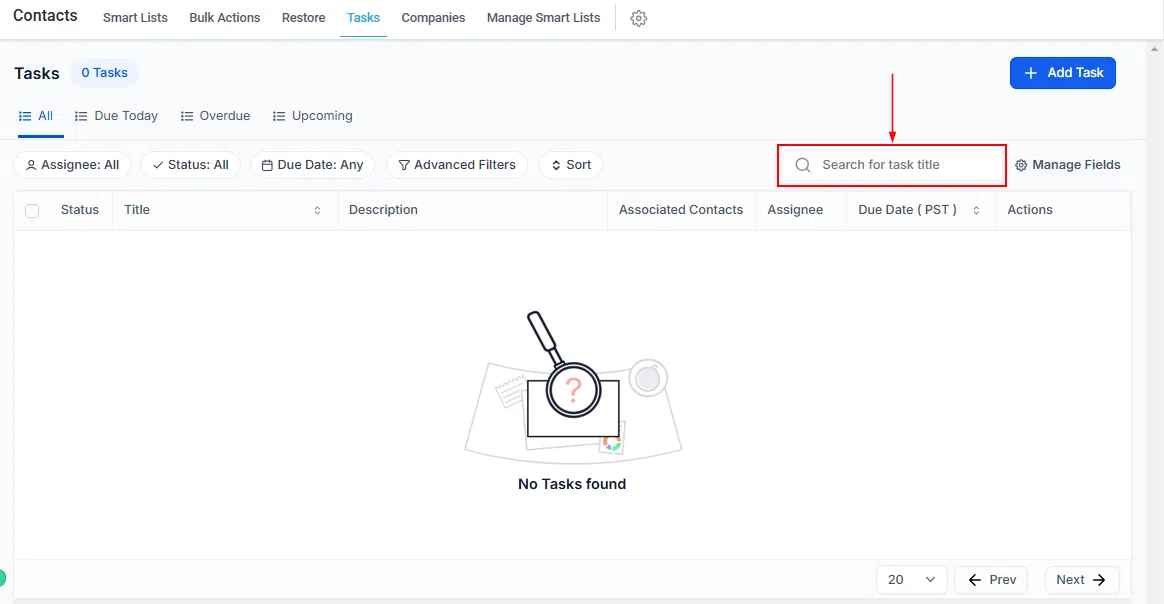
Use the search bar to quickly locate a specific task within your list.
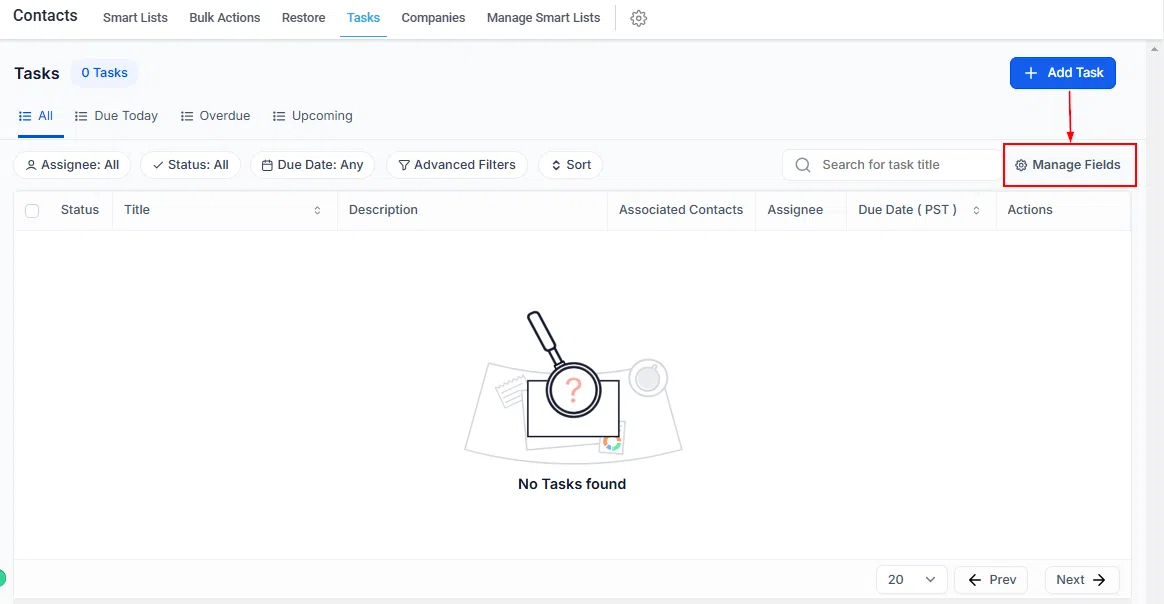
Customise which fields appear in your task table to match your workflow. Show or hide columns based on what information is most relevant to your team.
Bulk Actions
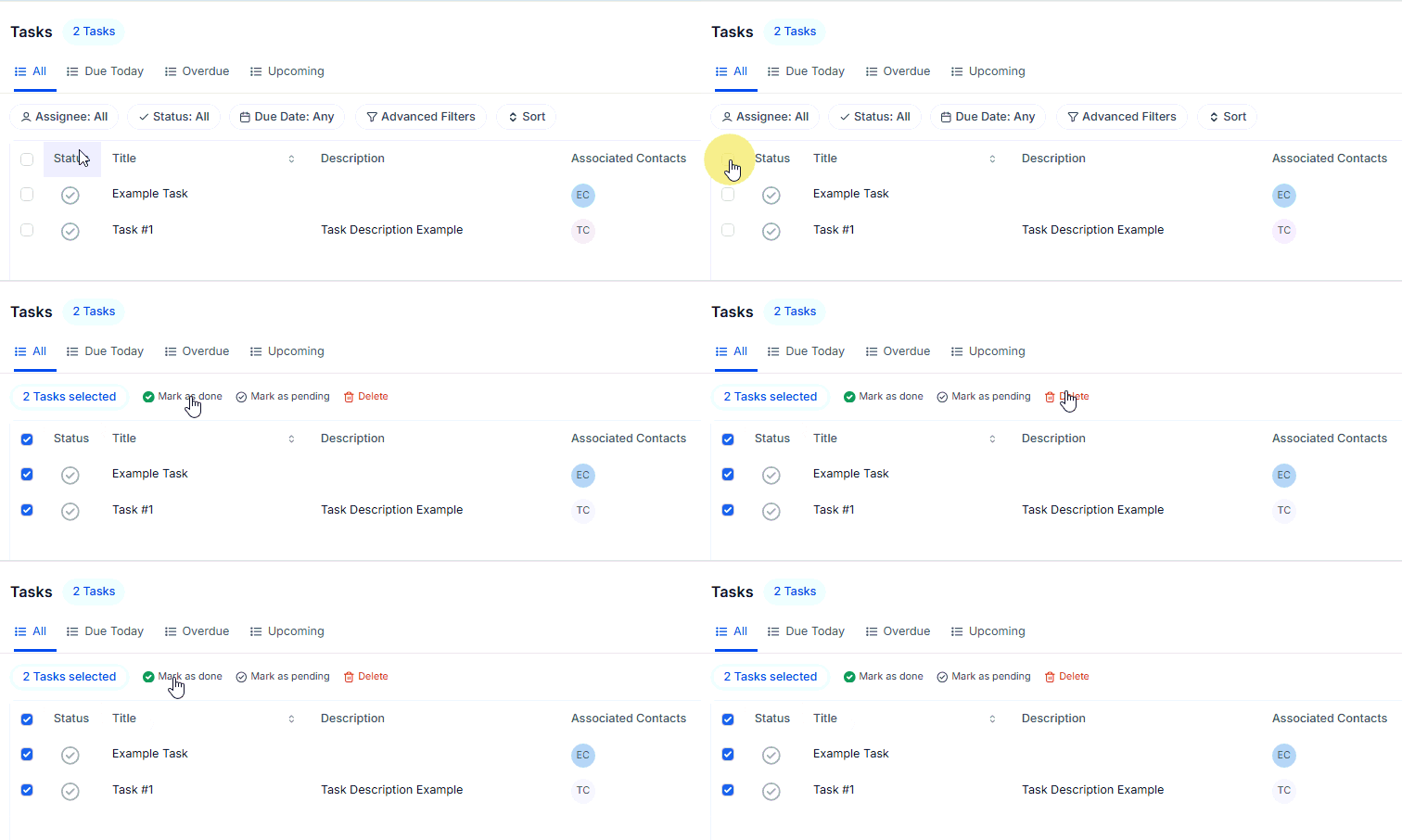
Select multiple tasks at once to perform bulk actions, saving time when managing several tasks simultaneously.
The Task Table
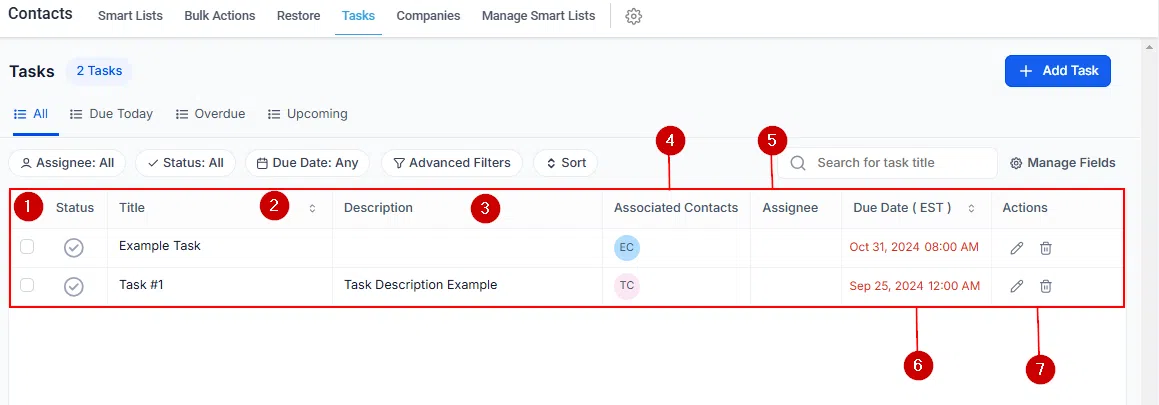
The task table gives you a consolidated view of all tasks with the following columns:
- Status: the current state of each task. Click the checkmark icon to mark a task as completed
- Title: the task name. Clicking a task takes you to the associated contact for more detail
- Description: a summary of the task’s requirements
- Associated Contacts: the contact linked to this task, providing context for client-related work
- Assignee: the team member responsible for completing the task
- Due Date: the task deadline
- Action: quick-access controls for editing or managing the task
Creating a Task
Go to the Tasks tab within Contacts and click Add New Task to open the task creation modal.
Task Title
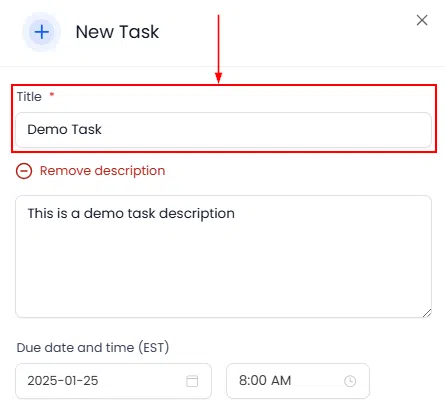
Give your task a clear, descriptive title. Specific titles help your team understand what is required at a glance – avoid vague labels that could cause confusion.
Description
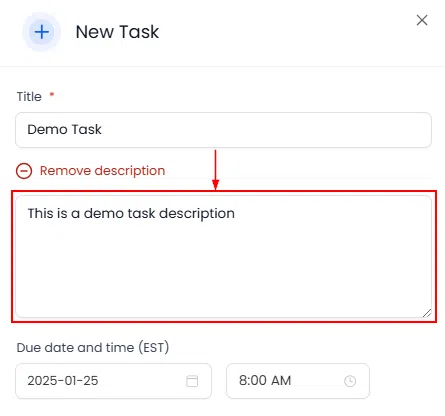
Add a description outlining the task’s details and requirements. Clear descriptions mean team members know exactly what to do without needing to ask.
Due Date
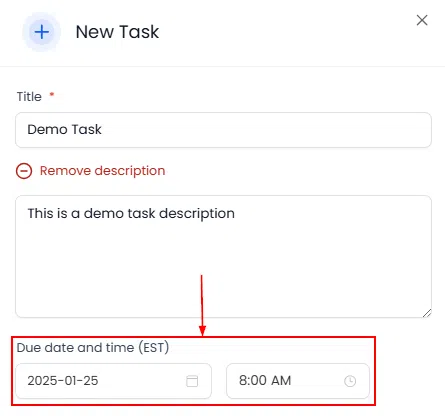
Set a due date for every task. This keeps your team aware of timelines and helps prioritise work when multiple tasks are active.
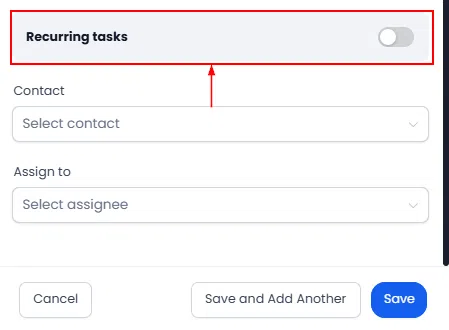
Recurring Tasks
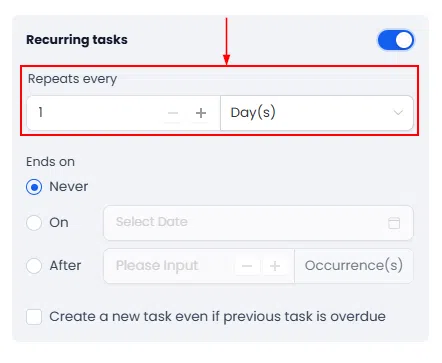
For tasks that repeat on a regular schedule, activate the Recurring Tasks toggle. Growth360 will automatically create future instances so you do not have to recreate them manually.
- In the Repeats Every field, set the recurrence frequency – for example, daily, every two weeks, or monthly
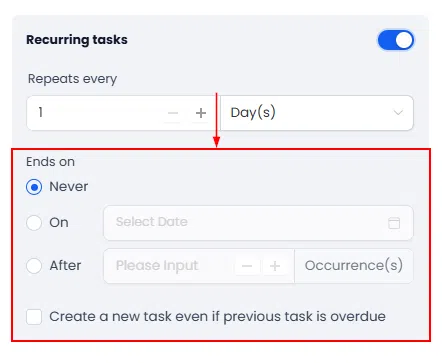
- Set an end date to control when the recurring task stops being generated
Link to a Contact
Associate the task with a specific contact if relevant. This keeps client-related tasks visible from within the contact’s record.

Assign to a Team Member
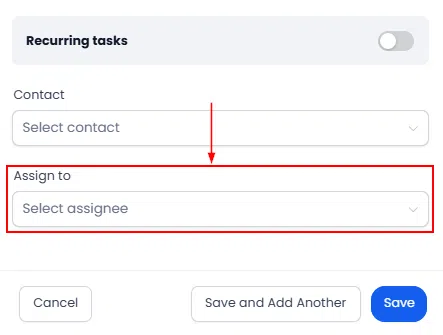
Optionally assign the task to a team member so they know what is expected of them. Tasks without an assignee appear in the Unassigned filter.
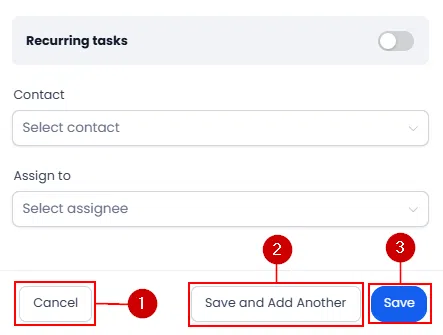
Save Your Task
Once the task details are filled in, choose how to save:
- Save: adds the task to your list and associates it with the relevant contact
- Save and Add Another: saves the current task and immediately opens a new modal so you can keep creating without interruption
- Cancel: discards the task without saving