The Social Planner in Growth360 is your central hub for managing social media across all your connected accounts. Plan, schedule, and publish posts from one place, and keep a consistent presence across channels without jumping between apps.
Note: Access to the Social Planner depends on your user permissions.
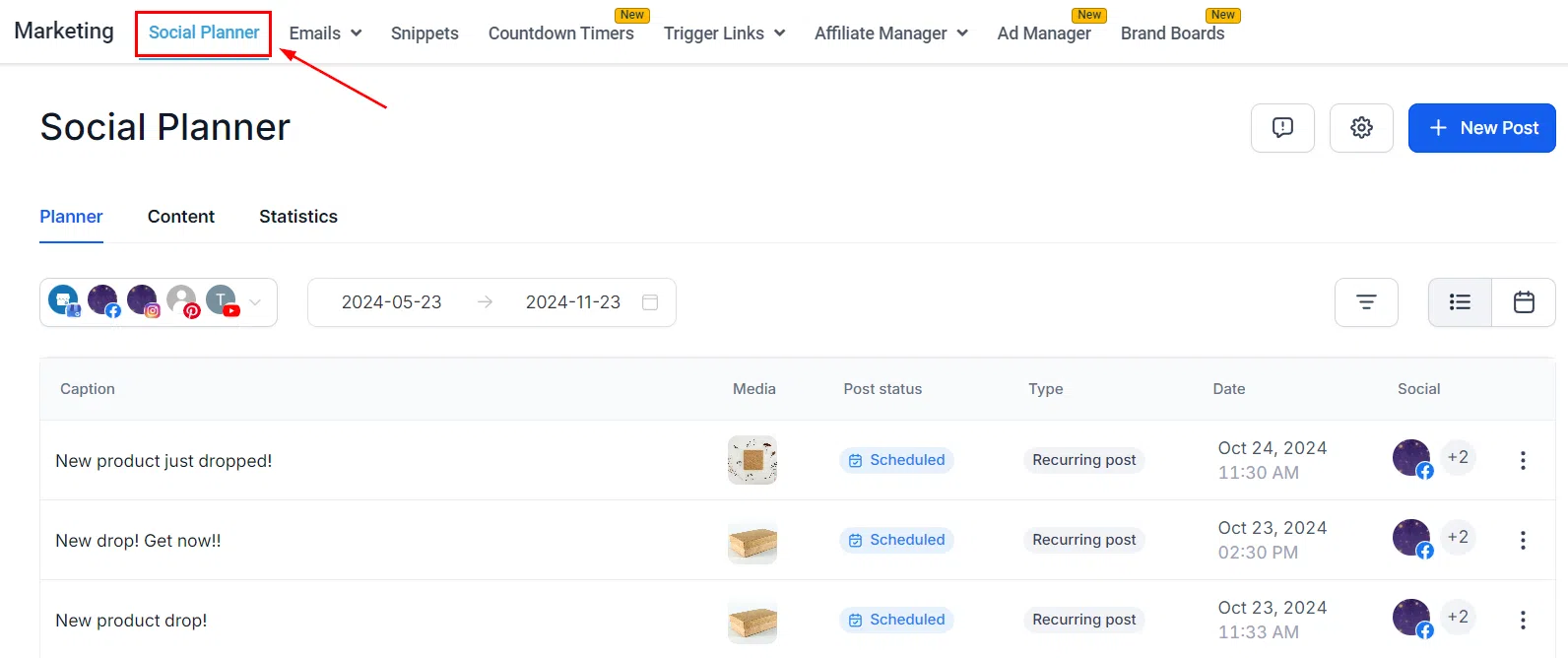
Settings
Click the gear icon to manage your Social Planner settings. From there you can connect social accounts, manage notifications, and configure your posting preferences.
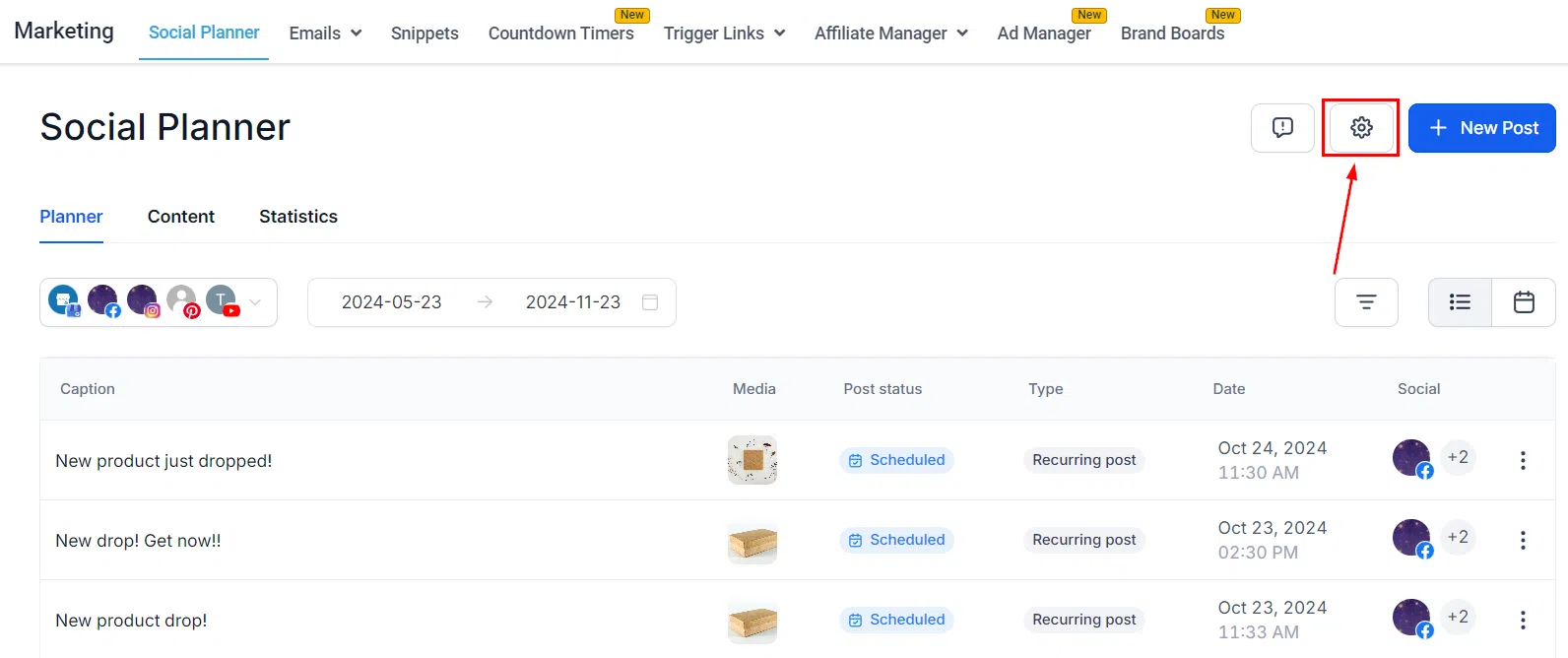
Post Builder
Click + New Post to create and schedule a post for one or more connected accounts. The options available vary depending on which social platform you’re posting to – check the platform-specific guides in this section for details.

Planner
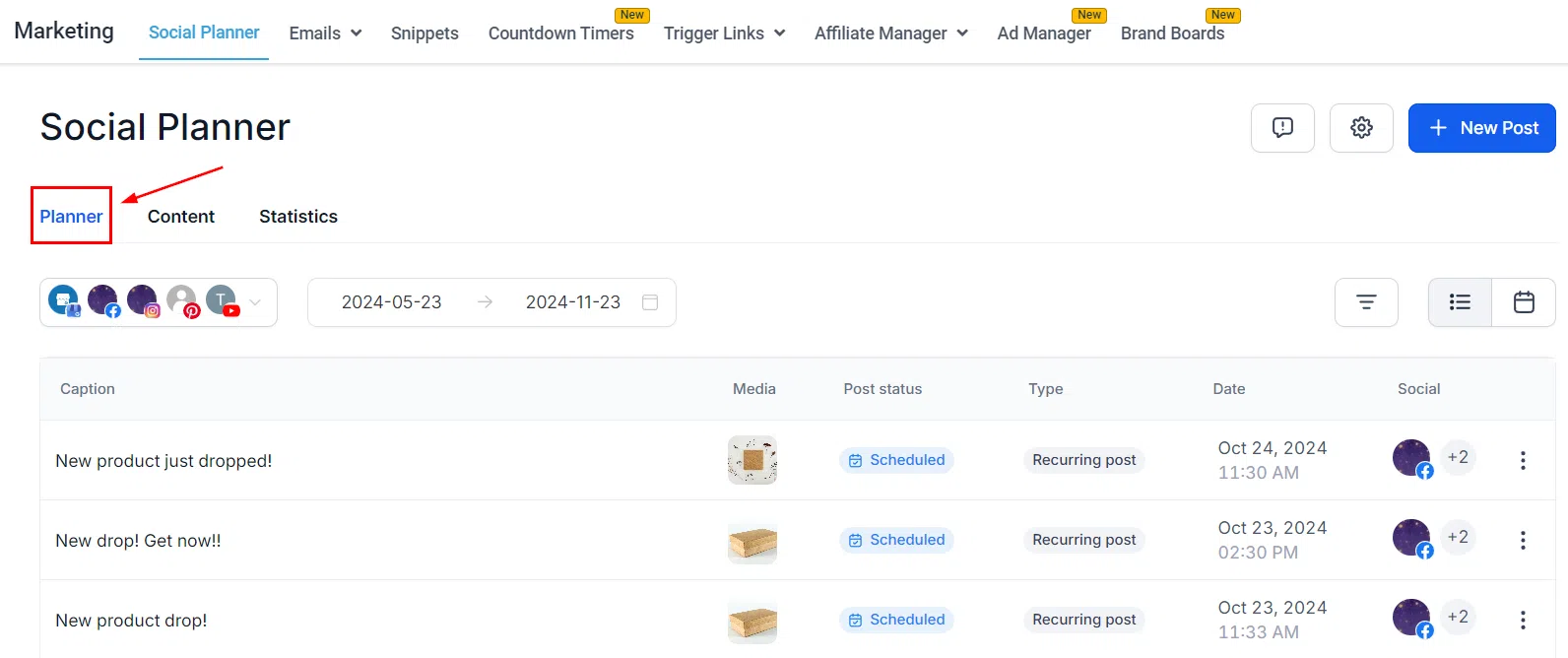
The Planner view shows all your scheduled and published posts across connected accounts in a calendar-style layout. Use the drop-down to filter by account, and switch between date range and display type to see exactly what you need.
Select Your Platform and Accounts
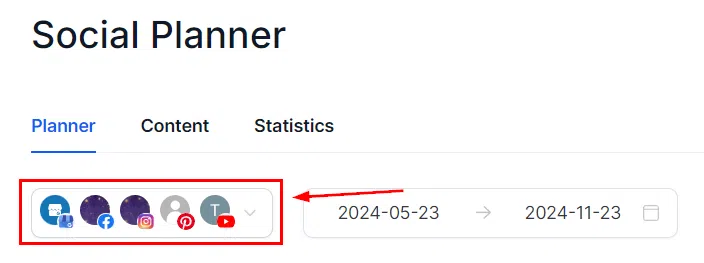
Use the accounts dropdown to filter the Planner to a specific social media profile. Only posts scheduled for the selected accounts will appear in the calendar view.
Select Dates, Filters and View
Choose a date range to focus the Planner, then switch between List, Day, Week, or Month display to suit how you work.

See Each Post on Planner
Each scheduled post appears as a tile in the calendar. Click any tile to see its full details – caption, media, status, and which accounts it is going to.
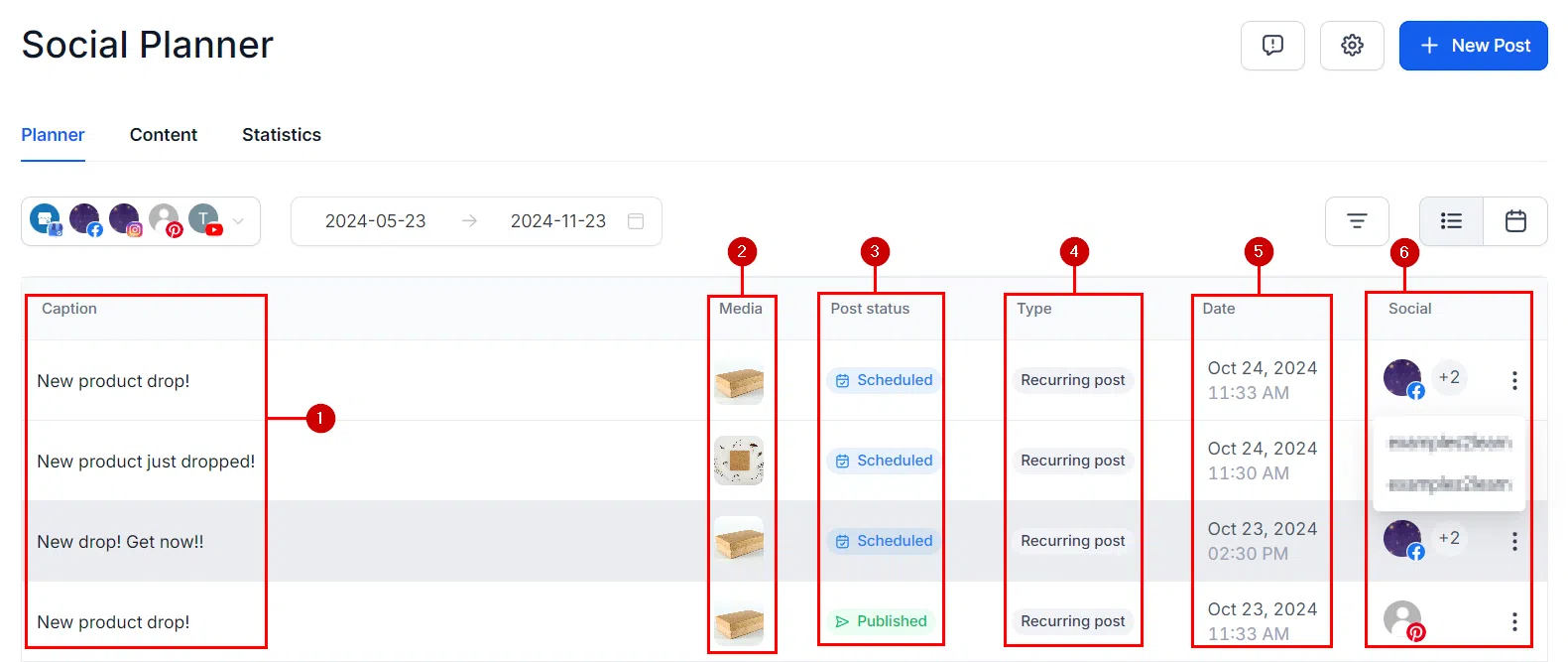 Each post preview in the Planner shows:
- Caption: The text added to the post.
- Media: A thumbnail of any image or video attached.
- Post Status: Whether the post is scheduled, published, or failed.
- Type: How the post was created and its source.
- Date: When it’s set to go live.
- Social: Which account(s) it will be posted to. Hover over the number to see account names if multiple are selected.
Content
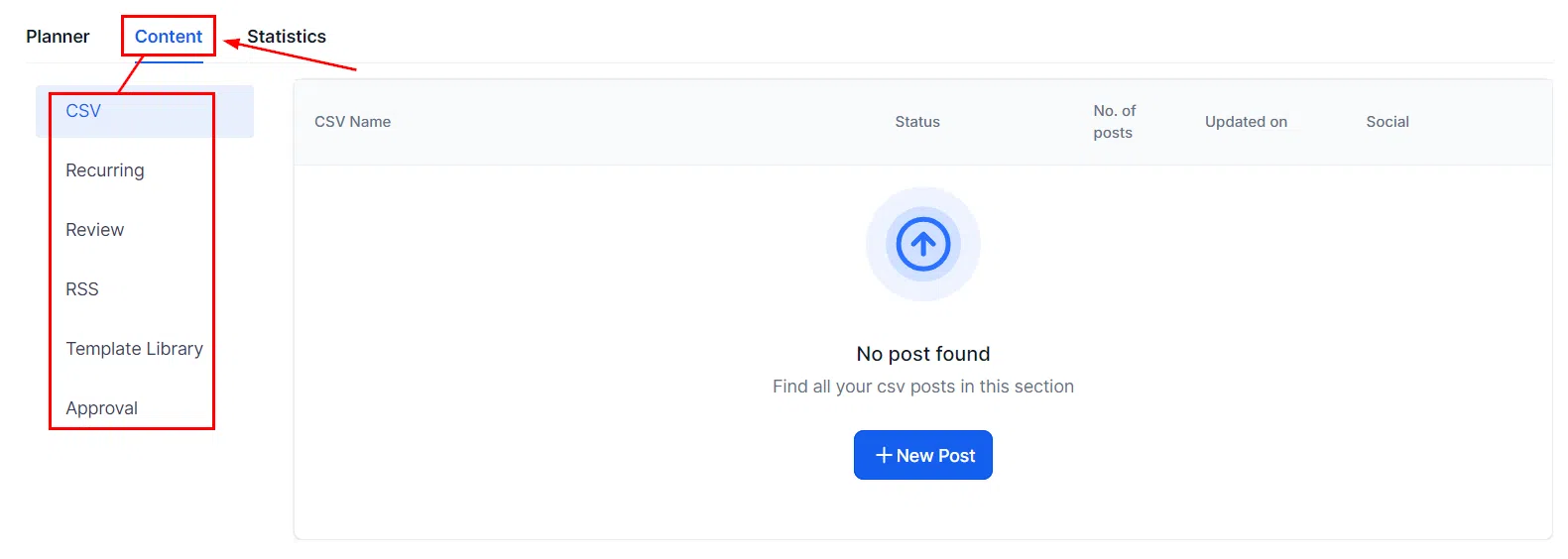
The Content view organises your posts and templates by how they were created and their current status – a useful way to review drafts, scheduled posts, and published content all in one place.
Statistics
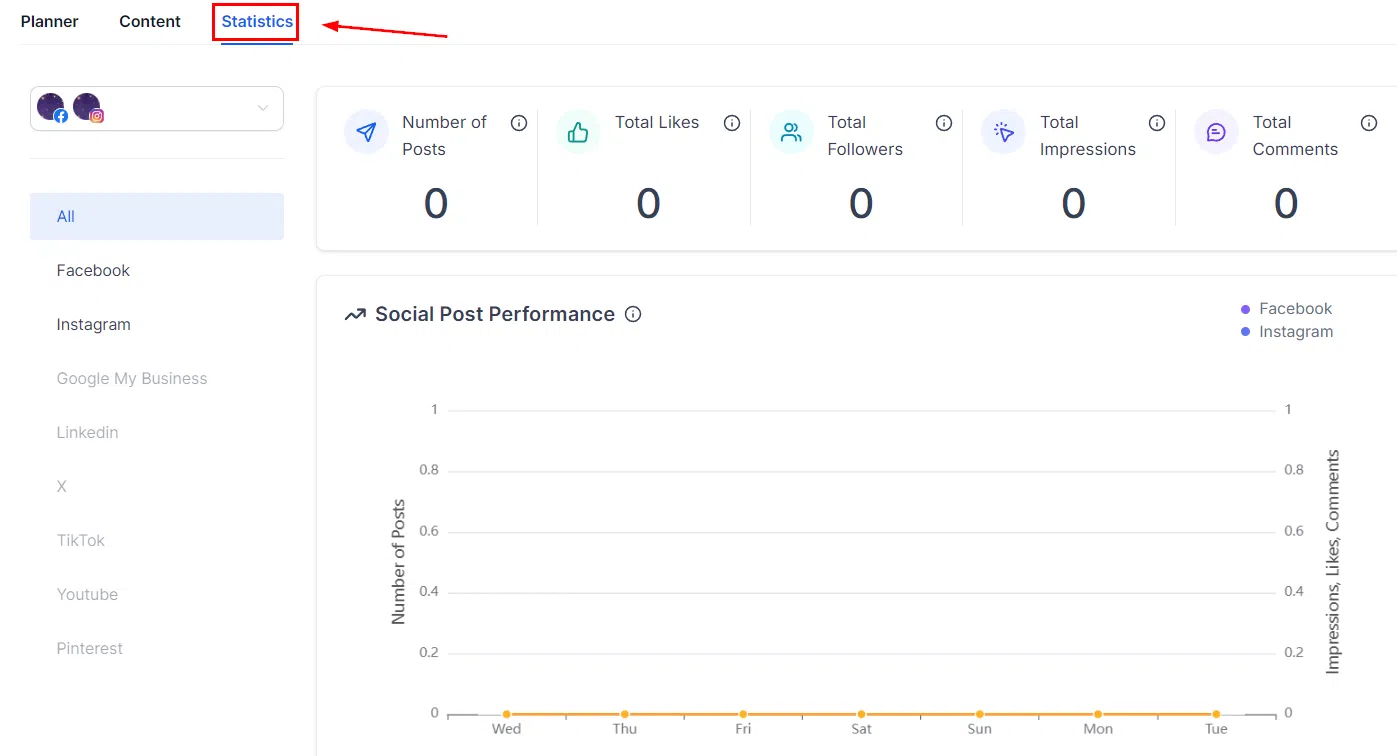
See how your posts are performing – likes, comments, and shares. The stats shown are for your top-performing posts by likes, or your most recently published content.