Growth360’s Email Builder includes specialist elements for showcasing products, collecting form responses, and embedding Loom videos directly inside your email campaigns.
Product Element
The Product Element lets you embed a product catalogue directly inside an email campaign. Subscribers can browse your products without leaving their inbox, which simplifies the path from interest to purchase.
Benefits
- Convenience: Customers browse products directly from their inbox, without needing to visit your website first.
- Higher conversions: Product catalogue emails simplify the transition from browsing to buying, boosting purchase rates.
- Easy promotion: Highlight new arrivals, special deals, and exclusive offers with minimal effort.
Before You Begin
Make sure your products are set up in Growth360 under Payments > Products. Each product should have a title, description, and images before you add it to a campaign.
Adding the Product Element
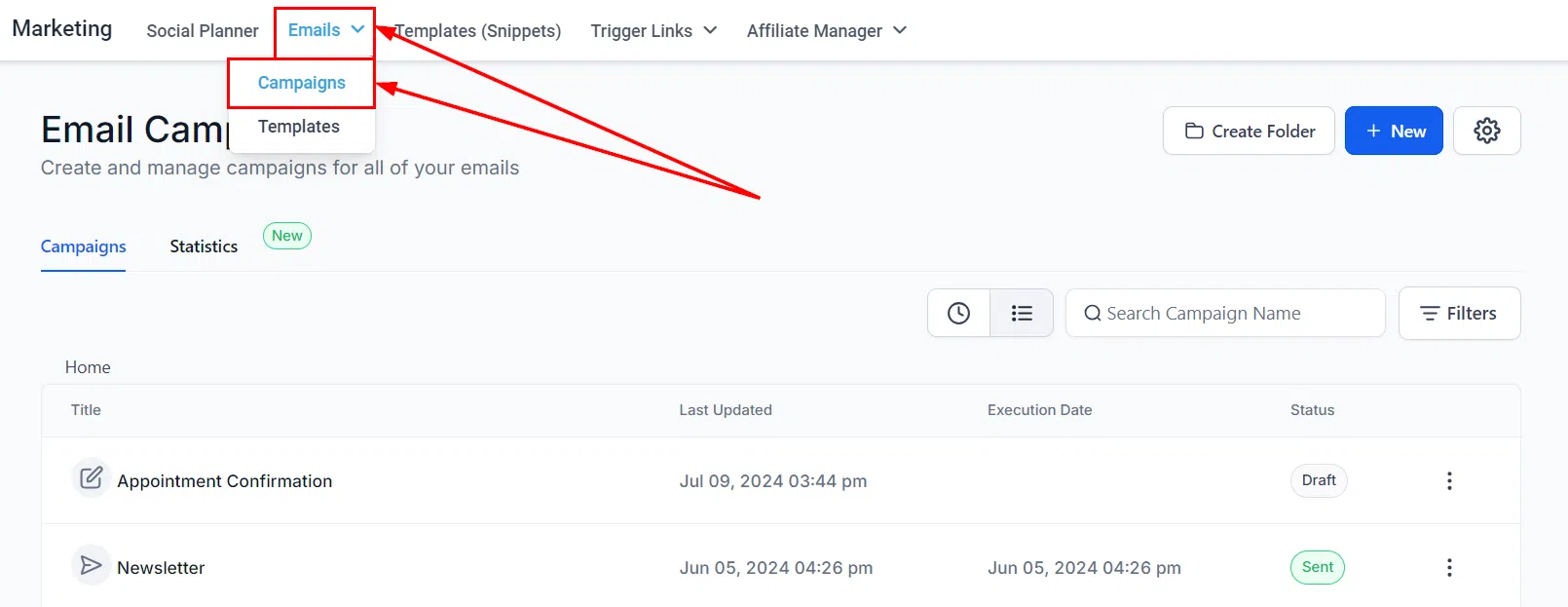
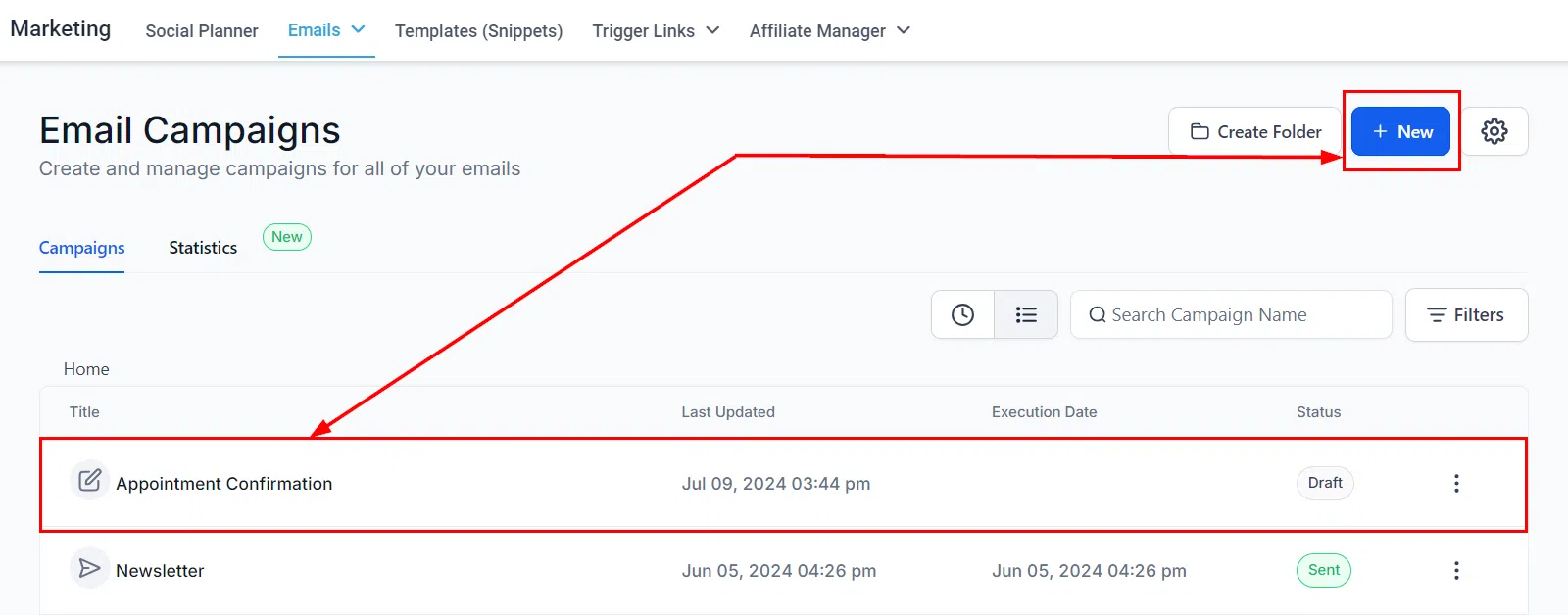
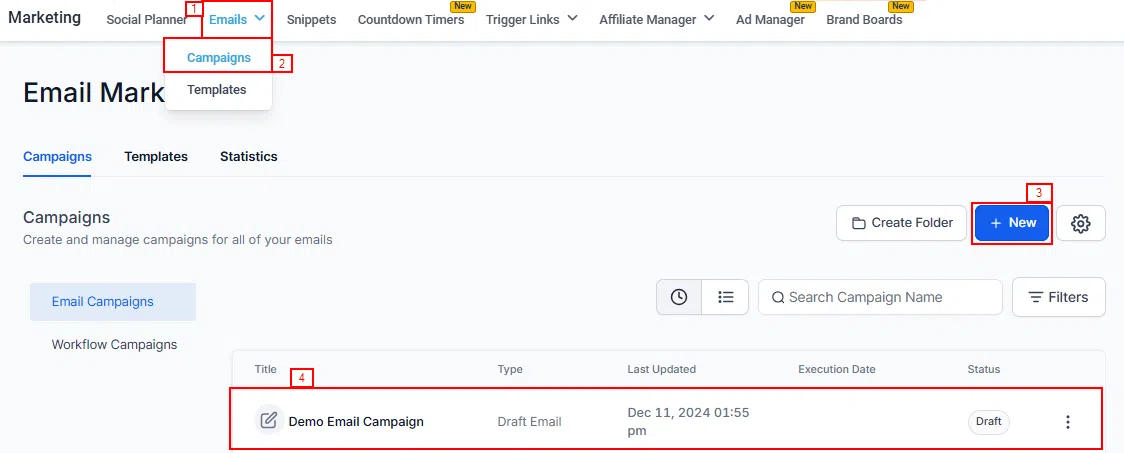
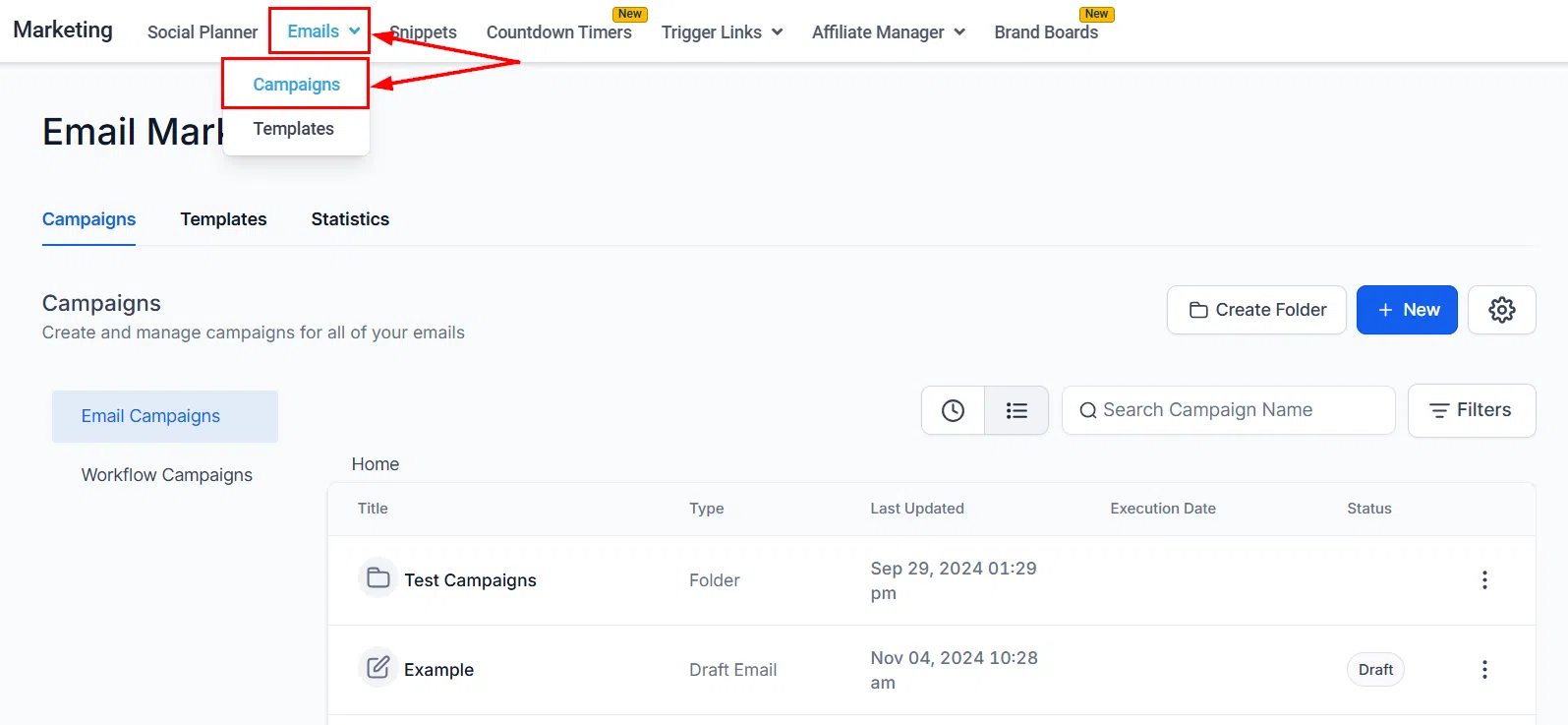
Go to Marketing > Emails > Campaigns, then create a new campaign or open an existing draft.
Inside the Email Builder, drag and drop the Products element into your layout.
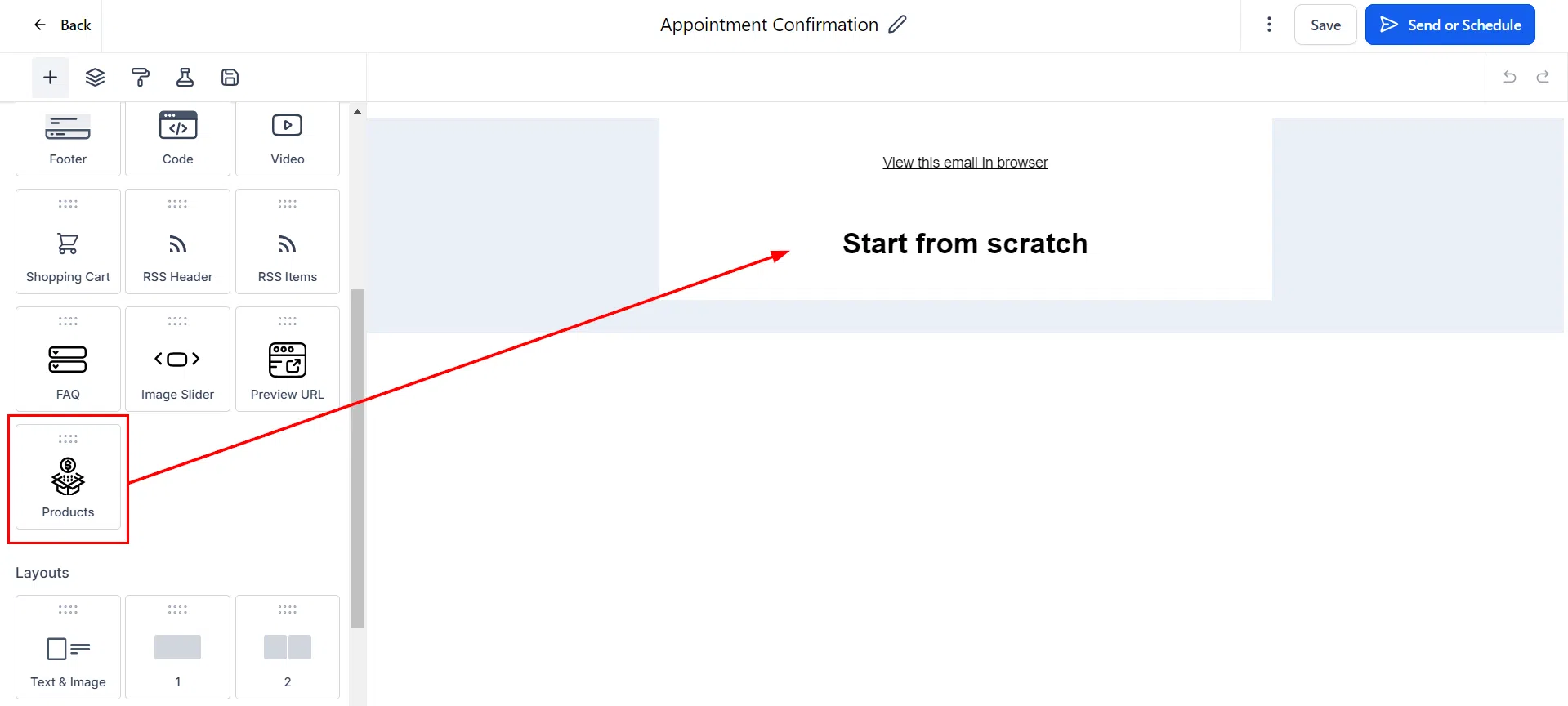
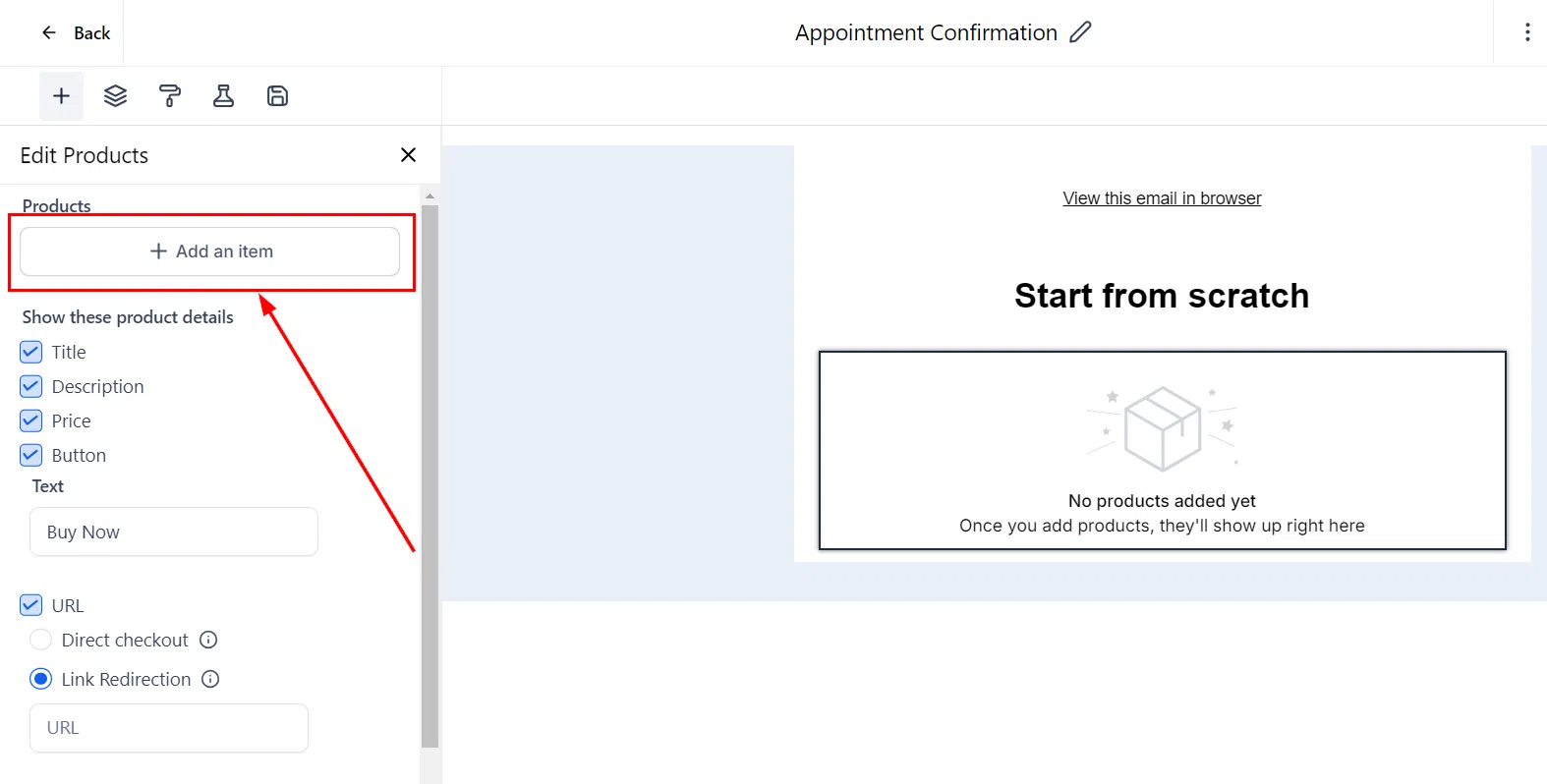
Add the products you want to showcase, then select the items to include.
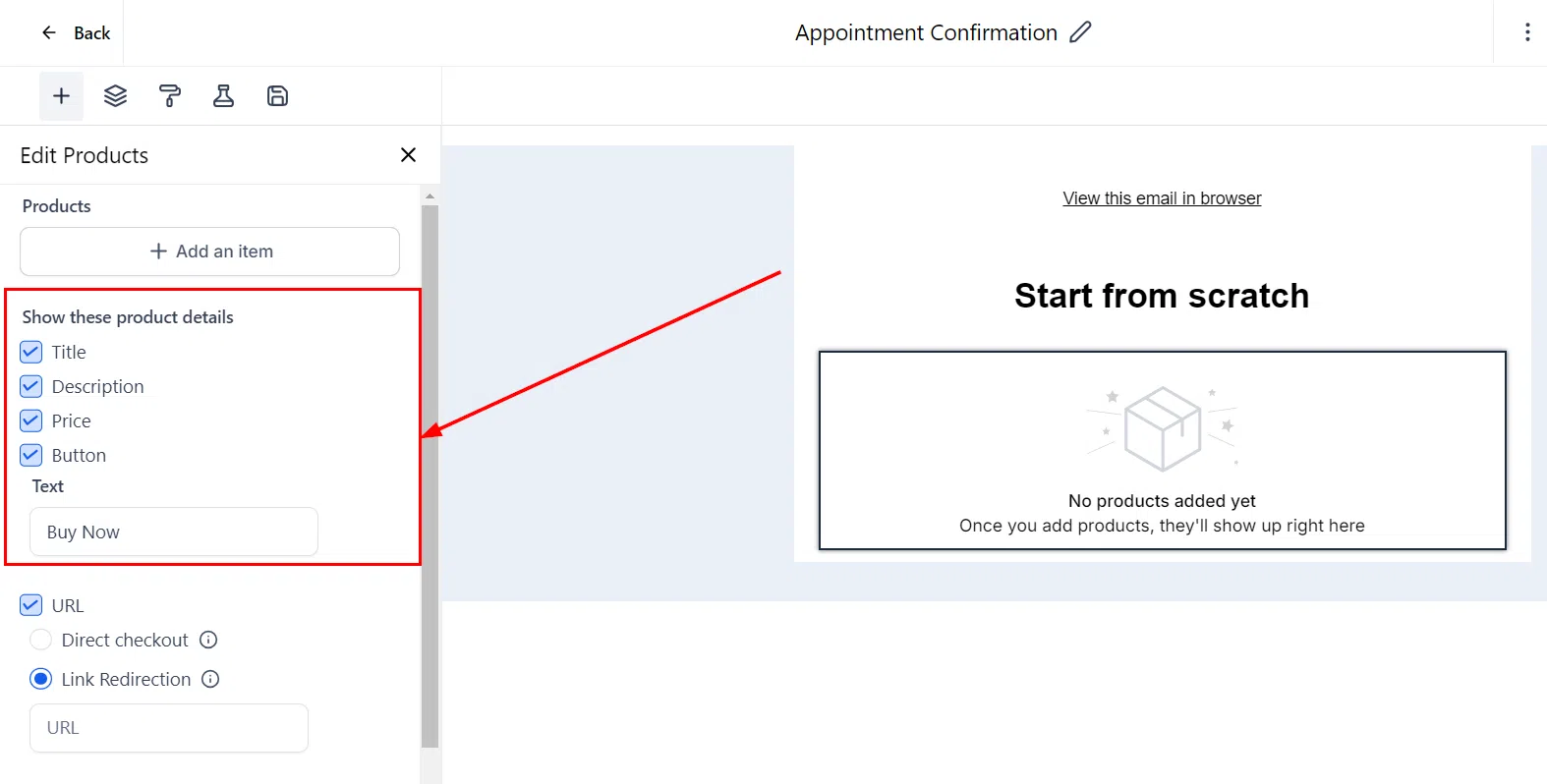
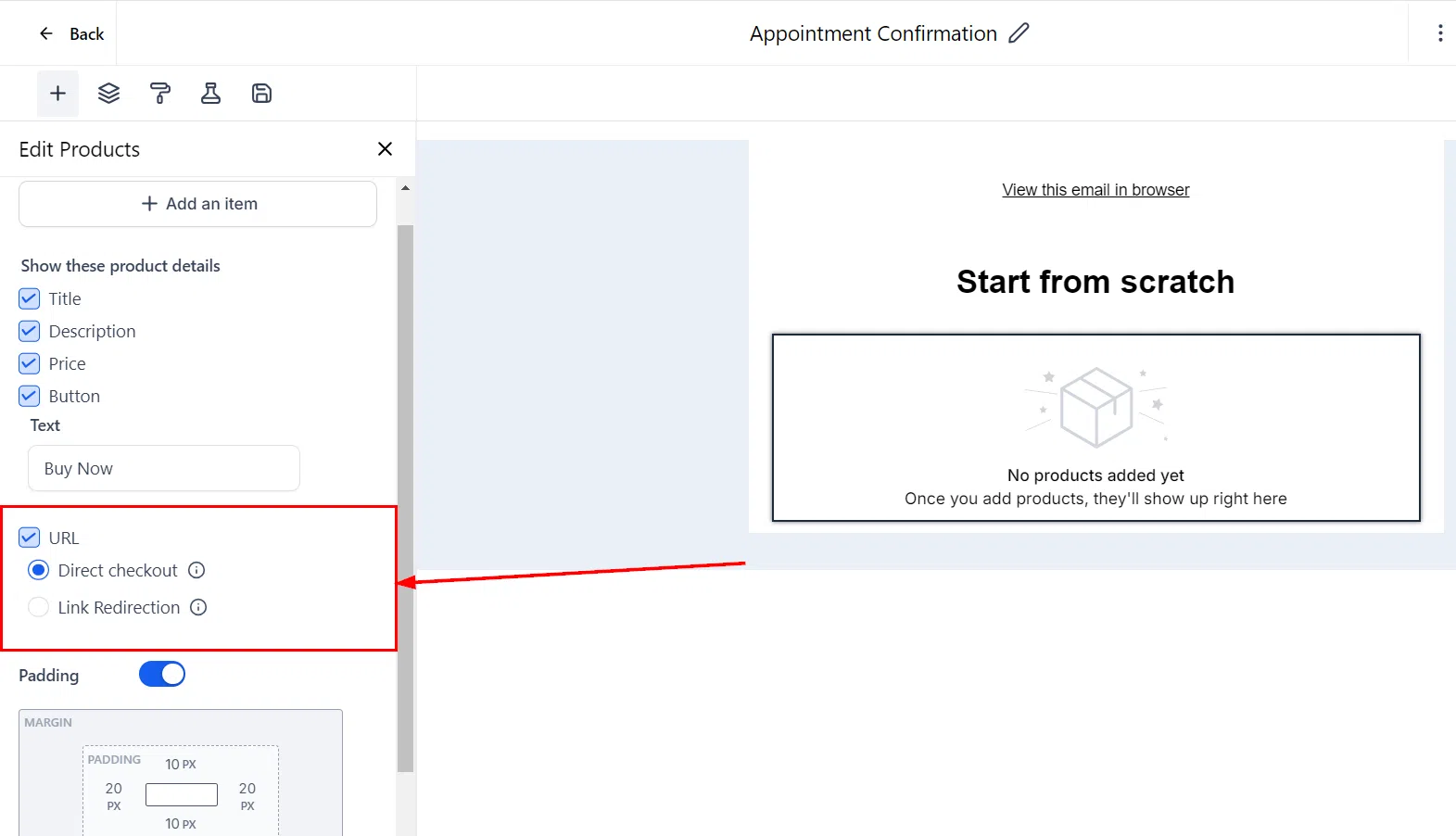
Customise how your catalogue appears – choose whether to show titles, descriptions, prices, and button labels.
For each product, you can add a URL to send customers to a specific page such as a funnel, your website, or an e-commerce page.
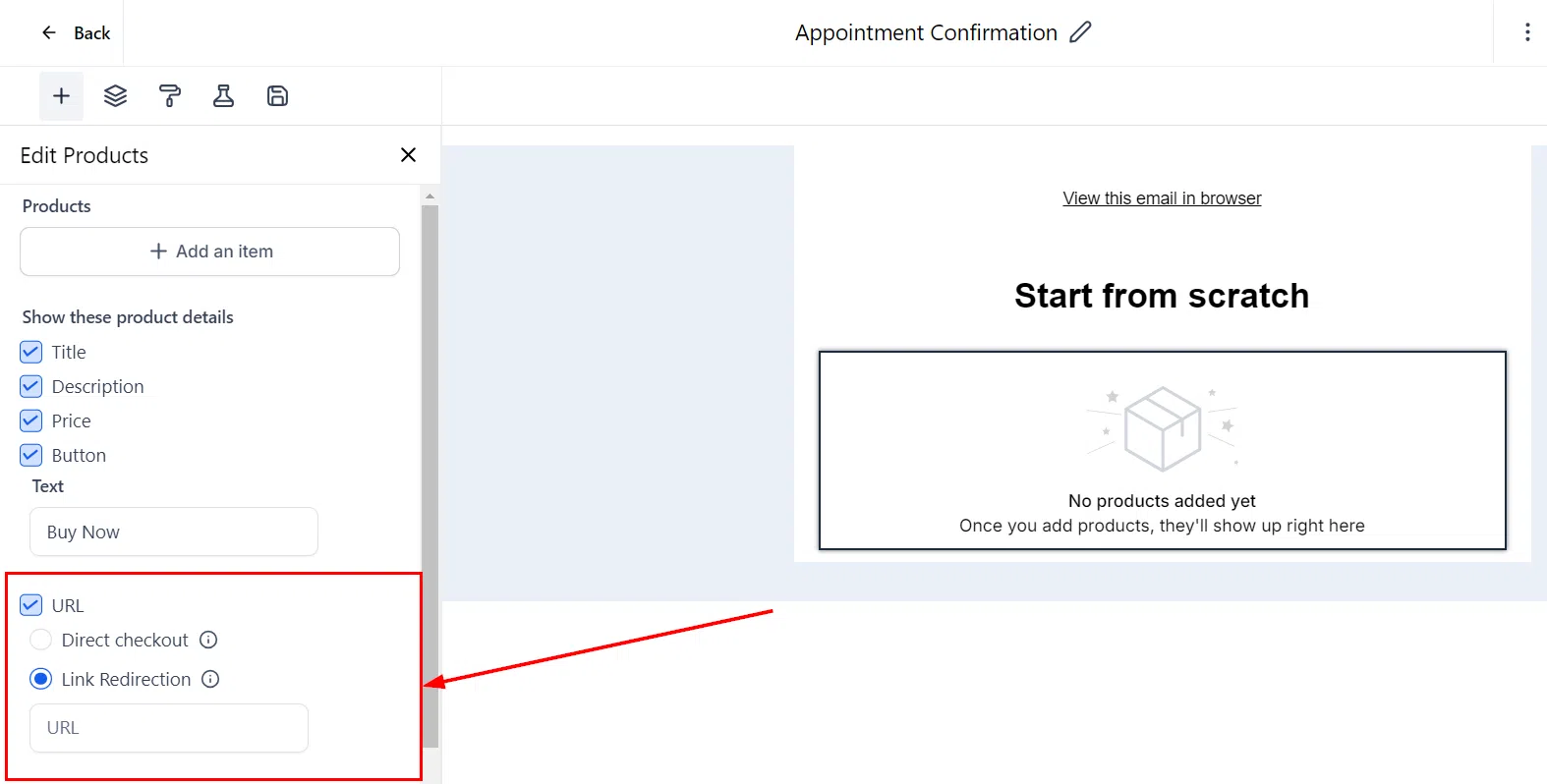
Alternatively, enable Direct Checkout to generate a direct payment link for each product. Click the link icon next to the product to customise the checkout page, then save your changes.
Loom Videos
You can embed Loom videos directly into your email campaigns, adding dynamic video content without leaving the Email Builder.
Adding a Loom Video
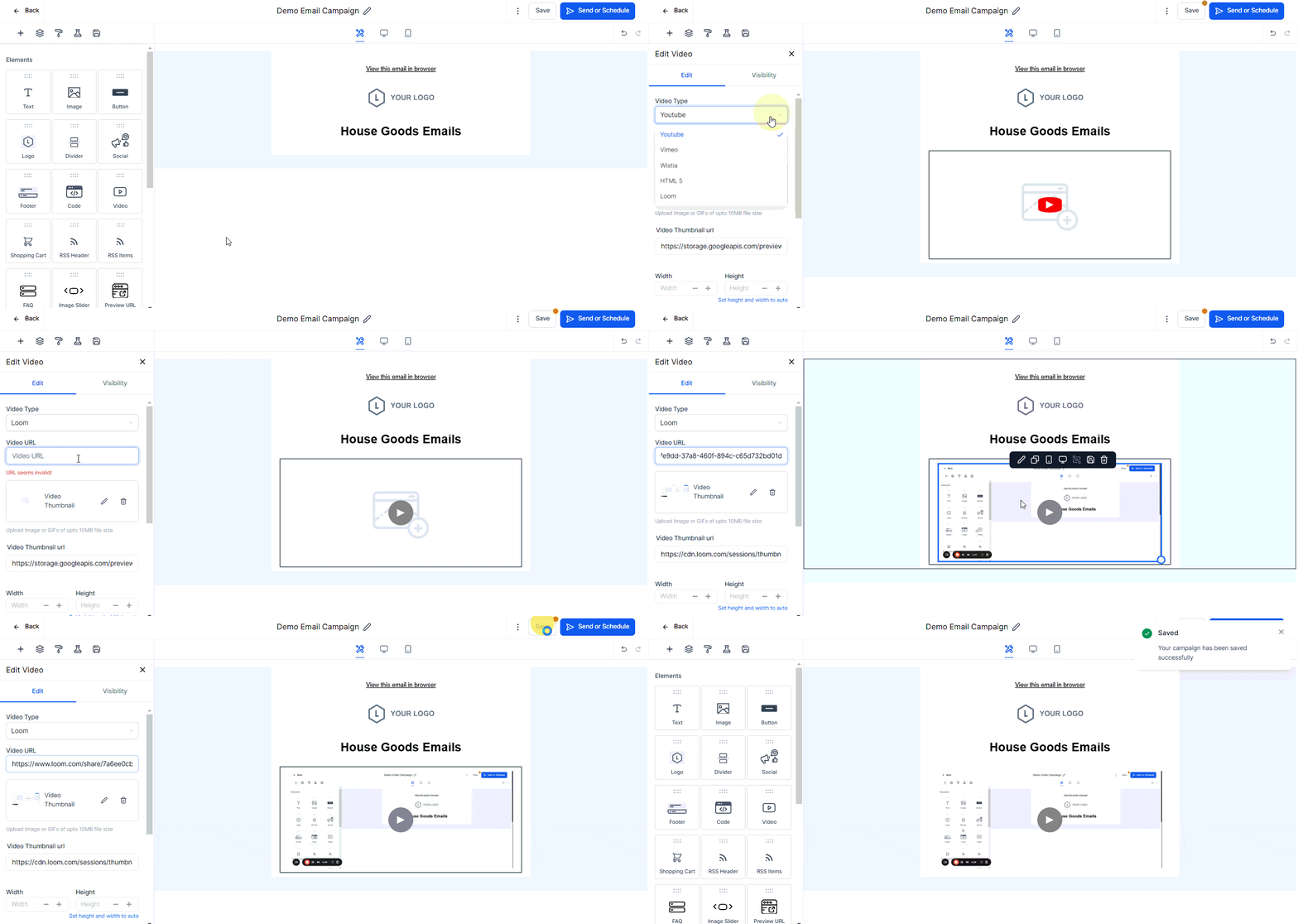
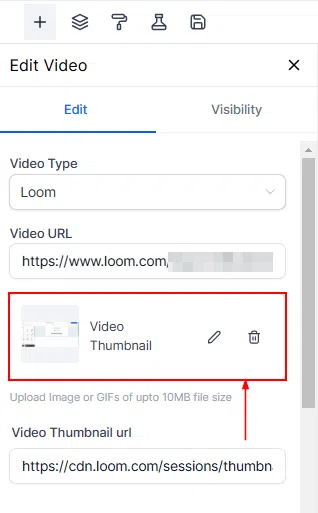
In the campaign editor, drag the Video element into your layout. From the video type options (HTML, Vistia, Vimeo, YouTube, Loom), select Loom. Paste the URL of your Loom video and Growth360 generates a thumbnail with a play button linked to the video.
Form Element
The Form Element lets you embed interactive forms inside email campaigns to collect feedback, NPS scores, ratings, and other responses directly from subscribers.
Note: this feature is currently available for email marketing campaigns only.
Adding a Form
Open a campaign or create a new one, then click to access the Email Builder.

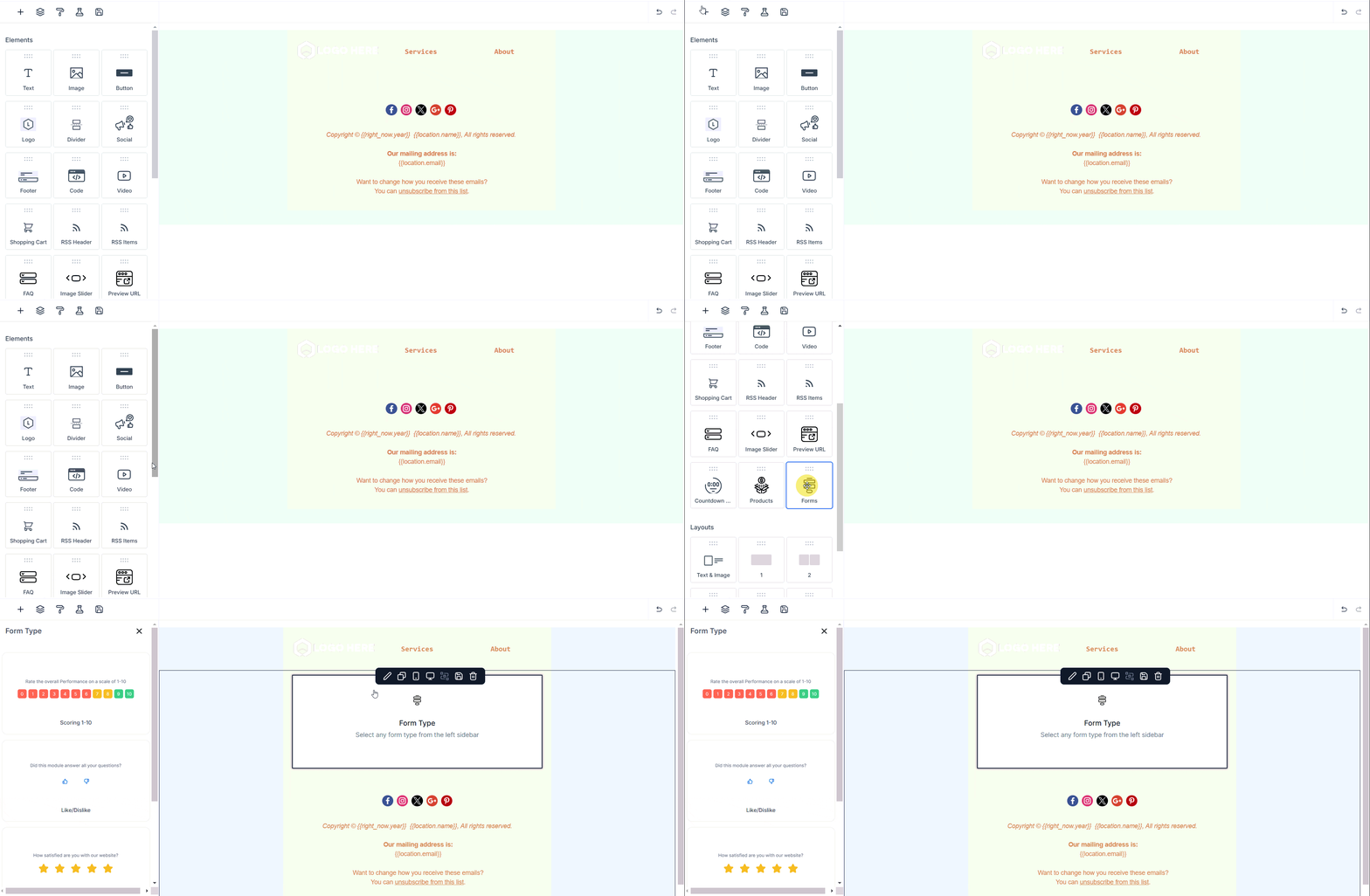
Drag the Form element into your email layout.
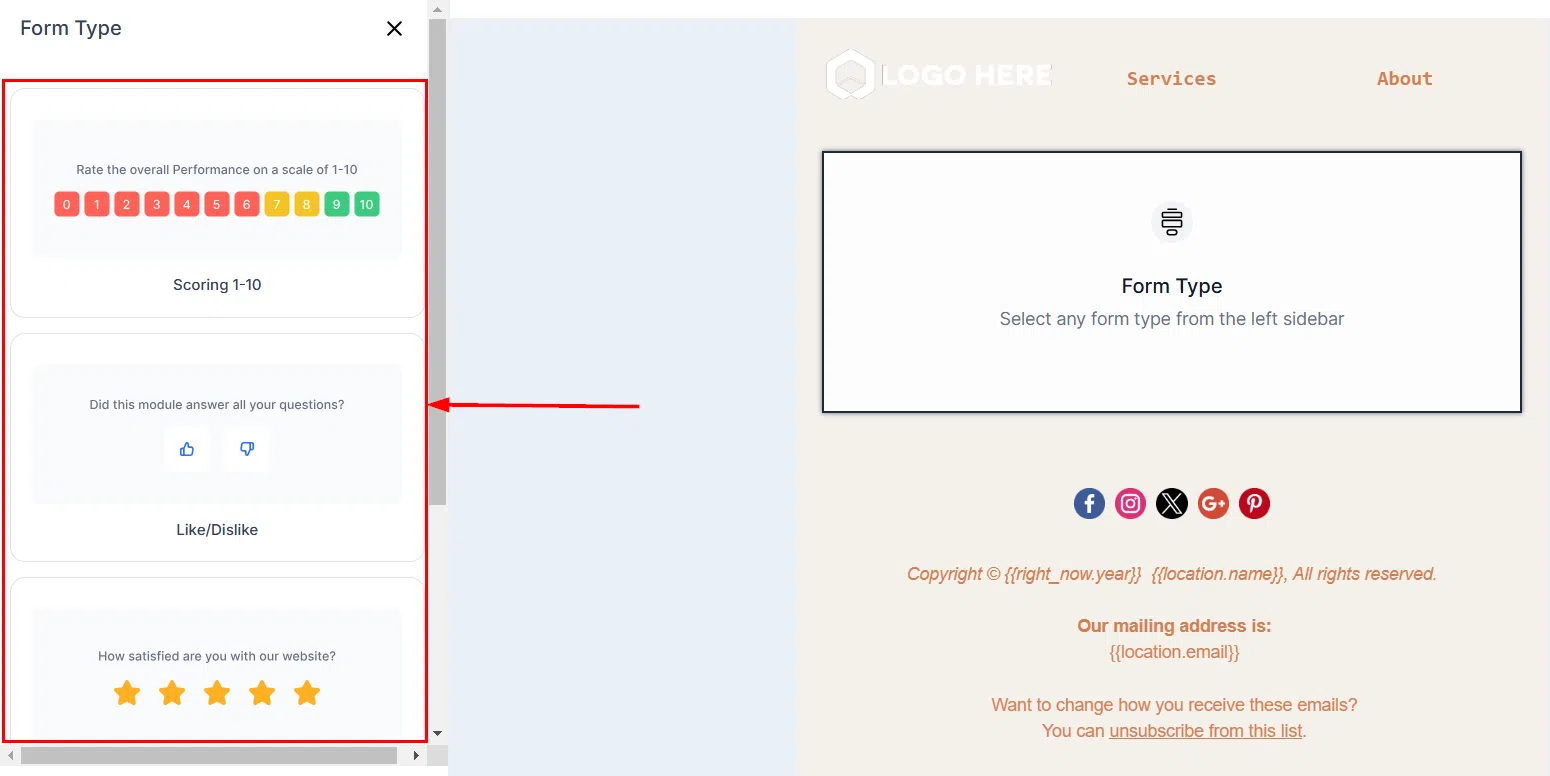
Choose the feedback type: NPS, ratings, like/dislike, or select Your Other Forms to use a form you’ve already built in Growth360.
Customising Your Form
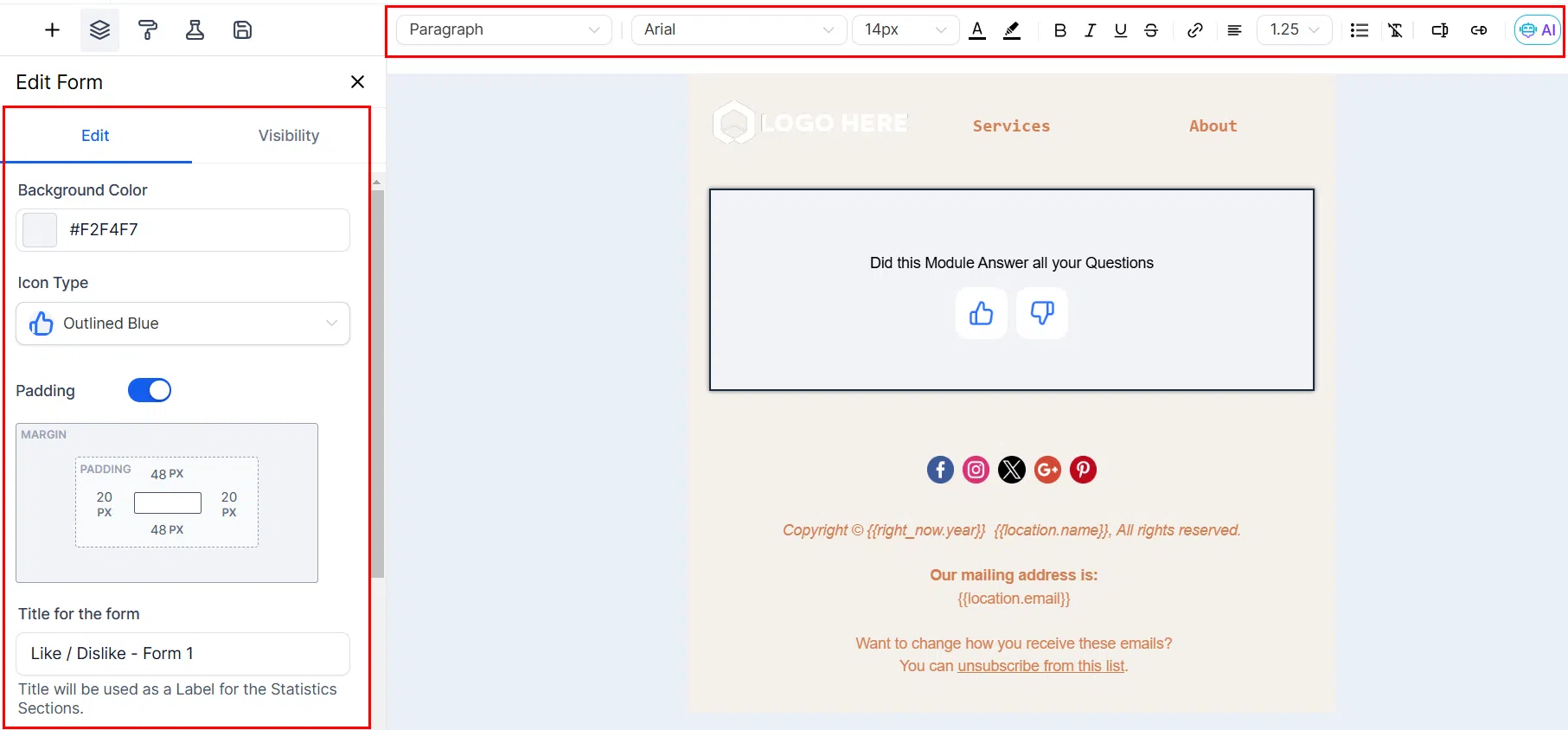
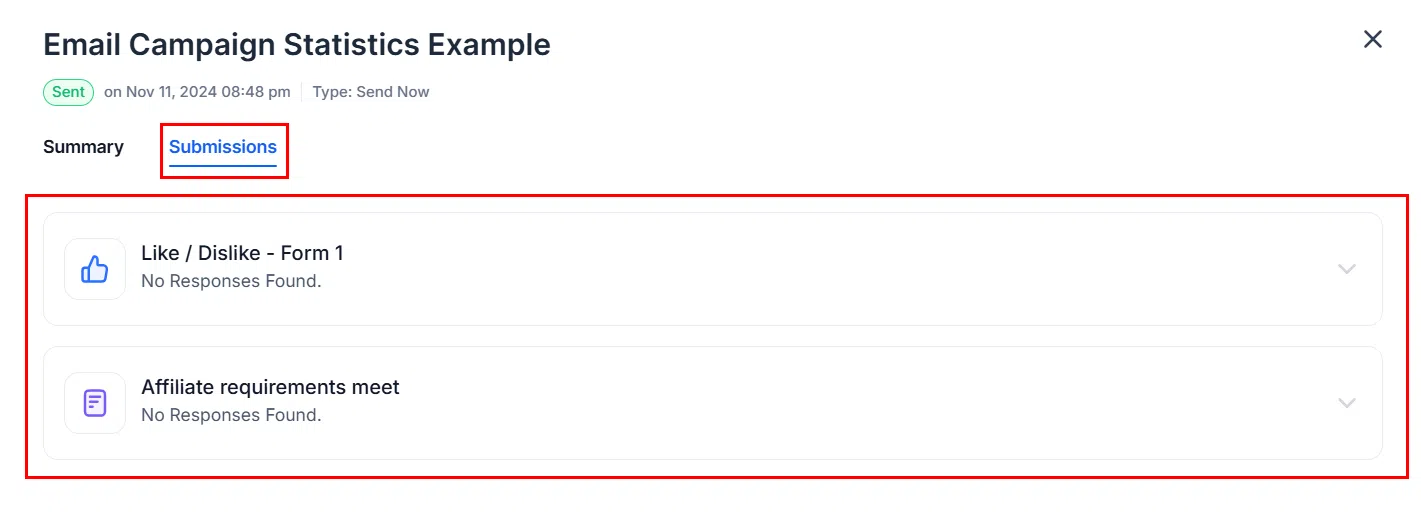
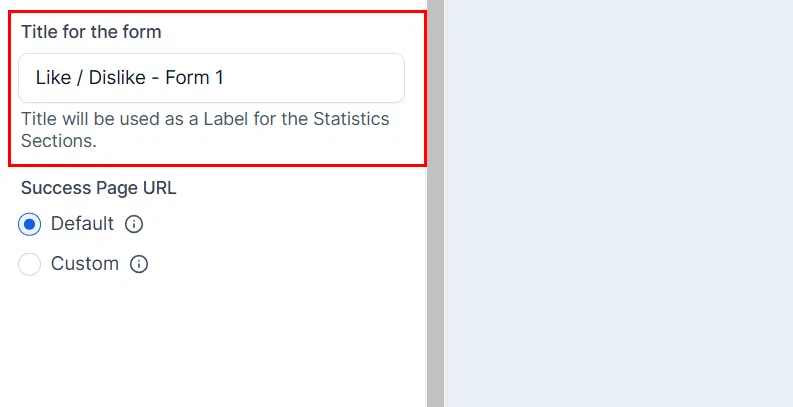
- Title: Enter a name in the Title field – this appears in the Submissions tab of your campaign statistics.
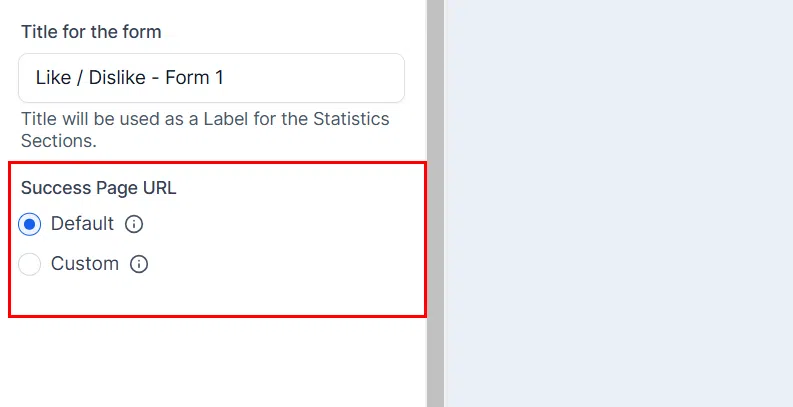
- Success Page URL: Optionally redirect respondents to a custom page after they submit the form. Note: for user-built forms, your existing On Submit configuration applies and the Success Page URL field is not displayed.
Sending and Tracking Responses
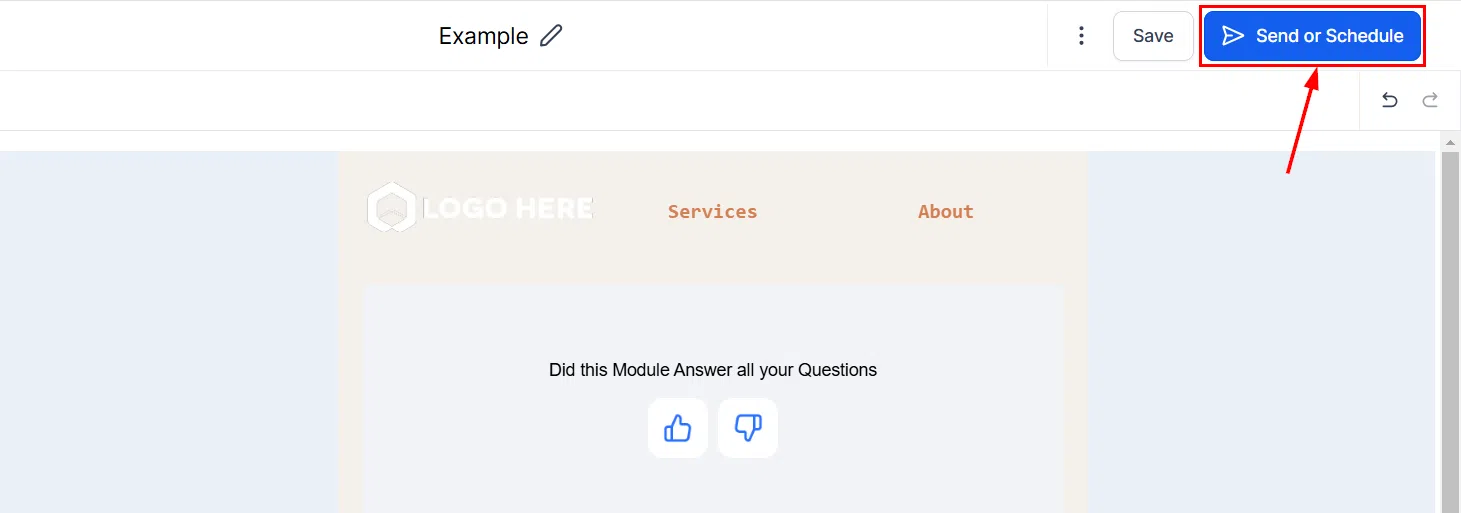
Once your form is configured, send or schedule the campaign as normal.
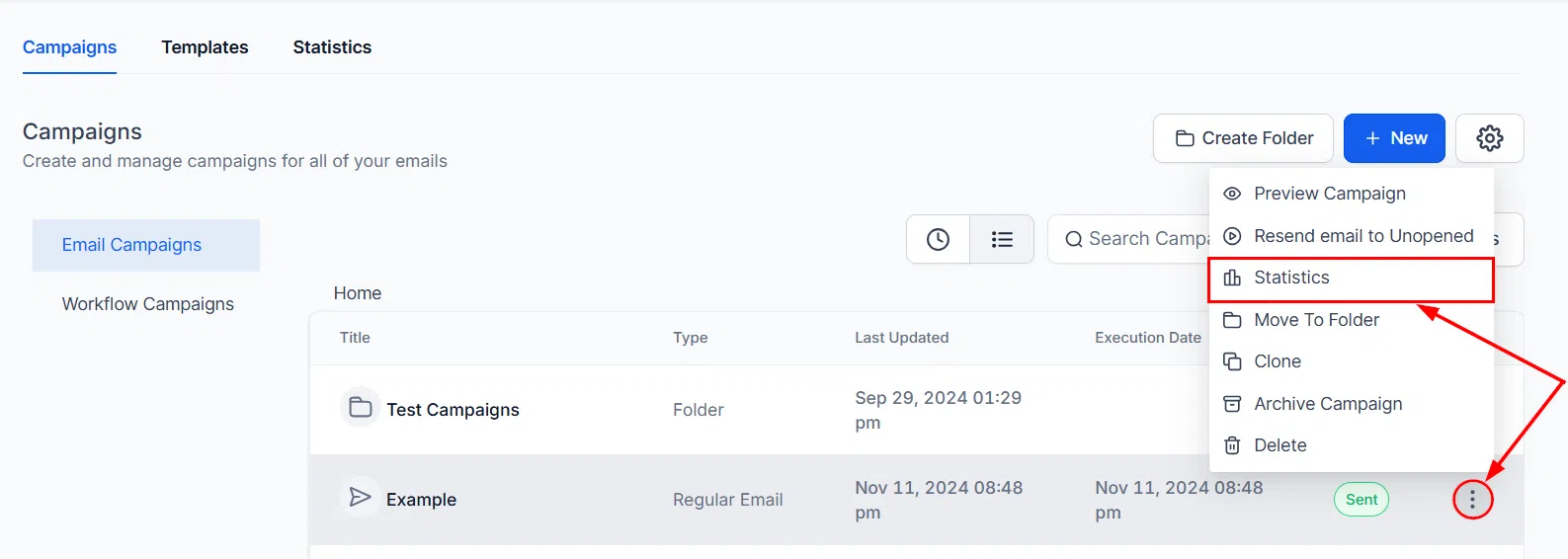
To view responses, go to the campaign’s action menu and select Campaign Statistics. The Submissions tab shows all form responses received, with the option to export the respondent list for further analysis.