
Growth360’s email campaign statistics give you detailed insight into individual campaign performance – covering deliverability, engagement, conversions, click activity, and form submissions – as well as a high-level overview across all your campaigns.
Individual Campaign Statistics
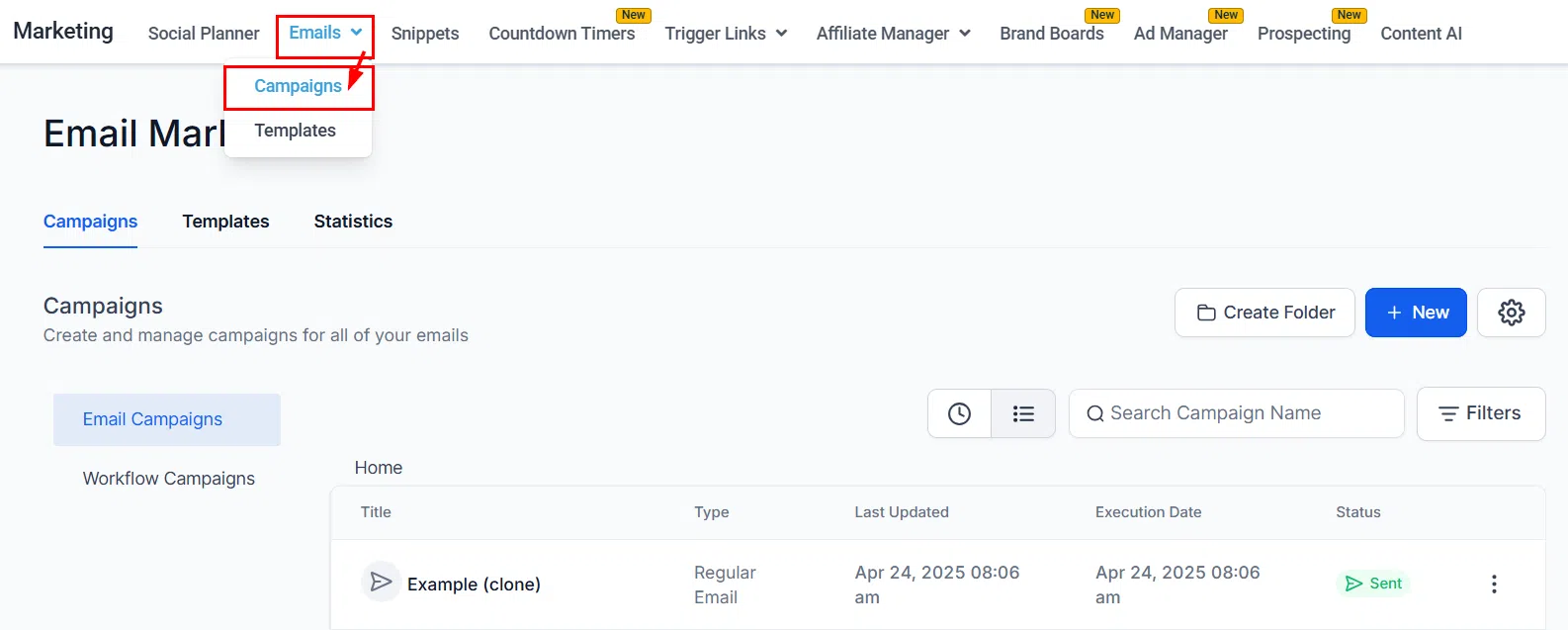
To view statistics for a specific campaign, go to Marketing > Emails > Campaigns and open the campaign’s action menu.
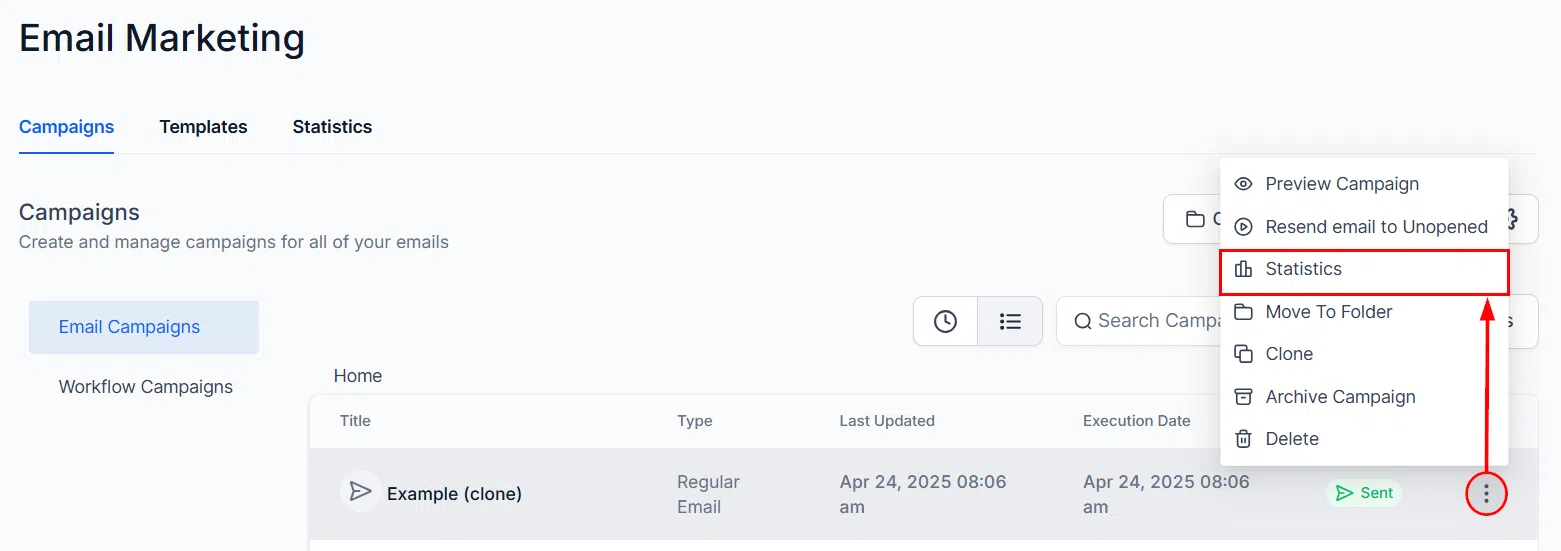
Select Statistics from the menu to open the campaign’s performance view.
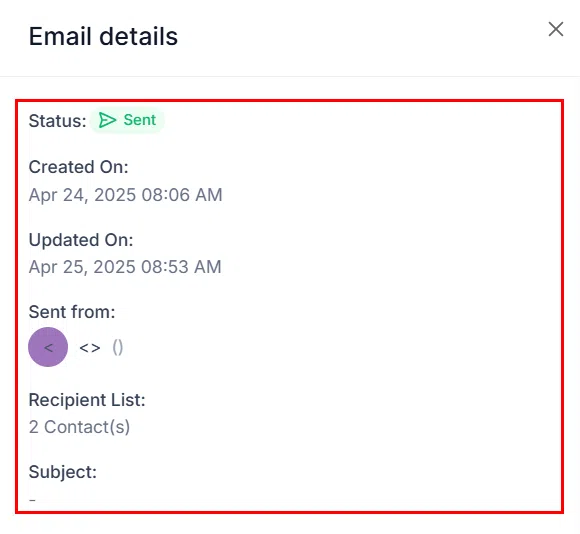
Campaign Details
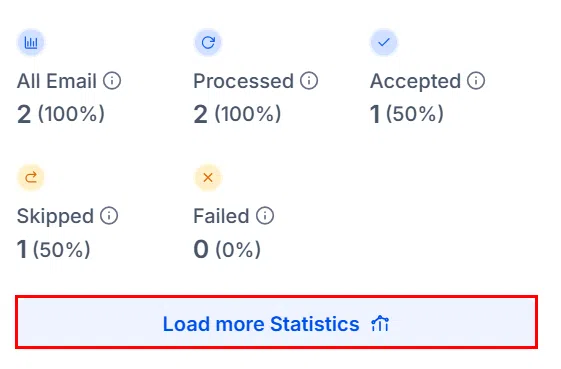
The details panel shows the campaign name, send date, and the selected recipient list. Use the All Emails filter to switch between viewing stats for all sends or individual batches (for batch delivery campaigns).
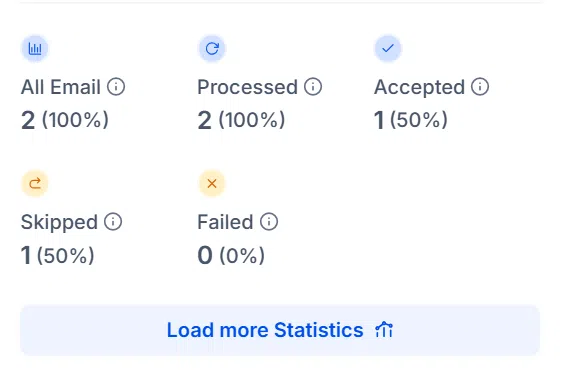
Select Load More Statistics to expand the view and see additional metrics.
Summary Metrics
The summary section displays the key performance metrics for your campaign:
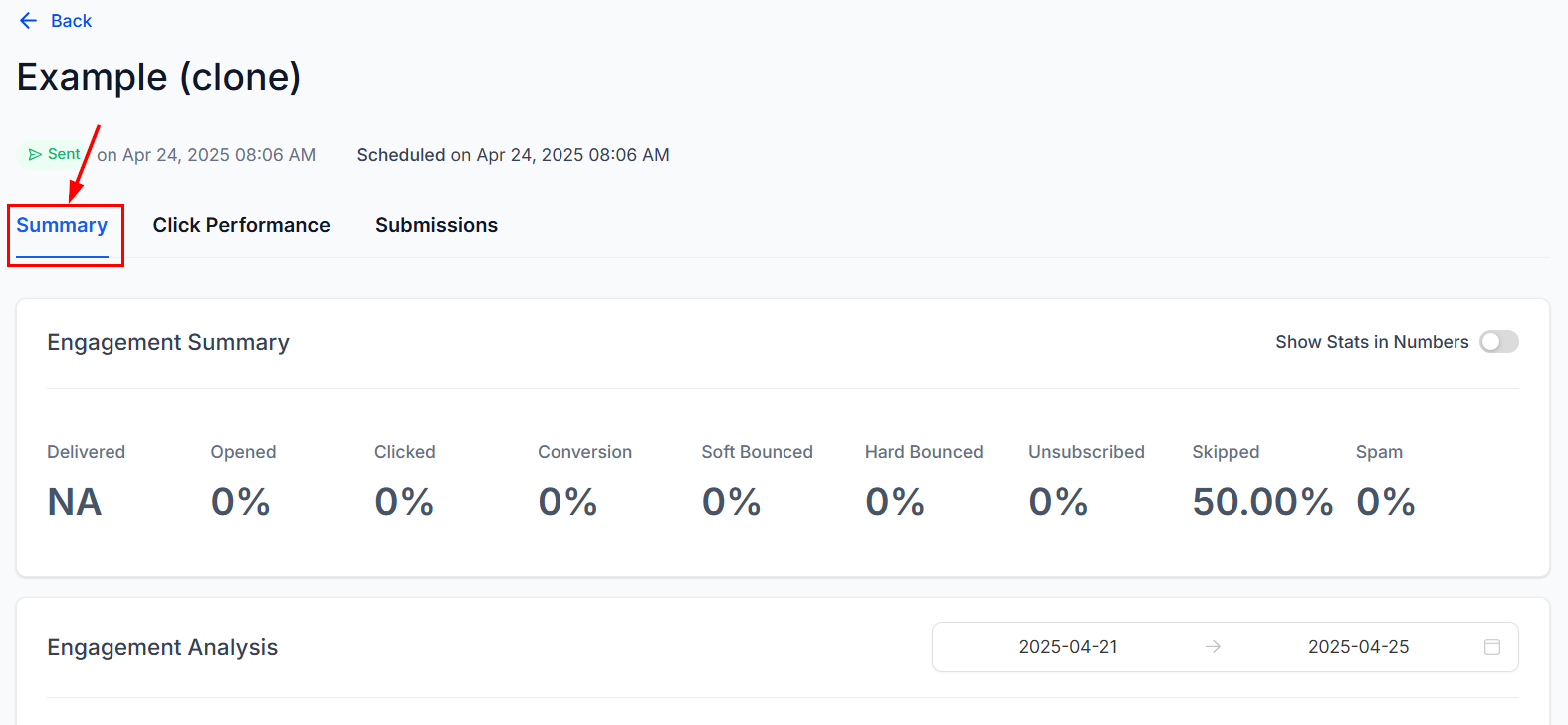
- Delivered: Emails successfully accepted by the recipient’s mail server. In SMTP-based tracking, this confirms the email reached the server but doesn’t guarantee inbox placement.
- Opened: Recipients who opened the email. Note that open tracking relies on image pixels and may not capture all opens, particularly in email clients that block images.
- Clicked: Recipients who clicked one or more links in the email.
- Replied: Recipients who replied directly to the campaign email.
- Soft Bounce: Emails temporarily undeliverable – for example, due to a full inbox or oversized attachment. Analysing soft bounce reasons helps improve deliverability.
- Hard Bounce: Emails permanently undeliverable. Monitoring hard bounces helps maintain compliance with email marketing regulations.
- Unsubscribe: Recipients who opted out of your email list. A key indicator of content relevance and audience satisfaction.
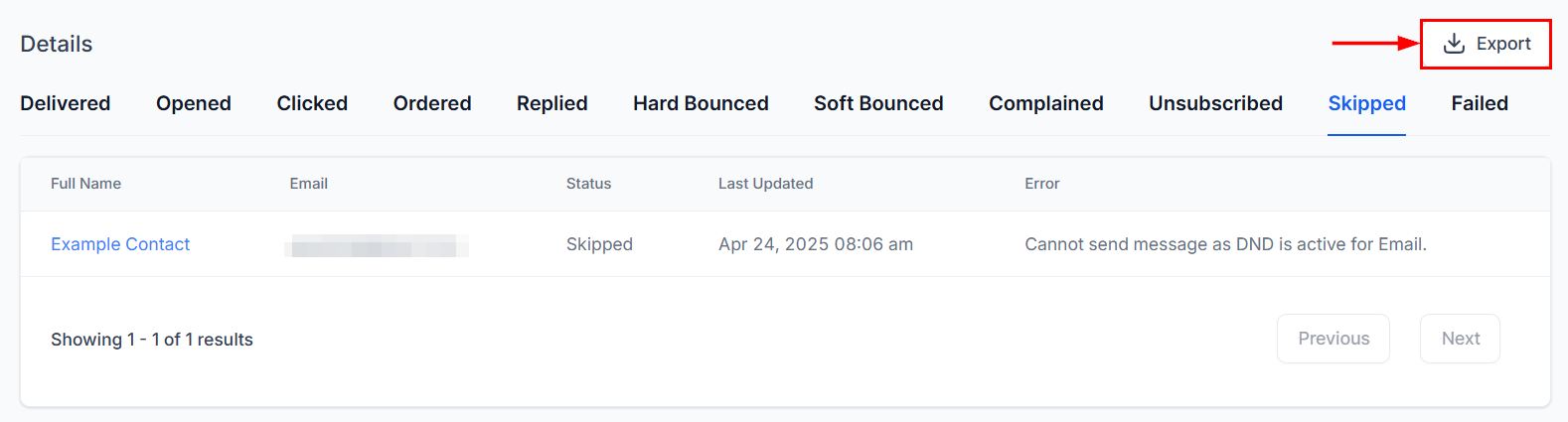
- Skipped: Emails not sent because the contact had already received a similar campaign recently, or did not meet send criteria.
Conversion Tracking
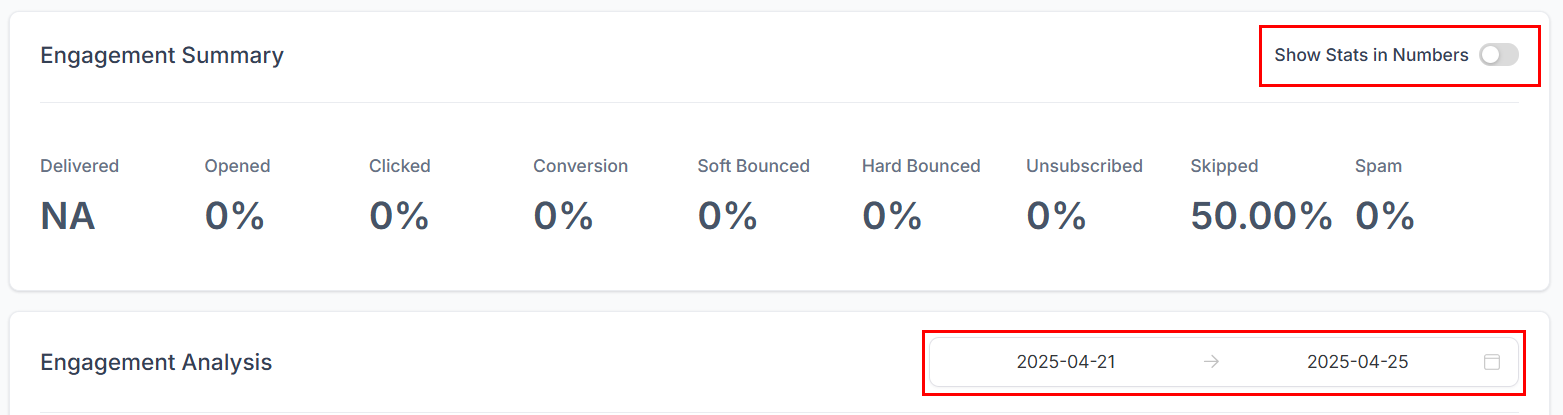
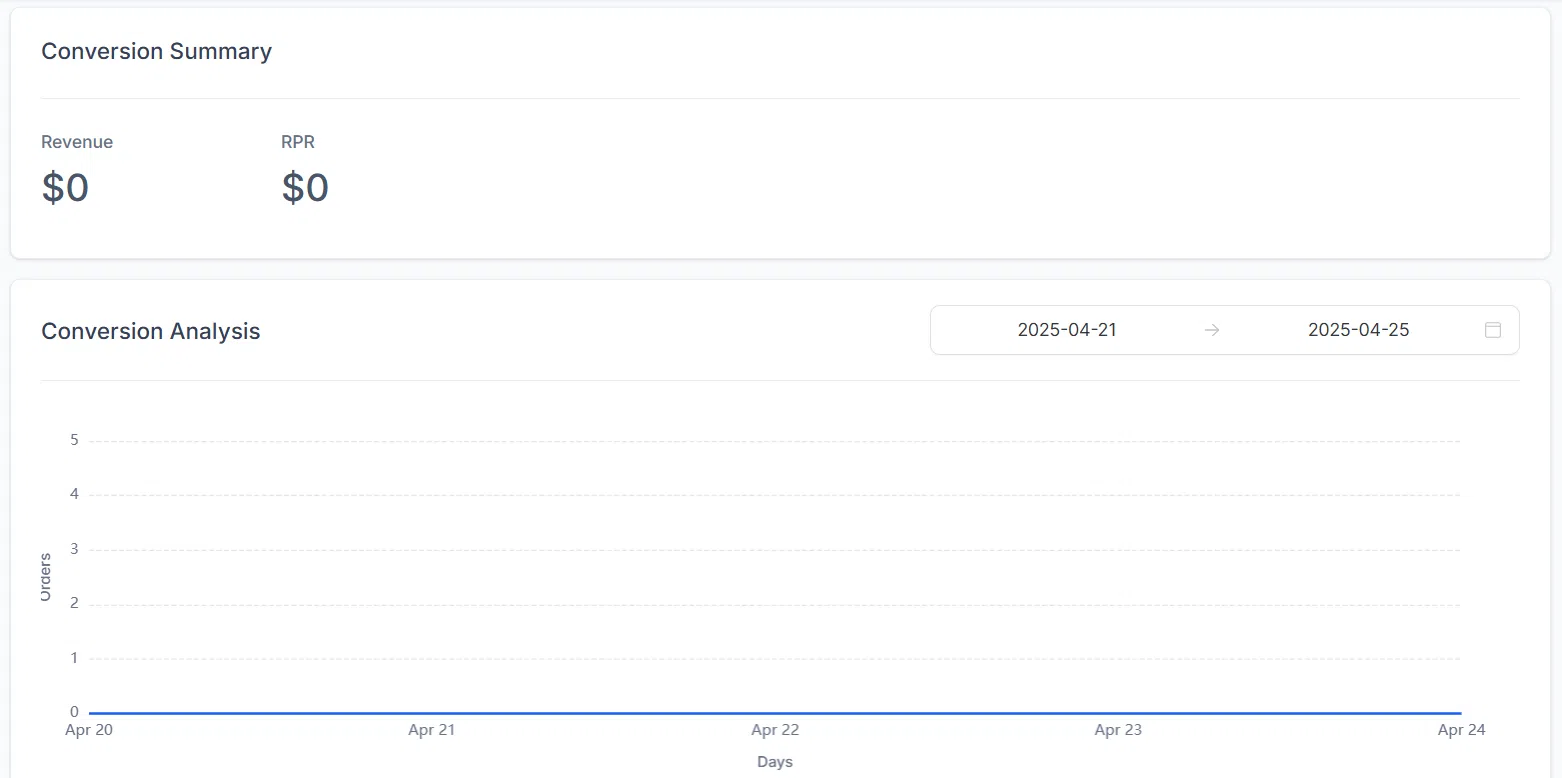
The conversion section shows the revenue and orders attributed to this campaign based on your attribution window settings.
Exporting Data
Use the Export option to download campaign statistics as a CSV for further analysis or reporting.
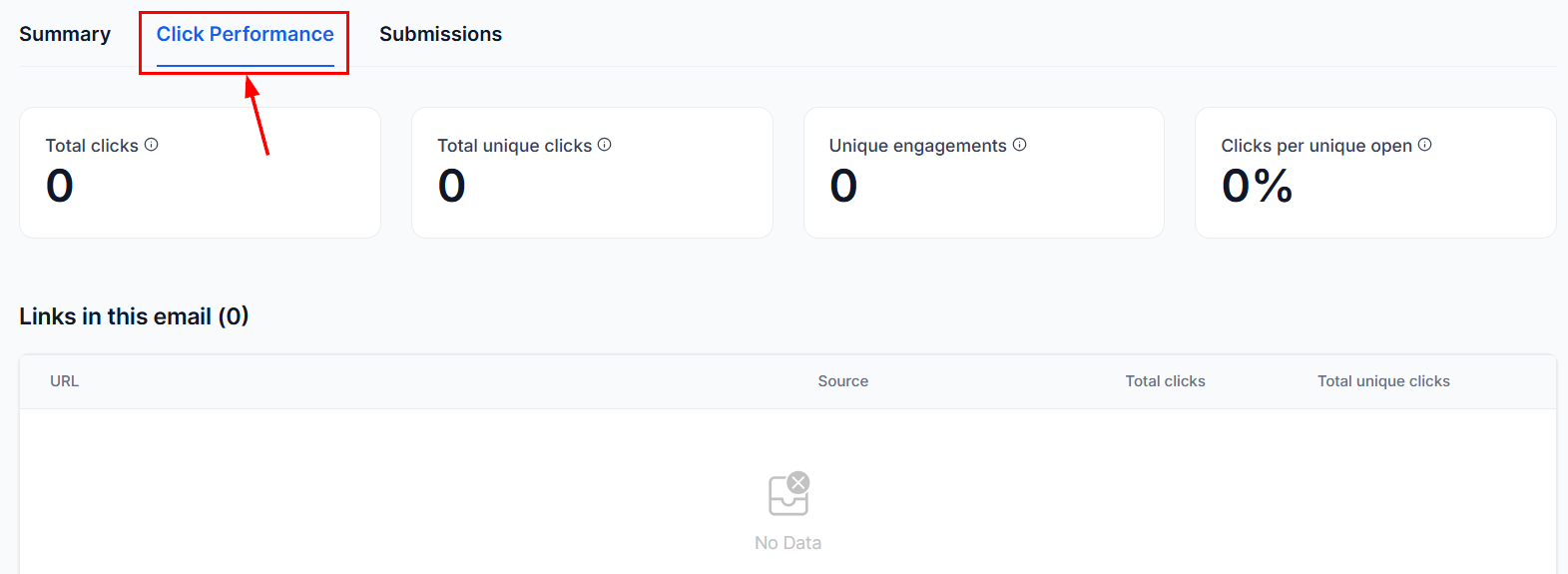
Click Performance
The Click Performance tab shows which links in your campaign were clicked, how many times each was clicked, and which contacts clicked them.
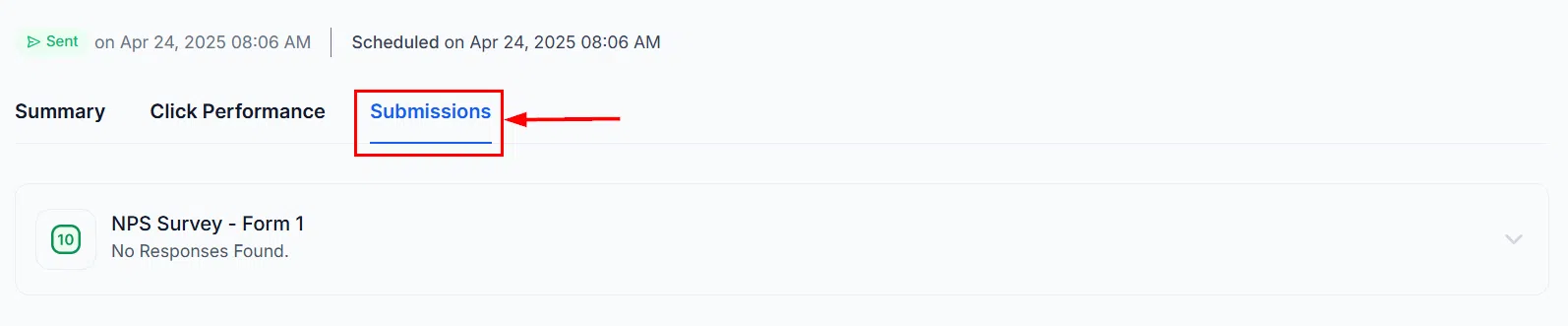
Form Submissions
If your campaign included a Form Element, the Submissions tab shows all responses received, with the option to export the respondent list.
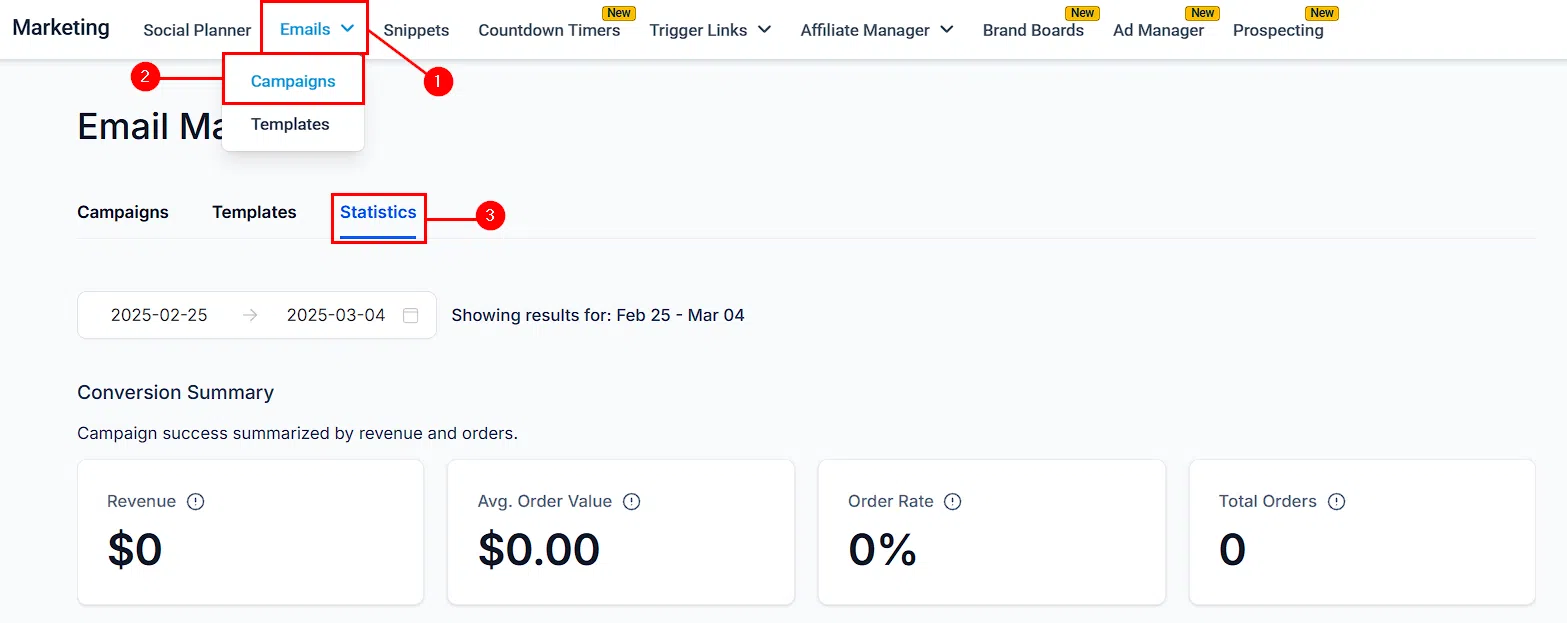
Campaign-Wide Statistics Overview
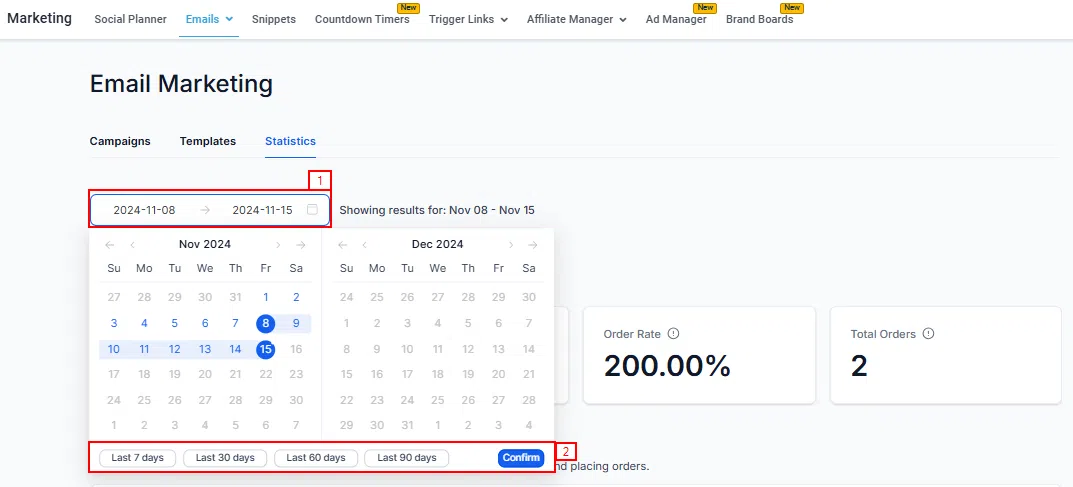
The Statistics overview gives you a high-level picture across all your email campaigns over a selected time period. Access it from Marketing > Emails > Campaigns via the Statistics view.
Key Metrics Panel
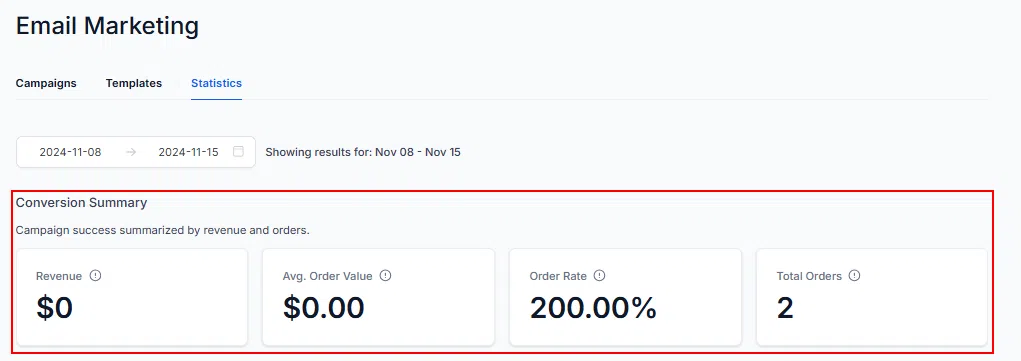
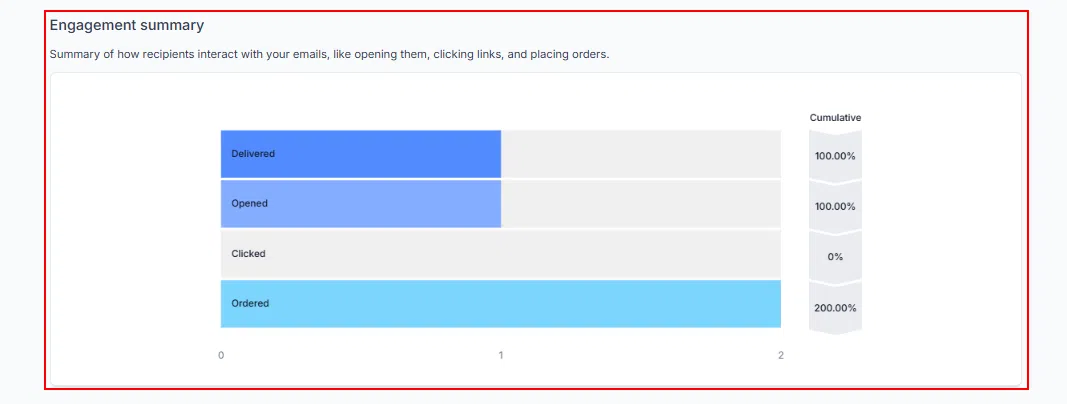
The top panel shows overall campaign performance across your chosen date range, including total sends, opens, clicks, and revenue.
Performance Trends
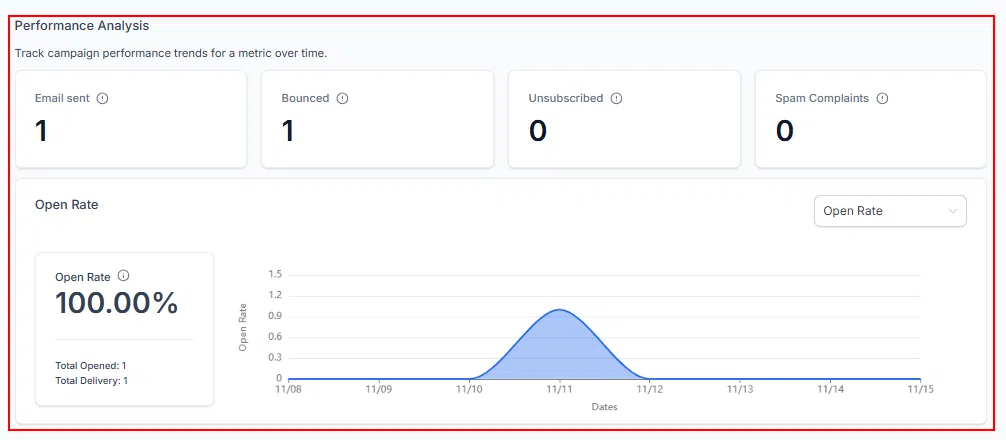
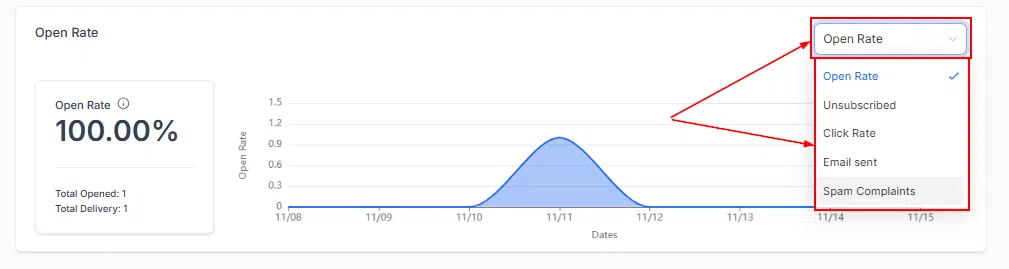
The trends chart lets you track how specific metrics change over time. Use the dropdown to switch between open rate, click rate, revenue, and other metrics to identify patterns and seasonal trends.
Top Revenue-Generating Emails
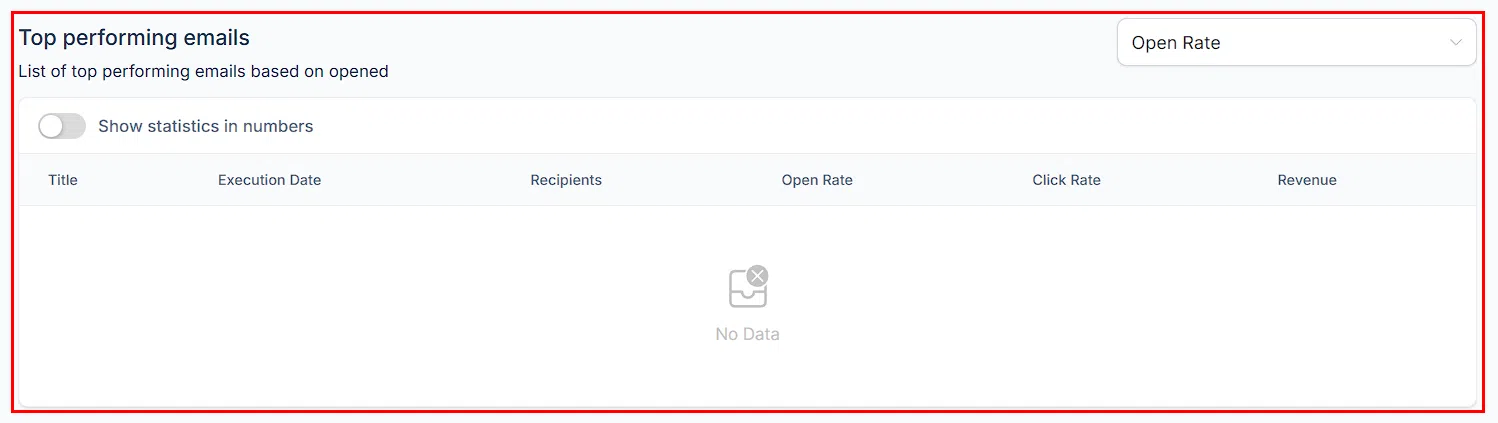
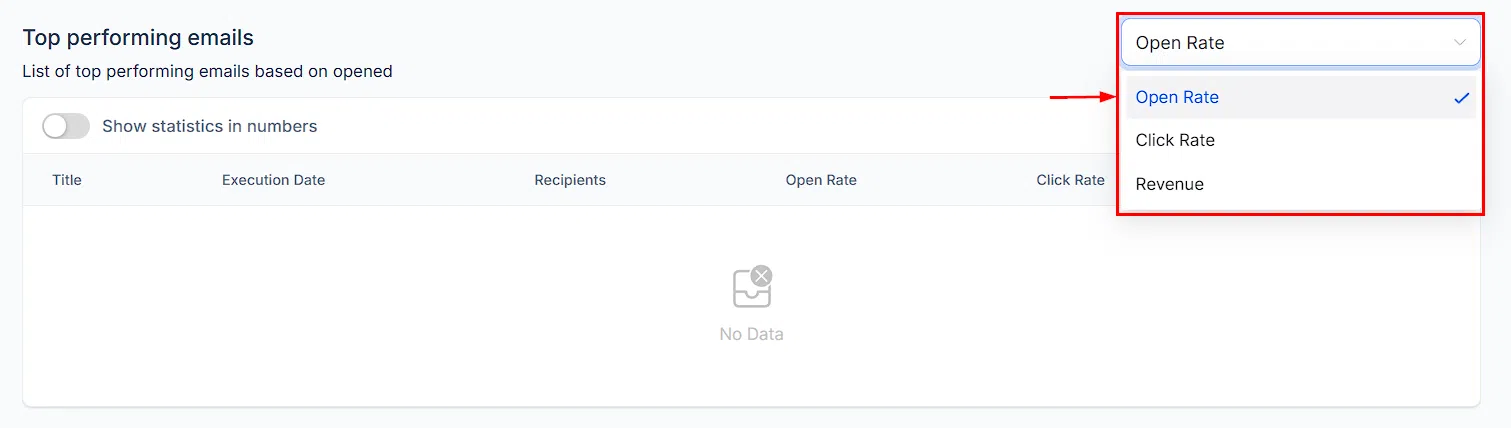
This section identifies your top 5 campaigns by revenue. Use the dropdown filter to sort by Open Rate, Click Rate, or Revenue to understand what’s working and replicate it in future campaigns.
Recent Email Analysis
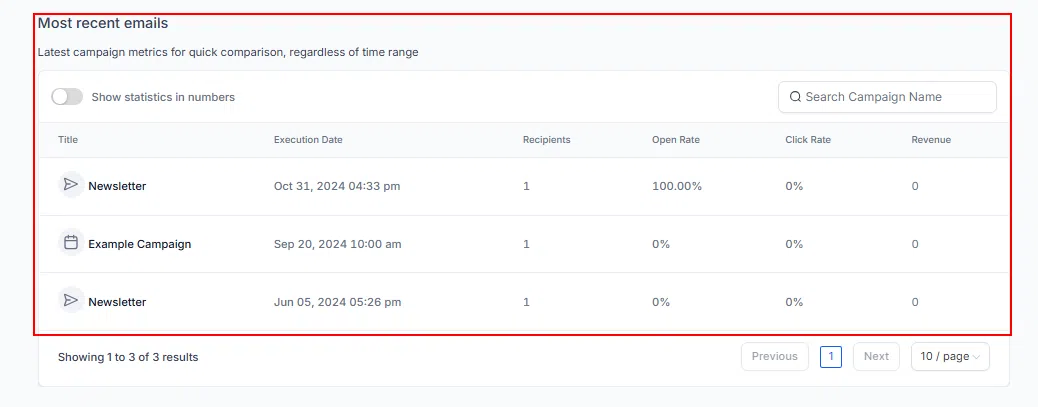
A detailed view of your 10 most recent campaigns lets you evaluate recent performance at a glance and identify areas for adjustment.
Note: If the Statistics feature is not visible, check that it has been enabled in your Beta settings.