Batch Delivery (Drip Mode) in Growth360 lets you send email campaigns in timed batches rather than to your entire list at once, helping manage server load and control the pace of delivery.
What is Batch Delivery?
The Batch Delivery feature – also called Drip Mode – is designed for situations where you want to spread your campaign sends over time. Instead of blasting your entire contact list simultaneously, Growth360 sends the campaign in smaller groups at set intervals. This is particularly useful for managing website or funnel traffic after a campaign launch.
Before You Begin
Before setting up a batch email campaign, make sure you have:
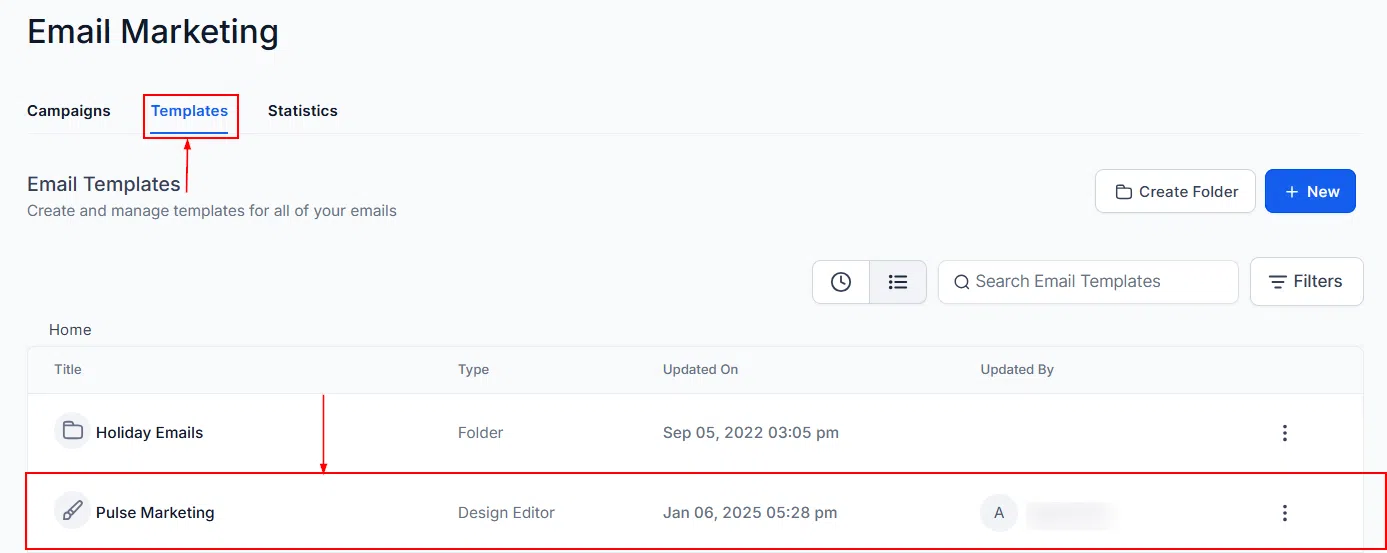
- An email template: Design your campaign layout in the Email Builder beforehand.
- A verified sending domain: Confirm your domain is verified in Growth360 before sending.
Creating a Batch Email Campaign
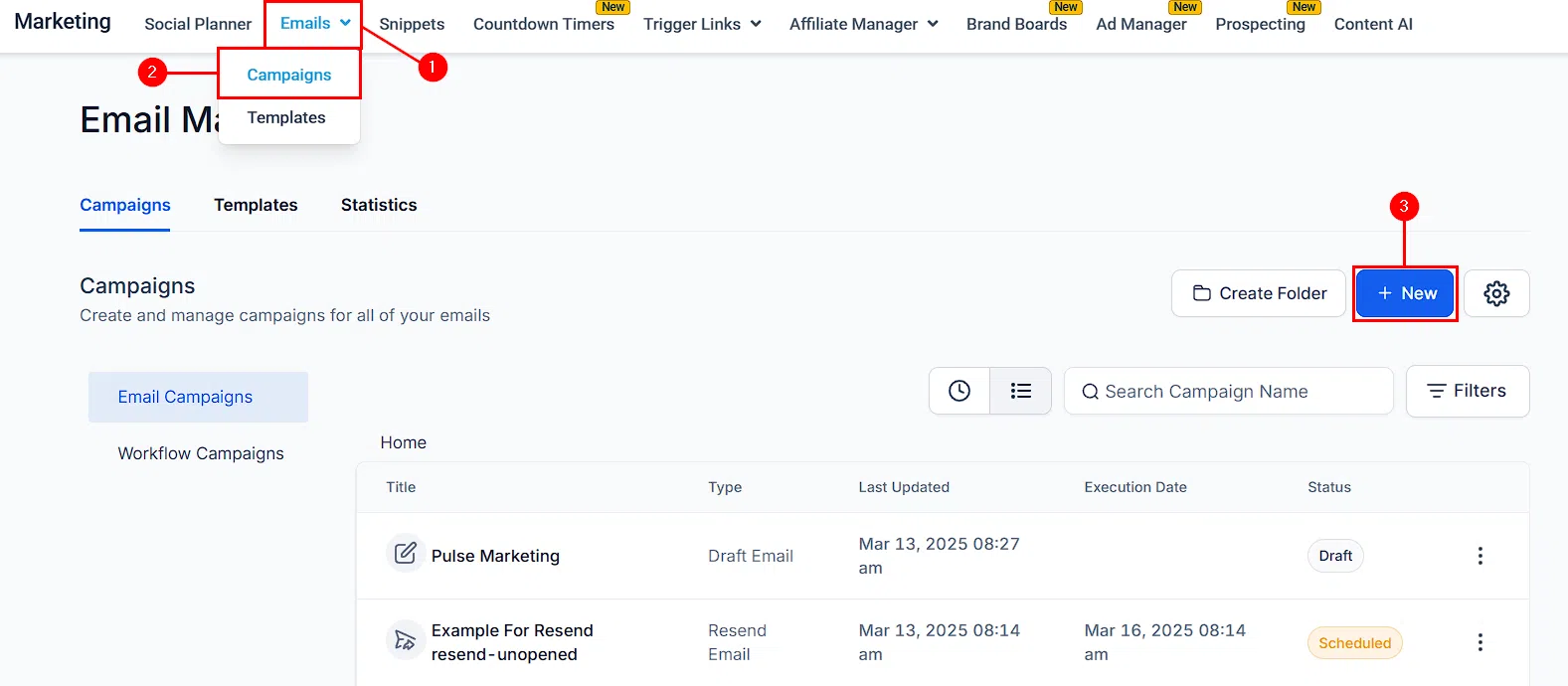
Go to Marketing > Emails > Campaigns and click + New. Select the batch/drip campaign type to get started.
Step 1: Select Your Template
Choose your email template from the library. Use the preview option to verify the template before selecting it.
Step 2: Design Your Content
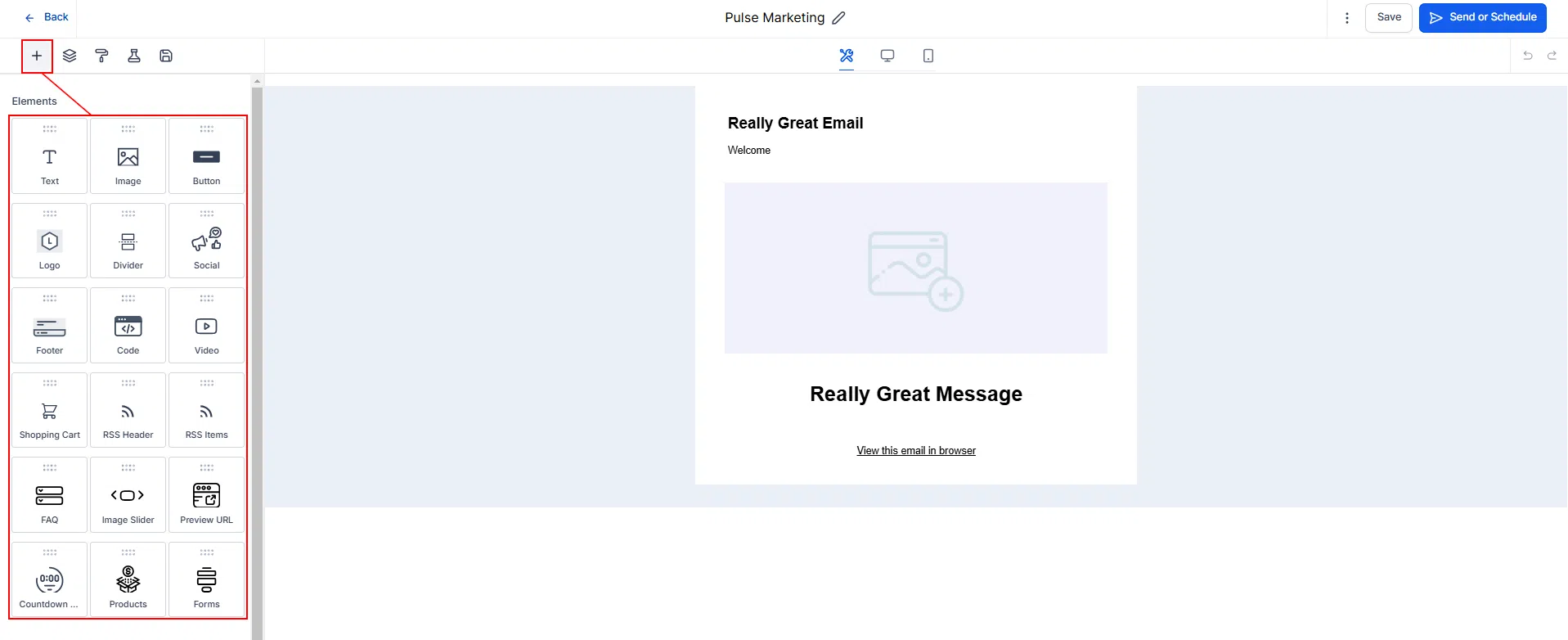
Enter the Email Builder to design your campaign content and add any required elements. The builder provides tools for creating visually appealing campaigns regardless of your experience level.
Step 3: Send or Schedule
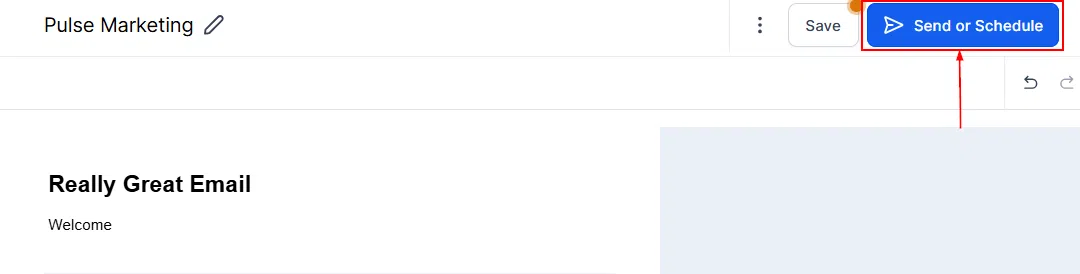
After designing, click Send or Schedule to configure the batch delivery settings.
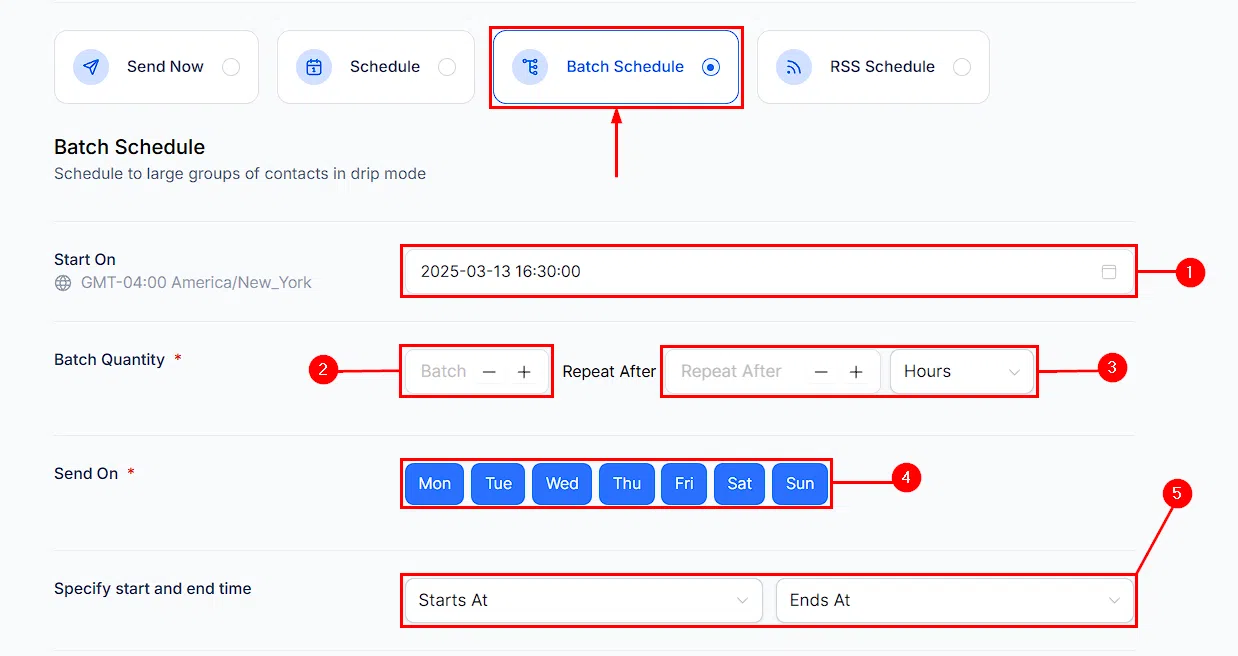
Batch Schedule Settings
This is where you control how the batches are delivered:
- Start date: Set when the campaign begins sending.
- Batch quantity: Specify how many contacts receive each batch.
- Repeat interval: Set the frequency between batches – choose from days, hours, minutes, or seconds.
- Send-on days: Uncheck any days you don’t want batch deliveries to go out.
- Start and end times: Define the time window within each day when batches can send.
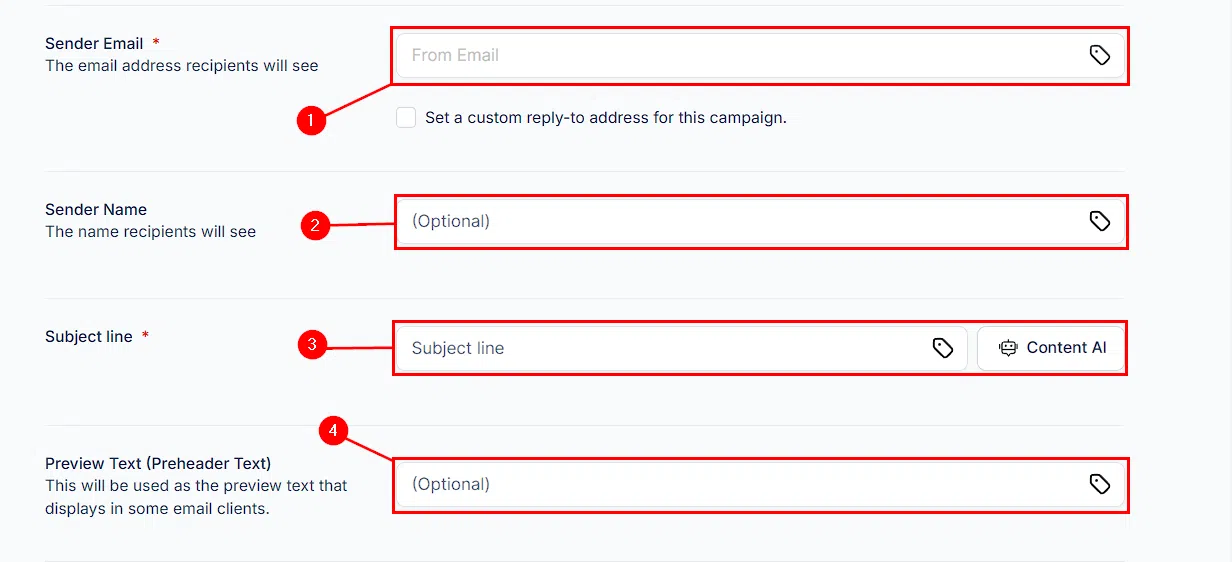
Sender Details and Subject Line
Fill in the campaign sender information:
- Sender email address: The address the campaign sends from.
- Sender name: The name recipients see in their inbox.
- Subject line: Required for sending. You can use Growth360’s AI tool to help generate one.
- Preview text: A short snippet shown before the recipient opens the email.
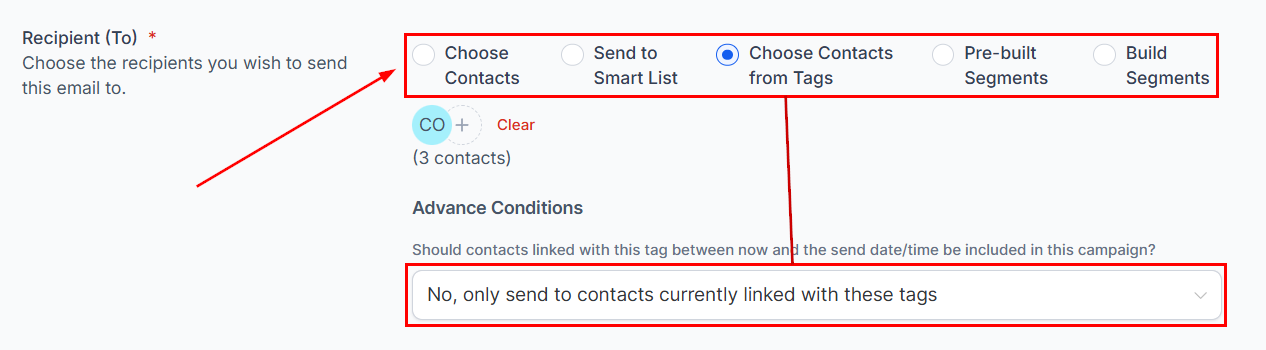
Selecting Your Contacts
Choose the contacts to include in the campaign. If you’re sending to a Smart List or Tag, you can choose to limit the send to current list members only, or include any new contacts added to the system before the send date and time.
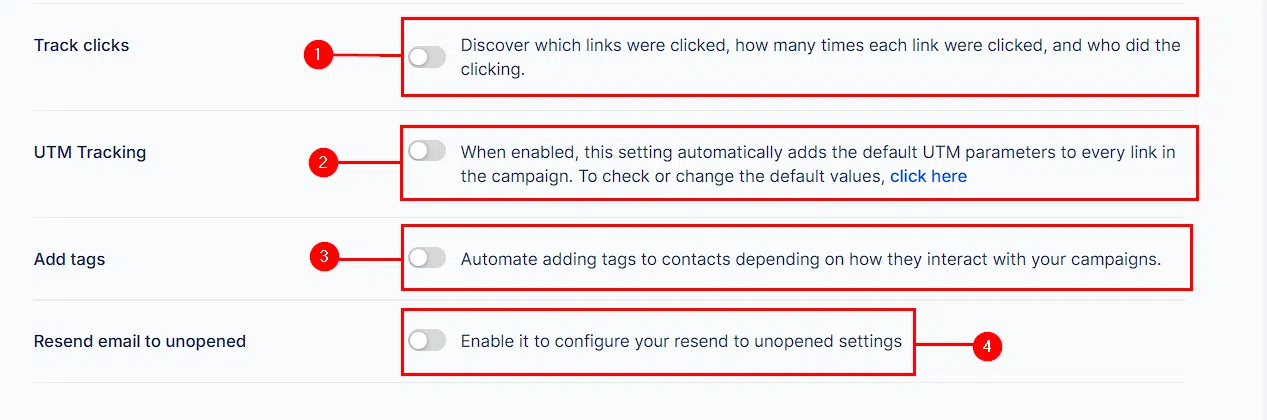
Additional Options
- Click tracking: Enable to see which links were clicked, how often, and by whom – giving you a detailed picture of campaign engagement.
- UTM tracking: Automatically applies UTM parameters to all campaign links for analytics tracking.
- Add Tags: Toggle on to automate tagging for segmented batches based on contact interactions. Tags help personalise future campaigns and optimise audience engagement.
- Resend to unopened: Automatically resend to contacts who didn’t open the original. You can adjust timing, track resend status, or cancel if needed.
Review and Schedule
Once all settings are configured, click Review and Schedule to activate the campaign. Growth360 will begin delivering batches according to your schedule.