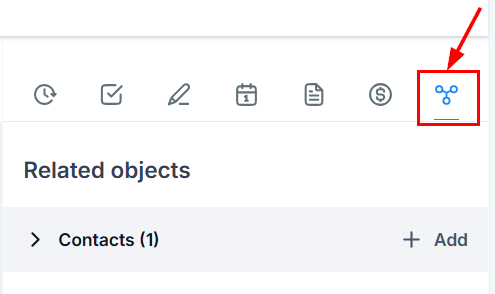
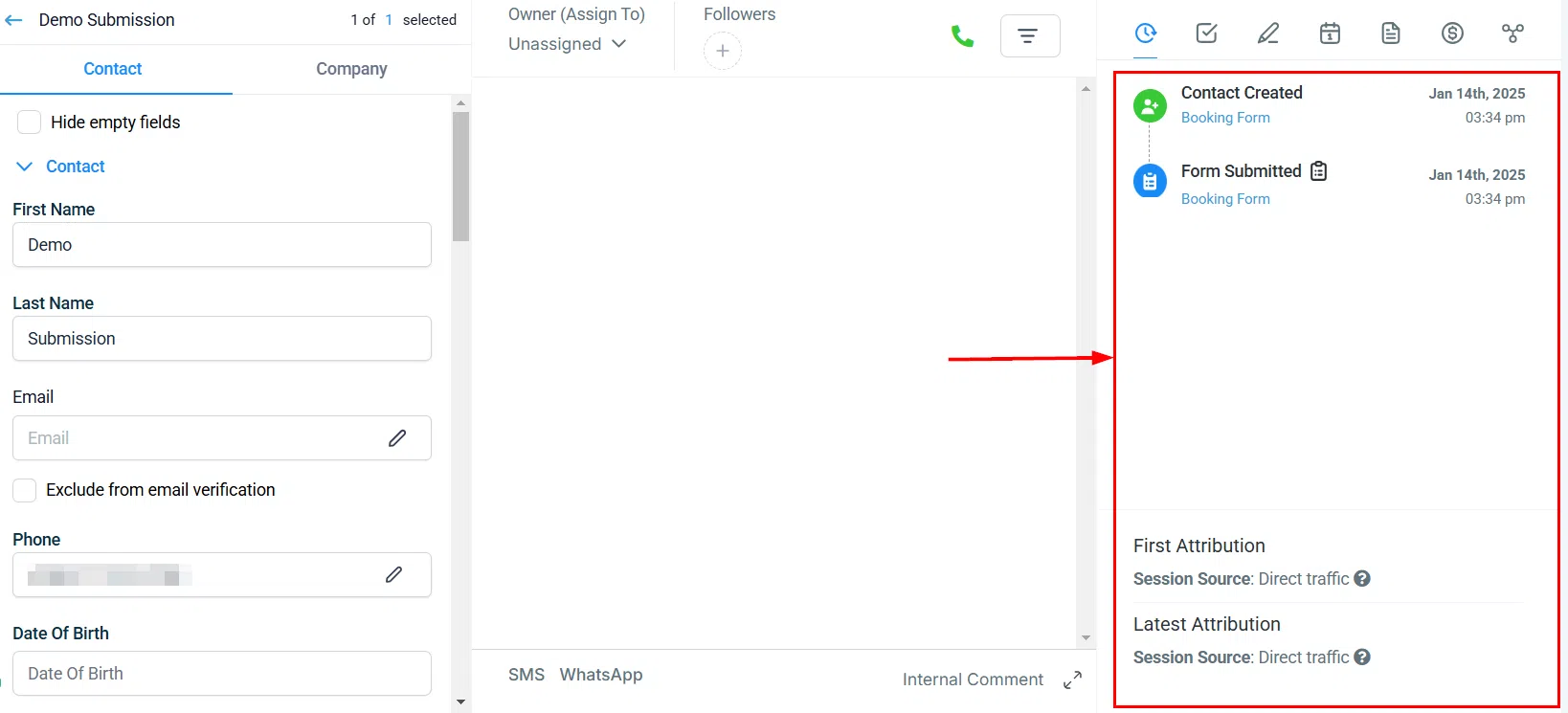
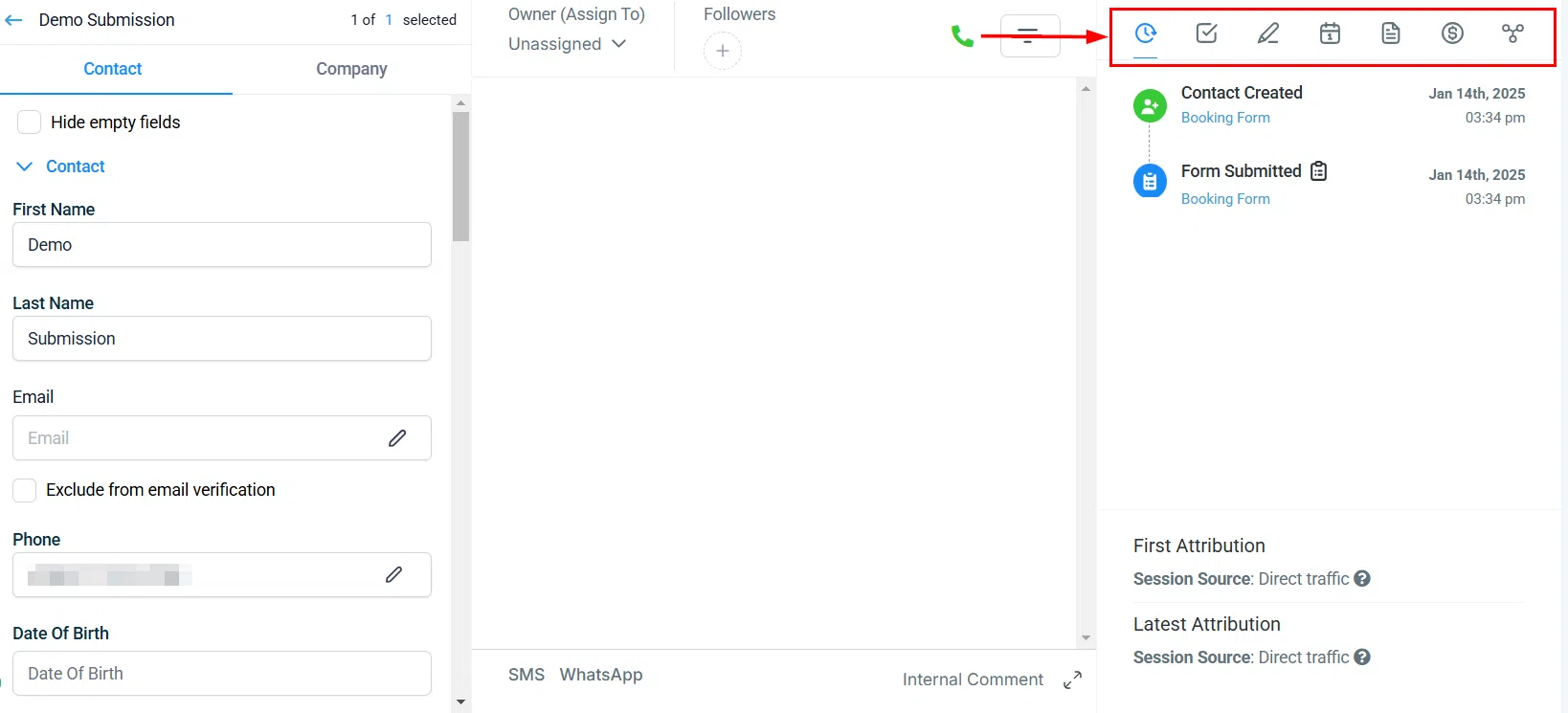
The Contact Information Panel sits on the right side of every contact card in Growth360 and gives you access to seven tabs covering activity, tasks, notes, appointments, documents, payments, and associations.
On the far right side of any contact card, you’ll find the contact information panel. It gives you more control over each contact in your system and lets you take different actions depending on what you need.
Activity Tab
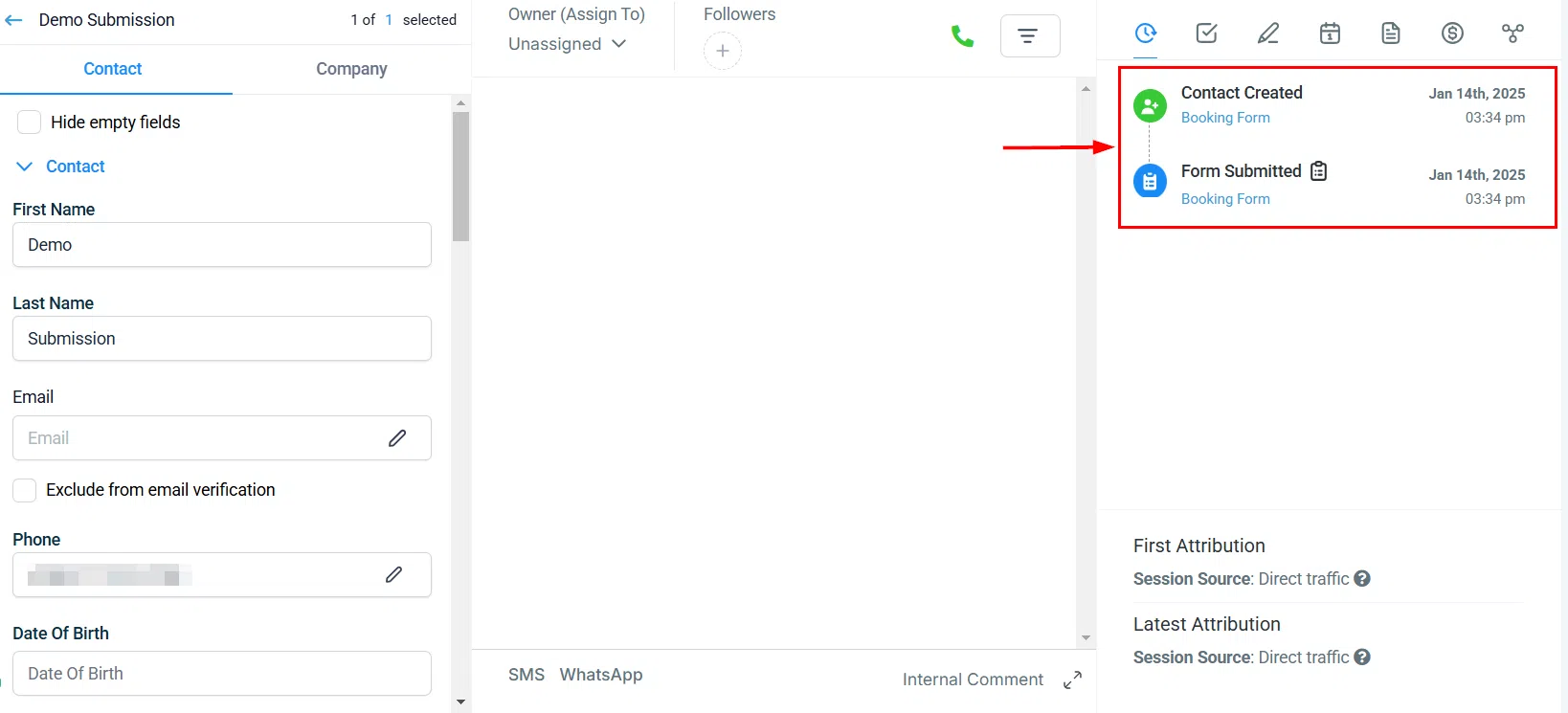
The Activity tab is essential for tracking where the contact visited your website, how they contacted you (via email, phone, or text), and when they made a purchase. Note that website activity only appears if your website is built within Growth360.
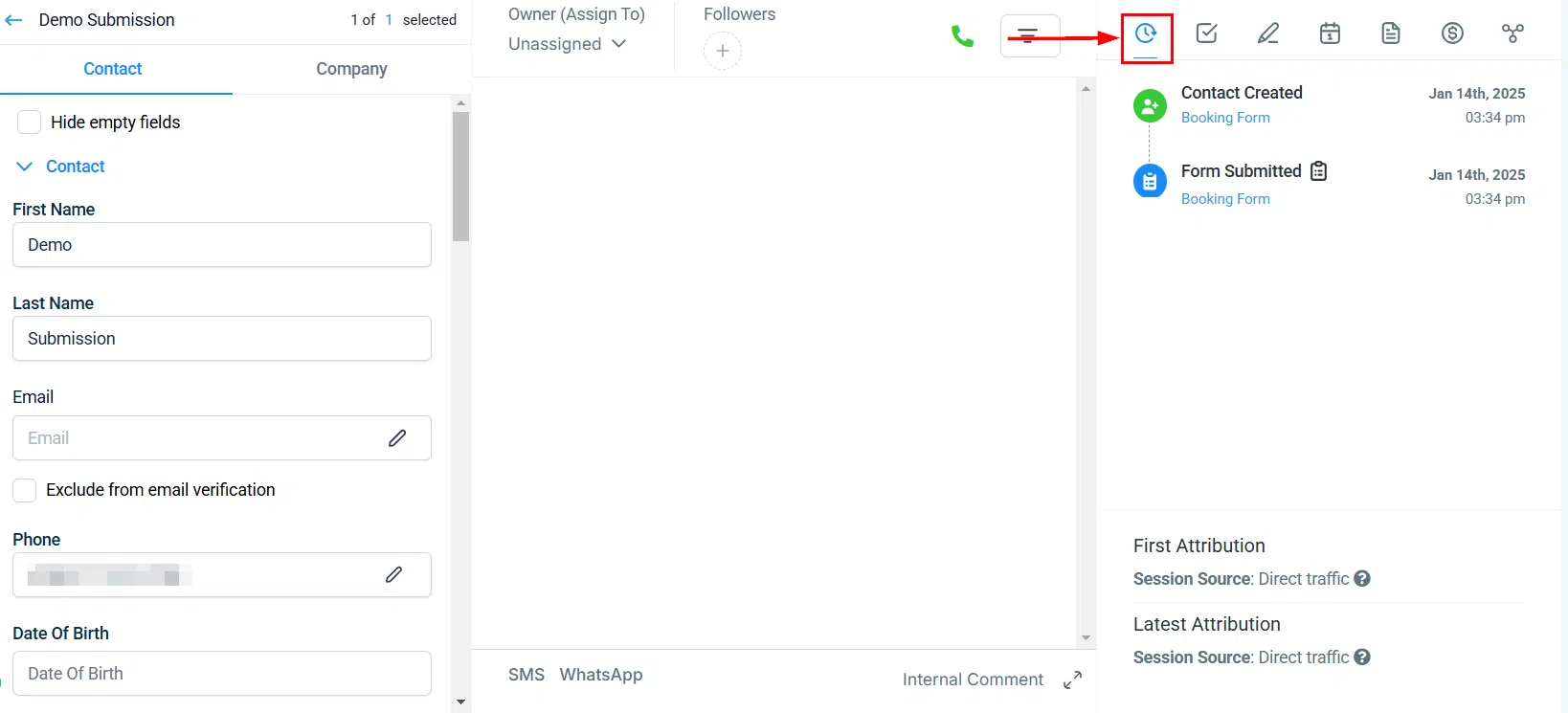
Activity History
View a complete timeline of your contact’s activities, including any interactions with your website.
Attribution
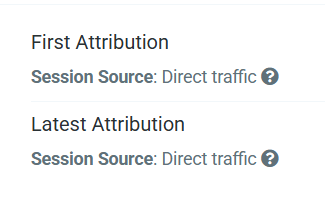
Attribution shows you where the contact first interacted with your business, and where they last interacted. This is a powerful tool for understanding which channels and campaigns are driving results.
Tasks Tab
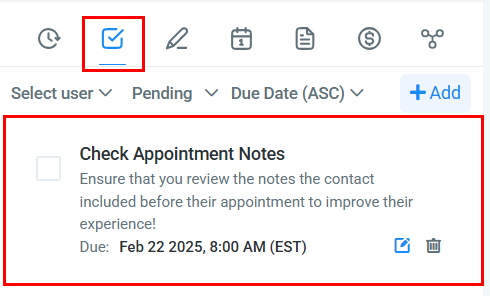
Use the Tasks tab to create and manage pending items for this contact. To add a task, give it a title, a due date, and optionally assign it to a team member. This keeps your follow-up actions organised and nothing falls through the cracks.
Notes Tab
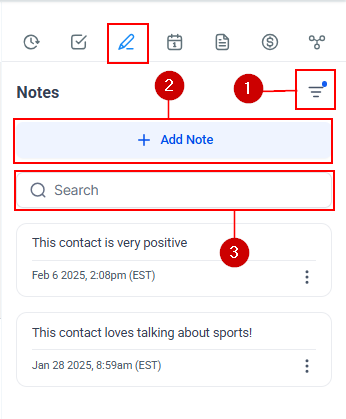
The Notes tab lets you record extra information about a contact – useful when dealing with customers and new leads. Sort notes by date created, use the search function to find specific notes quickly, or click + Add to create a new one. Each note has a timestamp and can be edited at any time.
Appointments Tab
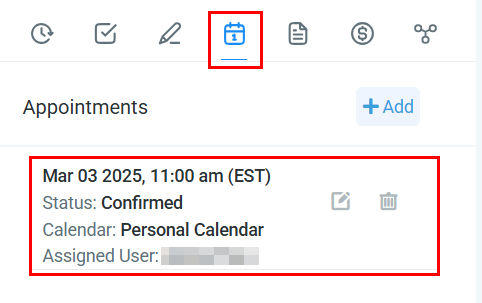
In the Appointments tab, you can schedule appointments for sales, customer support, or any other purpose, making it easier to manage your time and stay organised.
Documents Tab
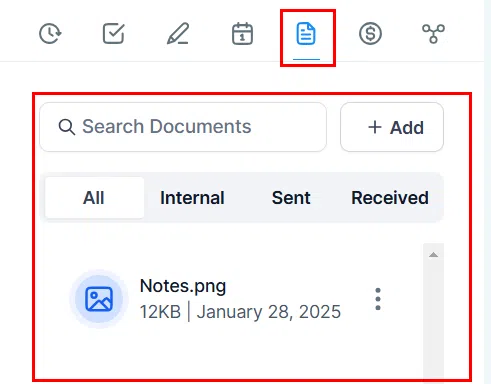
The Documents tab stores all important files related to a contact – whether that’s a contract you sent, a PDF they returned, or any internal documents related to that person.
Payments Tab
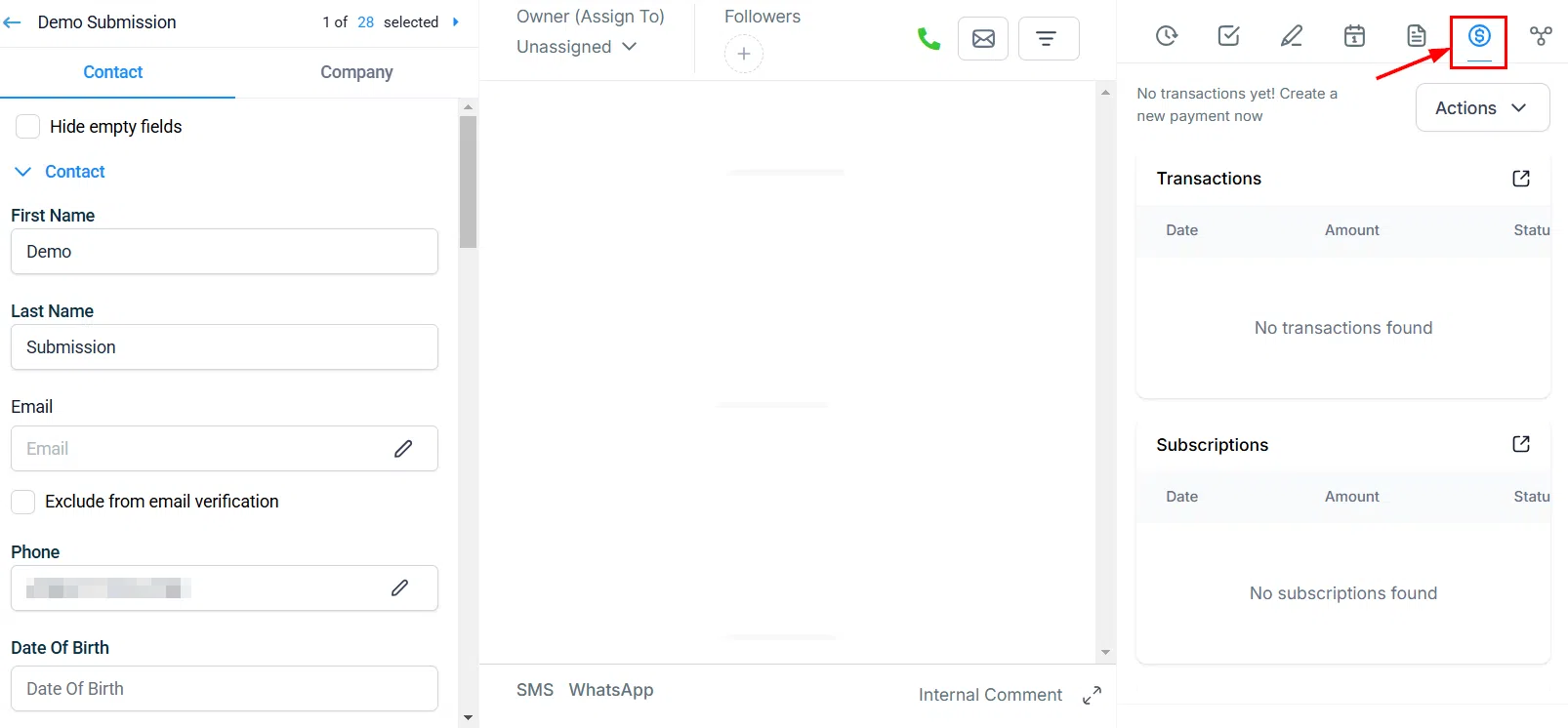
The Payments tab lets you take payment actions on behalf of your contacts and track all transactions, including subscriptions, invoices, and fulfilled payments.
Payment Actions
There are six payment actions available directly from the contact record:
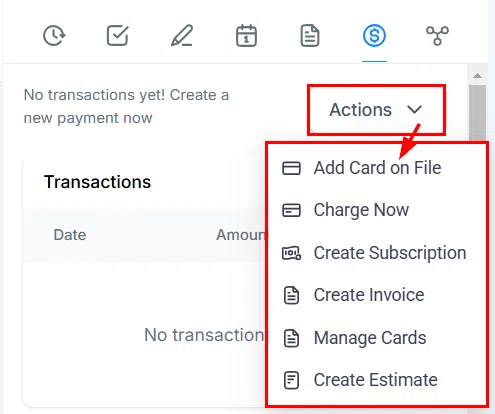
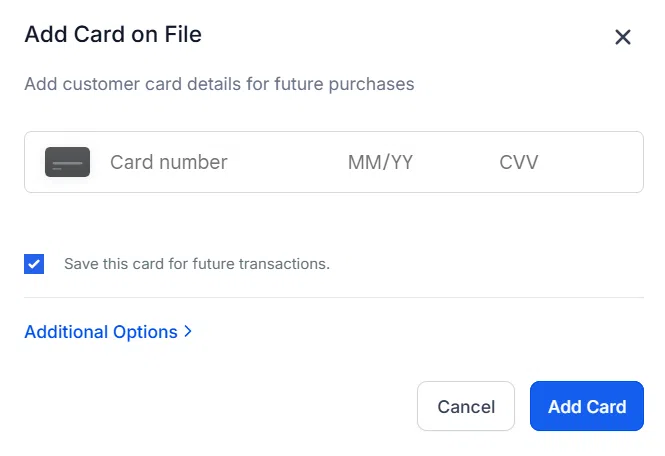
- Add Cards on File: Add credit or debit card information to the contact’s record for easy checkout, fees, and subscription payments.
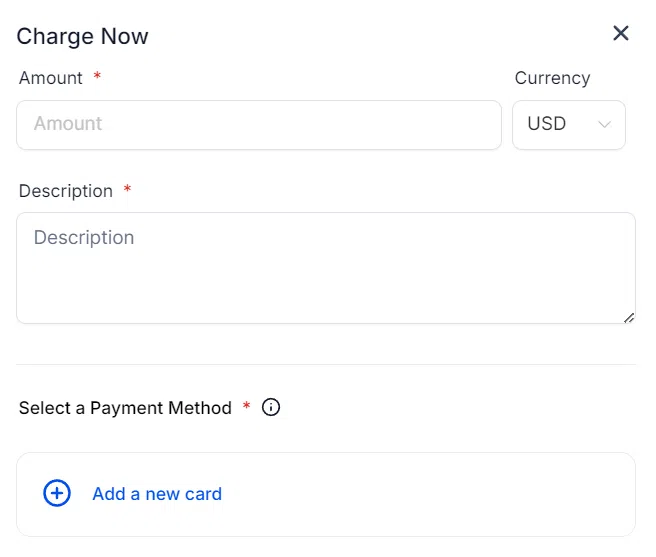
- Charge Now: Take a payment immediately by entering the amount and a short description – useful even when you’re in the middle of a call.
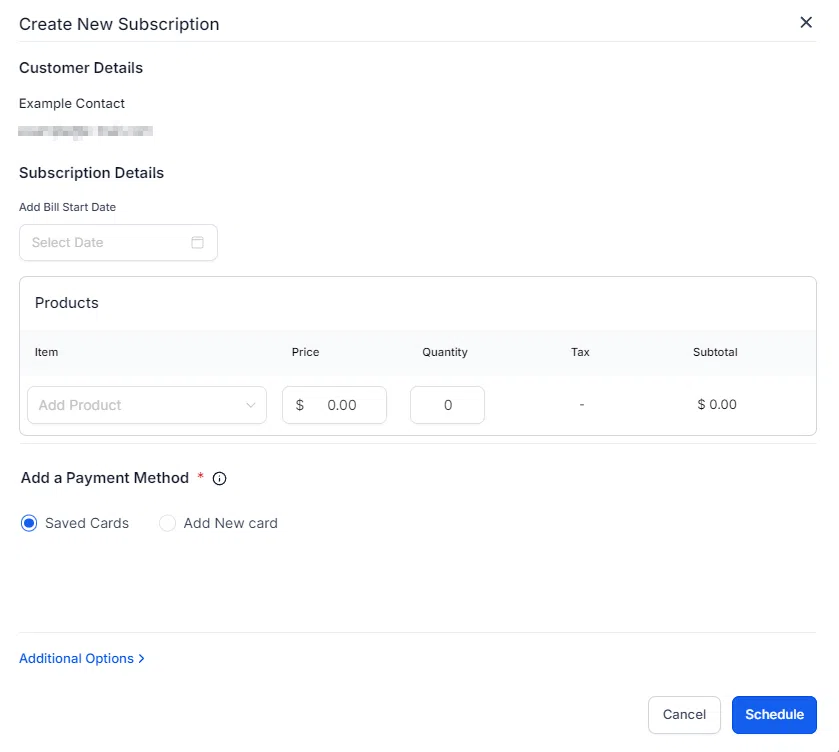
- Create Subscription: Opens a pop-up to select the starting date and products for the contact’s subscription.
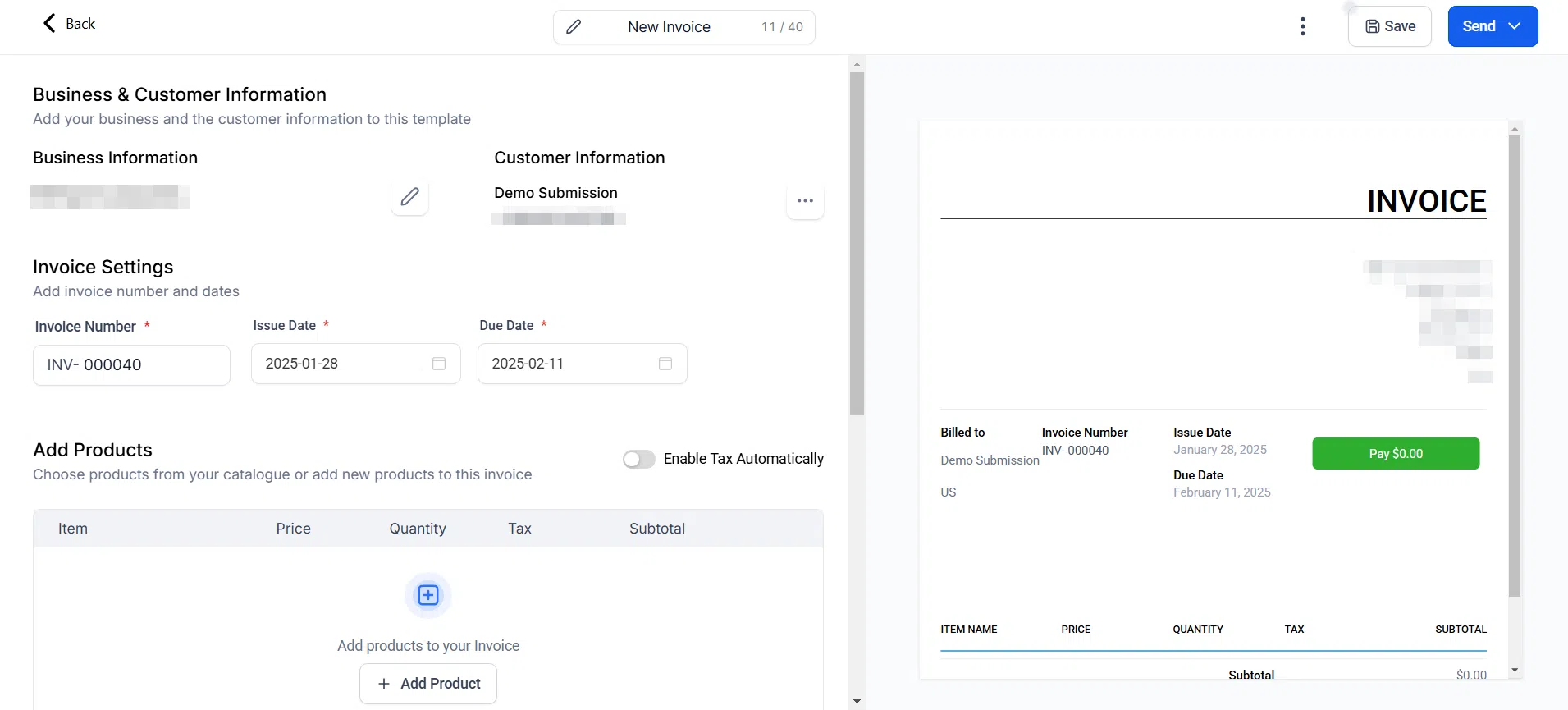
- Create Invoice: Redirects you to the invoice builder with the contact’s details pre-filled.
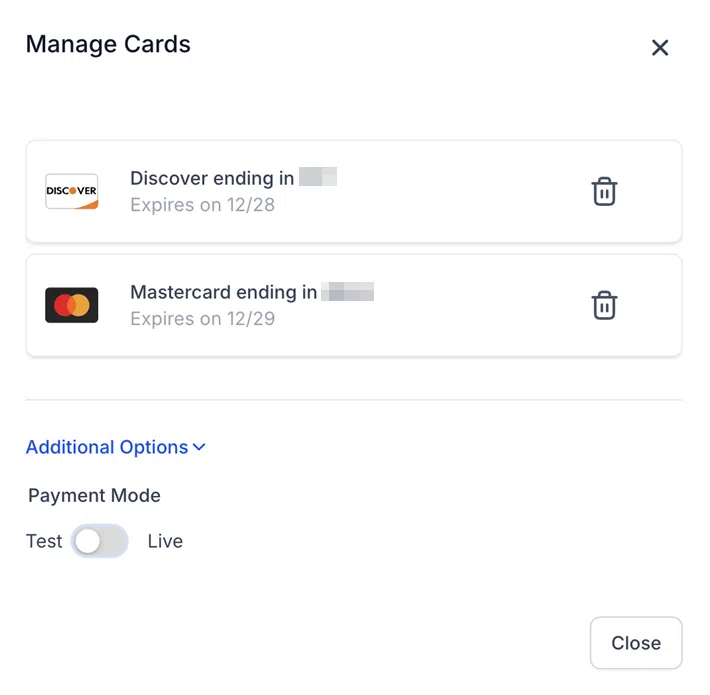
- Manage Cards: View all stored cards, showing the last four digits, expiration date, and any label. Cards can be deleted from this list. If a card is linked to an active subscription, you’ll be prompted before deletion – and the subscription will lose its automatic payment method if you proceed.
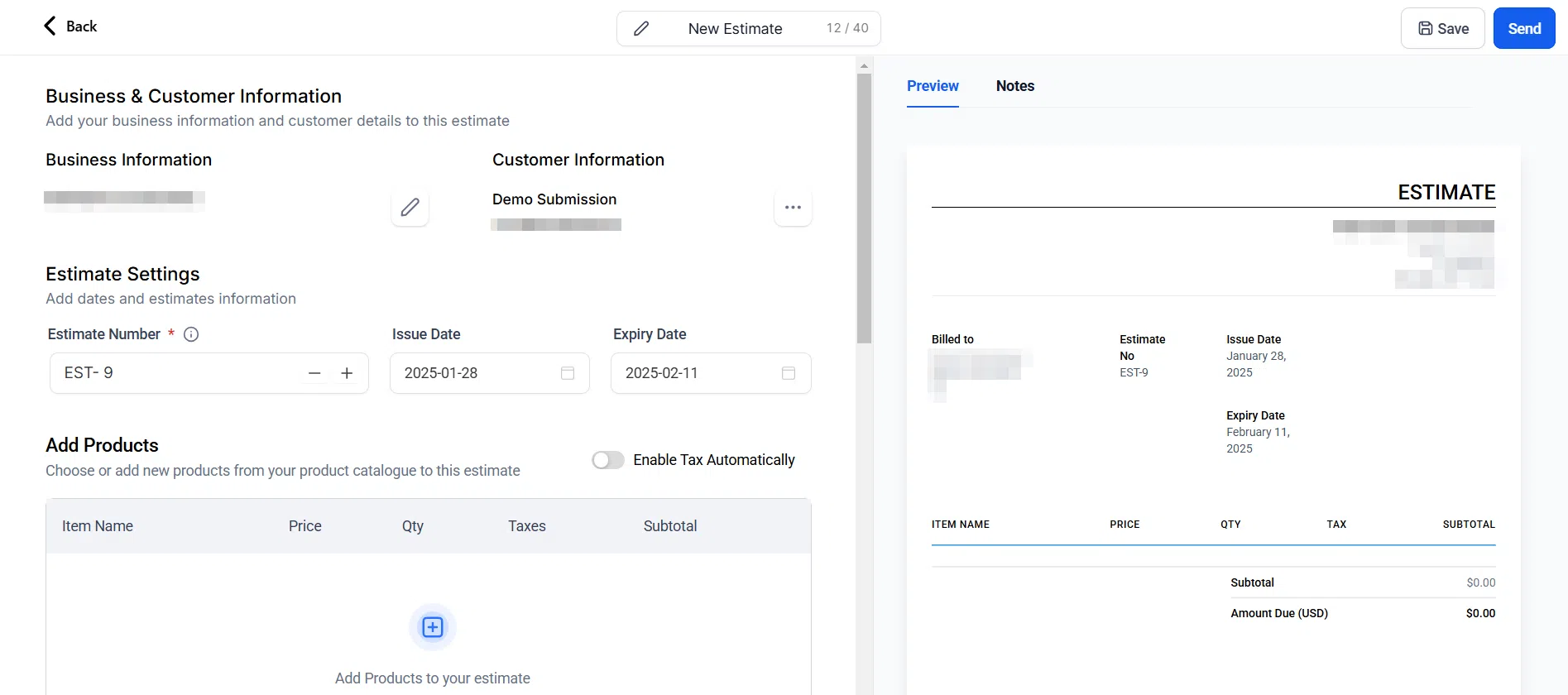
- Create Estimate: Redirects you to the estimate builder with the contact’s details pre-filled. Add products, then verify customer and business information before sending.
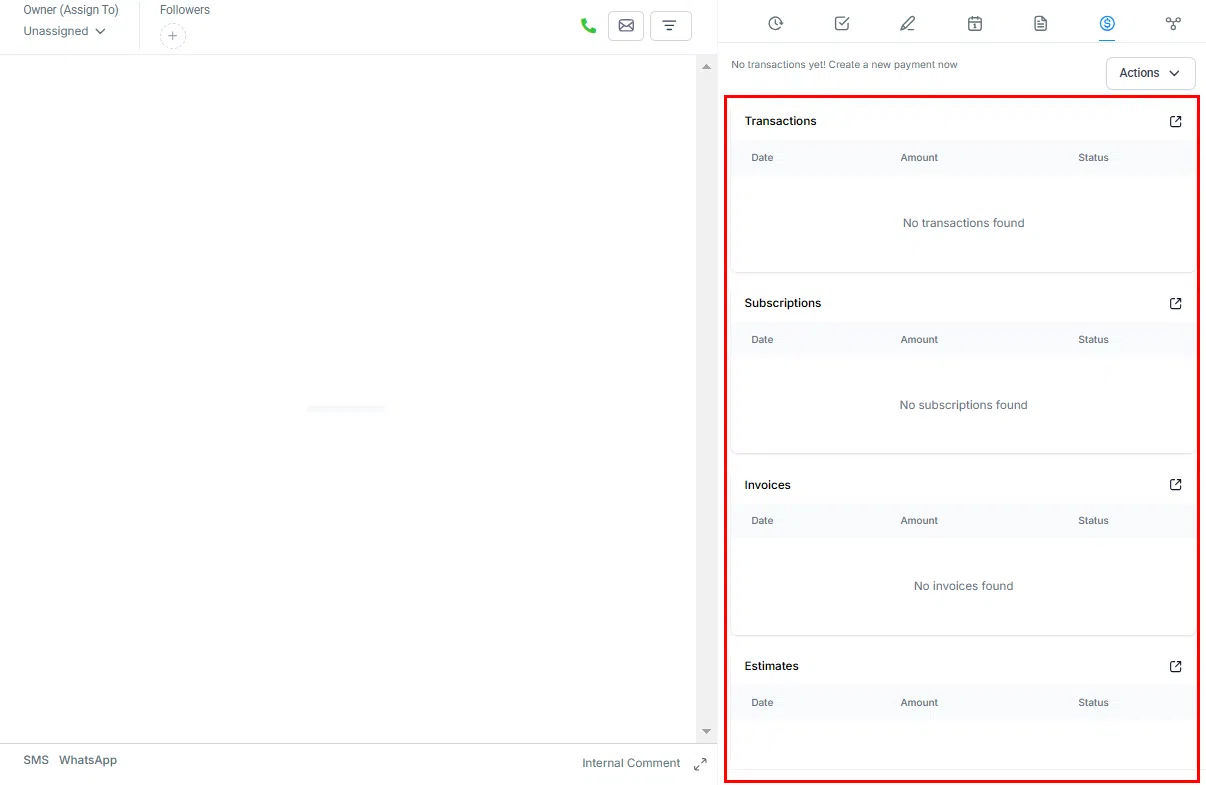
Transactions, Subscriptions, Invoices and Estimates
These tabs within the Payments section let you track the status and details of all financial interactions with the contact.
Associations Tab
In the Associations tab, you can view related objects and association labels linked to this contact. Click + Add to create new associations. Up to 10 association labels can be applied between any two contacts.