The Contacts section in Growth360 is where all your client and lead records live. Each contact card gives you full visibility of their details, communication history, tags, automations, and more – all from one place.
Contact Name
When you open a contact record, the contact’s name appears in the upper left corner. This makes it easy to confirm you’re viewing the right record, especially when navigating between multiple contacts.

Cycle Through Contacts
Use the blue arrow to move between contacts in your current list without returning to the main Contacts view. This is useful when working through a filtered list or following up on a batch of leads.

Contact Details Card
The left panel displays all the key information for the contact. The details shown will vary based on what has been filled in. You’ll see several tabs within this panel – each containing a different category of information.
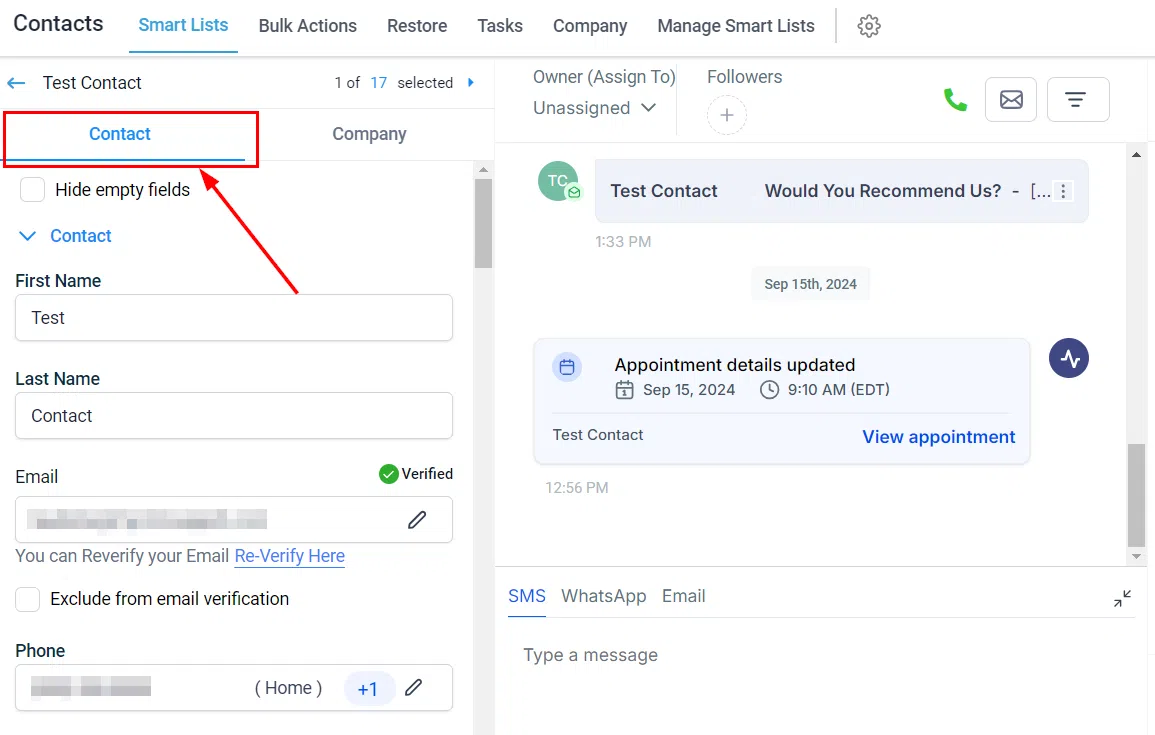
Contact Info Tab
The default tab. Shows core contact details including name, email, phone number, address, and any custom fields specific to your account.
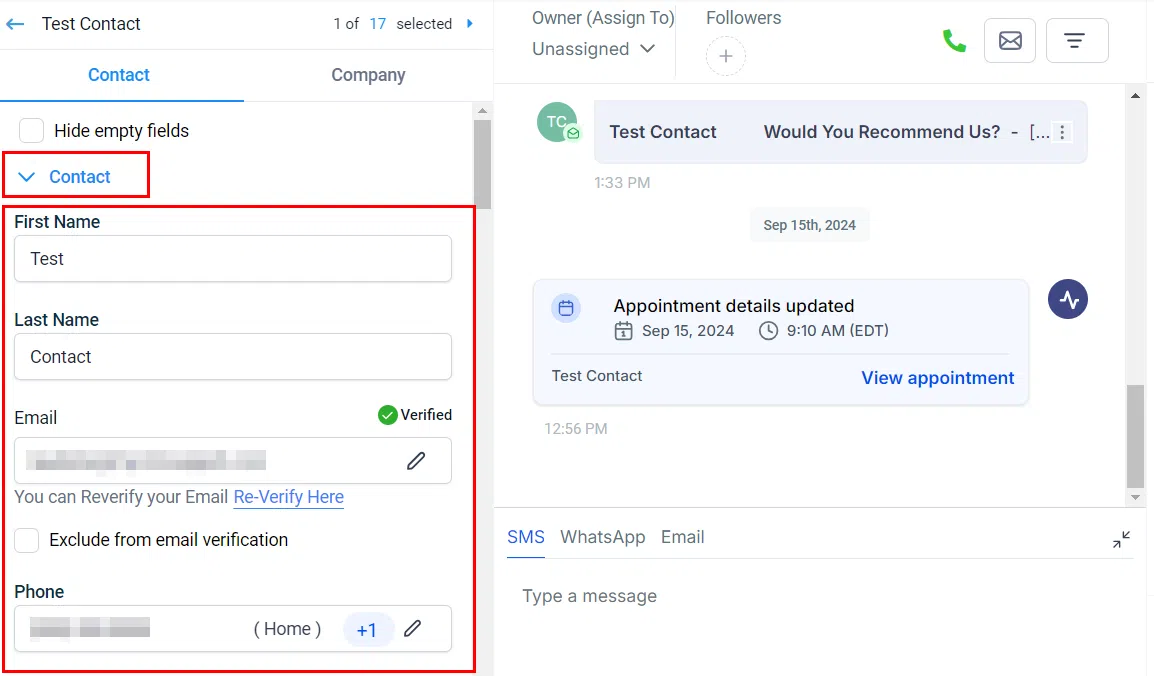
General Info Tab
Contains additional profile information such as date of birth, company, and other general details that help you build a more complete picture of the contact.
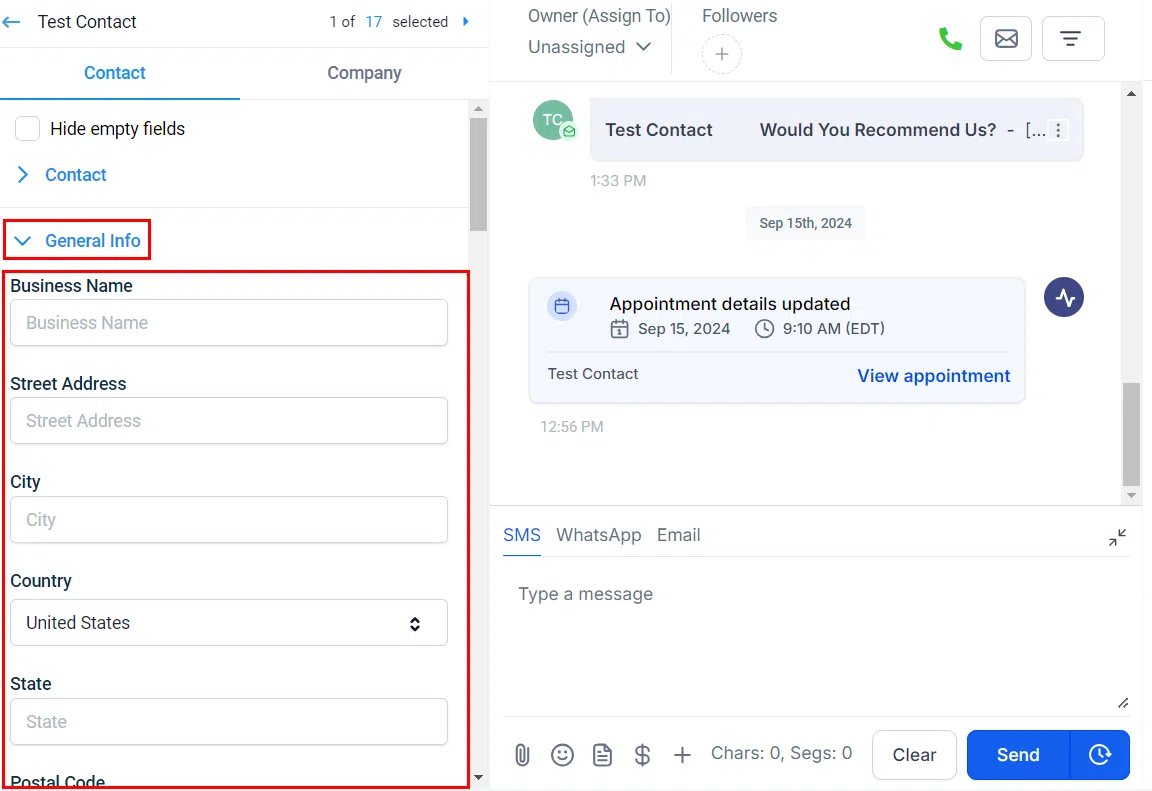
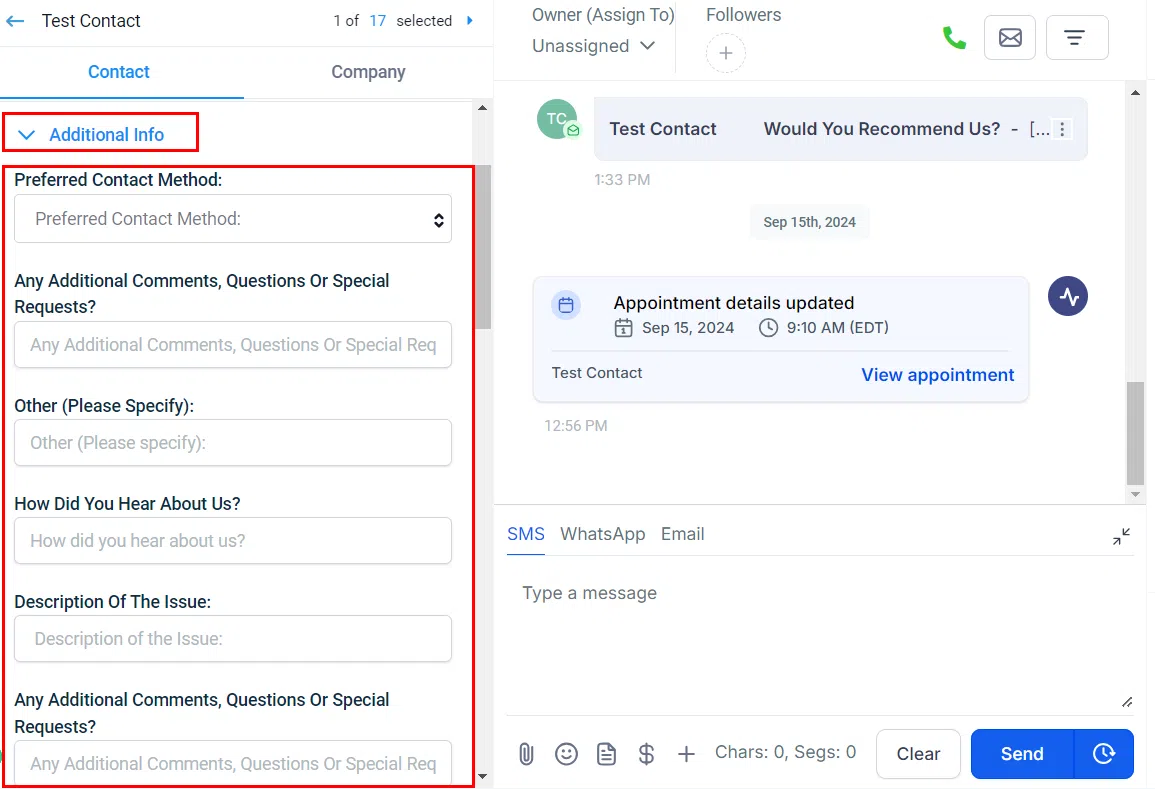
Additional Info Tab
Displays any extra custom fields configured for your account. Use this tab to store industry-specific or business-specific information about the contact.
Actions
From the contact record, you can take a range of actions directly – including initiating a call, sending an SMS, composing an email, scheduling an appointment, or creating a task. This removes the need to switch between sections to communicate with a contact.
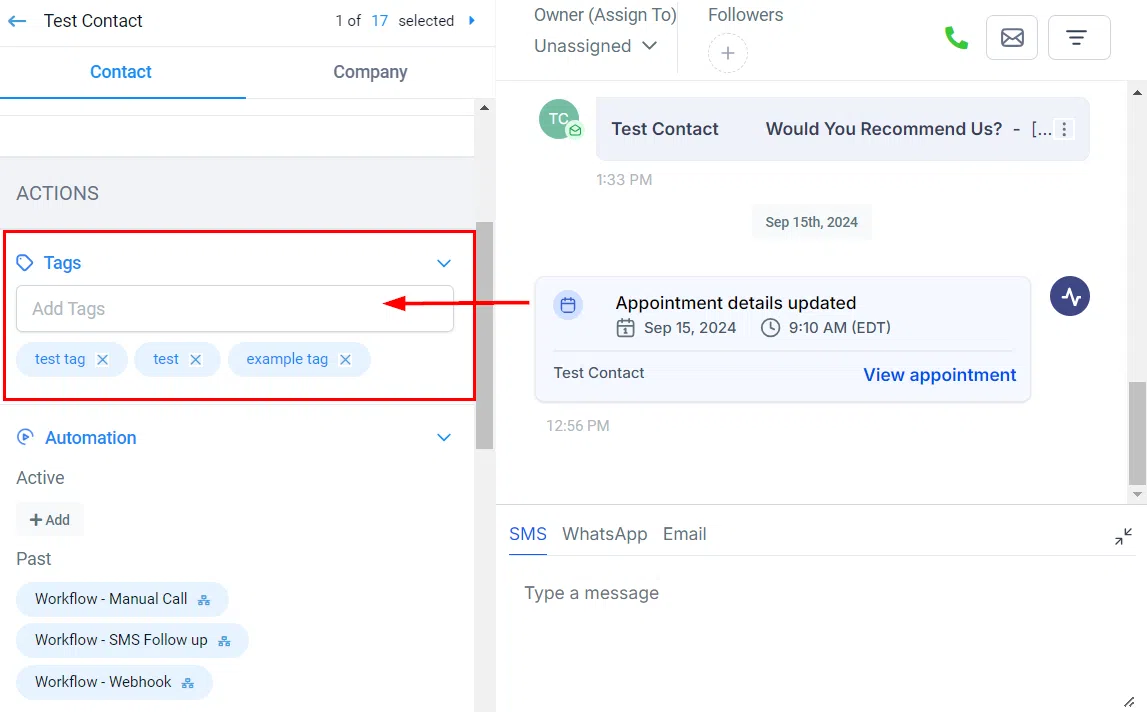
Tags
Tags are labels you can add to contacts to organise and segment your list. Add or remove tags at any time. Tags can also be used to trigger automations or filter contacts in bulk actions.
Automation
View the automations (workflows) the contact is currently enrolled in, or manually add them to a workflow from this panel. You can also remove a contact from an active workflow if needed.

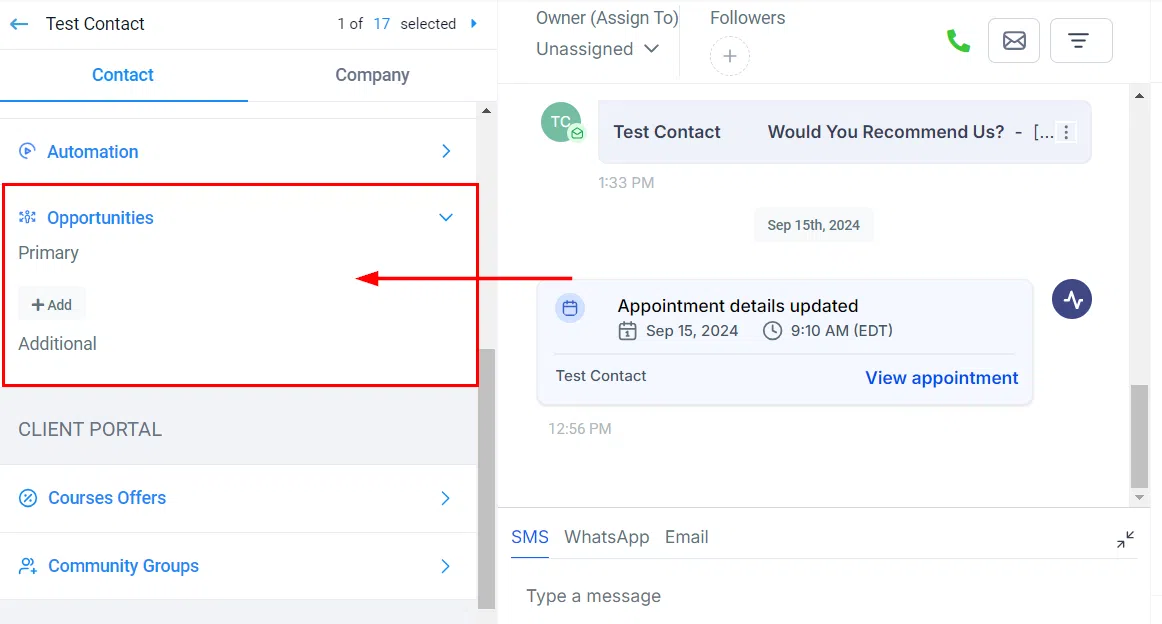
Opportunities
View any pipeline opportunities linked to this contact. You can see which pipeline stage they’re in and the associated value, giving you a quick read on where they sit in your sales process.
Client Portal
If your account has the Client Portal enabled, this panel shows whether the contact has portal access and lets you manage their login details and permissions.

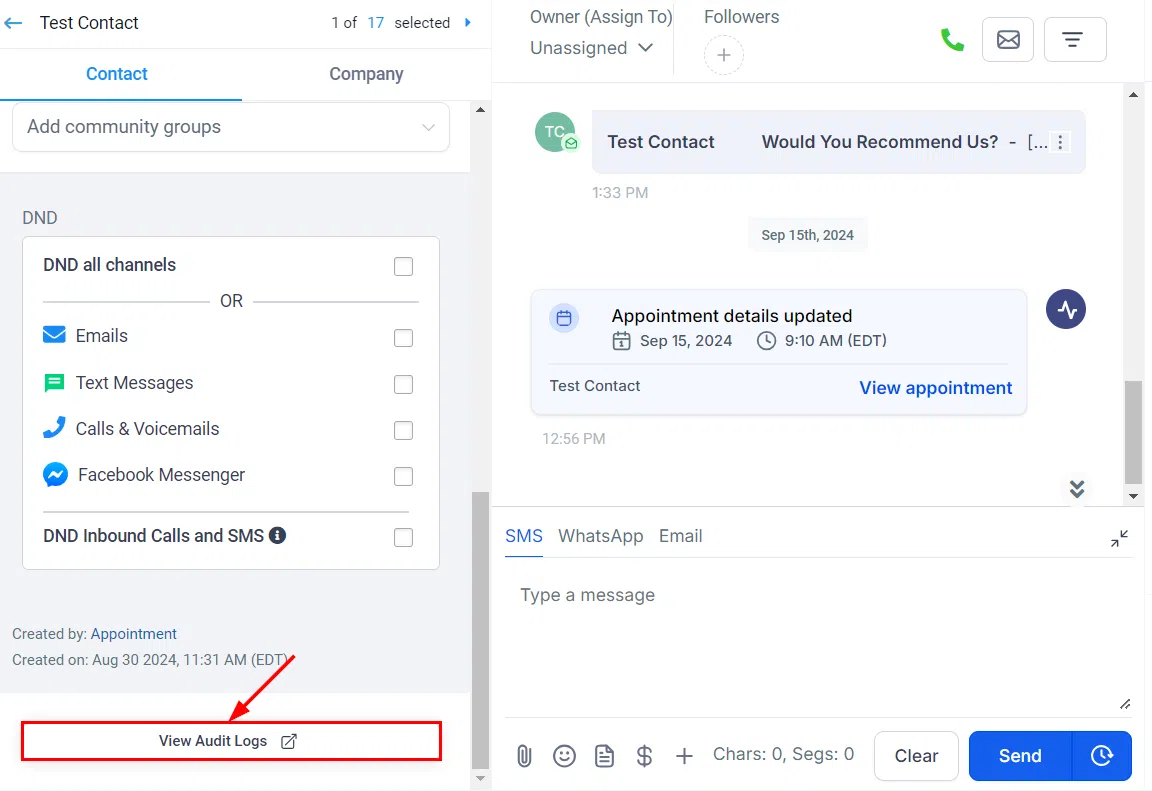
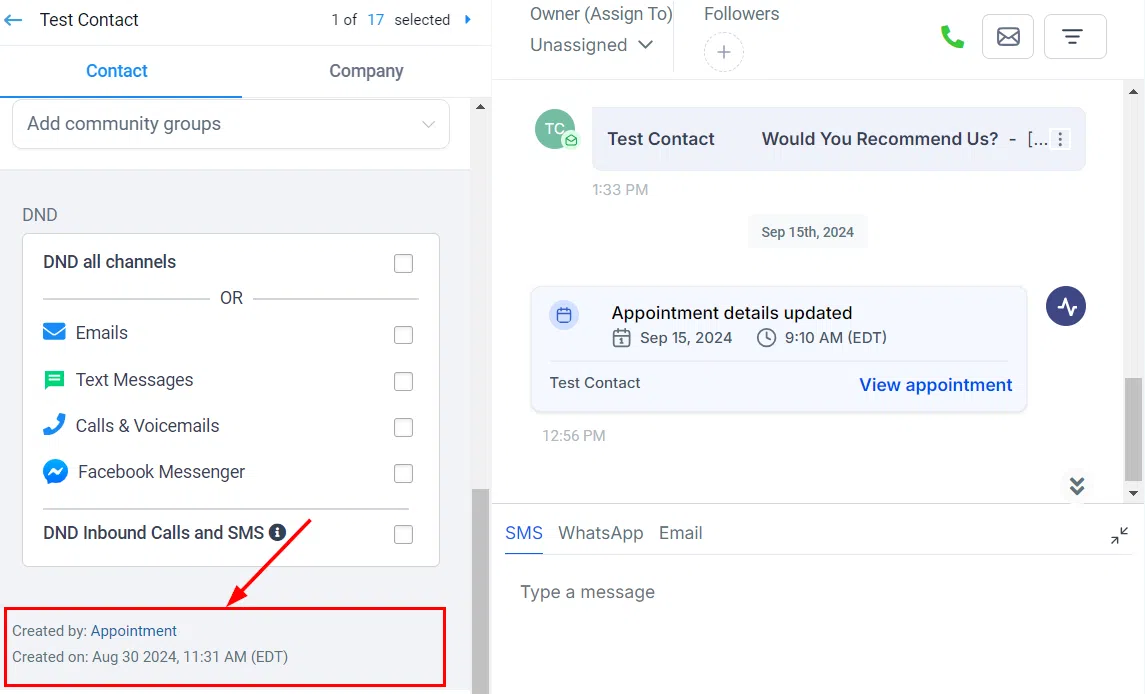
Do Not Disturb (DND)
Toggle DND on for a contact to stop all outbound communications to them – across SMS, email, calls, and more. Use this to respect opt-out requests or communication preferences.

Contact Creation Details
Shows when the contact was created and through which source – for example, a form submission, manual entry, or import. Useful for tracking lead origins.
Audit Logs
A timestamped log of all activity on the contact record – including field changes, tag additions, messages sent, and workflow enrolments. Useful for tracking what has happened with a contact over time.