
Growth360 gives you several ways to attach, manage, and access files within contact records – including custom file fields, a dedicated documents tab, and direct access to form and survey uploads.
Attach Files to a Contact Record
To enable file attachments in a contact record, you first need to create a custom file field and add it to the Contact Details view. Start by going to Settings, selecting Custom Fields, and clicking the + Add Field button.
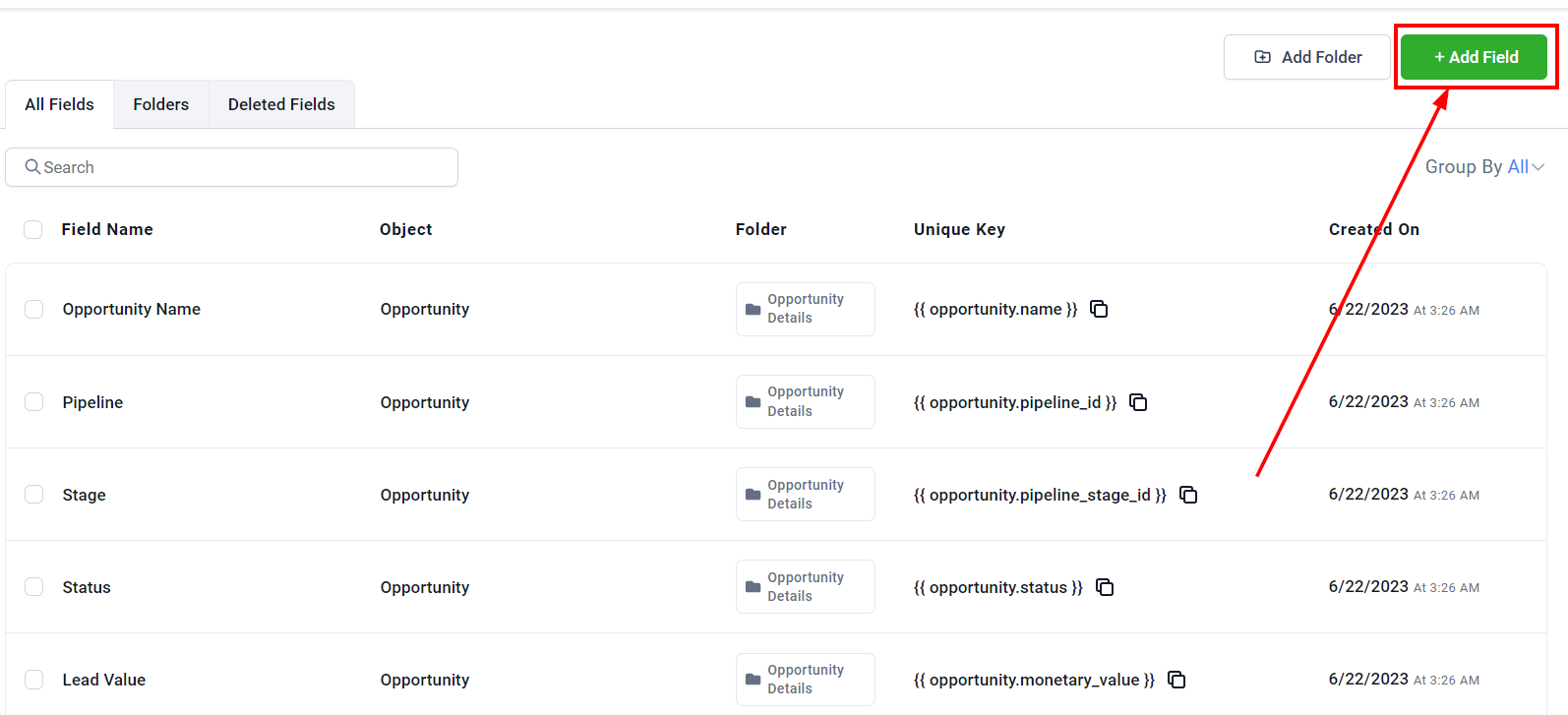
File Upload Field Type
A popup window will appear. Select File Upload as the field type. You can optionally preview how it will look using the Preview section in the upper right corner.
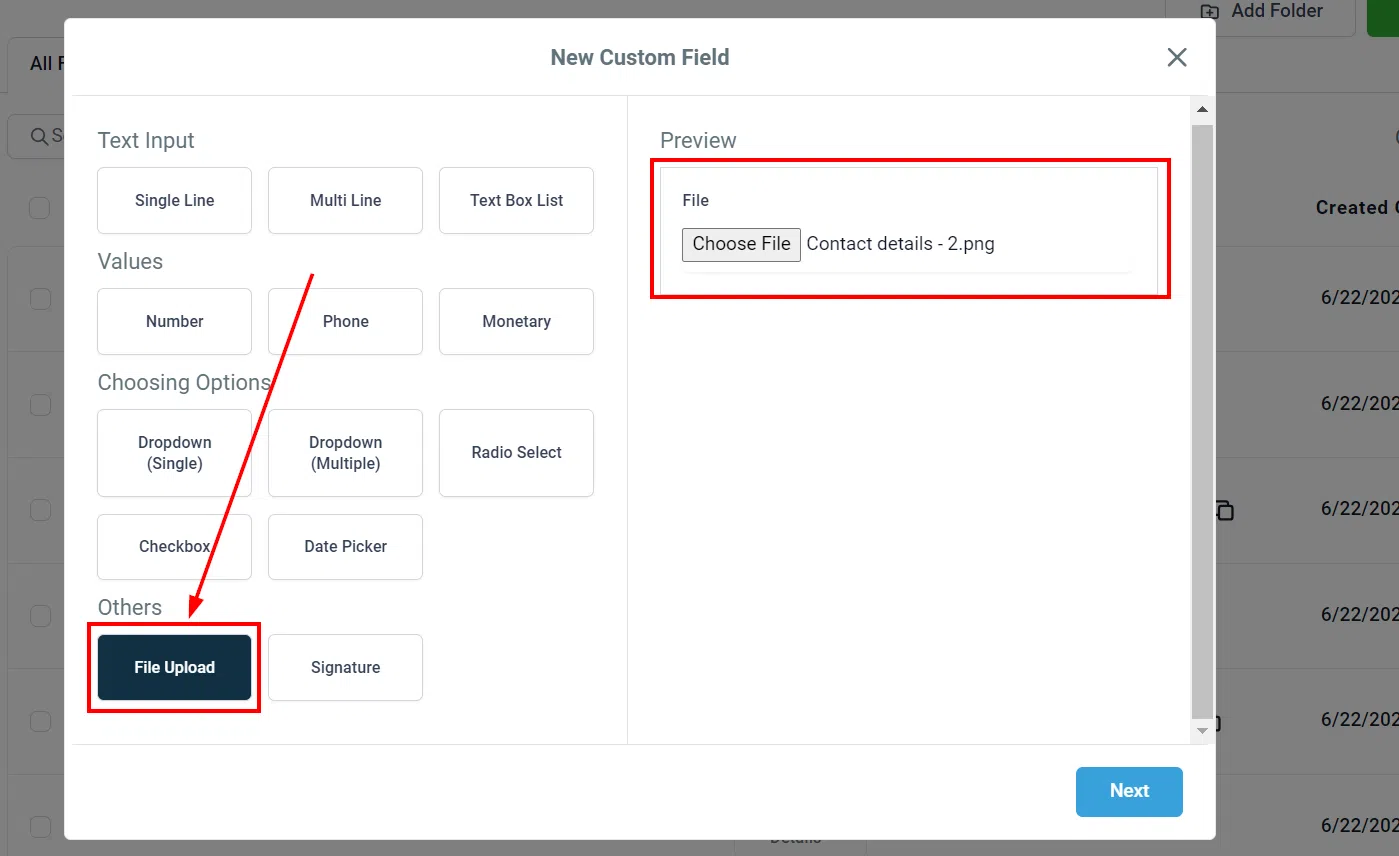
Field Name
Give your new field a name so it’s easy to identify within the contact record.

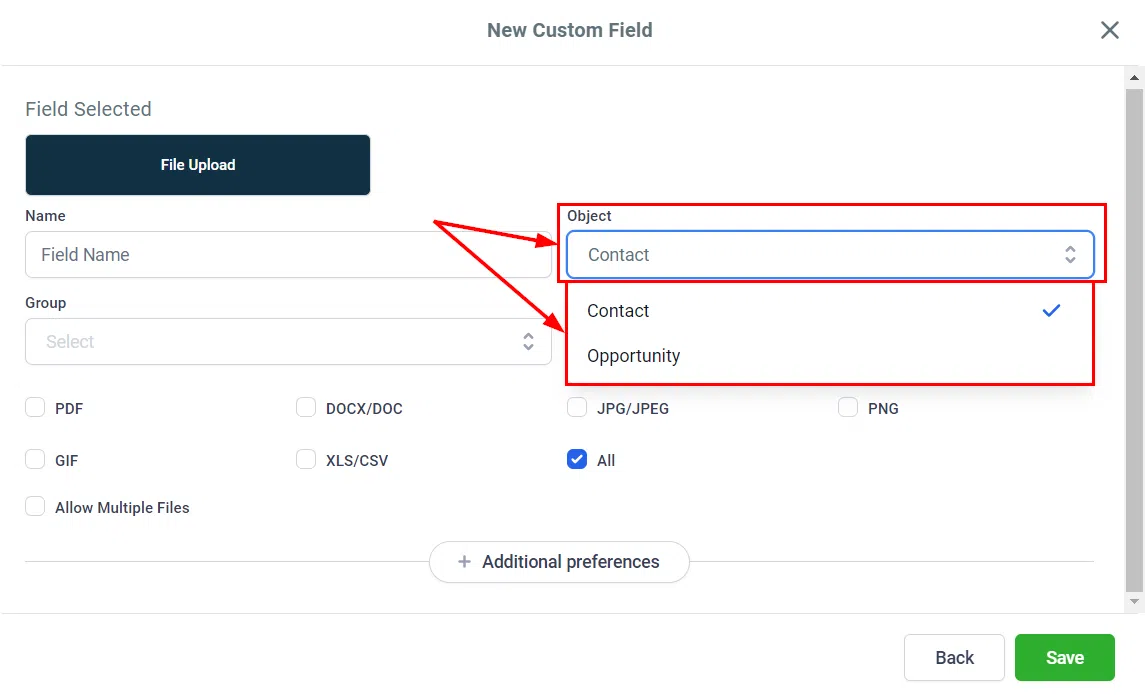
Select Object
Choose where the custom field will appear – in Contact or Opportunity details. To see the file field within a contact record, select Contact.
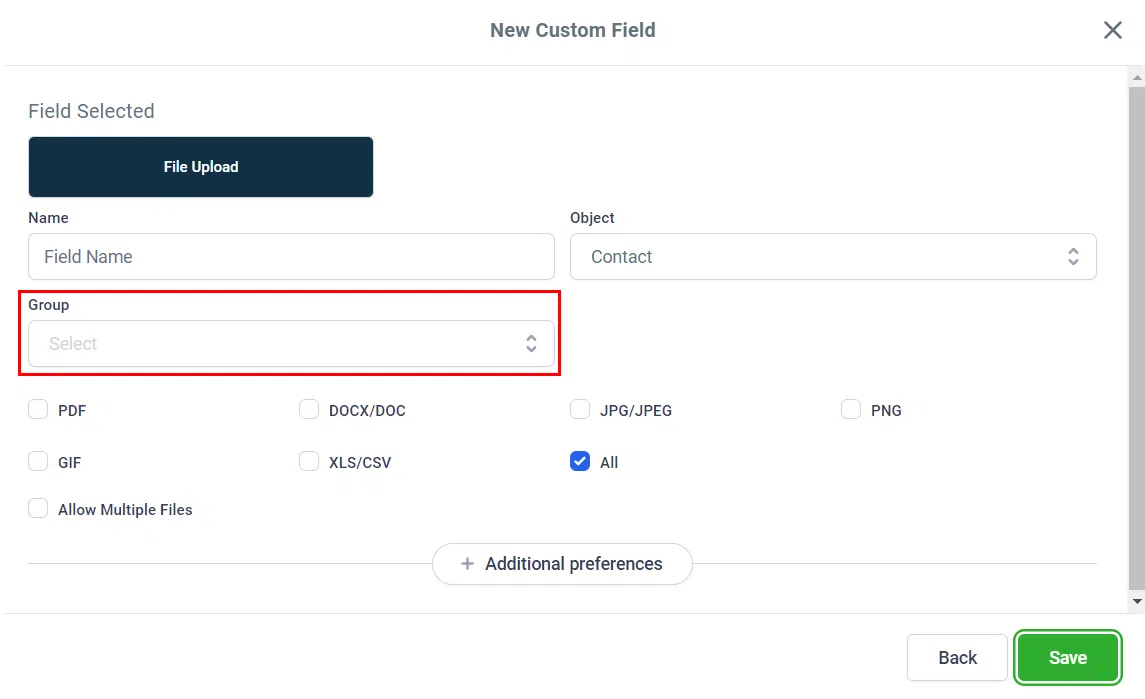
Choose a Group
Select the group within the Contact Details where you want the custom field to sit.
File Type
Specify which types of files can be attached to this field. Select All to allow any file type.
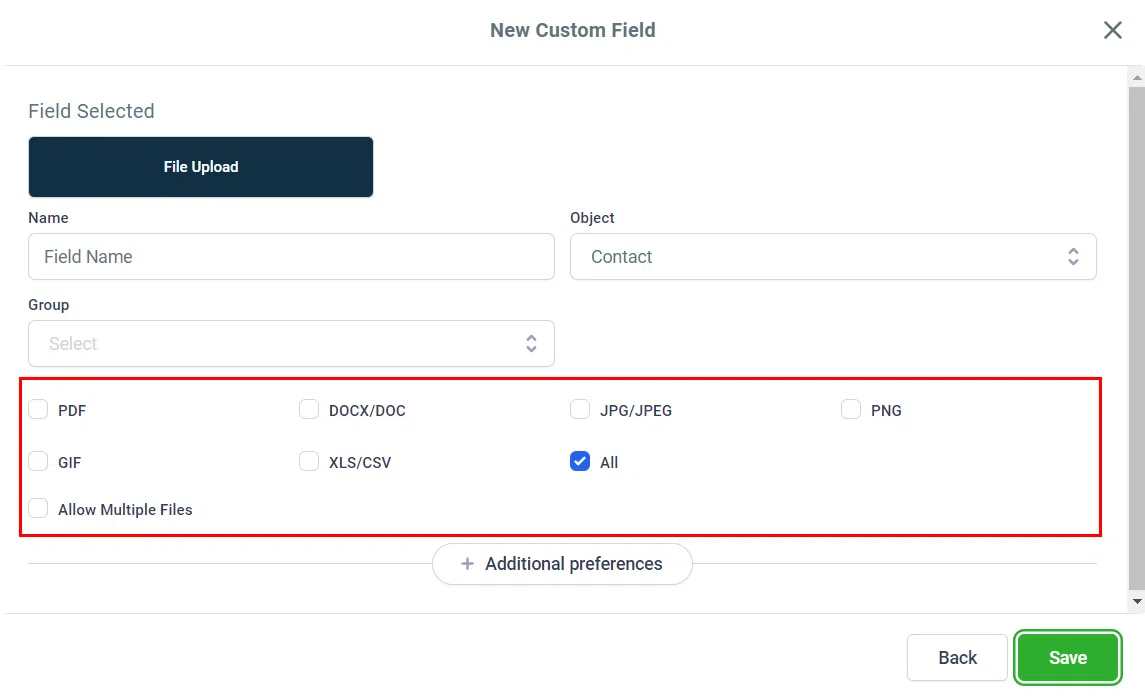
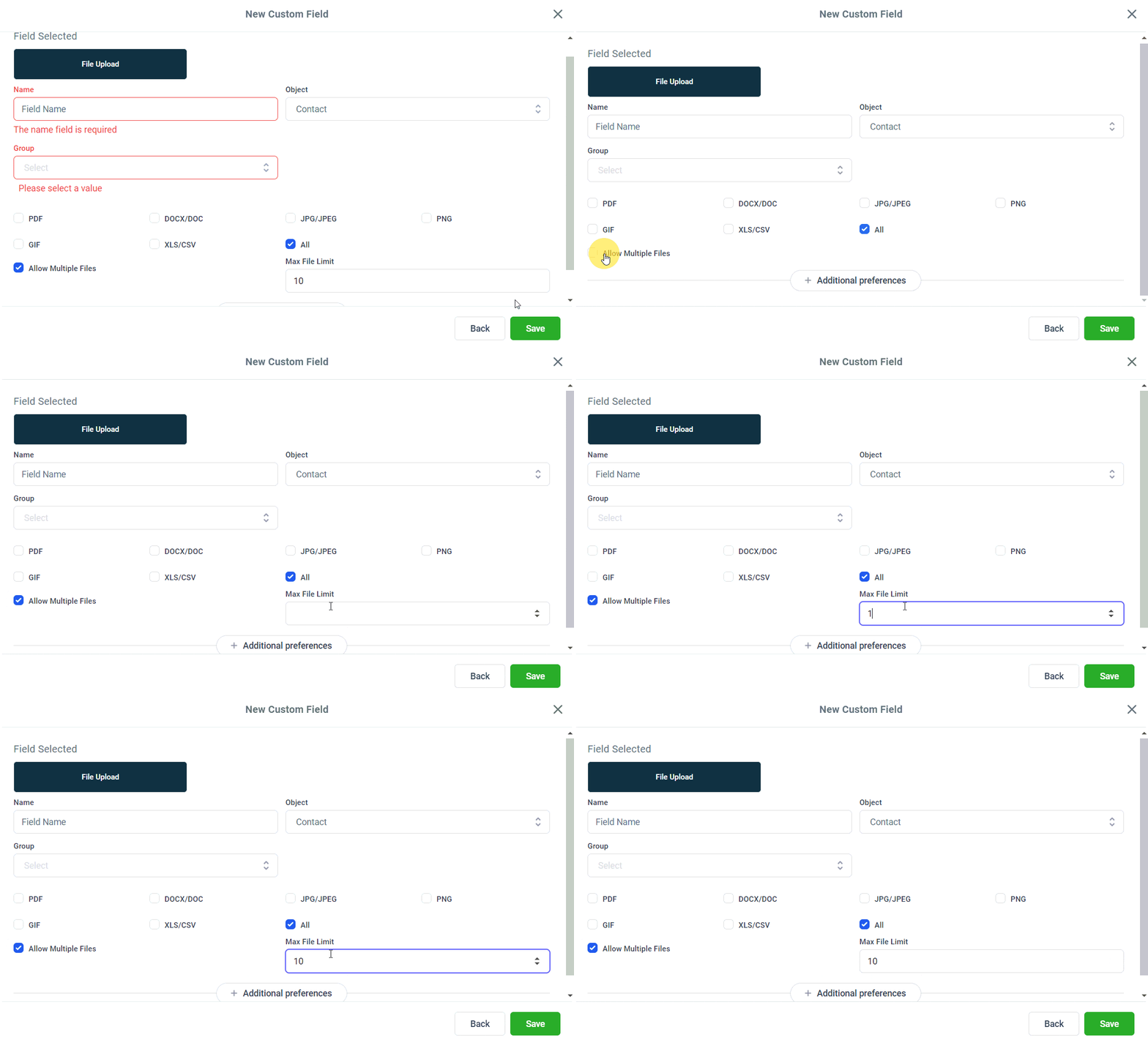
Allow Multiple Files
If you need to attach more than one file to a single custom field, enable the toggle and set the maximum number of files allowed.
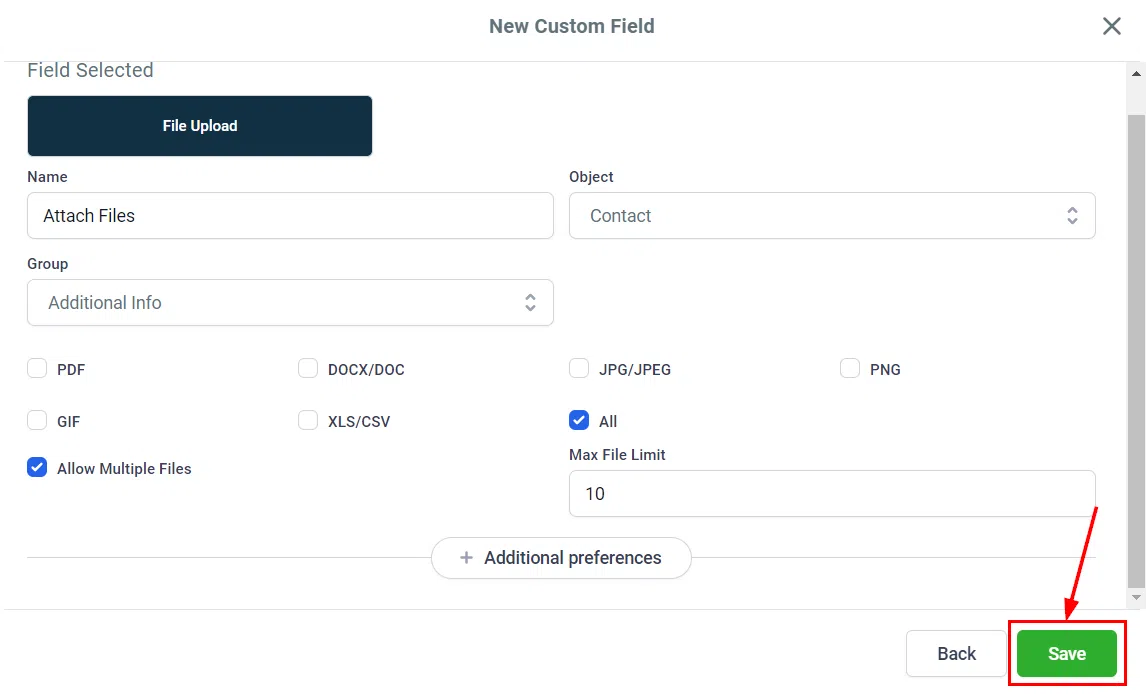
Configure any remaining preferences, then click Save.
Using the Custom Field
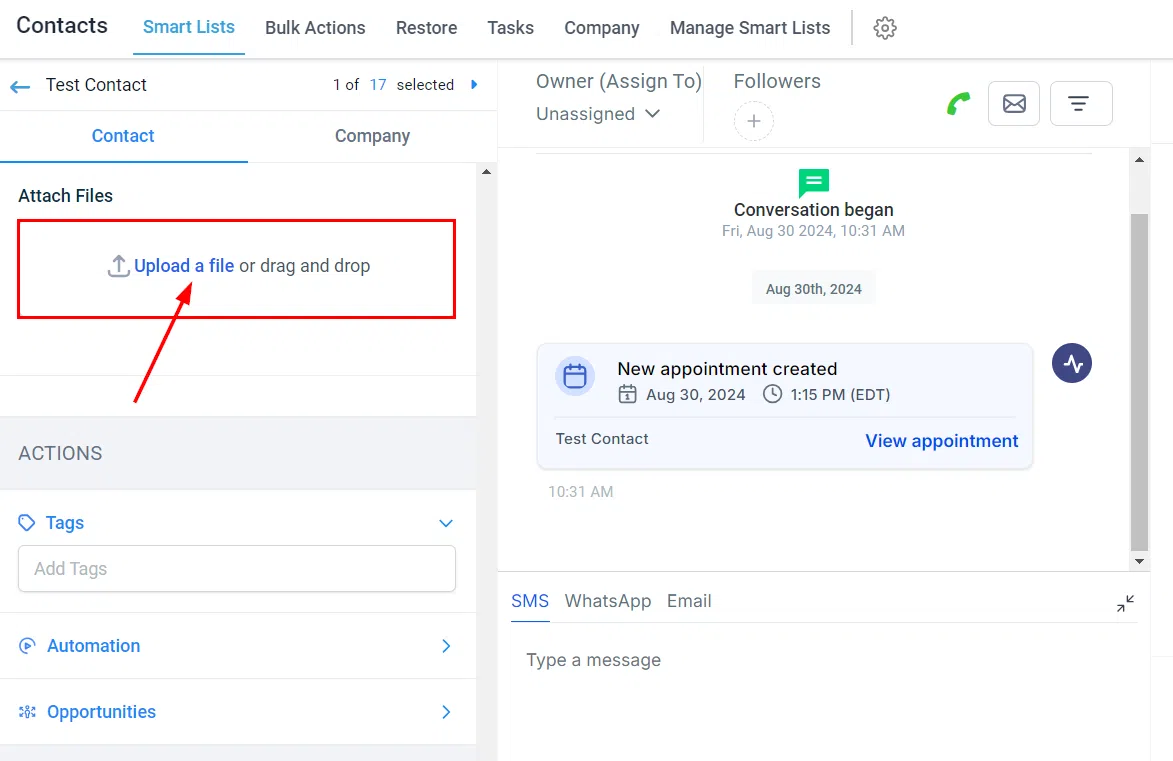
Navigate to the Contacts section and open an individual contact record. Locate the group where you added the custom field, then scroll down to find the file upload option.
Click Upload a File, select the file from your device, then click Save.
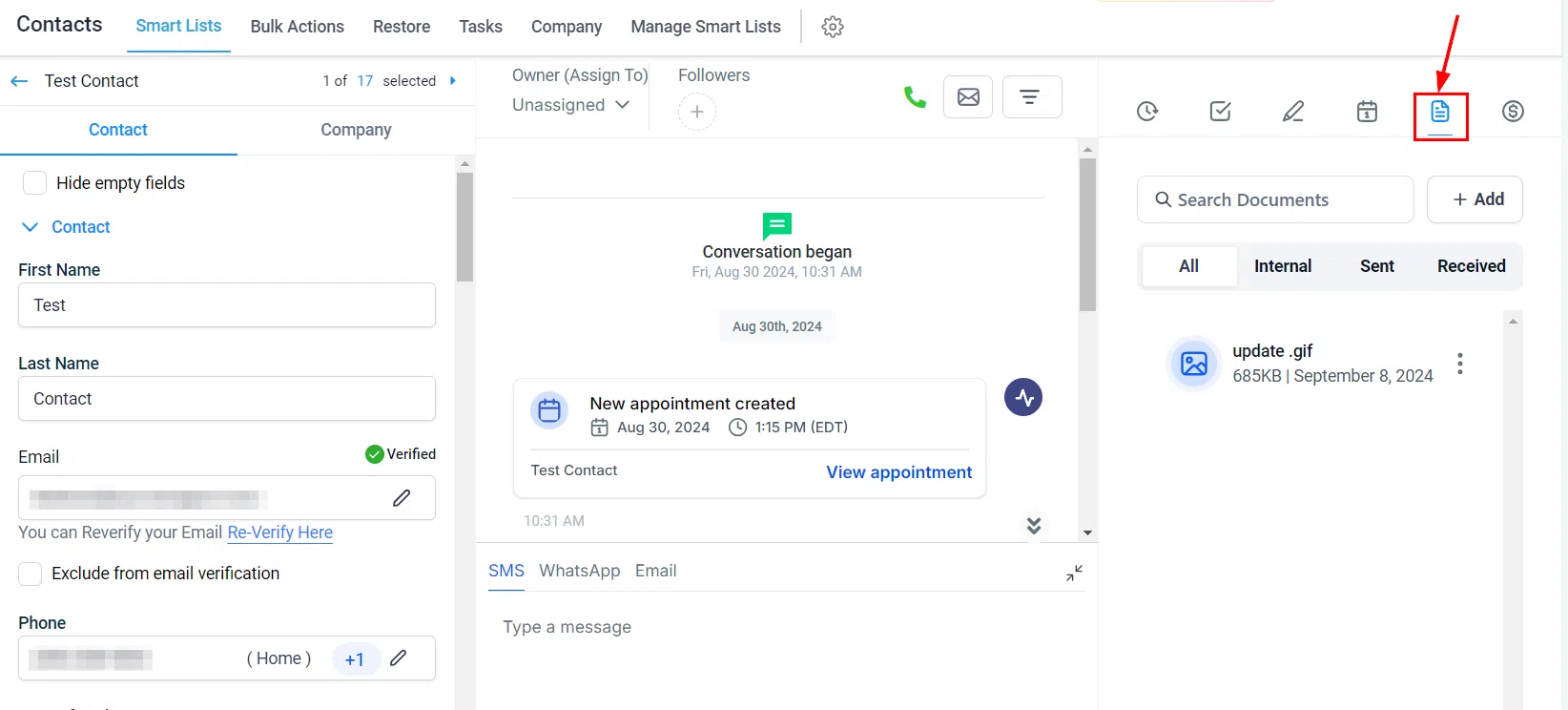
Document Management
All documents associated with a contact are accessible directly from the Documents section within their contact card. Growth360 keeps everything organised in one place so nothing gets lost.
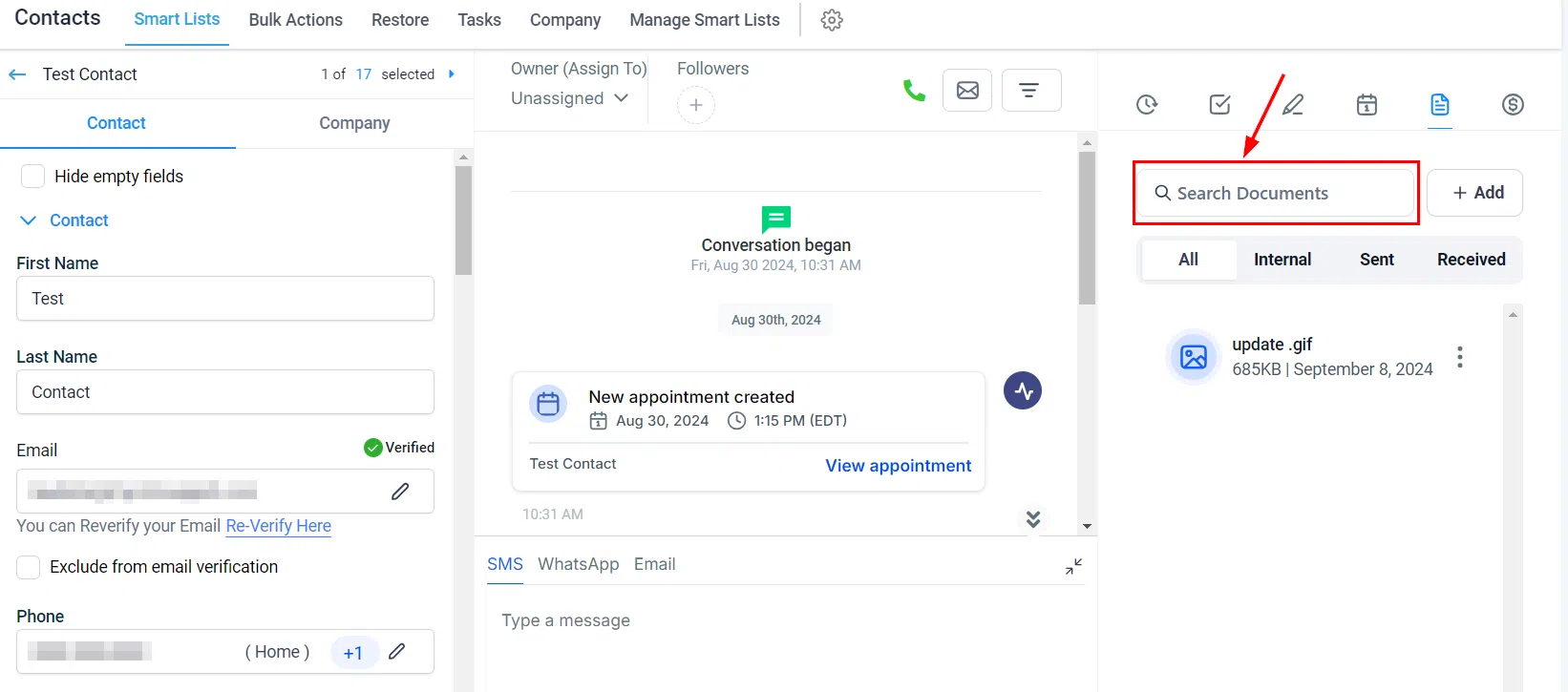
Searching for Documents
Locate any document by searching for it by title – a quick way to find the specific file you need without scrolling.
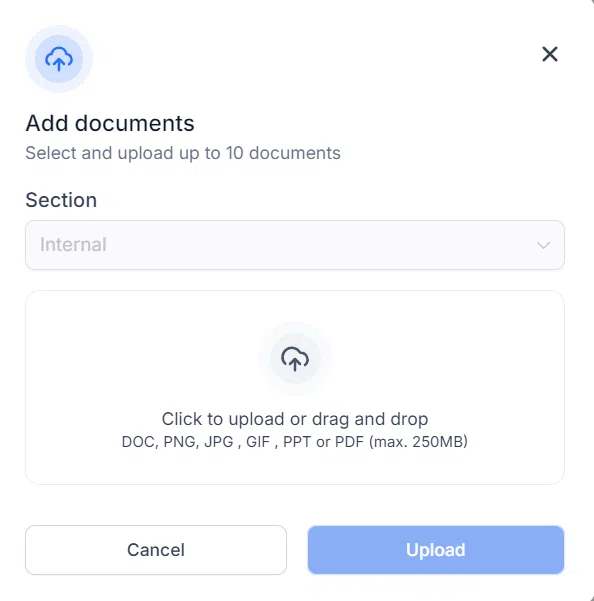
Adding Documents
Click + Add then select New File to upload a document. Supported formats include PowerPoint (PPT), Word documents, PDFs, CSV files, and common image formats. Each file can be up to 250MB.
Document Categories
Documents in Growth360 are organised into three sections:
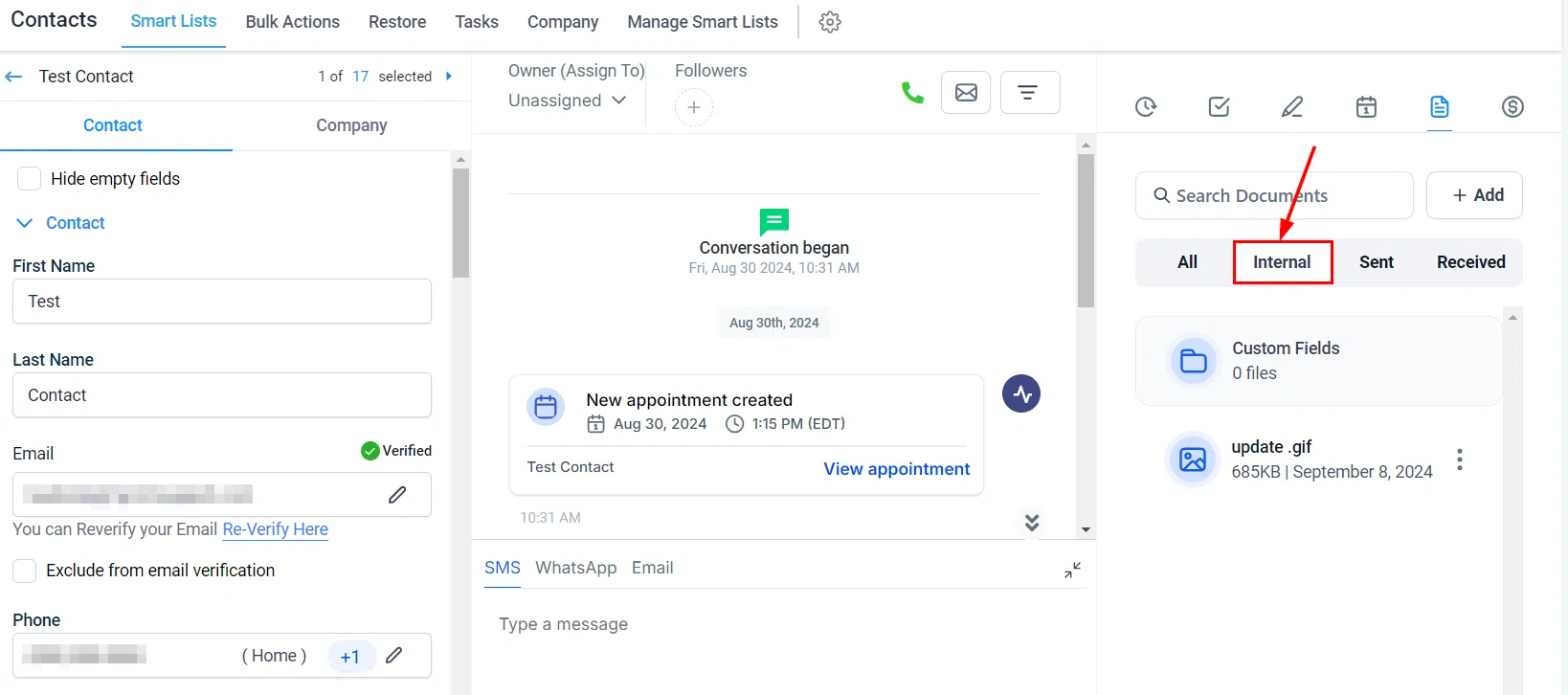
Internal Documents – Documents added to custom fields appear in a folder called “Custom Fields” within the Internal section. These are stored in the CRM on the Contact Details page and are visible to any user with access to the contact.
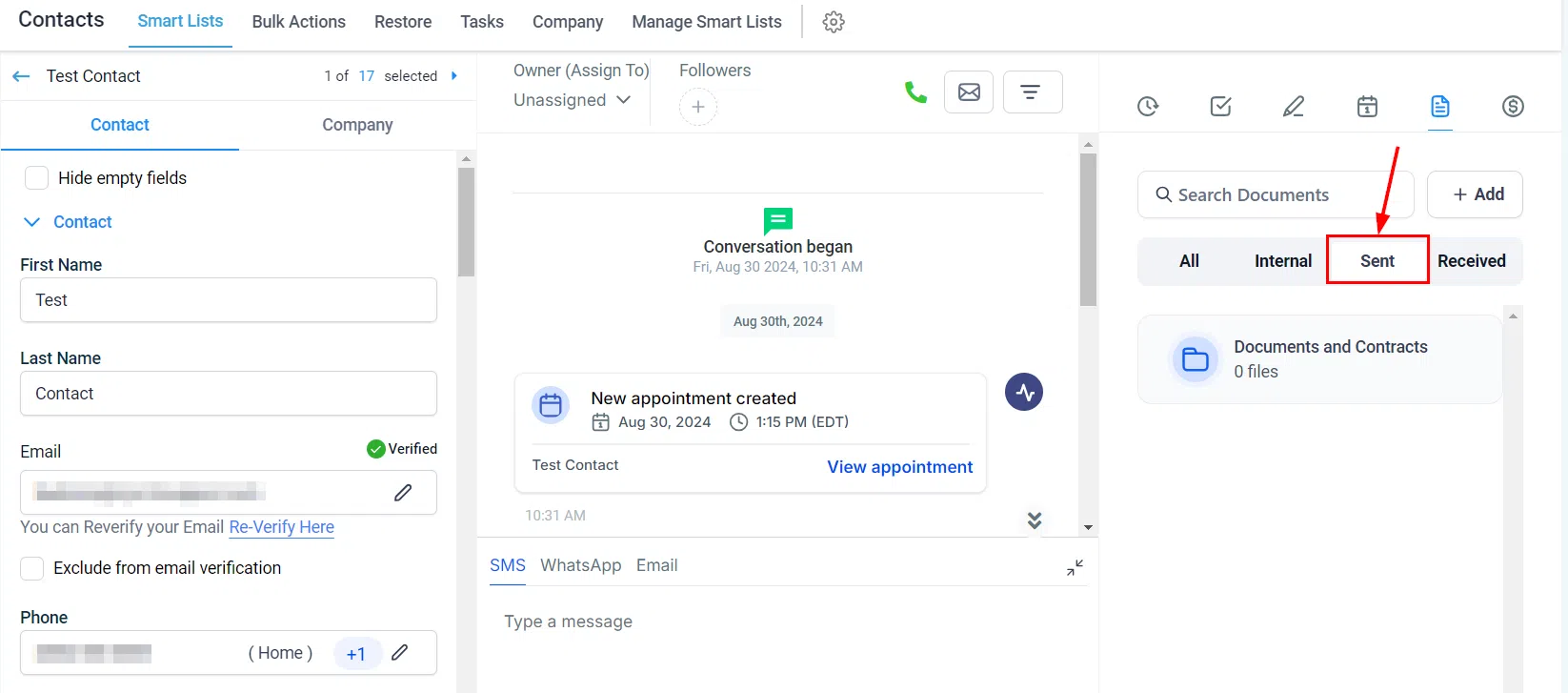
Sent to Contact – All documents you have sent to the contact, such as contracts and proposals. This gives you a complete, organised record of everything shared.
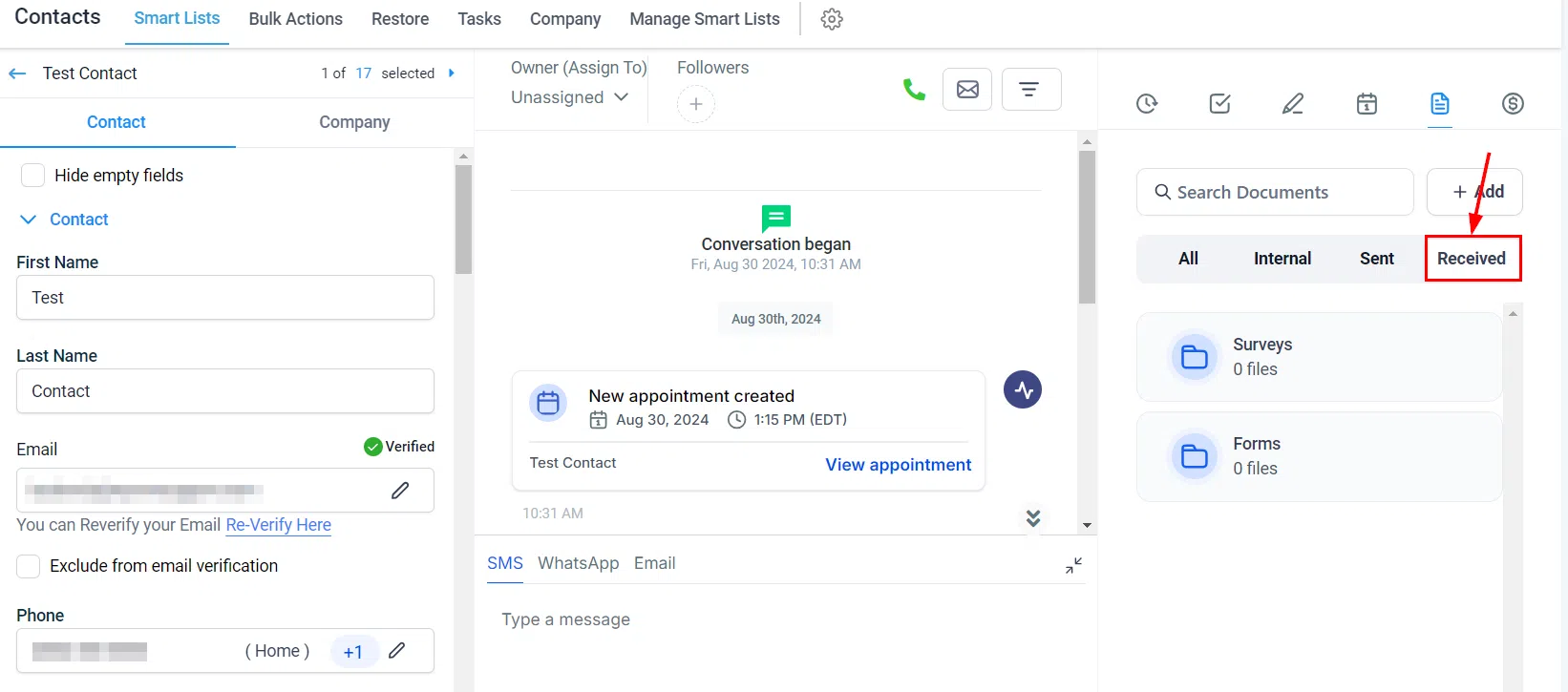
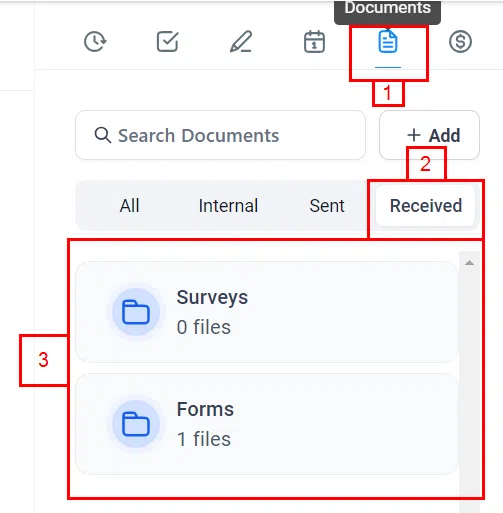
Received from Contact – Documents submitted by the contact through forms and surveys, kept in one organised location for easy review.
Access Images and Files from Forms and Surveys
Files and images submitted by contacts through Growth360 forms and surveys are accessible directly from the contact record, keeping everything centralised and easy to find.
Accessing Uploaded Files
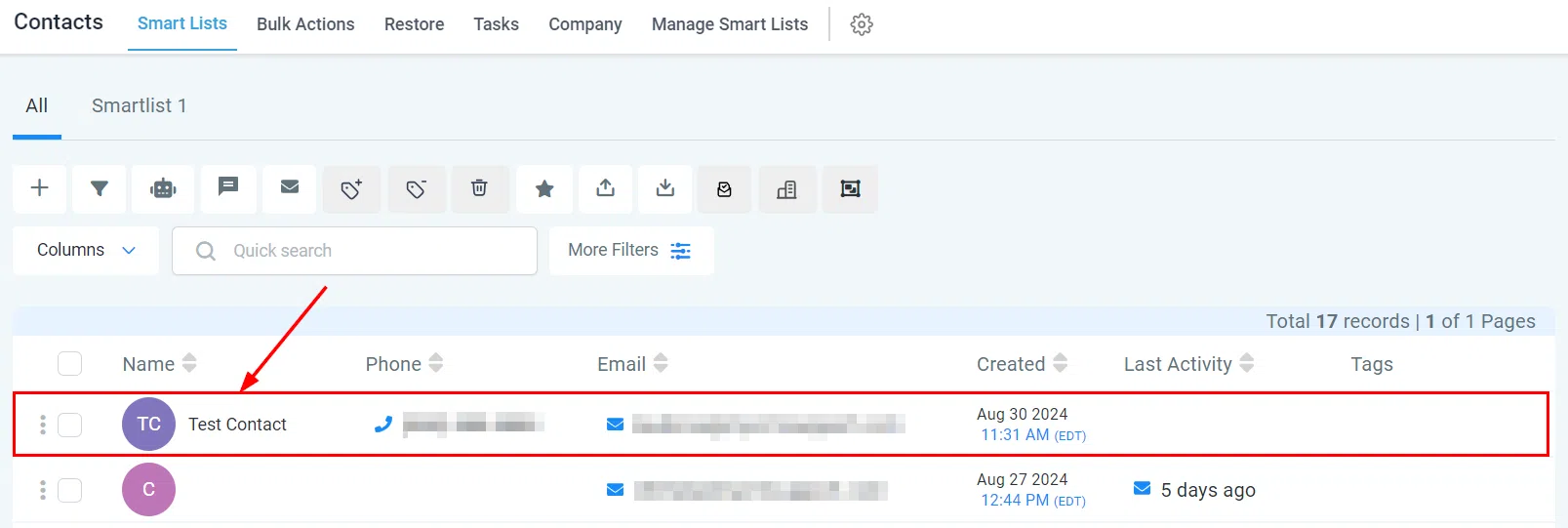
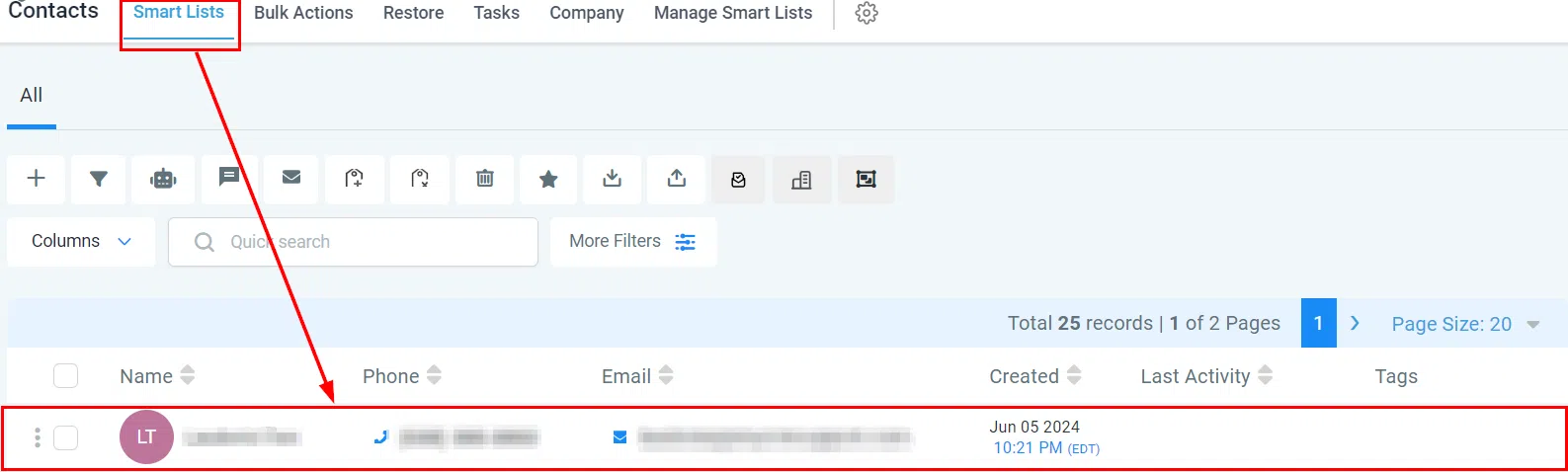
Navigate to the Contacts tab from the left menu, then select Smart List from the top navigation. Choose the specific contact whose files you want to view.
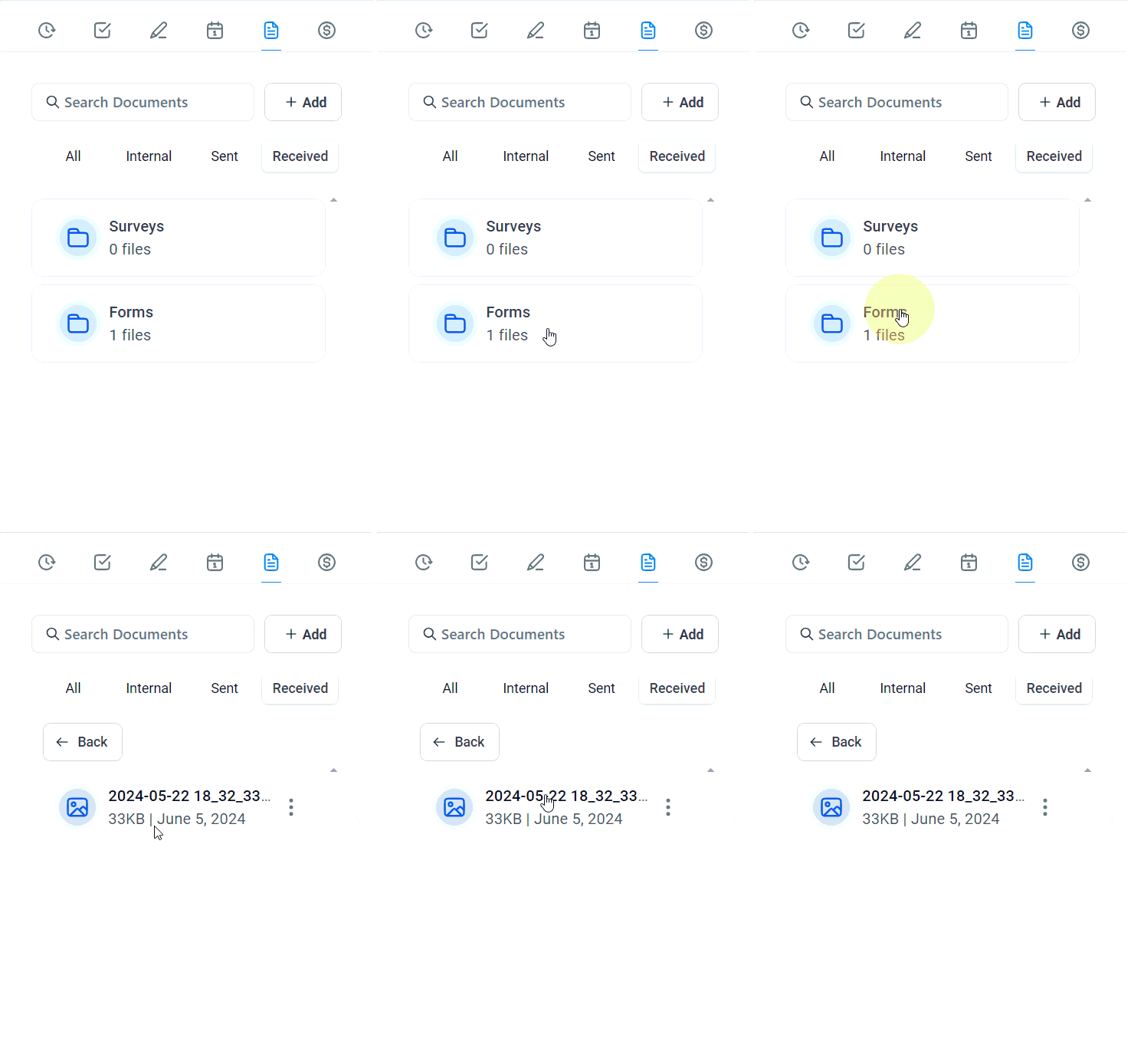
Click the Document icon, then select Received from the right-hand panel. Choose either Form or Survey depending on where the file was submitted.
Viewing Submitted Files
All submitted images and files appear in the Form or Survey section – a unified repository for all uploads from across your Growth360 forms and surveys.
Common Questions
Can I download uploaded files? Yes – files can be downloaded for offline access or further processing.
Are there size or format restrictions? Yes. Refer to the form or survey settings for details on size limits and accepted formats.
What if a file is missing? Confirm the form or survey was fully submitted and the file upload completed successfully. Check that you have the correct permissions to view files – your Growth360 administrator can assist if needed.