When managing a contact database, it’s crucial to ensure that contacts with shared details are handled correctly.
Before importing contacts that may have overlapping information, adjust your settings to suit your preferences. This approach helps prevent data integrity issues and allows for a more streamlined import process.
Adjusting for Duplicates
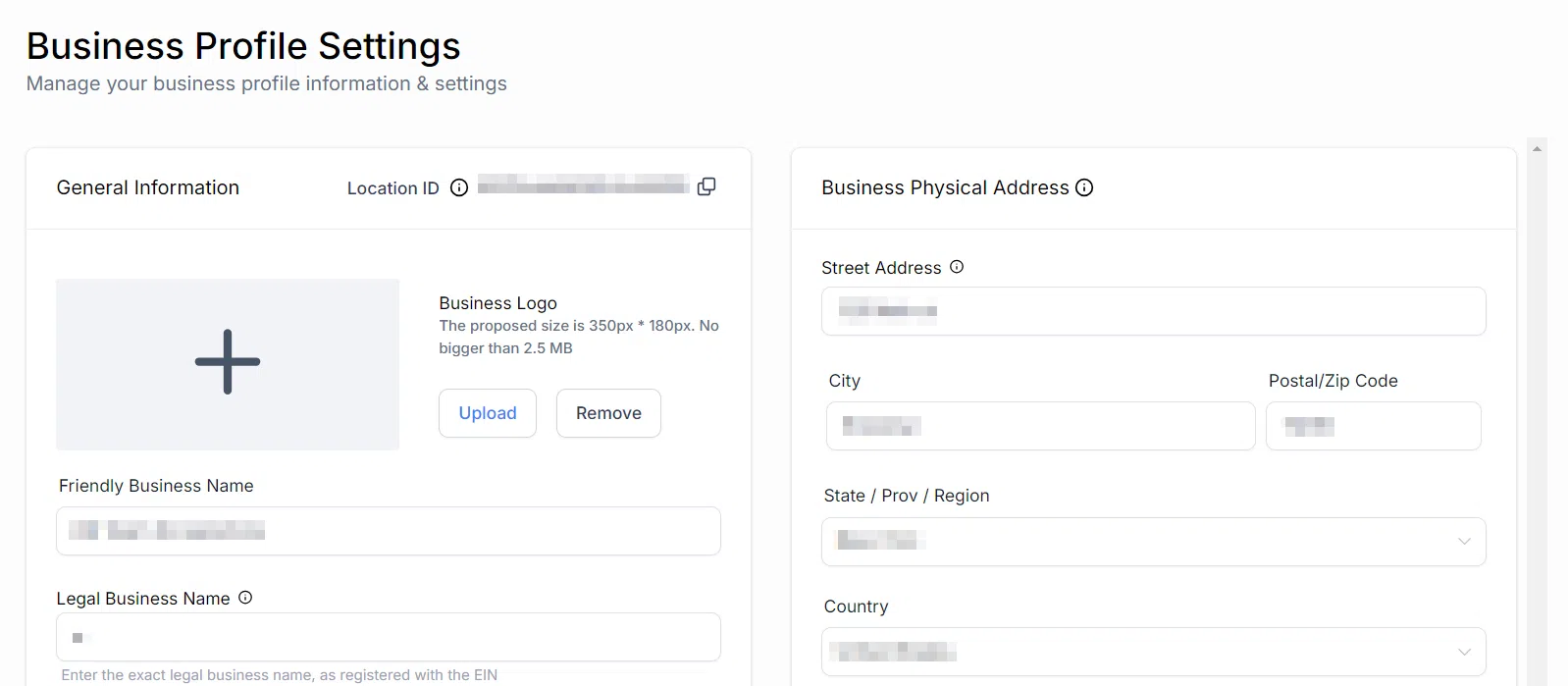
Navigate to the Settings section of your account. The Business Profile section will open.
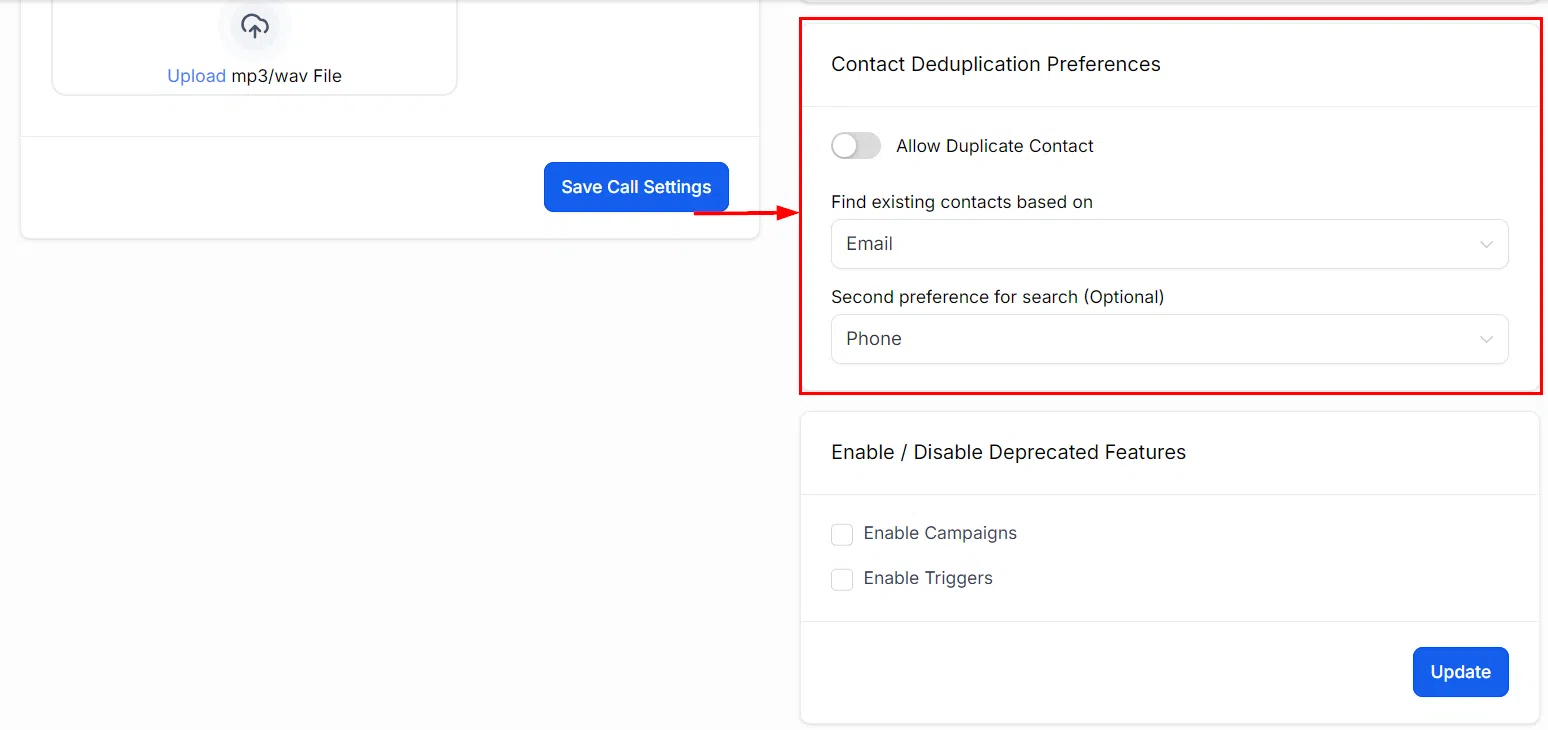
Scroll down to the Contact Deduplication Preferences section. Adjust the Allow Duplicate Contact toggle according to your preferences, and configure the primary and secondary search preferences to align with your requirements.
- Toggle ON (blue): The system will permit new contacts to share the same identifiers as existing contacts.
- Toggle OFF: Importing contacts with identical information will update existing contact records instead of creating new ones.
Importing Contacts with Shared Information
Once your settings allow duplicates, the next step is importing contacts while ensuring each individual is uniquely identified despite shared contact details.
Initiating Contact Import
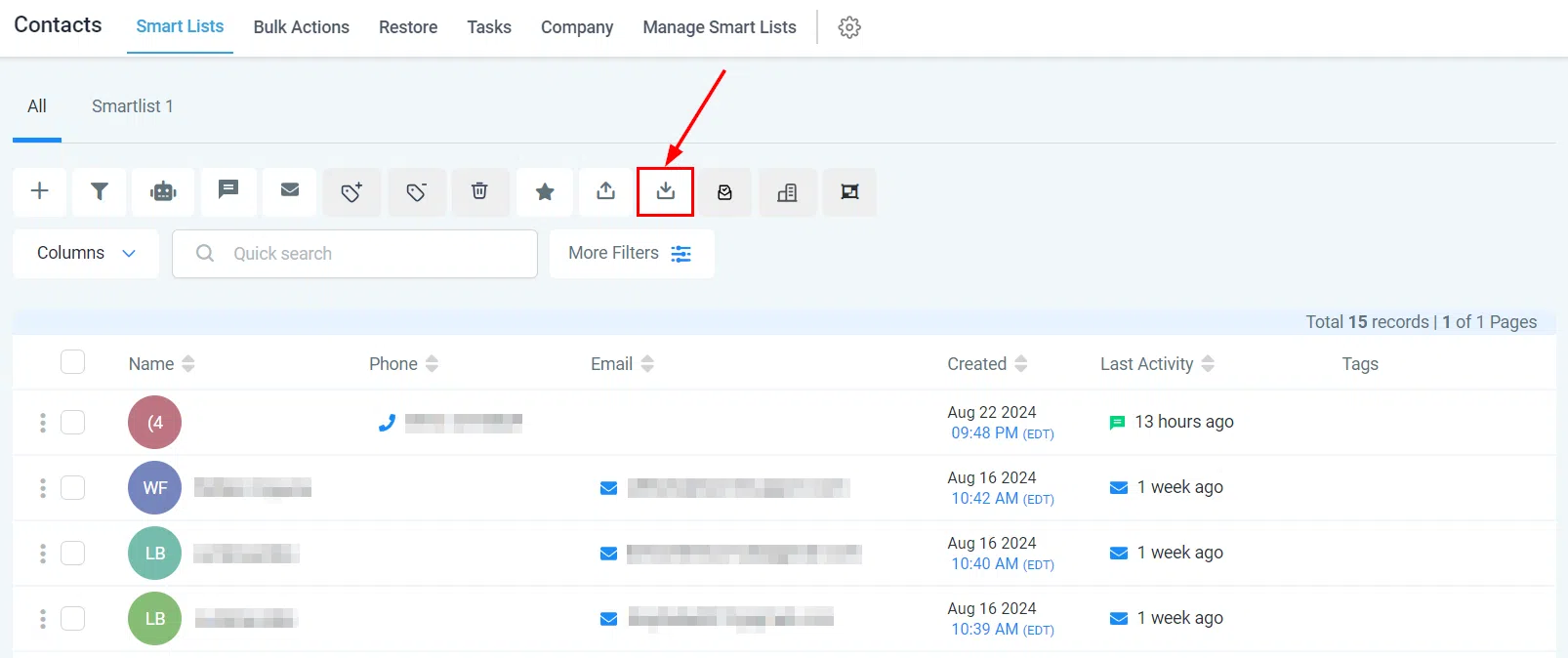
Select the Import icon from the Quick Actions panel within the Contacts tab. Upload the file containing your contacts, then map the fields.
Configuring Import Settings
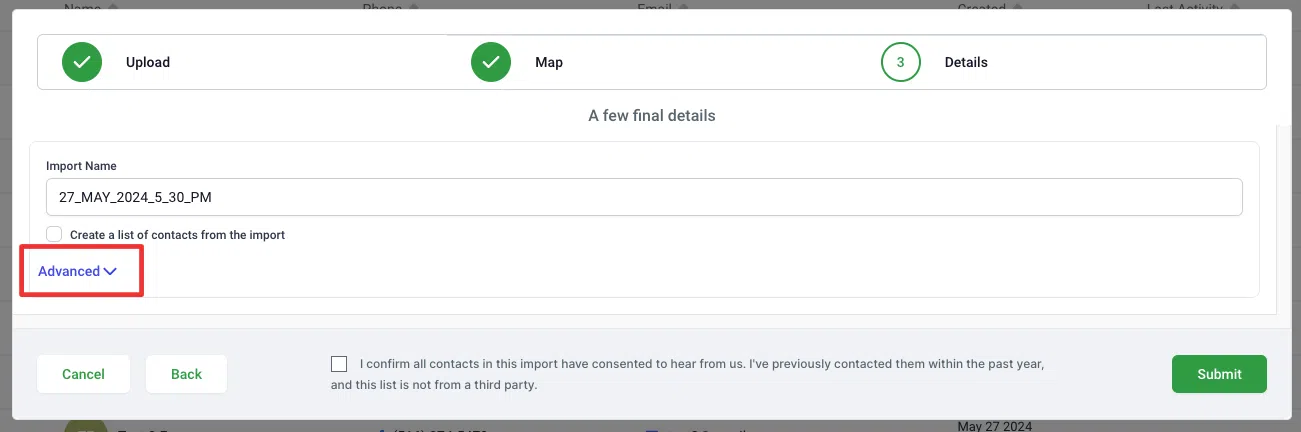
From the Details page, click Advanced to access more detailed options.
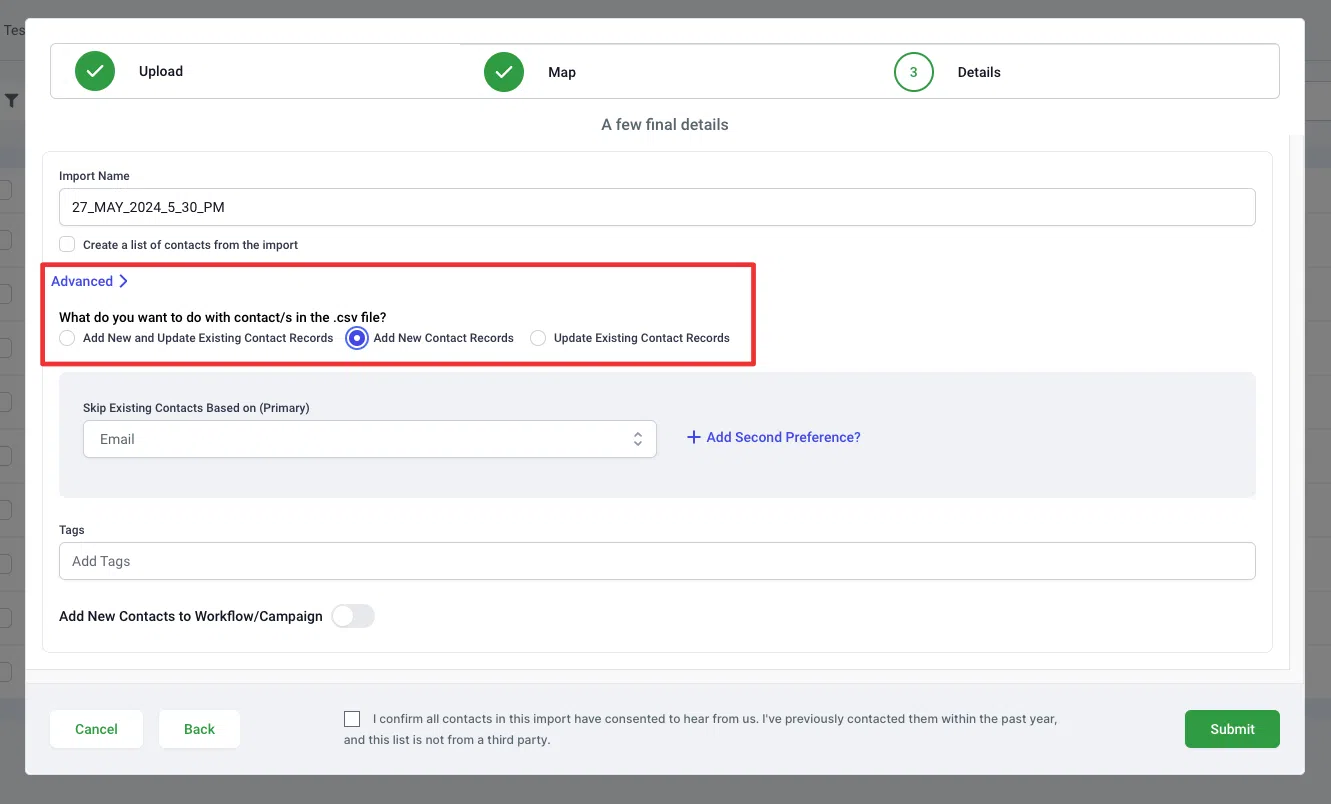
Select Add New Contact Records. This ensures new entries are added without modifying any existing records.
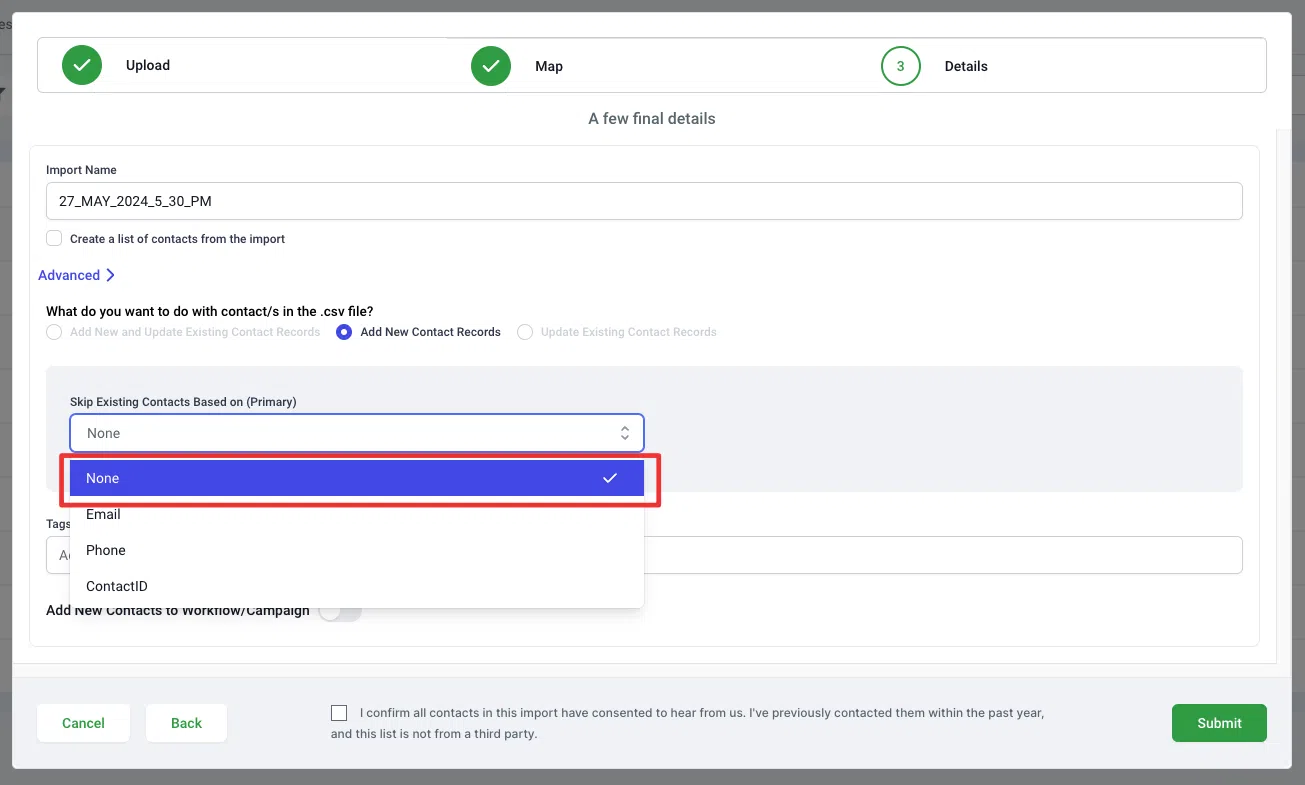
Under Skip Existing Contacts Based On, select None. This instructs the CRM to bypass the default behaviour of identifying duplicates based solely on email addresses, enabling new records to be created for individuals with shared contact details.
Finalising the Import
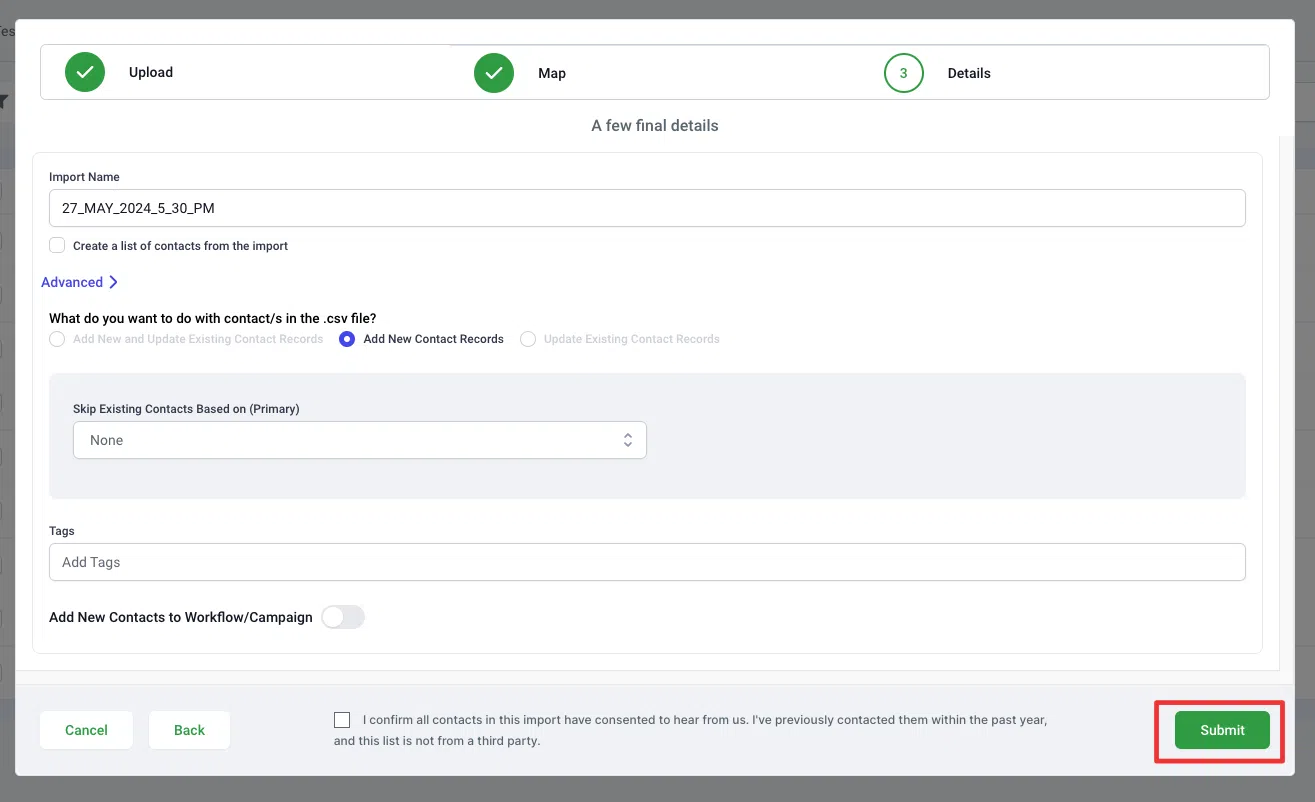
Click Submit to start the import process.
Practical Example
For example, if you are managing a family account where two members share the same email and phone number but require separate records, following the steps above will allow you to create distinct entries for each individual. After the import, both members will have separate entries, each recognised as a unique contact within the system.
Frequently Asked Questions
Q: What if I accidentally create duplicates?
You can merge duplicate contacts to consolidate information and maintain clean records.
Q: Can I revert the import if I make a mistake?
Yes – you can revert the import from the Bulk Actions tab.