Appointments play a crucial role in client interactions, and managing them efficiently helps streamline scheduling and follow-ups.
Within a contact’s profile, the Appointments section provides a detailed view of all upcoming and past bookings, including:
- Date and Time: The scheduled time of the appointment.
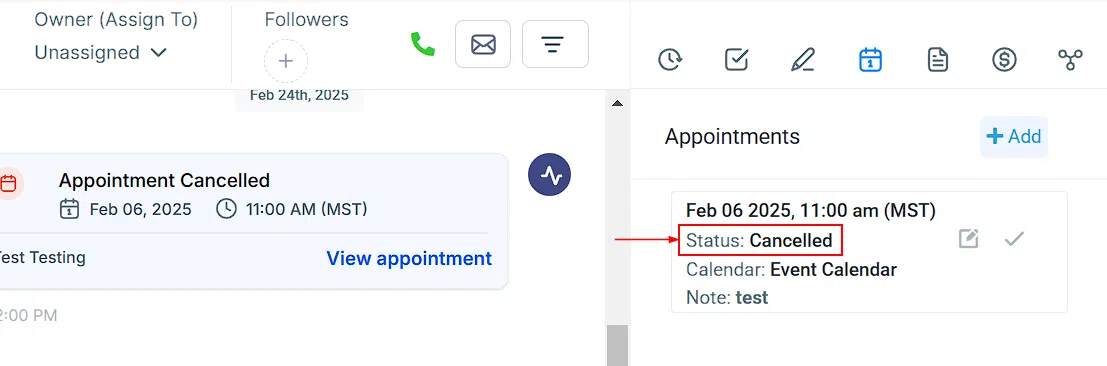
- Status: Whether the appointment is confirmed, completed, or cancelled.
- Calendar: The specific calendar where the booking was made.
- Assigned User: The team member responsible for the appointment.
Delete an Appointment
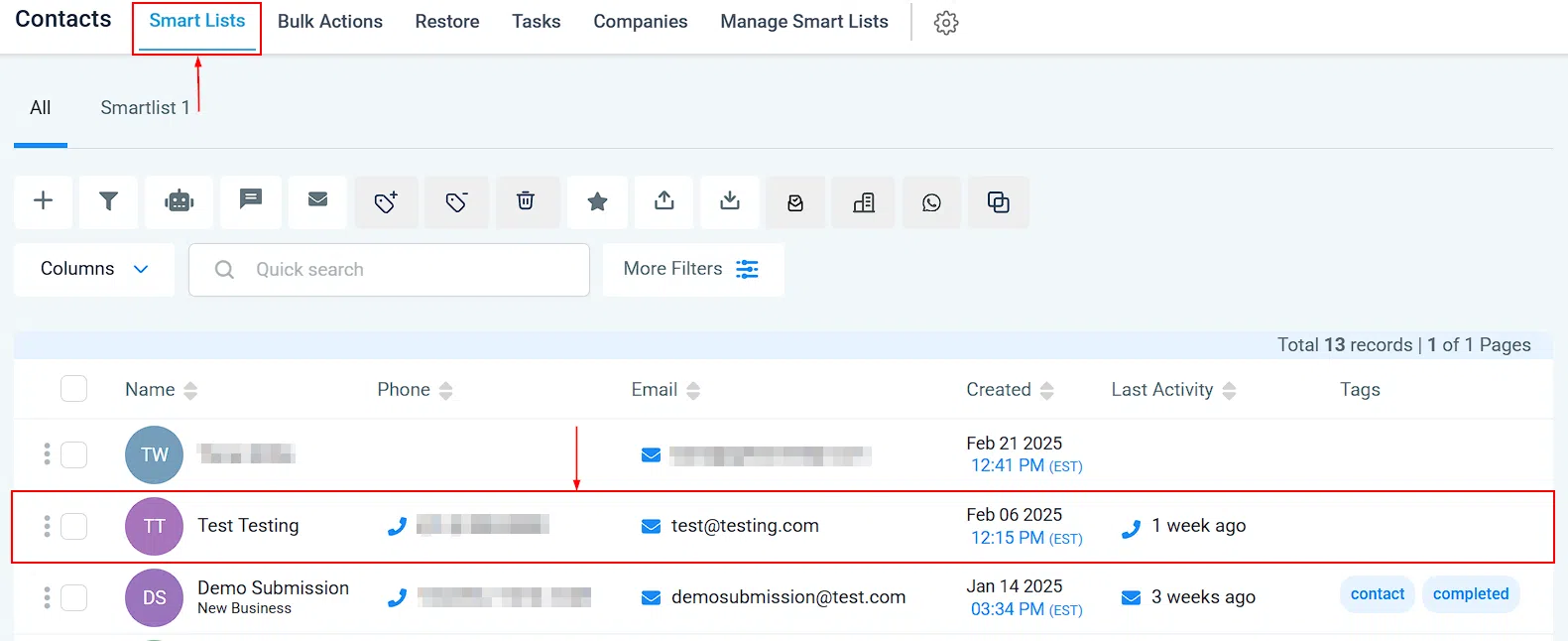
Navigate to the Smart Lists section under the Contacts category and click on the contact name whose appointment you want to delete.
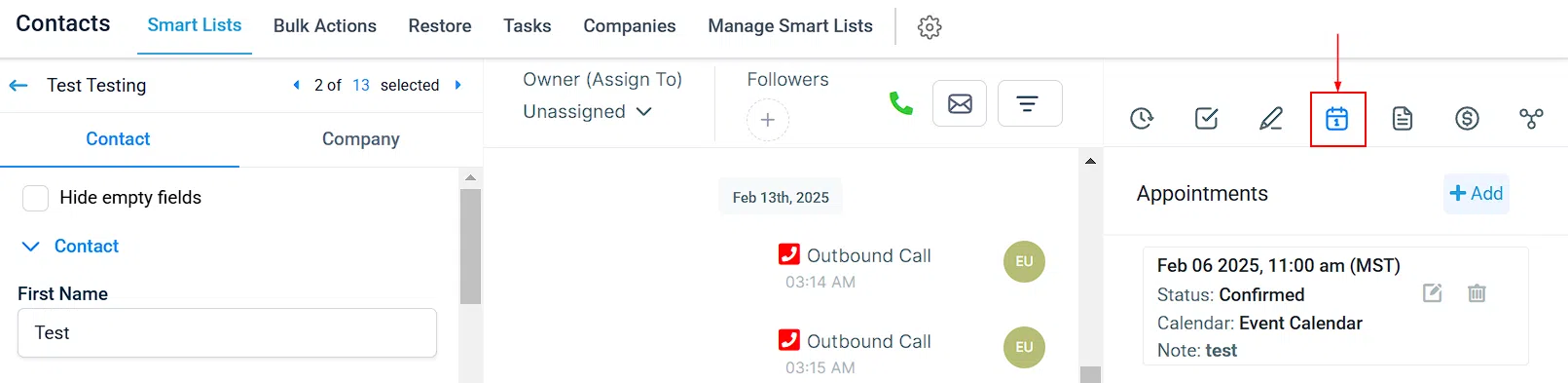
This opens the Contact Details. Click on the Appointments tab.
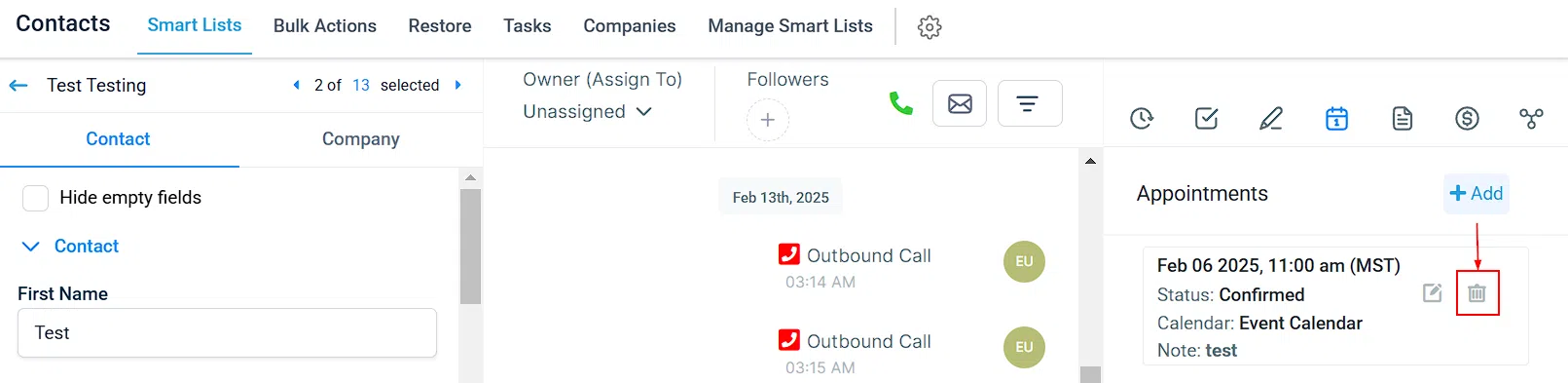
Click the delete (bin) icon next to the appointment and confirm the deletion. Once deleted, the appointment status changes to Cancelled.
Managing your appointments effectively ensures an organised workflow and a seamless experience for both your team and clients. Keeping your schedule updated helps reduce no-shows, optimise availability, and maintain better client relationships.