Have you ever needed to restore a contact that you accidentally deleted from your CRM? You no longer need to worry about permanent deletions – you can easily and quickly restore contacts back into your system. This saves significant time compared to manually rebuilding contact details from scratch.
Restore Contacts
To access previously deleted contacts, navigate to the Contacts tab and select the Restore option at the top of the page. This displays a comprehensive list of all contacts that were removed, allowing you to review and reinstate them as needed.
📌 Note: Depending on your user permissions, you may not have access to all components.
No Deleted Contacts
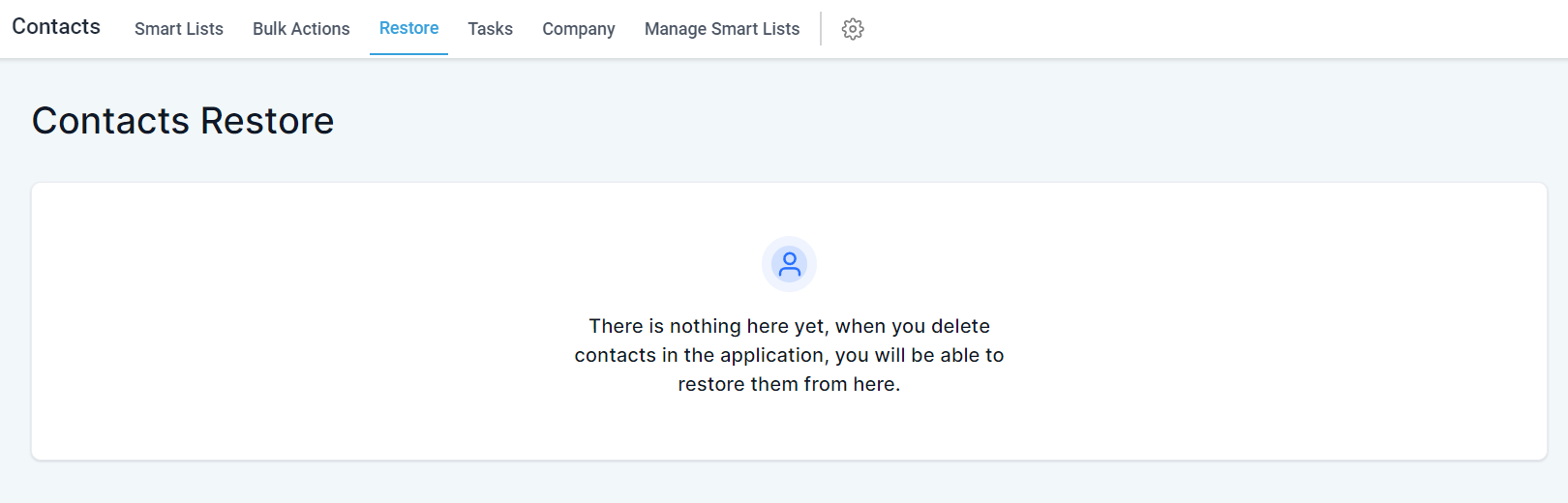
If this message is displayed, there are no deleted contacts currently available to restore.
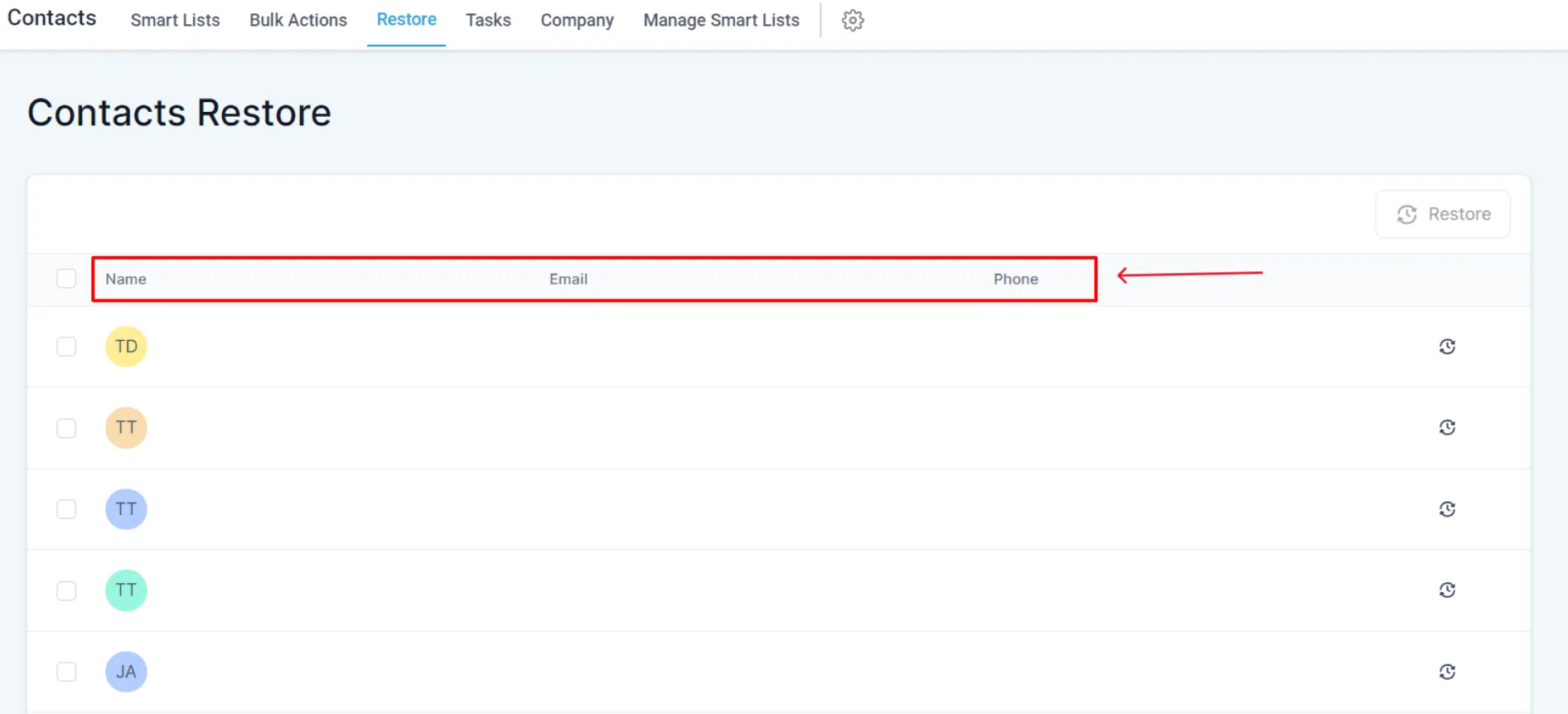
Each entry in the deleted contacts list displays:
- Name
- Email Address
- Phone Number
Review these details carefully to accurately identify the correct contact before restoring.
Go To the Next Page
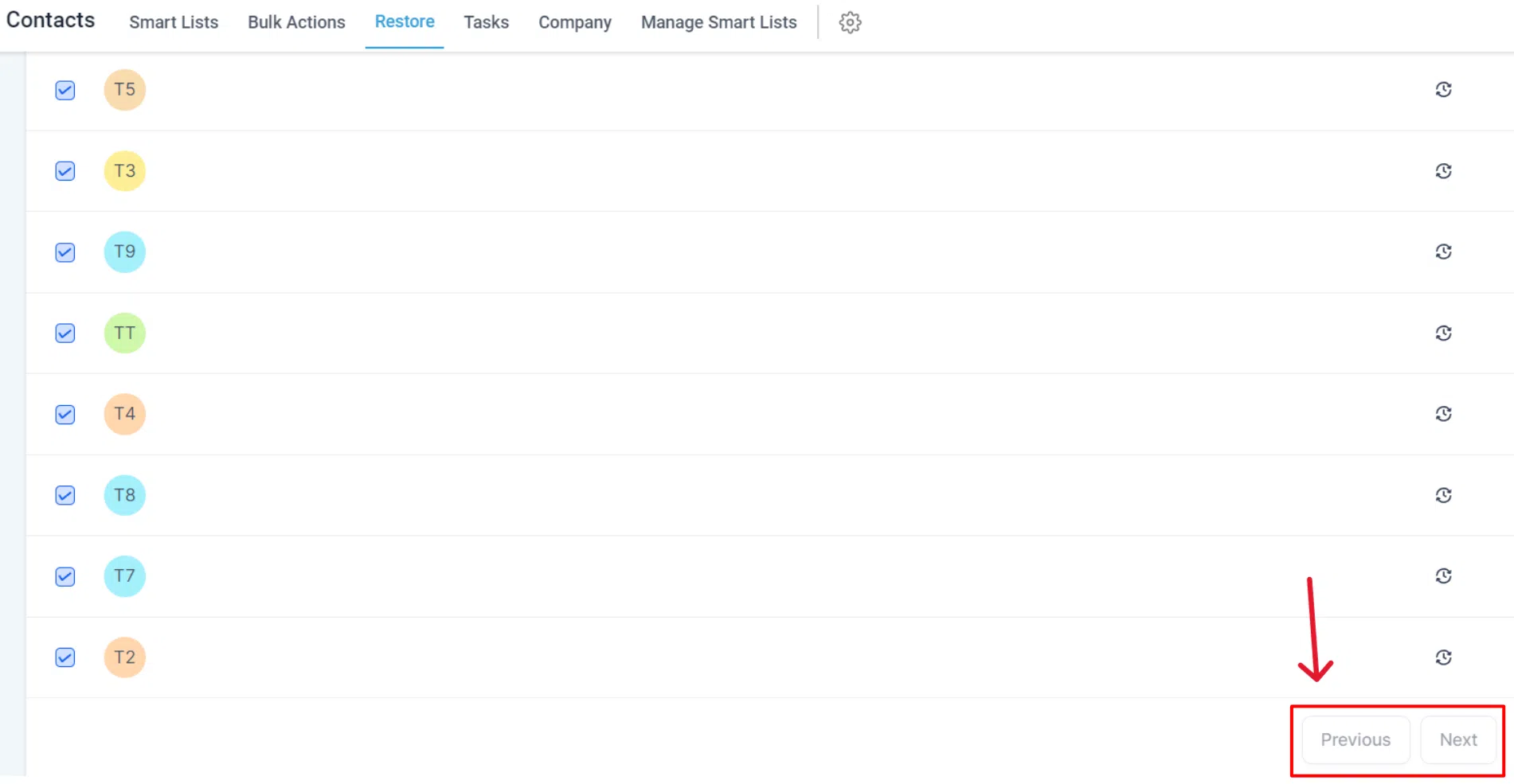
If your list of deleted contacts is extensive, navigate through pages using the buttons at the bottom of the list.
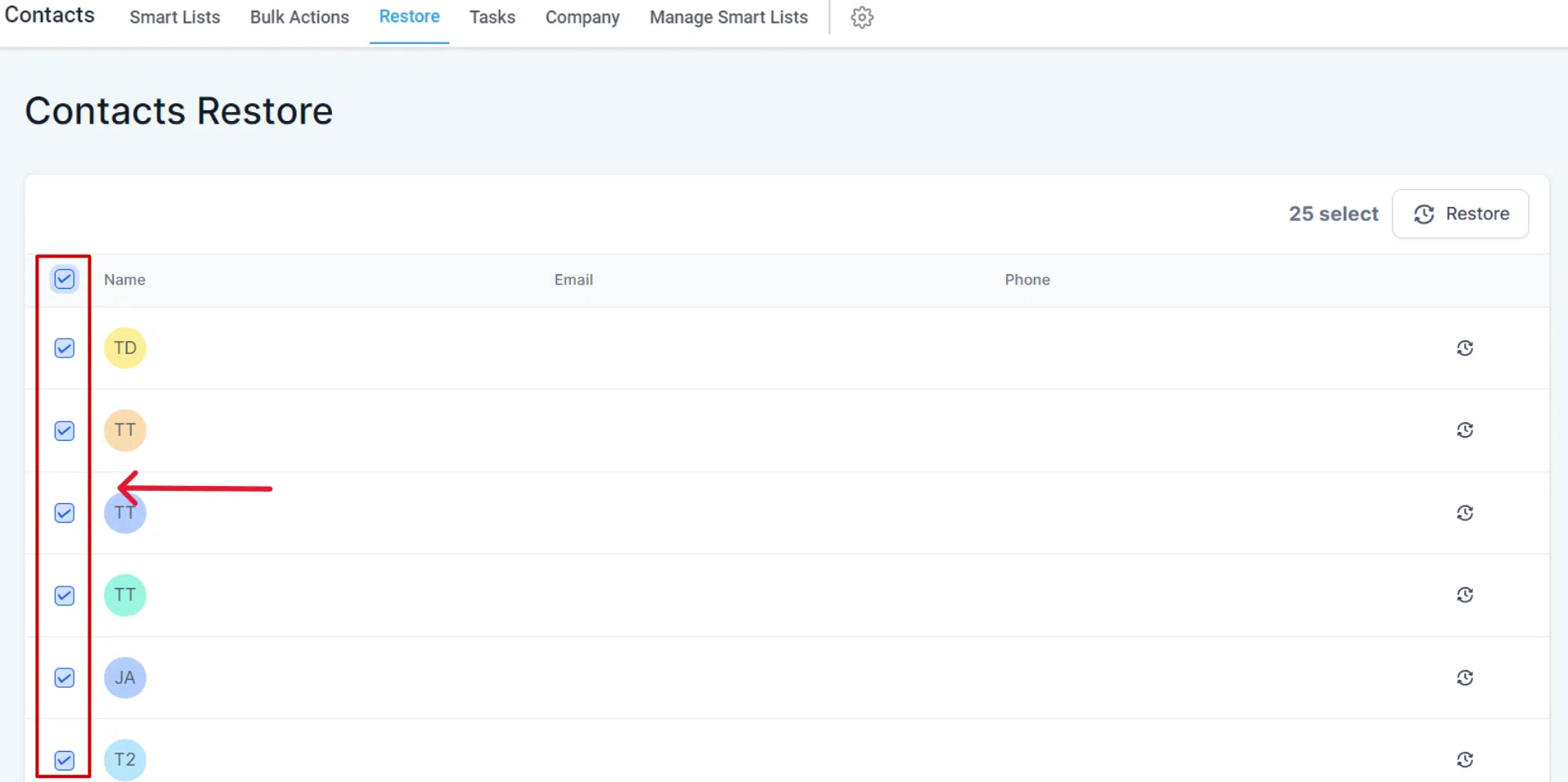
Select Contact(s)
To reinstate one or more deleted contacts, identify them in the list and select them using the checkboxes. You can select multiple contacts to restore them in bulk.
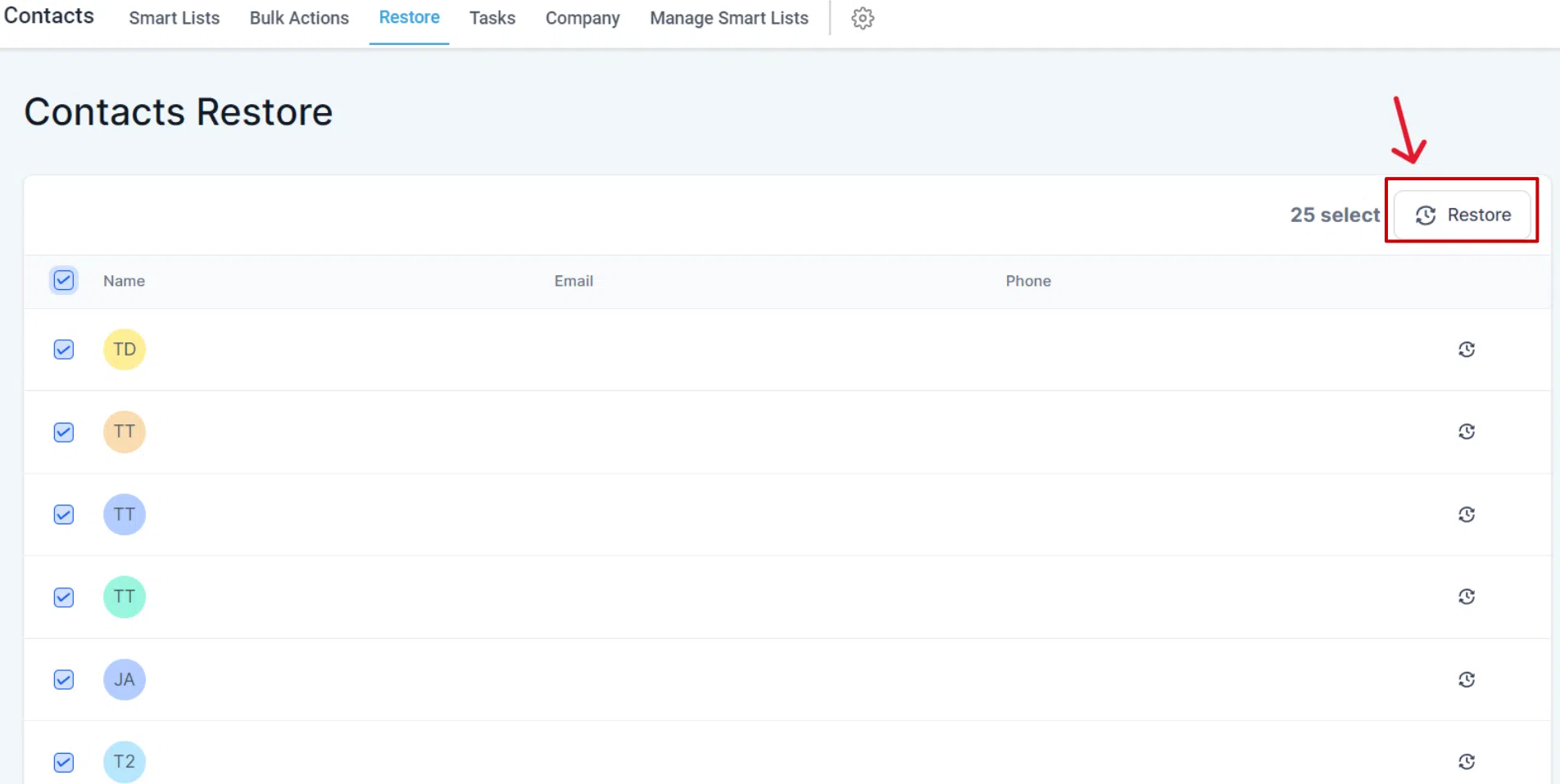
Click The Restore Button
Once you have selected the desired contact(s), click the Restore button to proceed.
Confirmation Popup
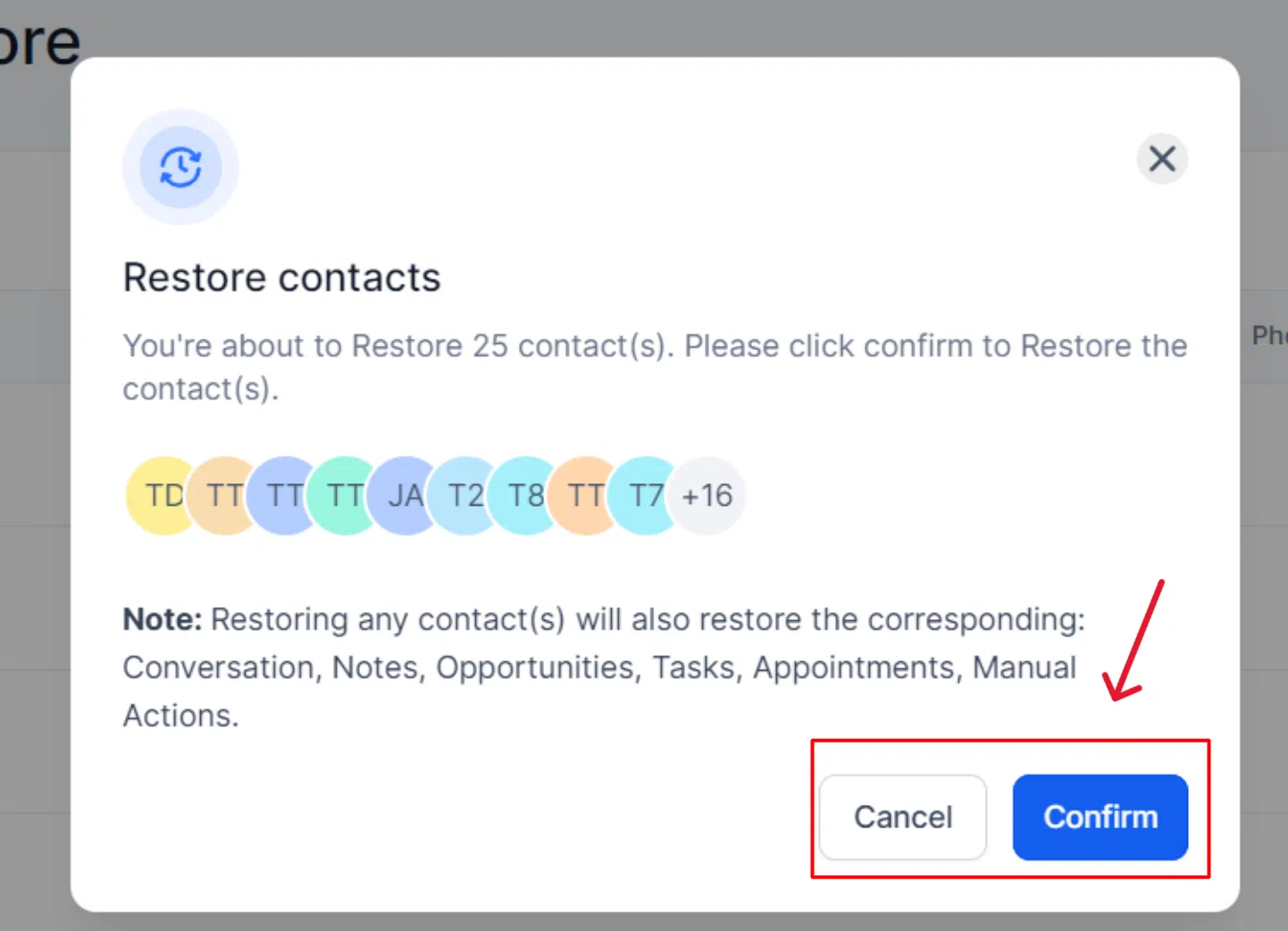
A confirmation popup will appear. Click Confirm to complete the restoration. The successful restoration reinstates the contact(s) and all of their associated data:
- Opportunities
- Notes
- Tasks
- Appointments
- Conversations
- Campaigns/Workflows