The Transactions tab in Growth360 Payments gives you a centralised view of all sales across invoices, payment links, and integrations like Stripe, Apple Pay, and Google Pay – including full filtering, search, and refund tools.
The Transactions Tab
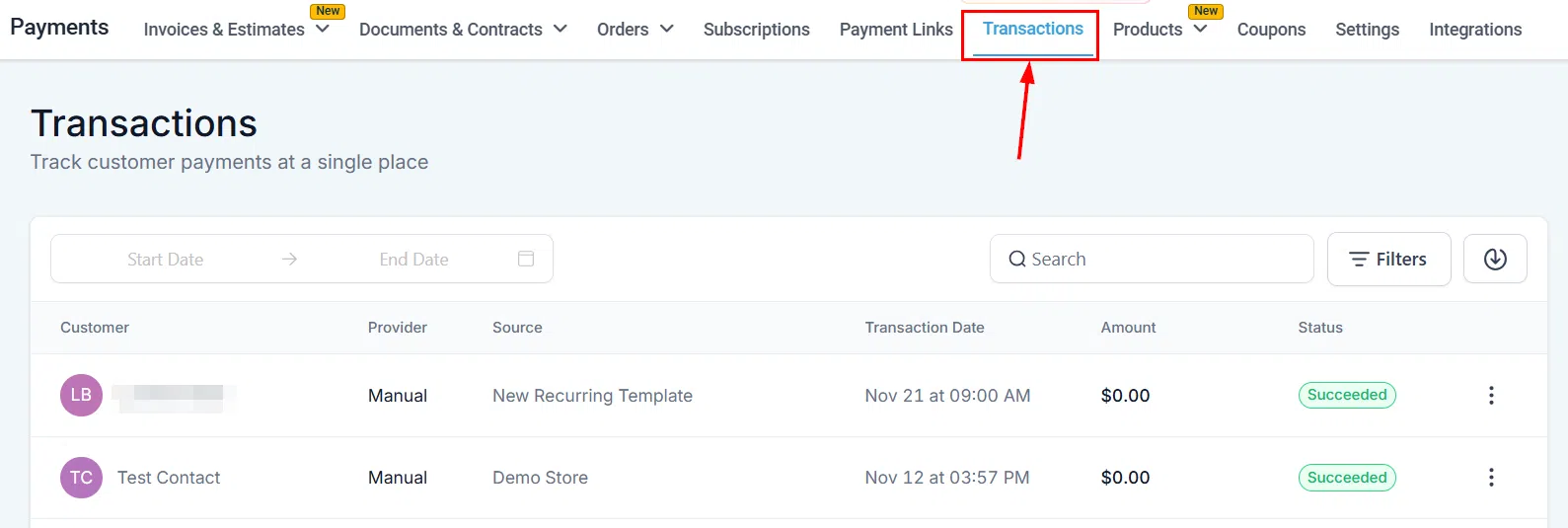
Navigate to Payments > Transactions to access a complete record of every sale processed through Growth360. Each entry shows the customer, amount, payment provider, source, date, and status at a glance.
Filtering and Searching Transactions
Growth360 offers several tools to help you locate and organise transactions quickly.
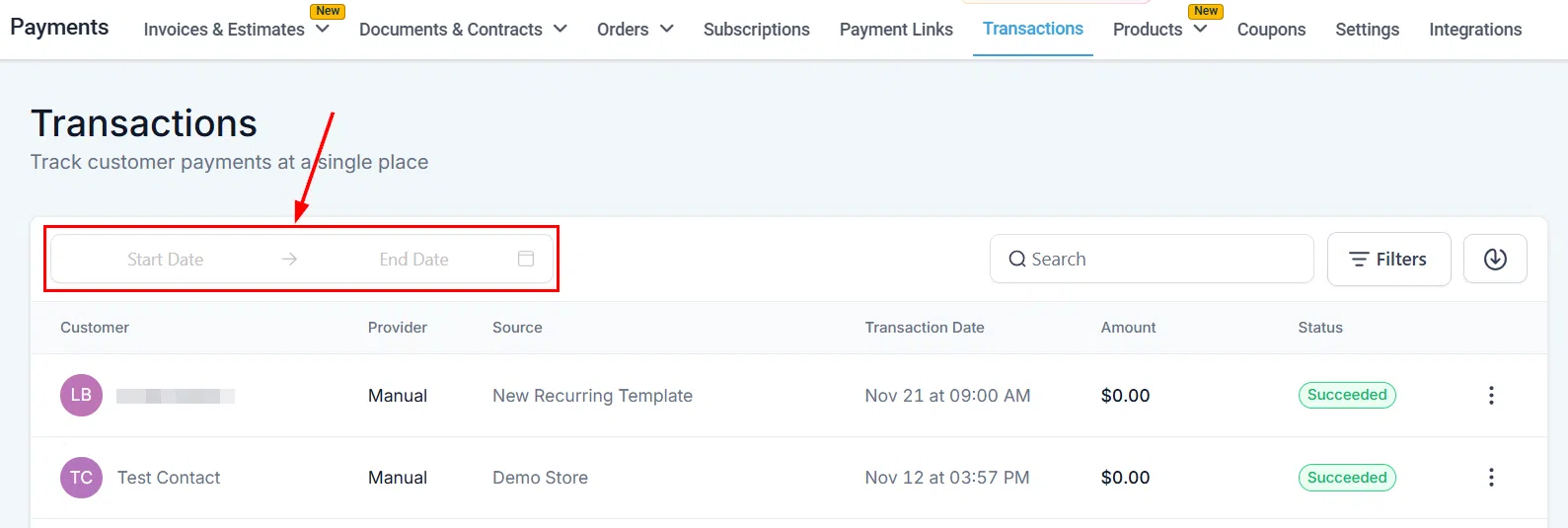
Date Range
Use the date range selector to filter transactions within a specific period. Choose a custom date range from the calendar dropdown to narrow results to the timeframe you need.
Search
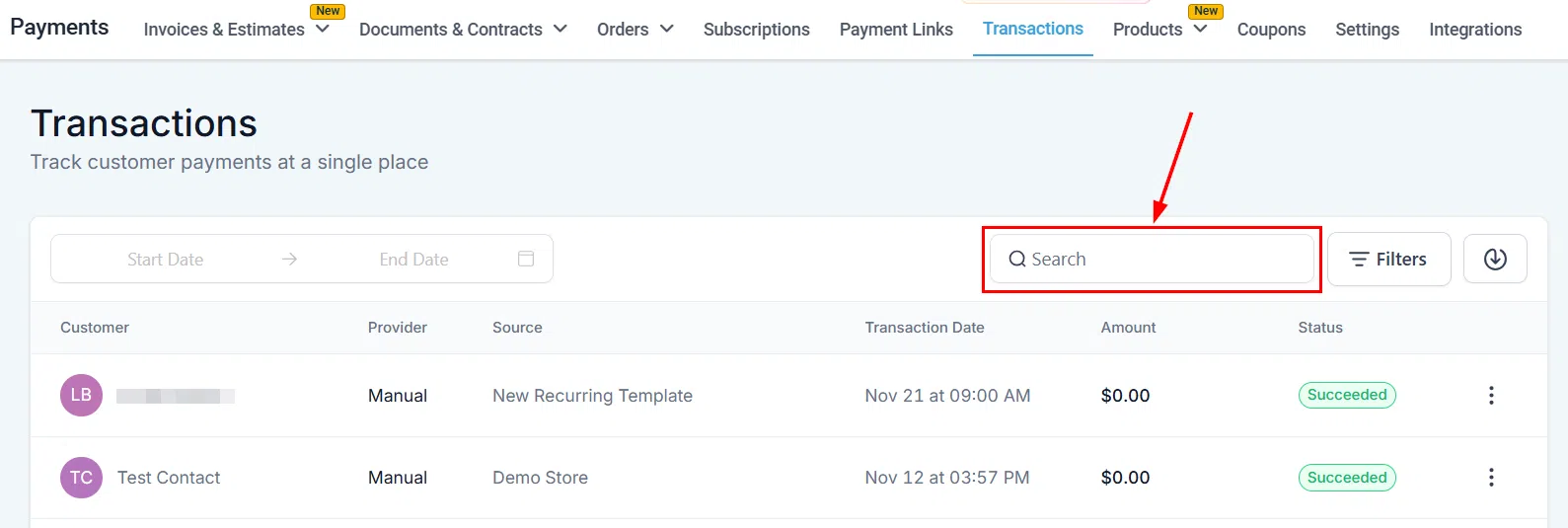
Type a few characters of a customer’s name or email address to find their transactions instantly.
Filters
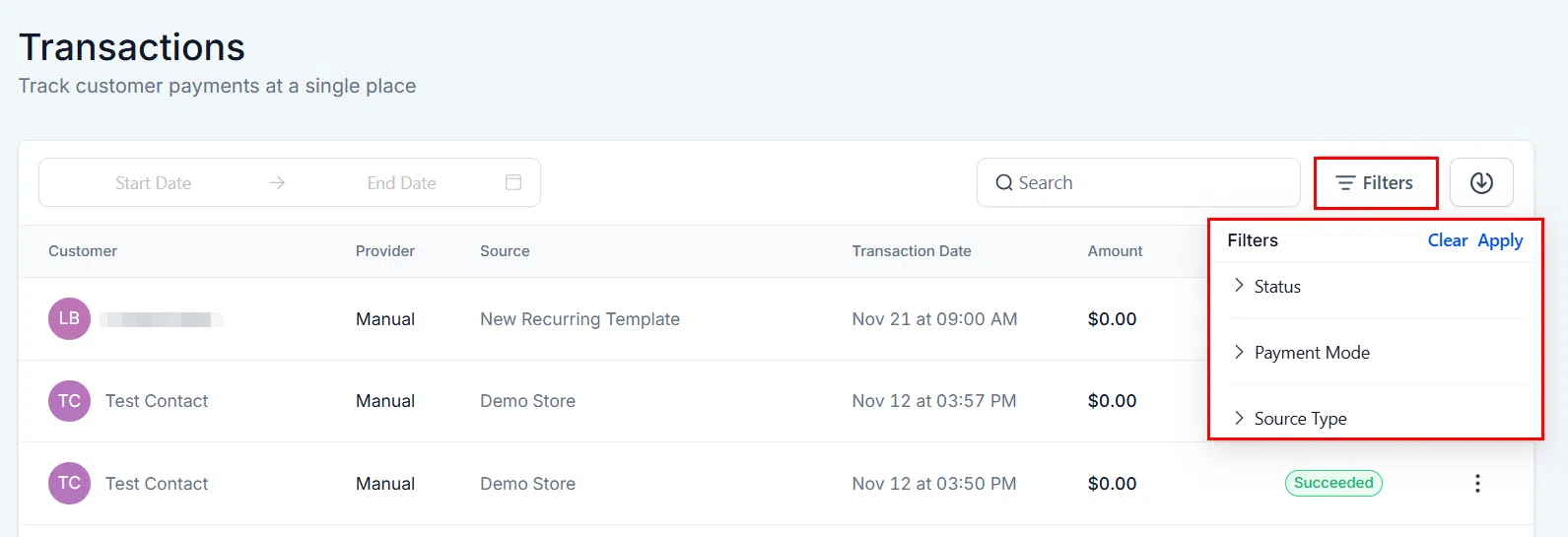
Click the Filters button to apply multiple criteria at once, including customer, provider, source, date, amount, and status.
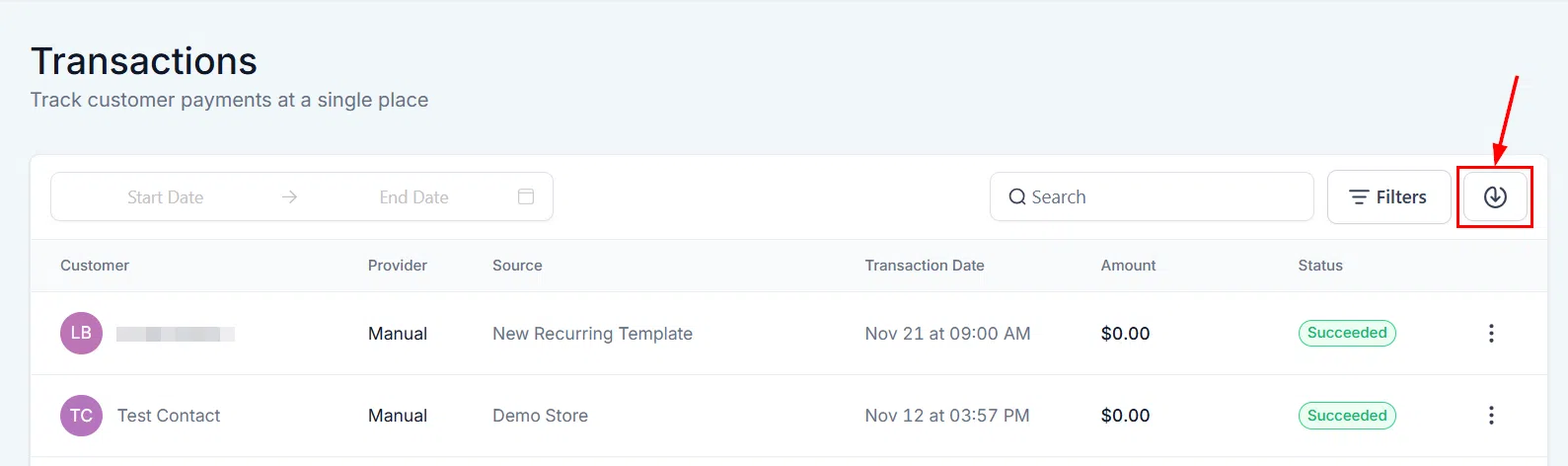
Export
Download your transaction data as a file for use in accounting or reporting tools.
Column Filters
Each column in the transactions list can be filtered independently to help you drill into specific data.
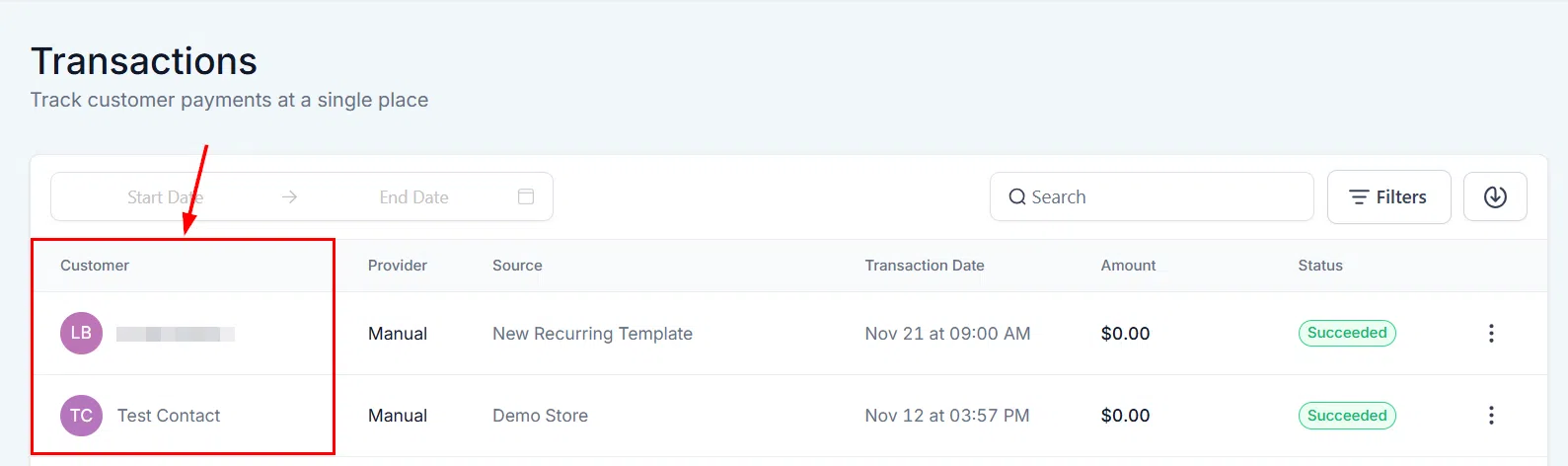
Customer
Filter transactions by a specific customer name or email.
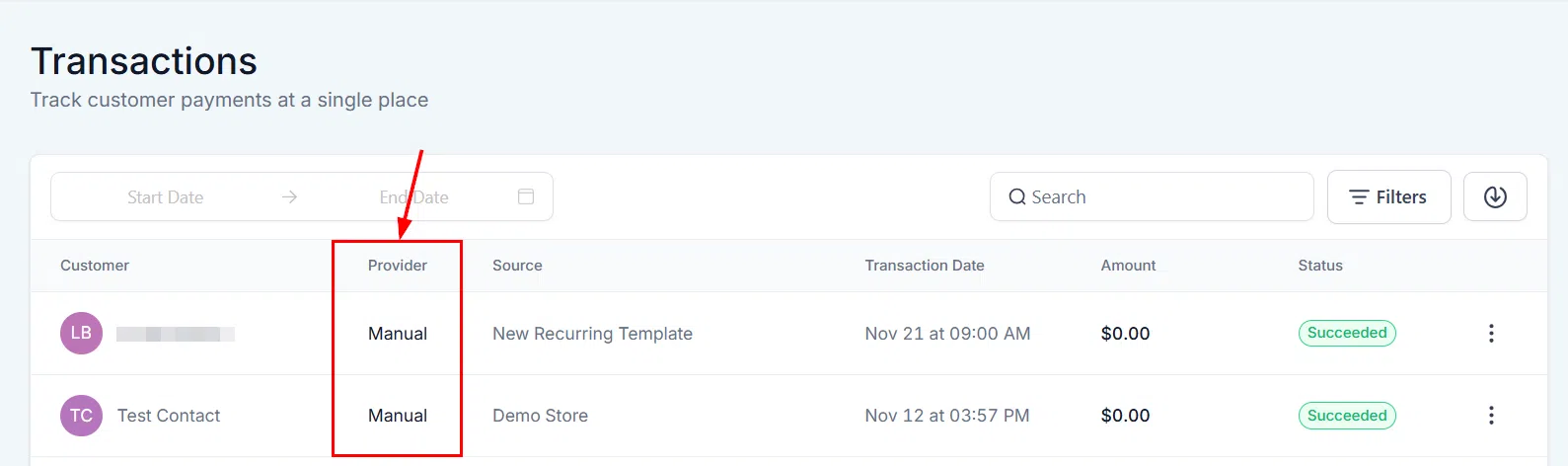
Provider
Filter by payment provider – for example, Stripe, PayPal, Authorize.net, or NMI.
Source
Filter by the origin of the sale, such as an invoice, payment link, order form, or other tool.

Date
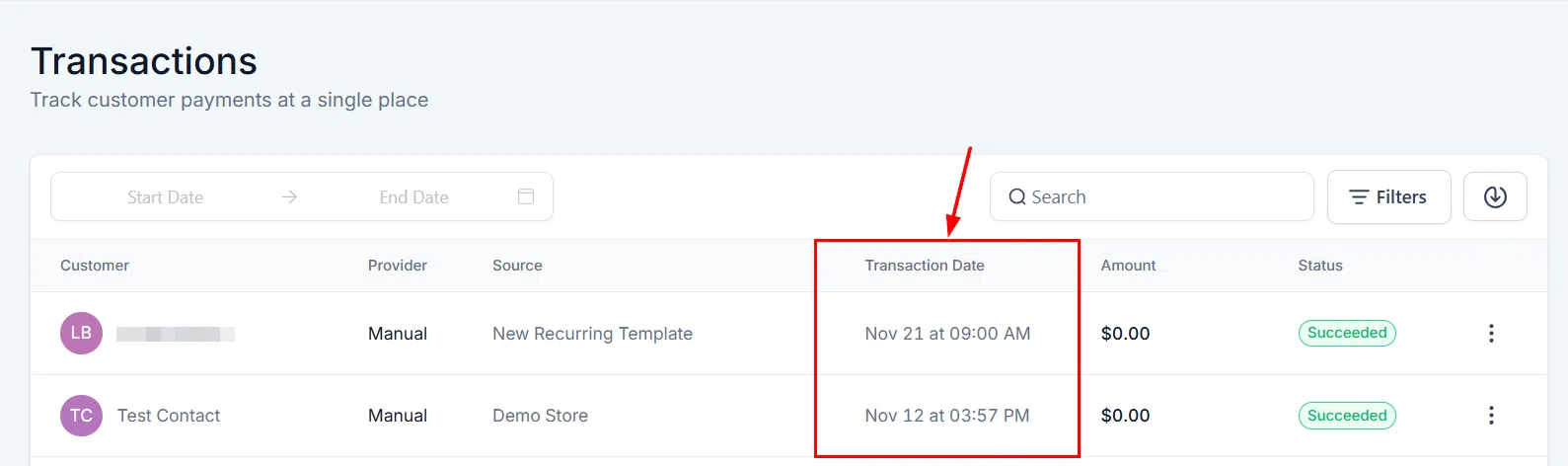
Amount

Status
Filter by transaction outcome: completed, failed, or refunded.
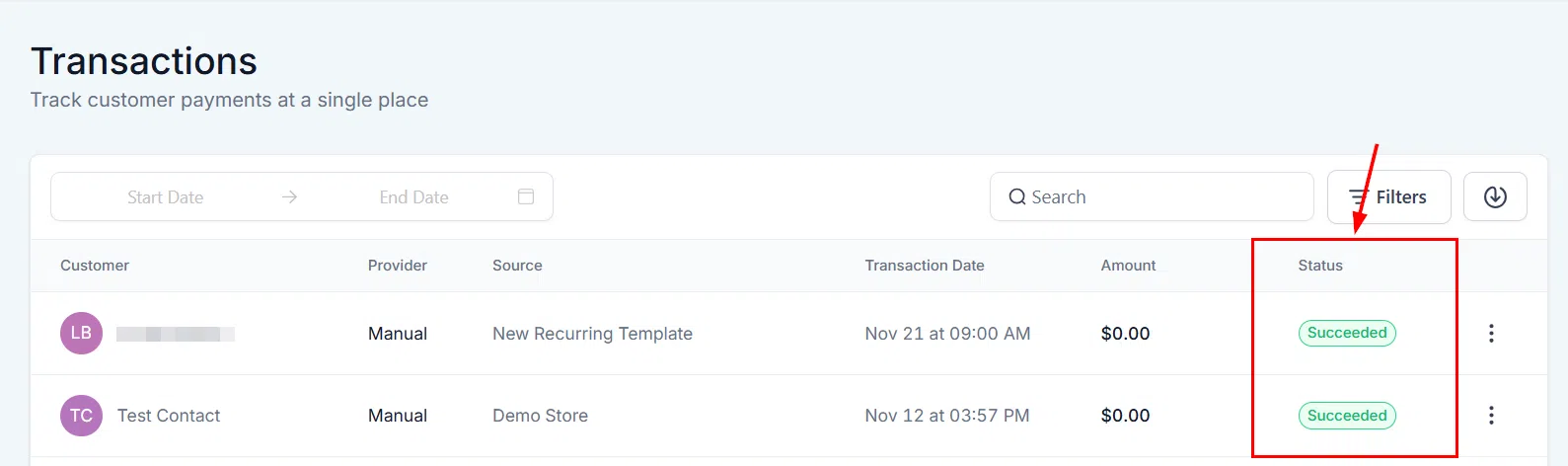
Transaction Actions
Click the three-dot menu on any transaction row to view the full transaction details or issue a refund. See the Refunds guide for more on the refund process.

Tracking Membership Transactions
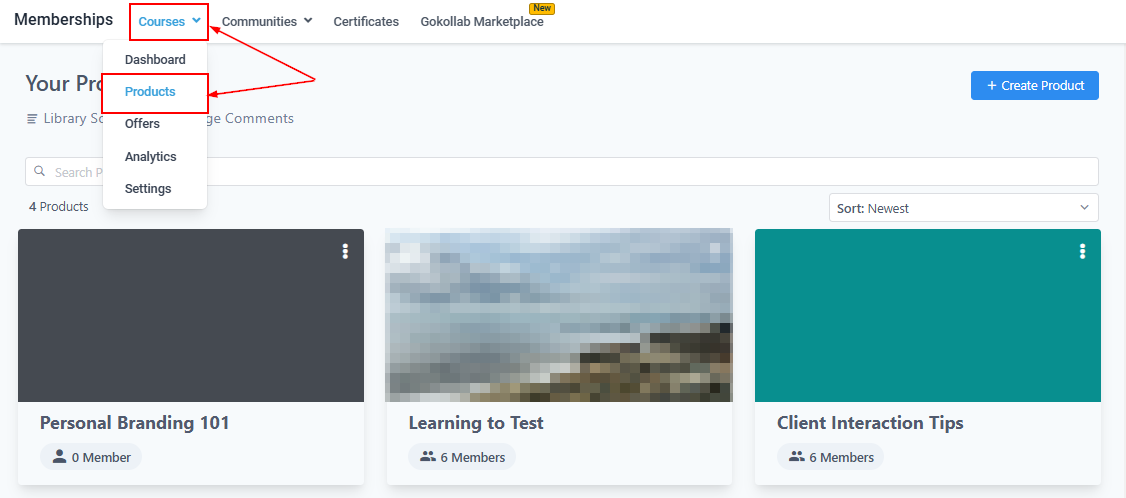
Transactions originating from Growth360 Memberships are consolidated here alongside all other payment activity, so you have a single unified view rather than switching between sections.
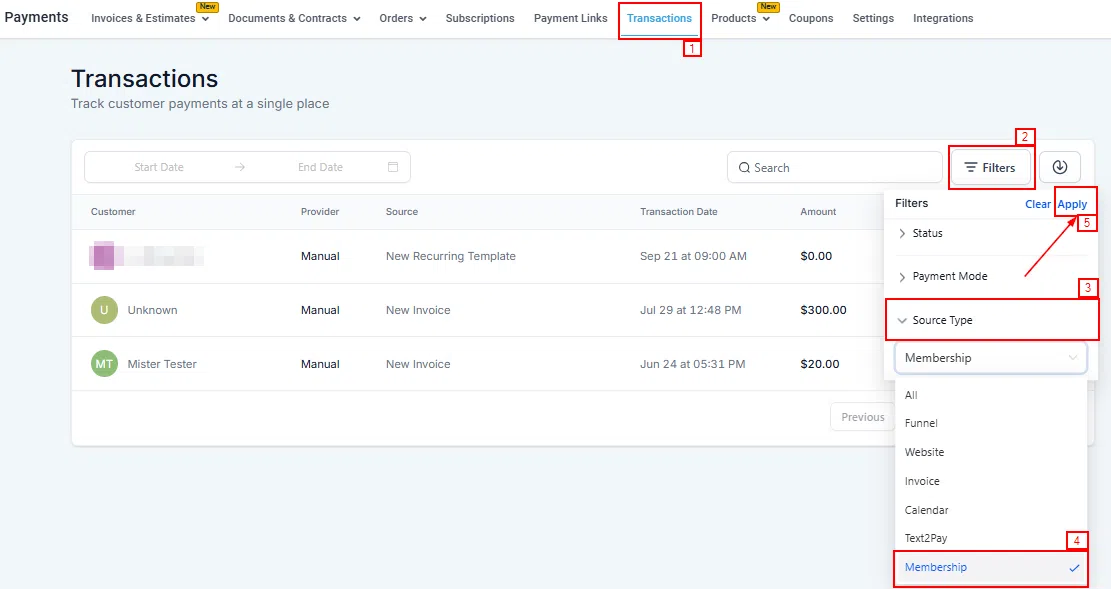
Use the Membership filter within the Transactions tab to isolate and sort membership-related payments – whether one-time or recurring. Remember to click Apply after selecting your filter.
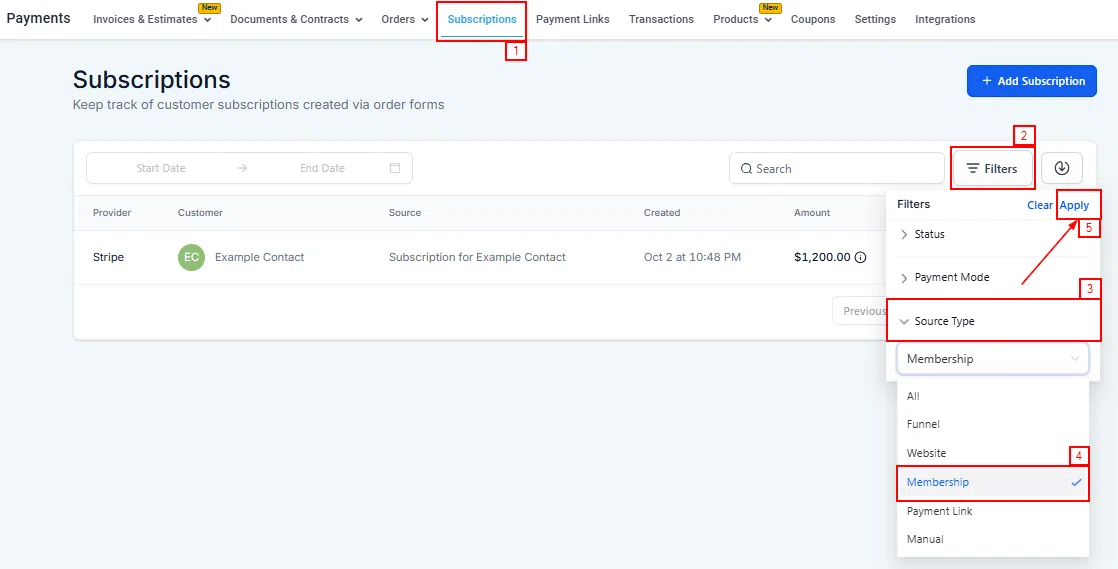
Membership Subscriptions
Any subscriptions created in the Memberships section appear automatically in the Subscriptions area of Payments, keeping your recurring revenue visible and manageable from one place.