The Products section in Growth360 lets you manage your entire product catalogue – create new products, import in bulk, set pricing and variants, and connect products to your store or funnel.
Products Overview
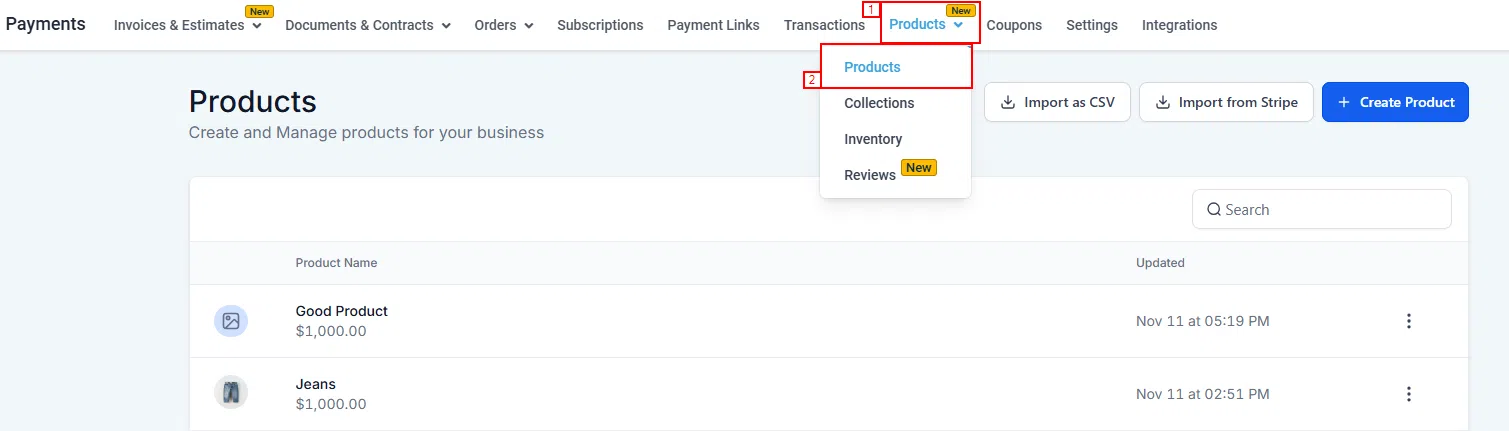
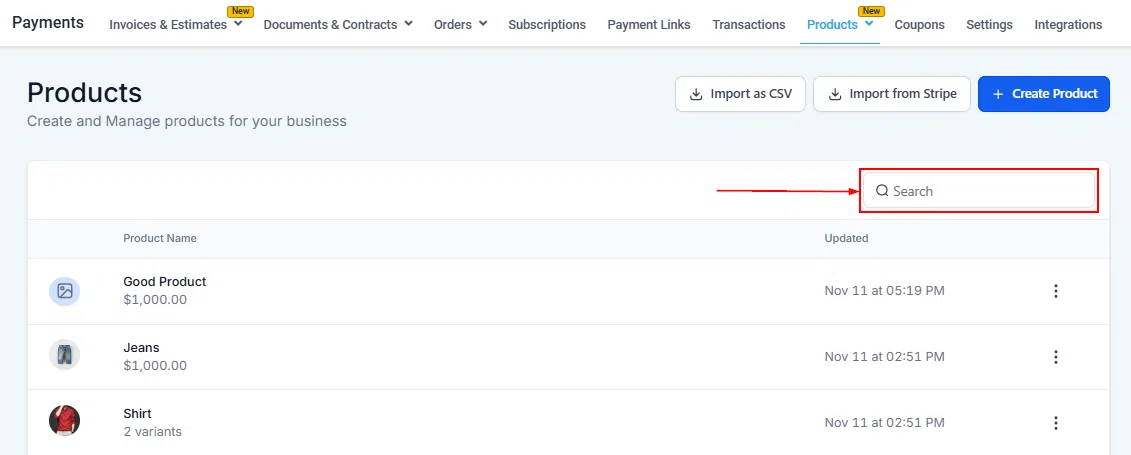
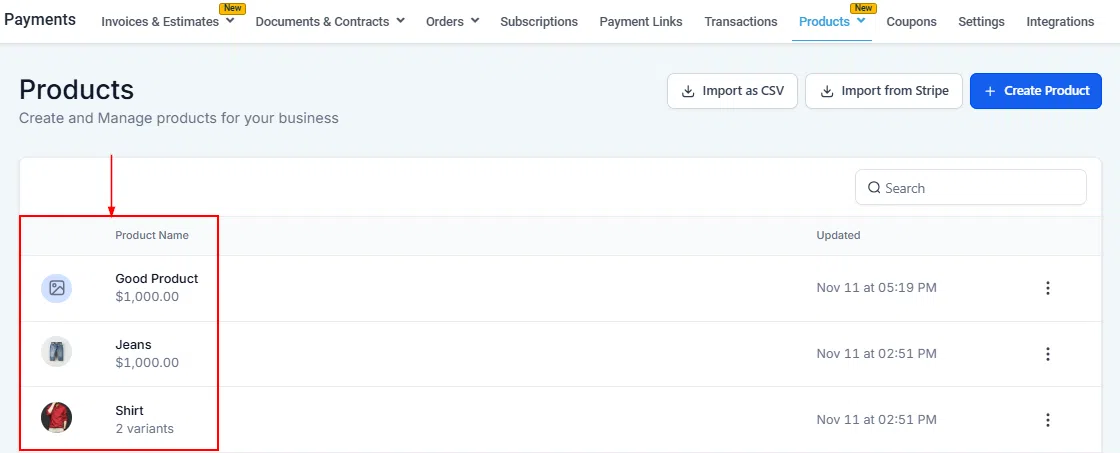
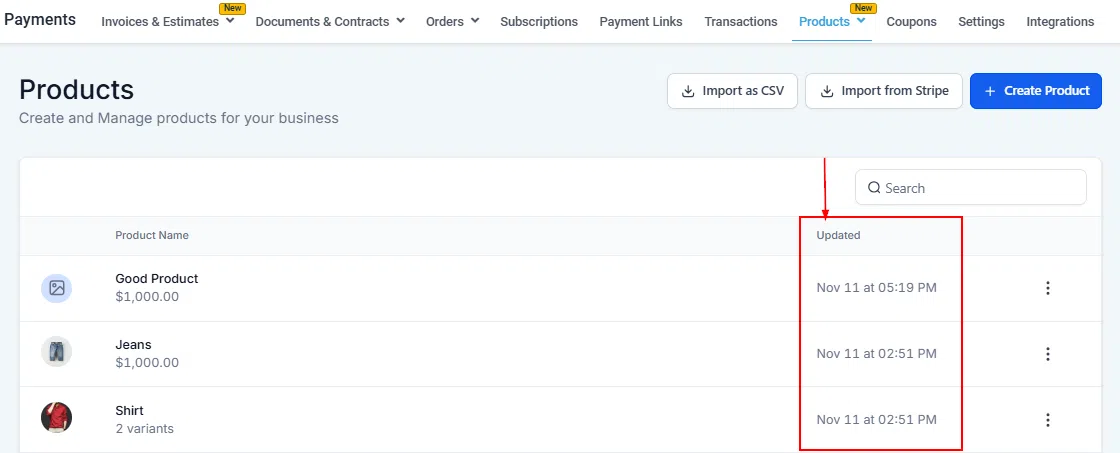
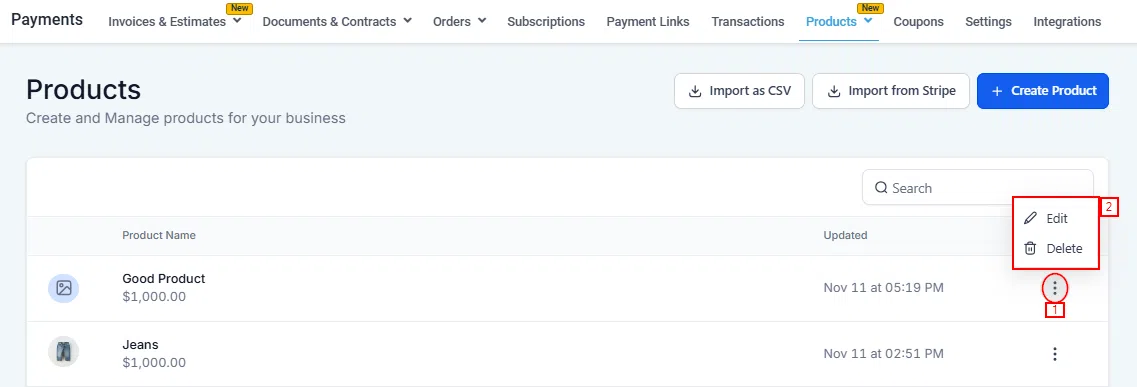
Access Products by going to Payments > Products. Here you can view all your products, import via CSV, import from Stripe, and create new products from scratch.
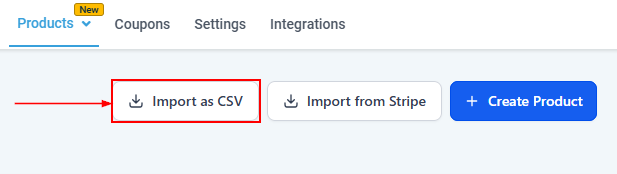
Import Products via CSV
To bulk-import products from another system or spreadsheet, select Import as CSV. Prepare your file using the sample template provided, then upload it to add products without manually creating each one.
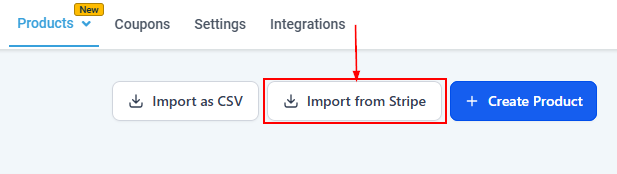
Import Products from Stripe
If you already have products set up in Stripe, you can import them directly into Growth360 to keep your catalogue in sync.
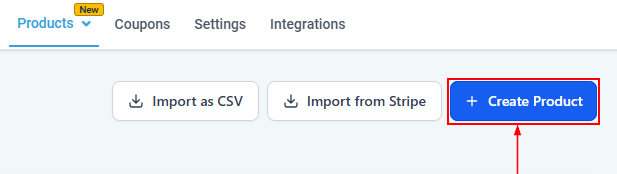
Creating a New Product
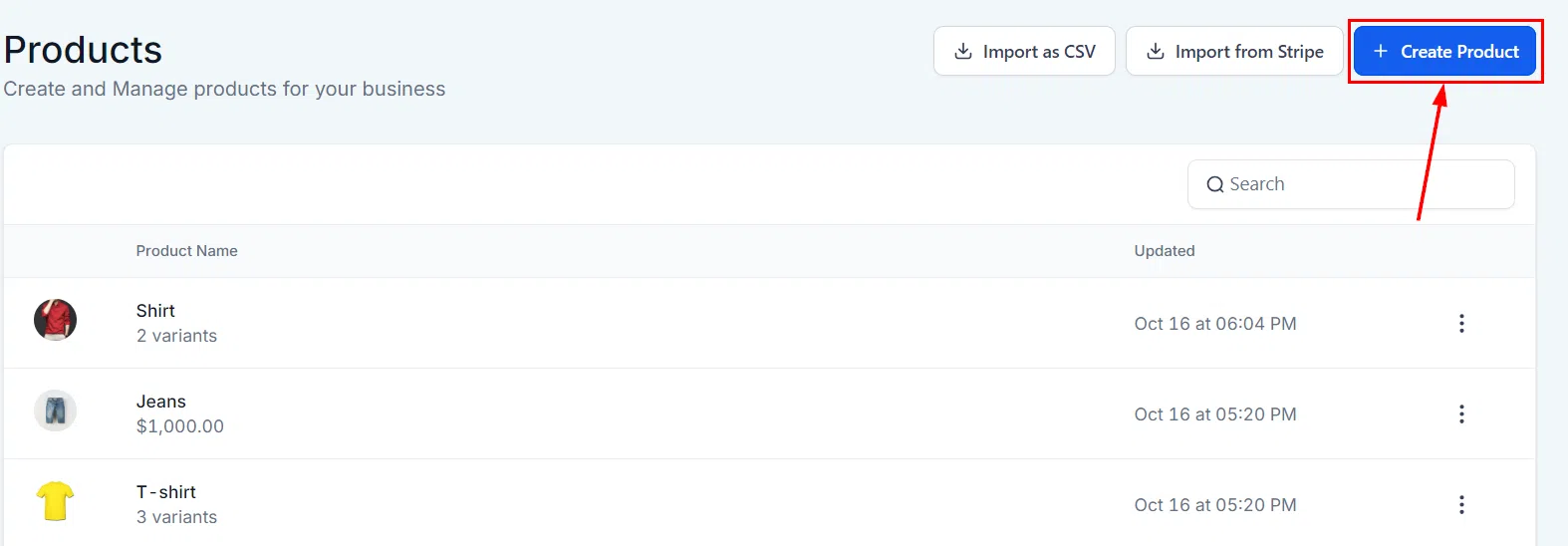
Click Create Product in the top right of the Products page. The product creation form covers all the key details your listing needs.

Online Store Option
Enable the Include in Store toggle to make the product available for purchase through your e-commerce store pages. This is required for digital product delivery.
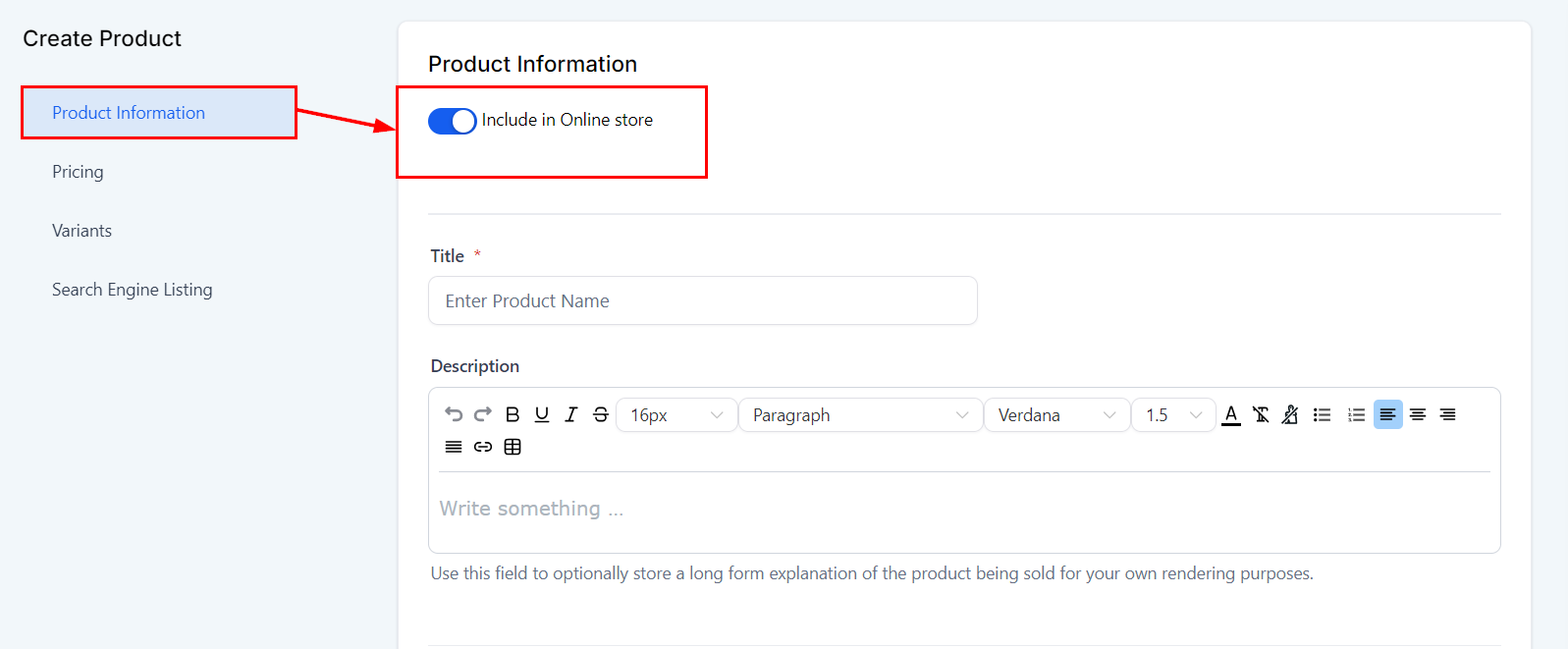
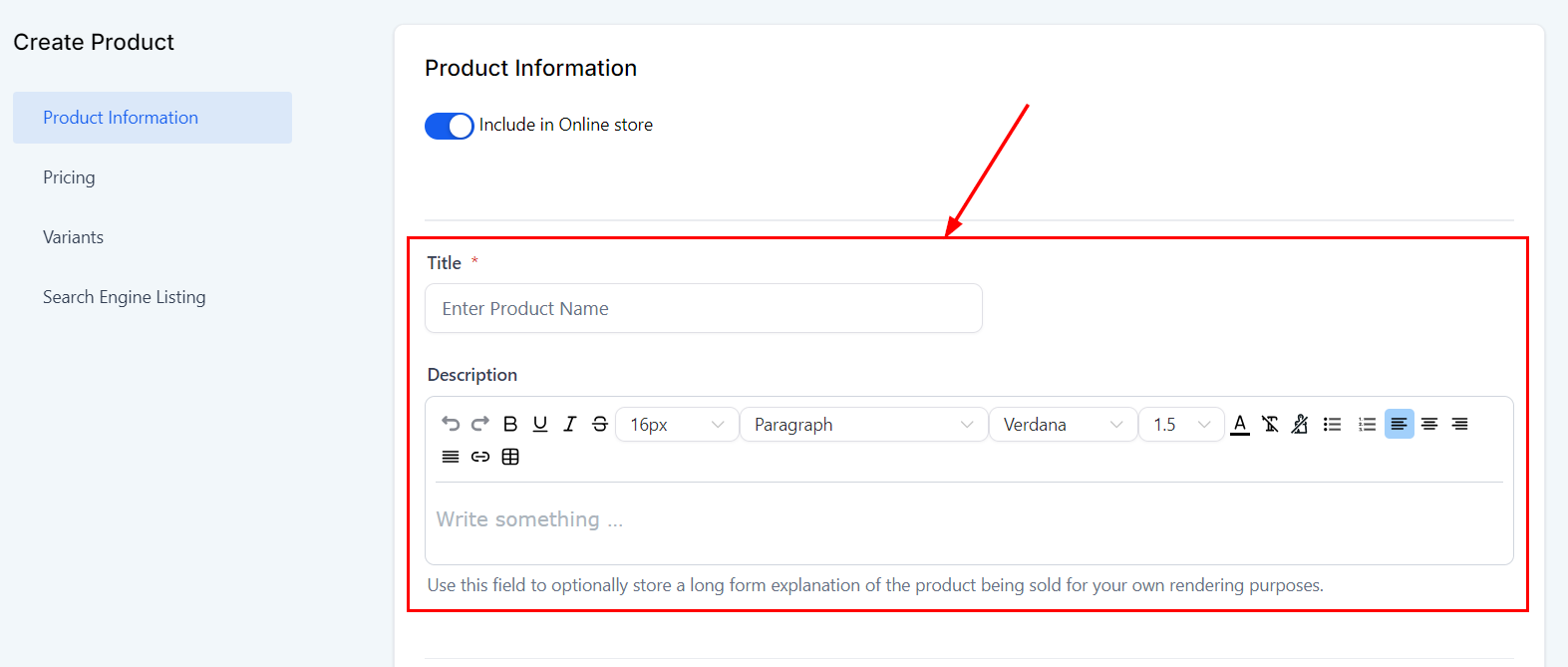
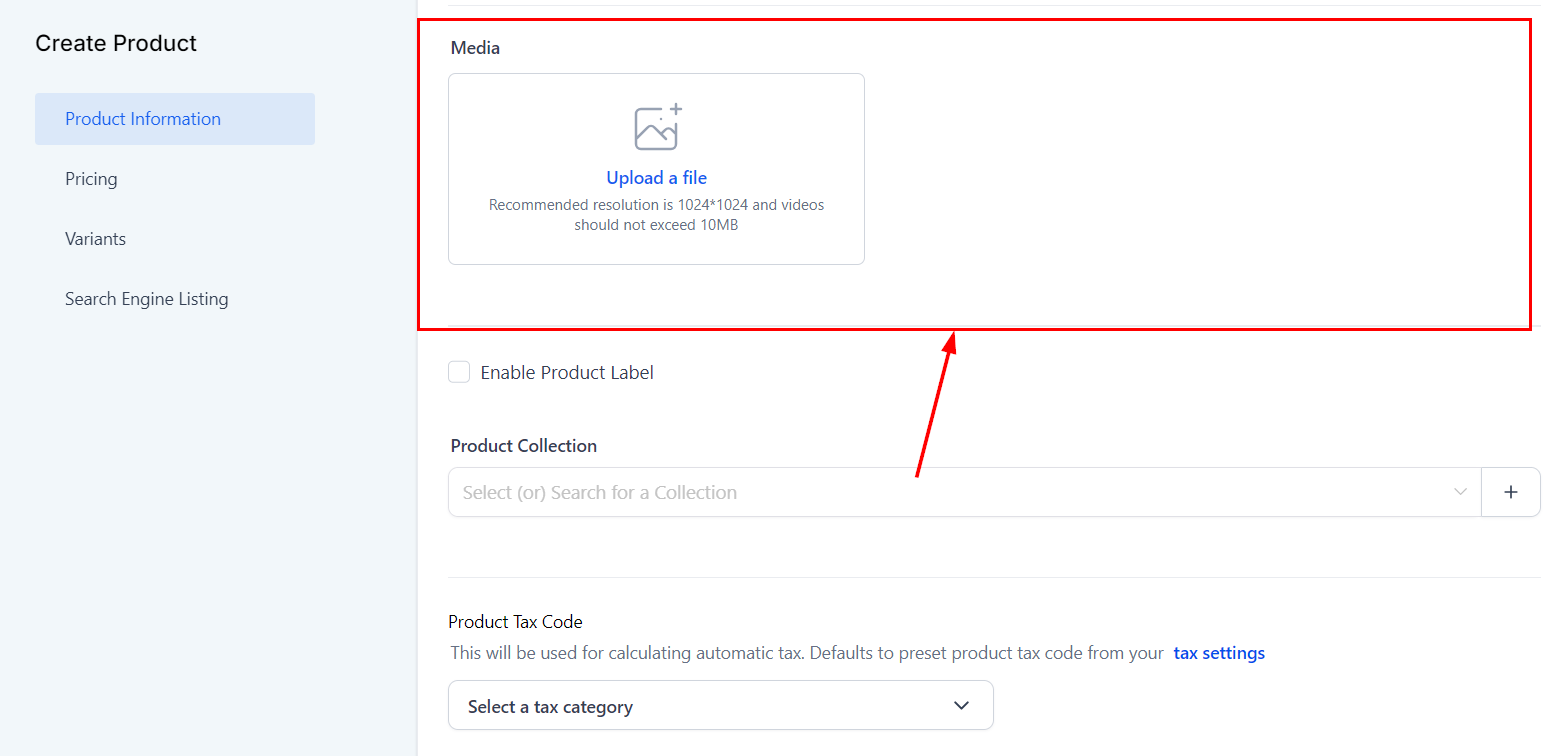
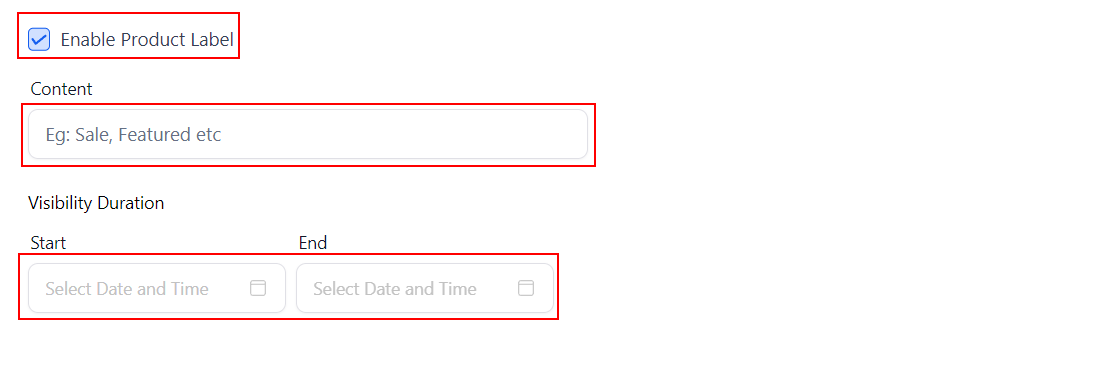
Product Information
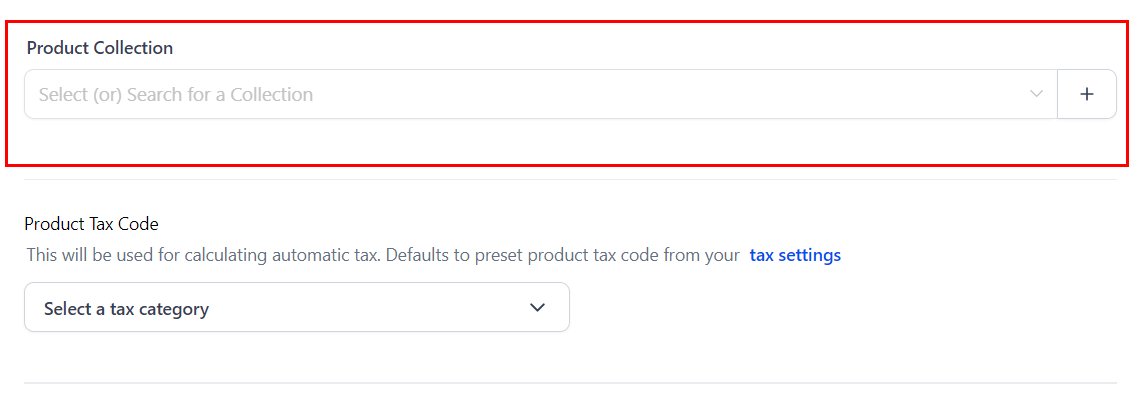
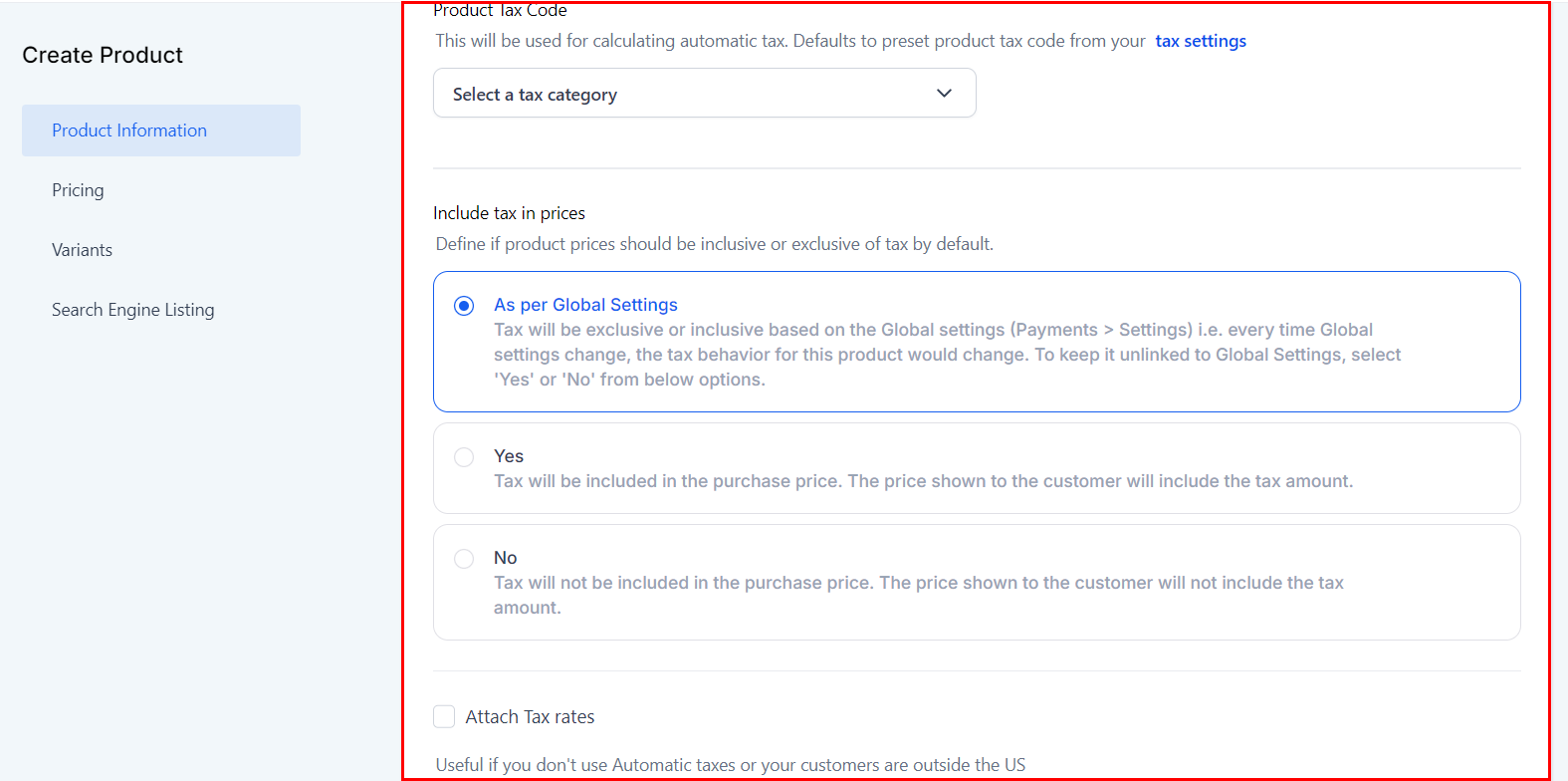
Fill in the product title, upload media images, assign the product to a collection, and set tax preferences. The tax setting can be Tax Inclusive, Tax Exclusive, or “As per Global Settings” – choosing the global option means your product will automatically inherit any future changes to your global tax configuration.
Pricing
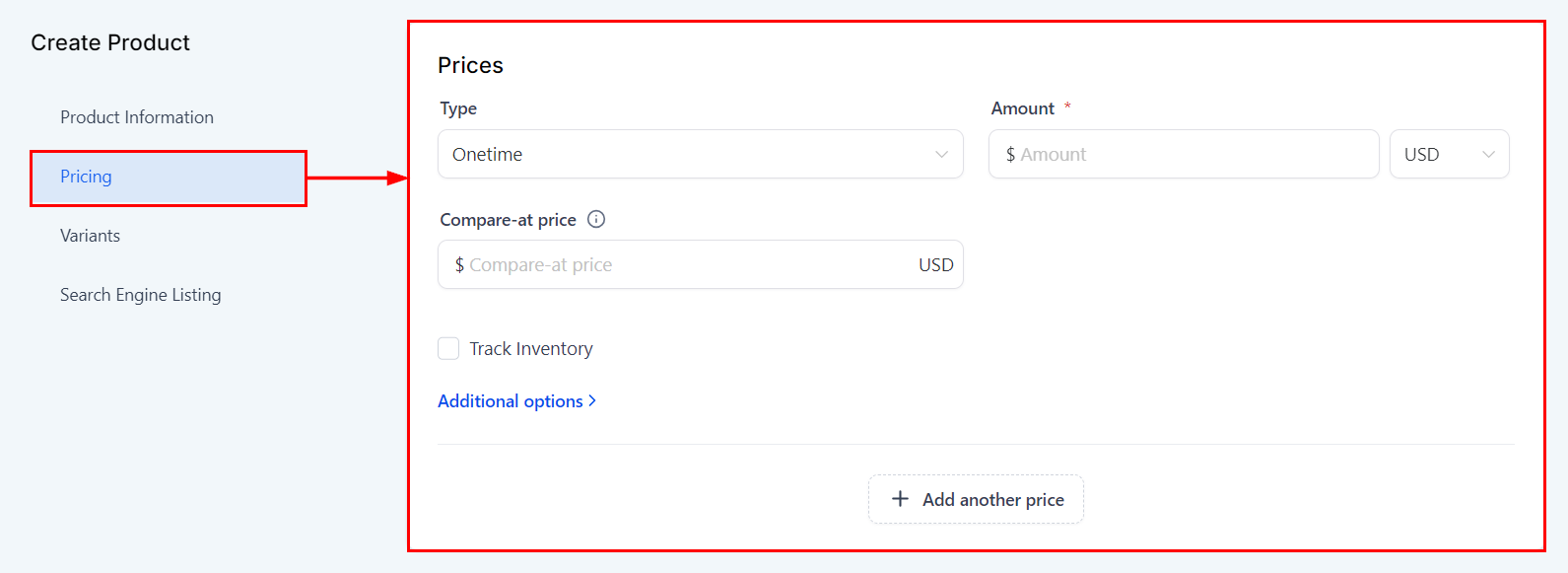
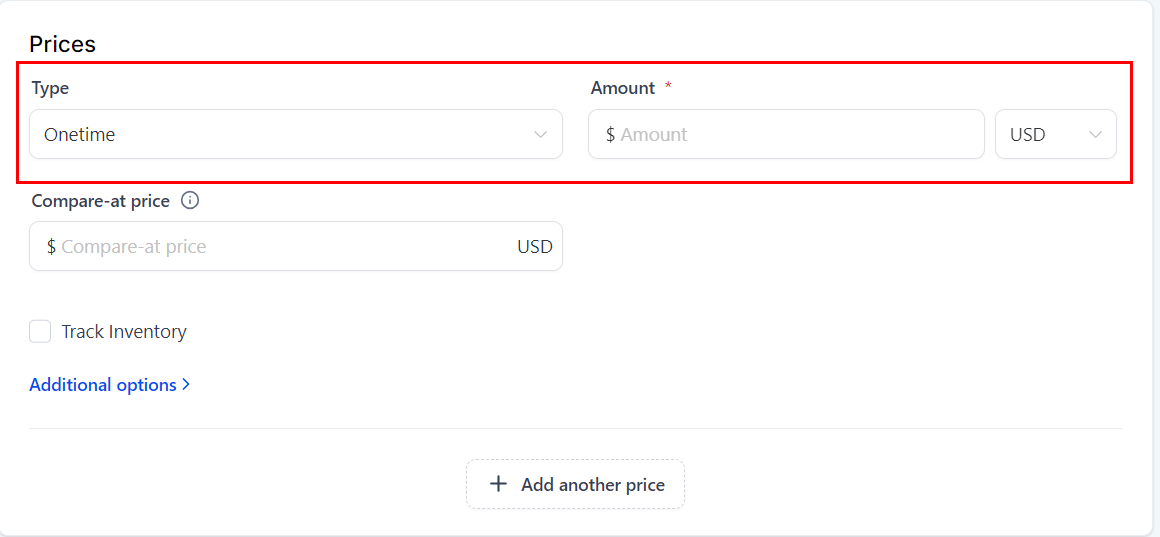
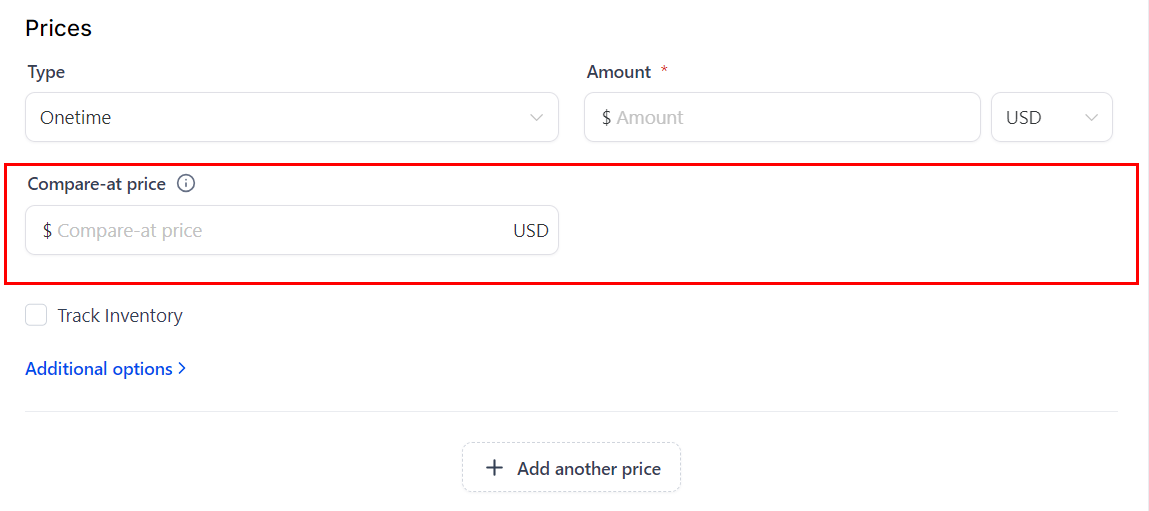
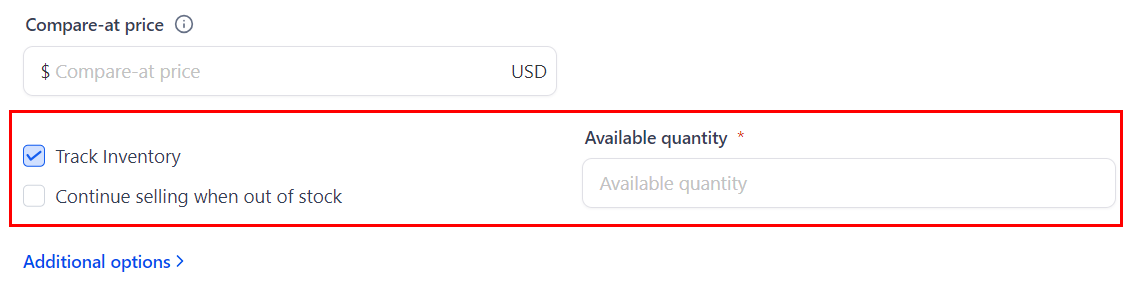
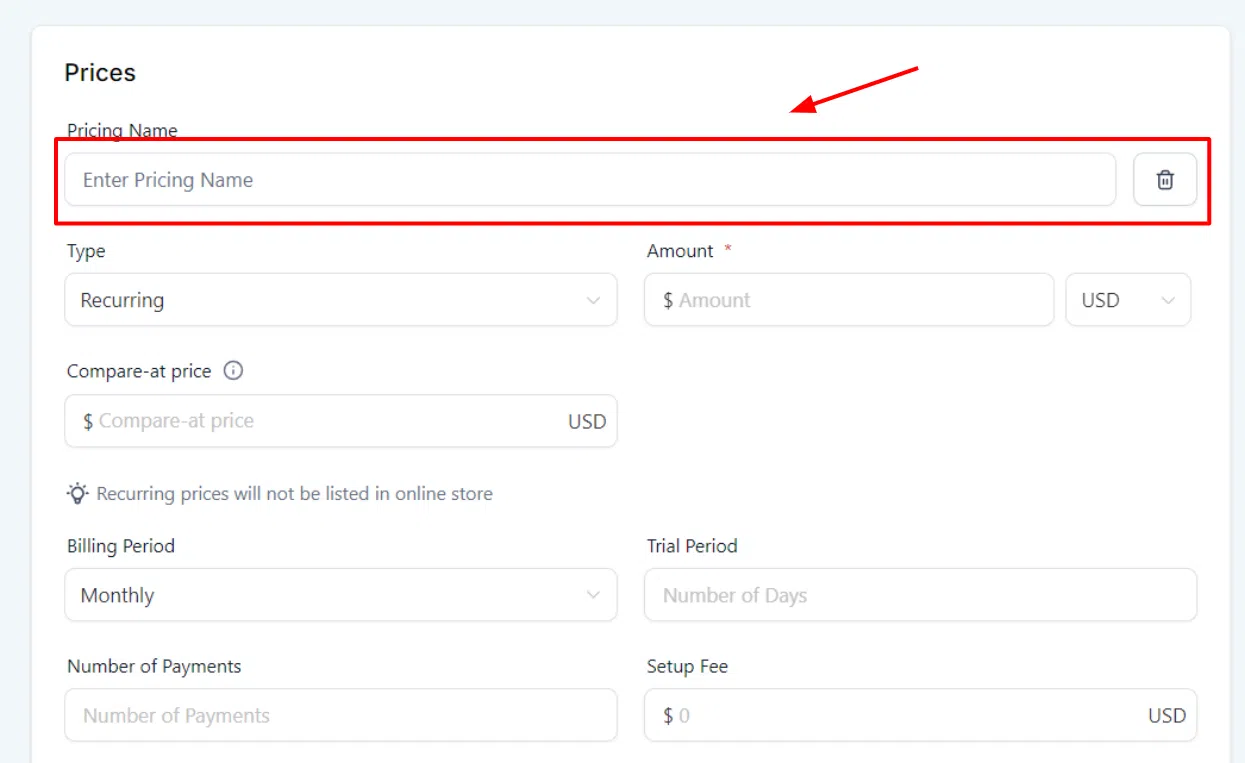
Define the pricing type and amount. You can also add a compare-at price to show a discount, and enable inventory tracking to monitor stock levels per product or variant.
Recurring Payments and Additional Options
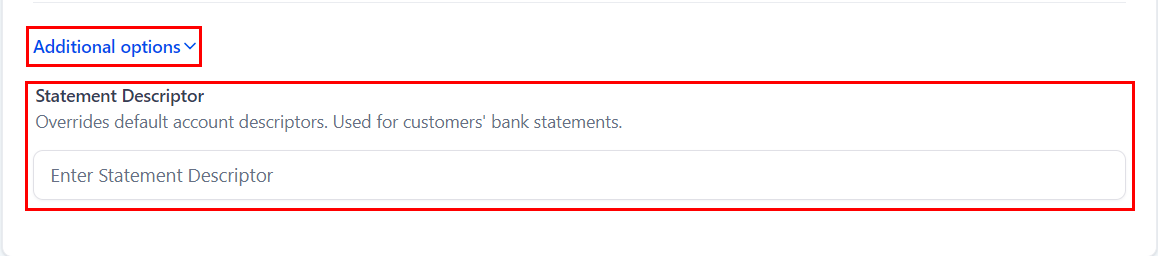
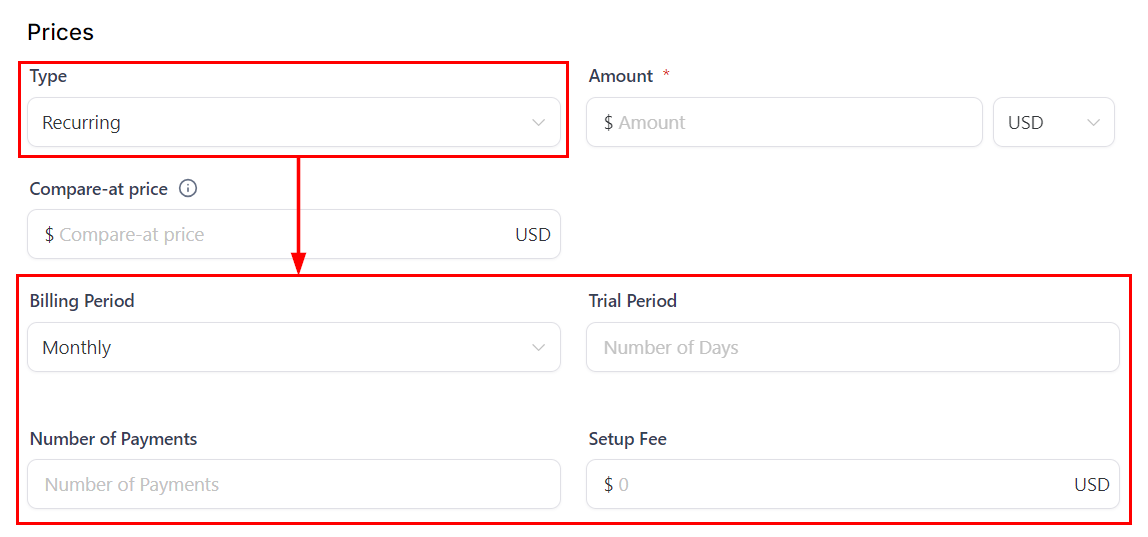
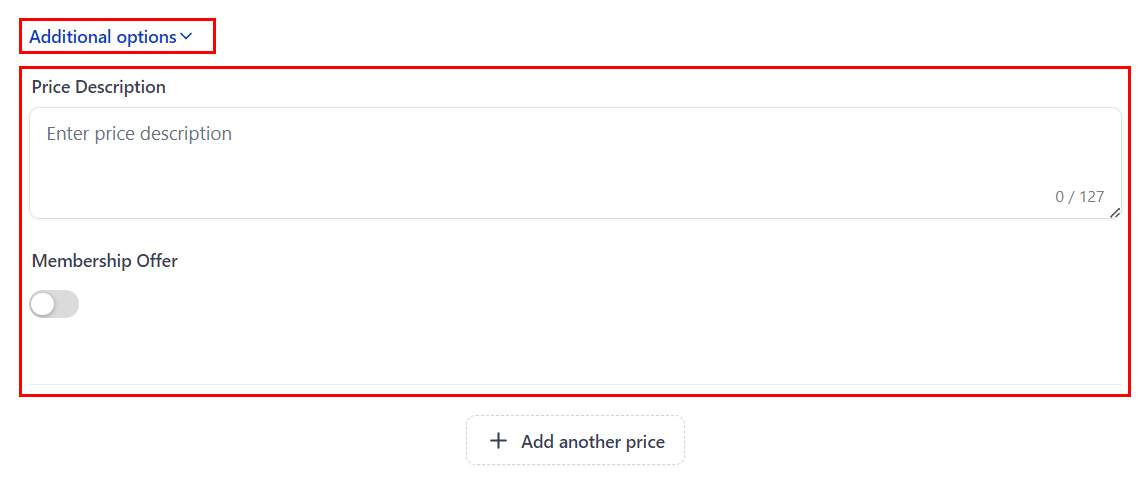
For subscription-style products, enable recurring payments and set the billing interval. Use Additional Options to add a statement description that will appear on your customers’ bank statements.
Variants
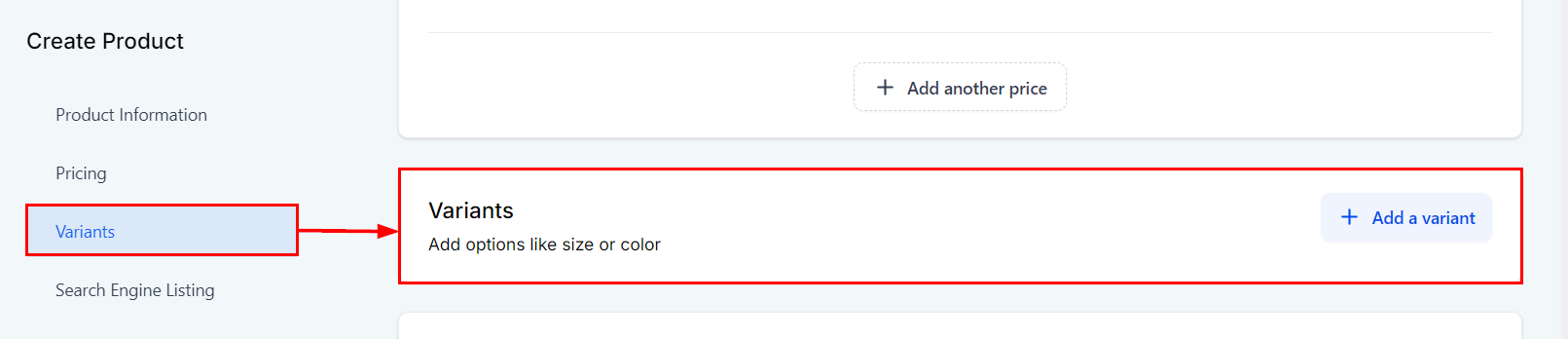
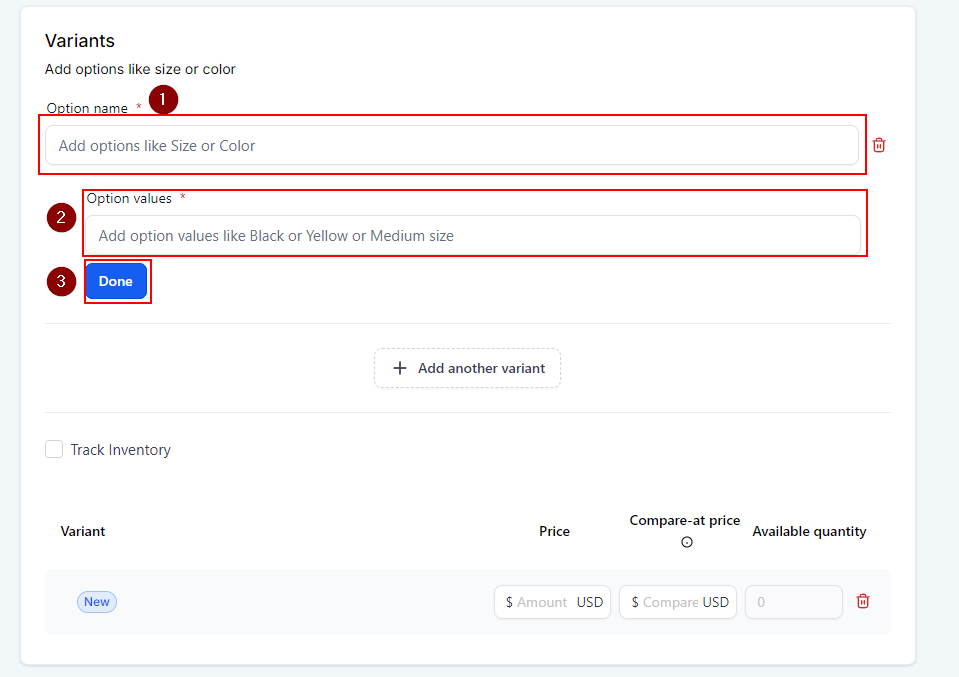
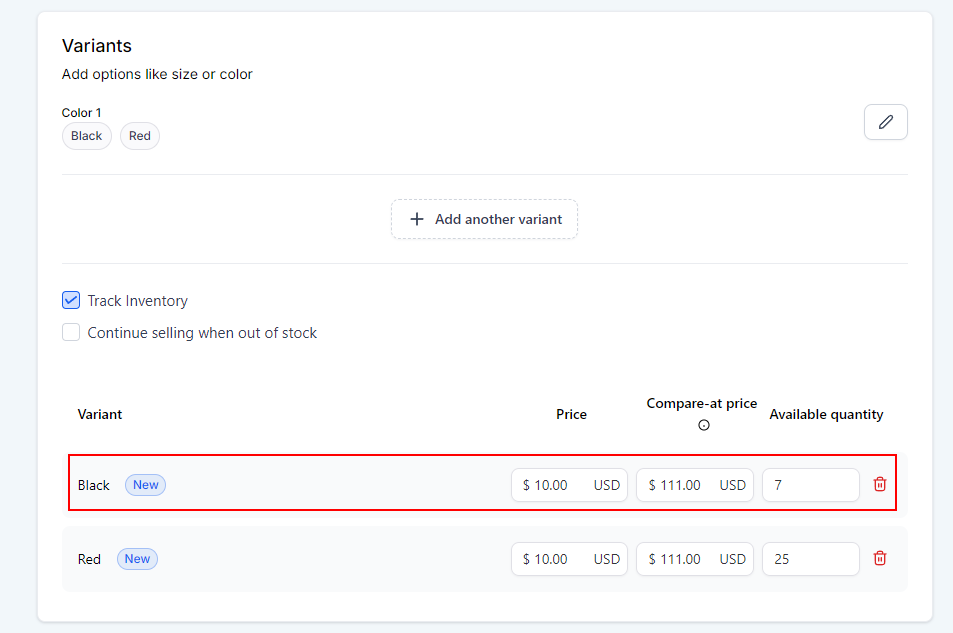
If you offer multiple versions of a product (such as different sizes or colours), click Add Variant. Set the variant type title and add the option values, then click Done. Each variant can have its own price and inventory tracking.
Search Engine Listing
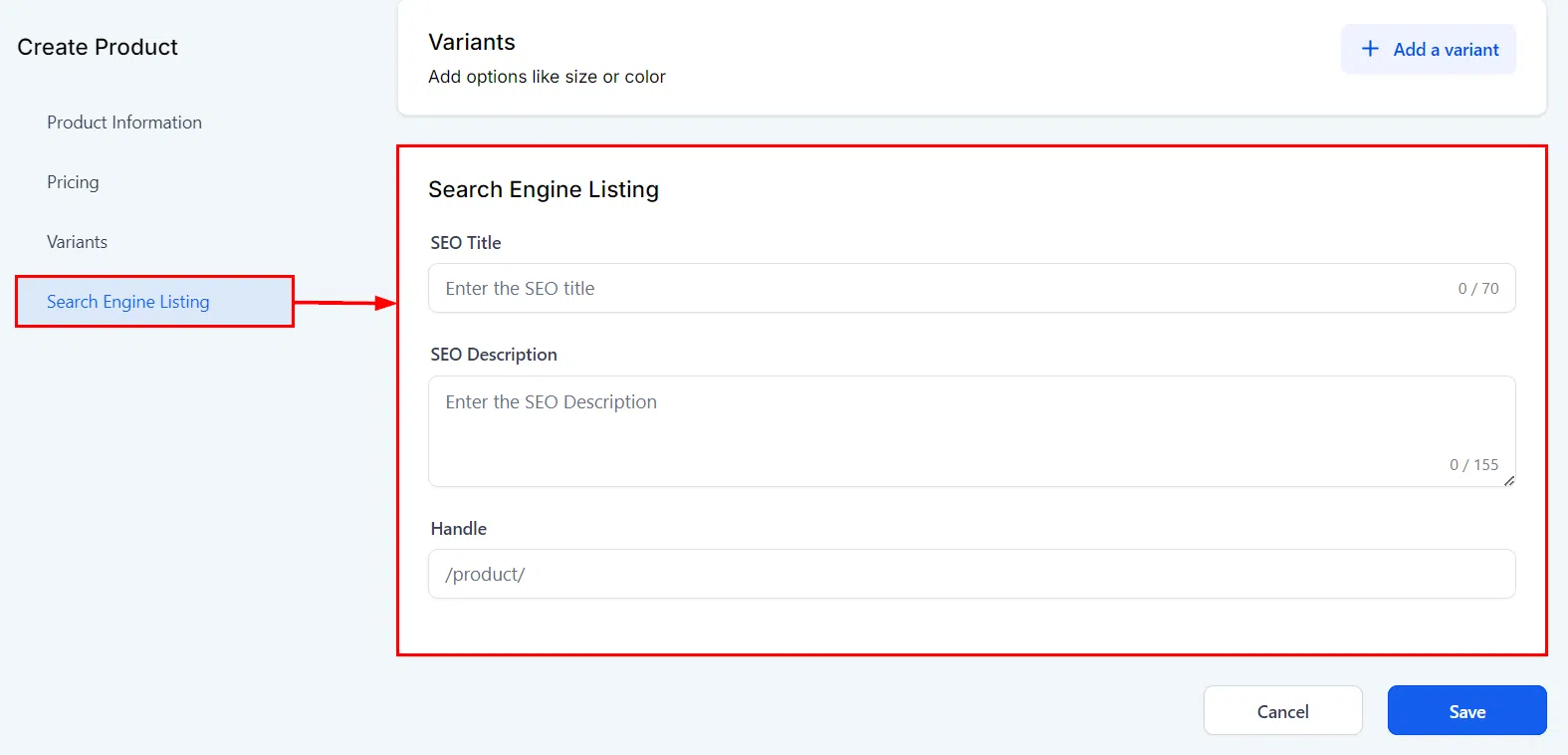
Add SEO information – title, description, and URL handle – to improve how your products appear in search results and support your online presence.
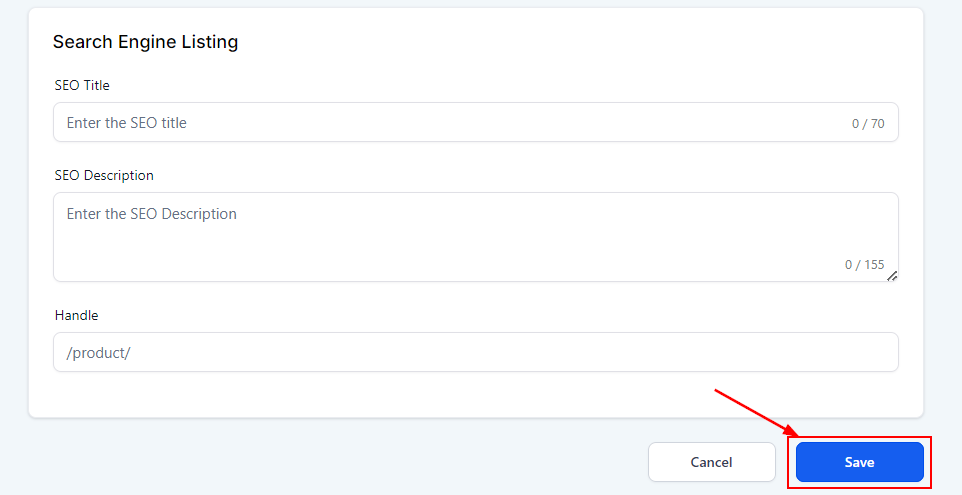
When you’re ready, click Create New Product. Your product will appear in the Products list and be available for use in your store or funnel order elements.
Note: It is recommended to use Growth360 as the system of record for your product catalogue rather than syncing from external platforms, to avoid conflicts.