Growth360 includes a full product review management system – collect customer feedback through your store, moderate submissions, and display approved reviews to build trust and credibility.
Managing Reviews in the Payments Section
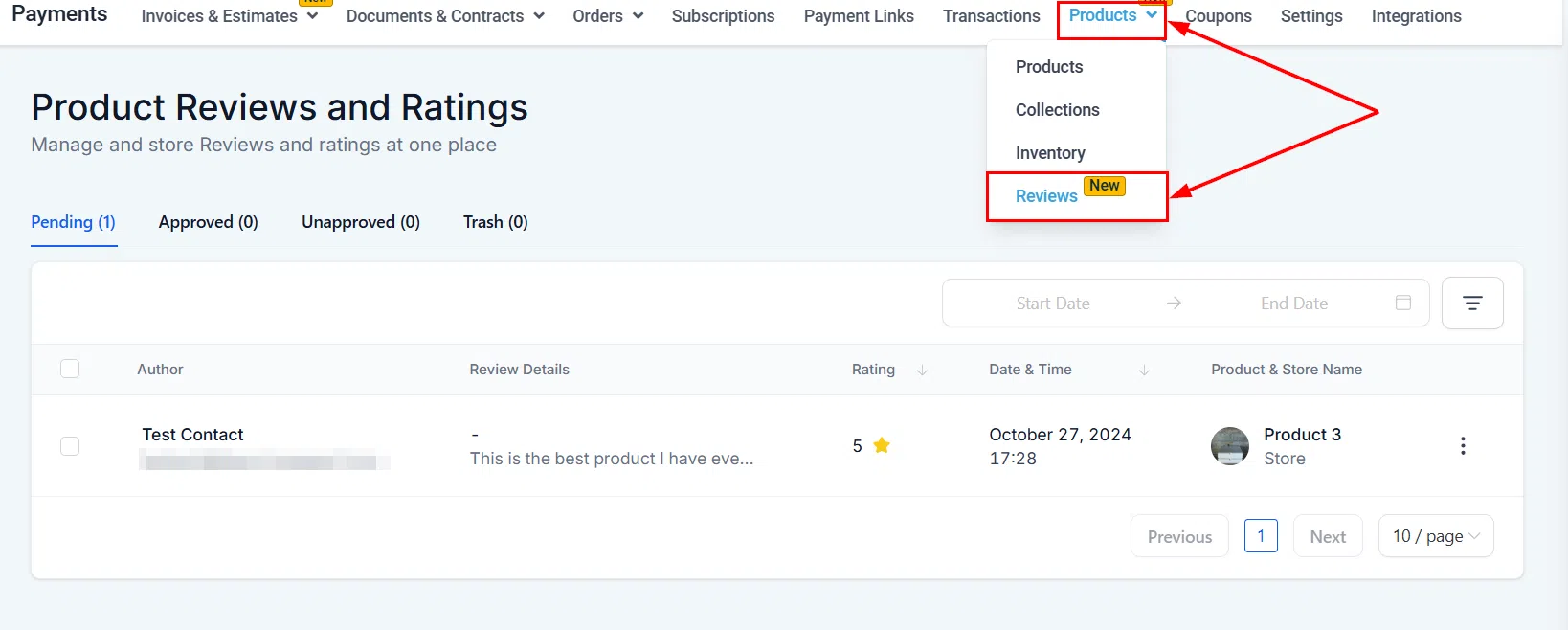
Go to Payments > Products > Reviews to access the review management dashboard. Here you can filter, sort, and take action on all customer reviews across your stores and products.
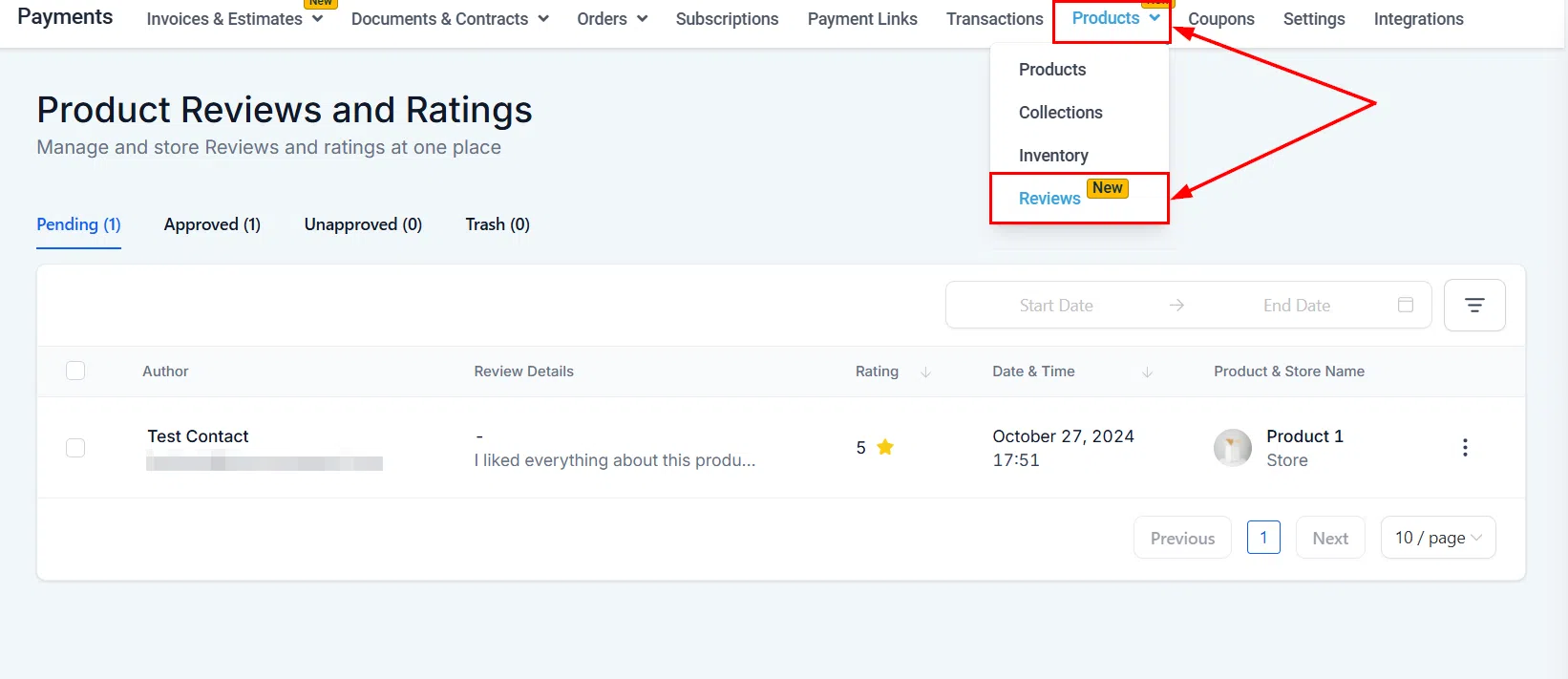
Filtering by Date Range
Use the date picker to set a custom start and end date, limiting the view to reviews submitted within that period.

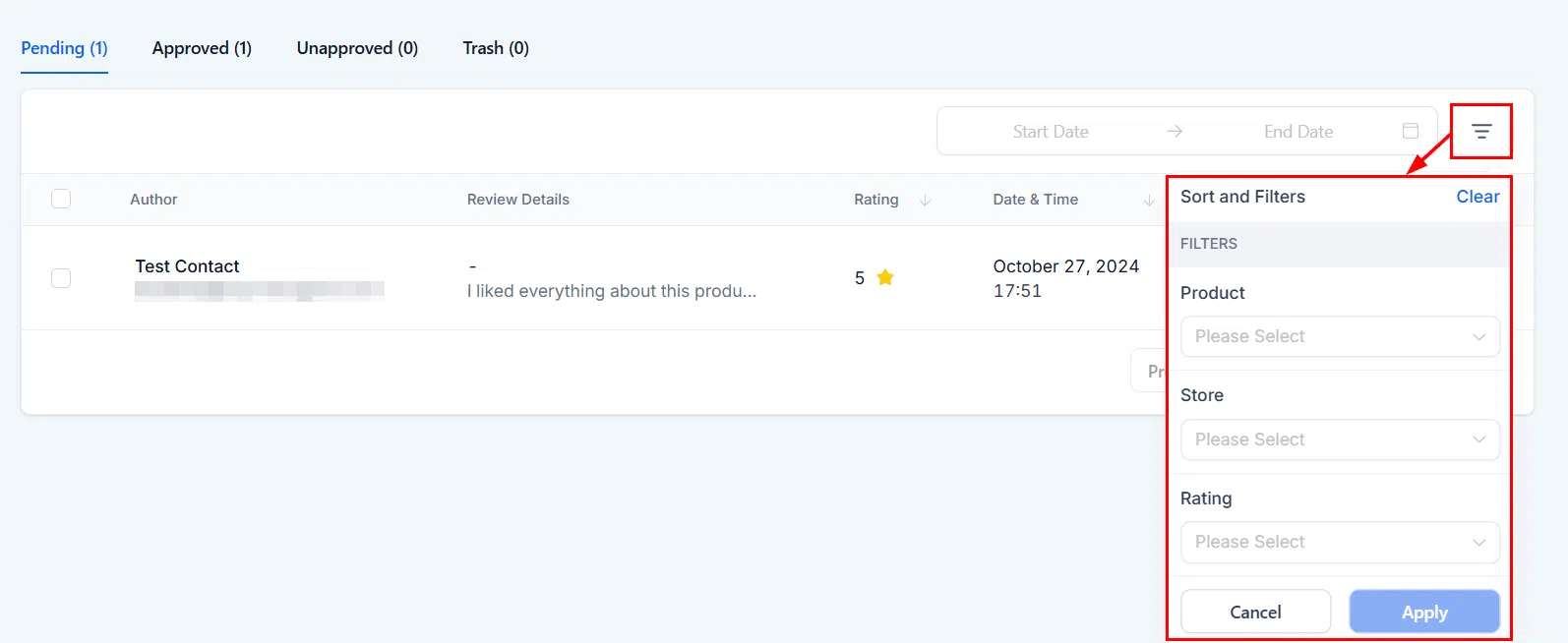
Sorting and Filtering
Refine the review list further by store location, product, or star rating using the filters panel. Click Apply to activate your selections.
Review Tabs
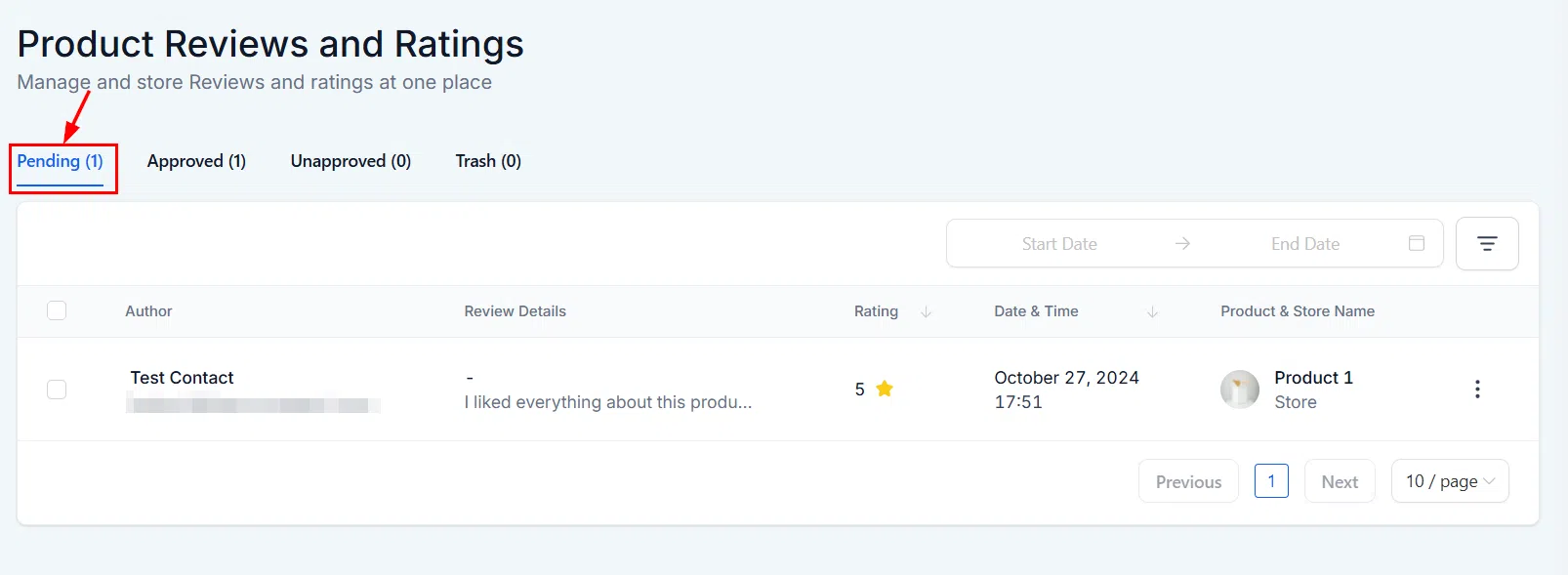
Reviews are organised into four tabs: Pending, Approved, Unapproved, and Trash. Each tab shows the same core columns: Author, Review Details, Rating, Date and Time, and Product and Store Name.
Pending
New customer submissions land here first, awaiting your moderation before going live.
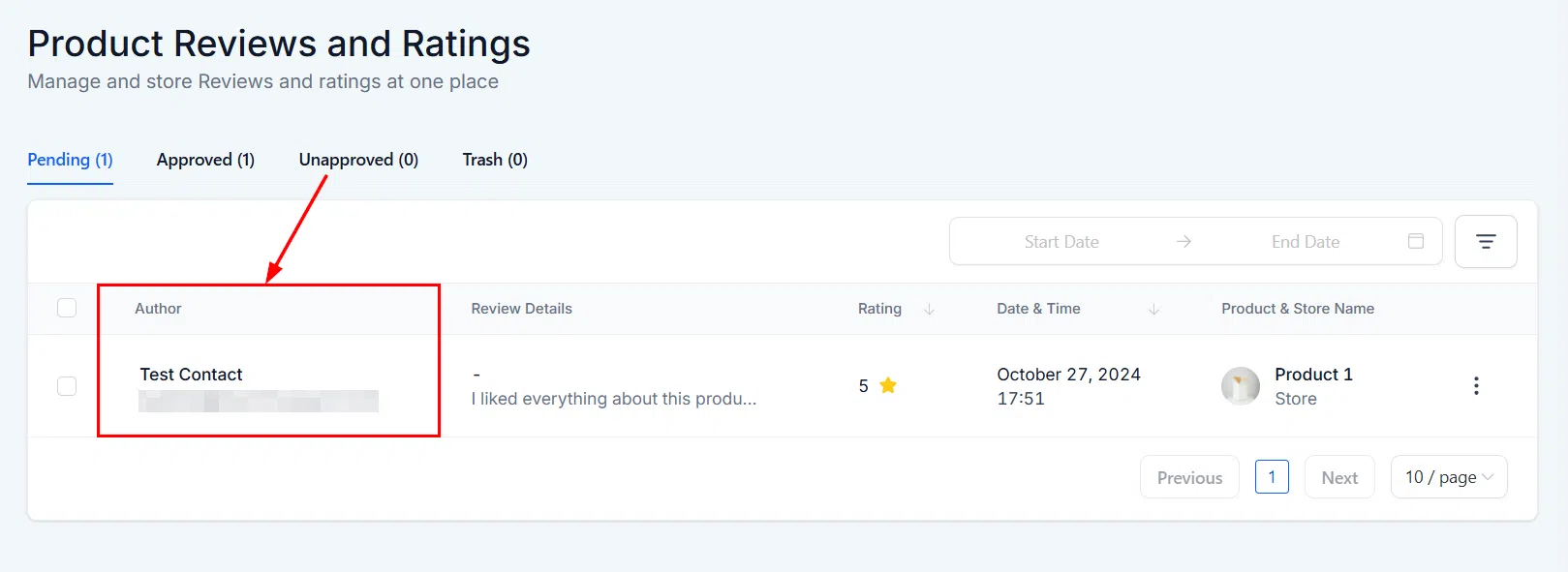
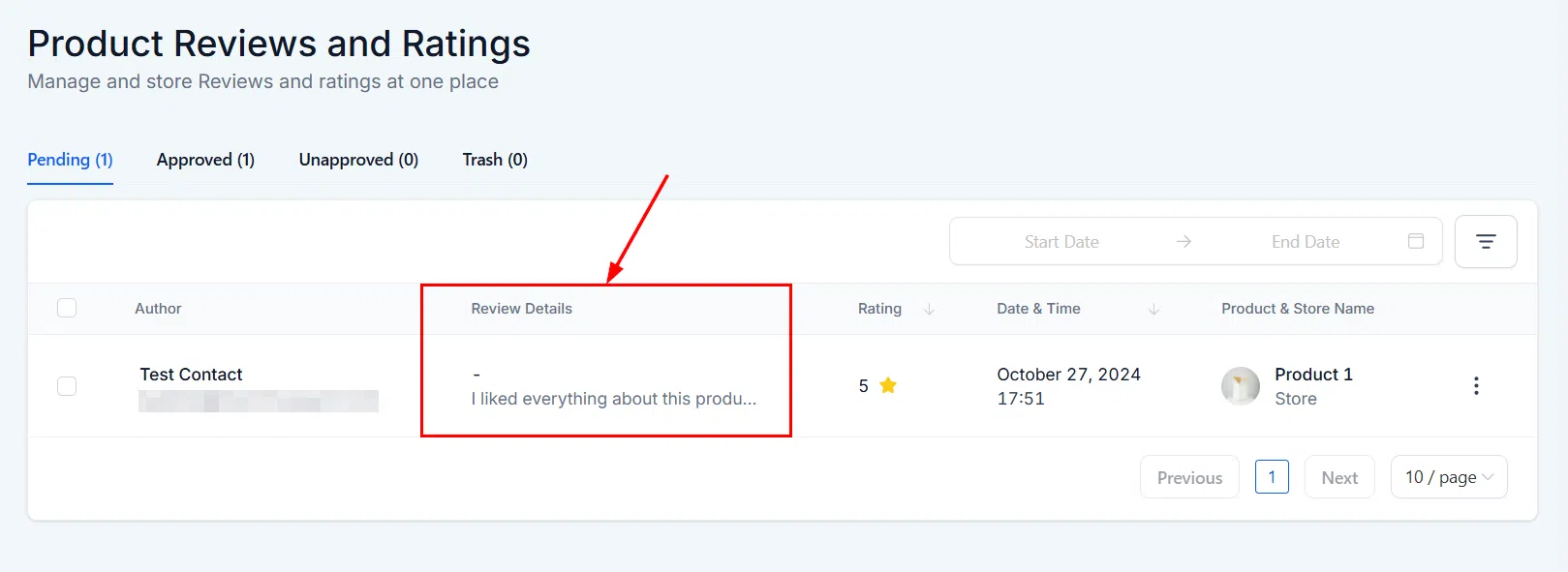
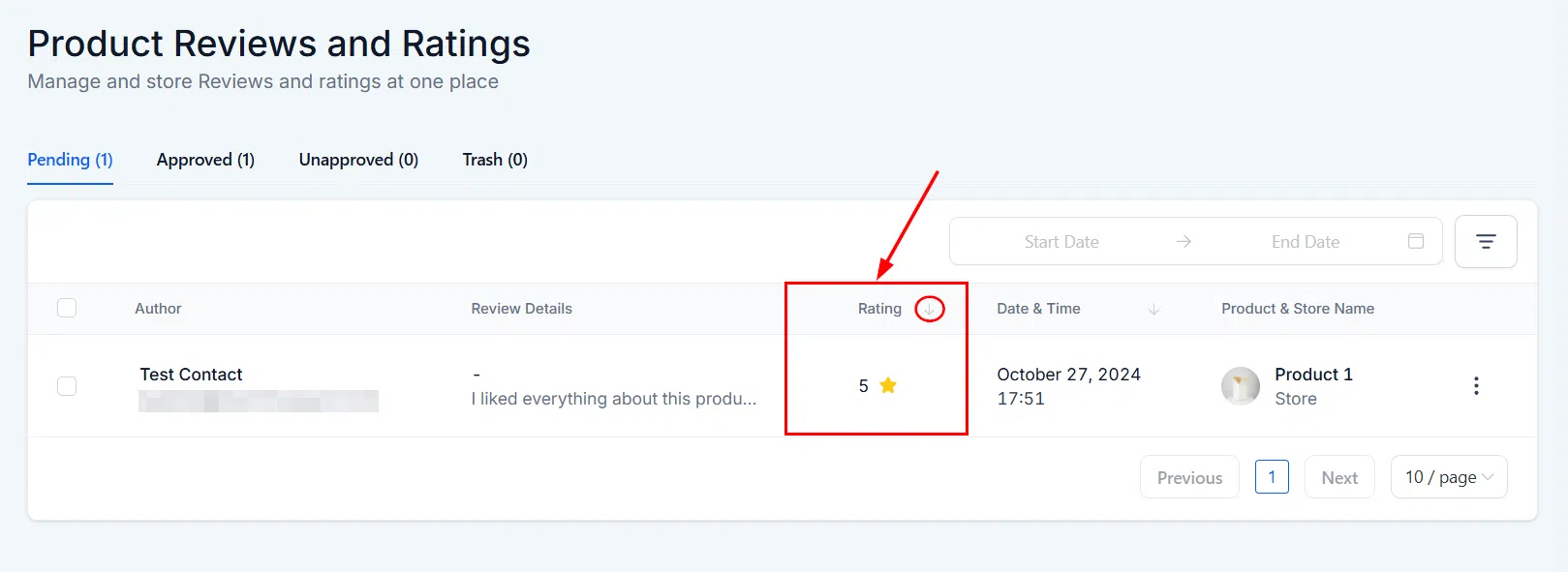
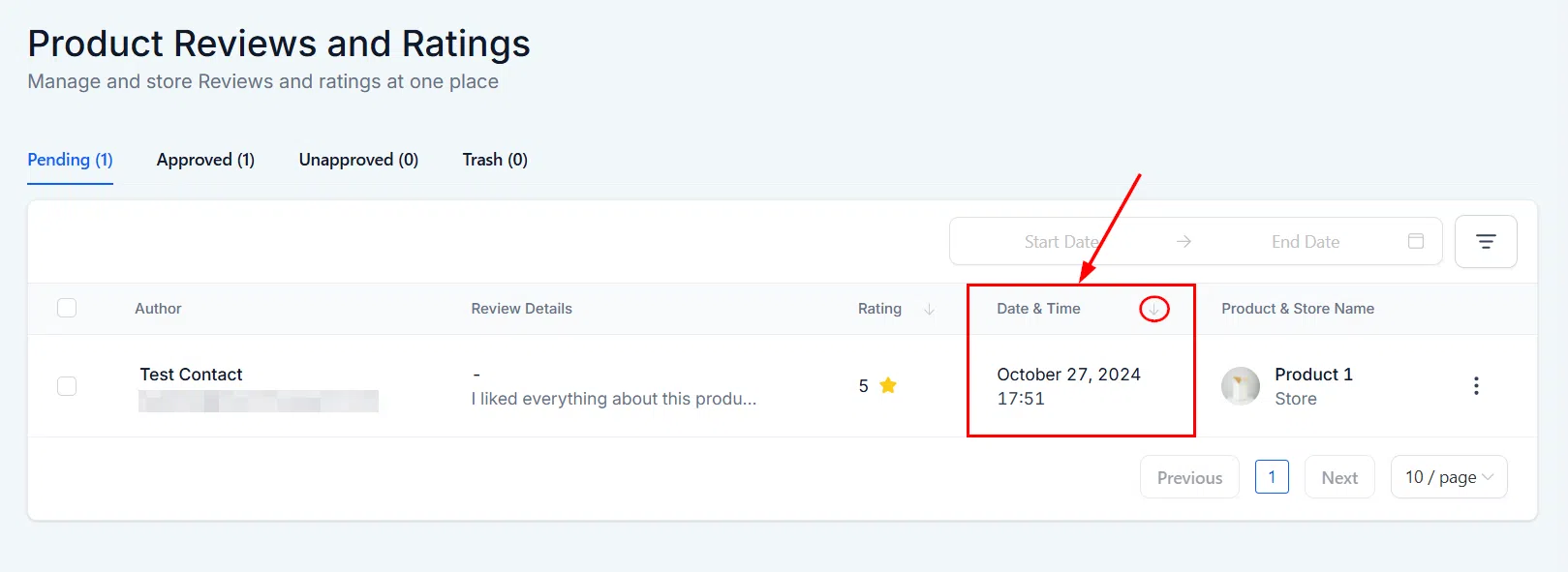
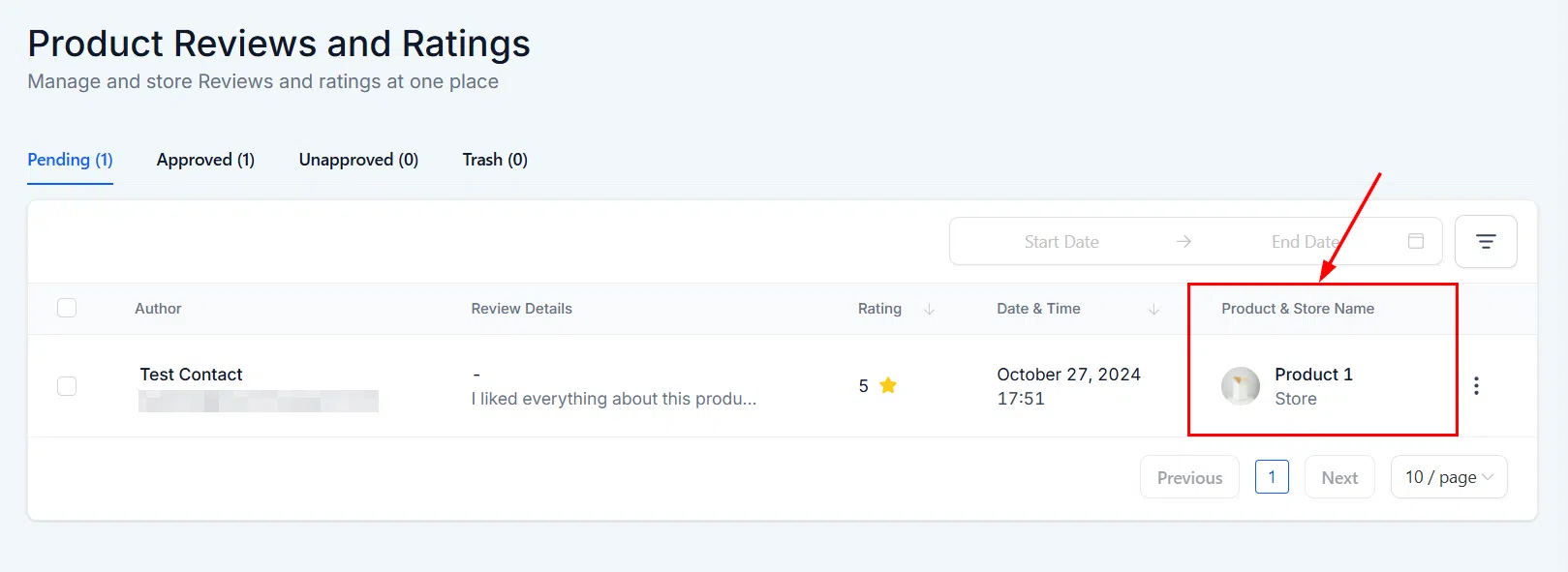
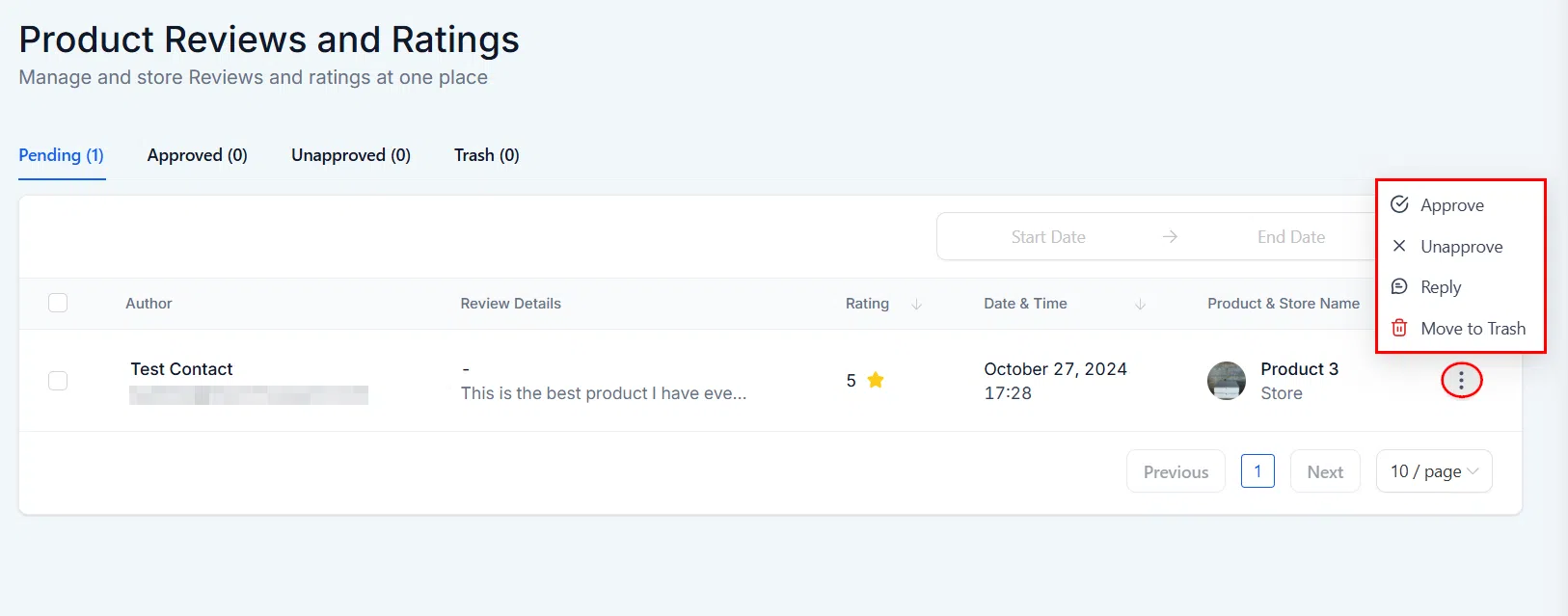
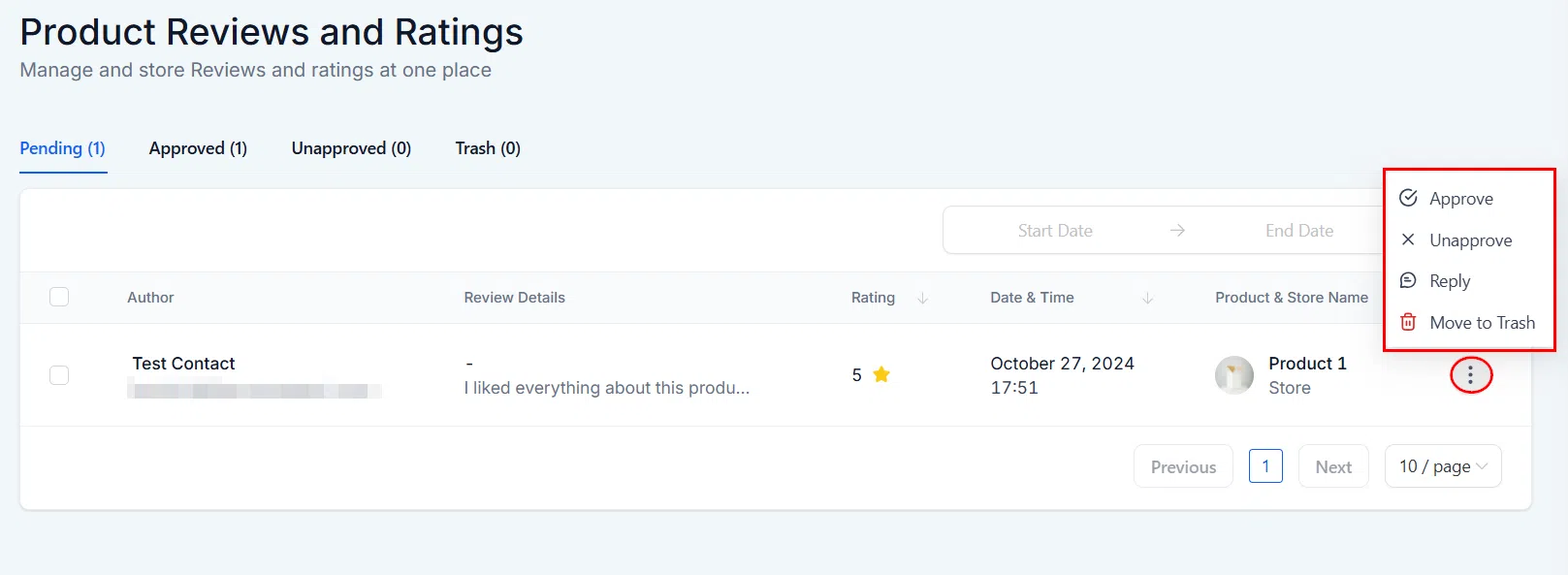
Use the Actions menu on a pending review to approve it, reply to it, or move it to Trash.
Approved
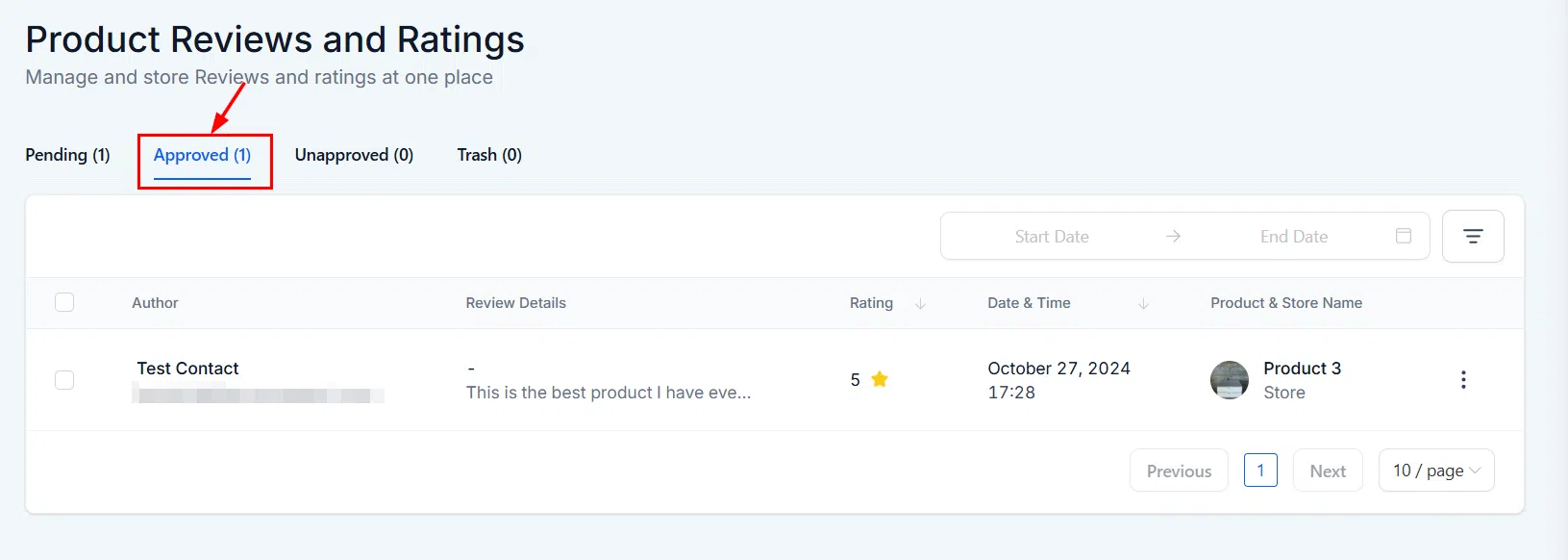
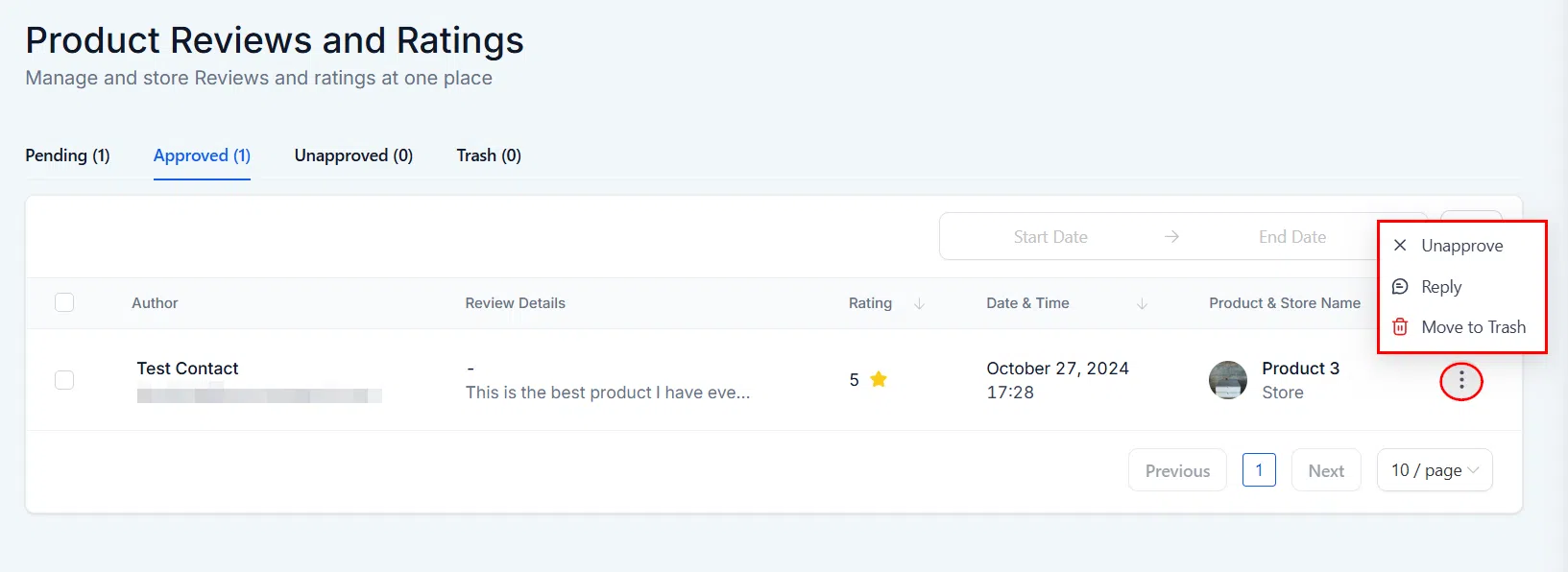
Approved reviews are visible to customers on your store. From the Actions menu you can unapprove a review, reply to it, or move it to Trash. Reviews you reply to stay in the Approved tab.
Unapproved
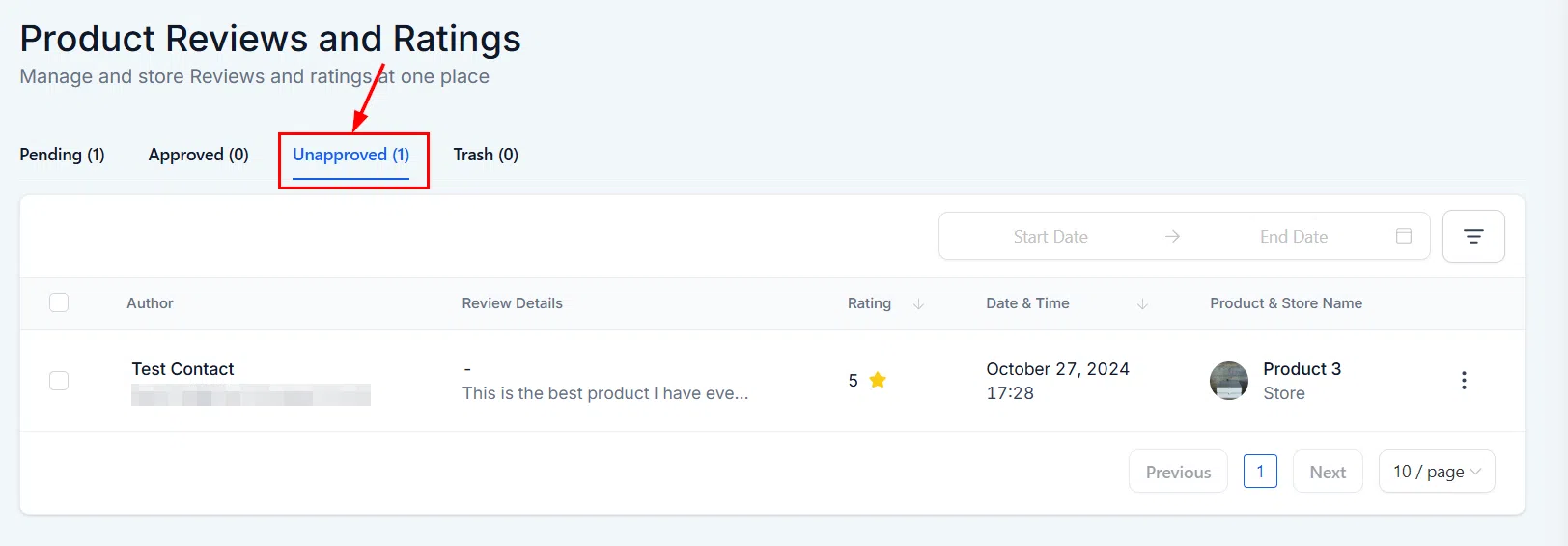
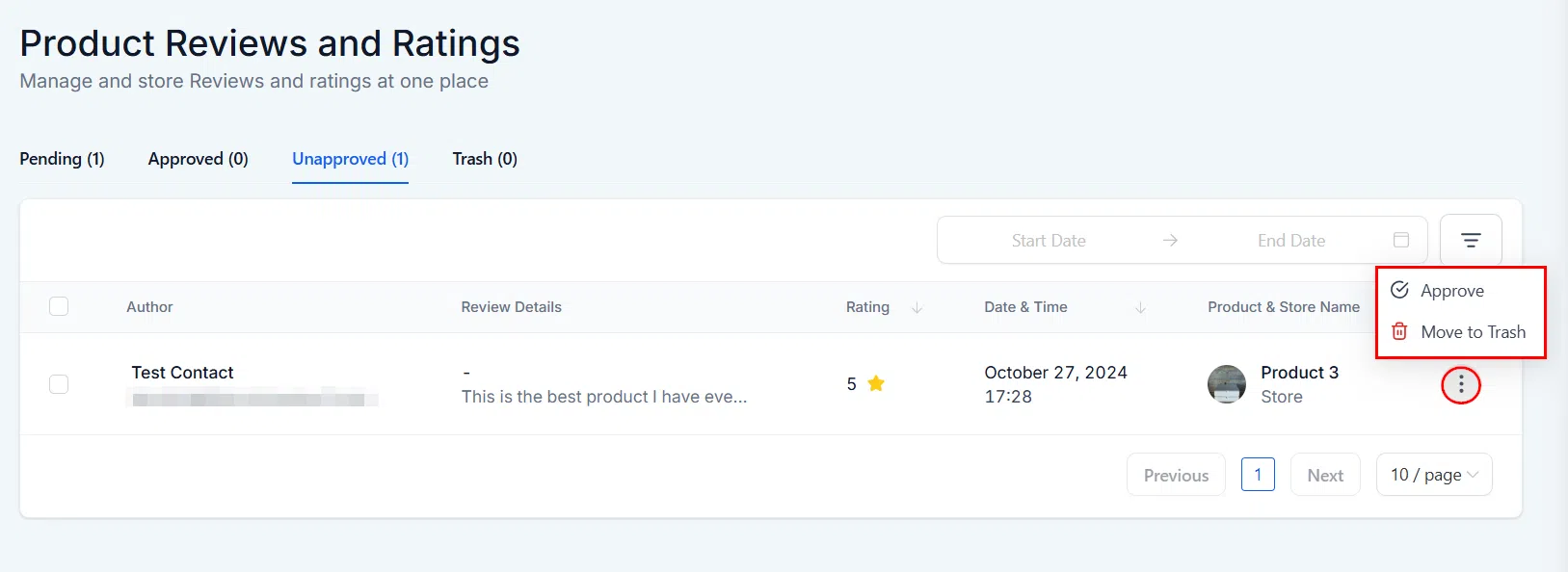
Reviews moved to Unapproved are hidden from customers. You can approve them or move them to Trash from the Actions menu.
Trash
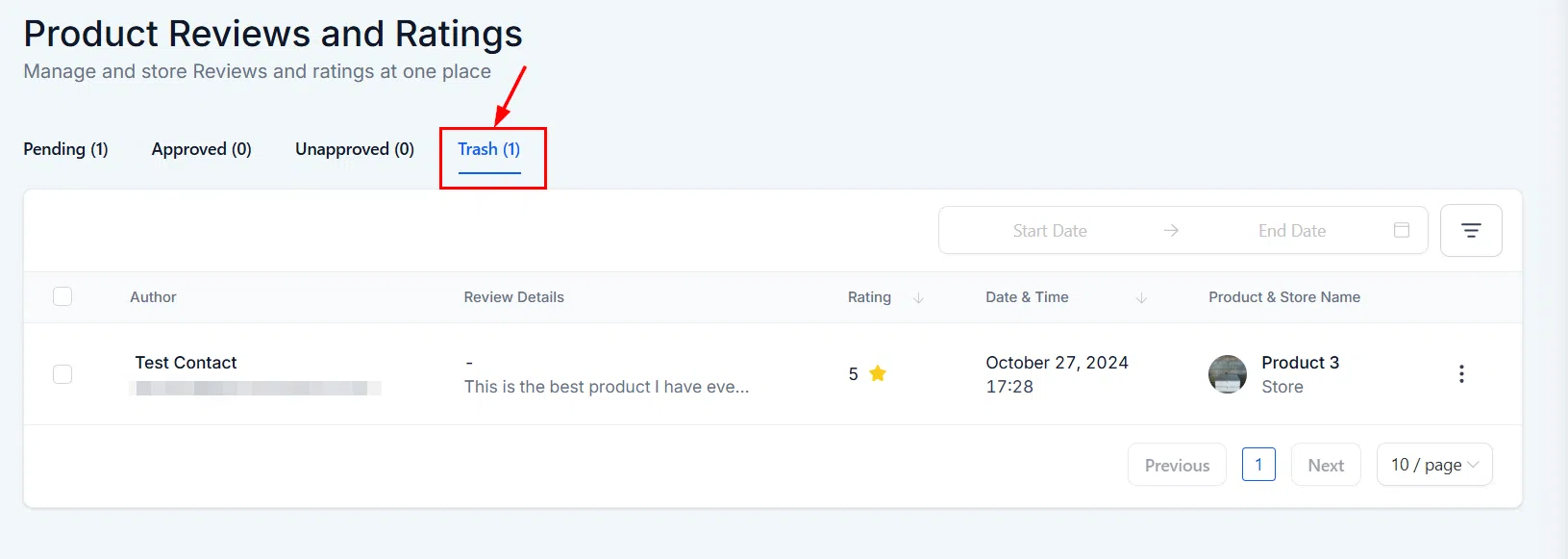
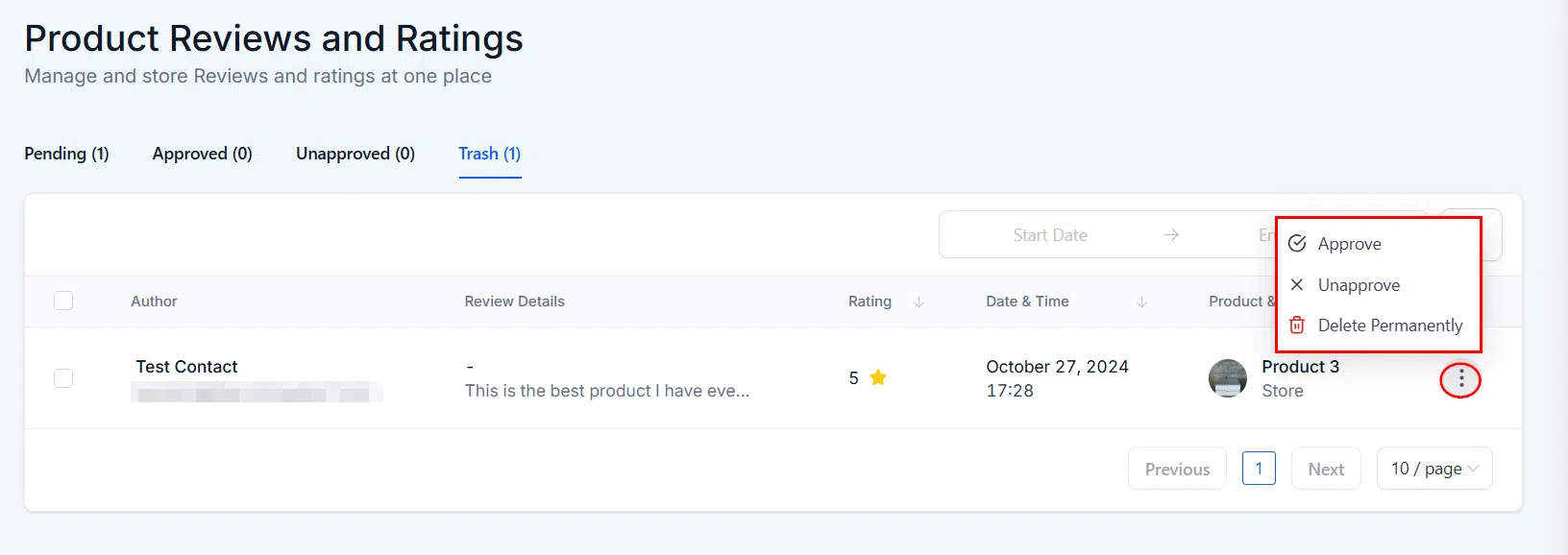
Discarded reviews appear here. You can restore or permanently delete them from the Actions menu.
Enabling Reviews and Ratings on Your Store
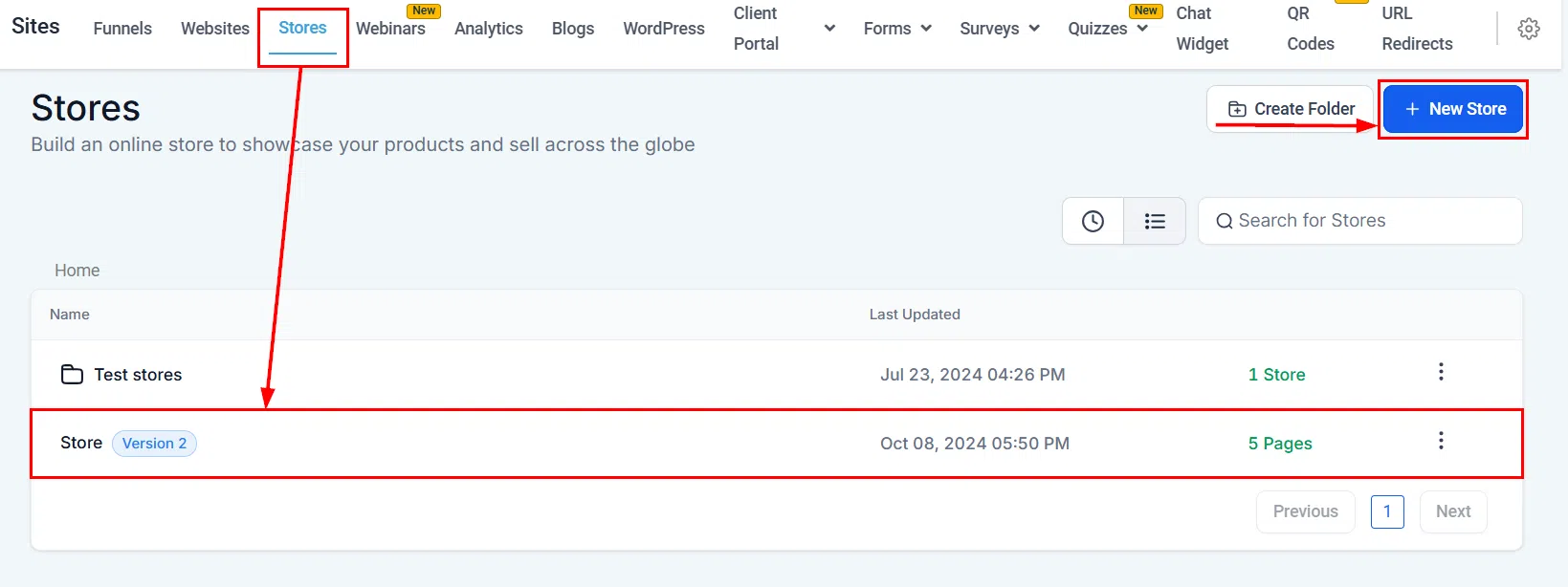
Reviews can be enabled per store so customers can submit ratings and written feedback directly on your product pages. Store owners moderate submissions before they go live.
Turning On Reviews
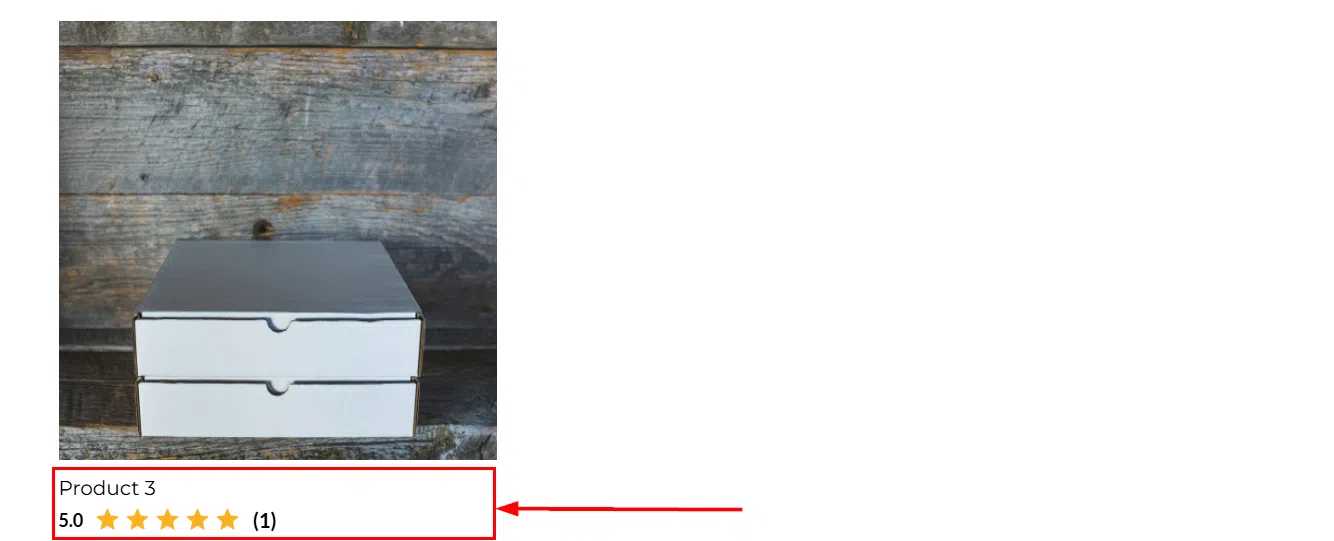
In your store settings, navigate to the product list section and enable the Show Reviews toggle. This makes the reviews and ratings section visible on product list and product detail pages.
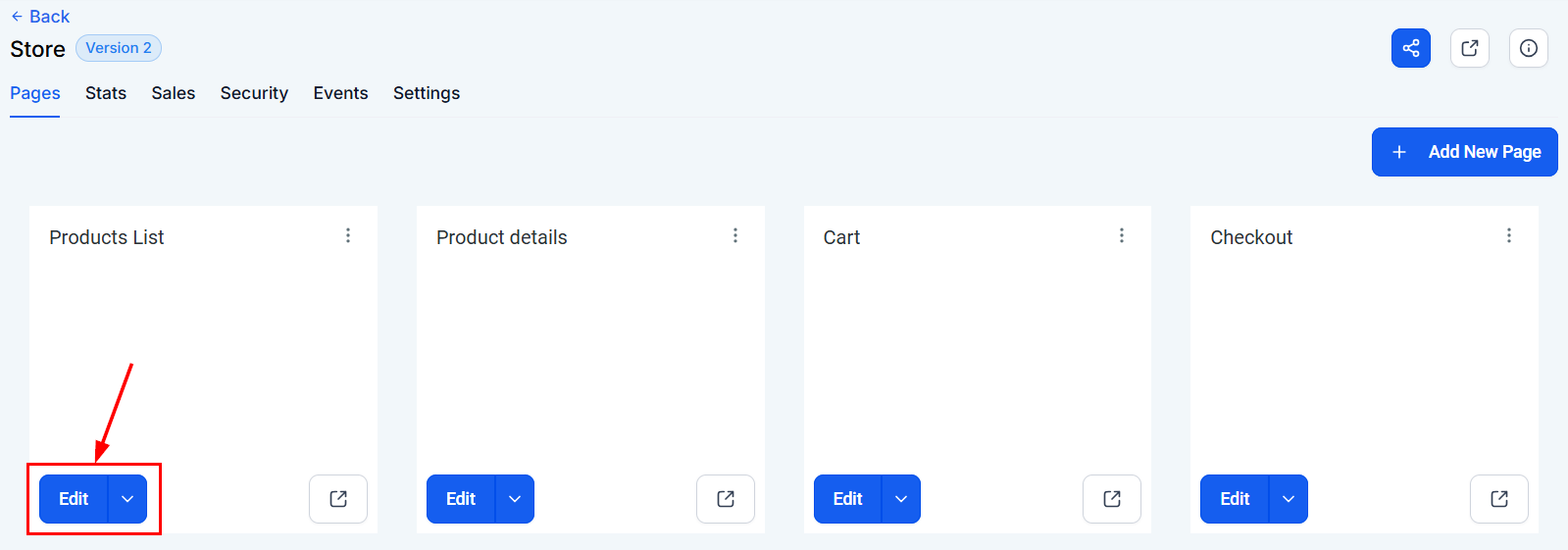
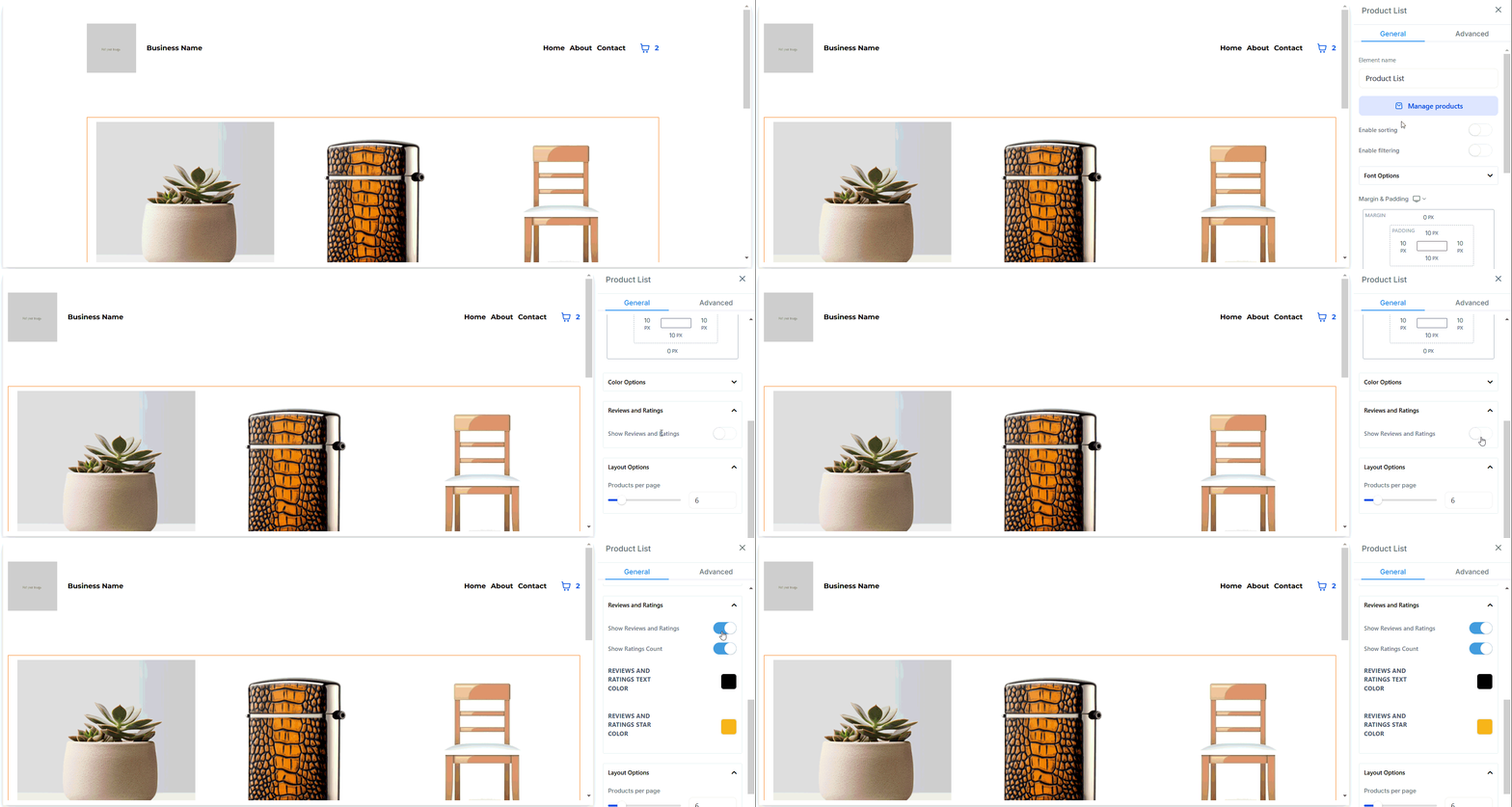
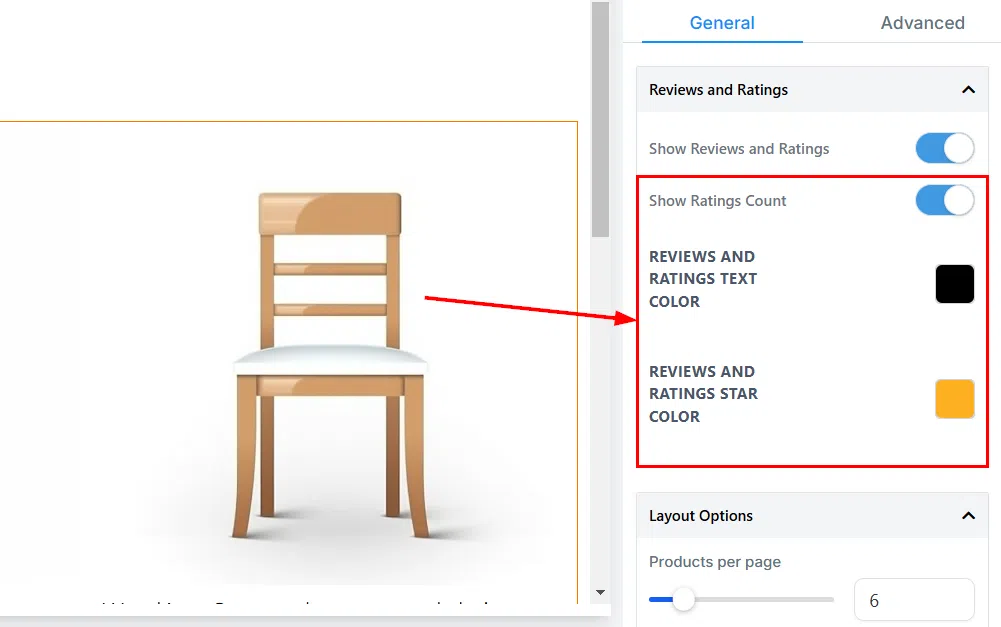
Enable the ratings count display if you want the number of reviews shown alongside the star rating. You can also customise the colour of the review text and star icons to match your branding.
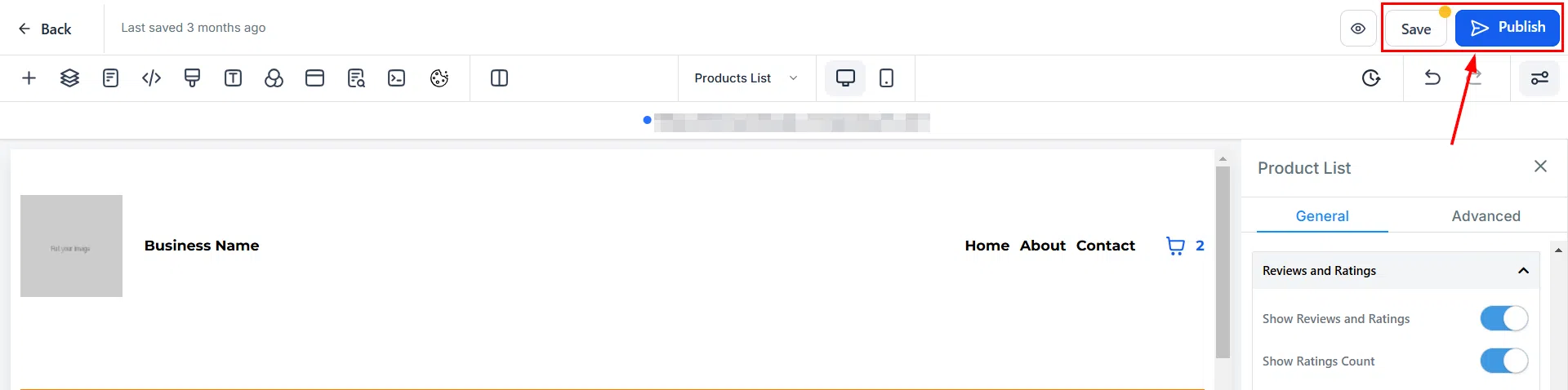
Once satisfied with the settings, click Save and Publish.
How Customers Submit Reviews
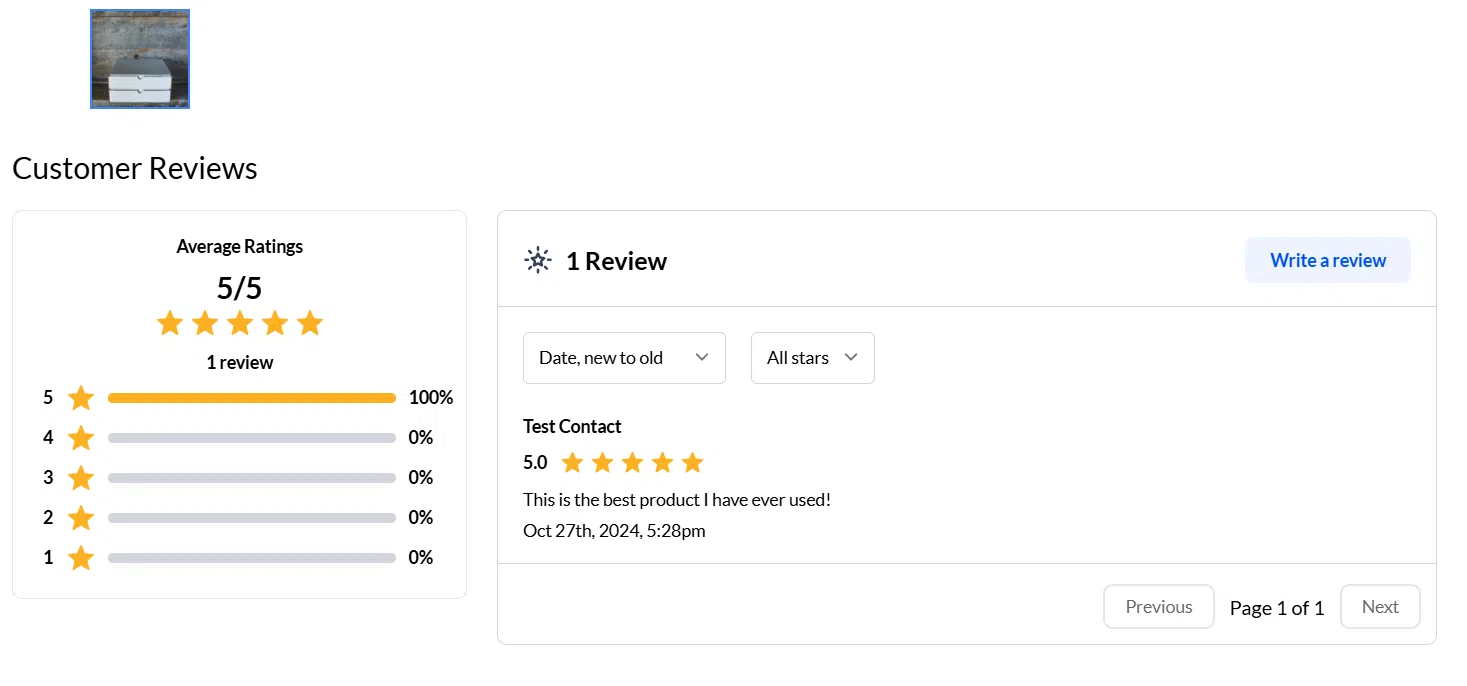
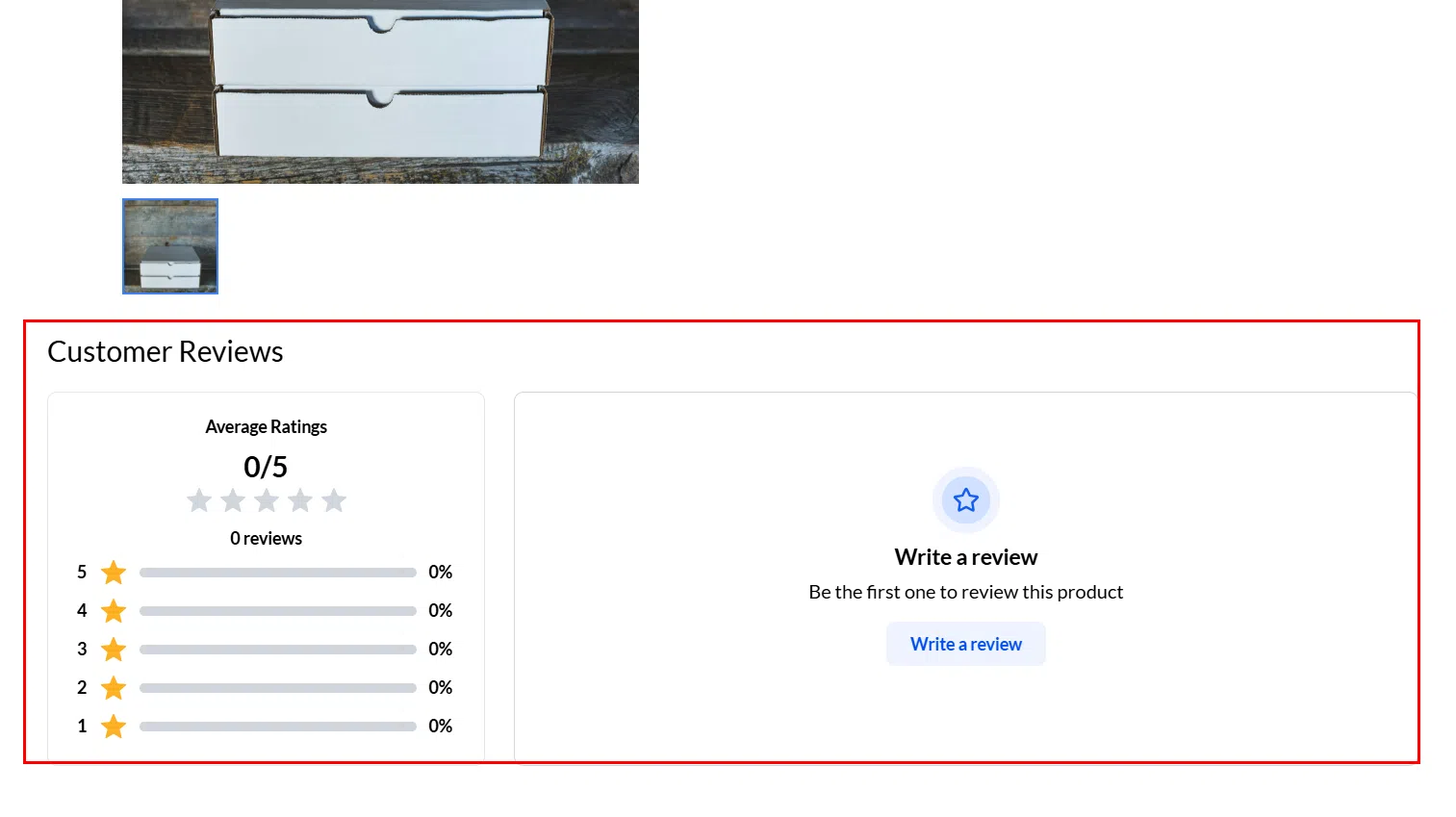
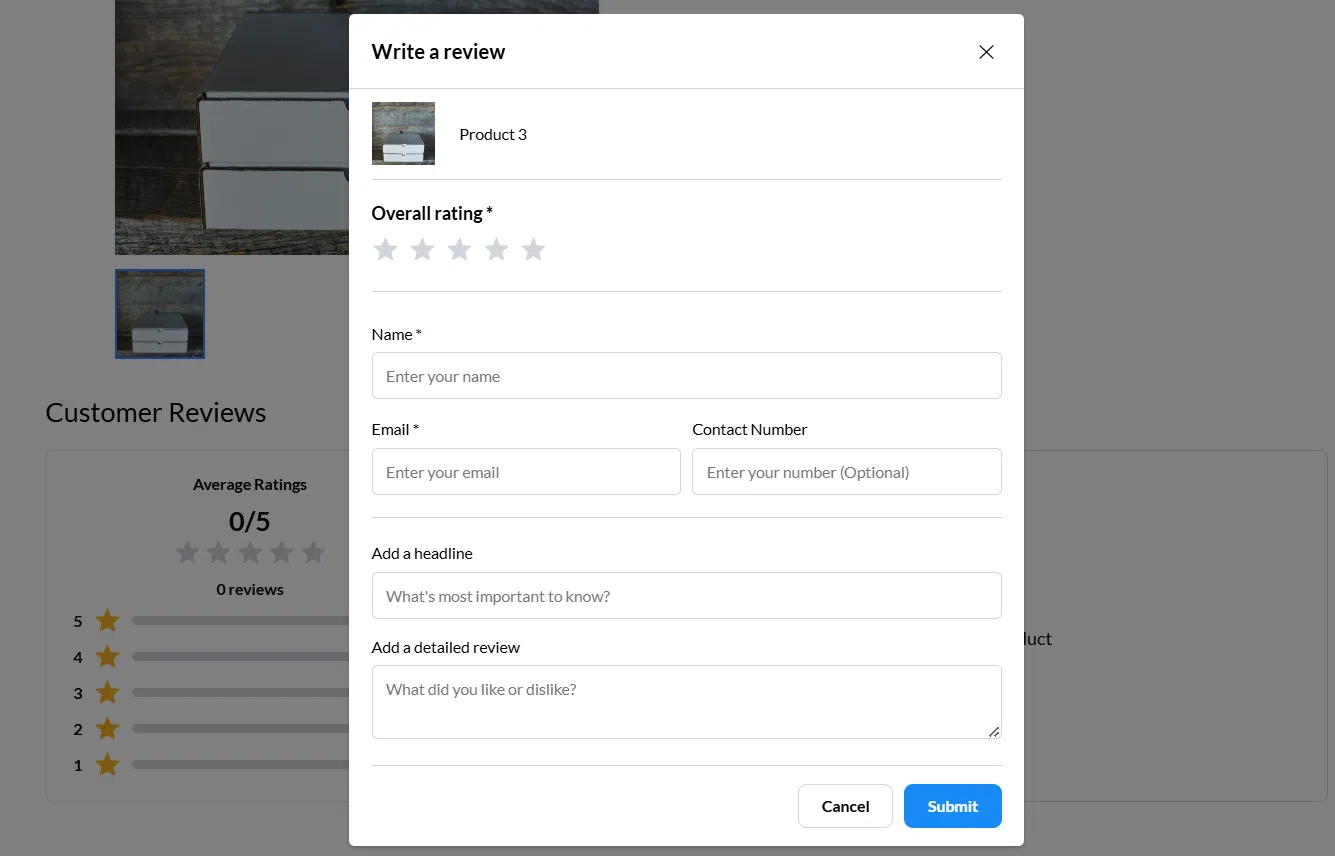
Customers see a Reviews and Ratings section at the bottom of each Product Details page. Clicking Write a Review opens a form with required fields (Name, Email) and optional fields (Contact Number, Headline, Description). After submission, a confirmation message is shown and the review awaits approval.
Moderating Customer Reviews
New submissions appear in the Pending tab under Payments > Products > Reviews. Approve reviews to publish them, or move them to Unapproved or Trash as needed.