Growth360 connects to multiple payment gateways so you can accept payments directly through order forms, invoices, and your online store. Connect one or more gateways and set a default for processing transactions.
Payment Integrations Overview
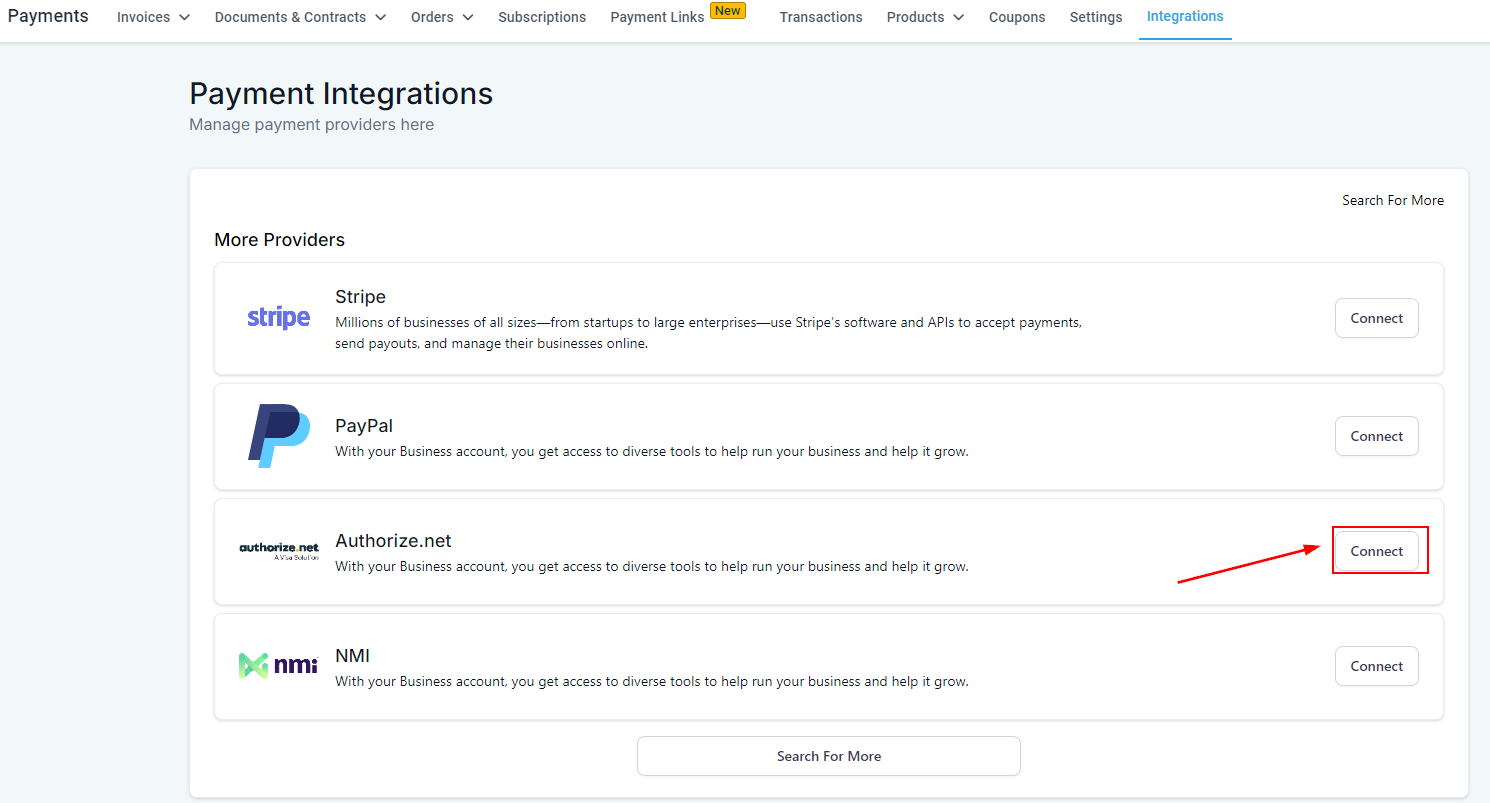
Access payment integrations by going to Payments > Payment Integrations. You can connect NMI, Authorize.Net, Stripe, and PayPal – and enable additional methods like Apple Pay and Google Pay once a primary gateway is active.
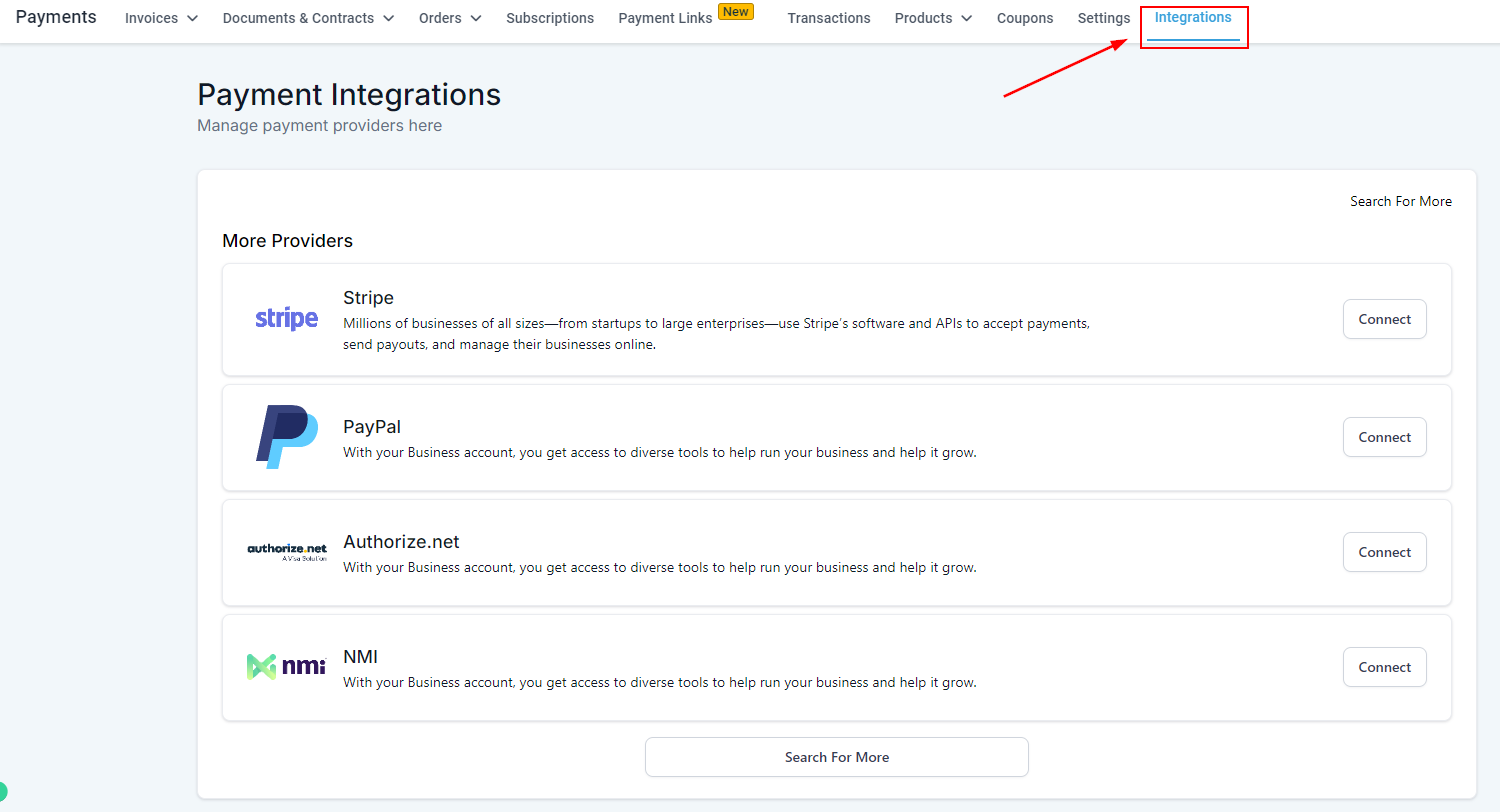
NMI (Network Merchants Inc.)
NMI is a payment gateway supporting credit card and eCheck payments across websites, mobile apps, and in-person point-of-sale. It works with order forms, invoices, and Text2Pay links in Growth360.
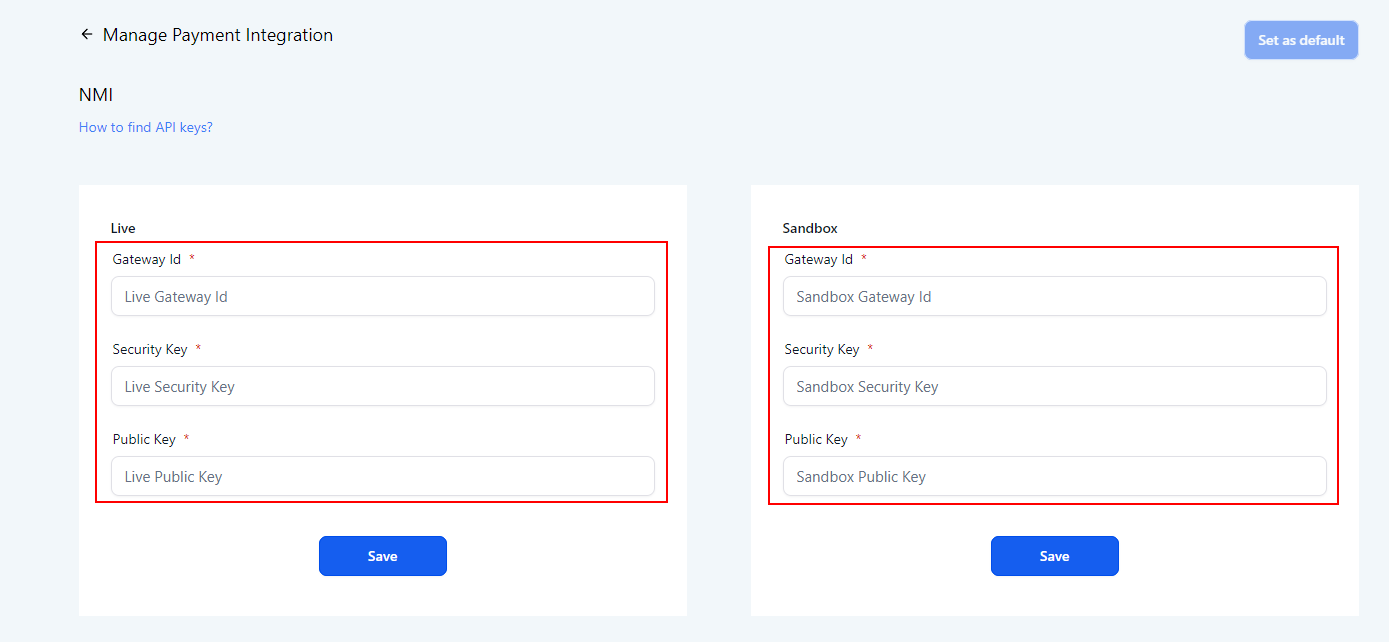
To connect NMI, enter your Gateway ID and Security Key in the NMI section and save. Set NMI as your default gateway if you want it used for all new transactions.
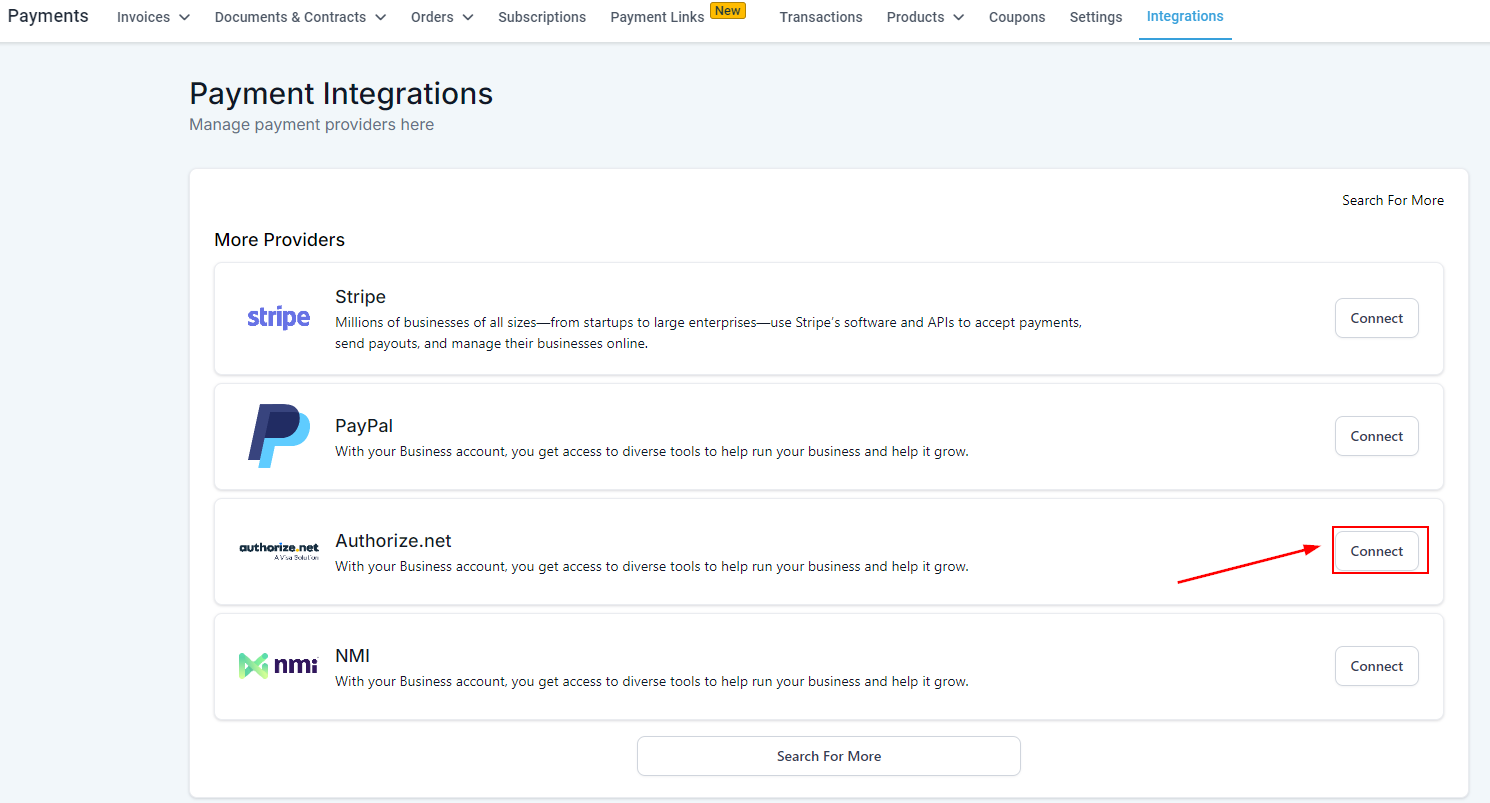
Authorize.Net
Authorize.Net is an online payment service that supports both live and sandbox (testing) modes. You’ll need your API Login ID, Transaction Key, and Signature Key from your Authorize.Net merchant interface.
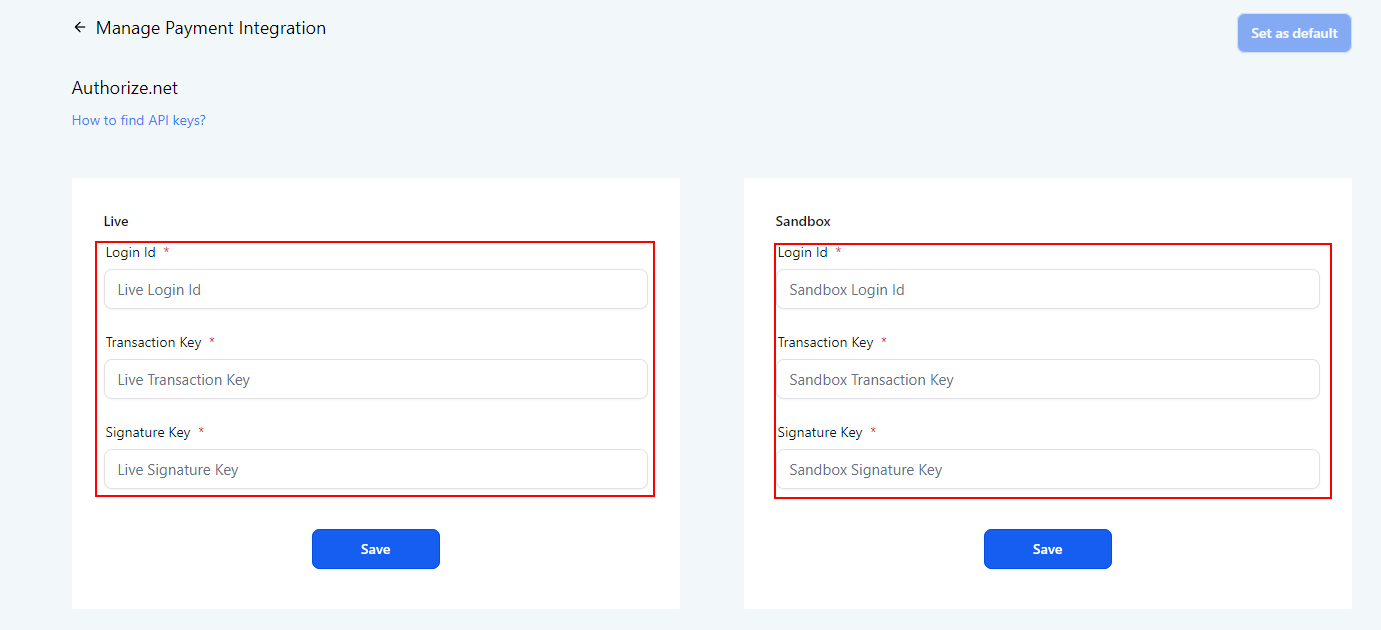
Enter your API keys in the corresponding Live or Sandbox fields, then click Save. After connecting, click Set as Default to make Authorize.Net your active gateway.
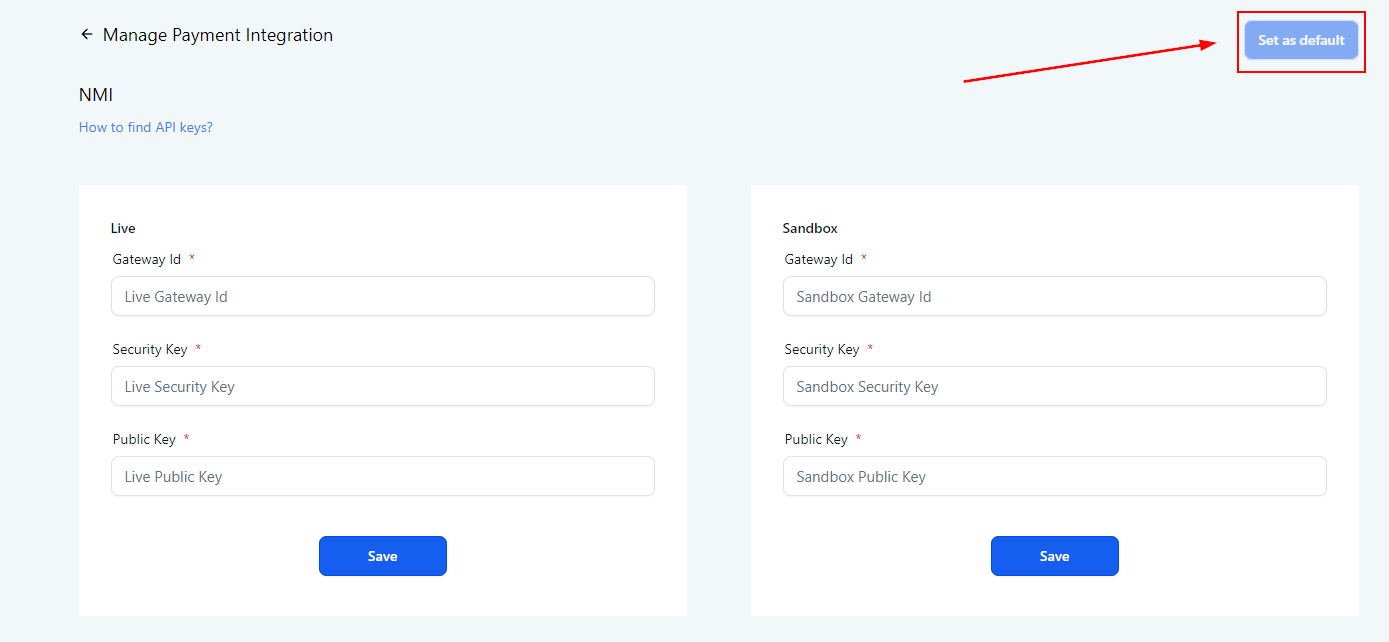
Default Payment Gateway
You can connect multiple payment gateways simultaneously. After connecting, click Set as Default on whichever gateway you want to use for processing transactions. The default button turns a darker shade of blue when active.
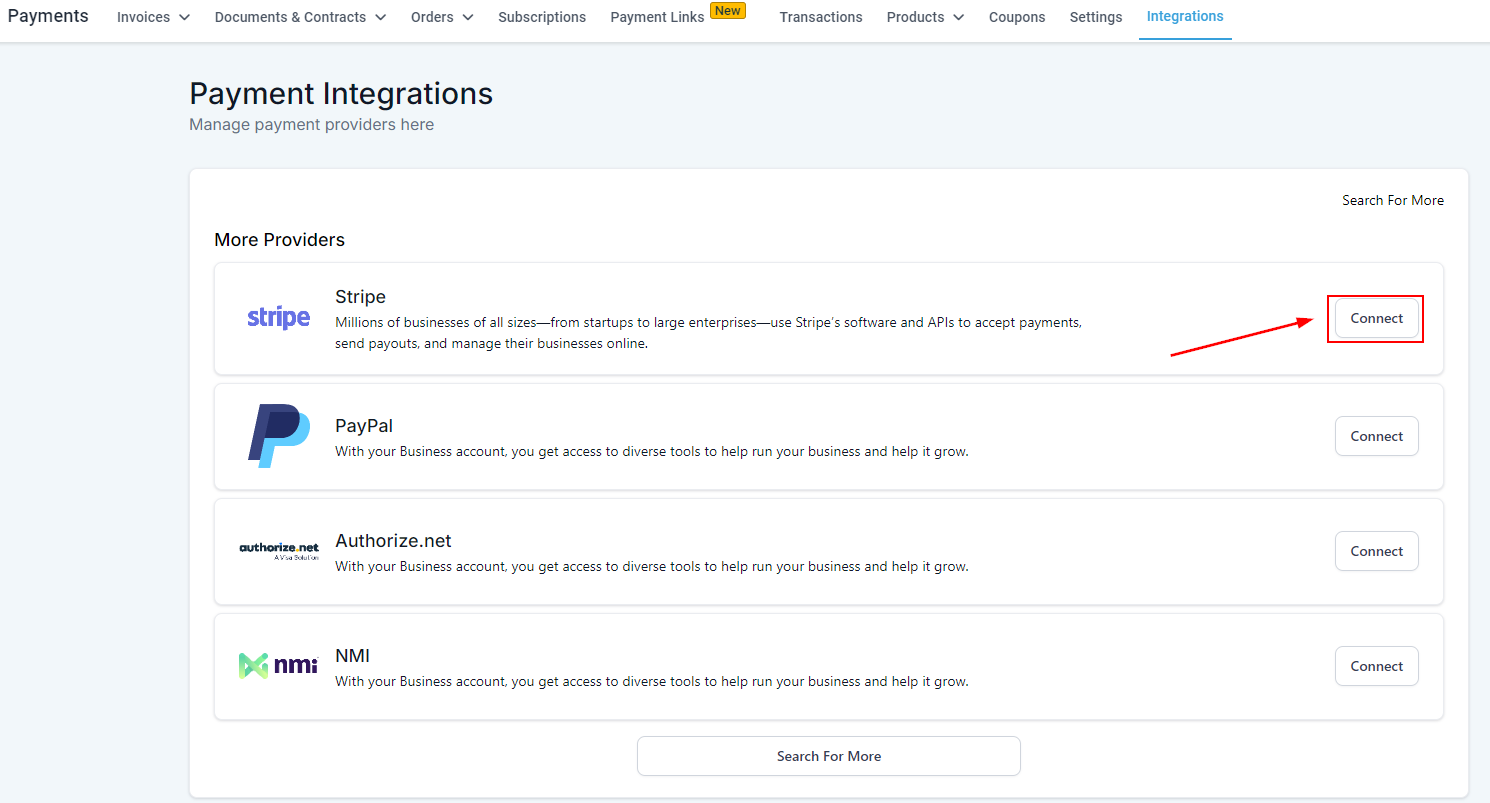
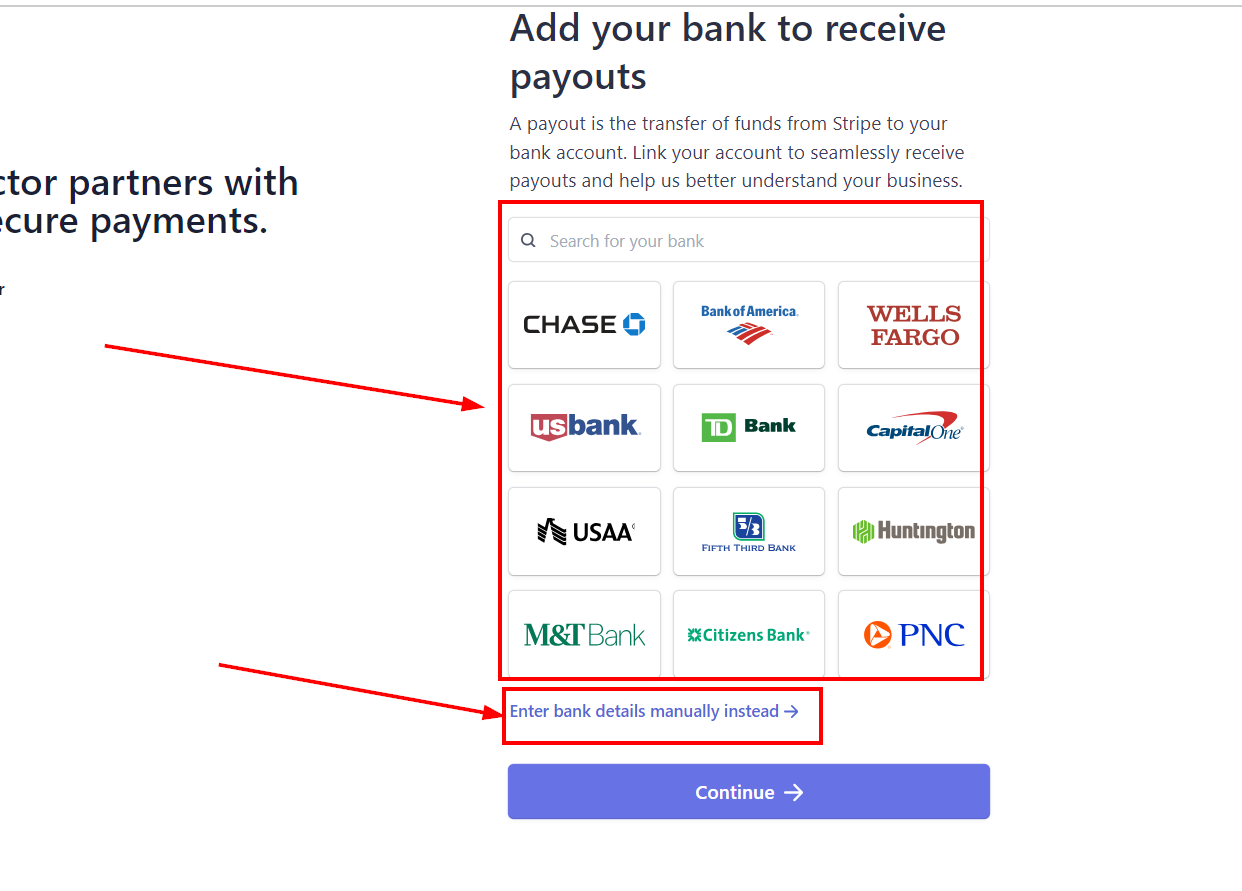
Stripe Integration
Stripe is the primary recommended payment gateway for Growth360. Once connected, you can accept credit card payments and enable Apple Pay and Google Pay for customers on compatible devices.
Connecting Stripe
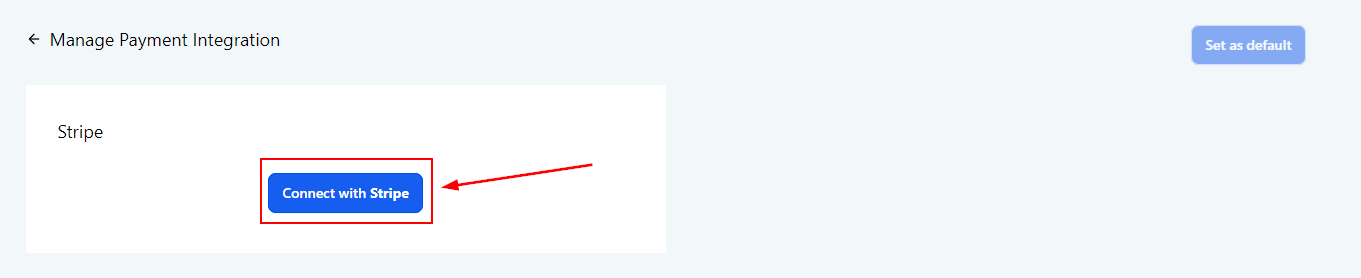
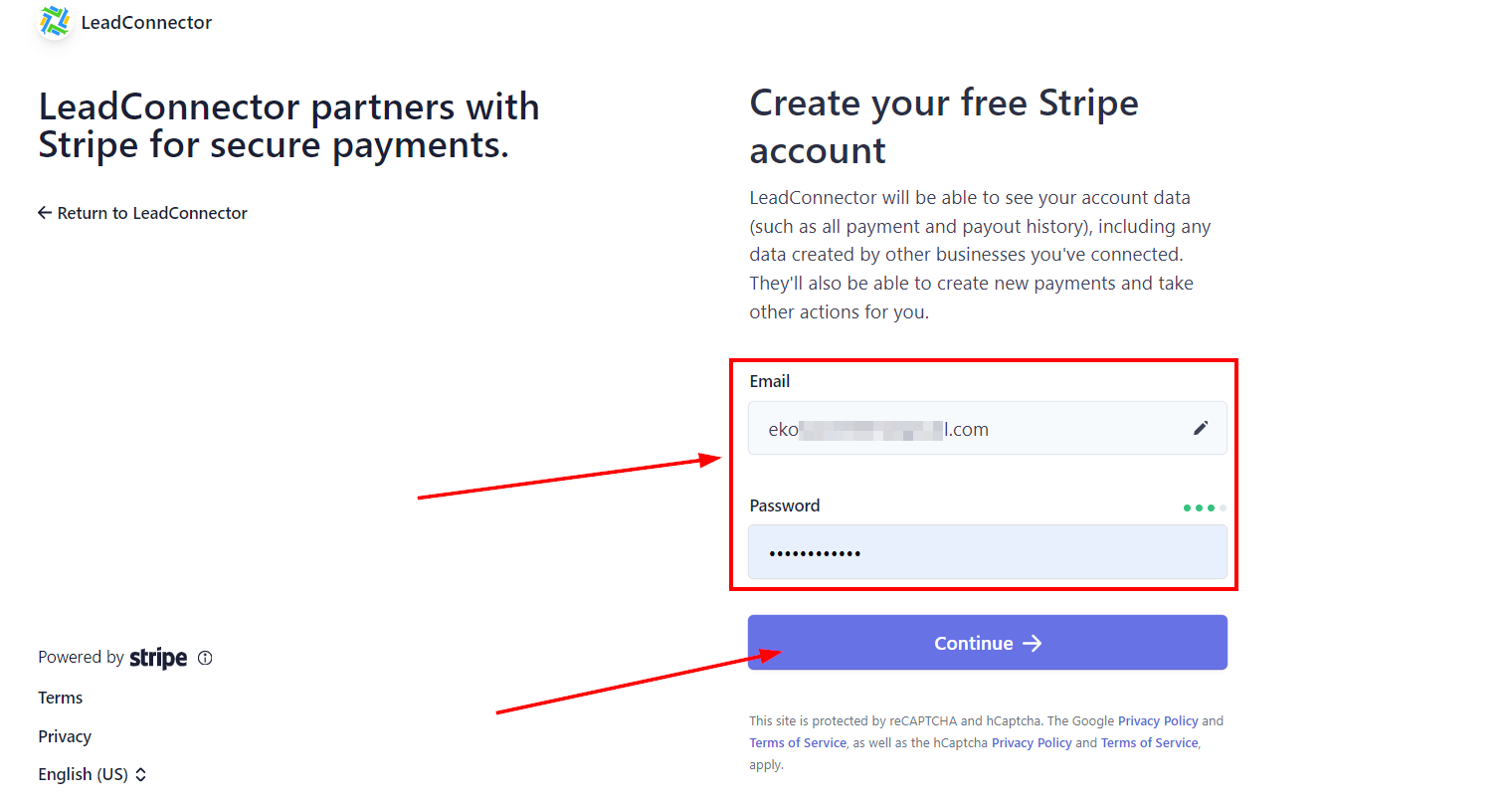
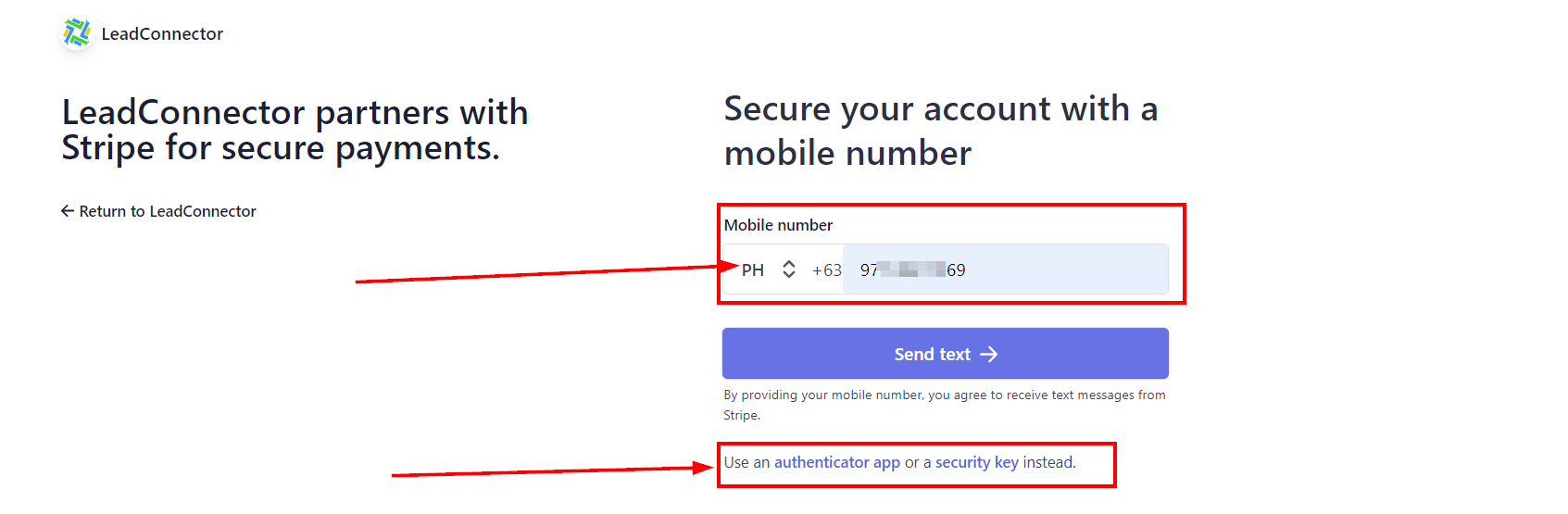
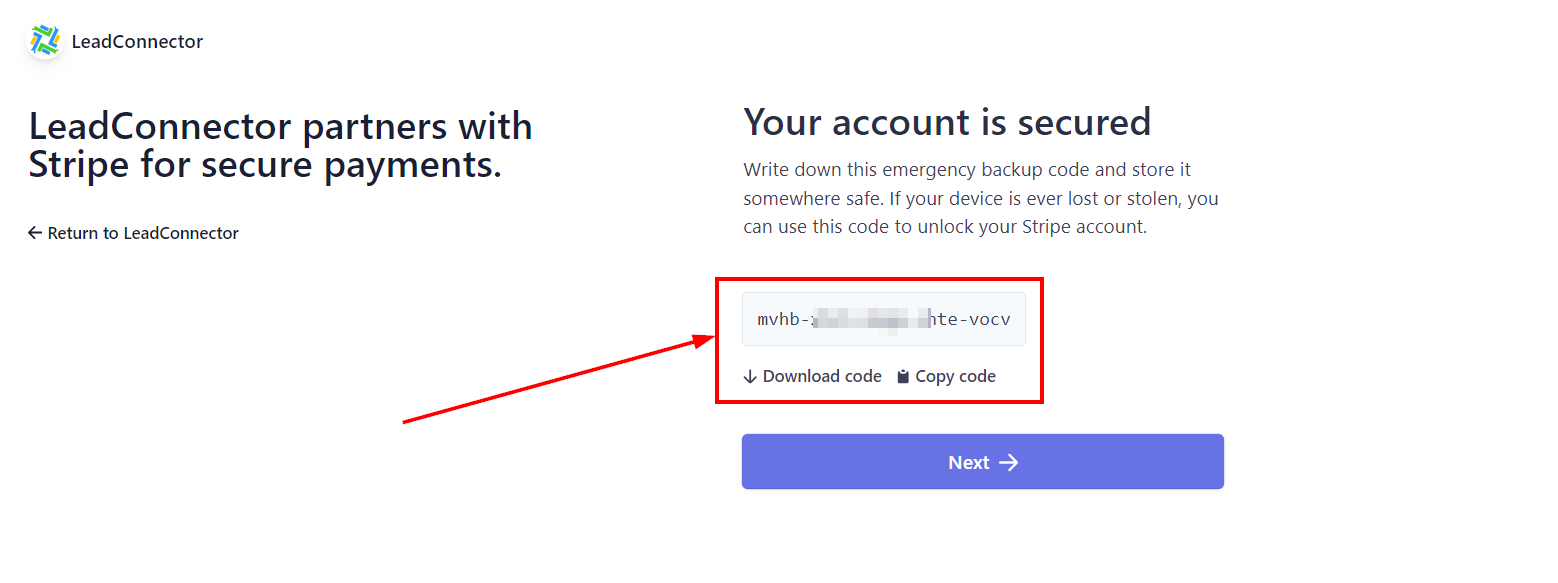
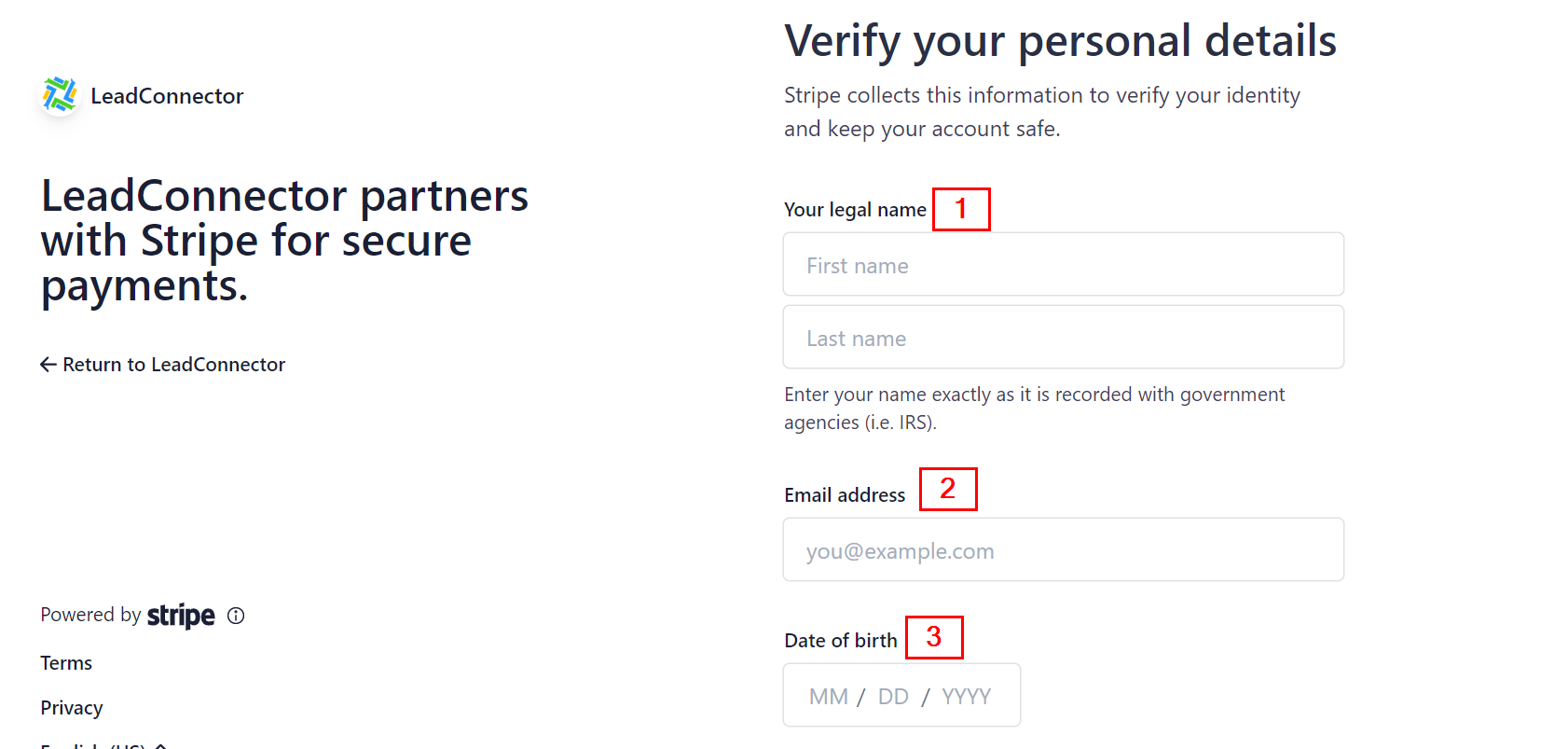
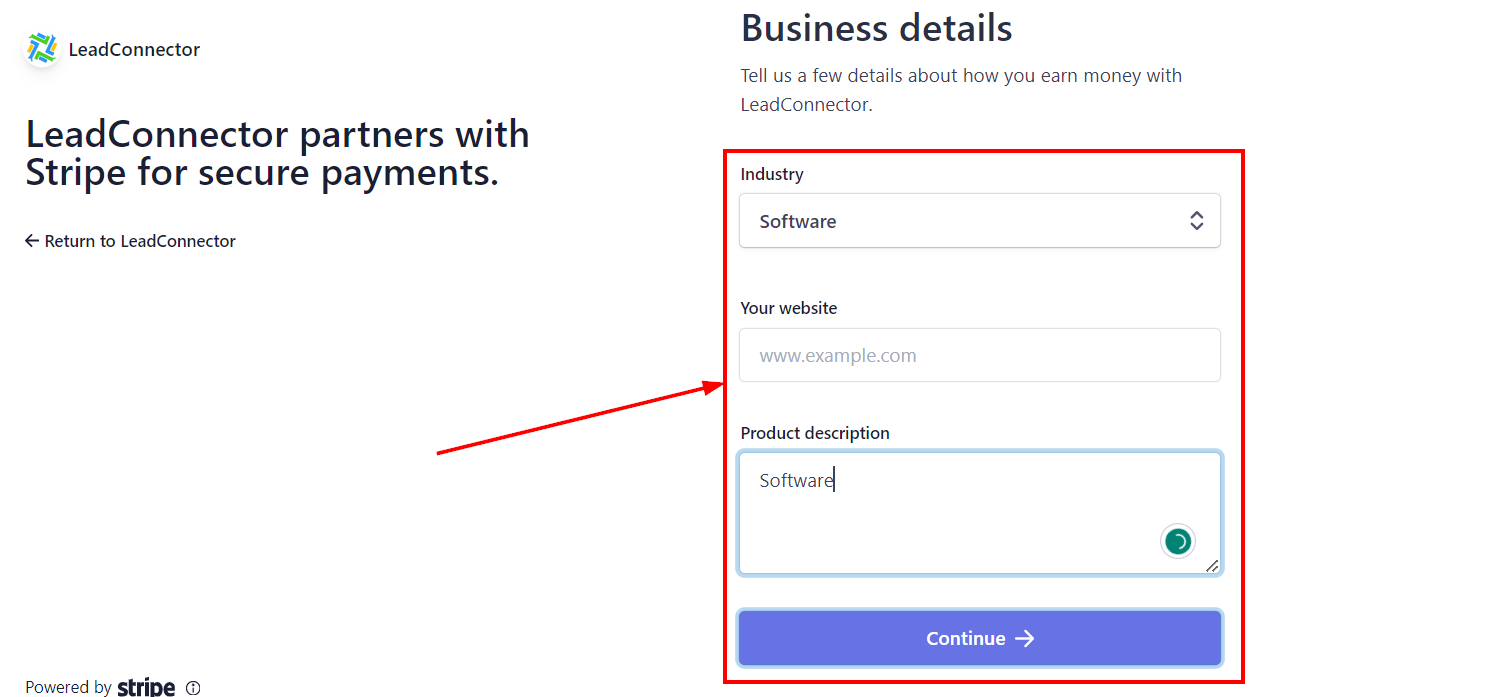
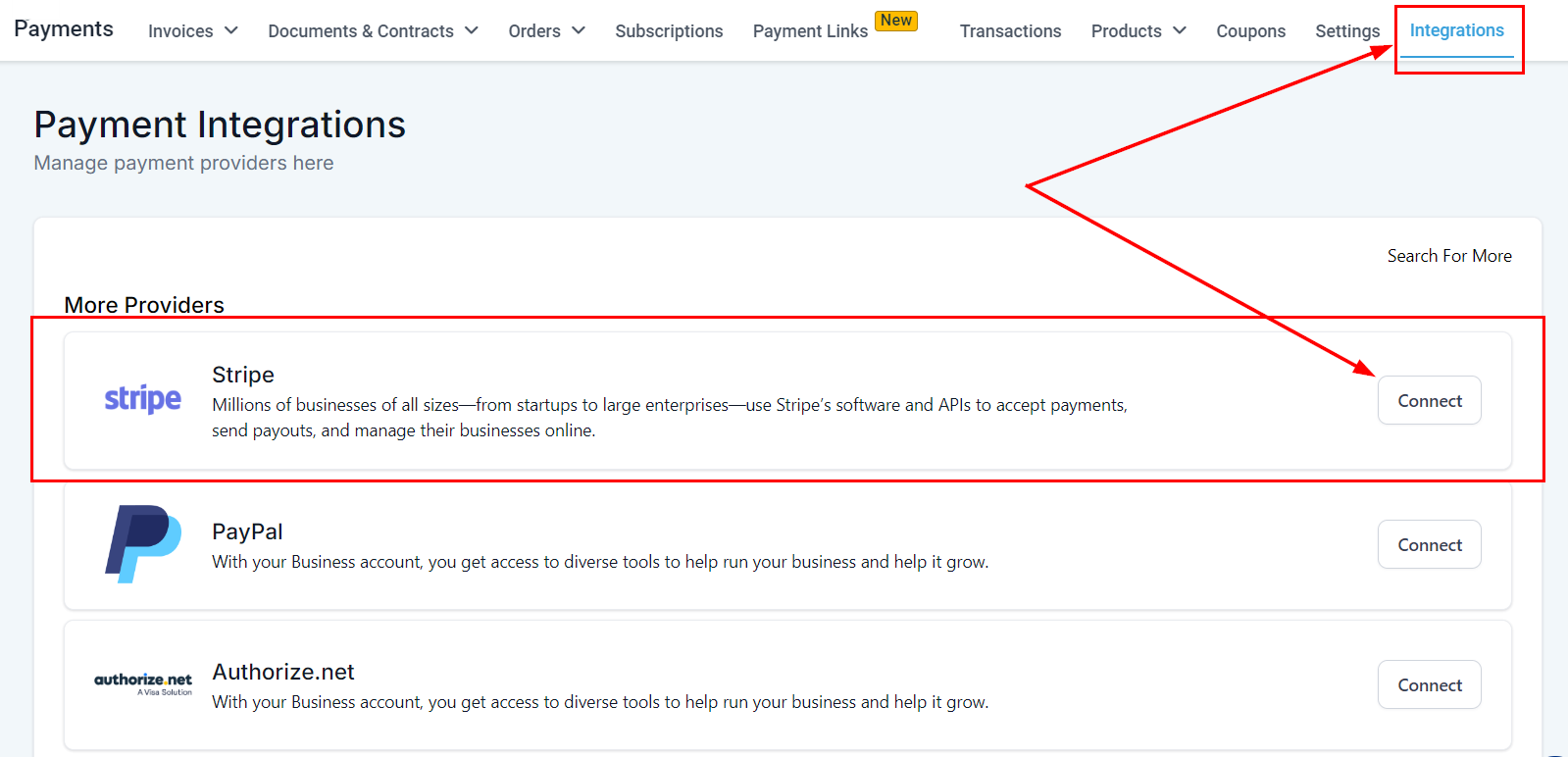
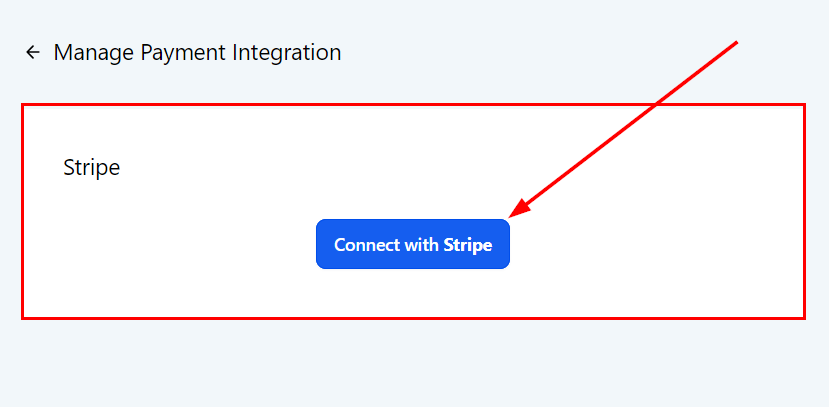
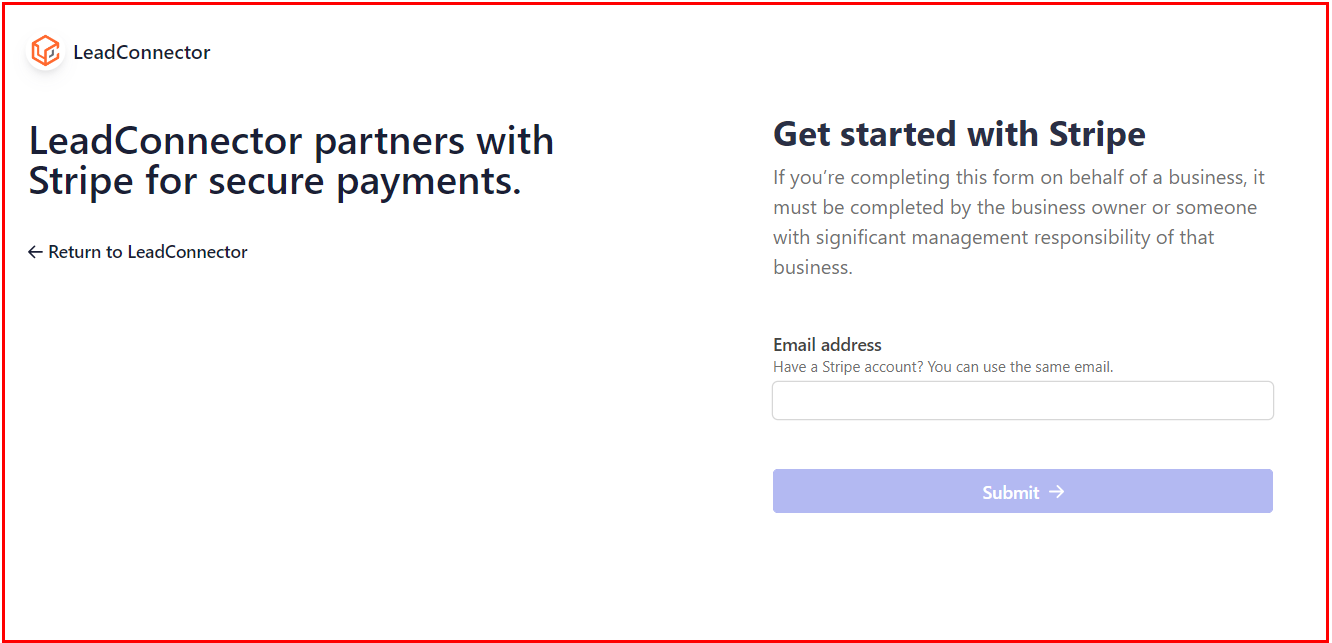
Go to Payments > Payment Integrations and click Connect next to Stripe, then click Connect with Stripe. You’ll be redirected to Stripe’s authorisation page – enter your email and password and follow the prompts to complete the link.
Live Mode and Test Mode
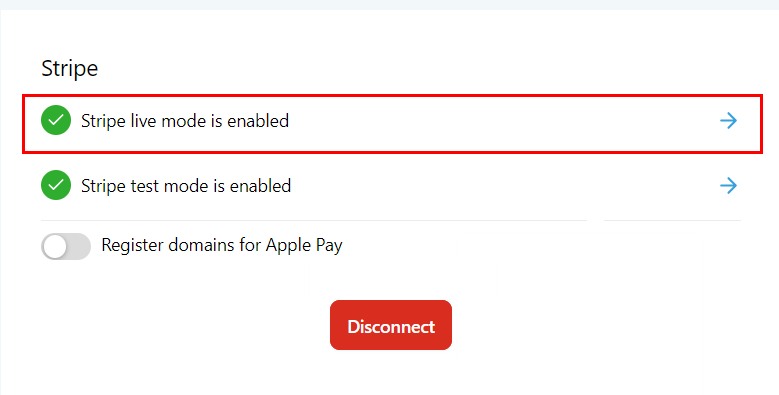
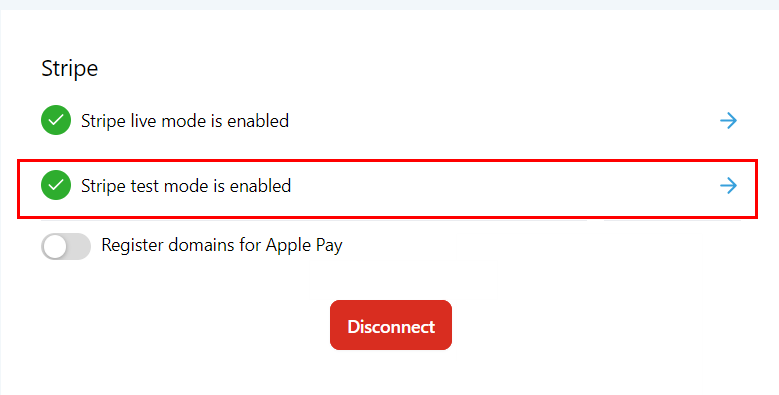
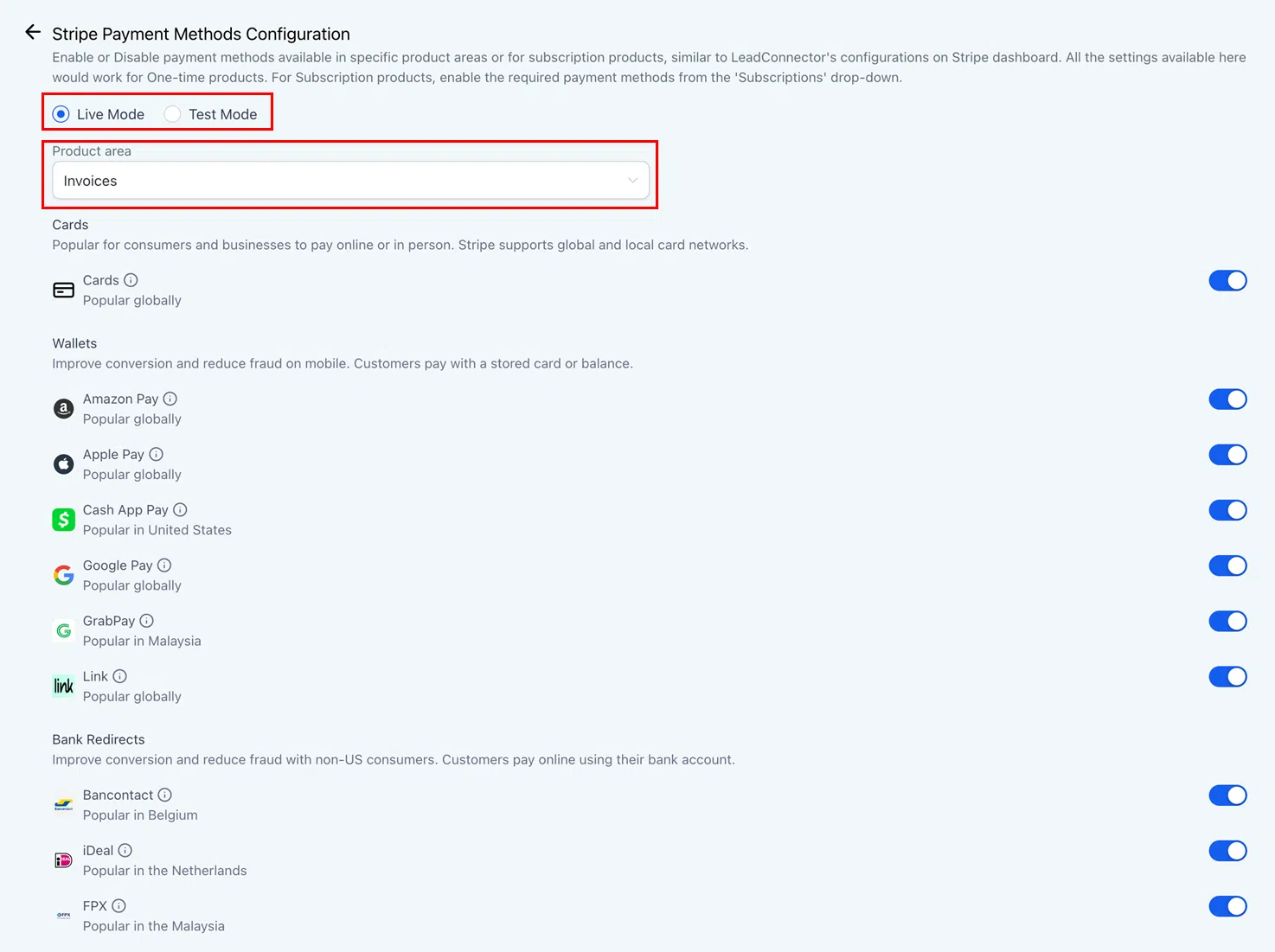
Use Test Mode while setting up to simulate transactions without processing real payments. Switch to Live Mode when you’re ready to accept genuine customer payments. Double-check which mode is active before going live.
Apple Pay and Google Pay via Stripe
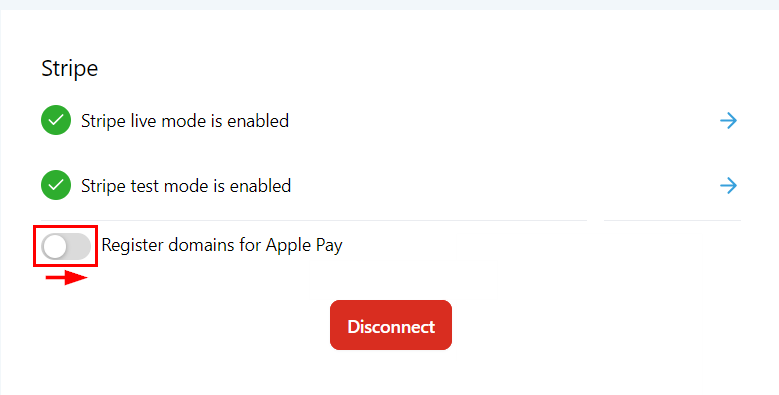
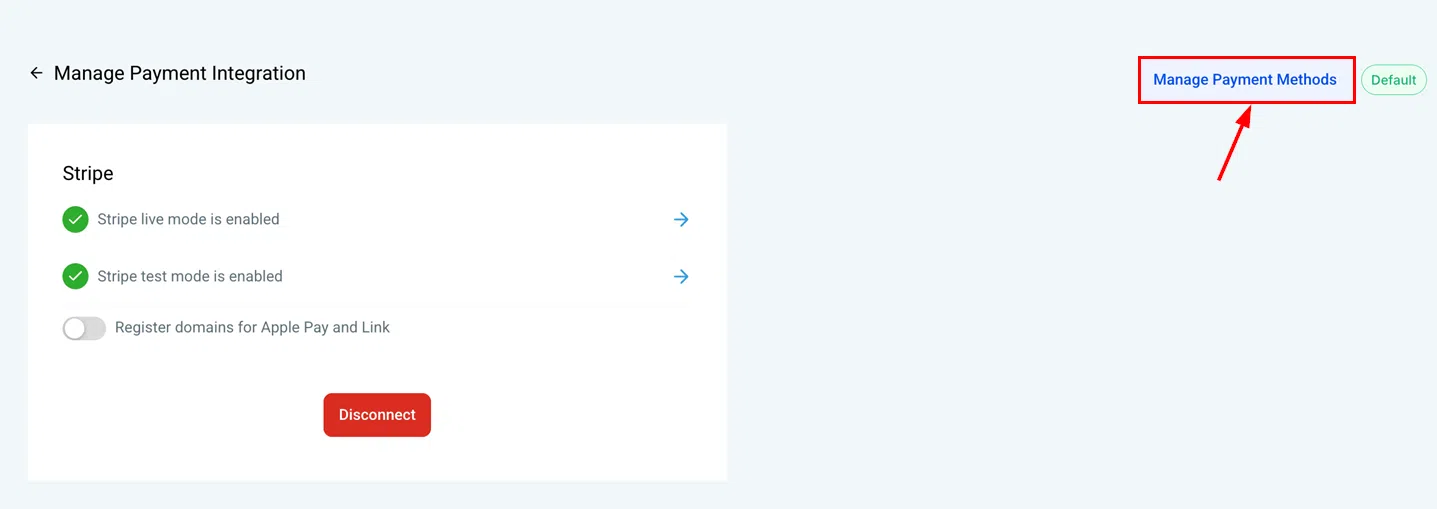
With Stripe connected, you can enable Apple Pay and Google Pay for customers using compatible browsers and devices. These appear as additional payment options on your order forms and store checkout.
Disconnecting Stripe
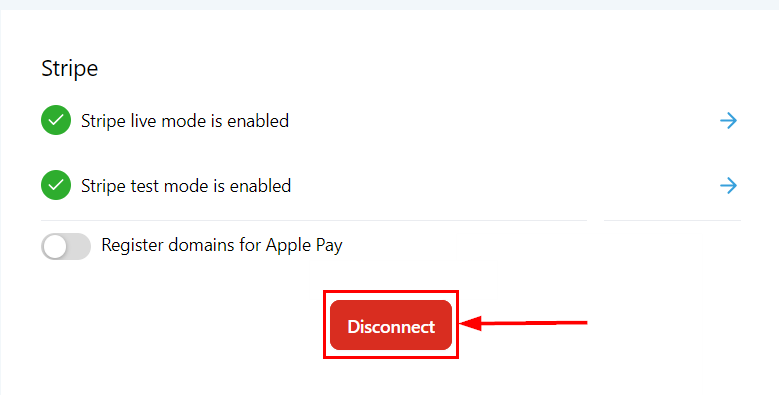
To disconnect Stripe, click Disconnect in the Stripe section of Payment Integrations. Make sure you have another gateway set as default before disconnecting if you still need to process payments.
PayPal Integration
Connect your PayPal account to accept PayPal payments through your Growth360 order forms and invoices.
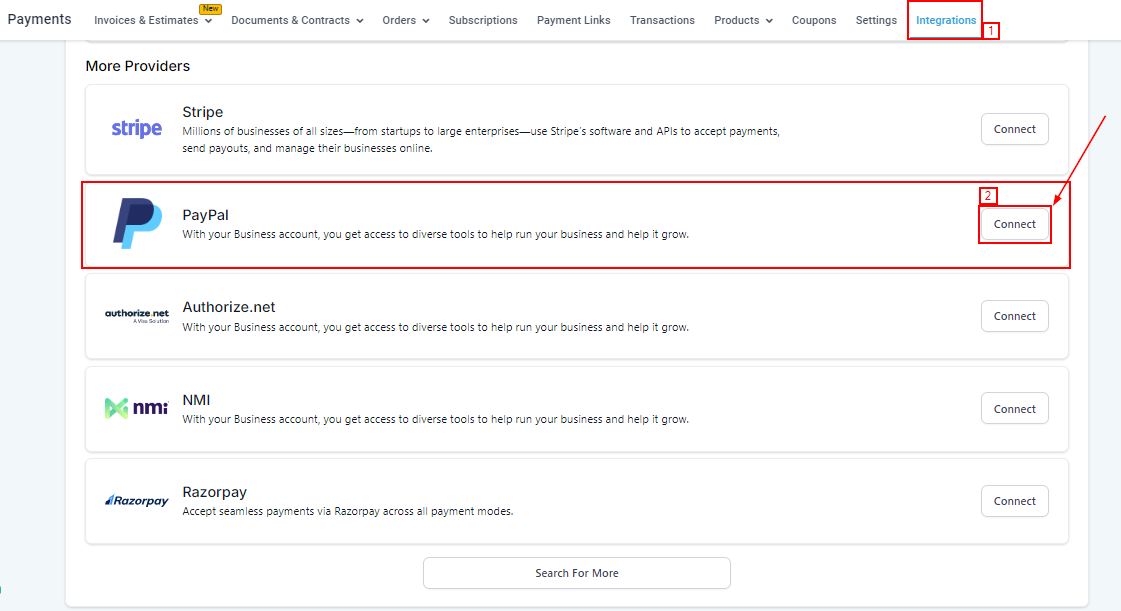
Connecting PayPal
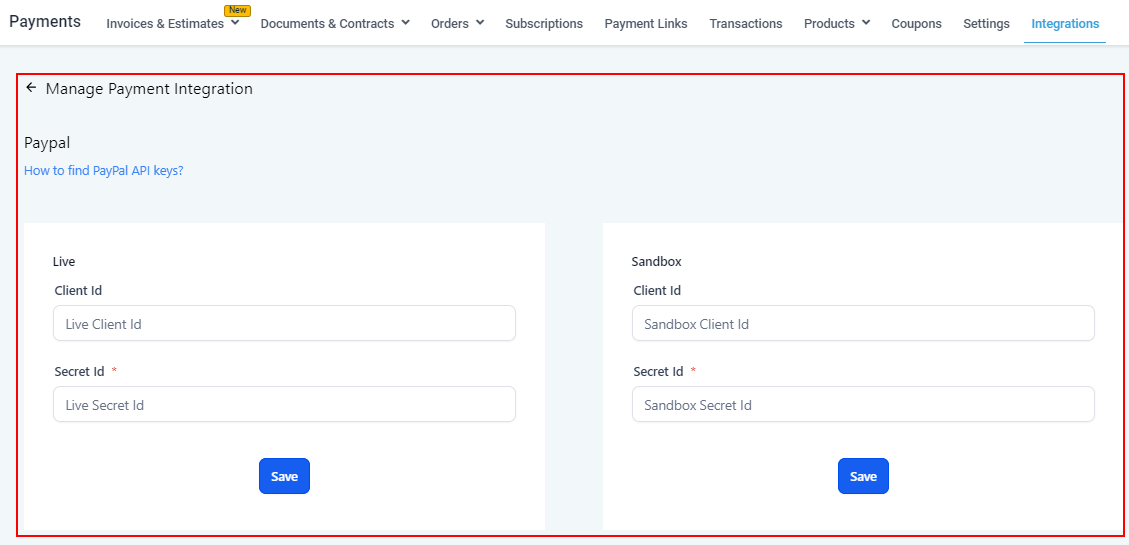
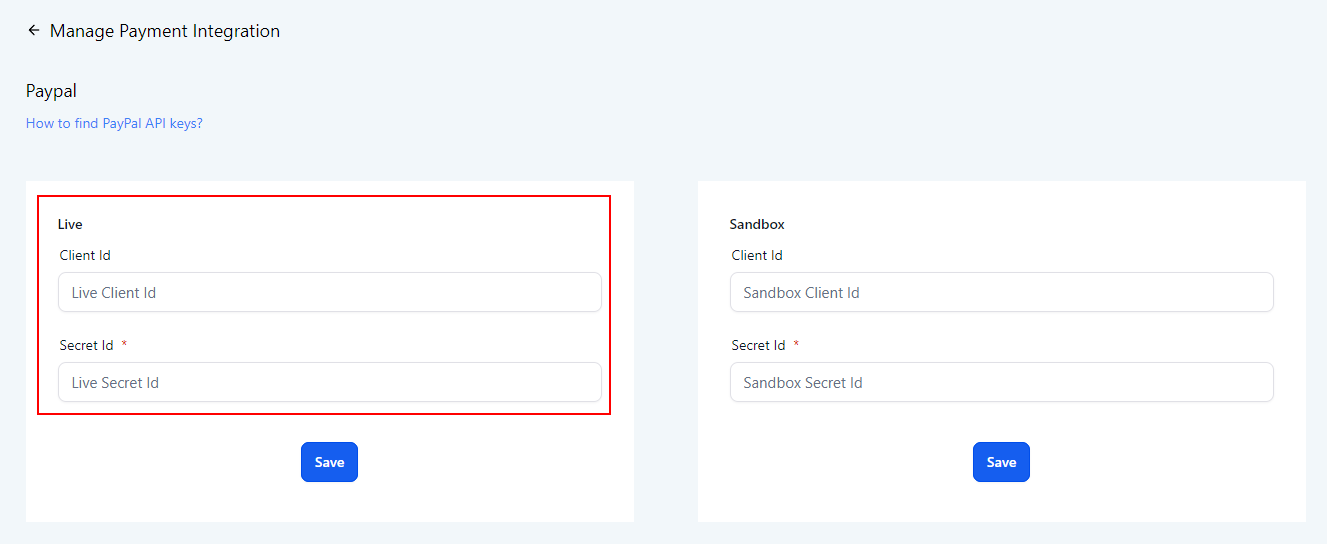
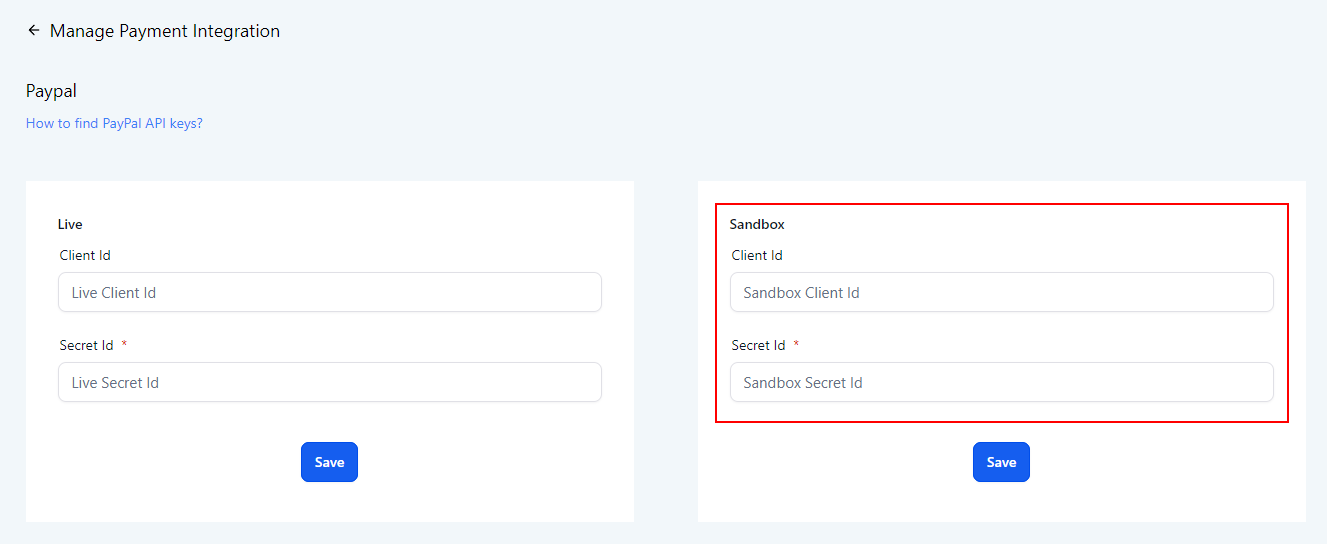
Go to Payments > Payment Integrations, scroll to PayPal, and click Connect. A window will open prompting you to choose between Live Mode and Sandbox Mode.
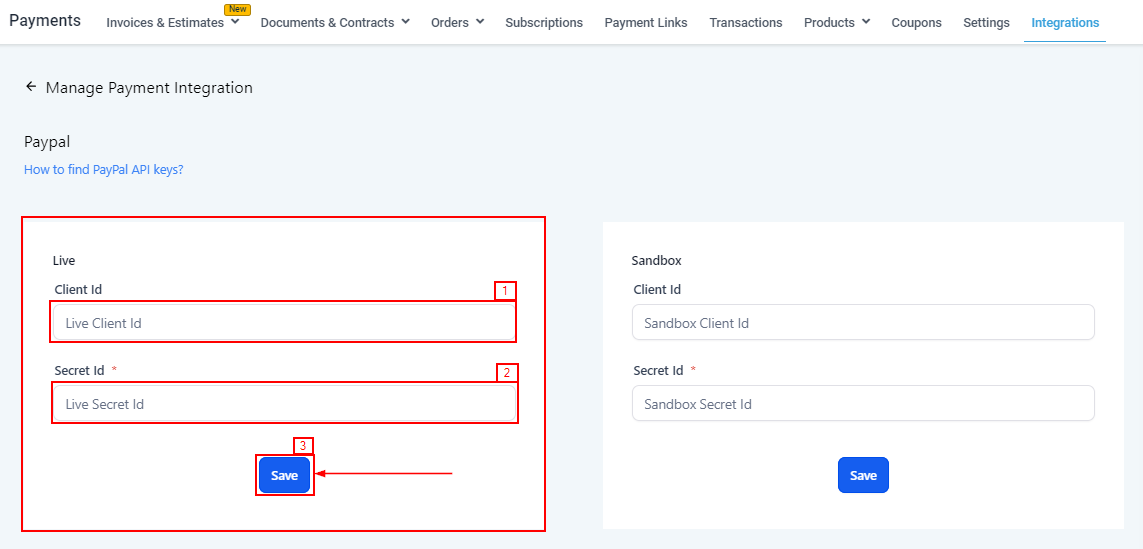
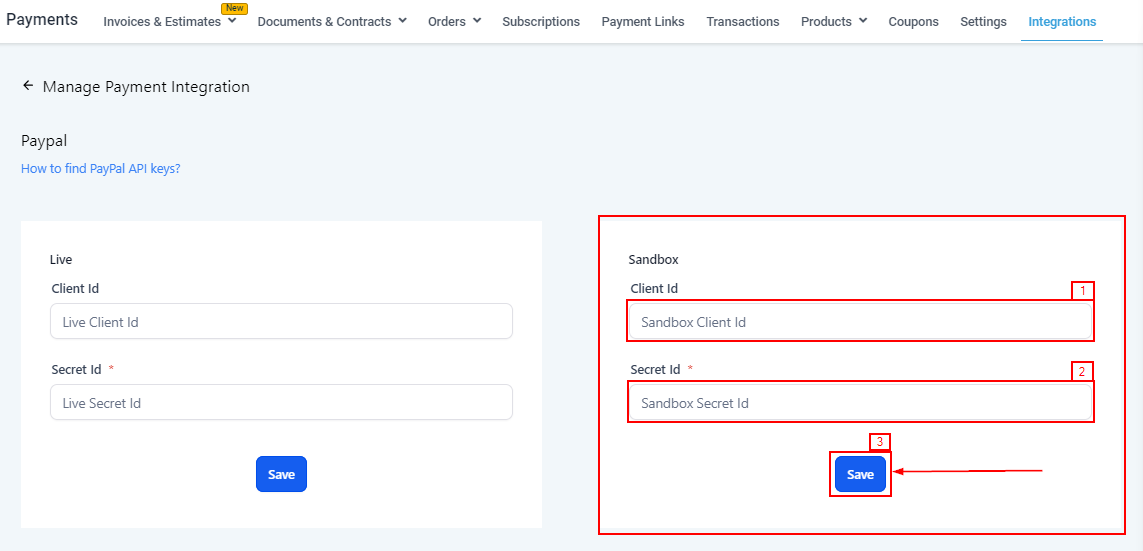
In Live Mode, enter your PayPal Client ID and Secret Key from your PayPal developer account to begin accepting real payments. In Sandbox Mode, enter sandbox credentials to test the integration without processing genuine transactions.