Growth360 Payment Links let you generate shareable, reusable links that take customers directly to a payment page for a specific product – no funnel or invoice required.
The Payment Links Dashboard
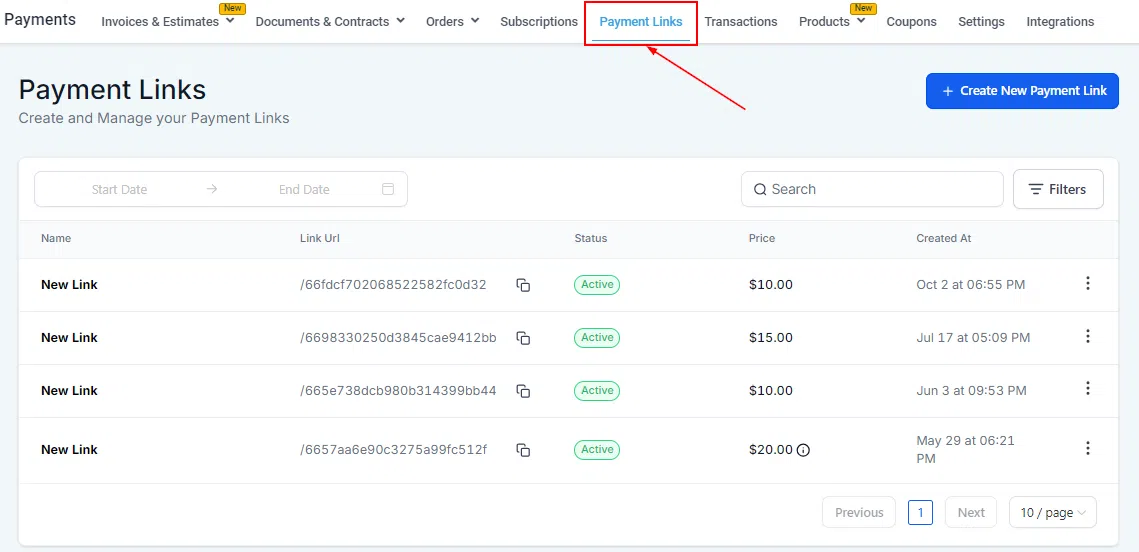
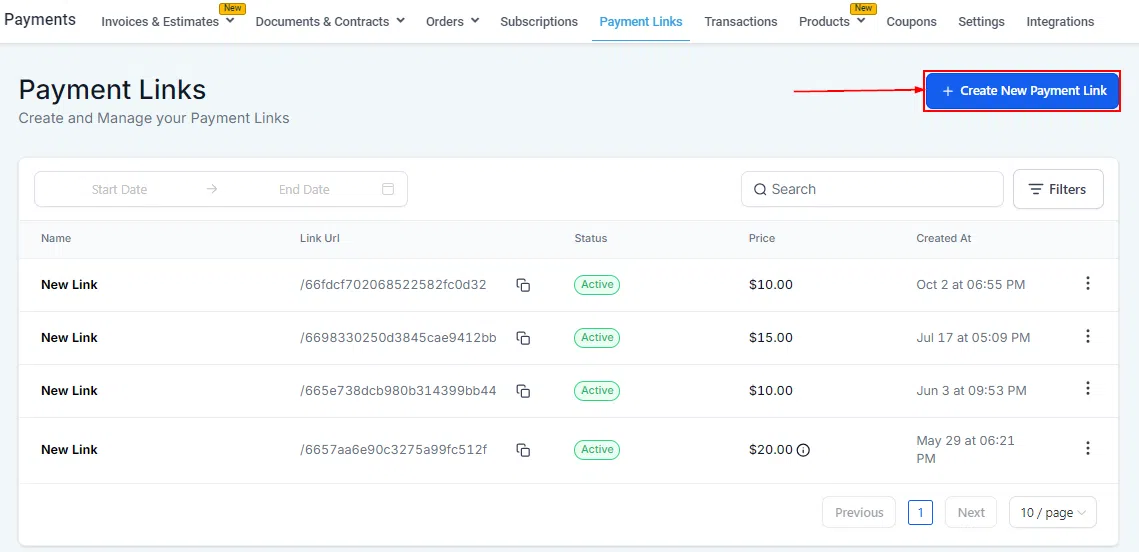
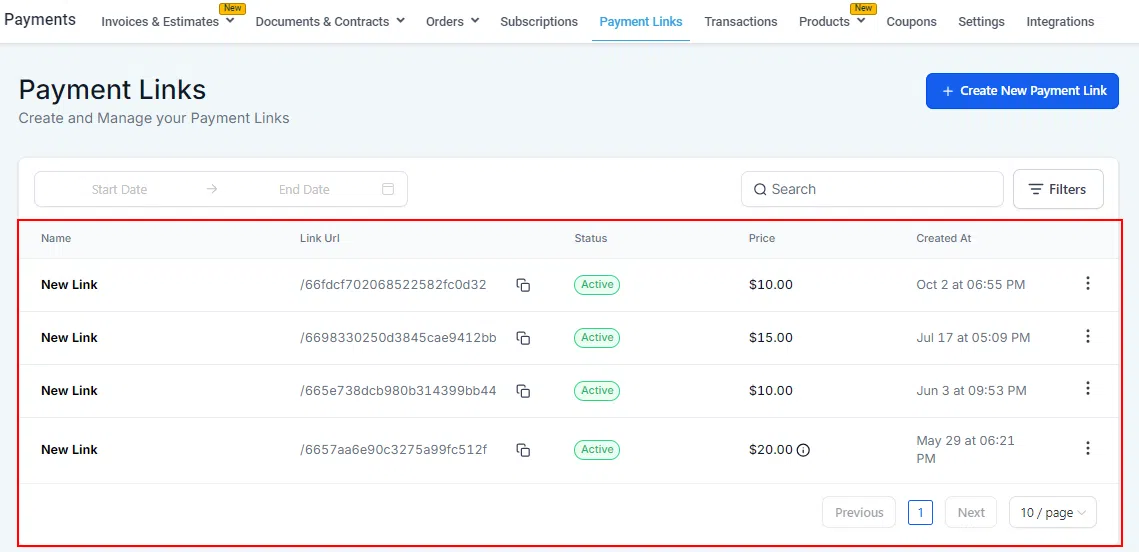
Go to Payments > Payment Links to manage all your payment links in one place. From here you can create new links, search for existing ones, filter by status or source, and view transaction data tied to each link.
Creating a New Payment Link
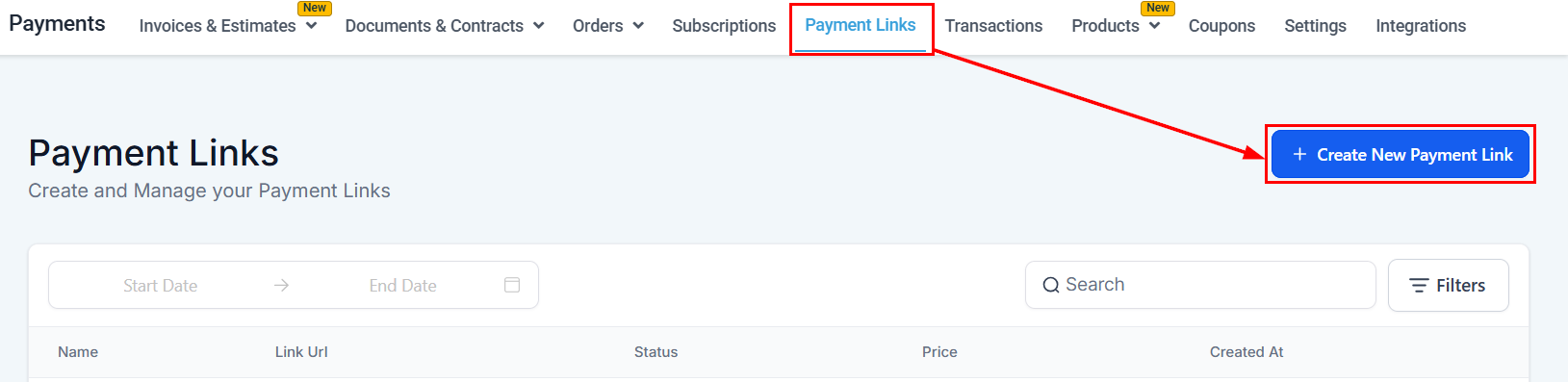
Click + Create New Payment Link in the top right to open the link builder.
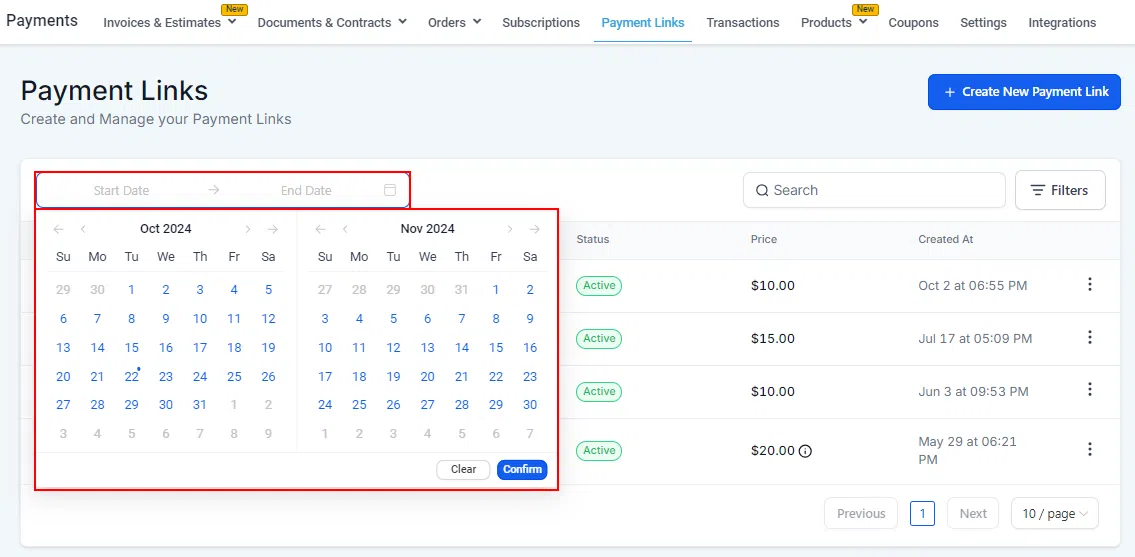
Date Picker
Filter your payment links list by creation date using the date picker.
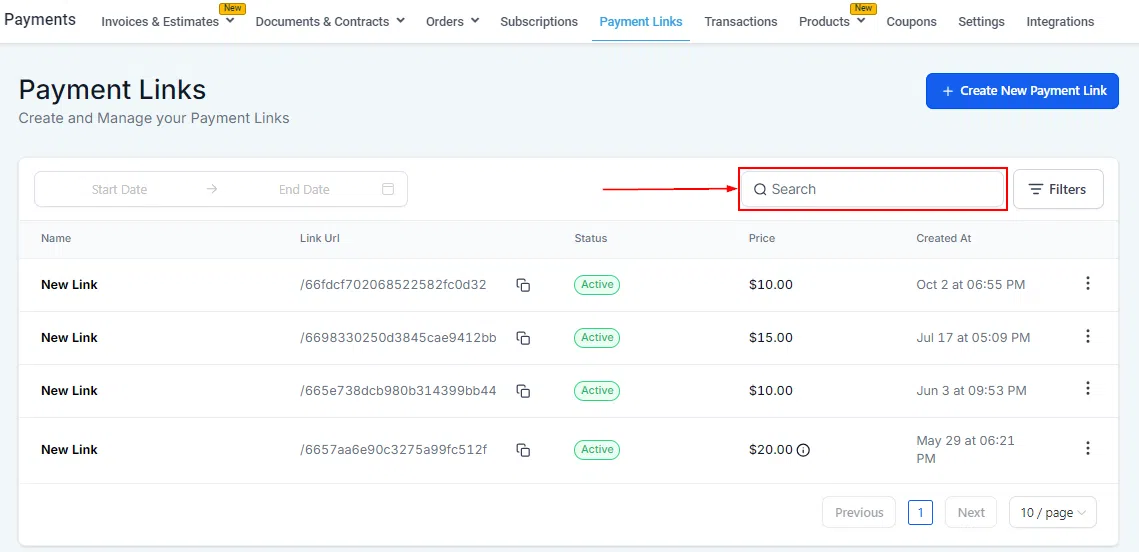
Search
Use the search bar to find a specific payment link by name.
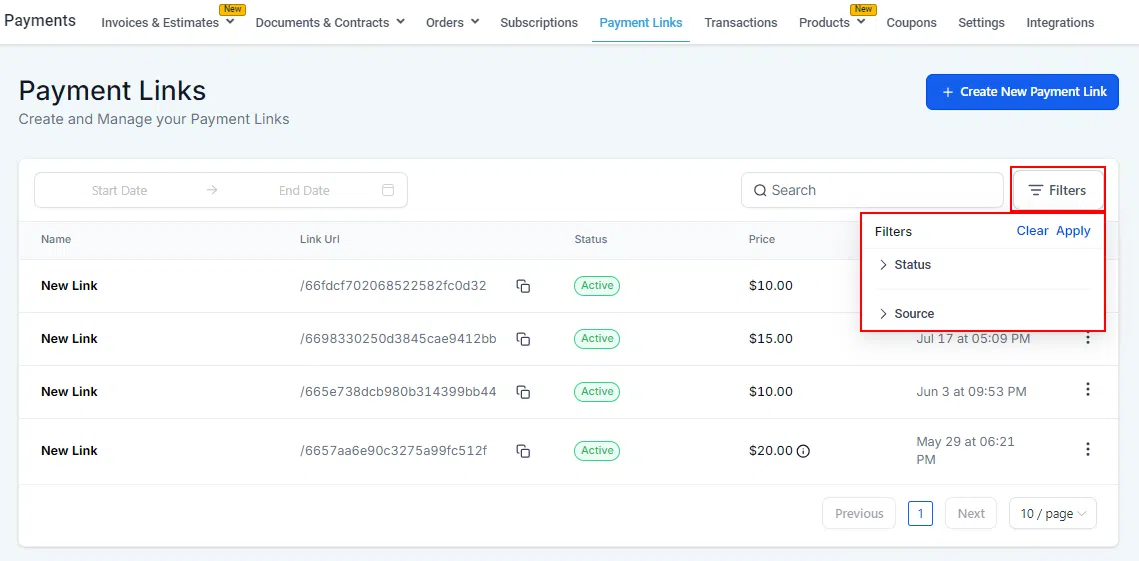
Filters
Filter the list by status (active or inactive) and source to focus on the links most relevant to you.
Payment Link Table
Each row in the table shows the link name, associated product, creation date, status, and a summary of transactions processed through that link.
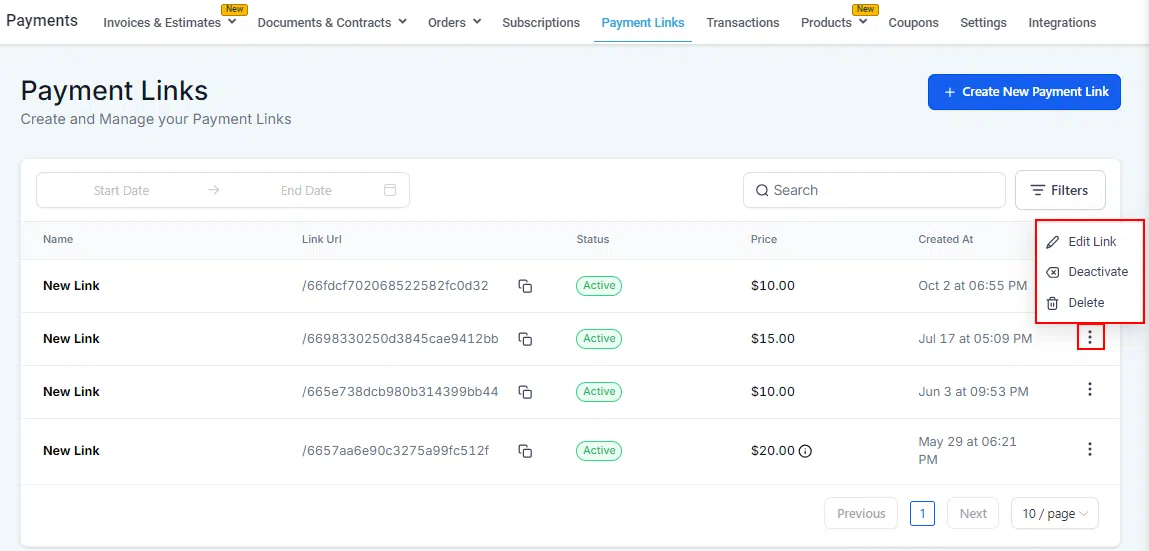
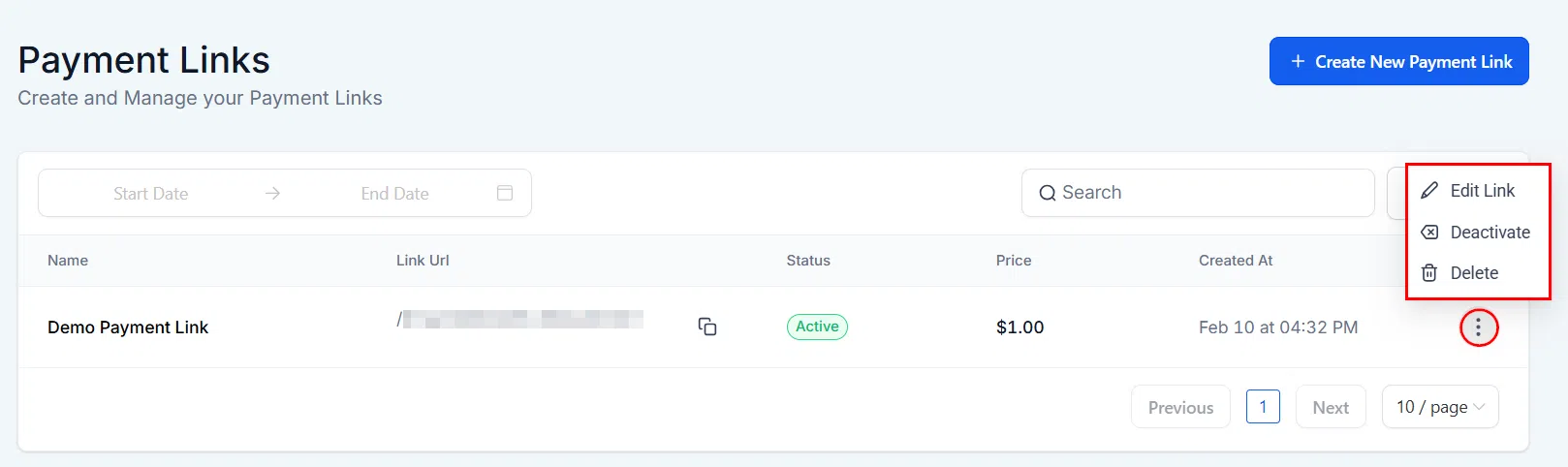
Actions
Use the three-dot menu on any row to edit, copy, share, activate, deactivate, or delete a payment link.
Creating a Product Payment Link
Payment links are built around a specific product, making them ideal for selling a single item quickly without the overhead of a full order form or invoice.
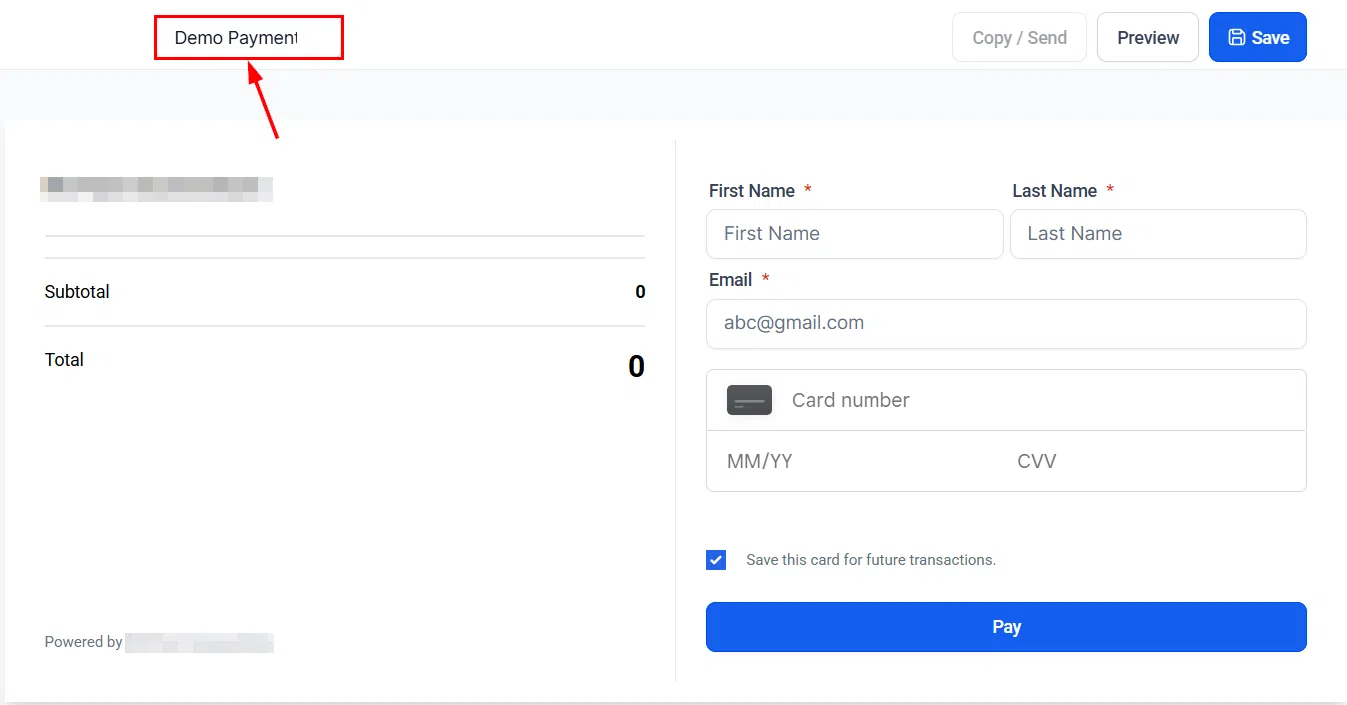
Name
Give the link a clear, descriptive name that reflects what it’s for. This name is for internal reference only.
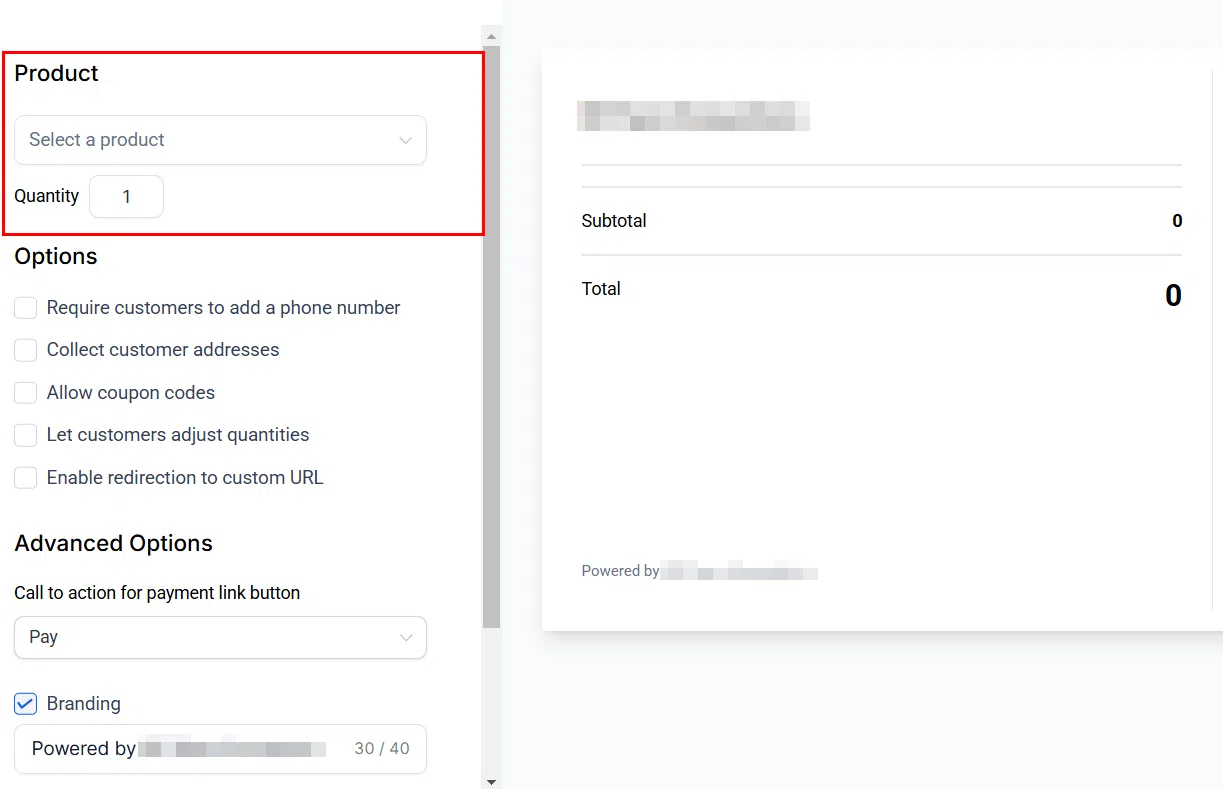
Product
Select the product you want to sell and set the quantity. This determines the price shown at checkout.
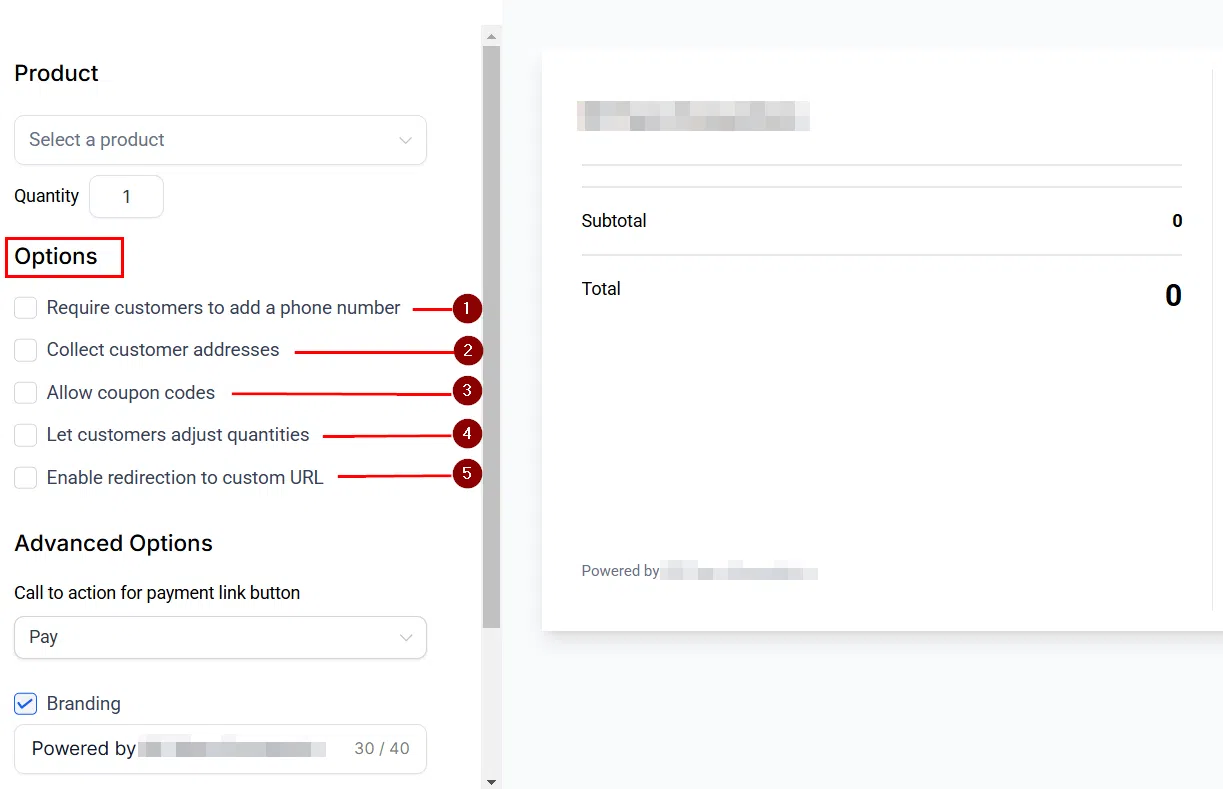
Options
Configure checkout options such as whether to allow quantity changes, collect address details, or enable coupon codes.
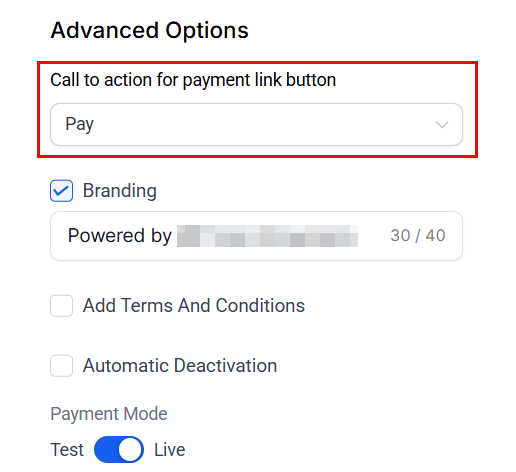
Call to Action
Customise the button text your customers see on the payment page.
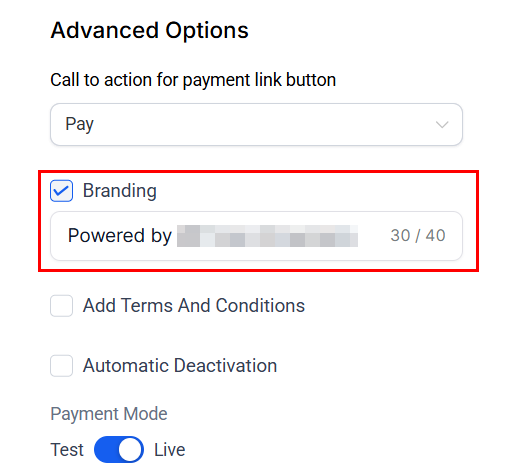
Branding
Add your logo and adjust colours to match your brand, so the payment page feels consistent for your customers.
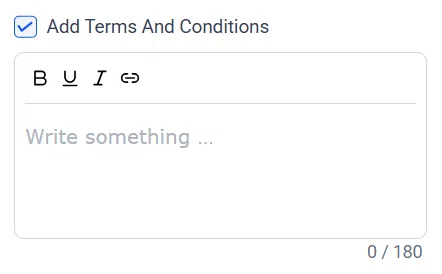
Terms and Conditions
Optionally attach terms and conditions that customers must agree to before completing their purchase.
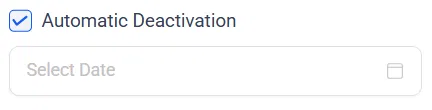
Automatic Deactivation
Set the link to automatically deactivate after a certain number of uses or on a specific date, giving you control over time-sensitive offers.
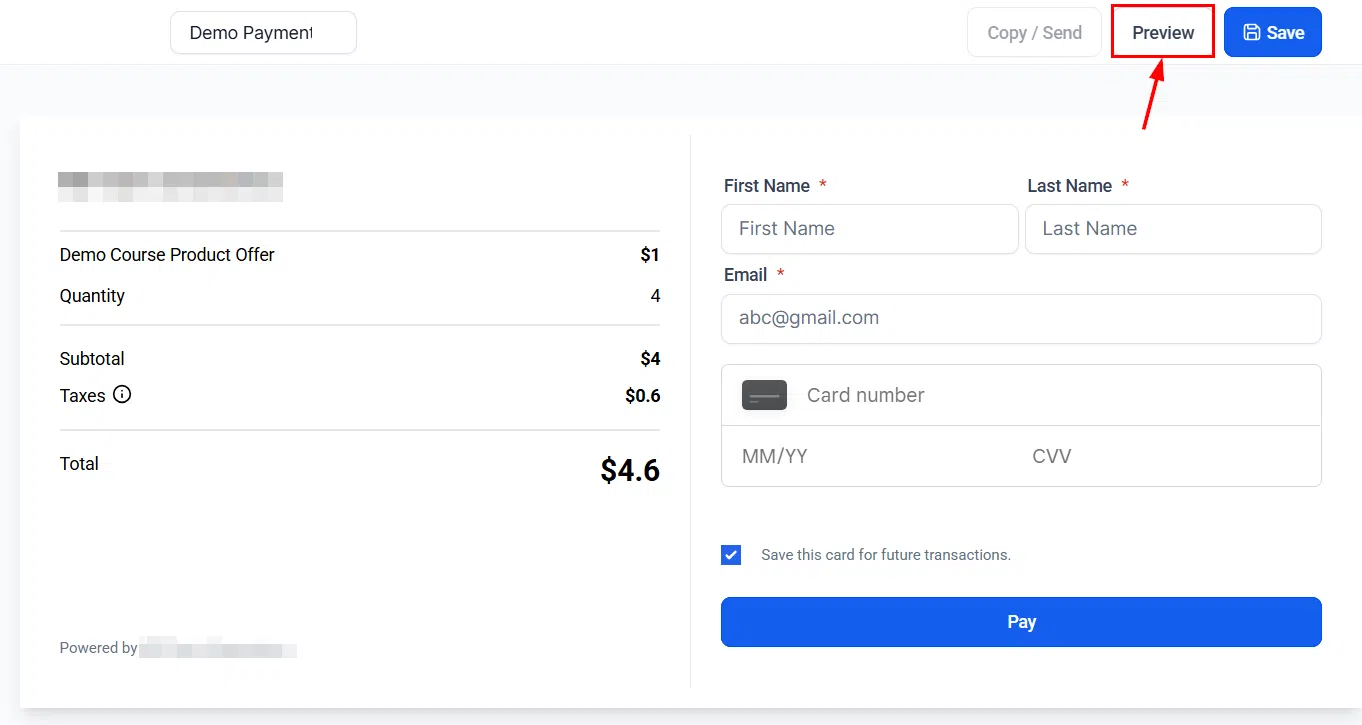
Preview
Preview exactly what your customers will see before publishing the link.
Managing Active Links
Once live, all transactions through a payment link appear in Payments > Transactions. You can activate or deactivate any link at any time from the actions menu.
Frequently Asked Questions
My payment link isn’t working – what should I check? Ensure all required fields are correctly filled and the product and price are accurately set. If the issue persists, check your payment gateway integration under Payments > Integrations.
How do I track sales from a payment link? All transactions can be tracked in Payments > Transactions, where you can filter by source to see only payment link sales.