The Orders section in Growth360 centralises all customer purchases, abandoned checkouts, and imported orders so you can manage fulfilment and track revenue from one place.
Orders Overview
The Orders tab displays all purchases completed through a Store page or a 2-step order element on a funnel. Use the filters and sorting tools to stay on top of fulfilment and customer activity.
Filtering Orders
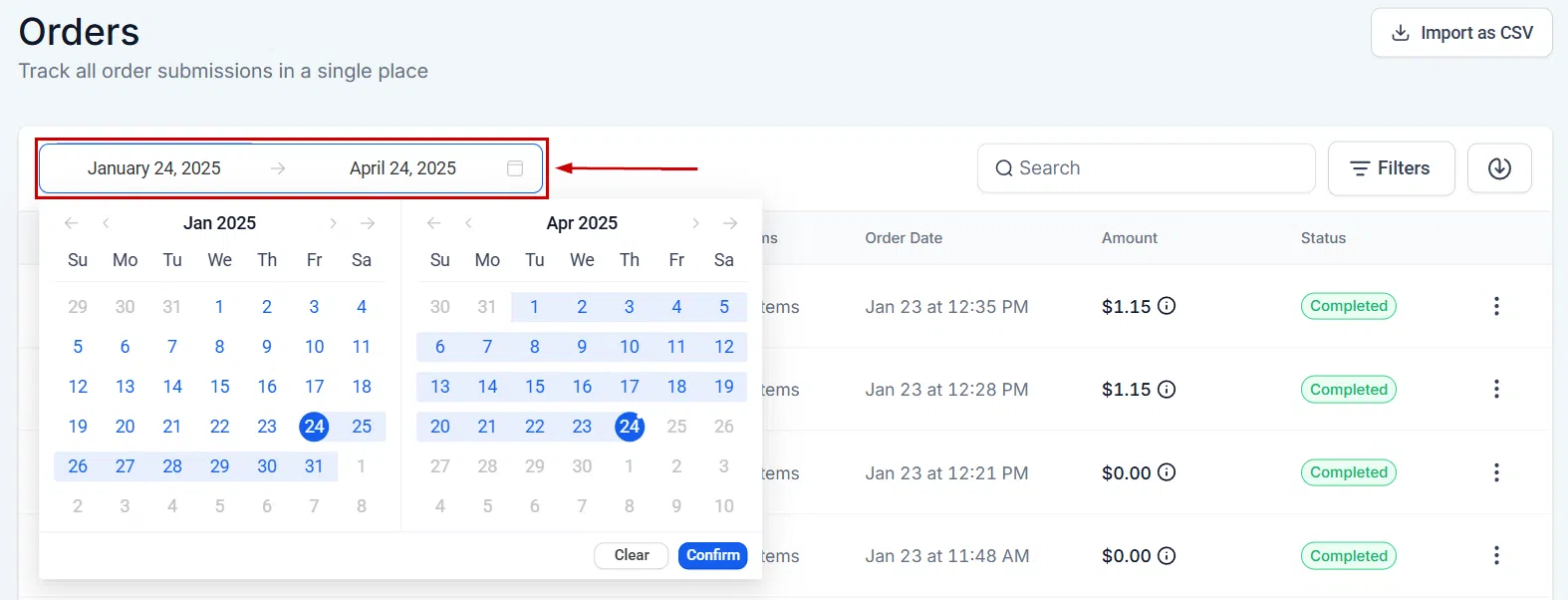
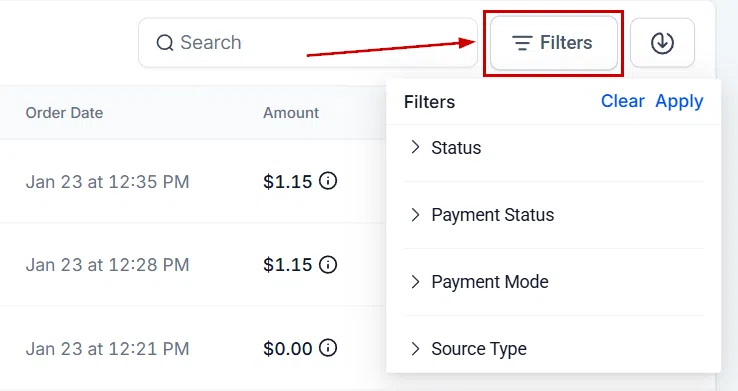
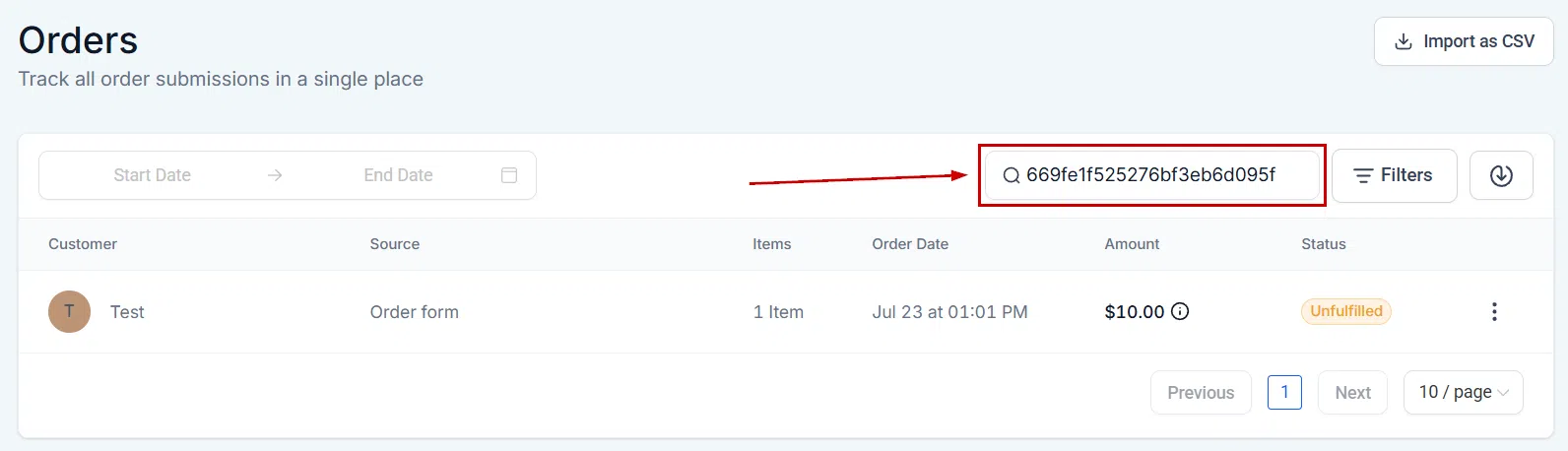
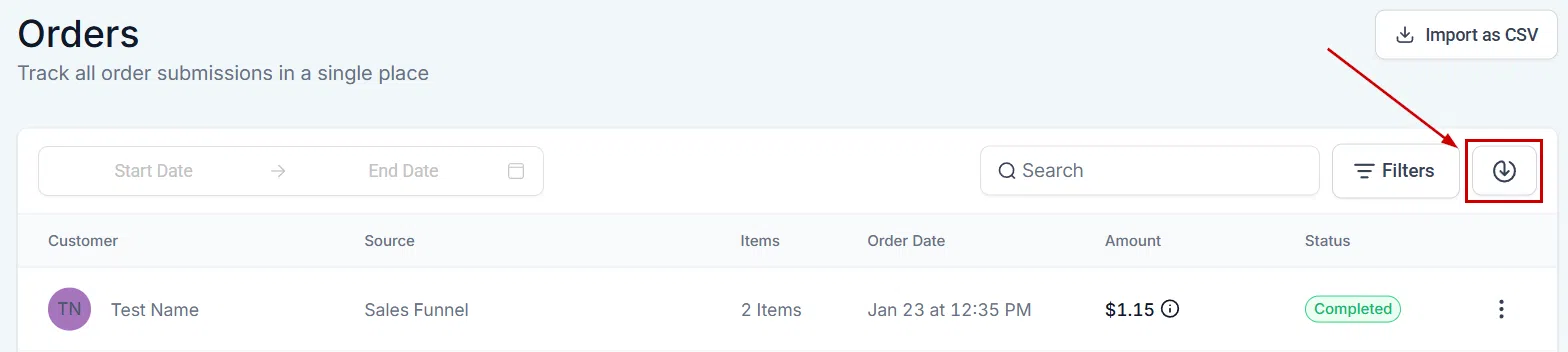
Use the date picker (calendar icon) to limit results to a specific period, or click the filter icon to narrow results by order status, source, or payment details.
Order Information
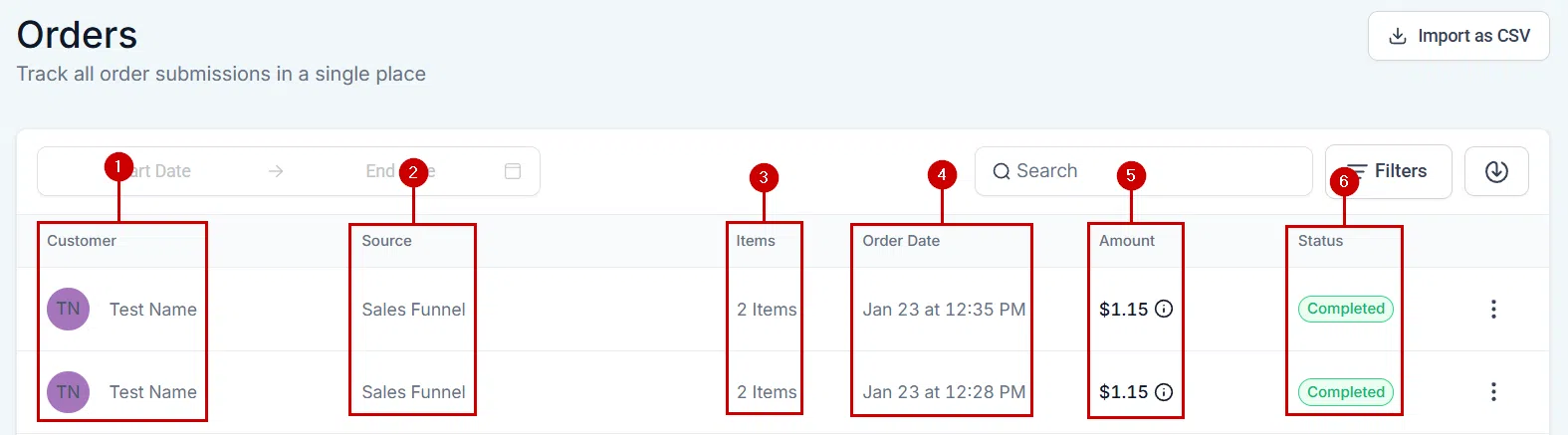
Each order row shows the following at a glance:
- Customer: The contact’s name as saved in Growth360. Click it to open the contact card.
- Source: Where the order originated – such as a Store page or funnel step.
- Status: The current fulfilment status of the order.
- Amount: The total value of the order.



Abandoned Checkouts
Abandoned checkouts appear in a dedicated view within Orders, giving you visibility into incomplete transactions and the ability to follow up and recover lost sales.
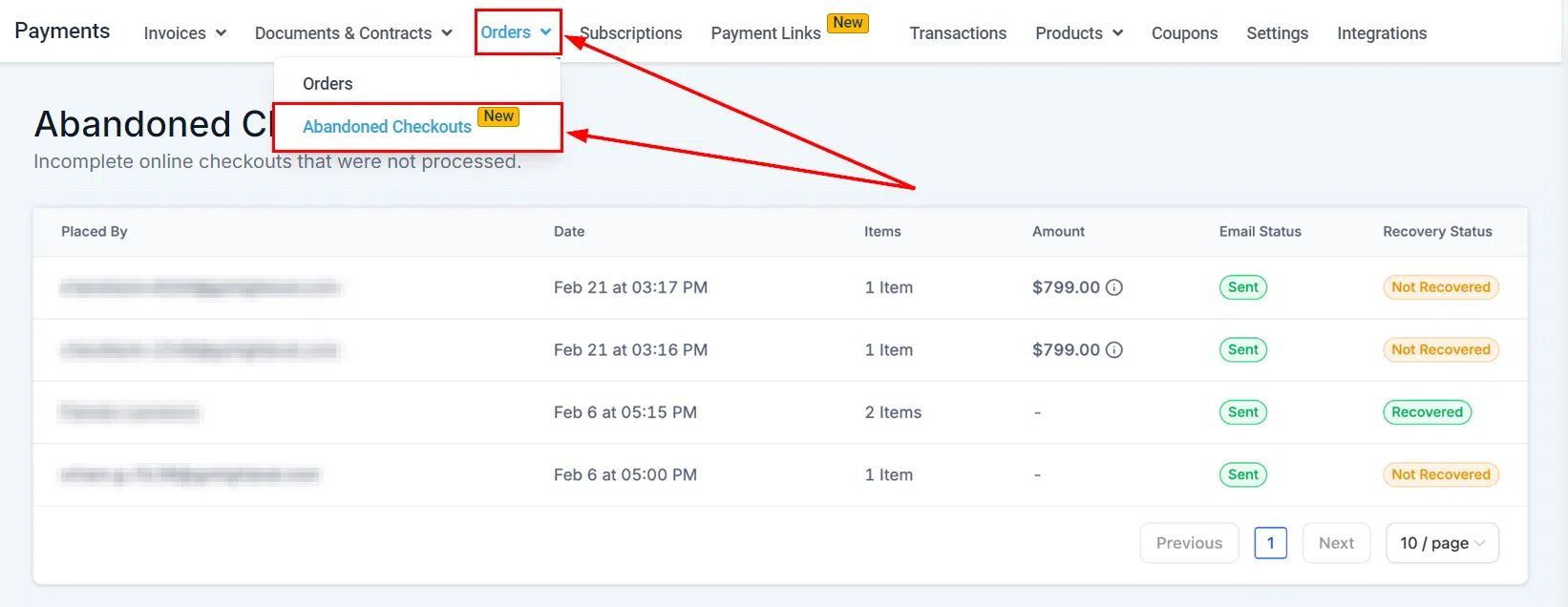
Accessing Abandoned Checkouts
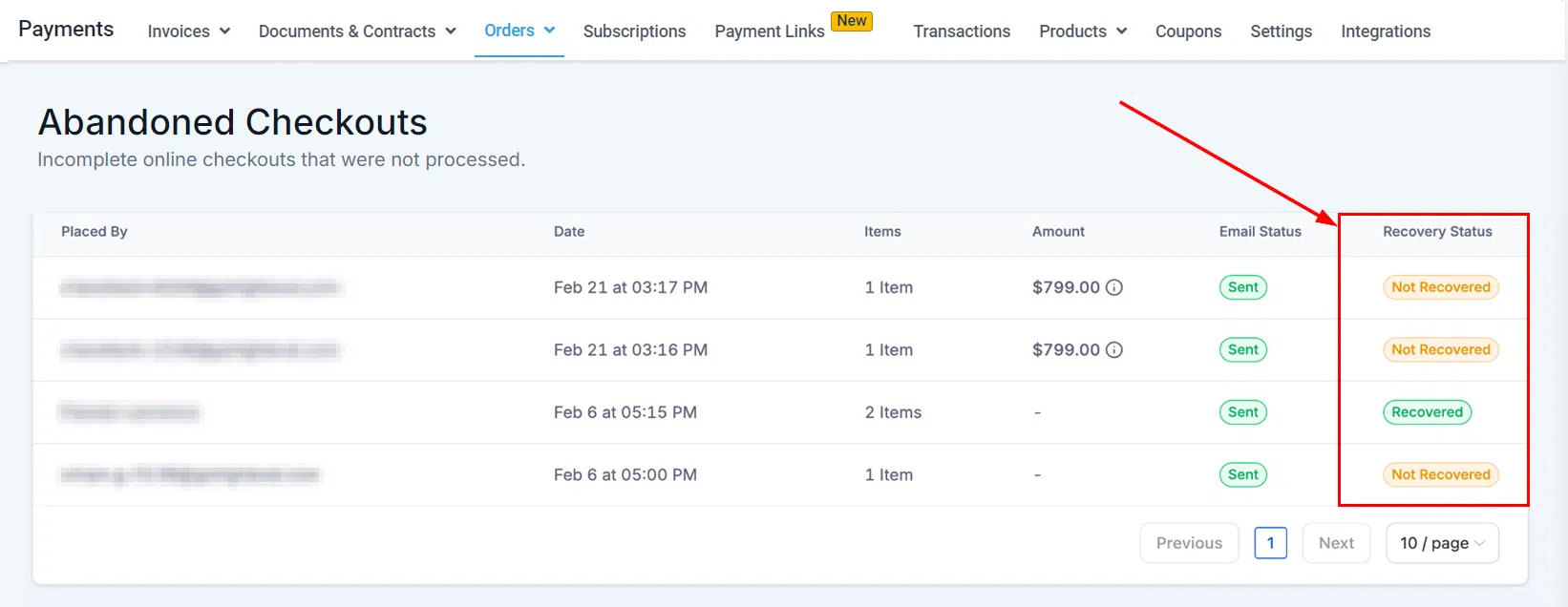
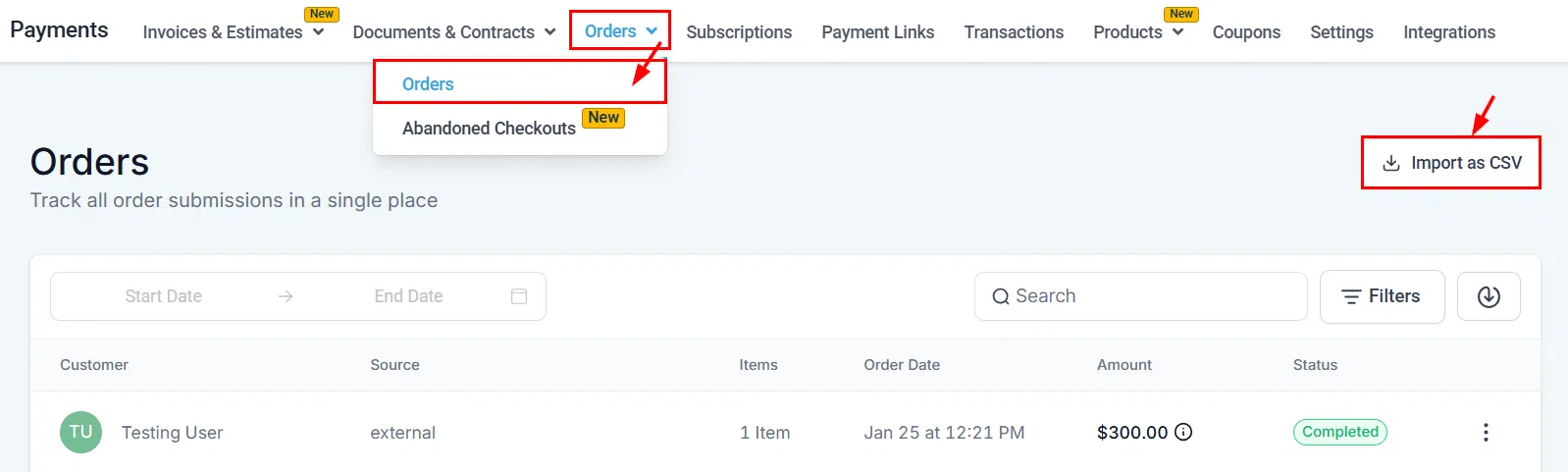
Go to Payments, then open the Orders dropdown and select Abandoned Cart. The view shows detailed information about each abandoned transaction including customer details and the items that were in the cart.
Abandoned Checkout Columns
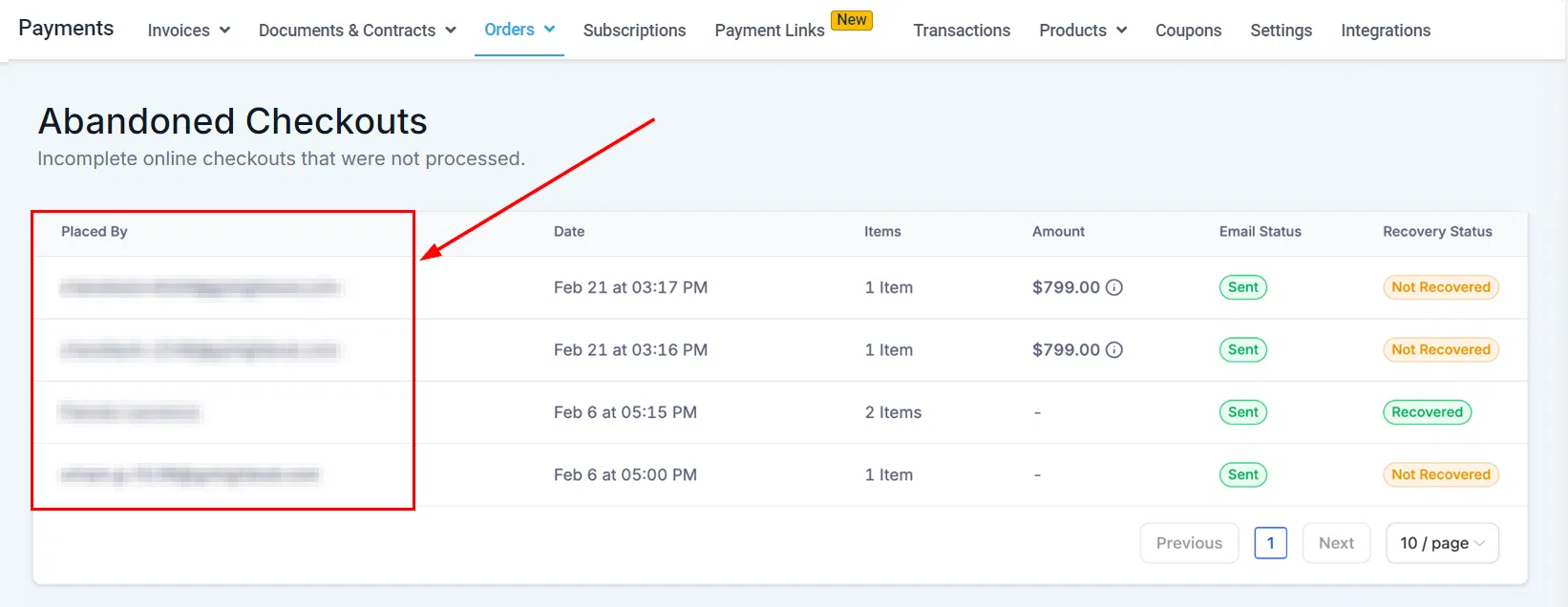
- Placed By: The customer who abandoned the checkout. If their name isn’t available, their email address is shown instead.
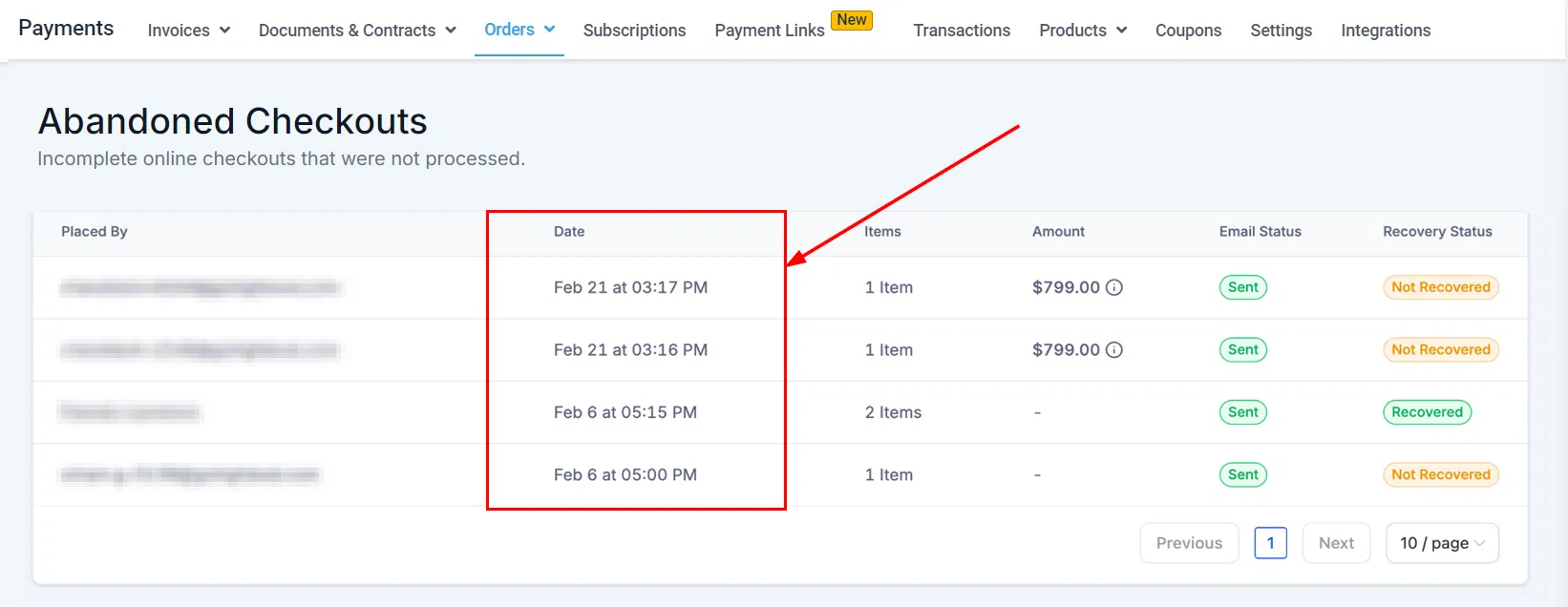
- Date: When the checkout was abandoned.
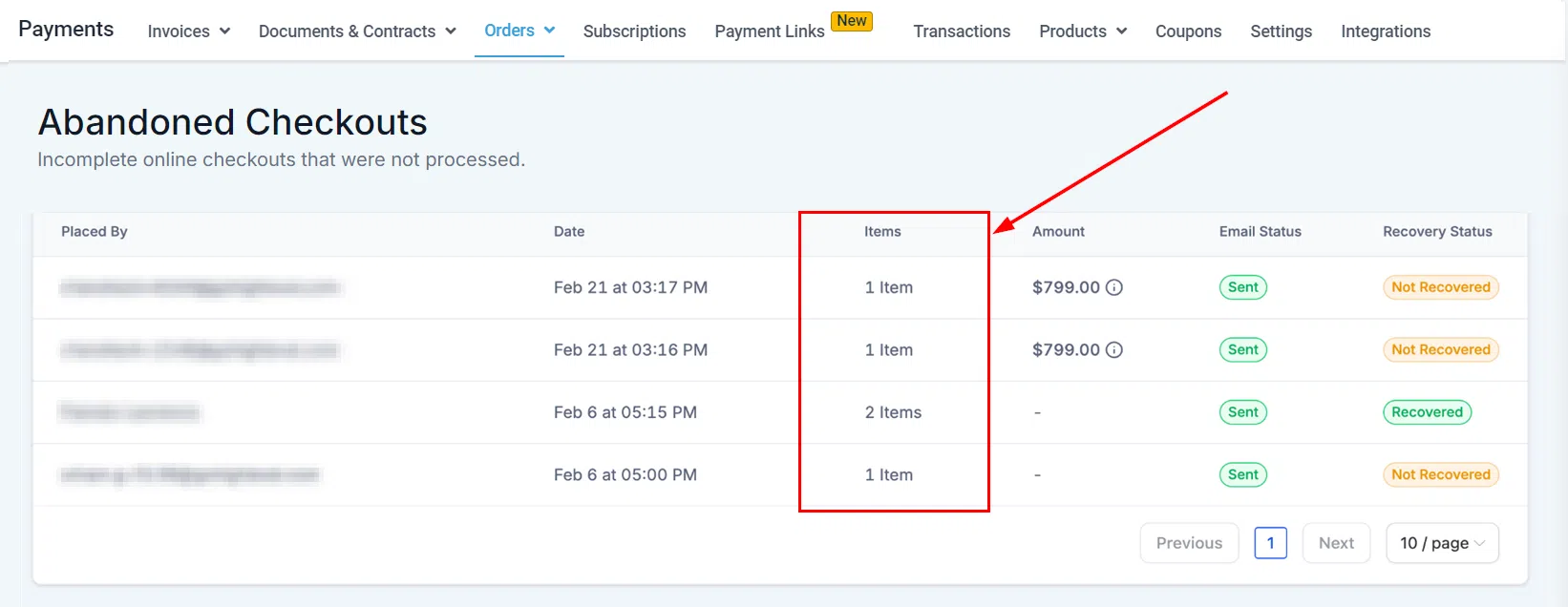
- Items: The products that were in the cart at the time of abandonment.
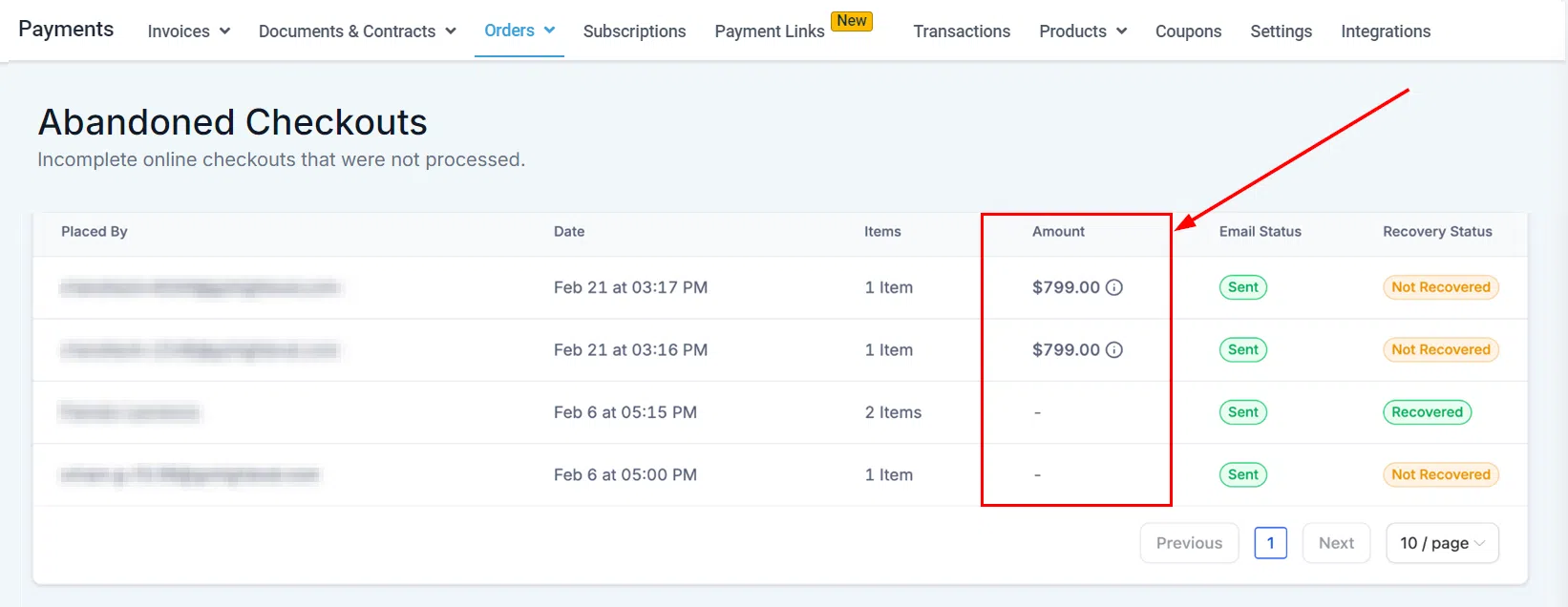
- Amount: The total value of the abandoned cart.
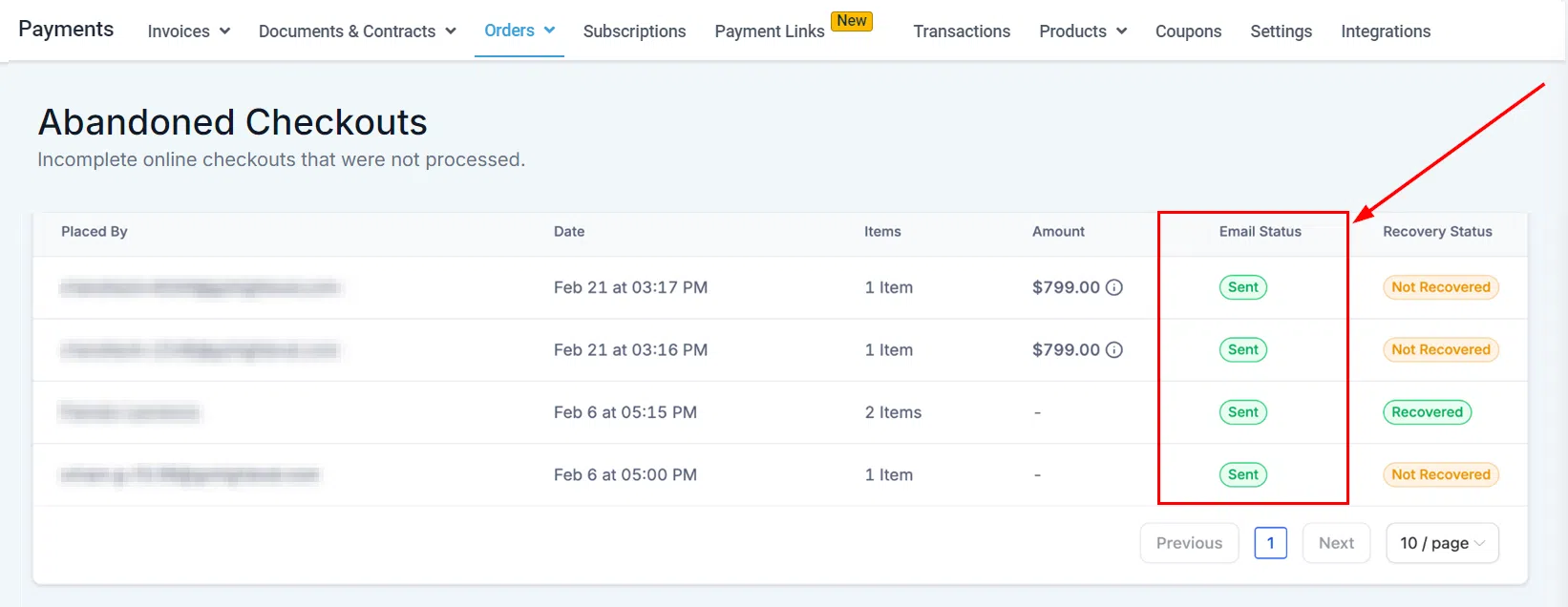
- Email Status: Whether a recovery email has been sent to the customer.
- Recovery Status: Whether the checkout was ultimately completed following outreach.
Troubleshooting Abandoned Checkouts
No abandoned checkouts listed: Check that your store is correctly configured to capture these events and that the feature is enabled in settings.
Email status not updating: Verify your notification settings are correctly configured and that automatic recovery emails are enabled.
Recovery status inaccurate: Confirm that the transaction has been properly completed and all relevant details are up to date.
Importing Orders via CSV
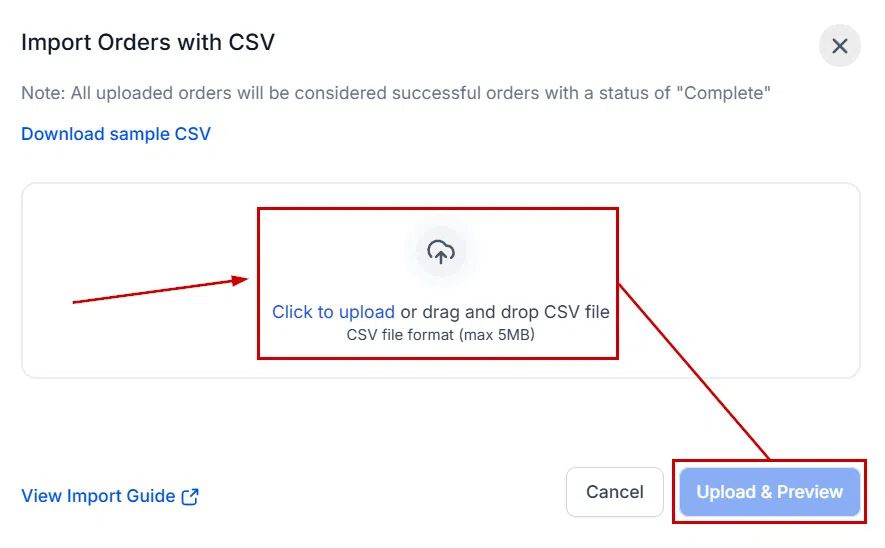
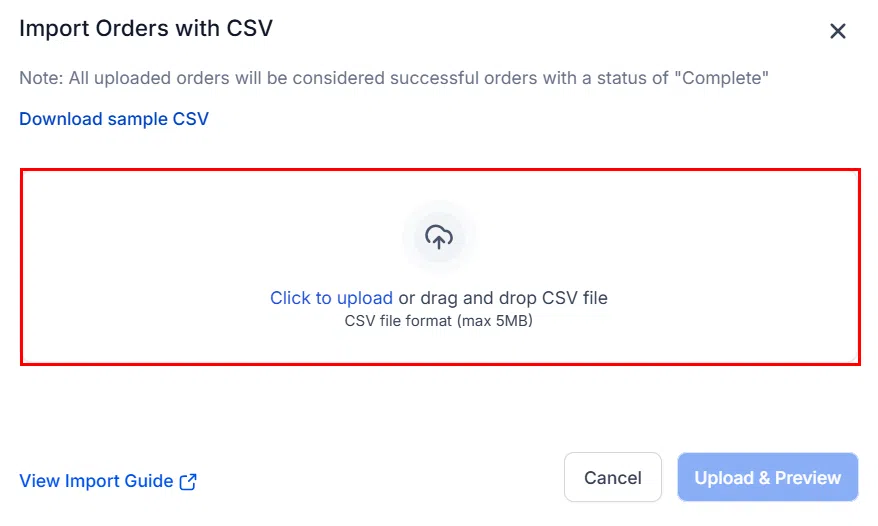
If you manage payments from multiple sources, you can import historical or external orders into Growth360 using a CSV file. All imported orders are automatically marked as completed and a linked transaction record is created for each one.
How to Import Orders
Go to Payments > Orders and click Import as CSV.
Click Download Sample CSV to get the template. Fill in your order data using the sample as a guide, then upload your completed file.

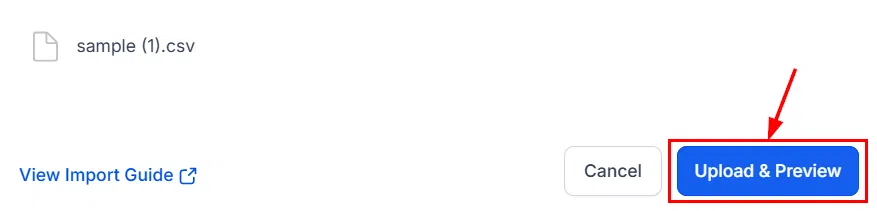
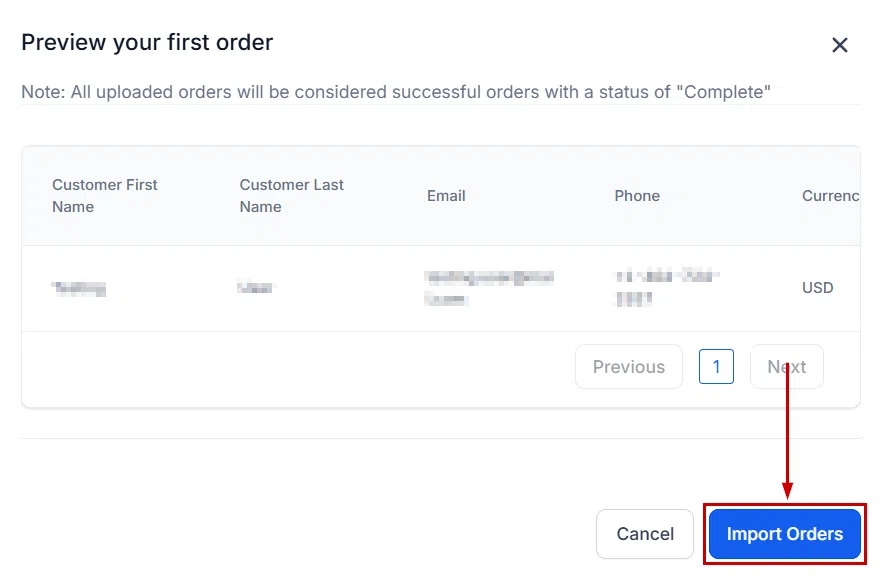
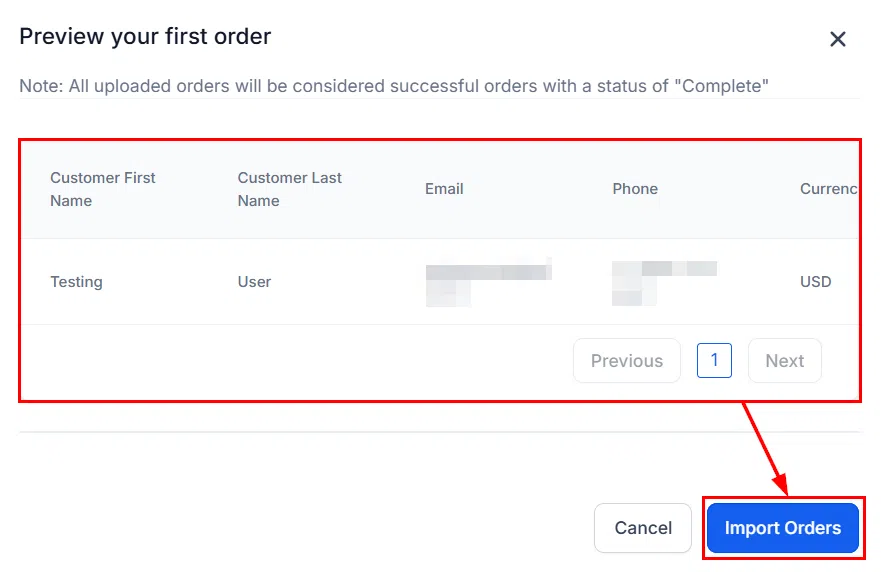
Click Import Orders to start the import process. A progress indicator will show the status of the import.
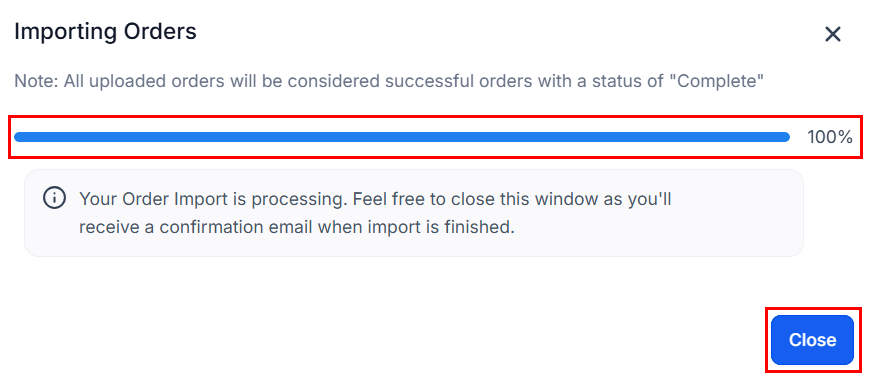
Once complete, your orders will appear in the list sorted by order date in descending order. A confirmation email is sent when the import finishes, so you can safely close the window while it processes.

If customer details are included in the CSV, Growth360 will automatically create new contacts where needed or match orders to existing contacts based on the information provided.