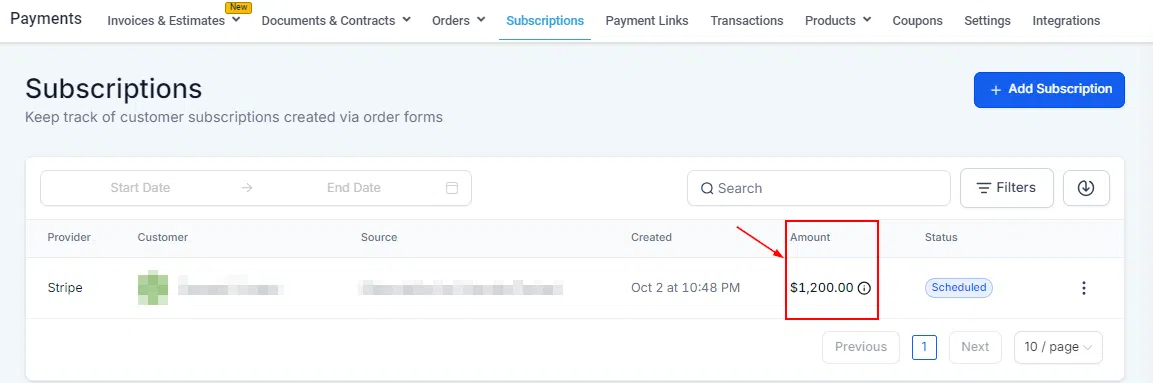
The Subscriptions section in Growth360 Payments lets you track and manage every customer subscription created through your order forms, with clear status visibility and tools to pause, resume, or cancel as needed.
The Subscriptions Tab
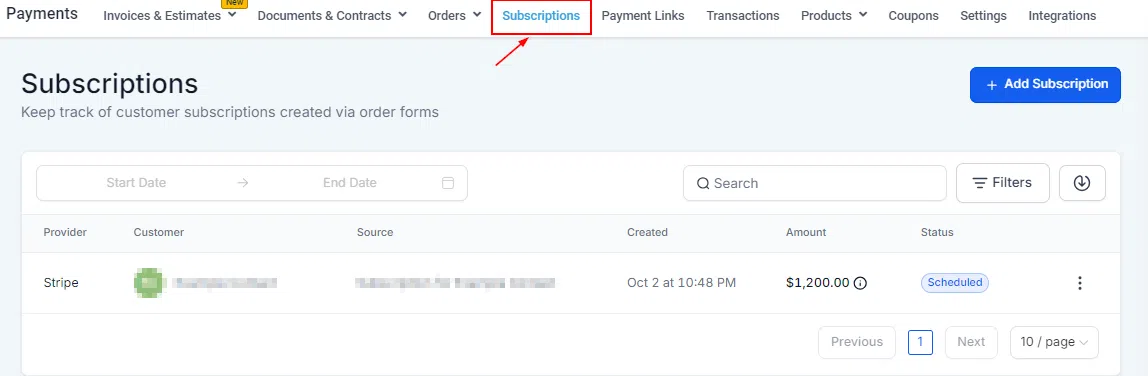
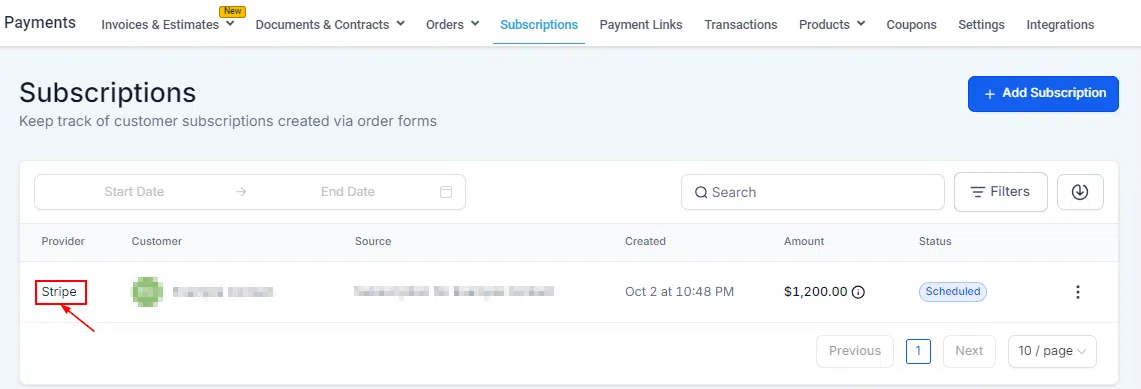
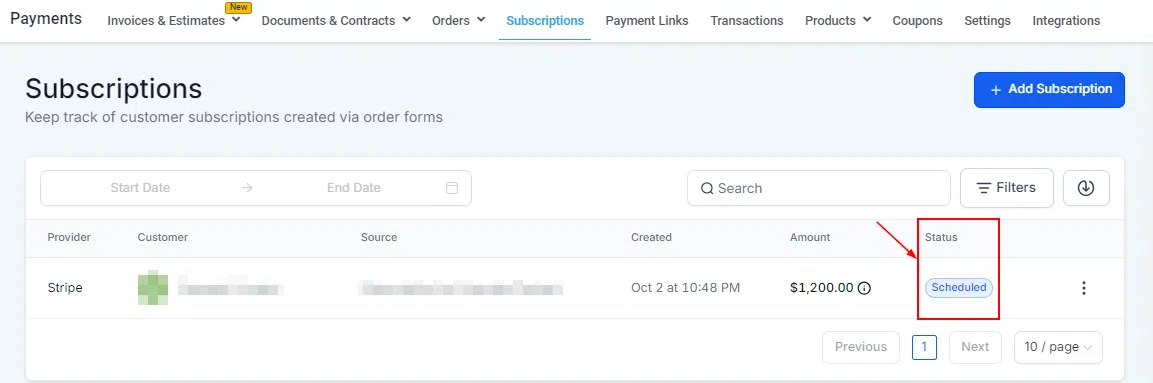
Go to Payments > Subscriptions to see a full list of all active and historical subscriptions. Each subscription displays its current status: Active, Expired, Cancelled, or Failed – so you always have a clear view of your recurring revenue.
Finding Subscriptions
Date Range
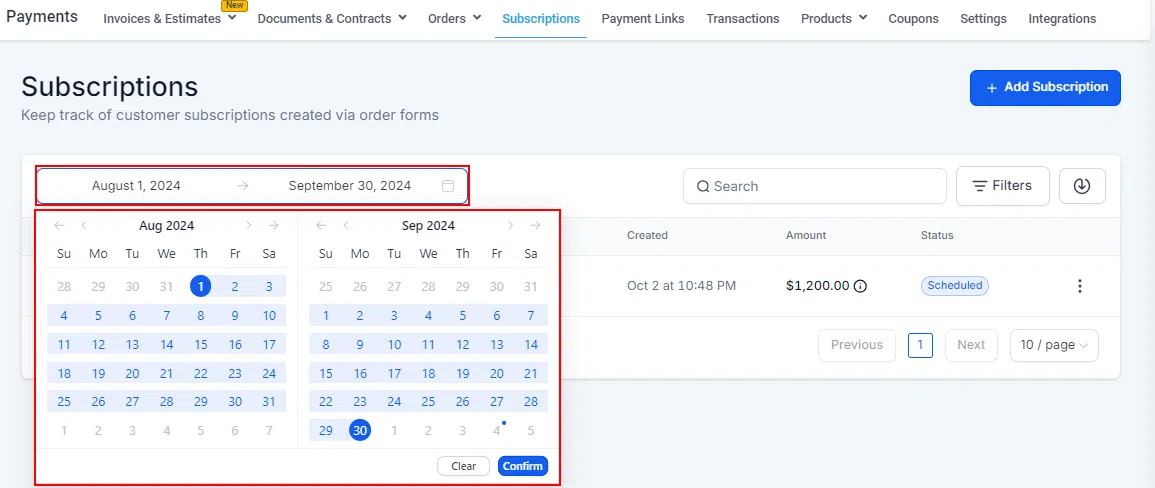
Use the calendar filter to display subscriptions created within a specific period. Select a “from” and “to” date and the list will update accordingly.
Search
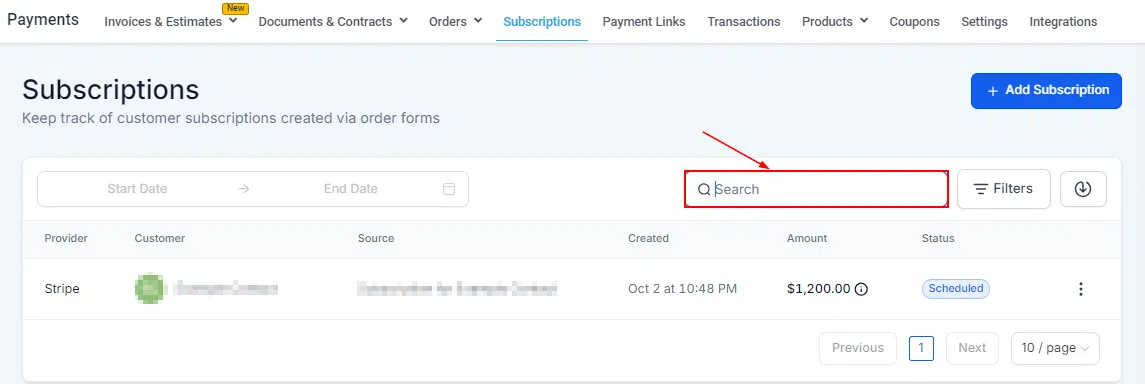
Type a customer’s name into the search bar to quickly pull up their subscription details.
Filters
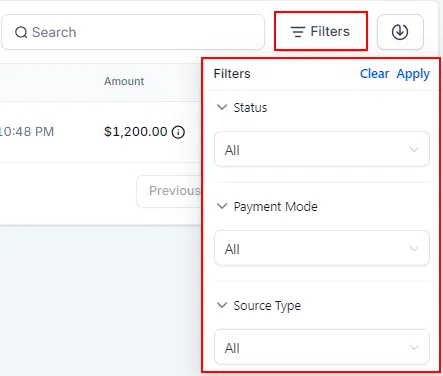
Filter subscriptions by status, product, or other criteria to focus on the segment most relevant to you.
Subscription Details
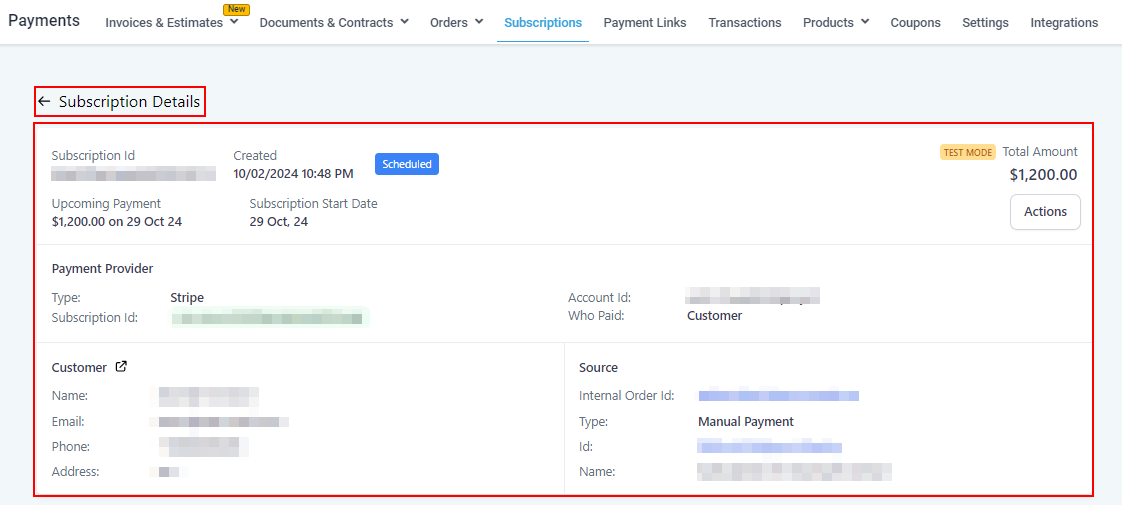
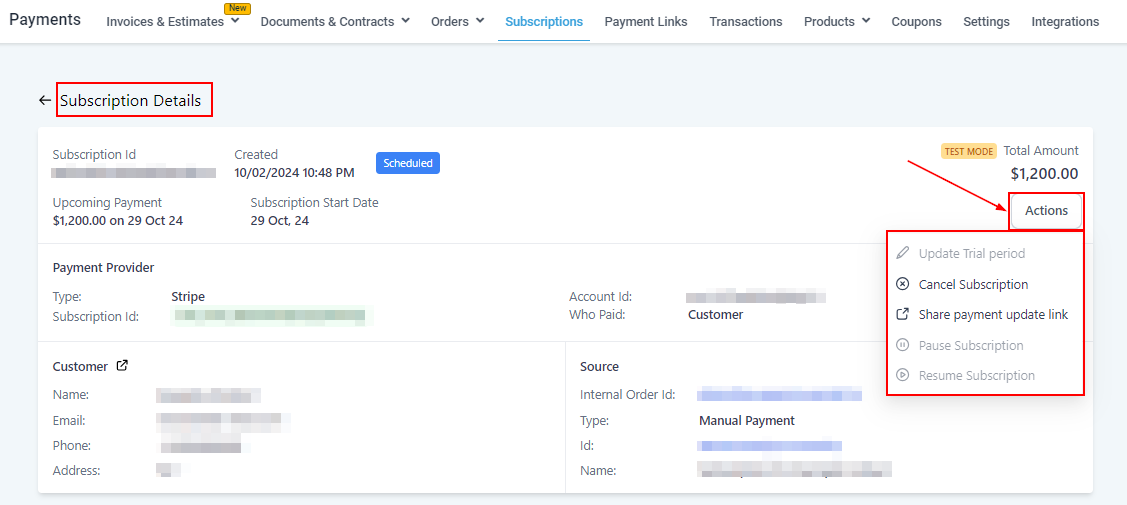
Click on any subscription to view its full details – including the product, billing cycle, payment history, and the customer’s contact information.
Managing Subscriptions
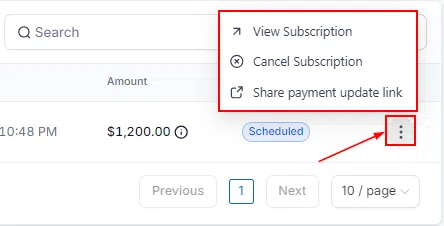
Use the actions menu on any subscription to manage its lifecycle.
Pause and Resume
You can pause an active subscription when a customer requests a break, and resume it when they’re ready to continue. The billing cycle pauses and resumes accordingly.
Cancel
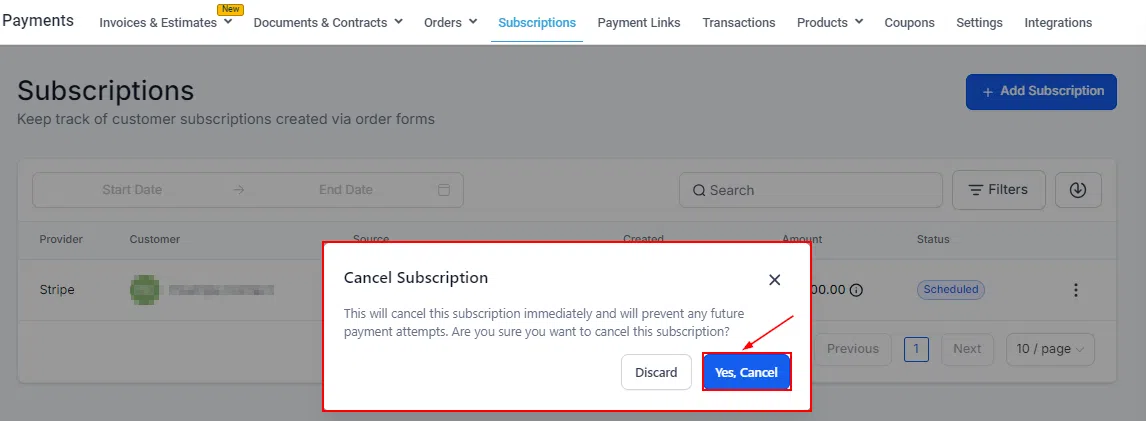
Cancelling a subscription stops future billing. The subscription status will update to Cancelled in the list.
Send an Update Email
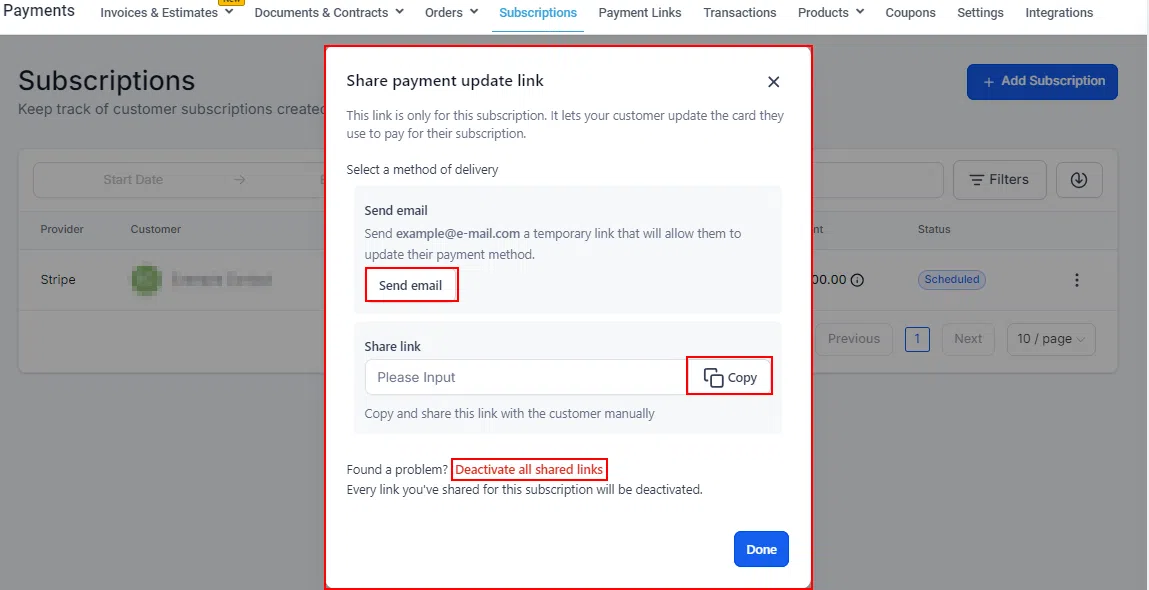
If a customer’s payment method needs updating, click Send email to automatically send them a link to update their card details. Growth360 handles the email delivery and secure update process.
Share a Payment Update Link
Alternatively, copy the payment update link manually and share it with the customer through your preferred channel. You can also Deactivate all shared links to invalidate any previously shared update links for that subscription.