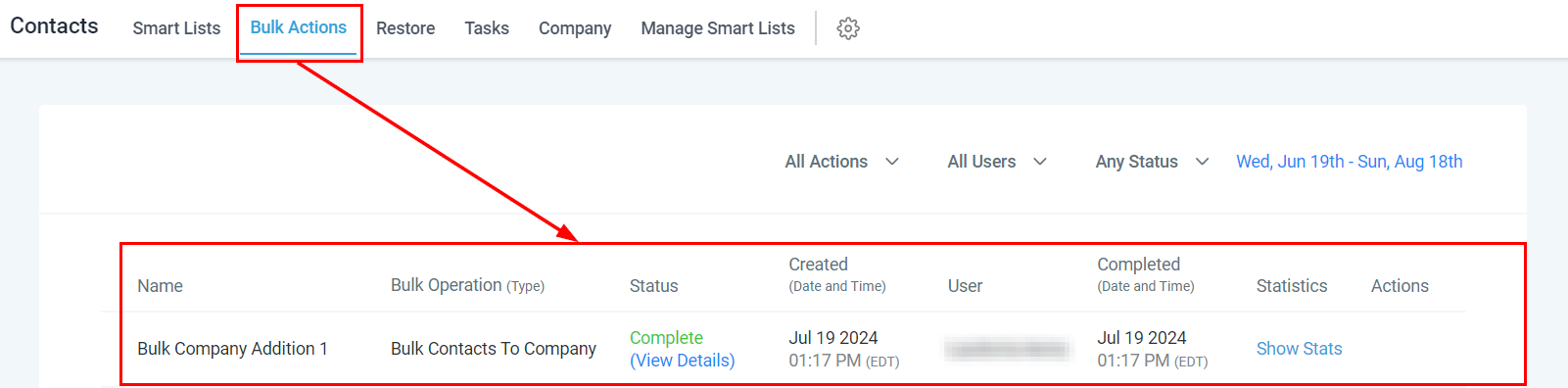
Growth360 lets you manage pipeline opportunities and company records for multiple contacts at once from the Smart Lists view. This article covers two related bulk actions: adding or updating opportunities, and adding or editing contacts within a company.
Add/Update Opportunities for Multiple Contacts
The Add/Update Opportunity bulk action lets you place multiple contacts into a pipeline, set their stage, and fill in opportunity details – all in a single operation.
Select Contacts and Open the Action
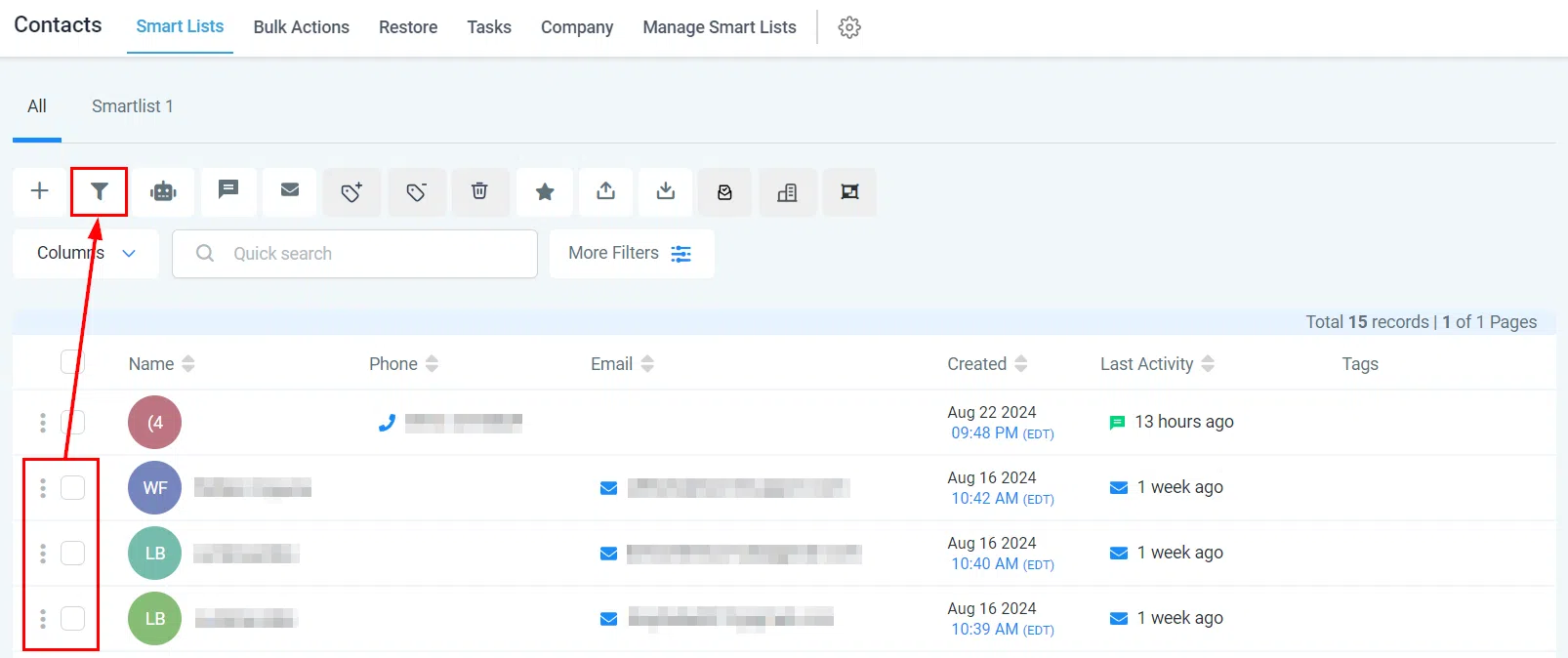
Select the contacts you want to manage, then click the funnel icon (Pipeline Change) in the bulk actions bar.
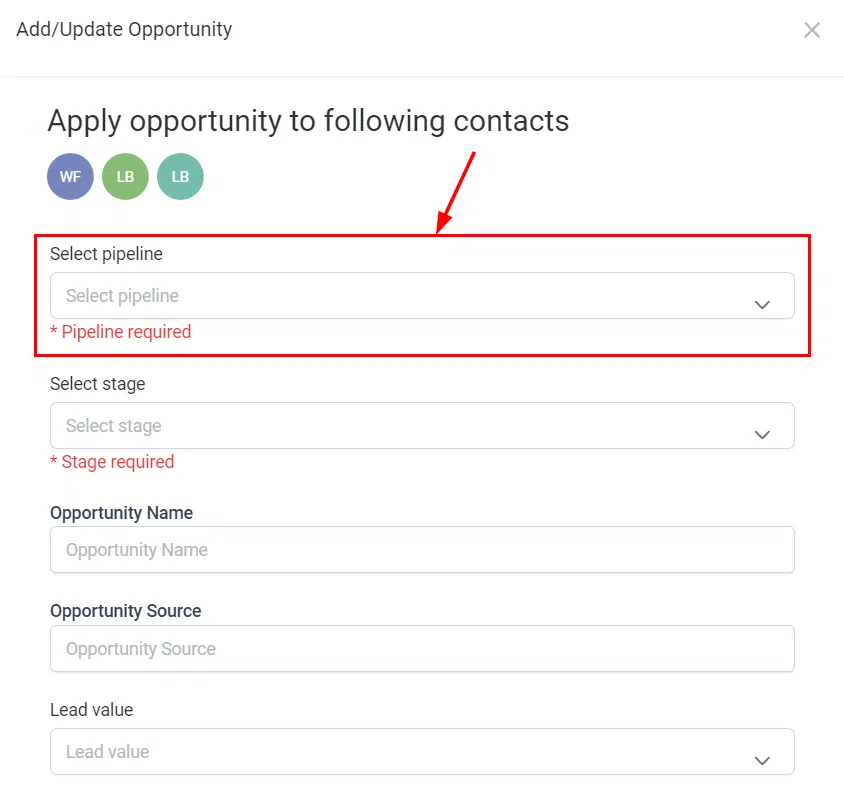
Select Pipeline
Choose the pipeline where you want these contacts placed from the dropdown.
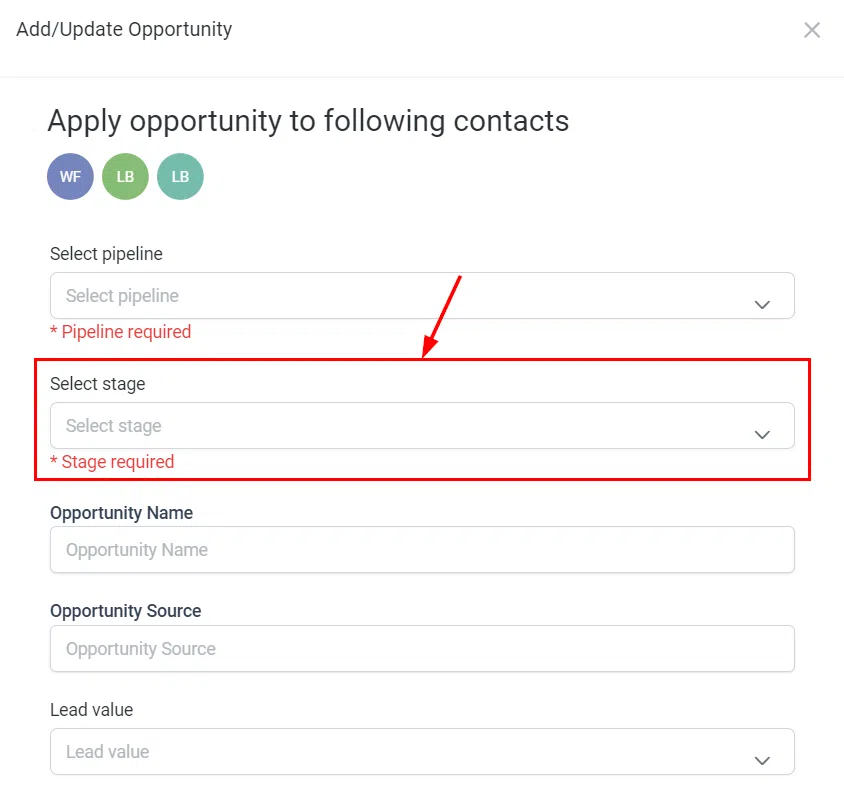
Select Stage
From the actions dropdown, select the corresponding pipeline stage.
Opportunity Name
Enter a name for the opportunity. This appears on the opportunity card and is separate from the contact name.
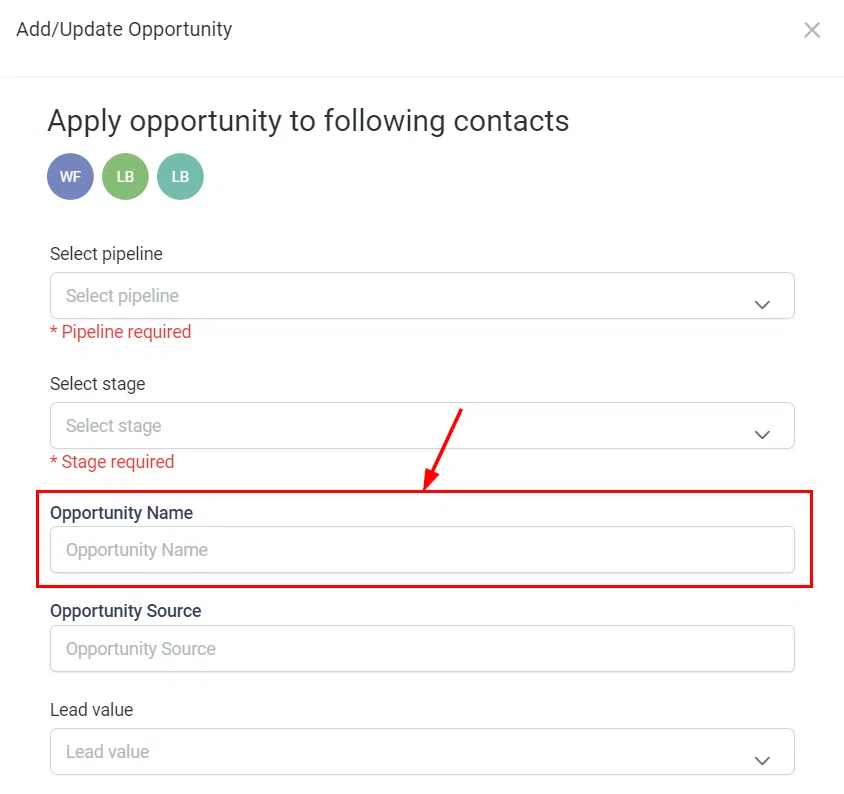
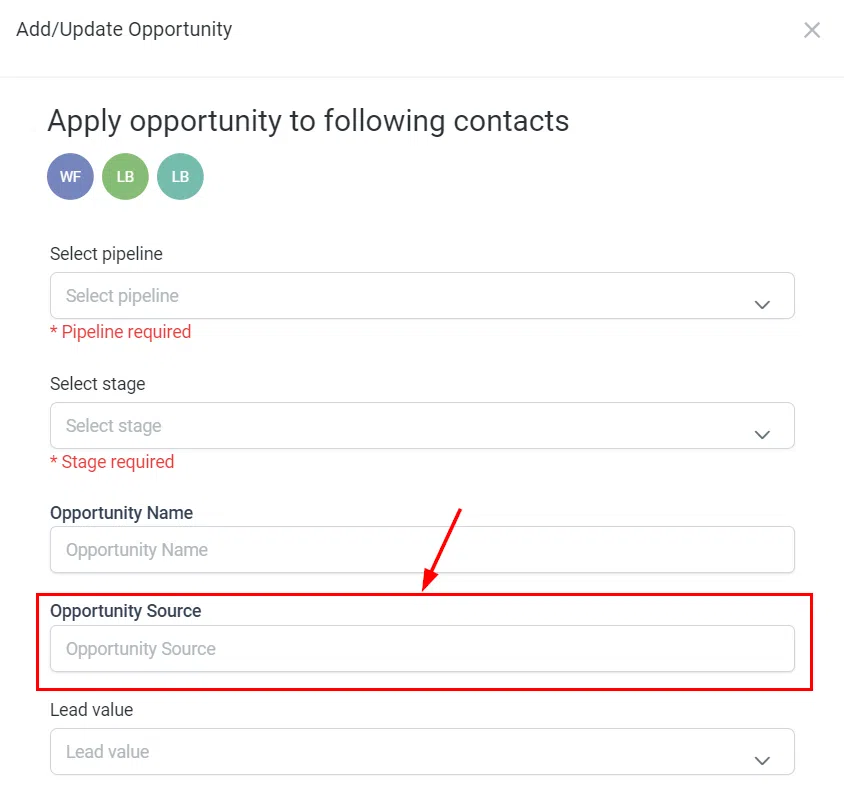
Opportunity Source
Specify the source from which you acquired these contacts.
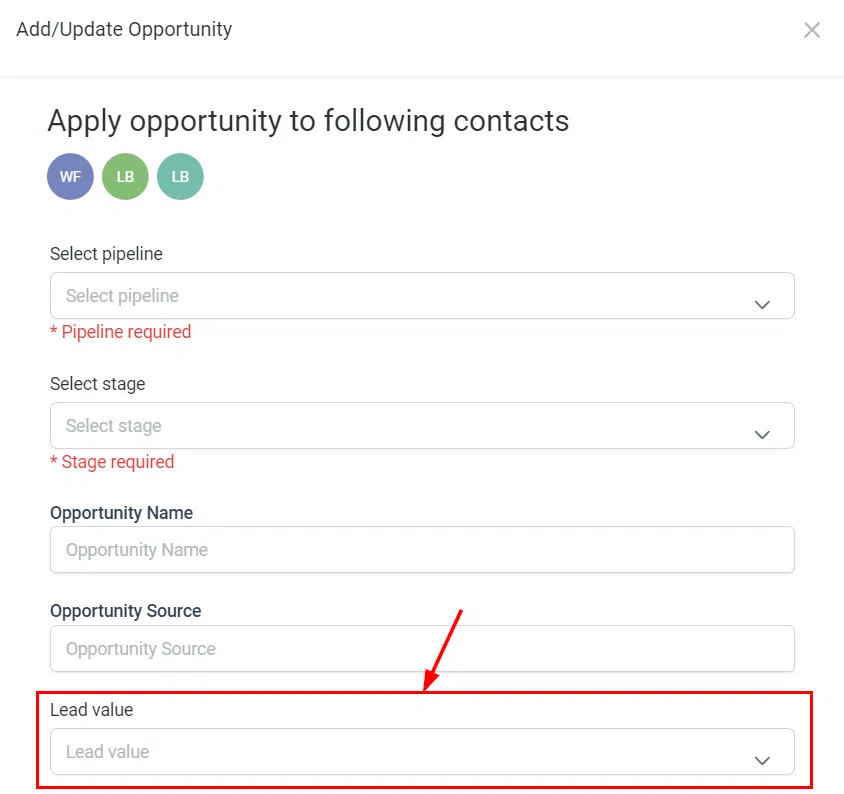
Lead Value
Enter the estimated value of the potential sale. This amount is added to your revenue once the opportunity is won.
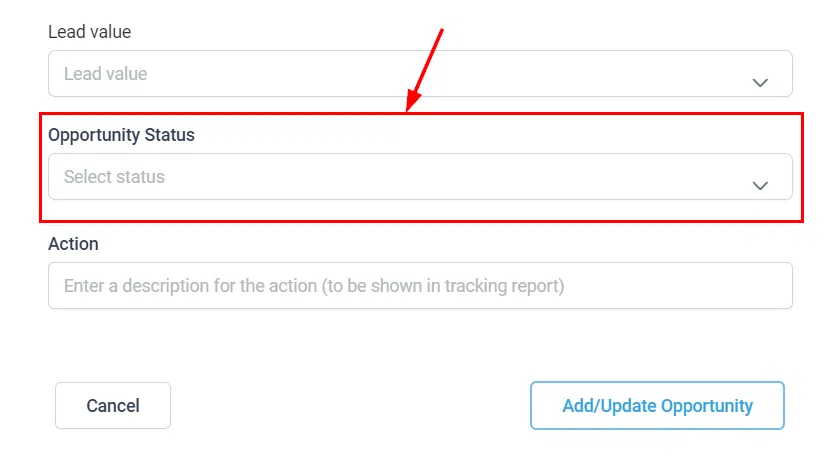
Opportunity Status
Select the desired status for the opportunity (e.g. Open, Won, Lost).
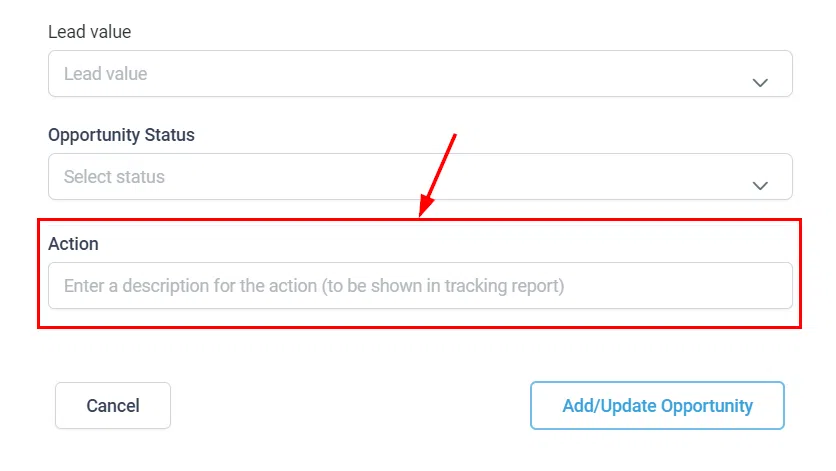
Action Label
Give this bulk action a descriptive name. It will appear in the tracking report under Contacts > Bulk Actions.
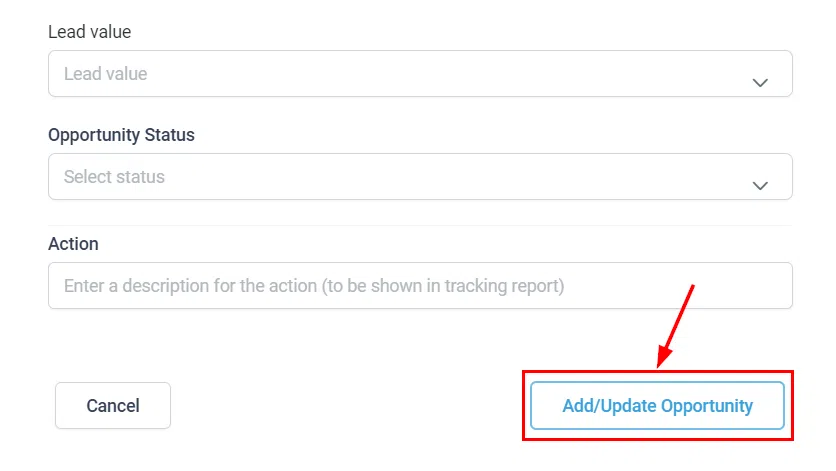
Save
Once all fields are completed, click Apply/Update Opportunity to apply the changes to all selected contacts at once.
Add/Edit Contacts to a Company
The Company bulk action lets you add, update, or remove multiple contacts from a company record in one step, directly from the Smart Lists page.
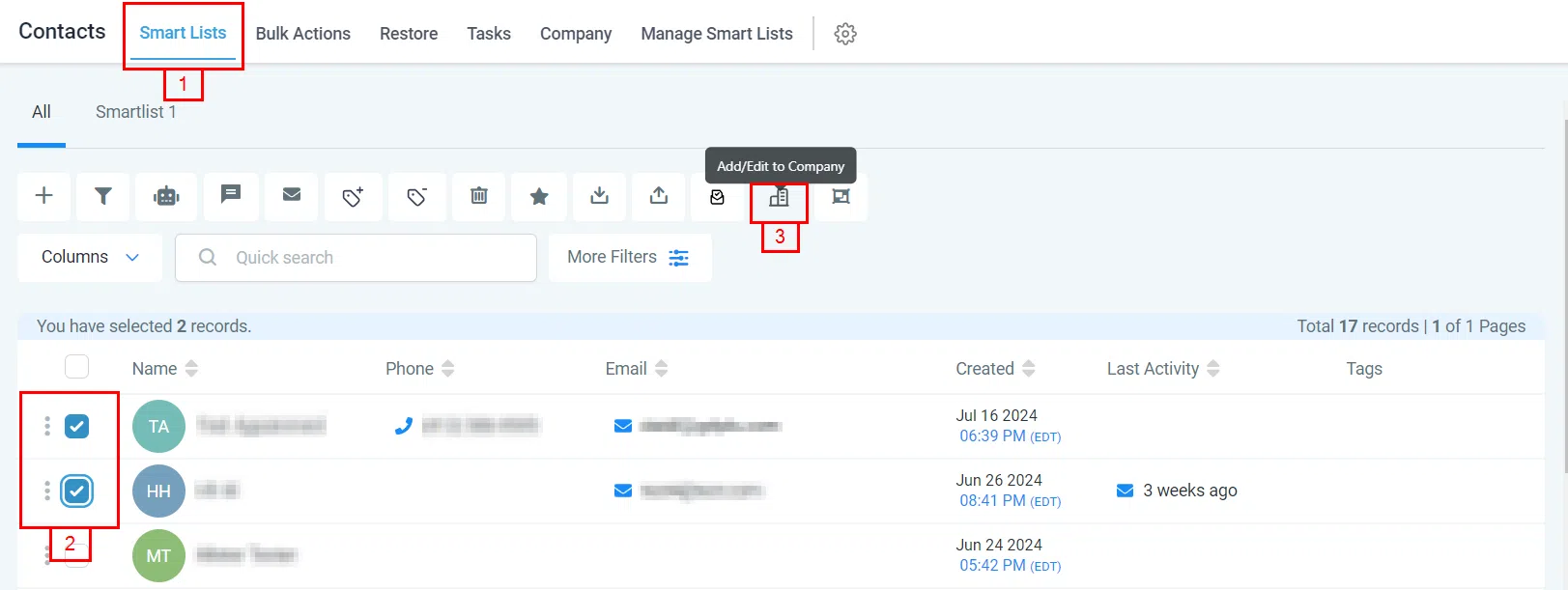
Select Contacts and Open the Action
On the Smart Lists page, select all the contacts you want to manage, then click Add/Edit to Company in the bulk actions panel.
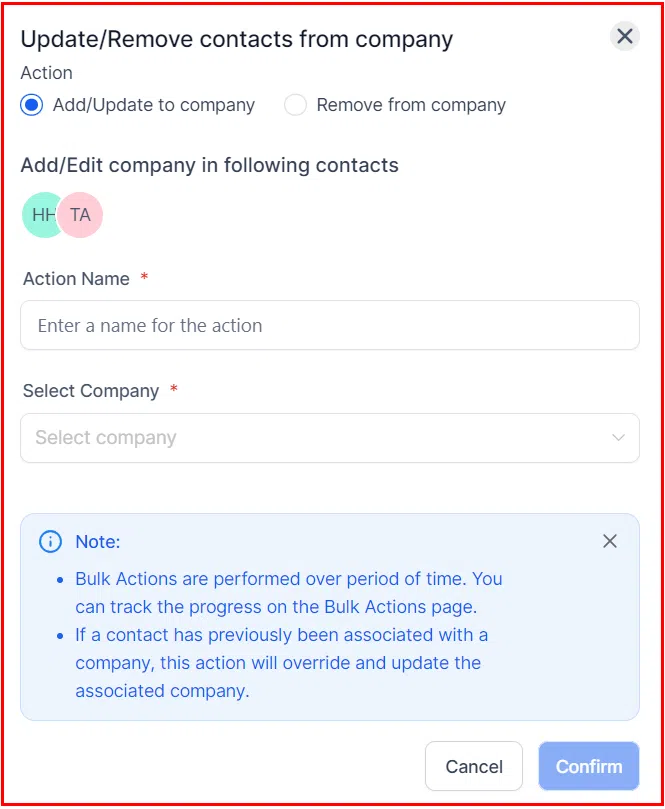
Input Details and Submit
Choose whether to add or update the company record, or remove the selected contacts from the company. Name the action, then select the appropriate company from the dropdown. Click Confirm to finalise.
Check the Results
Review the outcome of the action under Contacts > Bulk Actions.