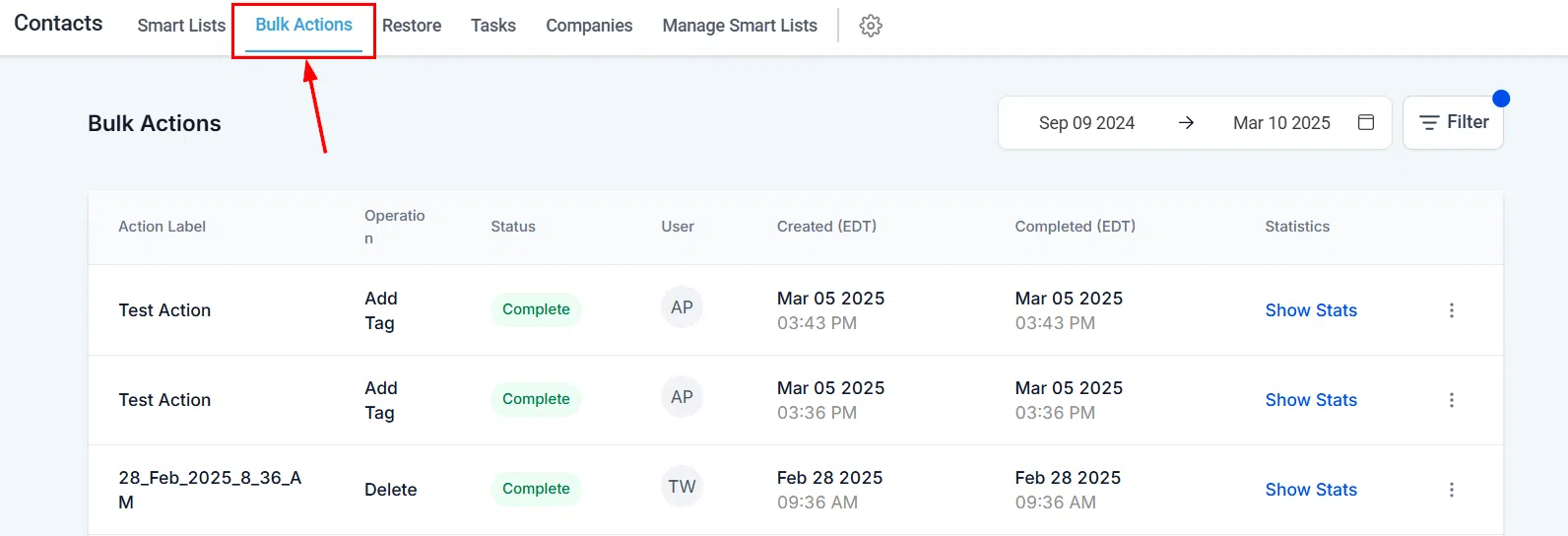
When you select a group of contacts and perform an action – such as sending an email or SMS, adding contacts to a workflow, or updating tags – Growth360 creates these as bulk actions. You can trigger bulk actions using the Quick Action buttons in your Smart Lists, and monitor or manage them in the Bulk Actions section within the Contacts tab.
Quick Action Buttons
The Quick Action buttons appear at the top of your Contacts > Smart Lists view. Select one or more contacts, then click the relevant button to perform a bulk action.
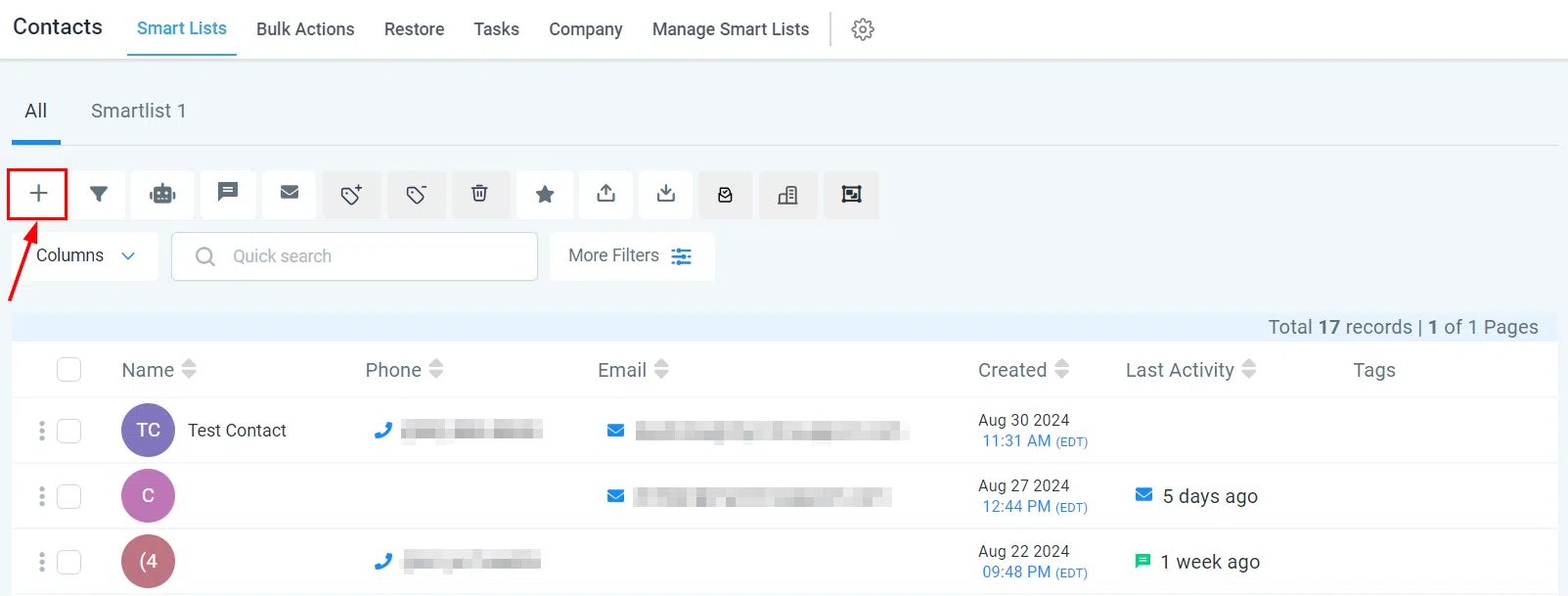
Add Contact
Click the + button at the top left of the contacts page to manually add a new contact.
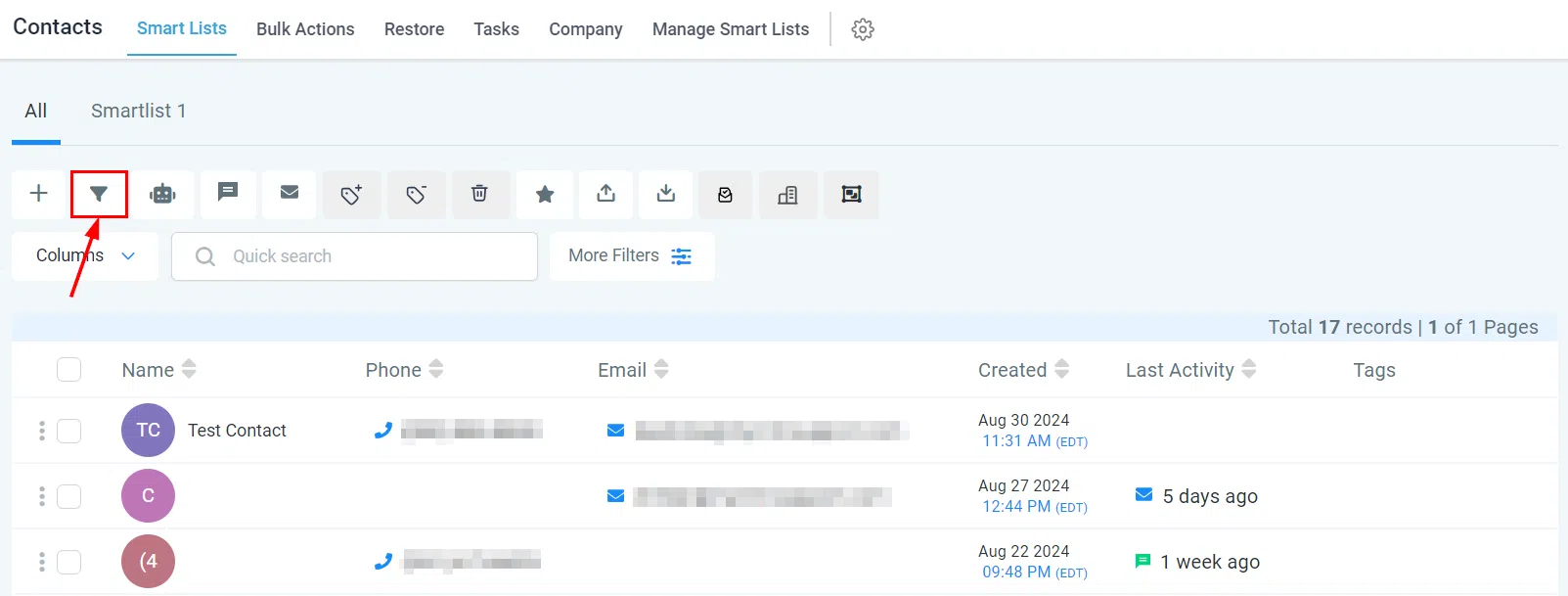
Pipeline Change
Quickly add or update the pipeline stage of selected contacts using the Pipeline Change action.
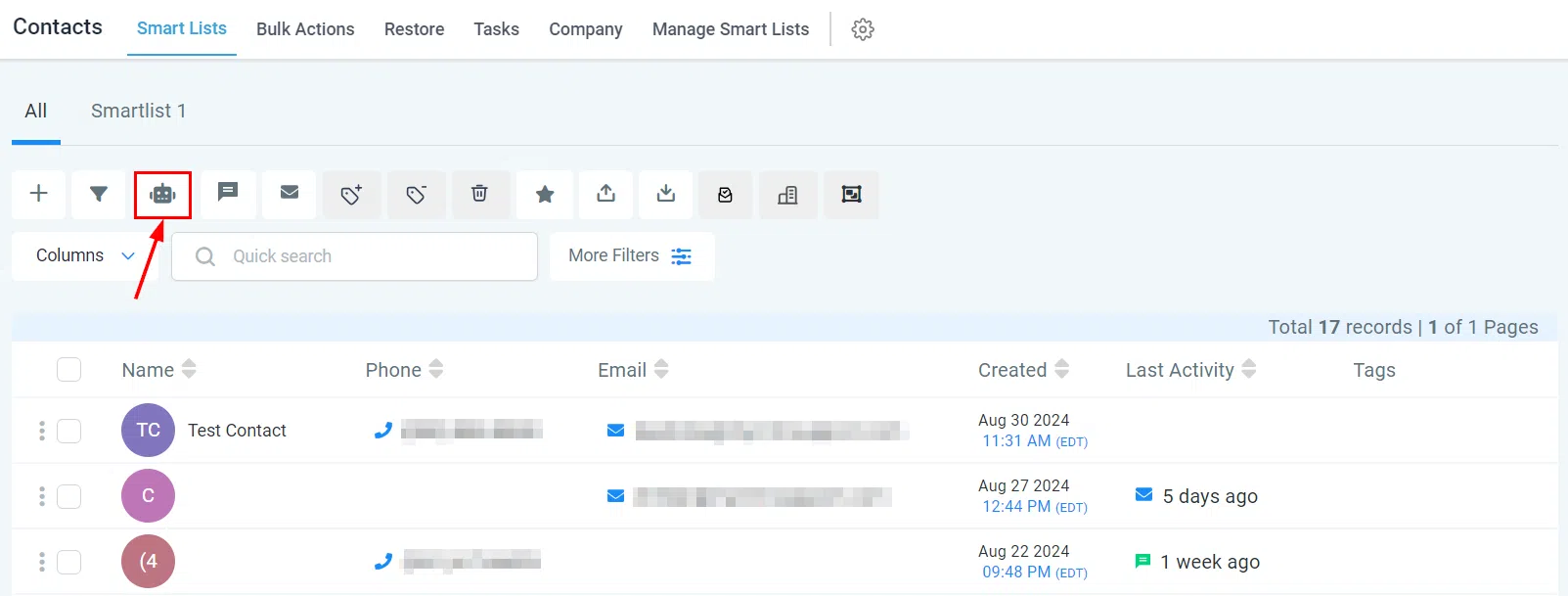
Add to Automation
Add selected contacts to a Campaign or Workflow using the Add to Automation button.
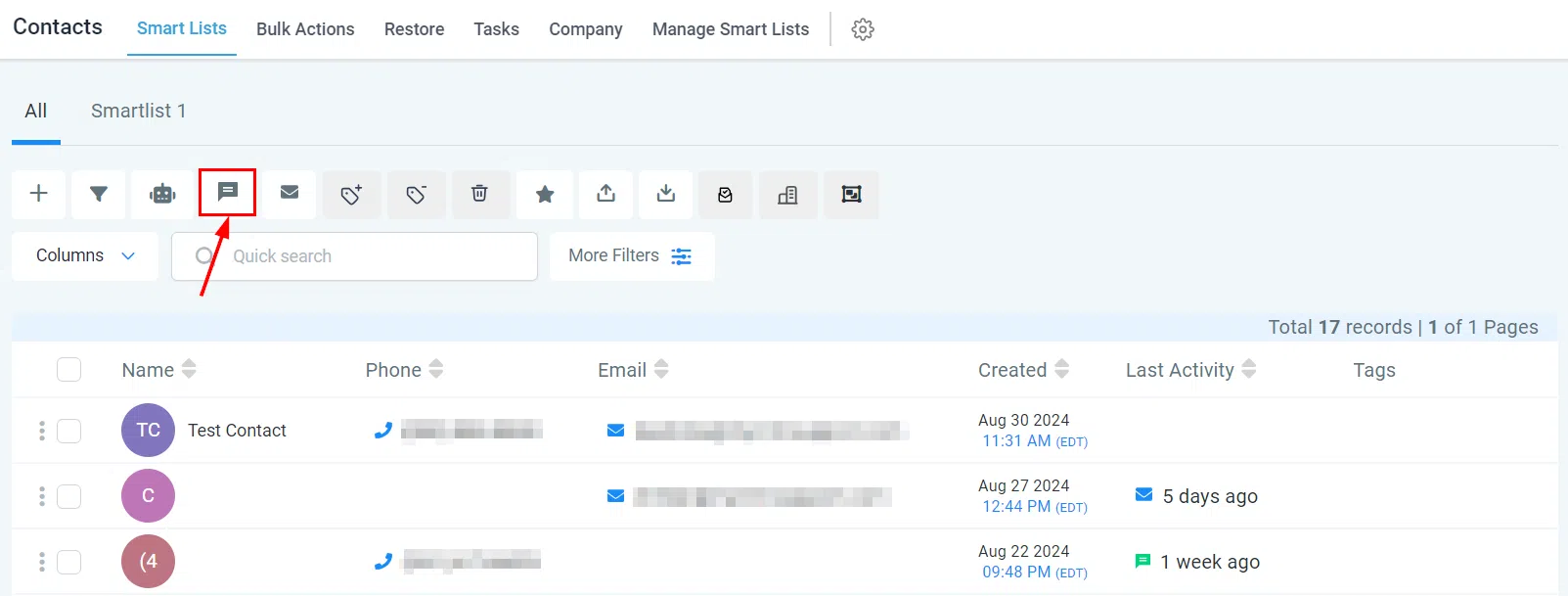
Send SMS
Customise and send a text message to a selected group of contacts or a single individual.
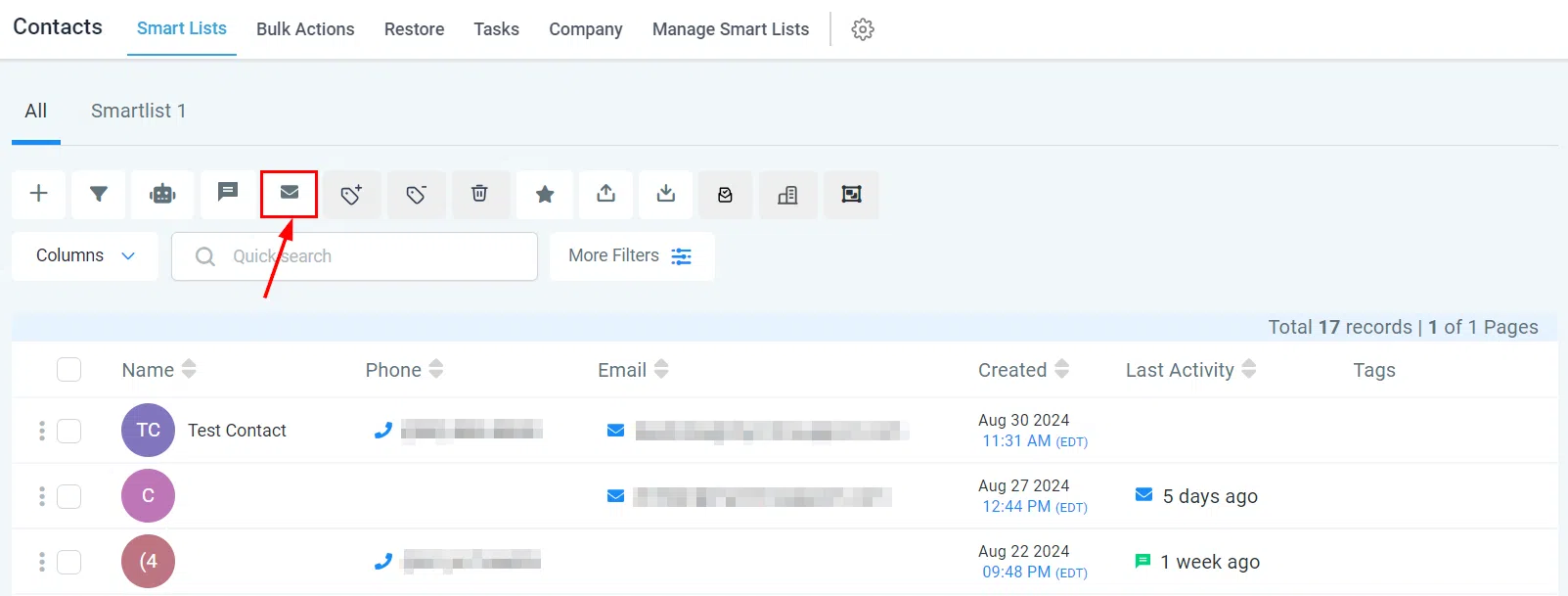
Send Email
Send an email to one or multiple contacts simultaneously.
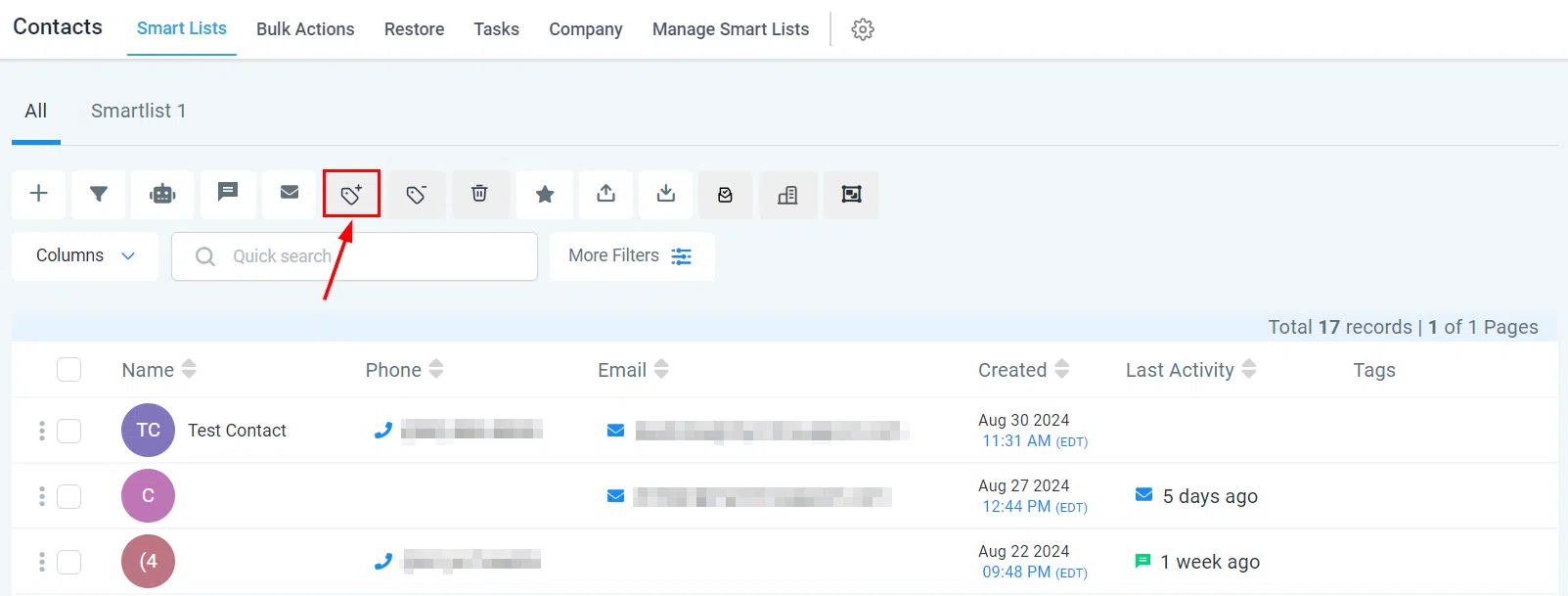
Add Tag
Apply tags to selected contacts in a single click.
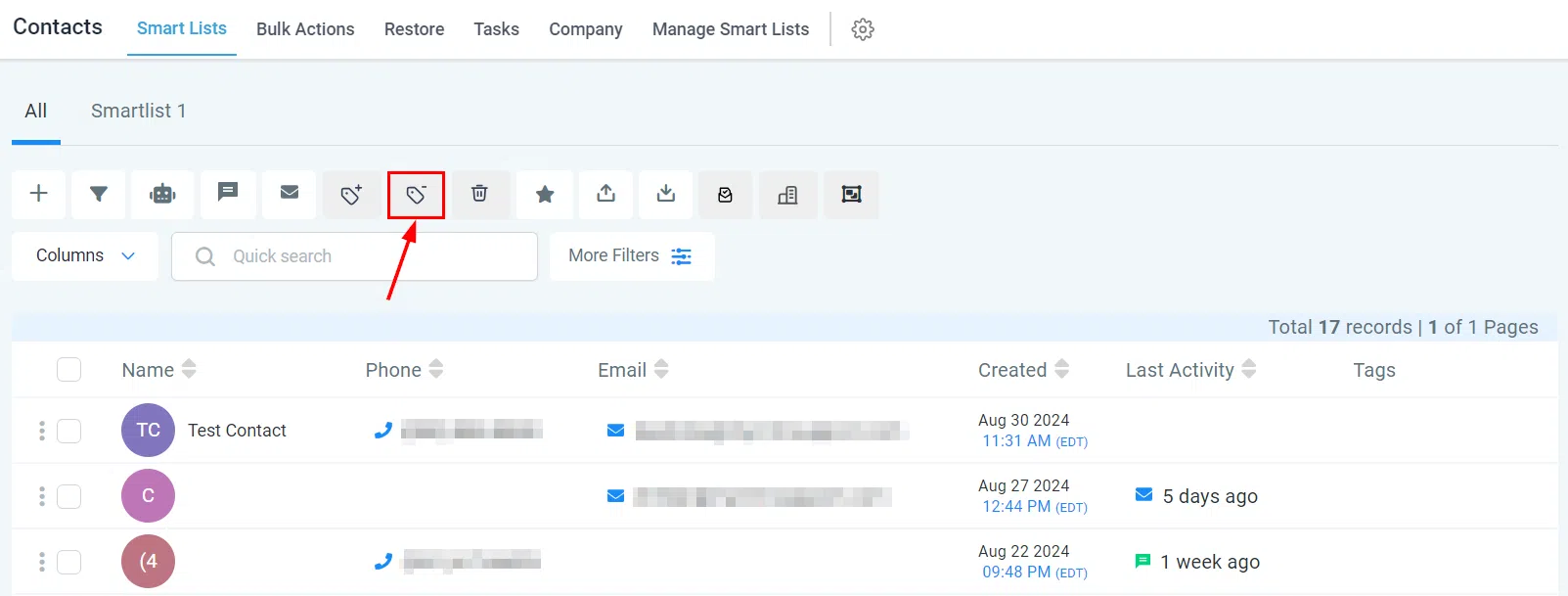
Remove Tag
Strip tags from a single contact or an entire selected group using the Remove Tag action.
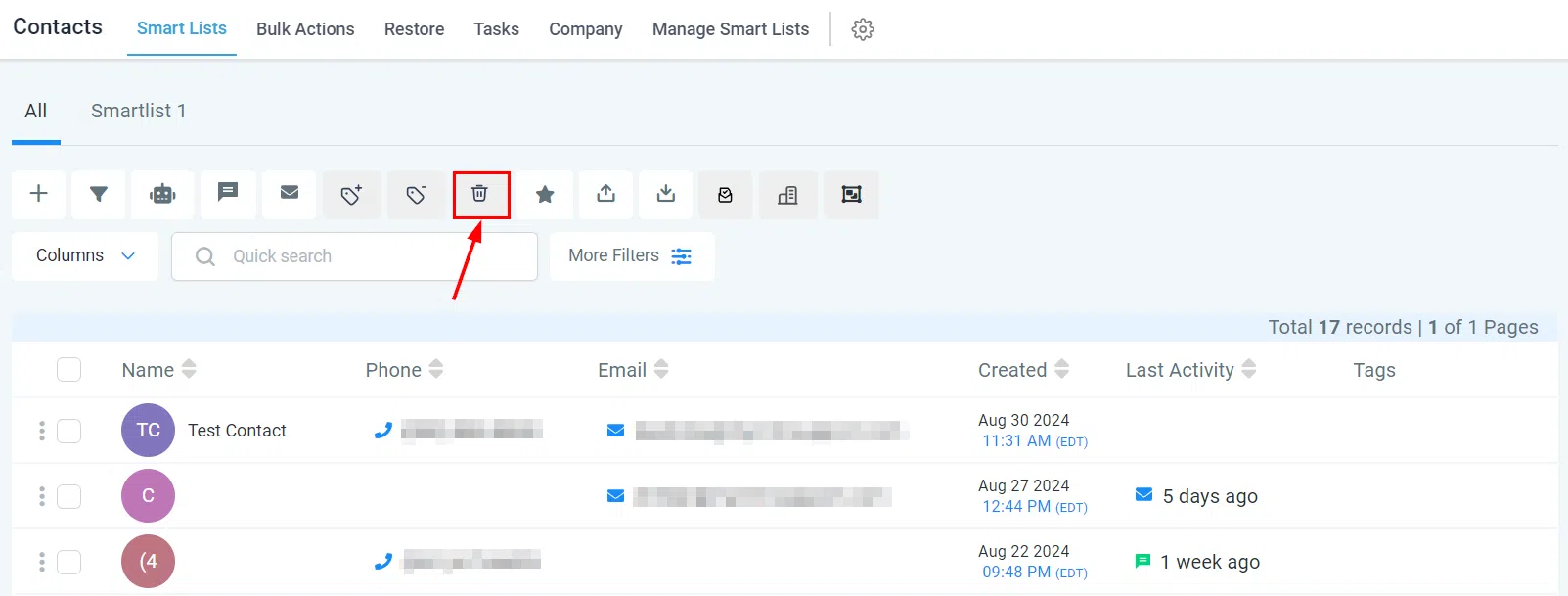
Delete Contact
Select the relevant contacts and use Delete Contact to remove them and keep your list clean.
Send Review Request
Gather client reviews efficiently by selecting contacts and clicking Send Review Requests.
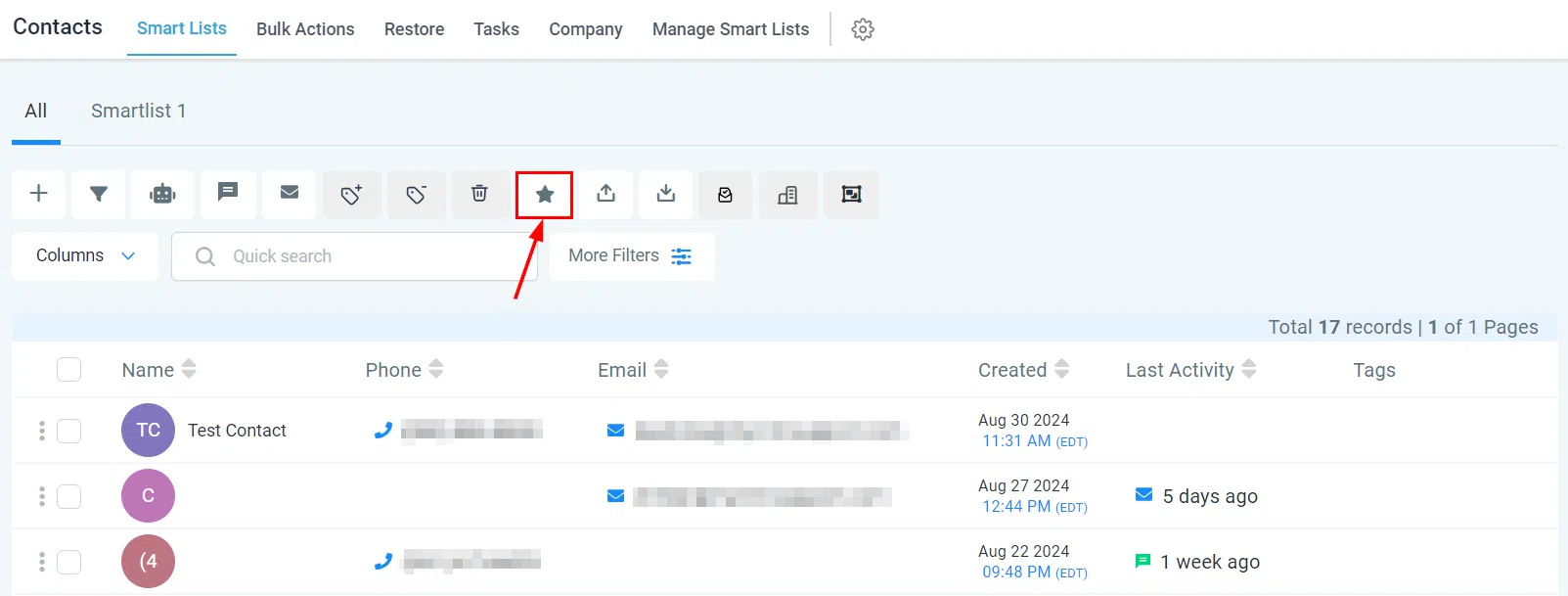
Export Contacts
Download selected contacts to your device using the Export Contacts action.
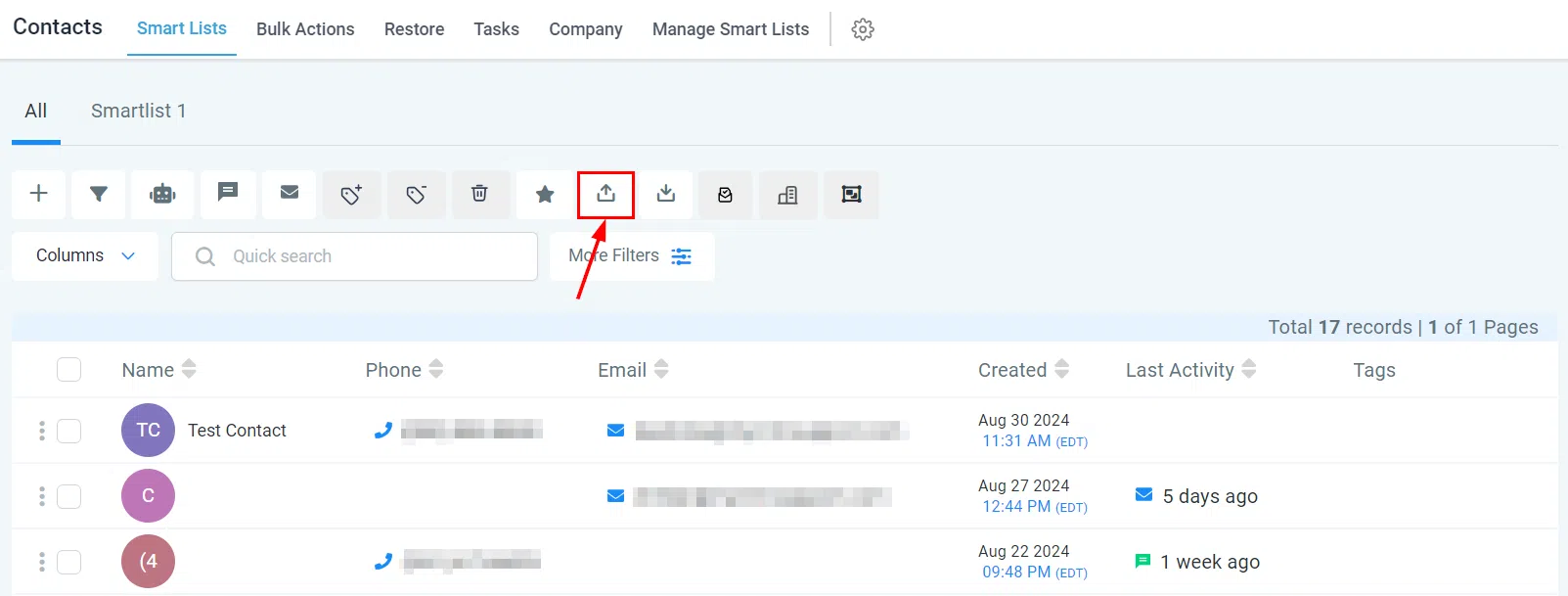
Import Contacts
Upload contacts to the system in bulk using the Import Contacts action.
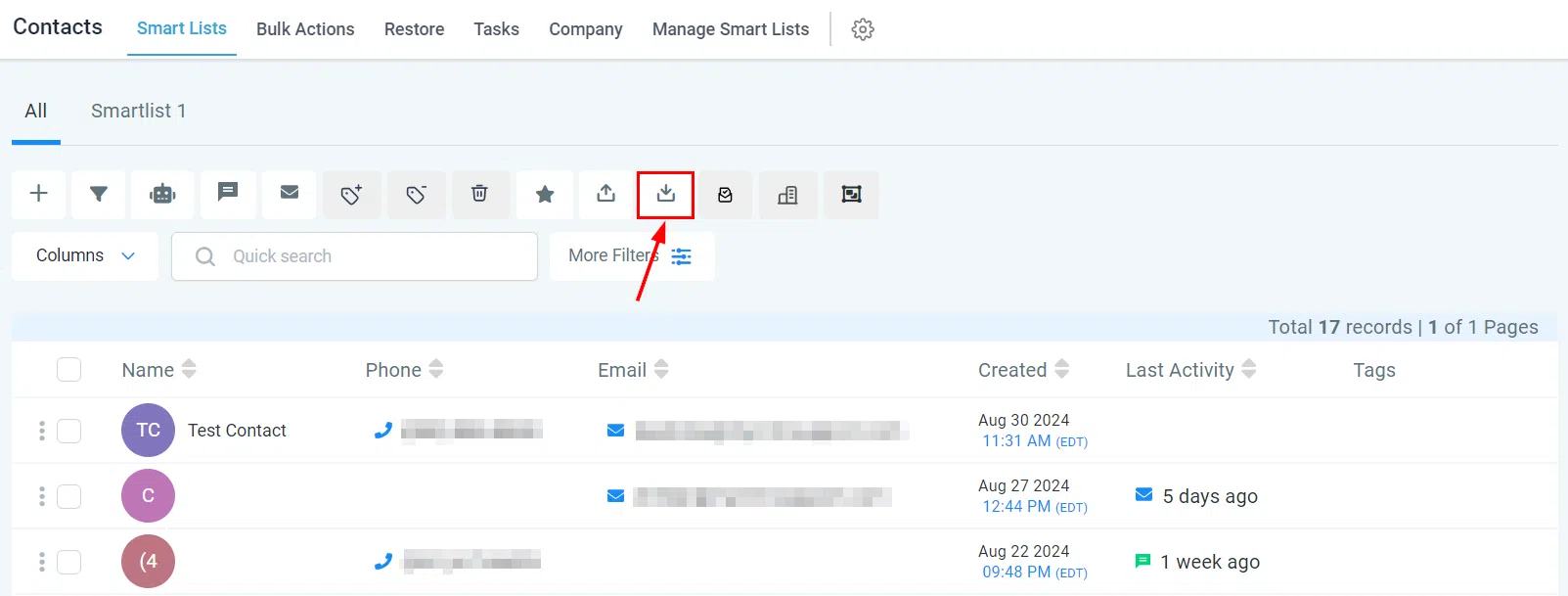
Email Verification
Screen selected contact email addresses for errors using the Email Verification action.
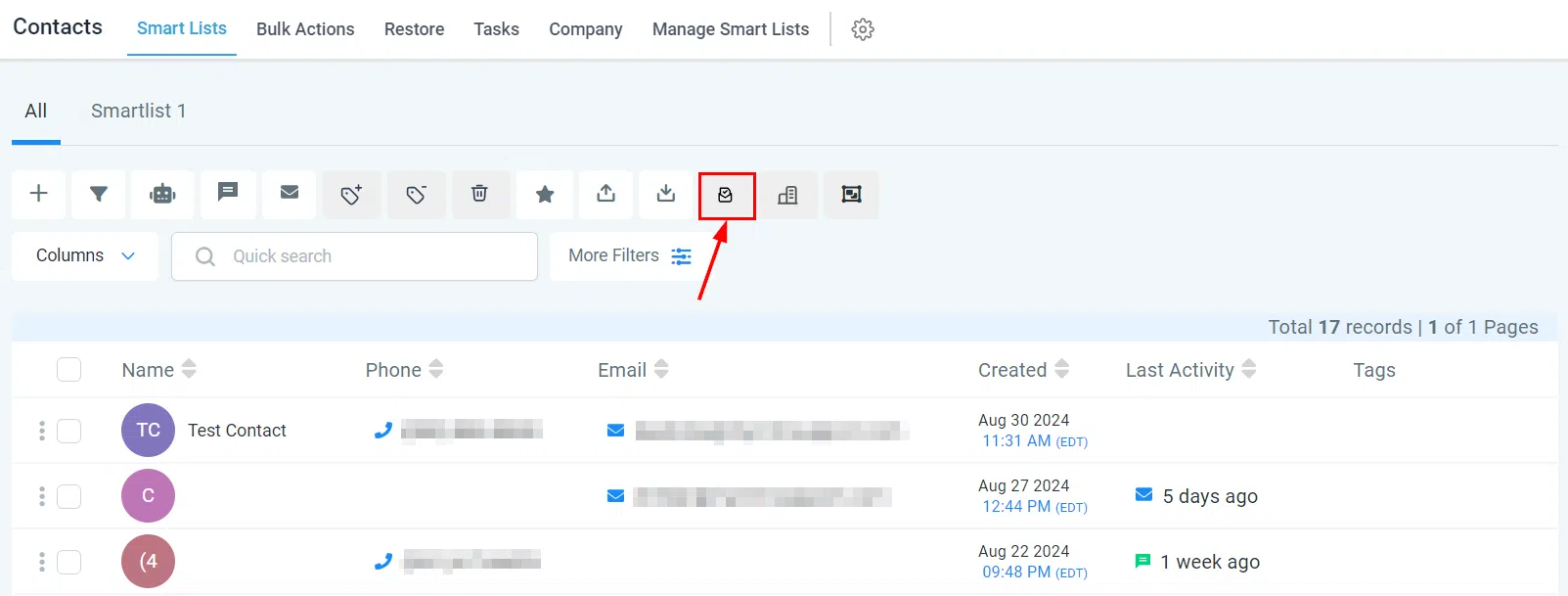
Add/Edit to Company
Add, edit, or remove contacts from a company record to keep your organisation structure accurate.
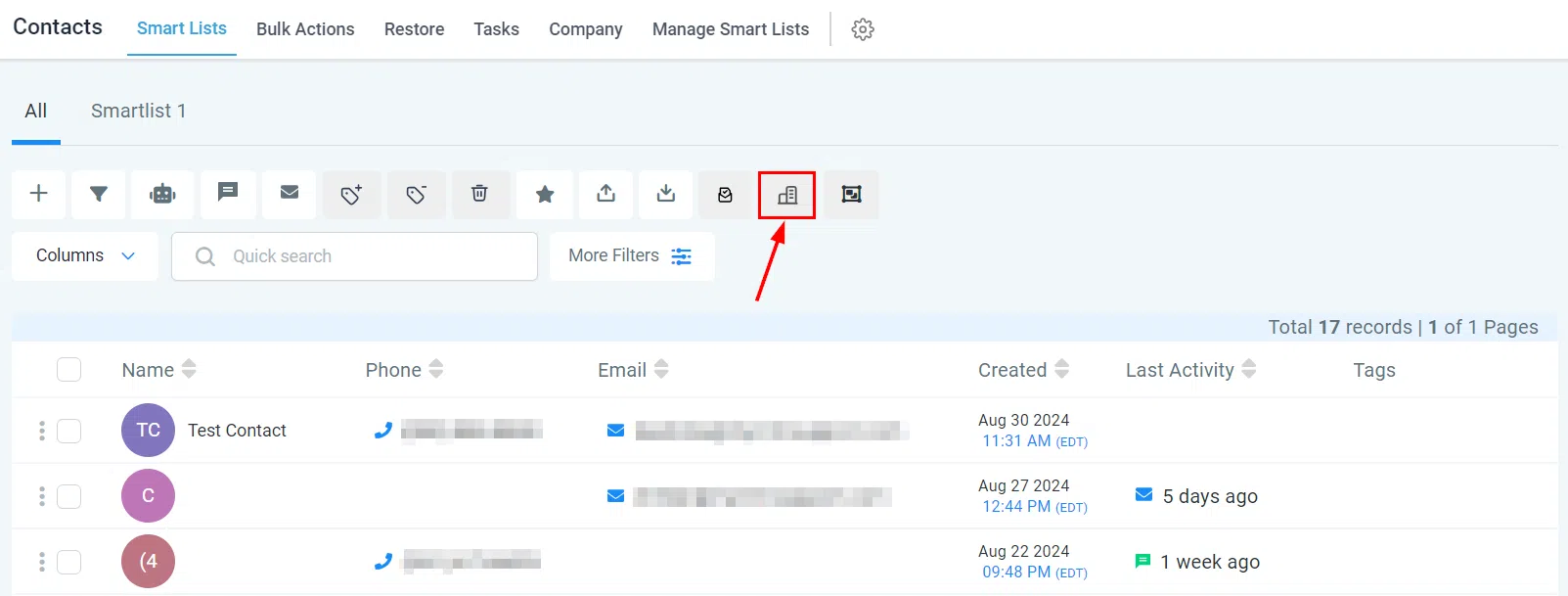
Merge Contacts
When multiple contacts represent the same person, use Merge Contacts to consolidate them into a single record.
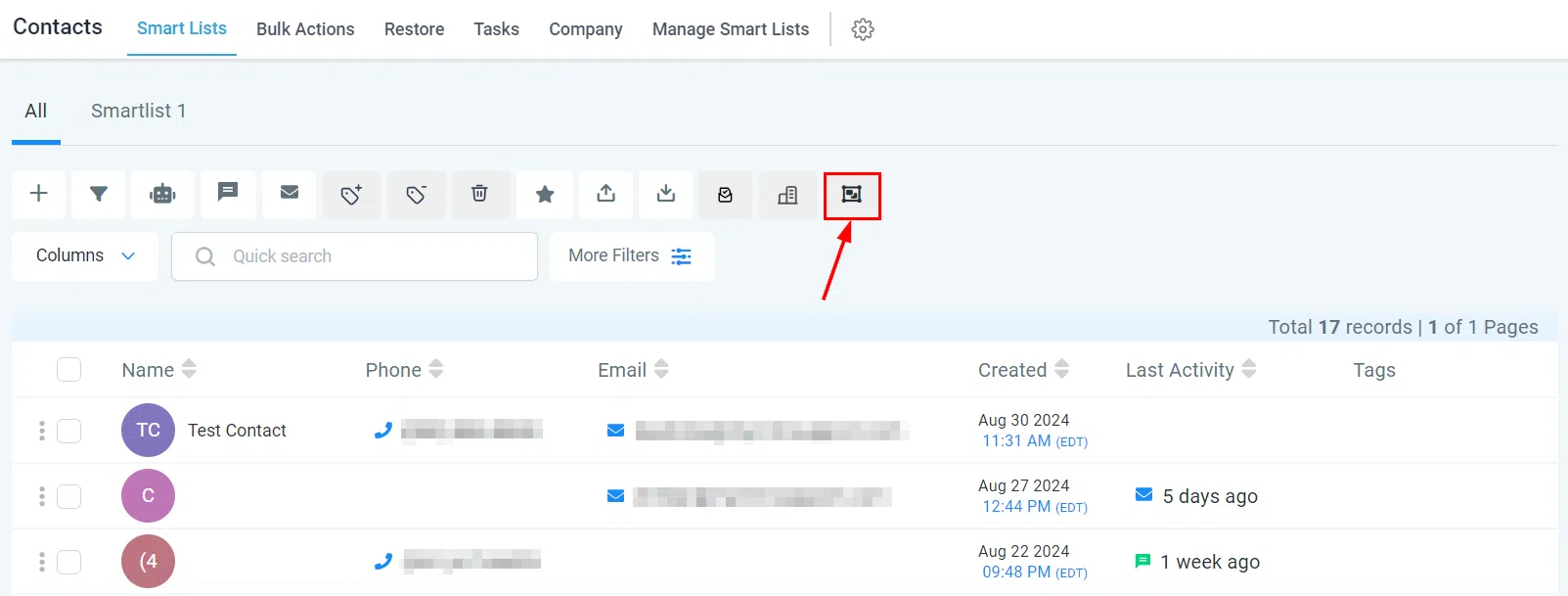
Monitoring Bulk Actions
All bulk actions you initiate are recorded in Contacts > Bulk Actions. If no bulk actions have been created yet, this page will be blank.
Filtering Bulk Actions
Date Range
Use the date range filter to view bulk actions within a specific timeframe.
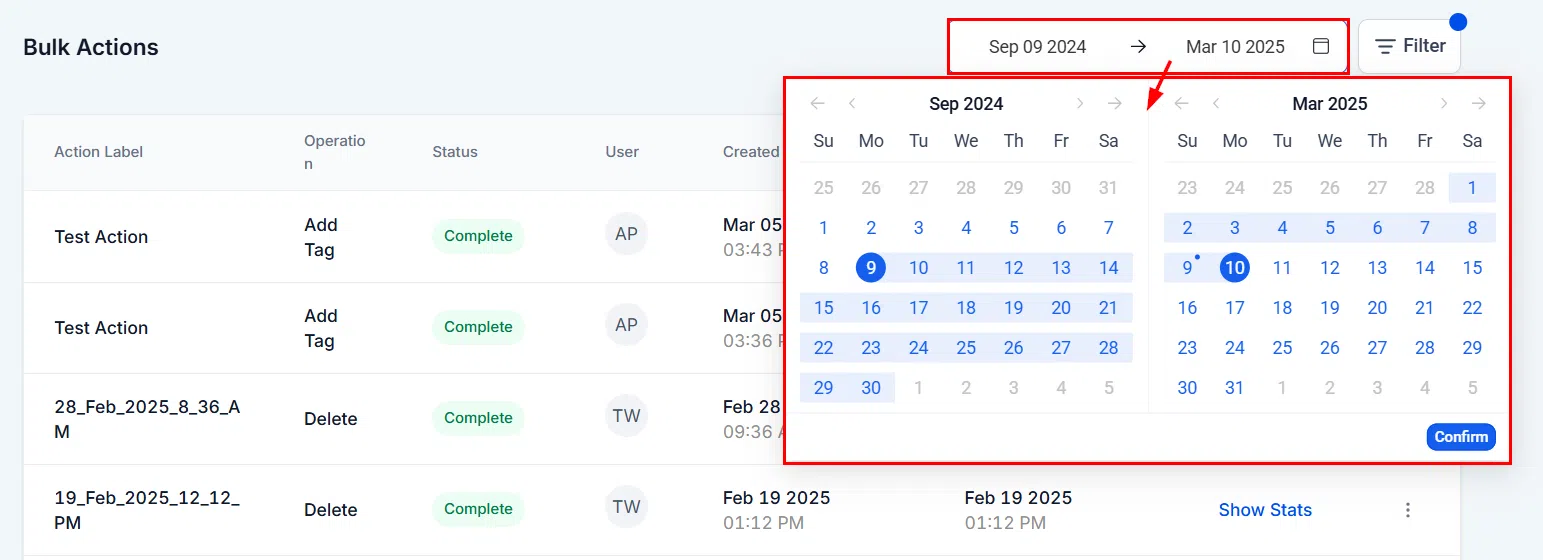
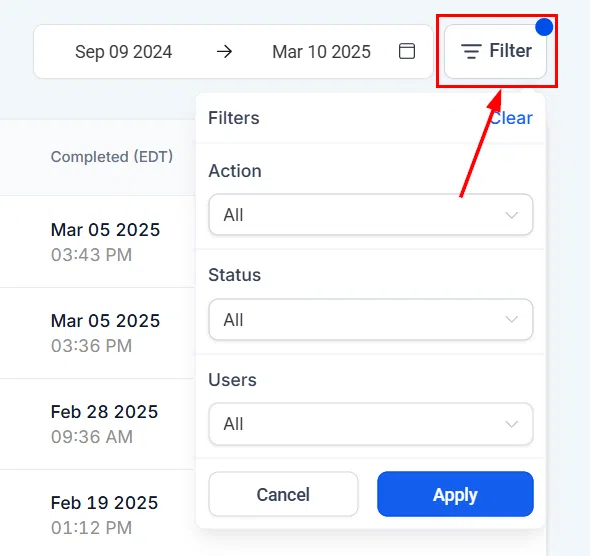
Filter Menu
Click the Filter drop-down at the top of the table to open filtering options.
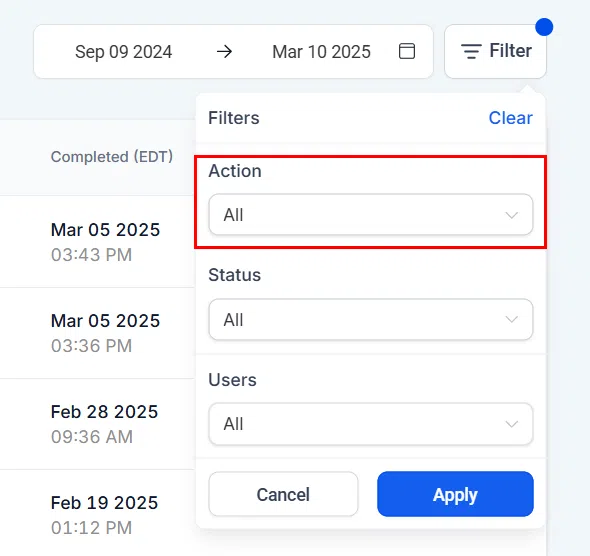
Action
Filter by action type – such as email/SMS, workflows, opportunities, or tags – to quickly locate a specific bulk action.
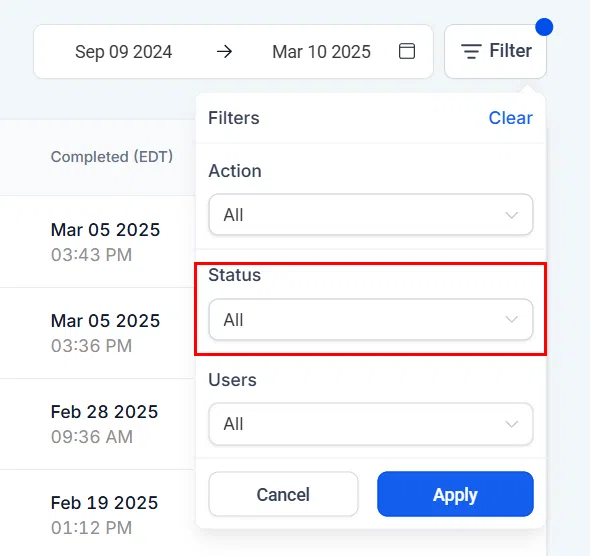
Status
Filter by delivery stage – in progress, completed, or cancelled – using the Status dropdown.
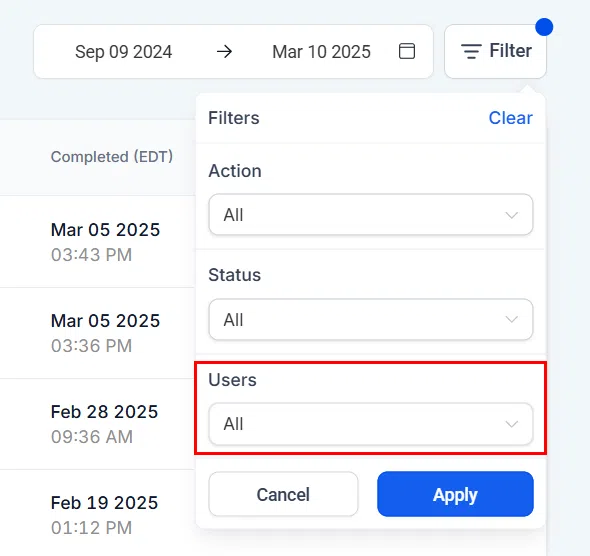
Users
Select a team member from the User dropdown to filter bulk actions by who scheduled them.
After selecting your filters, click Apply to update the table.
Bulk Action Table
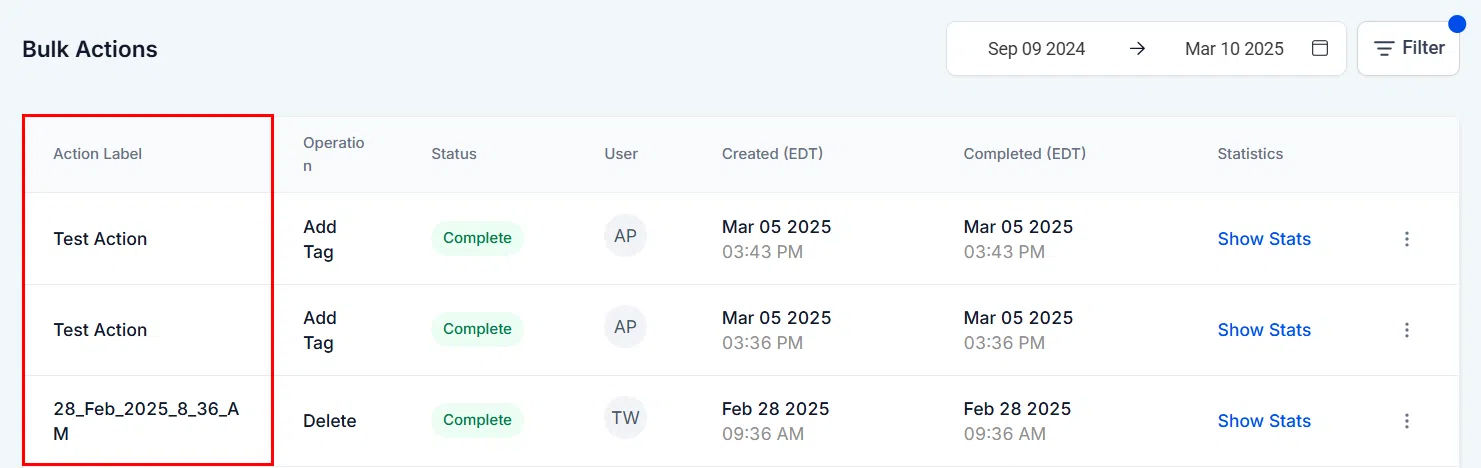
Action Label
The name given to the bulk action by the user who created it.
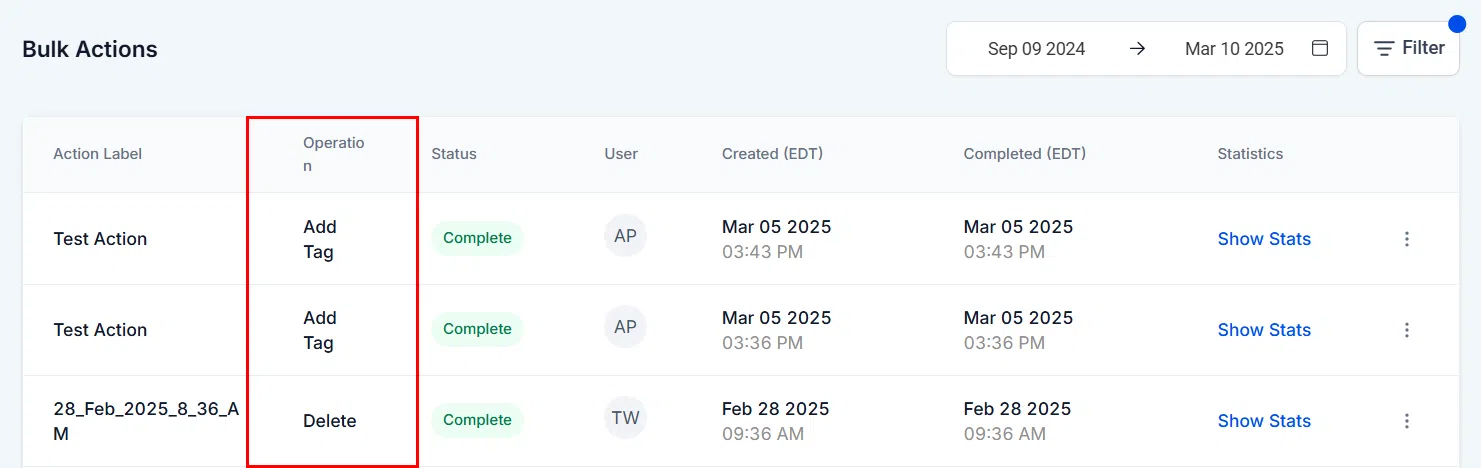
Operation
The type of bulk action performed – for example, adding contacts to a workflow or sending an SMS.
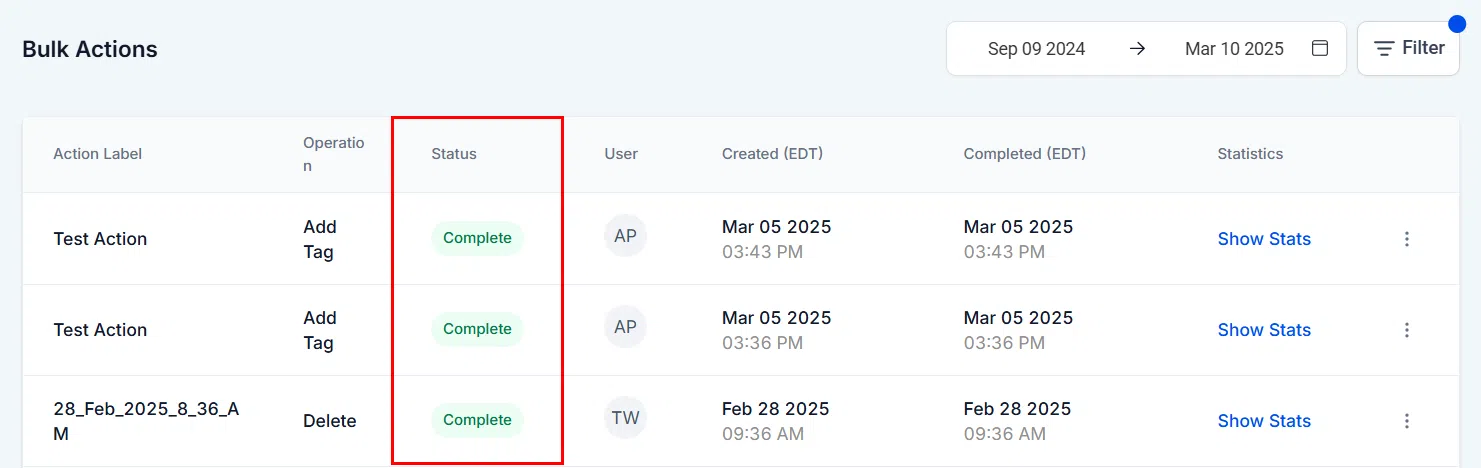
Status
Shows whether the bulk action is in progress, completed, or cancelled.
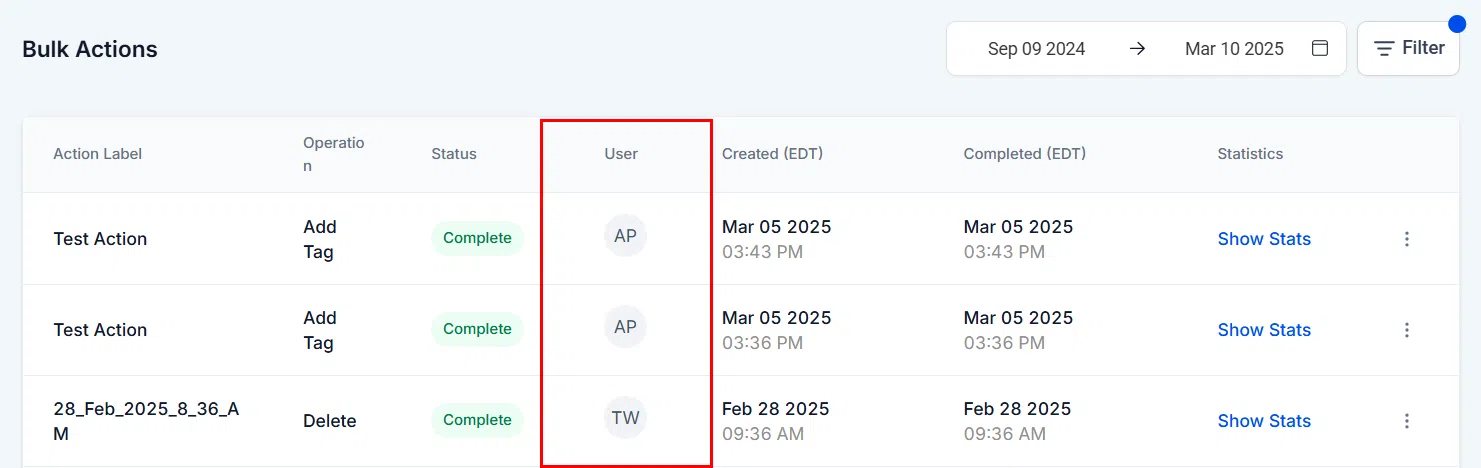
User
Indicates which team member scheduled the bulk action.
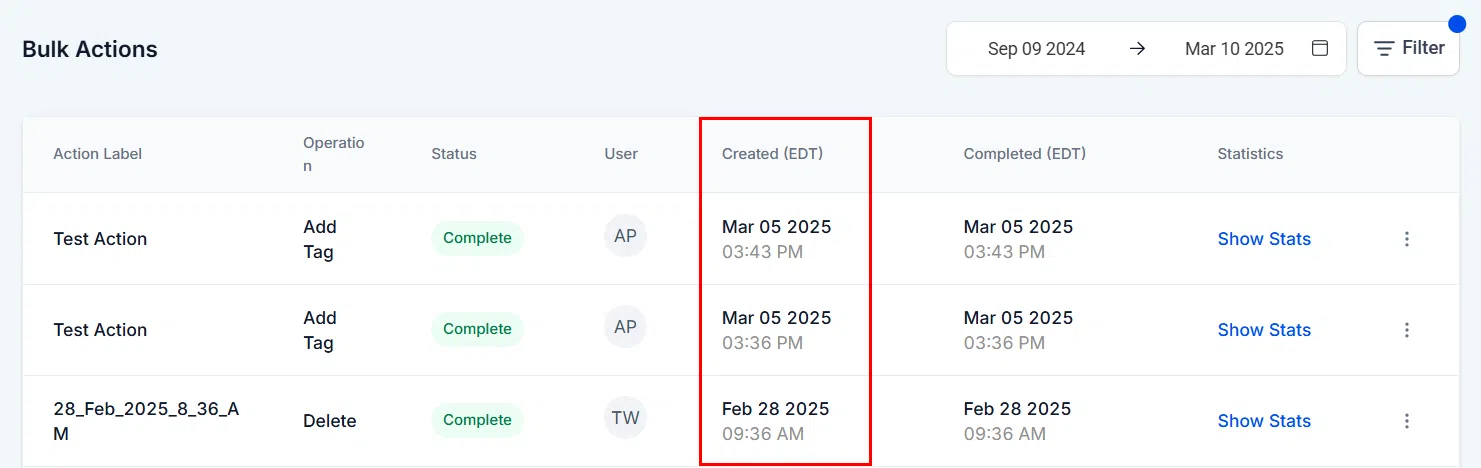
Created
The date and time the bulk action was created.
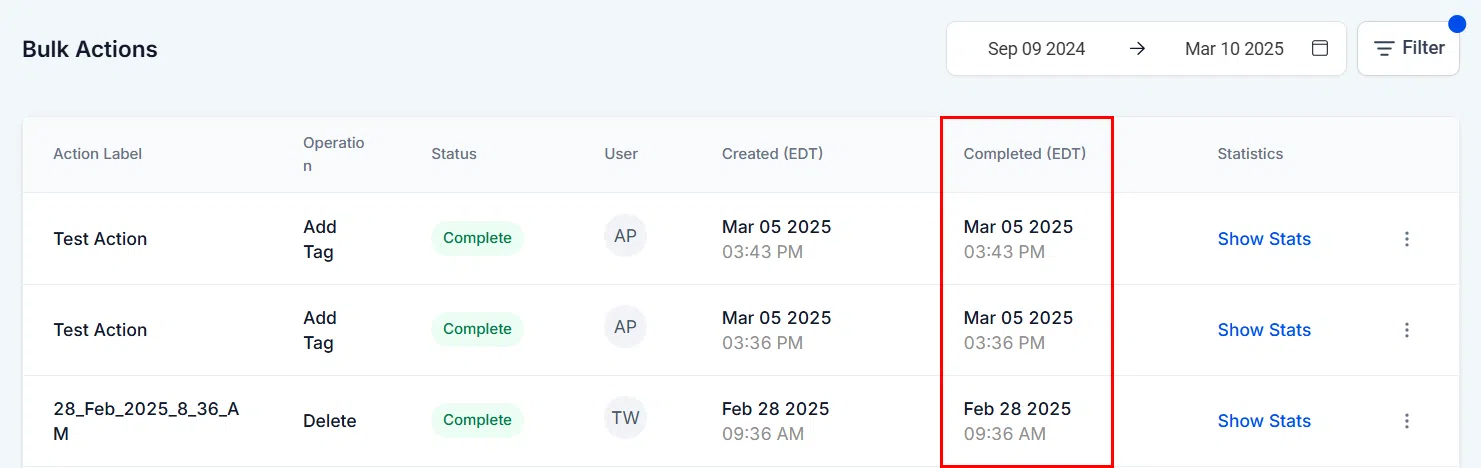
Completed
The date and time the bulk action finished.
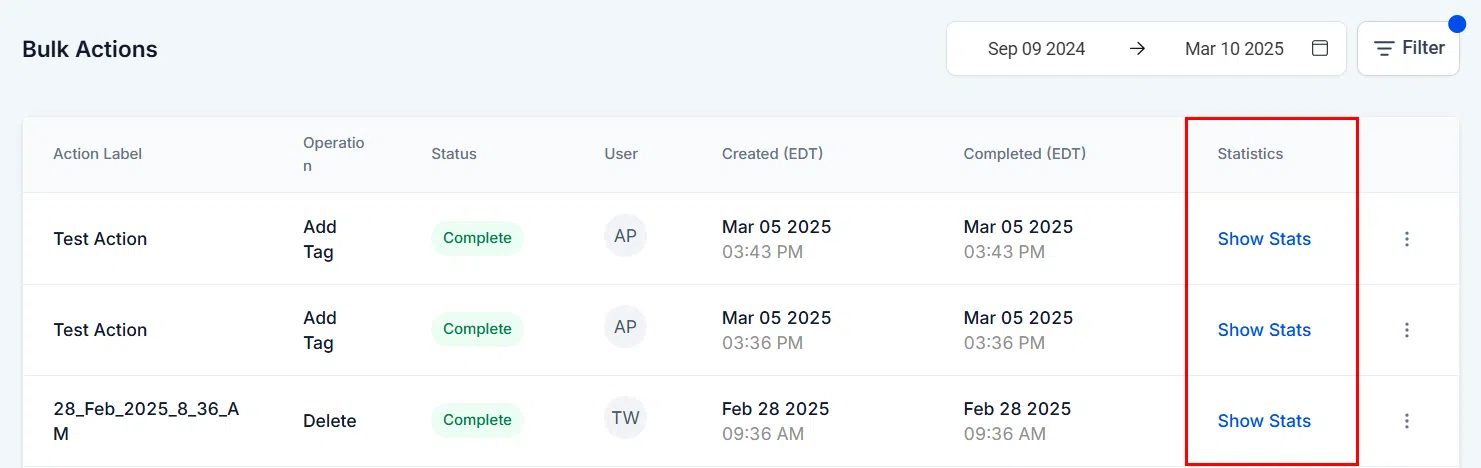
Statistics
Click Show Stats to view detailed data. Click any data point to see the contacts in that category – for example, “successful” or “error.” Errors can occur due to invalid email addresses or incorrect phone numbers.
Actions Menu
Click the three dots beside any bulk action to pause or cancel it (if not yet completed).
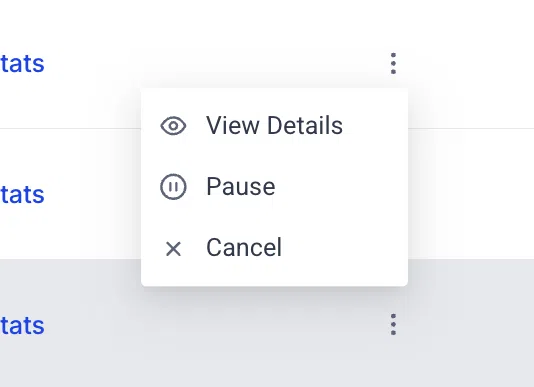
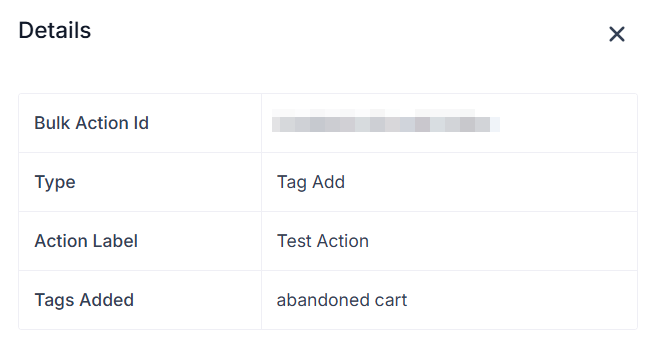
Click View Details to open the Bulk Action Card, which shows the bulk action ID, type, name, scheduled start time, mode, elapsed time, and any added tags.
Frequently Asked Questions
What are the rate limits for bulk actions?
Add in drip mode:
- 30 sec – 1 min frequency: 1,000 messages per minute
- 5 min frequency: 4,999 messages per minute
- 6 – 10 min frequency: 5,000 messages per minute
- Above 10 min frequency: 10,000 messages per minute
Add all at once / Add all at a scheduled time:
- Less than 10k contacts: 15,000 contacts per hour
- 10k – 50k contacts: 6,000 contacts per hour
- 50k – 70k contacts: 3,000 contacts per hour
- More than 70k contacts: 1,500 contacts per hour
How far in advance can bulk actions be scheduled?
Bulk actions cannot be scheduled more than 720 hours (approximately 30 days) in advance.