Growth360’s Conversation AI lets you build, train, and manage AI bots that handle inbound customer messages automatically – so your team can focus on conversations that need a human touch.
Managing Your Conversation AI Bots
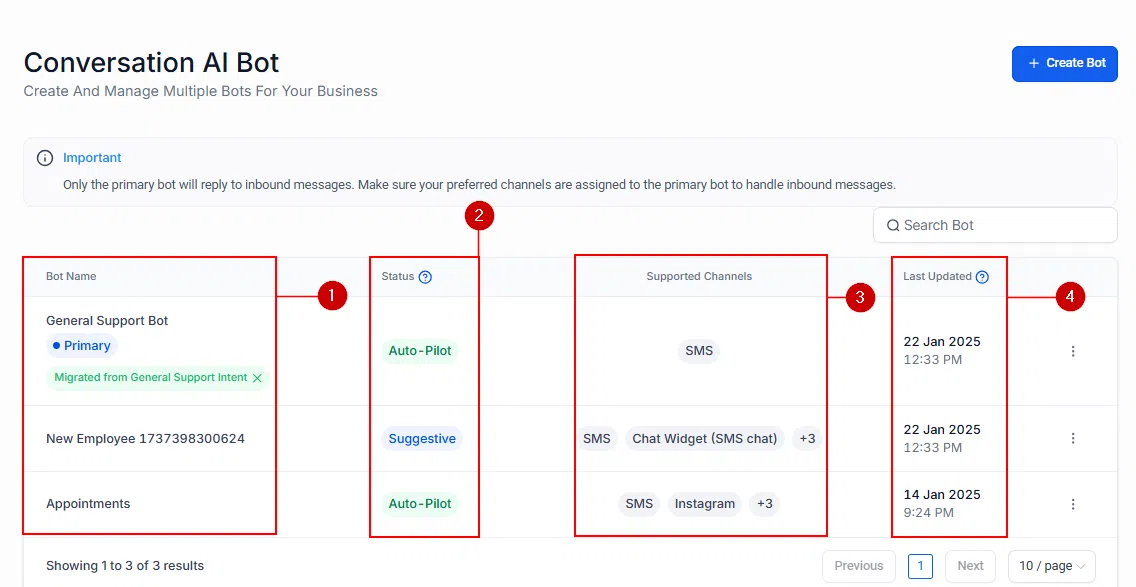
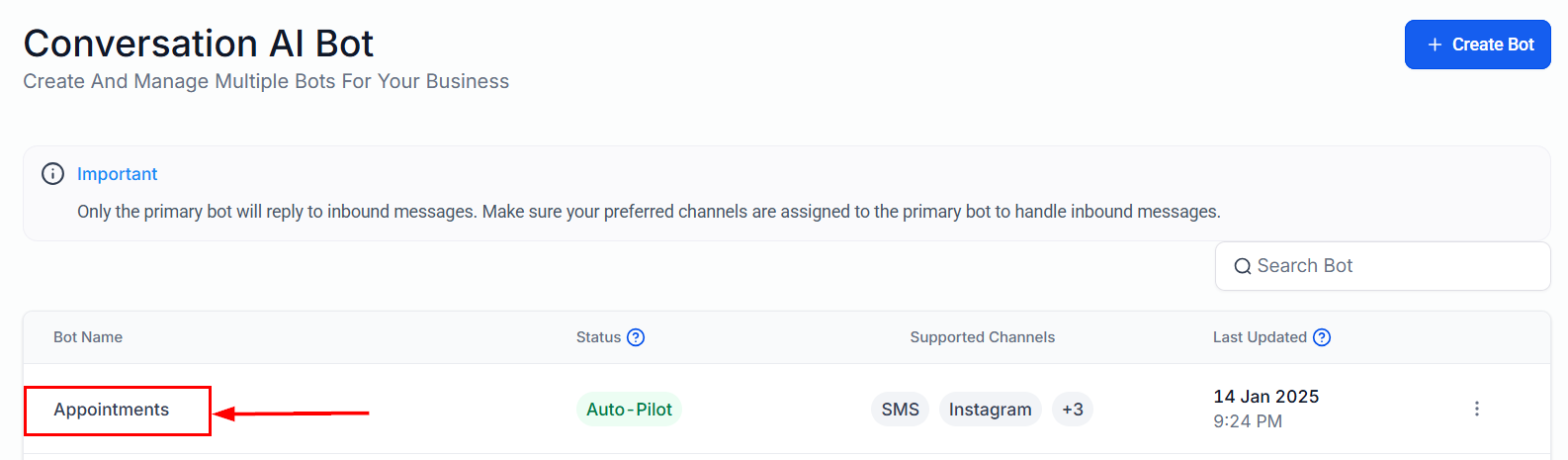
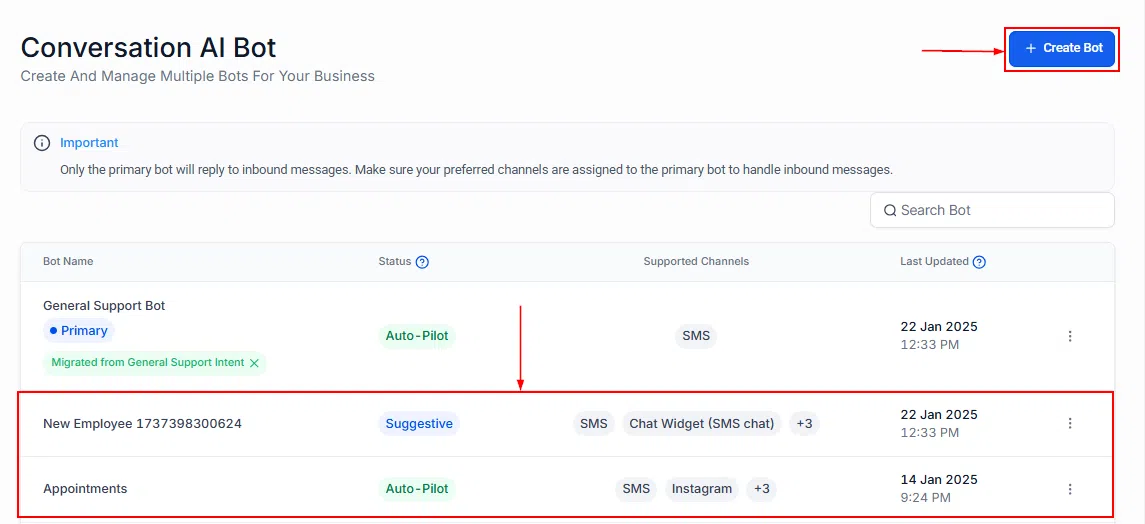
The Conversation AI section gives you a central place to create and manage all your AI bots. From here you can search for existing bots, check their status, and perform key actions – all from a single interface.
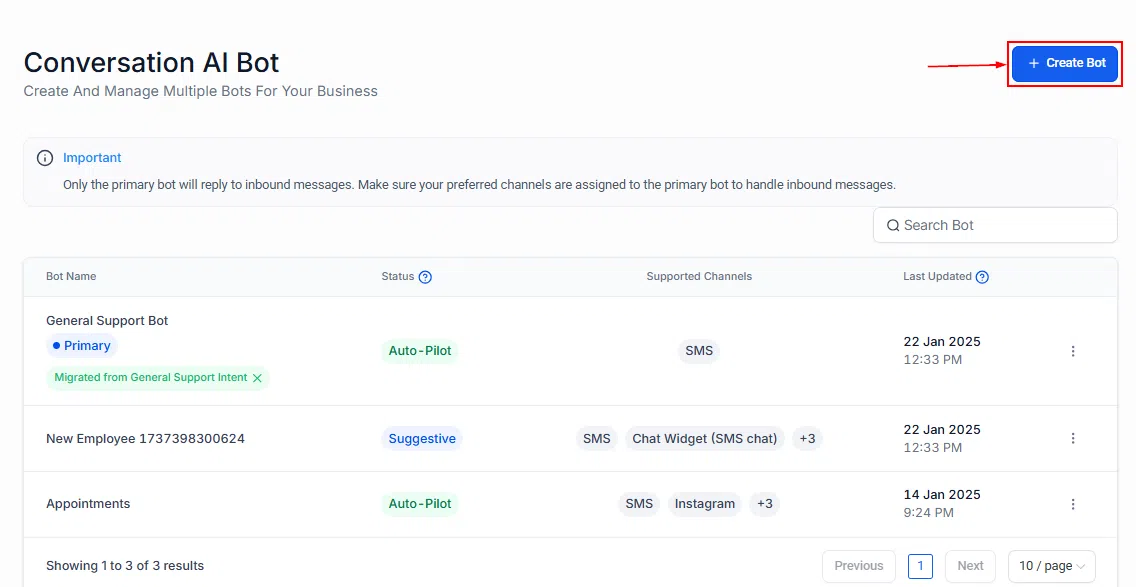
Use the search bar at the top to locate a bot by name quickly. The AI Bot Table displays each bot’s name and current status at a glance.
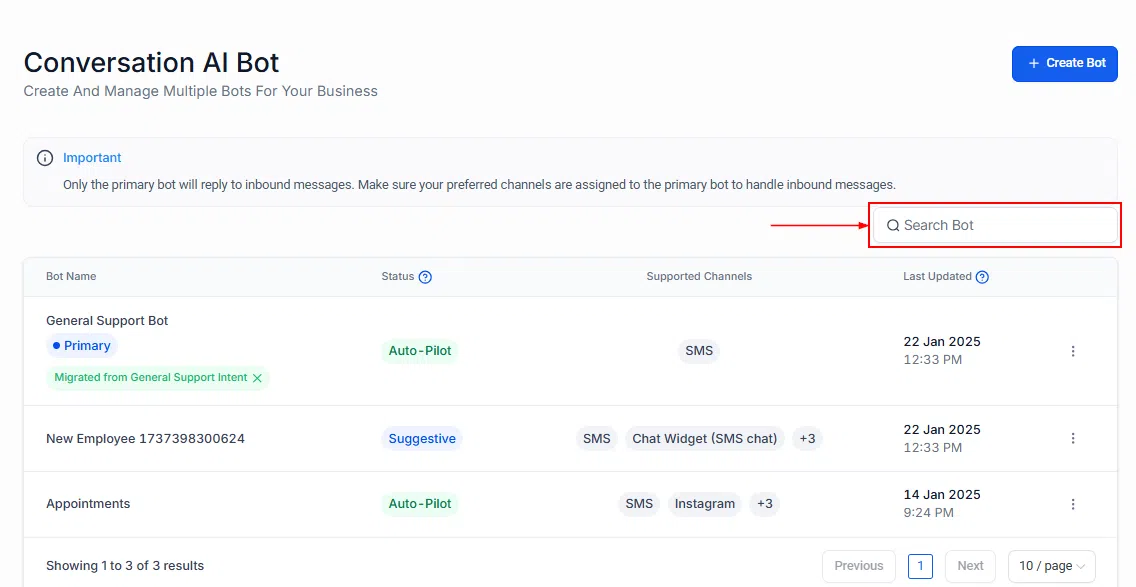
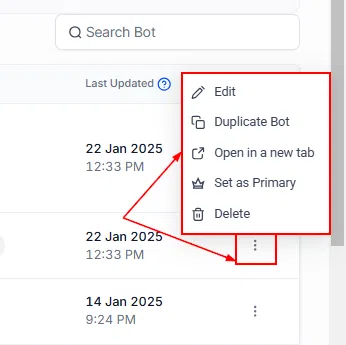
Each bot has an action menu giving you several options:
- Enable/Disable: Toggle a bot on or off without deleting it.
- Set as Primary: Designate a bot as the primary handler for general inbound messages.
- Duplicate: Copy a bot’s configuration to use as a starting point for a new one.
- Delete: Remove a bot you no longer need.
Training Your Conversation AI Bot
A well-trained bot delivers accurate, consistent answers to customer queries without needing manual input each time. Growth360 gives you two main ways to build your bot’s knowledge base: the Web Crawler and Custom Bot Responses.
Key Benefits of Training Your Bot
- Improved accuracy: Drawing from relevant data sources means your bot gives precise, tailored responses.
- Efficiency: Automated responses save time for both your team and your customers.
- Consistency: Every customer gets the same quality of information across all channels.
- Scalability: Your bot handles growing query volumes without extra staffing.
Getting Started
Navigate to Settings, then Conversation AI. Create a new bot and give it a name that reflects its purpose.
Web Crawler Training
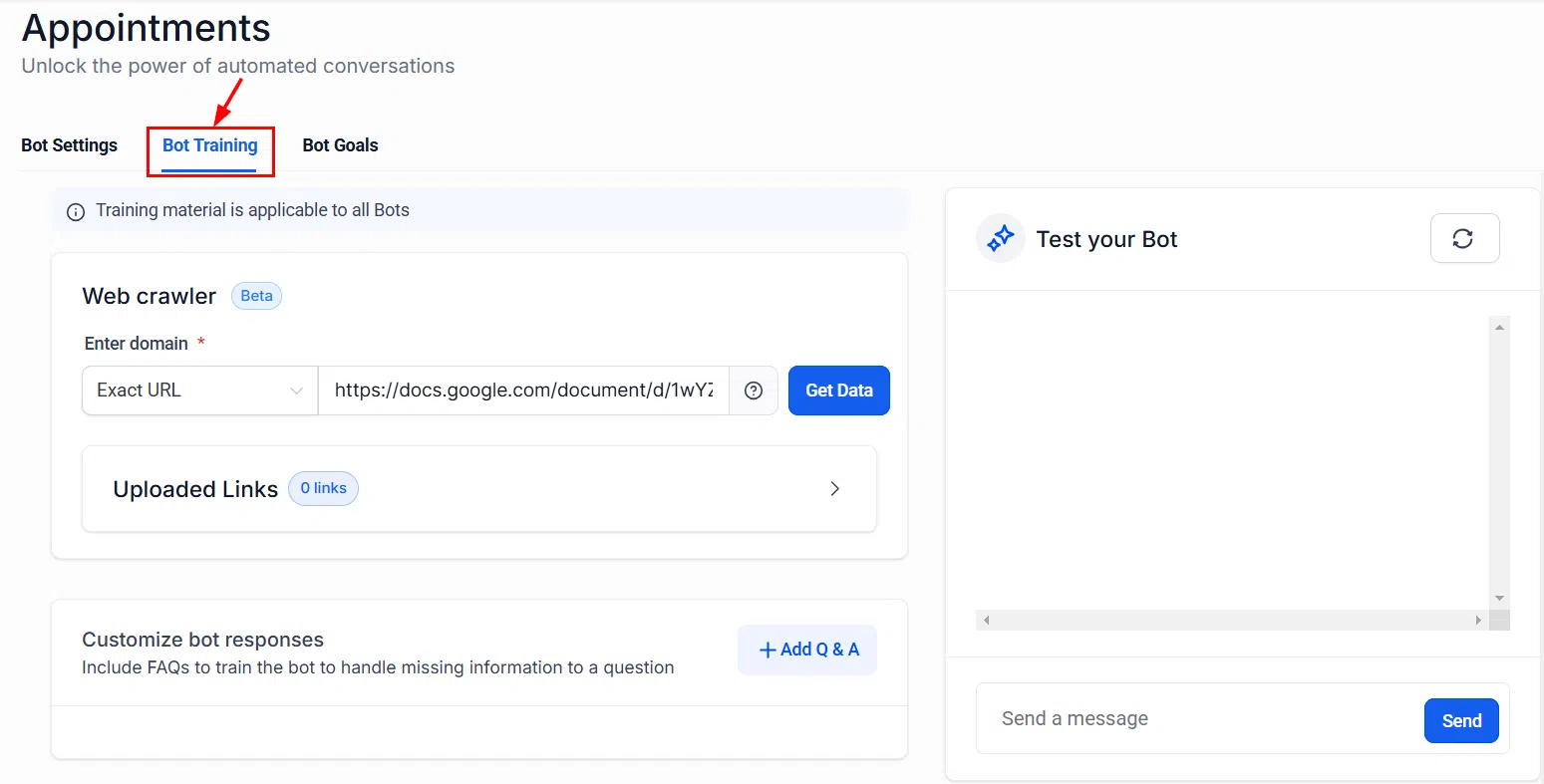
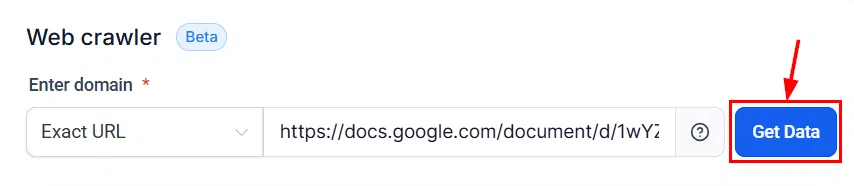
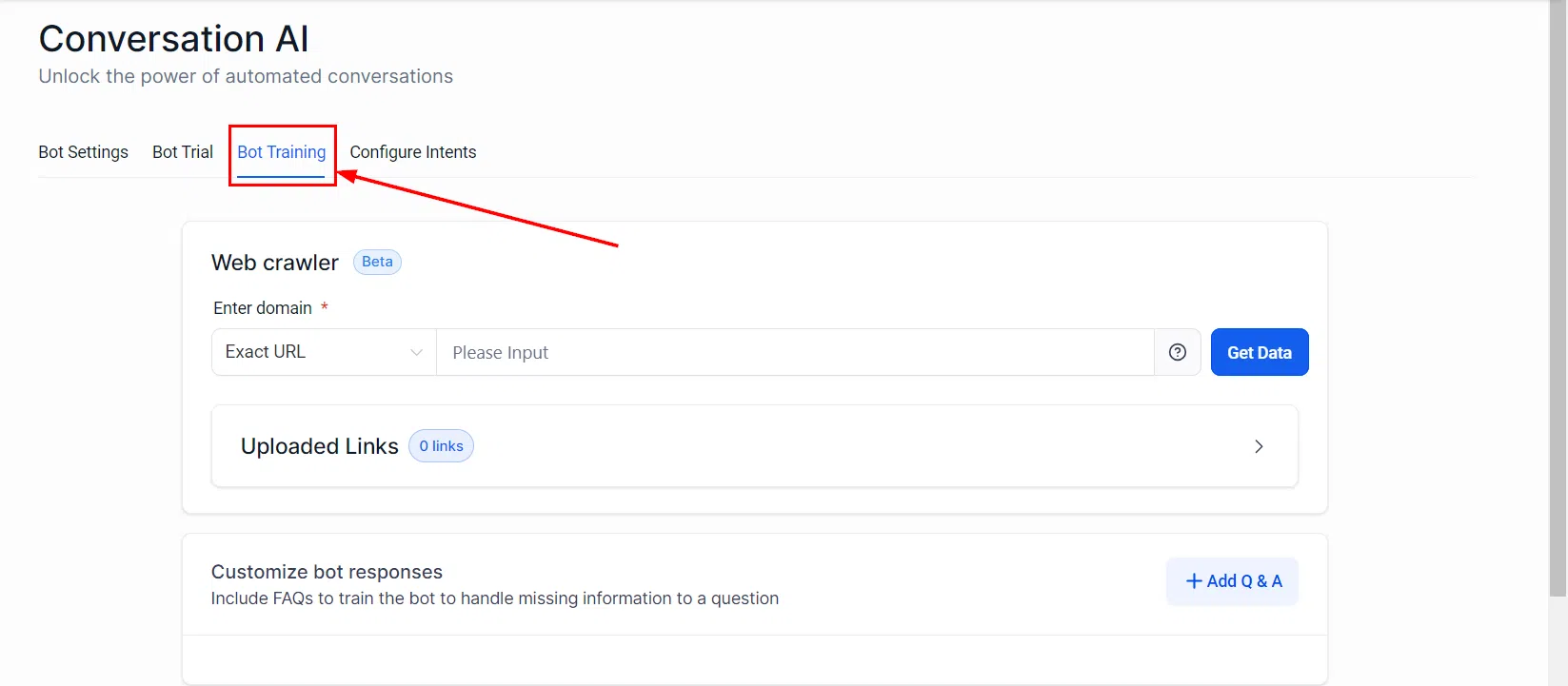
The Web Crawler pulls content from your website to build the bot’s knowledge base. Open the Bot Training tab and select Web Crawler to begin.
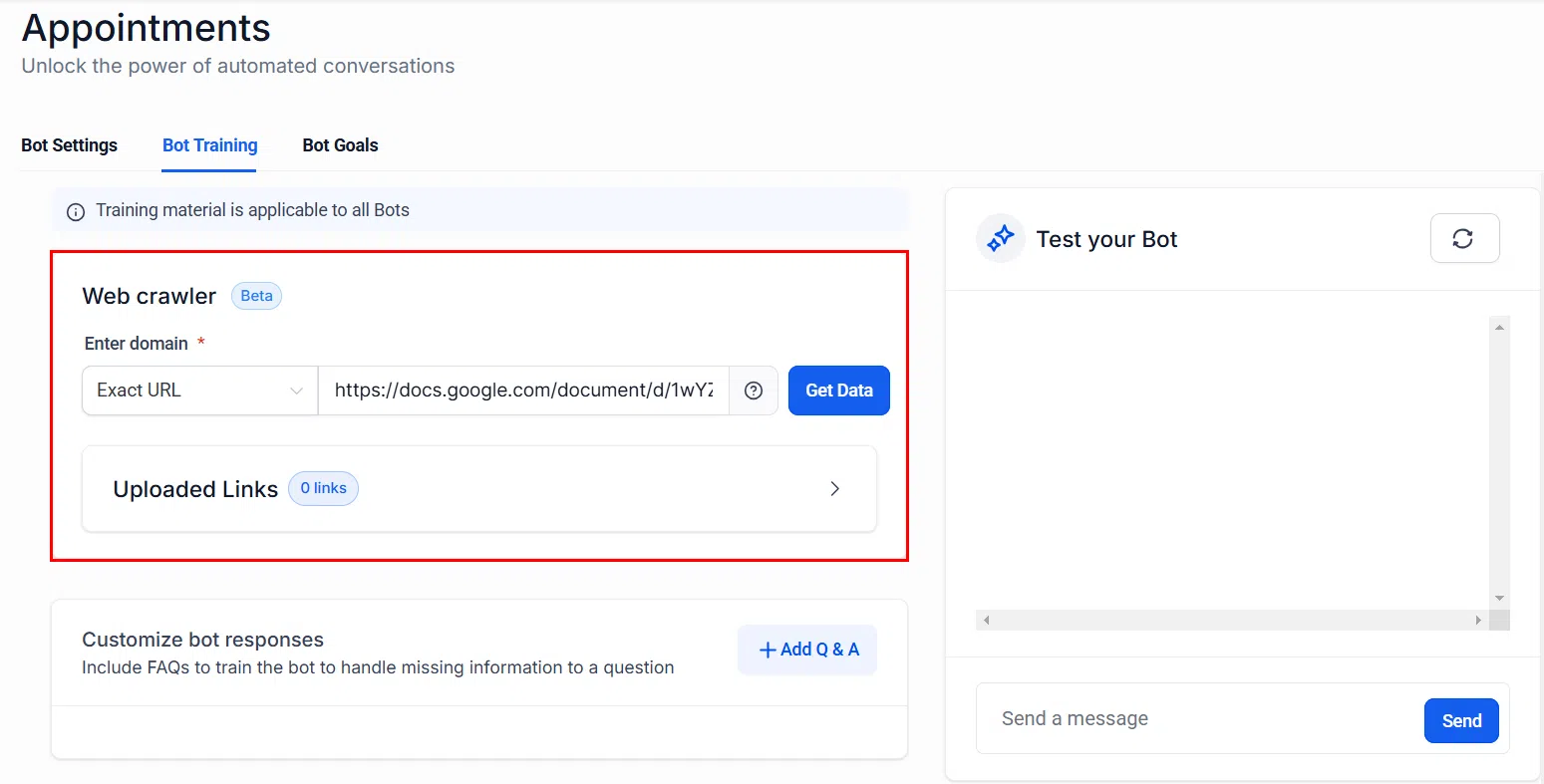
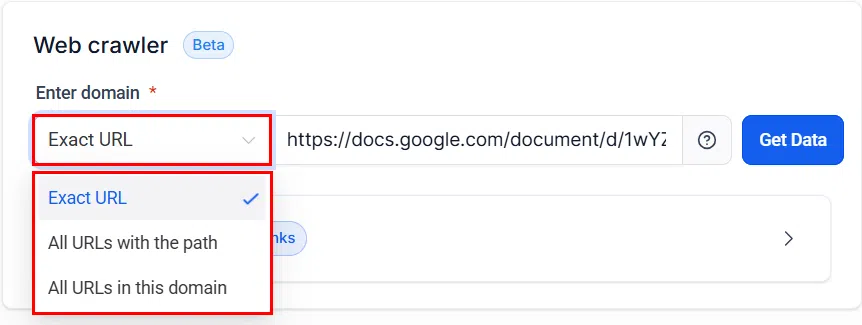
You can choose from three URL types depending on how much of your site you want to include:
- Exact URL: Trains the bot on a single specific page.
- Path-specific URL: Covers all pages within a particular section of your site.
- Domain-level URL: Crawls your entire website for a comprehensive knowledge base.
Once you’ve entered the URL, click Get Data to start the crawl. The bot will import the content and make it available for responses.
Custom Bot Responses
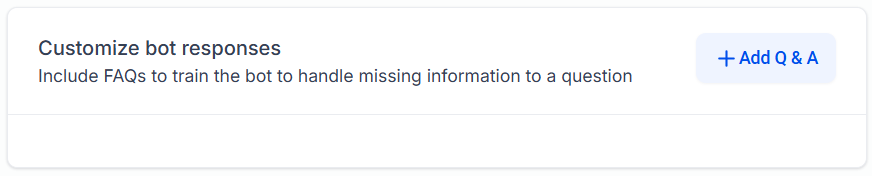
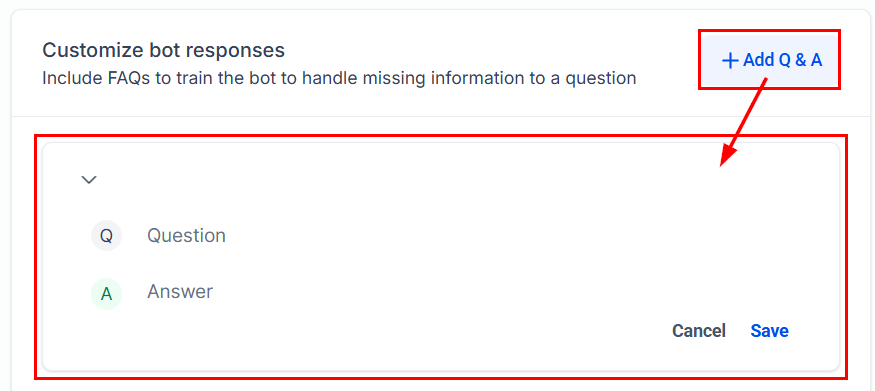
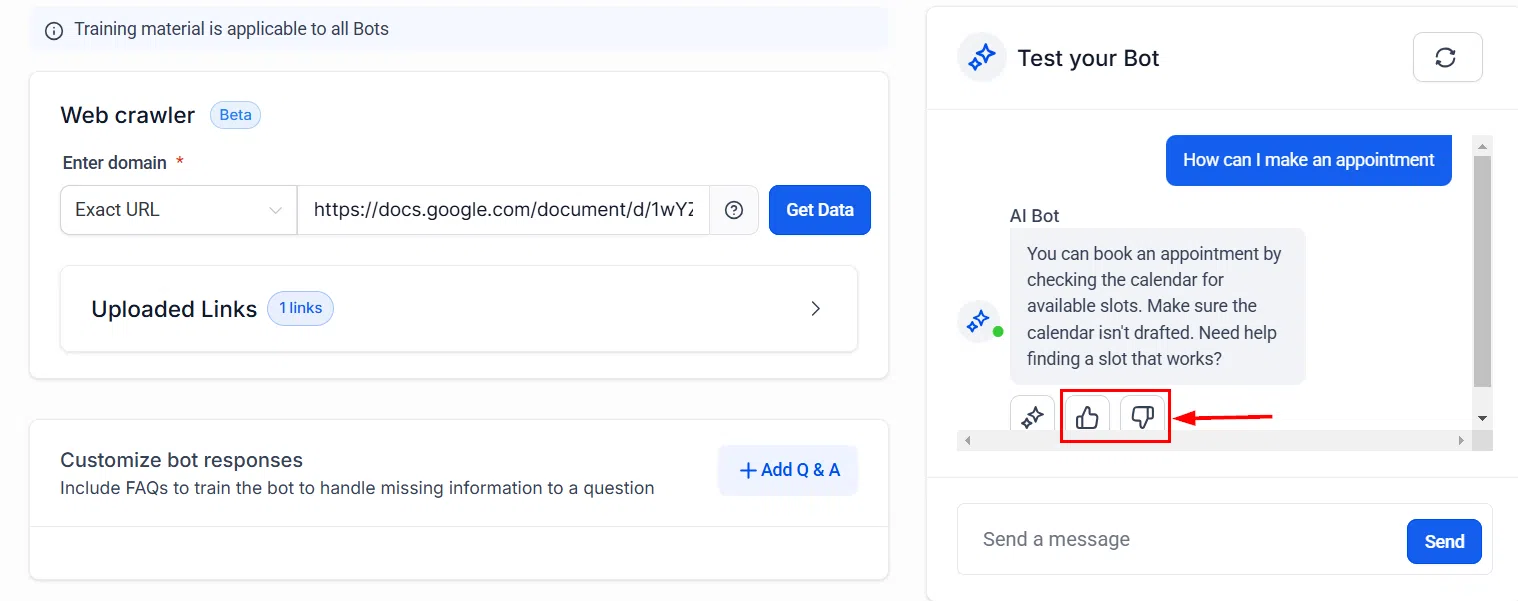
Custom Bot Responses let you manually add FAQs and specific answers – ideal for pricing, policies, or any information you want the bot to handle precisely. You can also add responses by providing feedback during live conversations.
Training Your Bot with Google Docs
Connecting a Google Doc to your bot is a quick way to keep training content up to date. When you update the doc, the bot’s knowledge updates too – no need to re-enter information manually.
Benefits of Google Docs Training
- Efficient training: Google Docs provides a straightforward platform for managing bot content.
- Real-time corrections: Update the doc anytime and the bot reflects the changes quickly.
- Expanded options: Combine Google Docs with web crawler data for a more comprehensive knowledge base.
How to Connect a Google Doc
In the Bot Training tab, select Web Crawler and choose the Exact URL option. Paste the shareable link to your Google Doc (make sure it’s set to “Anyone with the link can view”).
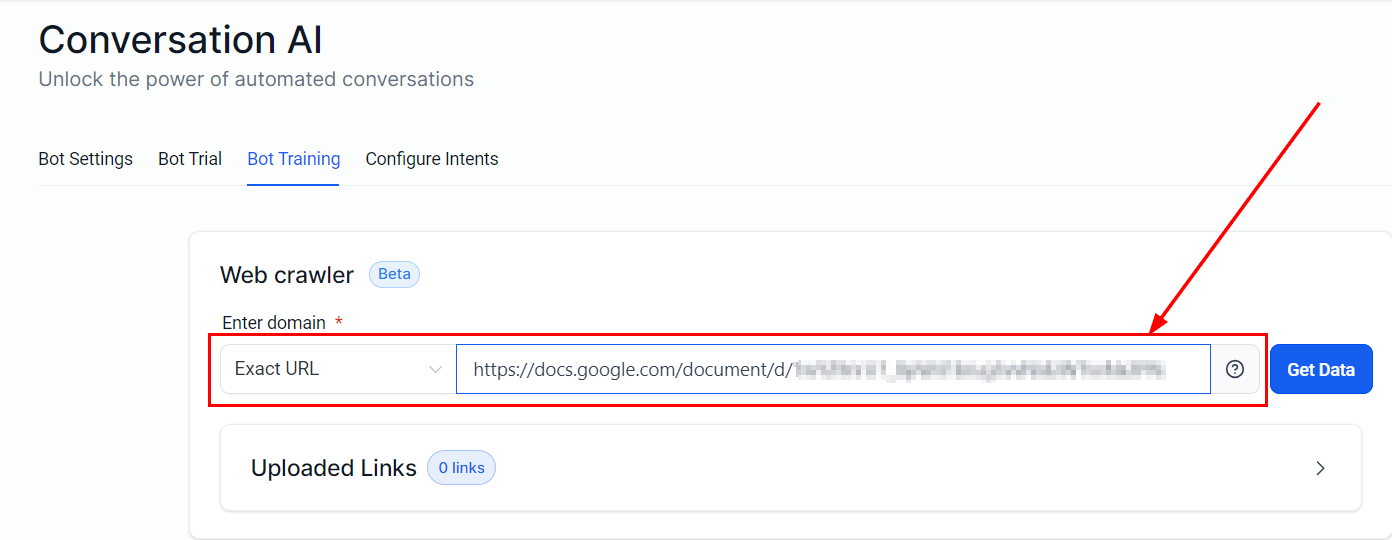
Click Get Data to import the document content. The bot will now use your Google Doc as part of its knowledge base.
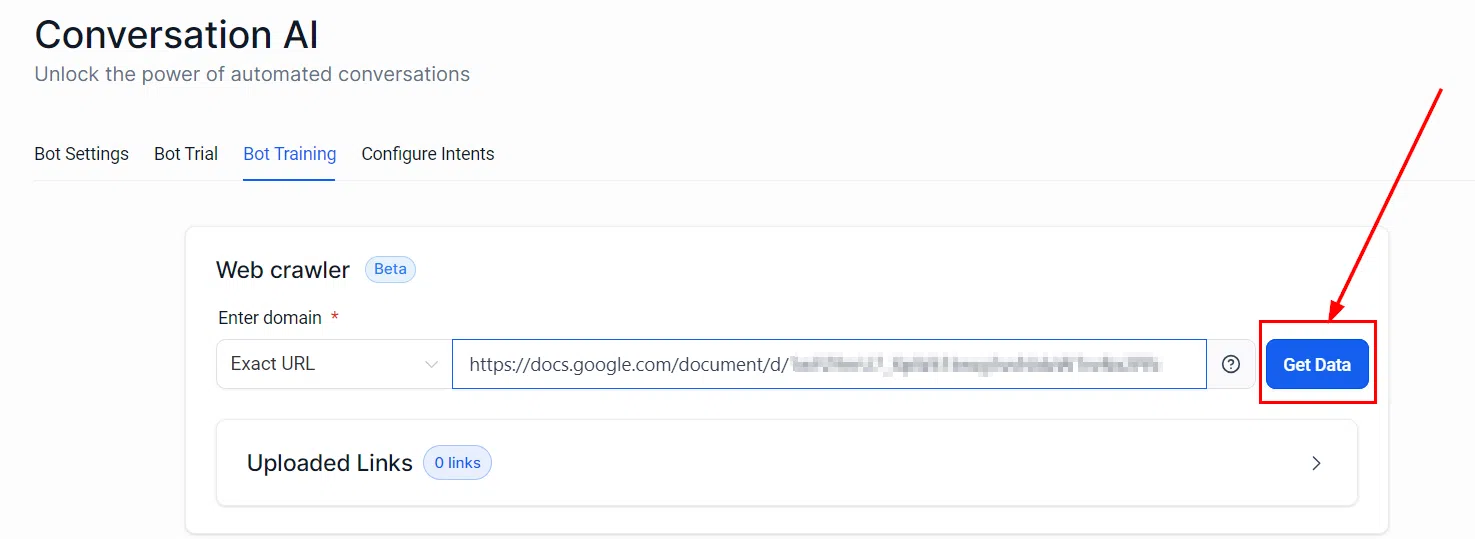
Keep your training documents current whenever your business or service details change – this ensures the bot continues to deliver relevant, accurate responses.
Primary vs Non-Primary Bots
Growth360 lets you run multiple AI bots, each with a different role. Understanding the difference between primary and non-primary bots helps you set up a communication strategy that handles both general inbound messages and specialised workflow tasks.
Primary Bots
The primary bot handles all inbound conversations that aren’t assigned to another bot within a workflow. It acts as the default AI for general customer interactions across the channels assigned to it. You can update which bot is primary at any time from the bot action menu.
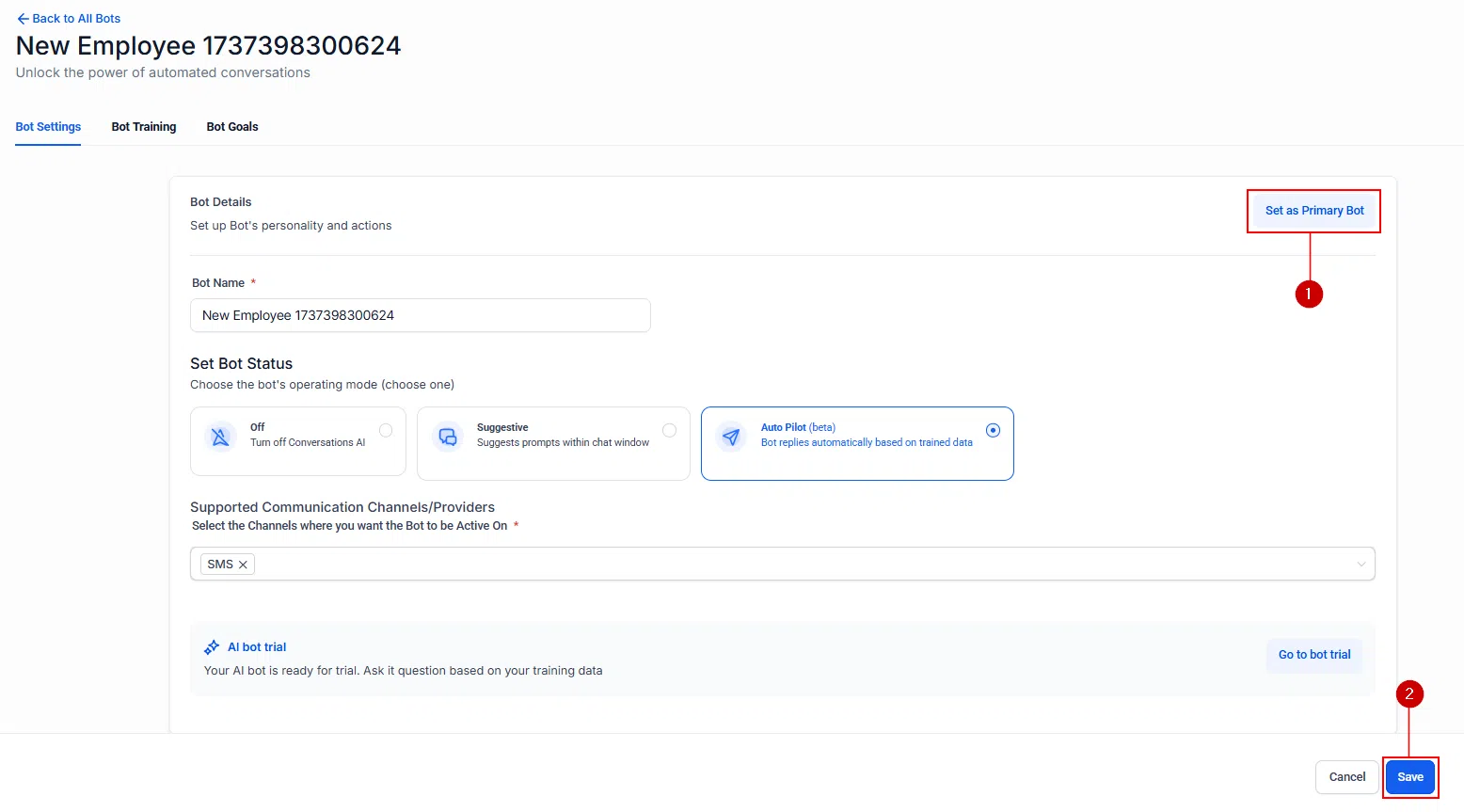
Non-Primary Bots
Non-primary bots are built for specific workflow tasks – things like appointment follow-ups, lead nurturing, or channel-specific support. They only respond when triggered by a workflow step, and only on the channels they’re configured for.
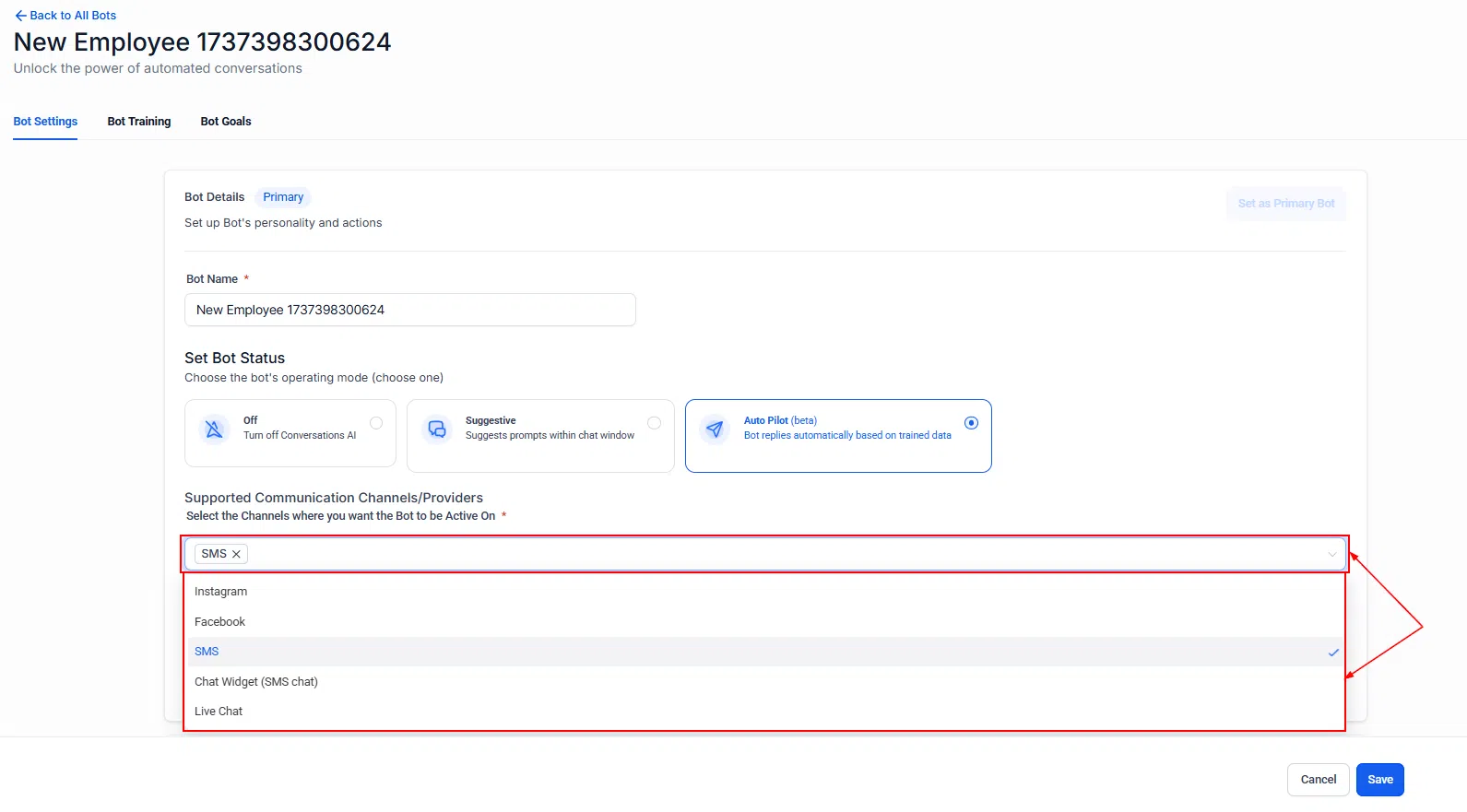
Matching Bot Channels to Workflows
The channels assigned to a non-primary bot must match the channels used in the workflow that triggers it. For example, if a workflow sends messages via Live Chat and SMS, the bot needs to be configured for both those channels – or you’ll need separate bots for each.
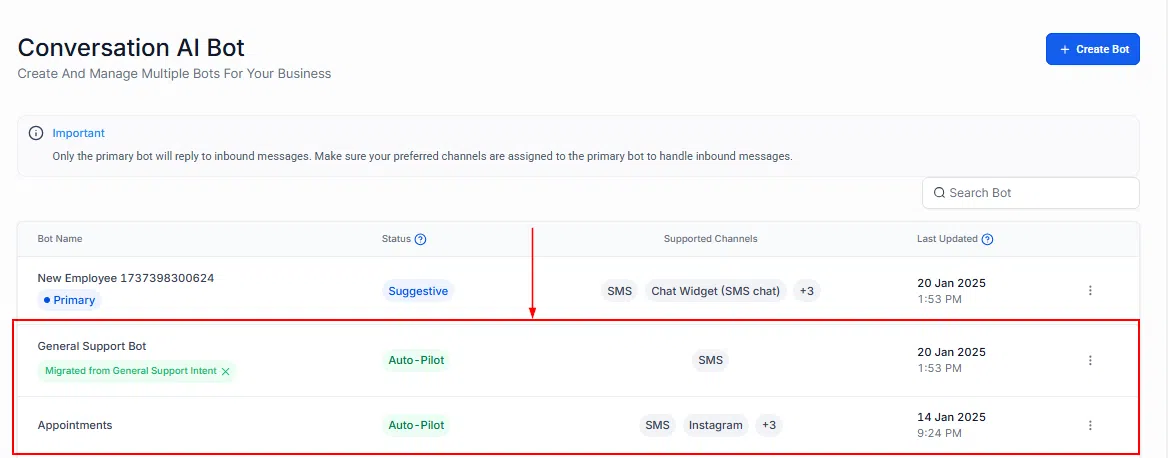
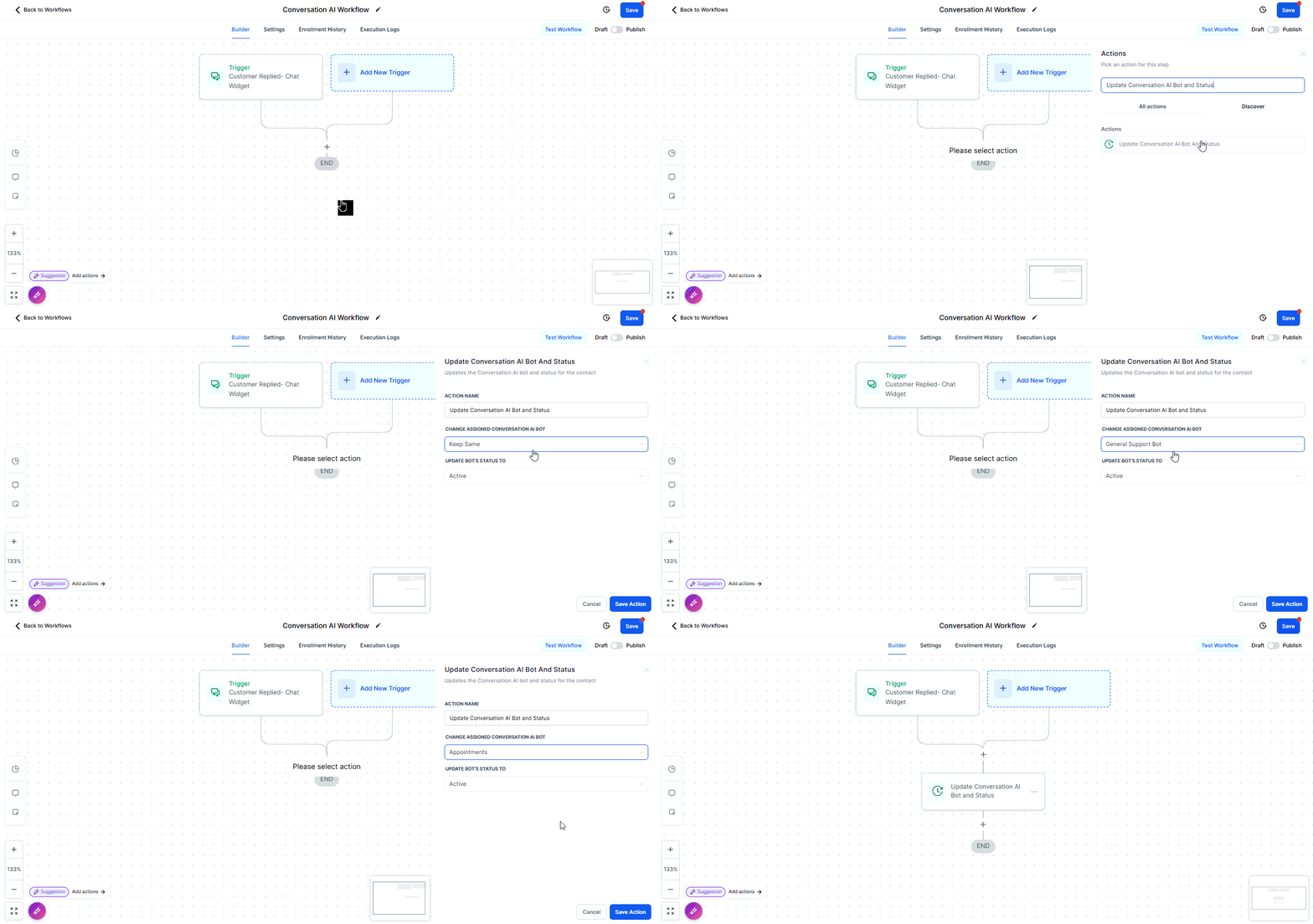
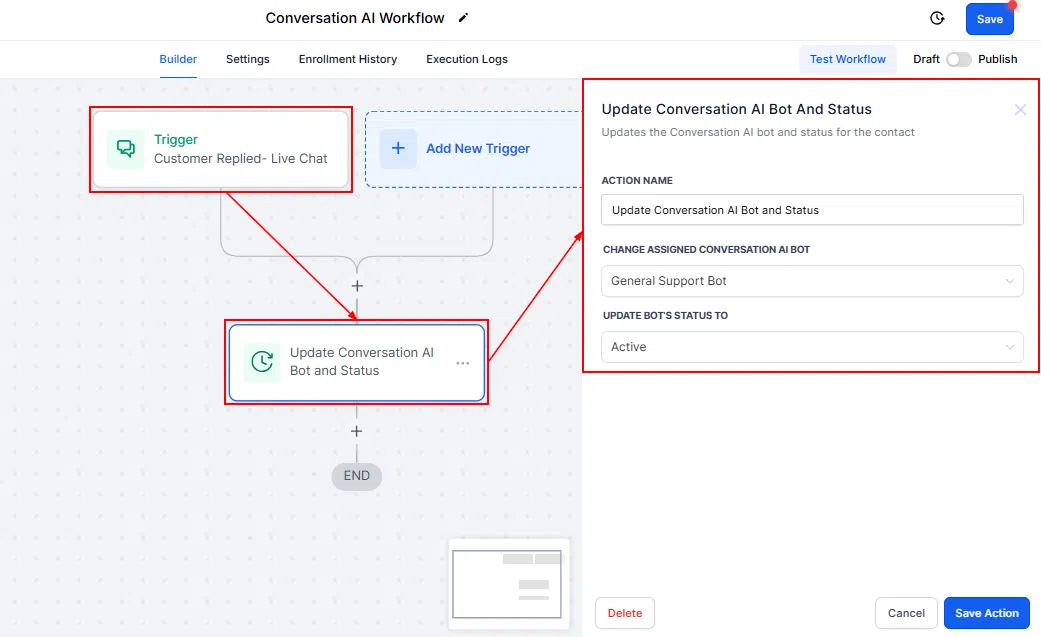
You can assign multiple non-primary bots to a single workflow – each handling a different task or channel. If you update a bot’s channel configuration after adding it to a workflow, review those workflows to make sure everything still aligns.