Growth360 Documents and Contracts supports direct payment collection after signing, recurring product billing, automatic invoice creation, payment plans, currency selection, public documents, and PDF uploads – giving you a complete lead-to-payment workflow without leaving the platform.
Collect Payment Directly After Document Signing
When a client signs a document or contract in Growth360, you can redirect them straight to payment without any extra steps. This reduces friction at the critical conversion point and improves your completion rates by keeping the momentum going immediately after the agreement is signed.
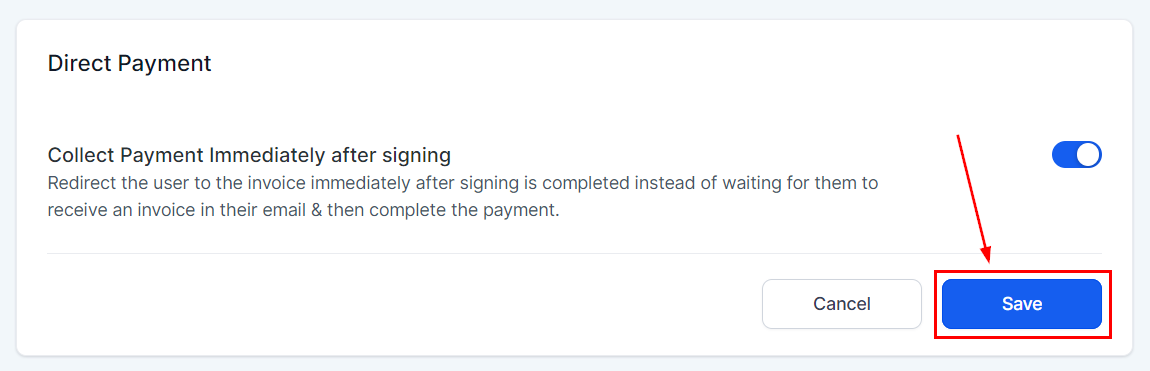
Enabling Direct Payment
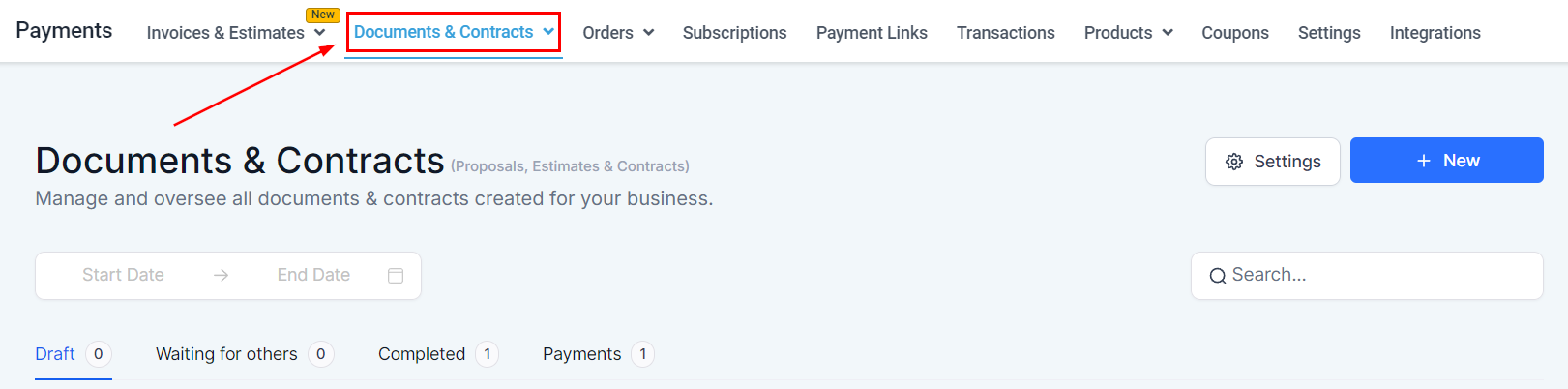
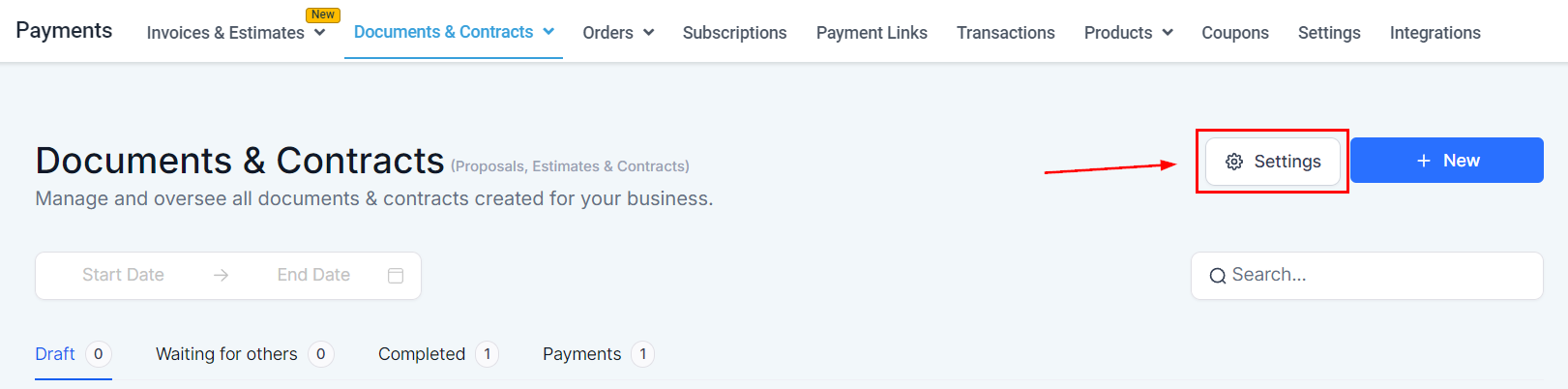
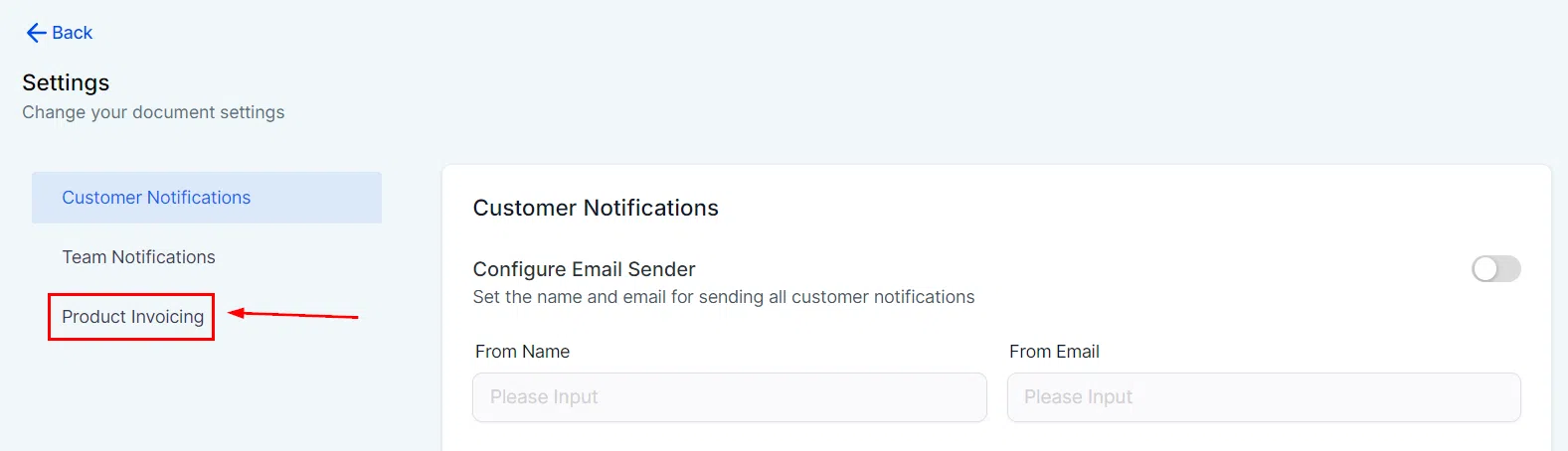
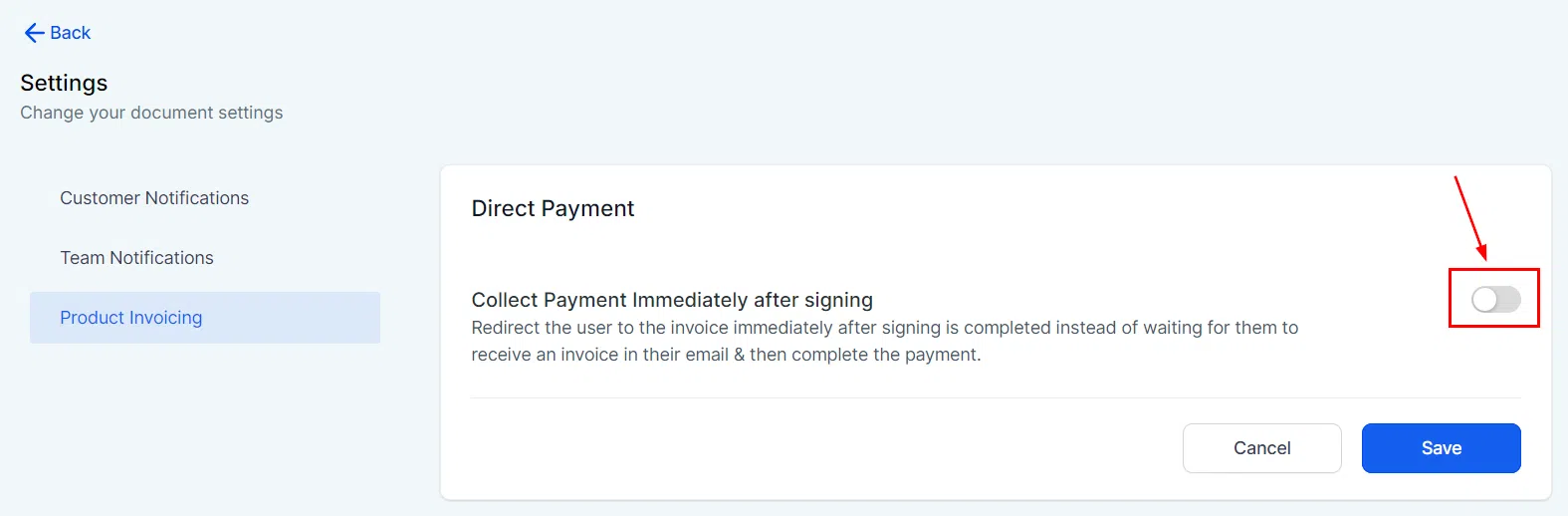
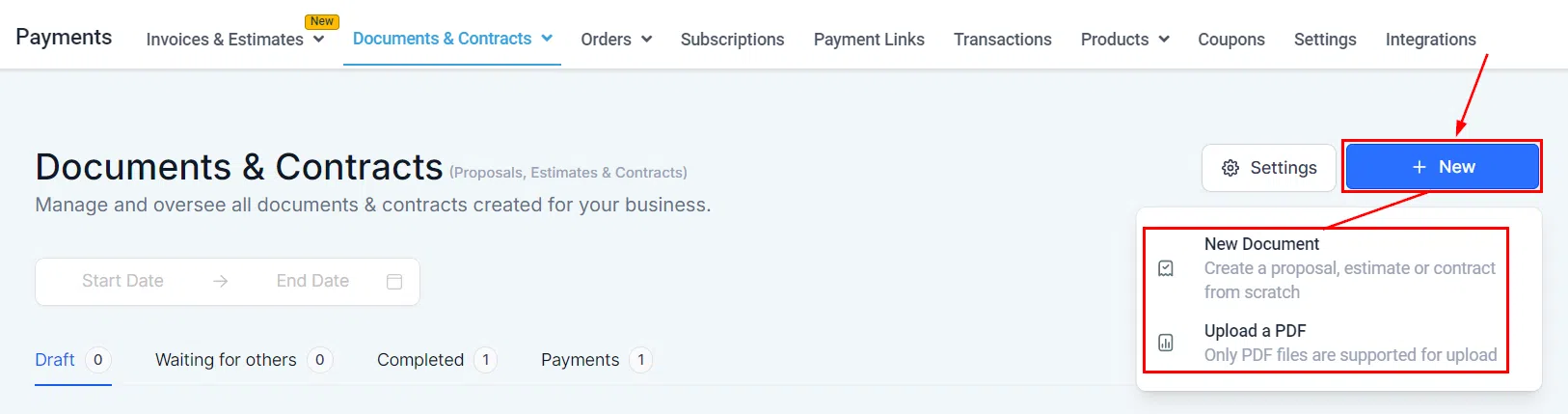
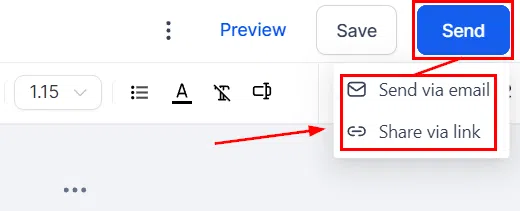
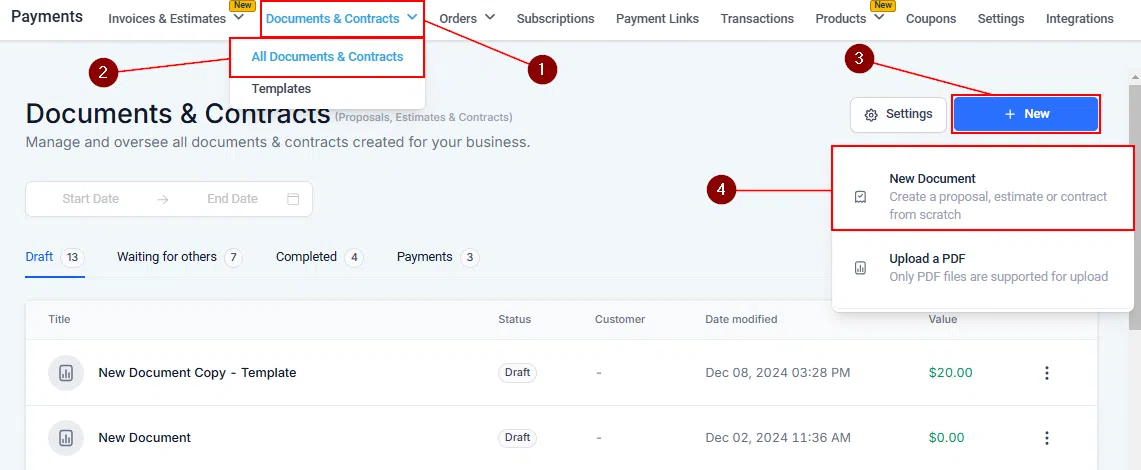
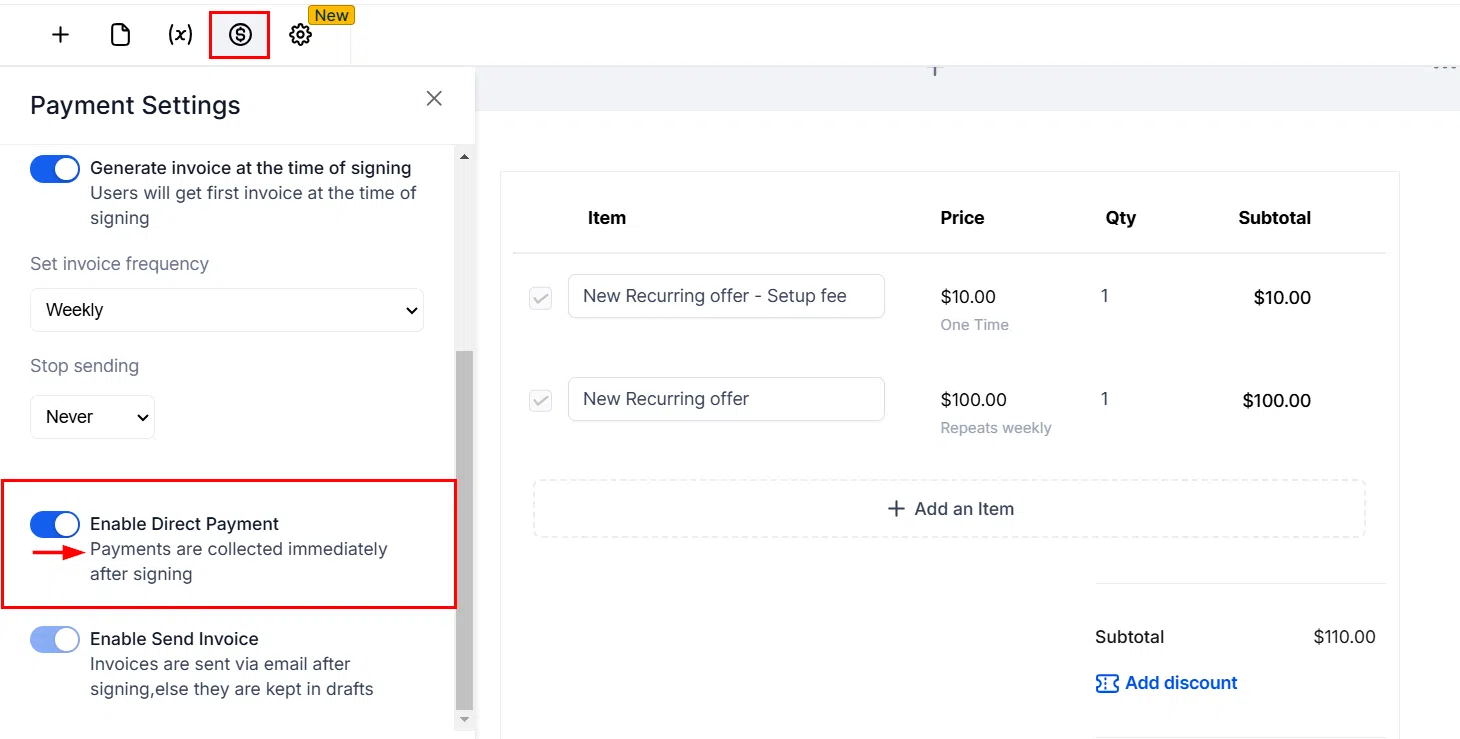
Before sending your document, enable the direct payment option within the document settings. Navigate to Payments > Documents & Contracts, open or create your document, and toggle on Enable Direct Payment in the payment settings section.
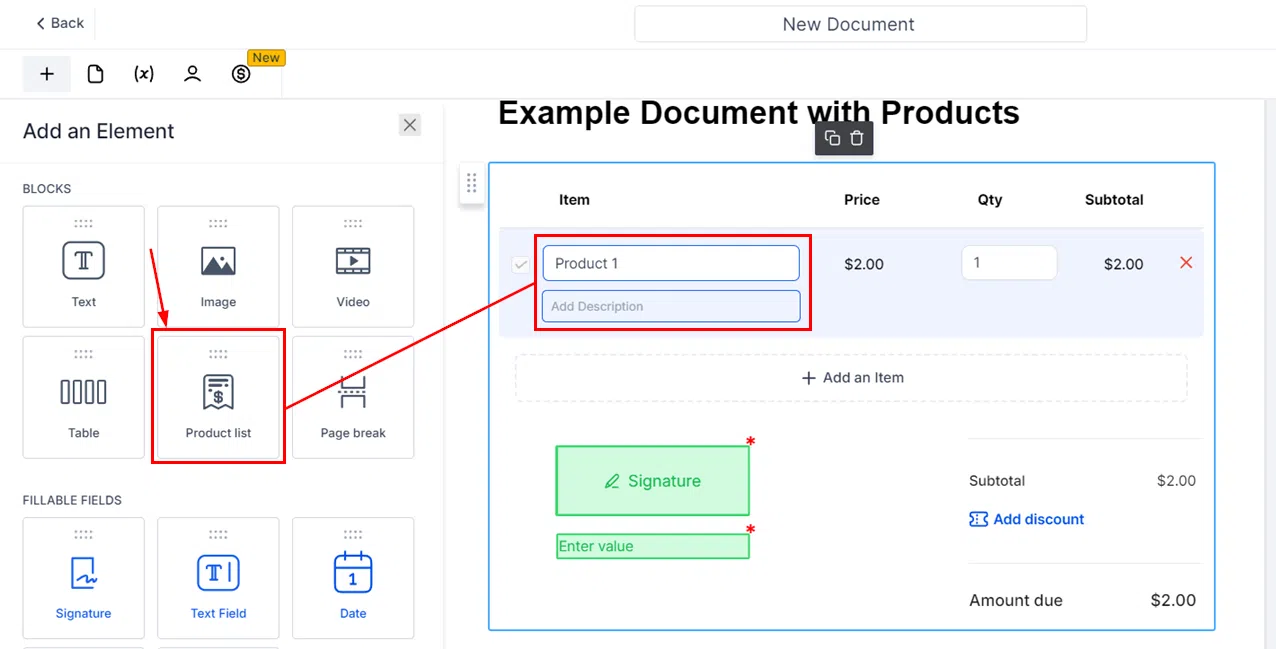
Adding Products to the Document
Add the products or services the client is agreeing to pay for as line items in the document. These line items form the basis of the invoice generated after signing. If no line items are present, no payment collection step will appear.
The Signing and Payment Experience
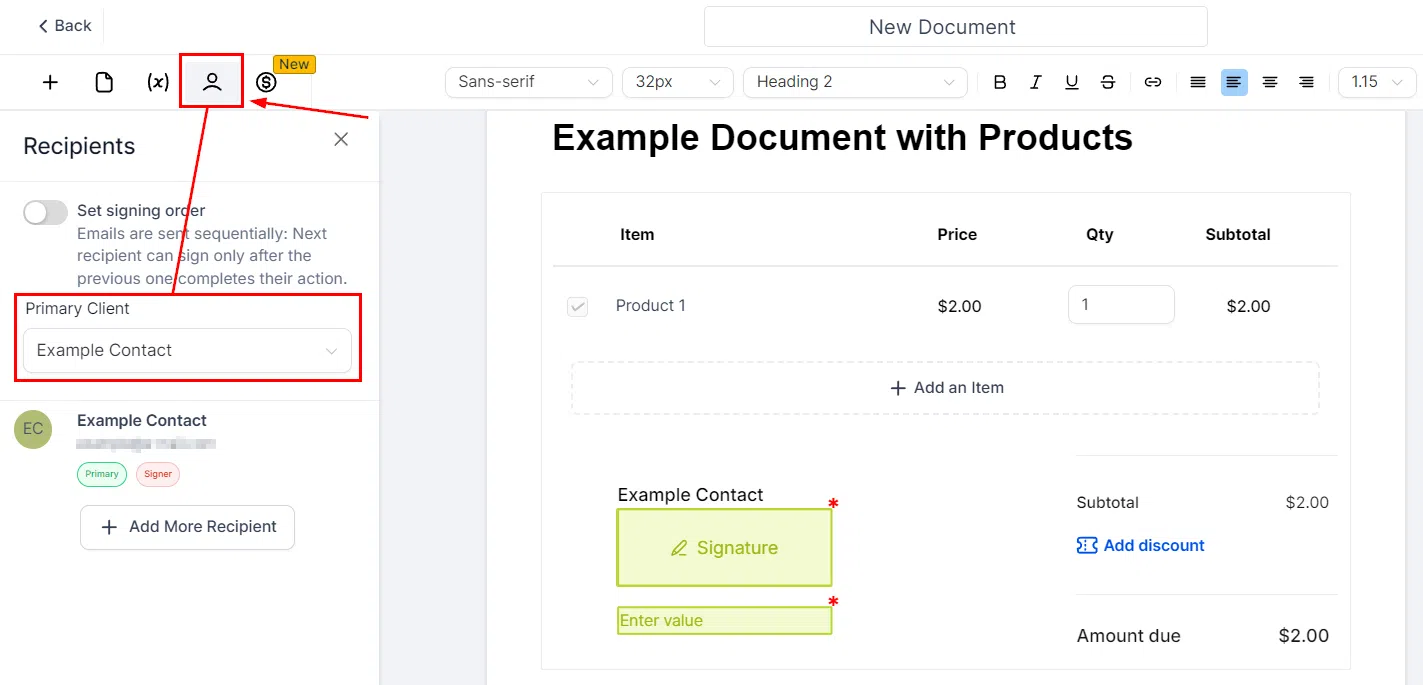
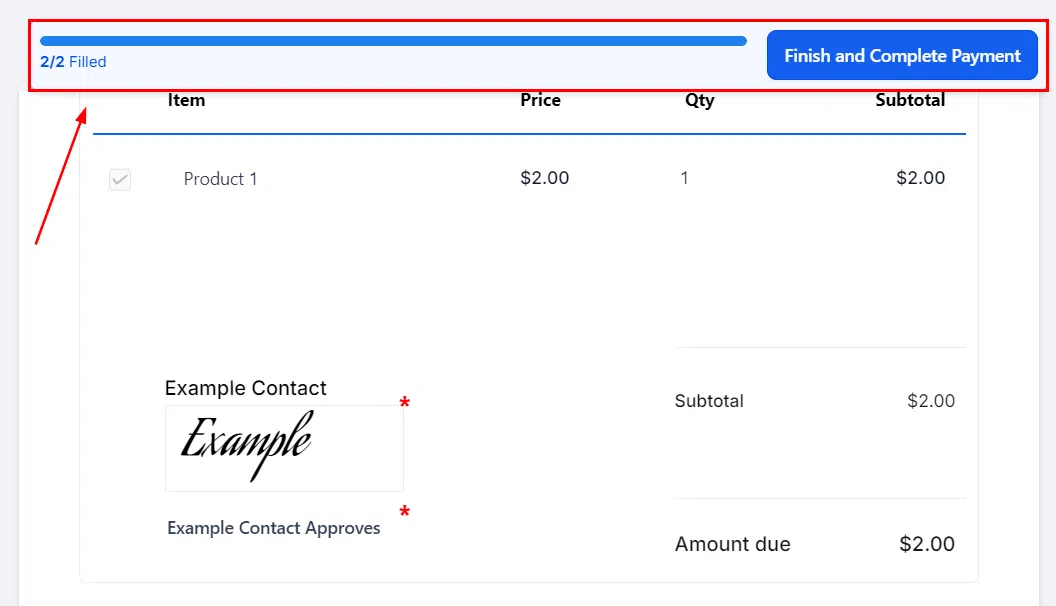
When your client signs the document, Growth360 automatically redirects them to the payment page. They complete payment using the gateway you have configured, and the transaction is recorded in your Growth360 account. The document status updates to reflect both the signature and the payment.
Recurring Products in Documents and Contracts
Documents and Contracts support recurring payment products, letting you include subscription-based or instalment billing directly in your agreements. When the client signs, Growth360 sets up the recurring billing schedule automatically – no separate invoice setup required.
Adding Recurring Products
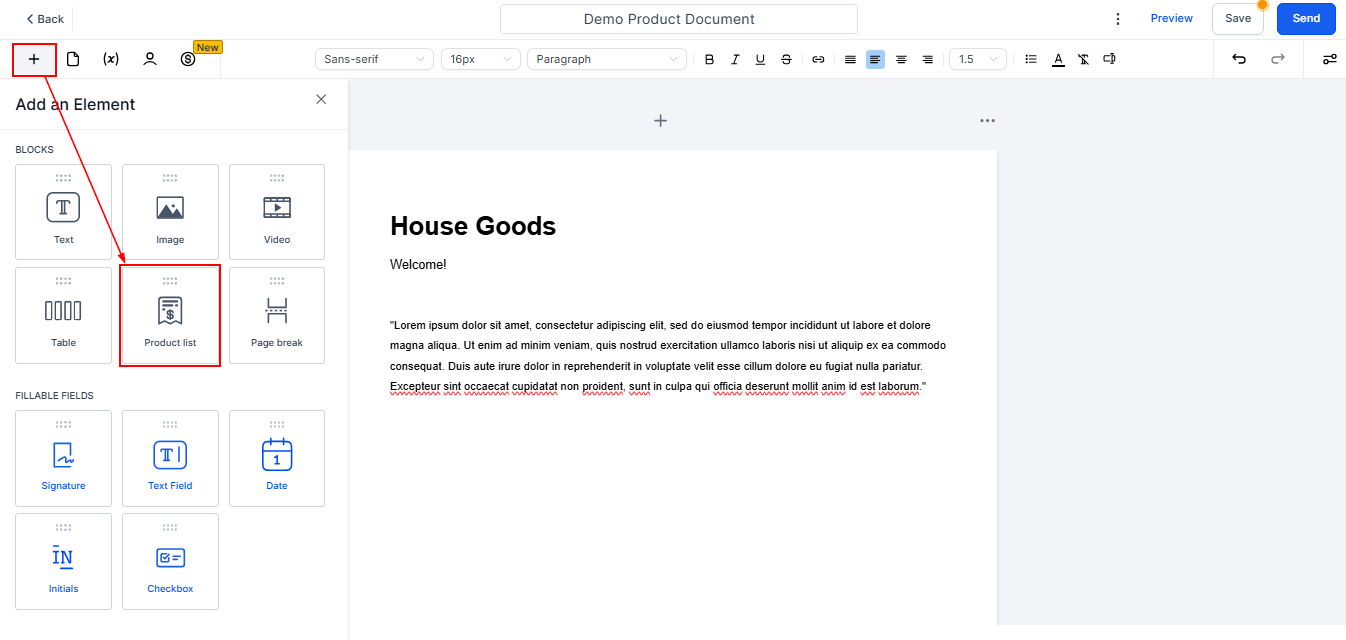
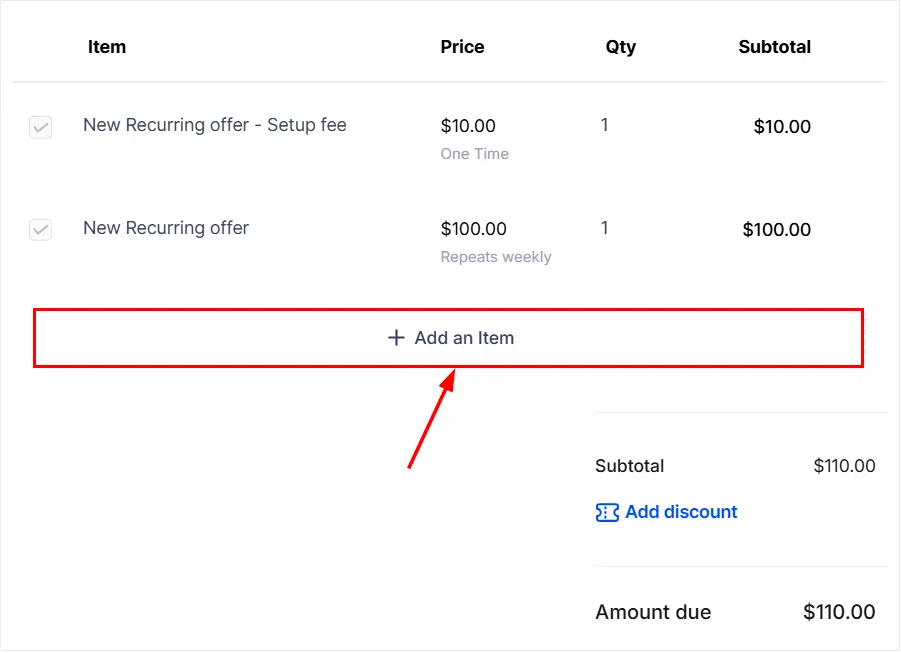
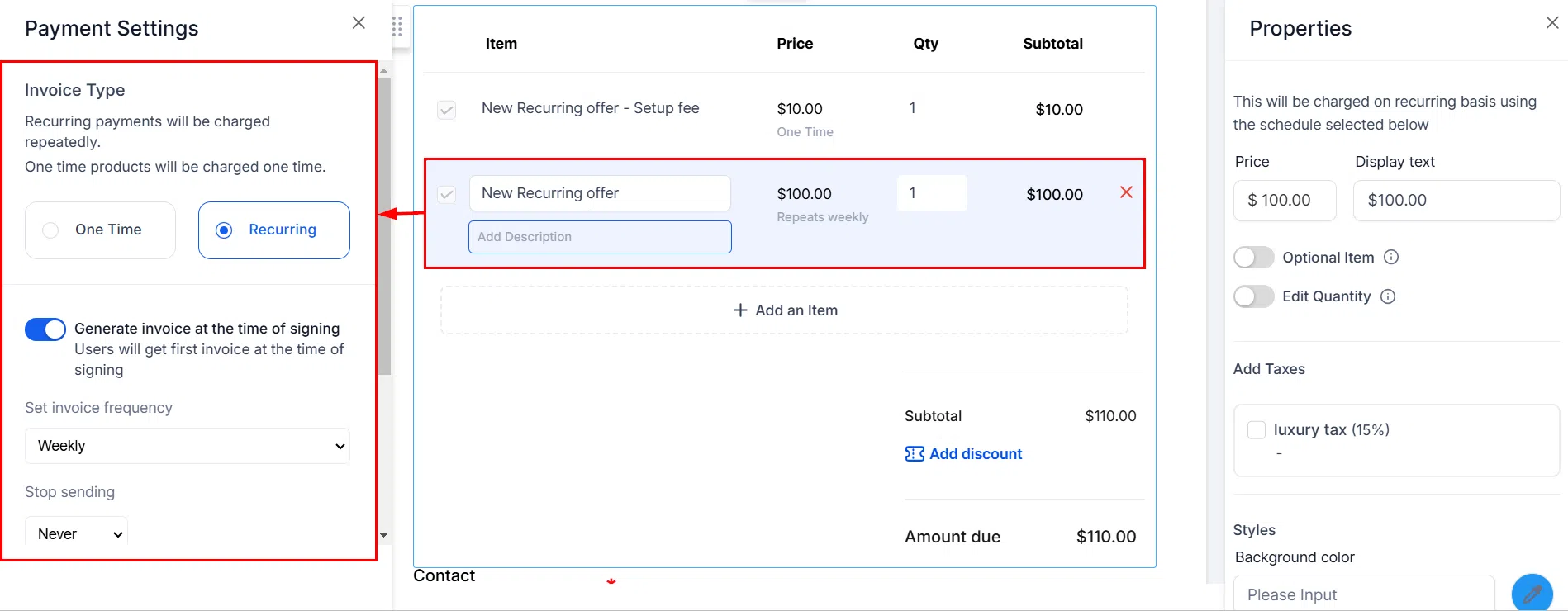
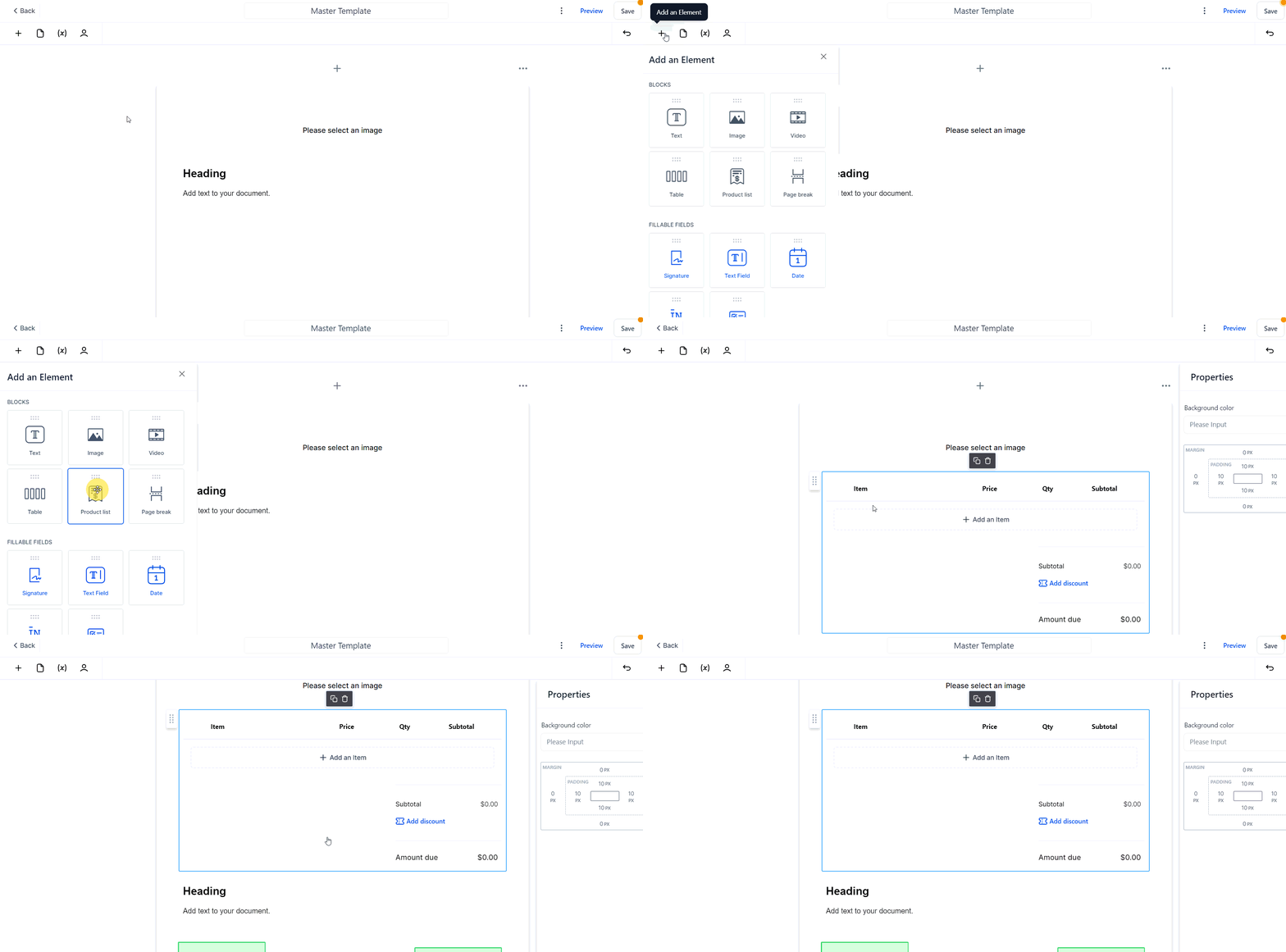
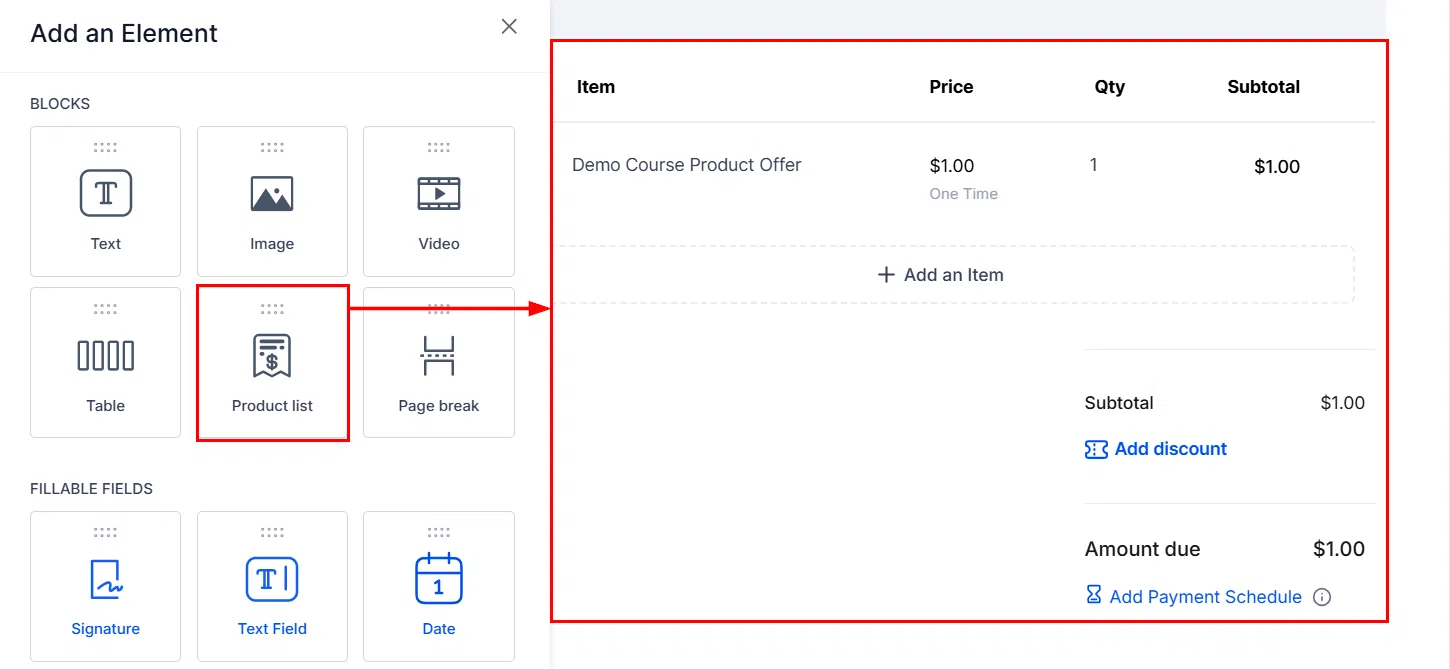
In the document builder, insert a Product List element and add your recurring product. Set the billing frequency – weekly, monthly, annually, or custom – and configure any optional setup fee that applies on the first payment only.
Generating and Sending Invoices
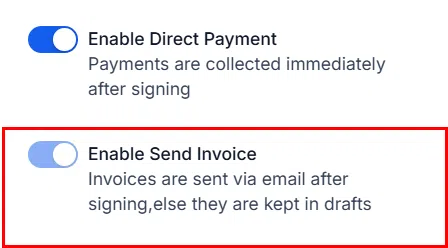
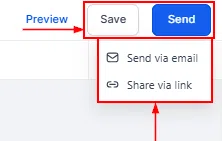
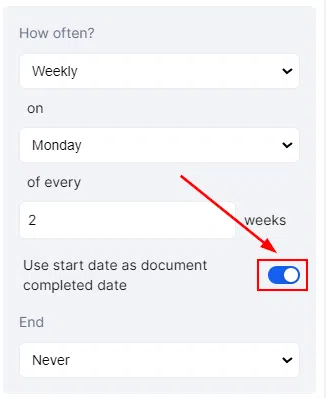
When direct payment is enabled alongside a recurring product, Growth360 generates an invoice automatically at each scheduled billing date. If the client’s signing date aligns with the scheduled payment date, they are redirected to pay the first invoice immediately after signing. For non-aligned signing dates, the first invoice is sent on the next scheduled date.
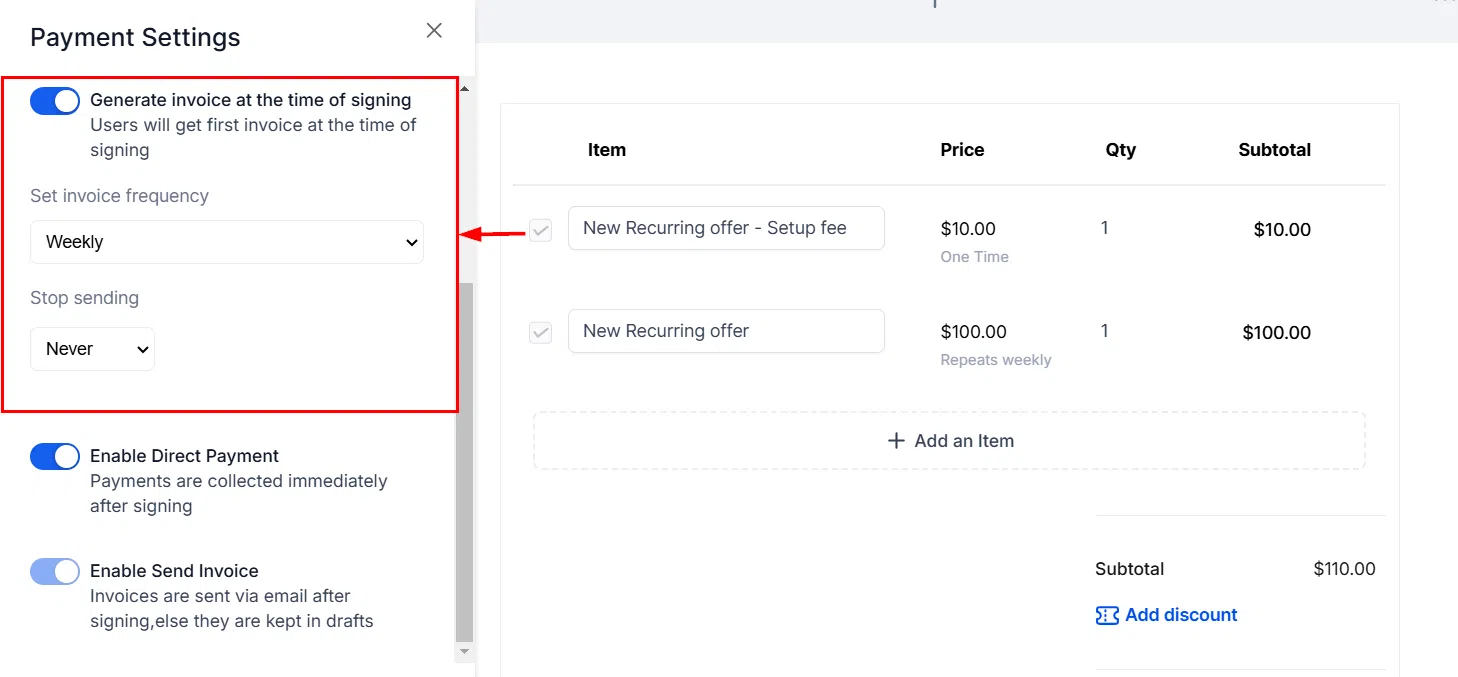
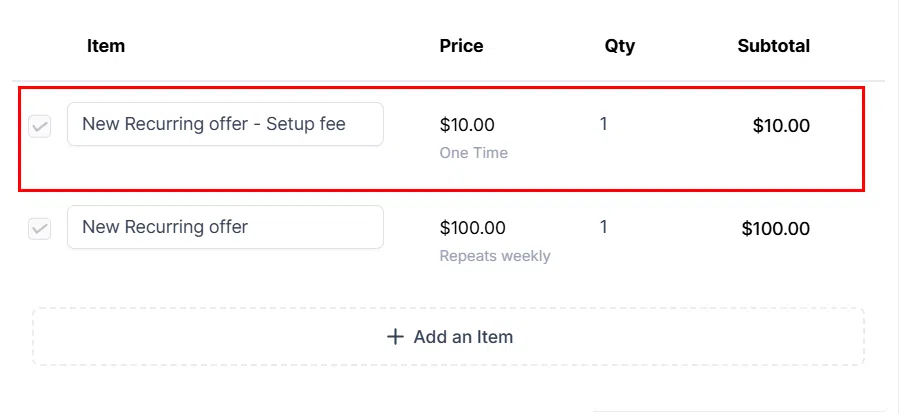
You can mix one-time and recurring products in the same document. The one-time products are charged once and the recurring products follow their configured schedule – clients are not charged twice for the one-time items.
Automatic Invoice Creation After Signing
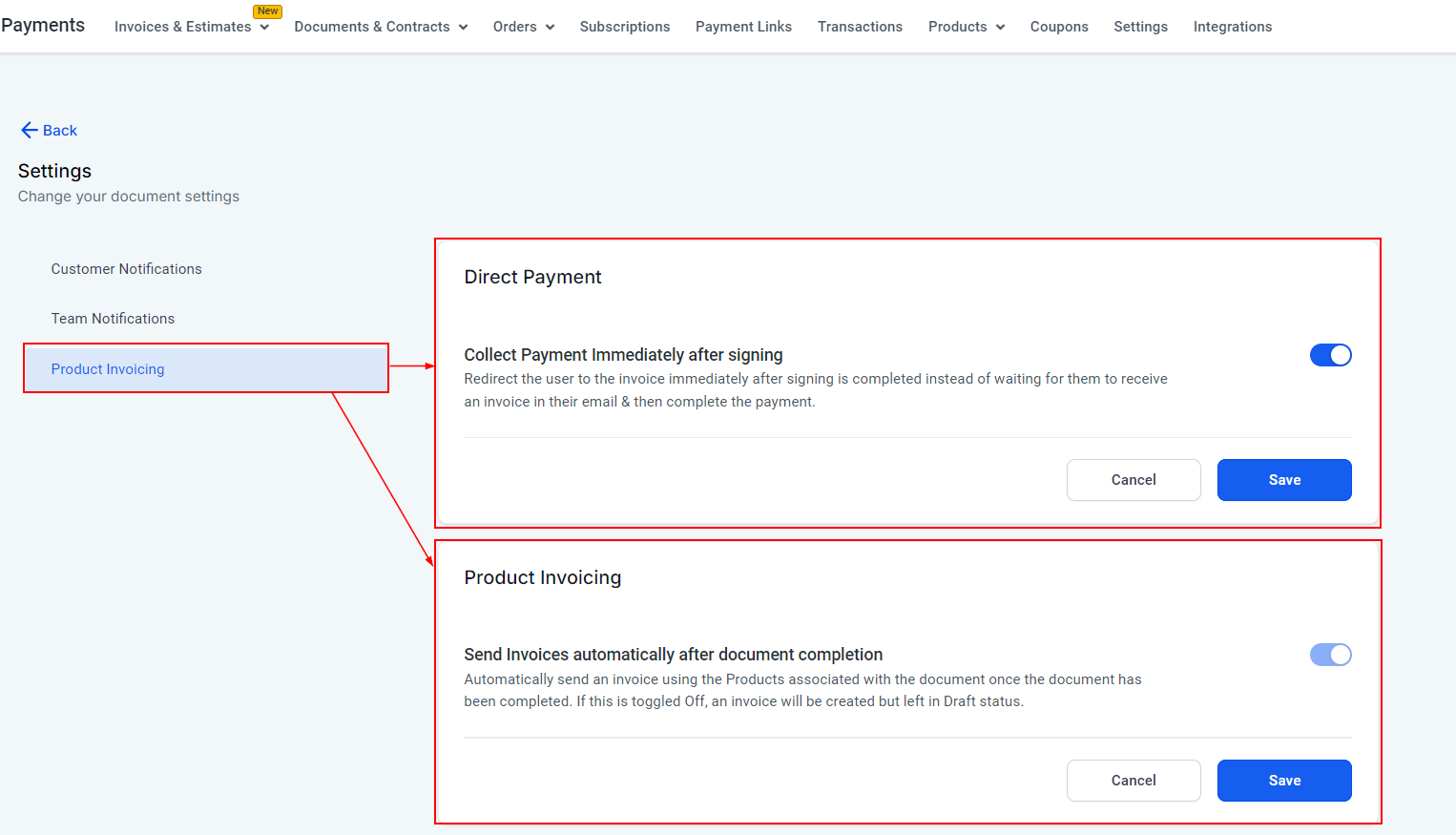
When a contact signs a document or contract that contains product line items, Growth360 automatically creates an invoice copying all the line items, taxes, and discounts from the document. This eliminates the need to manually create an invoice after the agreement is finalised.
Viewing and Sending the Auto-Created Invoice
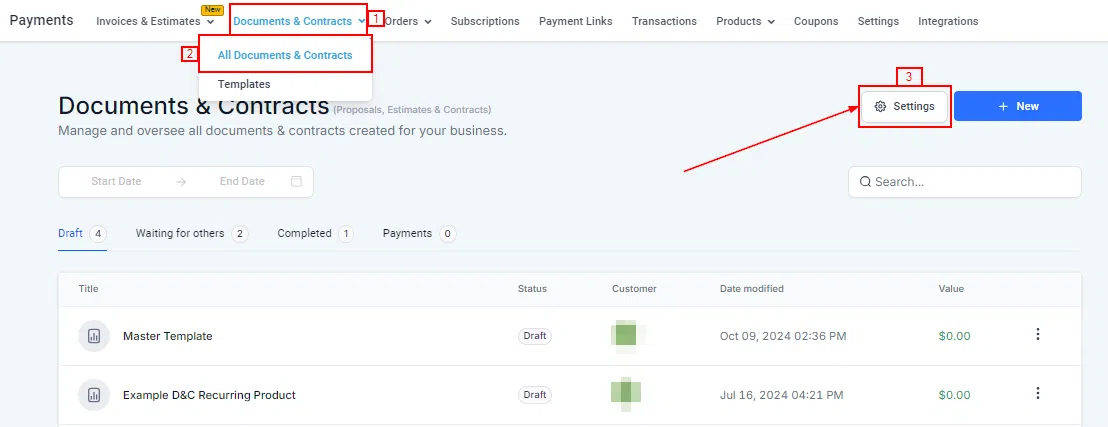
Find the auto-generated invoice using the View Invoice option in the Finalised List view. From here you can review the invoice, make any adjustments if needed, and send it to the client for payment. If the document has multiple product lists, all line items and discounts are combined into one invoice. If there are no product line items in the document, no invoice is created.
Currency Selection for Documents and Contracts
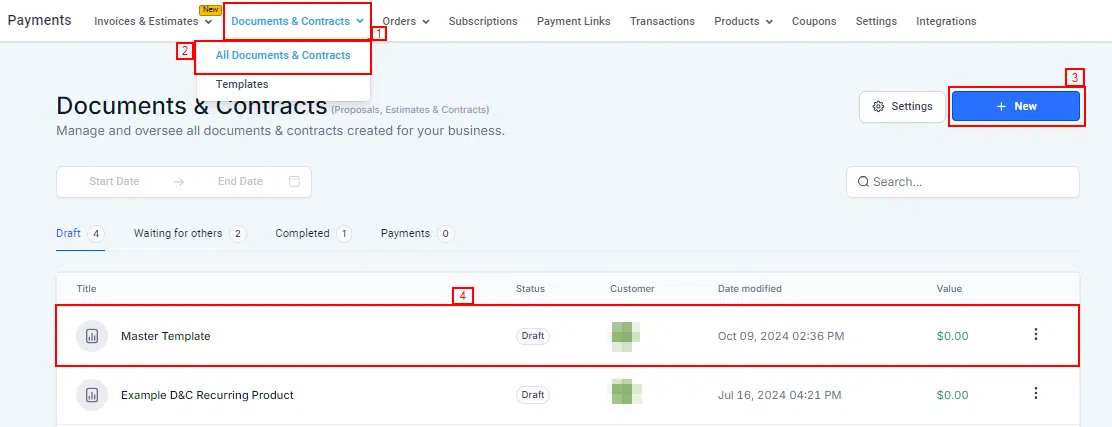
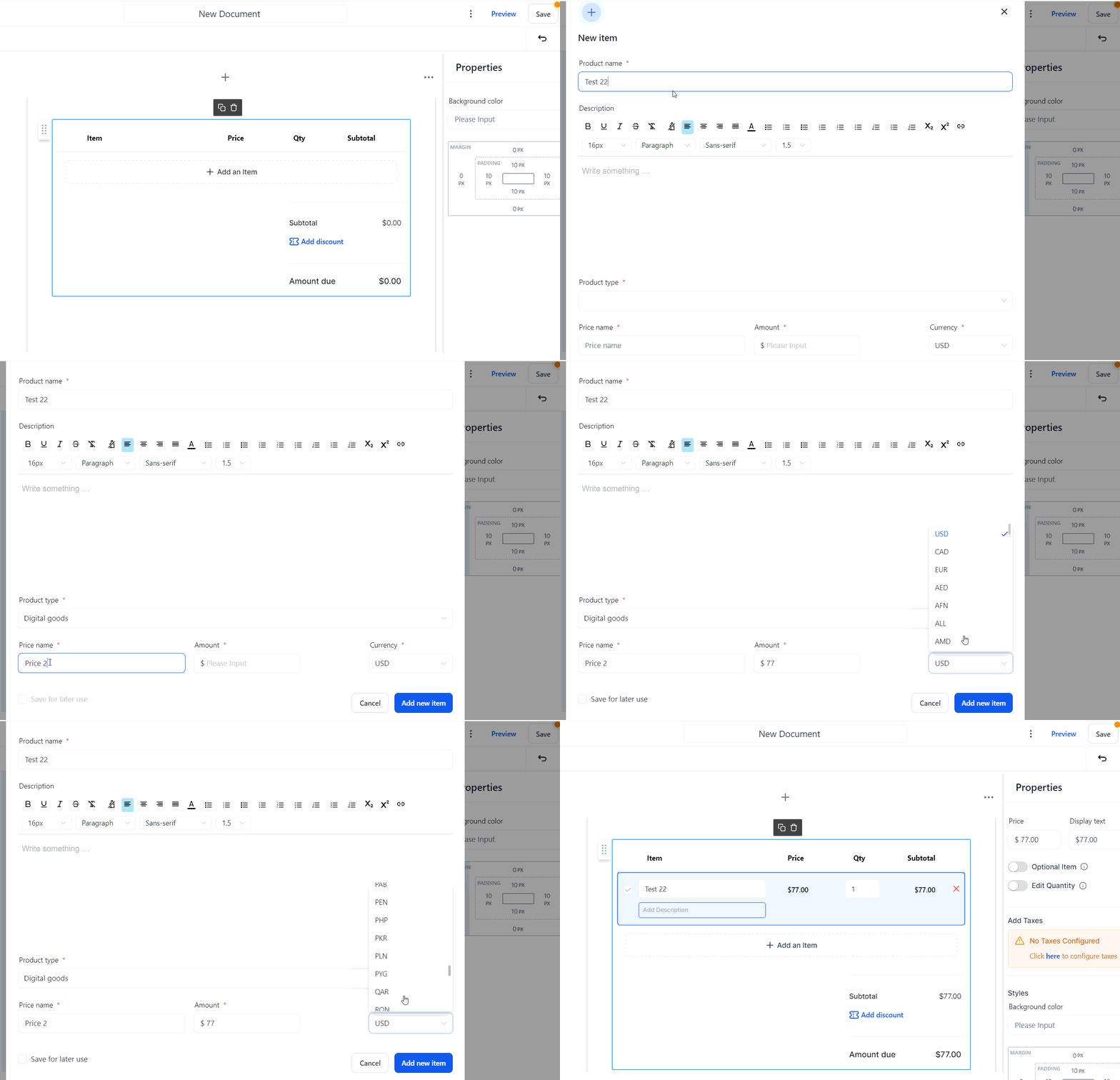
Growth360 lets you set the currency for each document individually, which is particularly useful when working with international clients. Selecting the correct currency from the start avoids confusion and ensures your invoices, estimates, and contracts reflect the agreed-upon pricing in the client’s local currency.
Public Documents
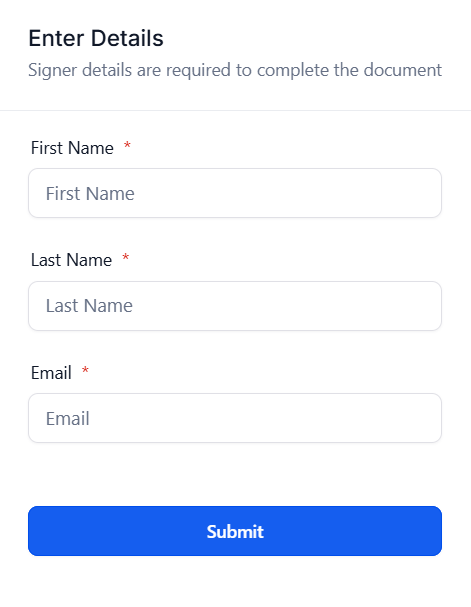
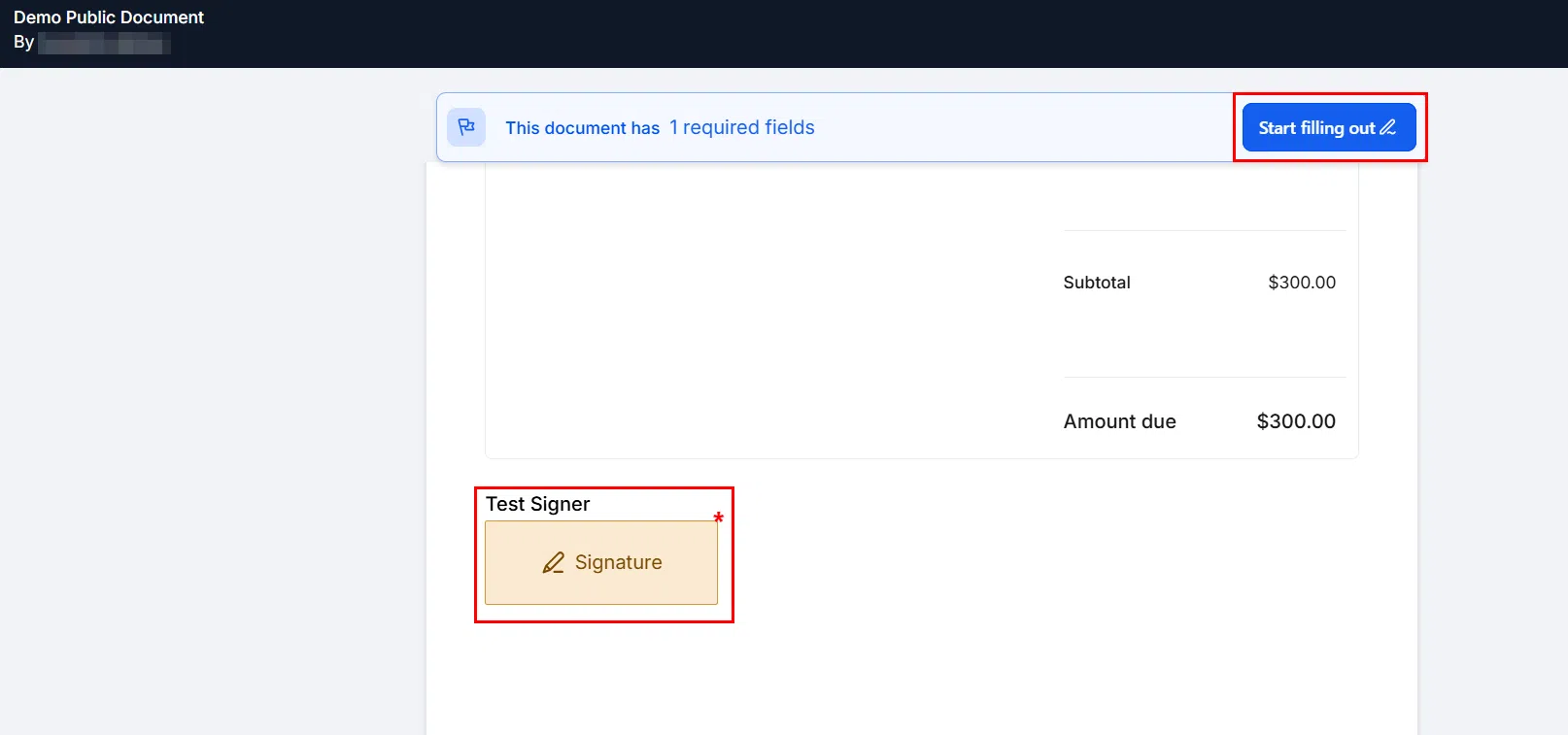
Public Documents let you create a document or contract that can be signed by anyone with the link – not just a specific named contact. This is ideal for standard agreements like terms of service, liability waivers, event sign-ups, or intake forms where you want to collect signatures at scale without creating individual contacts first.
Creating a Public Document
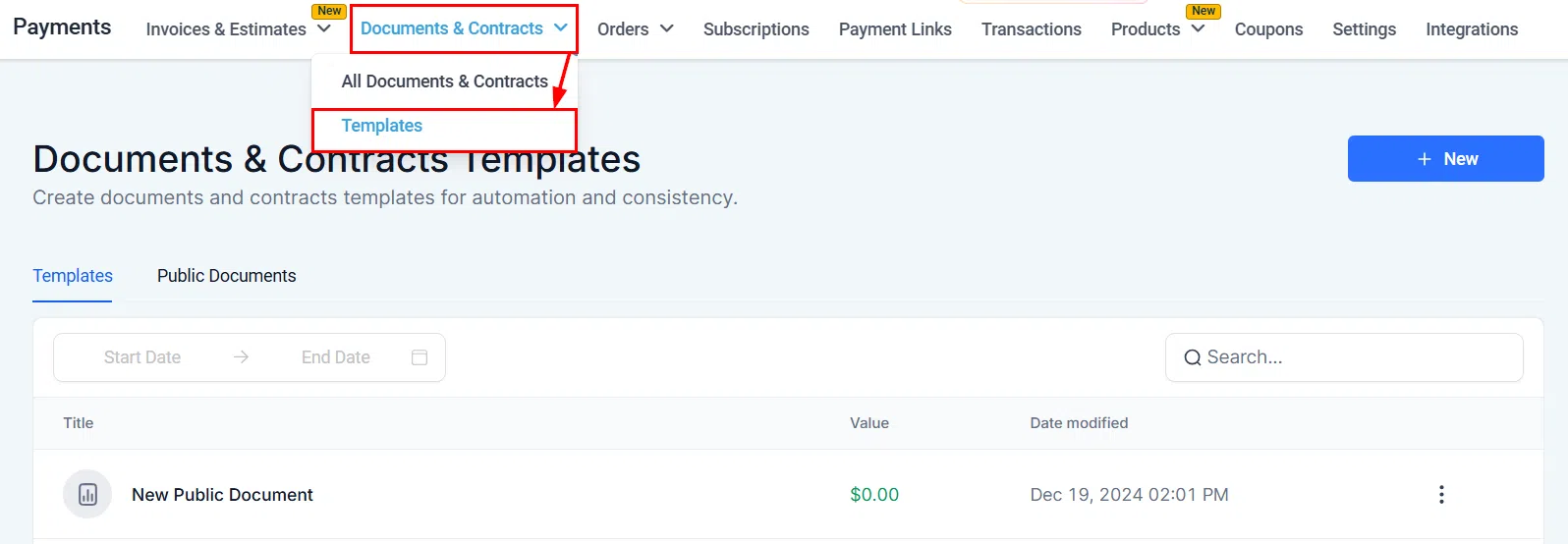
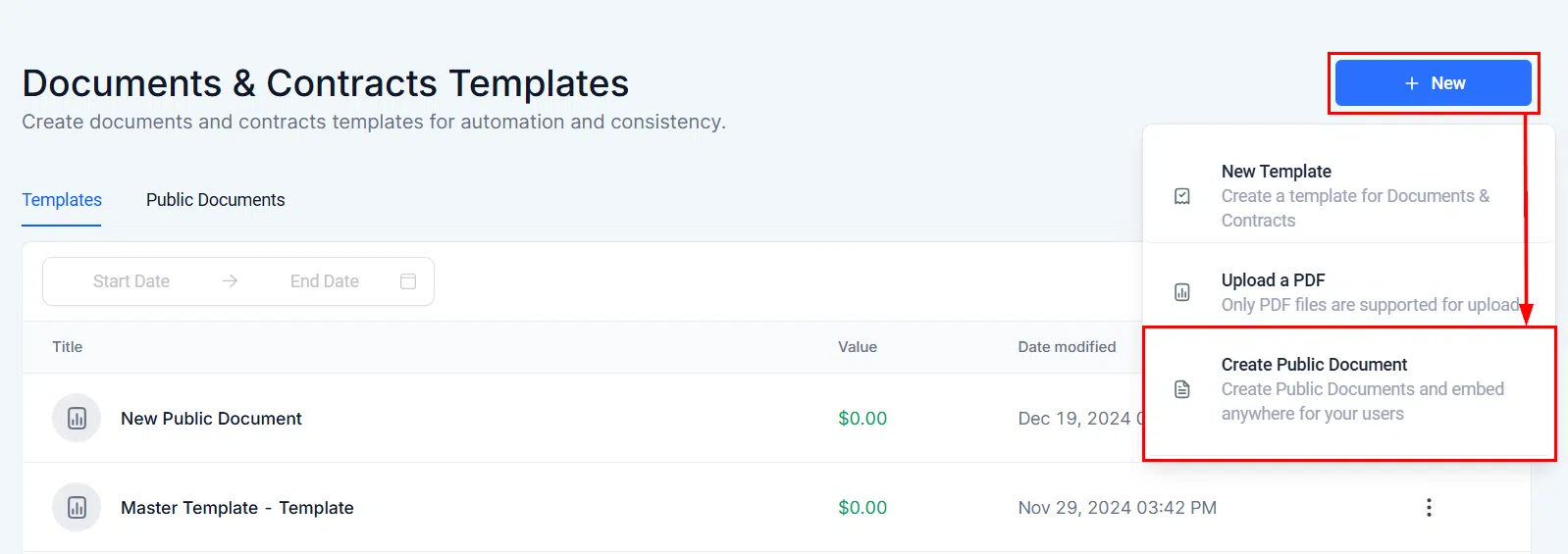
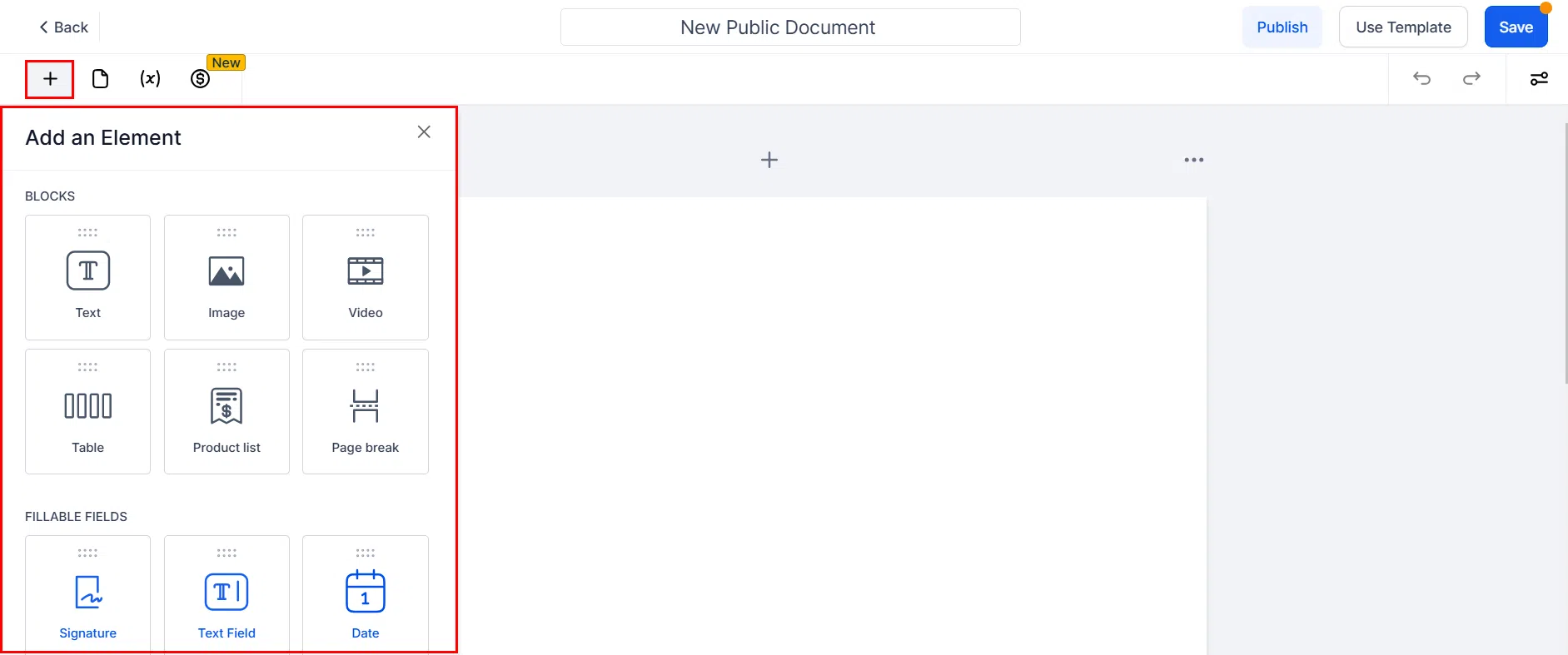
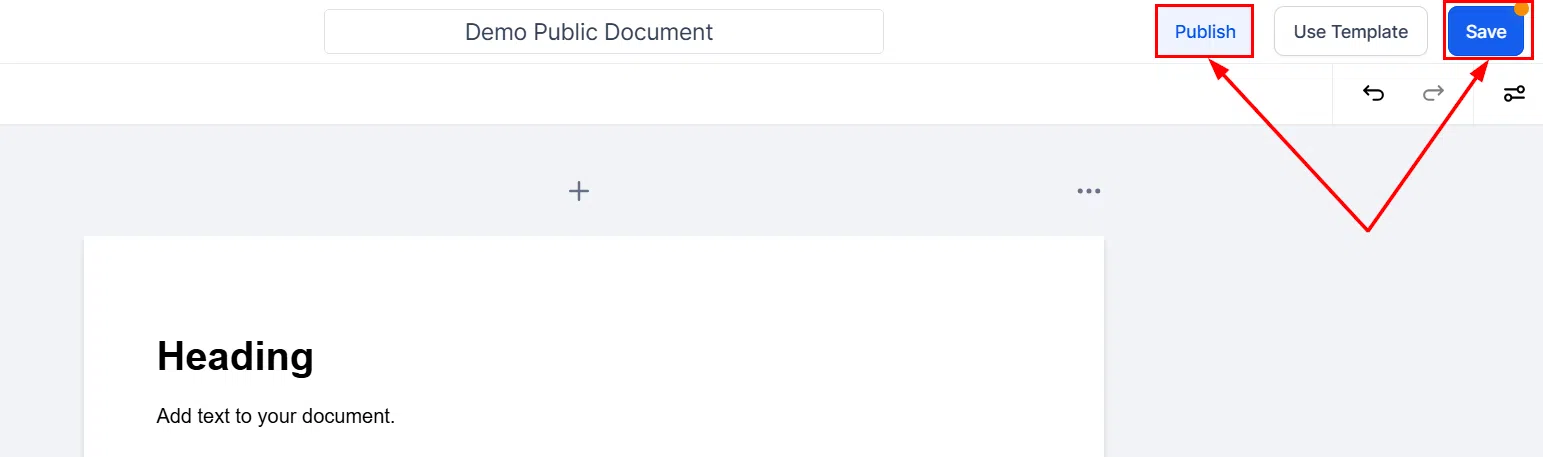
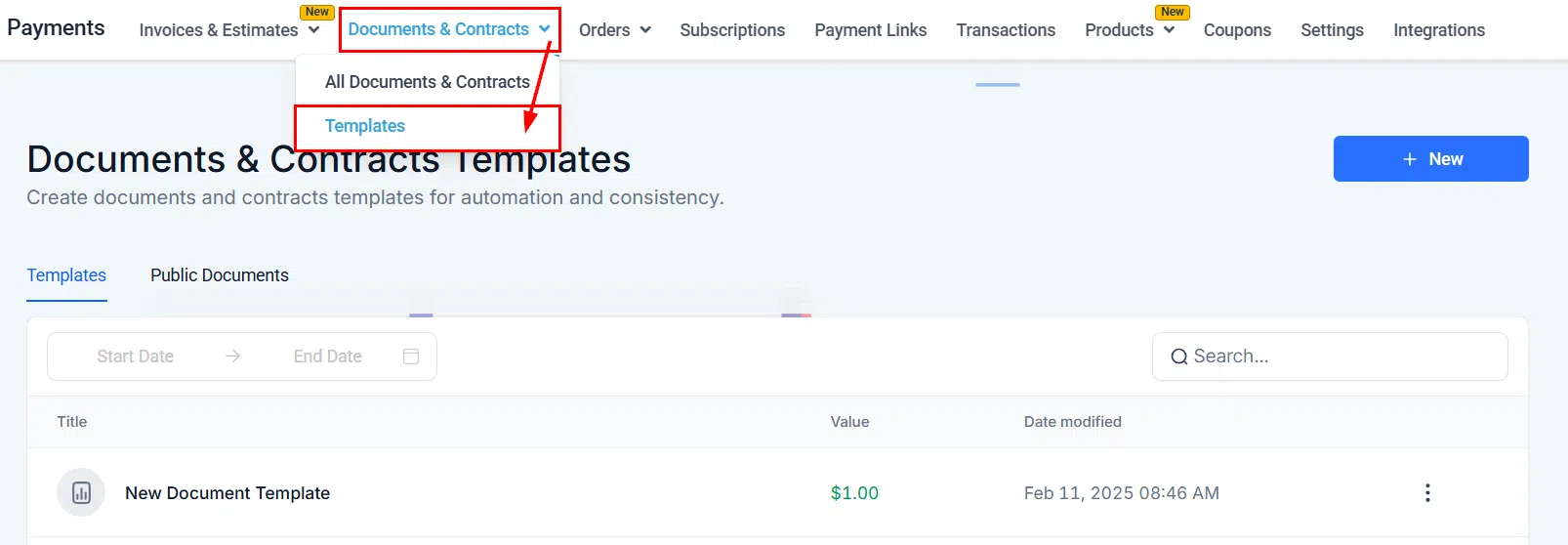
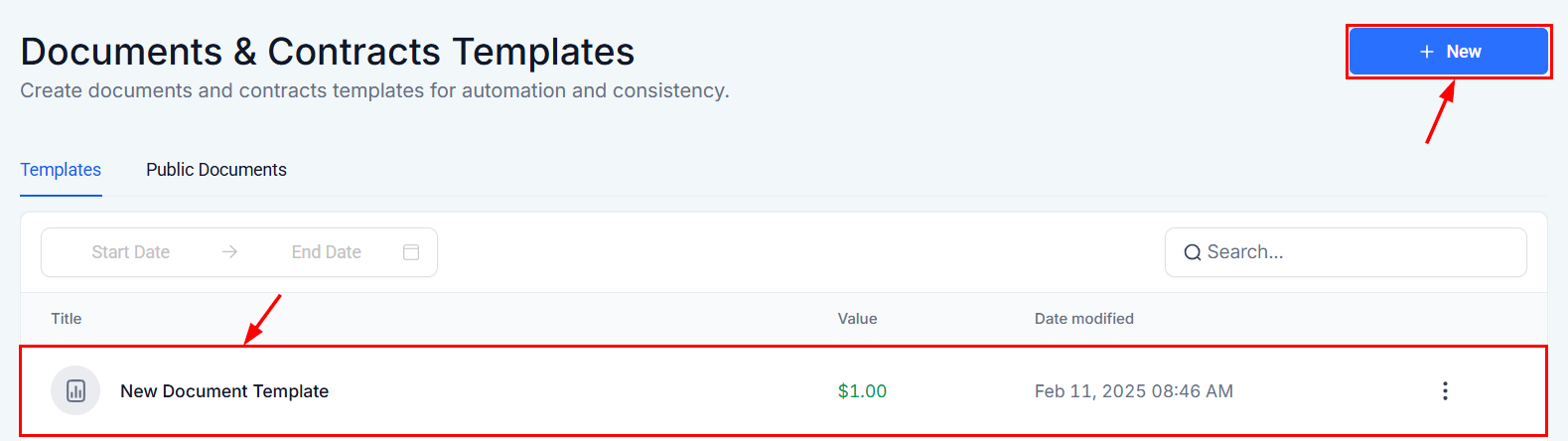
Navigate to Payments > Documents & Contracts > Templates and click New Template. Select Public Document as the document type. Build your document in the builder – add text, signature fields, and any fillable elements you need. Save the template when complete.
Generating and Sharing the Link
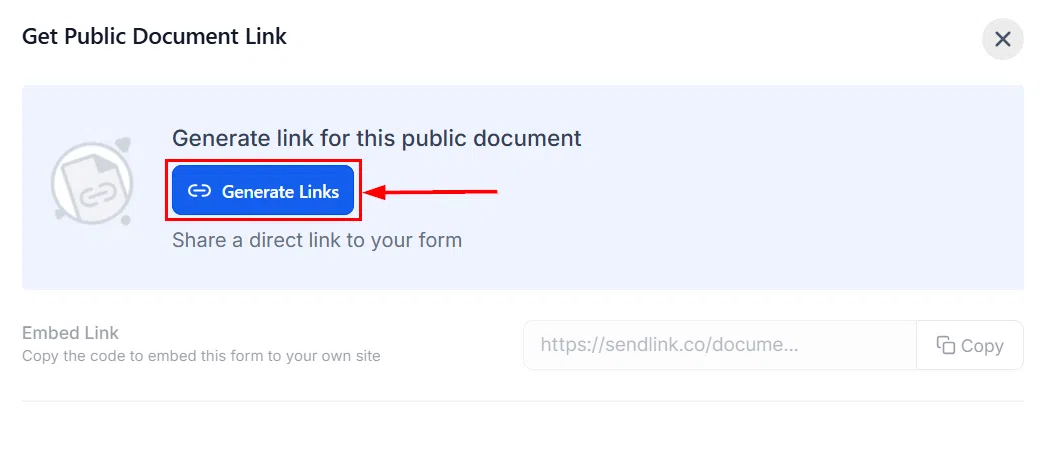
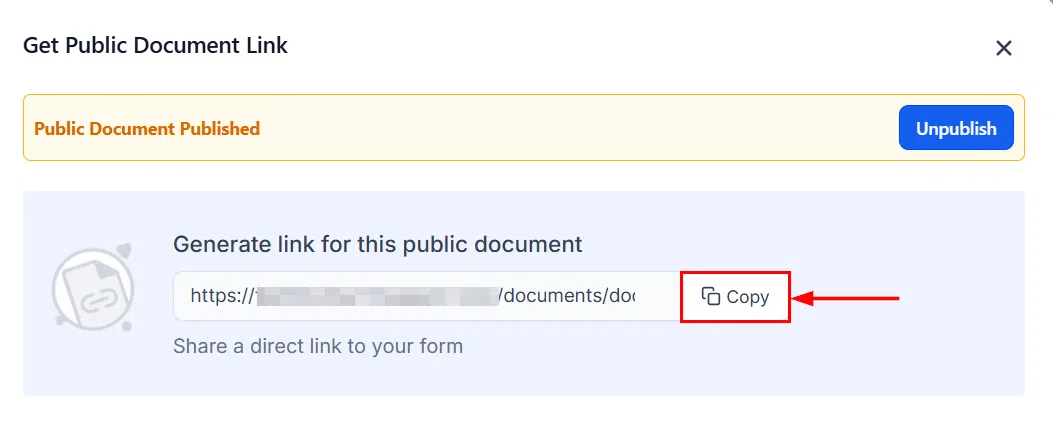
Once saved, click Generate Link on the template to create a shareable URL. Copy the link and distribute it however you choose – via email, social media, SMS, or embedded on a web page. Each person who clicks the link can fill in the document and sign it independently.
Managing Responses
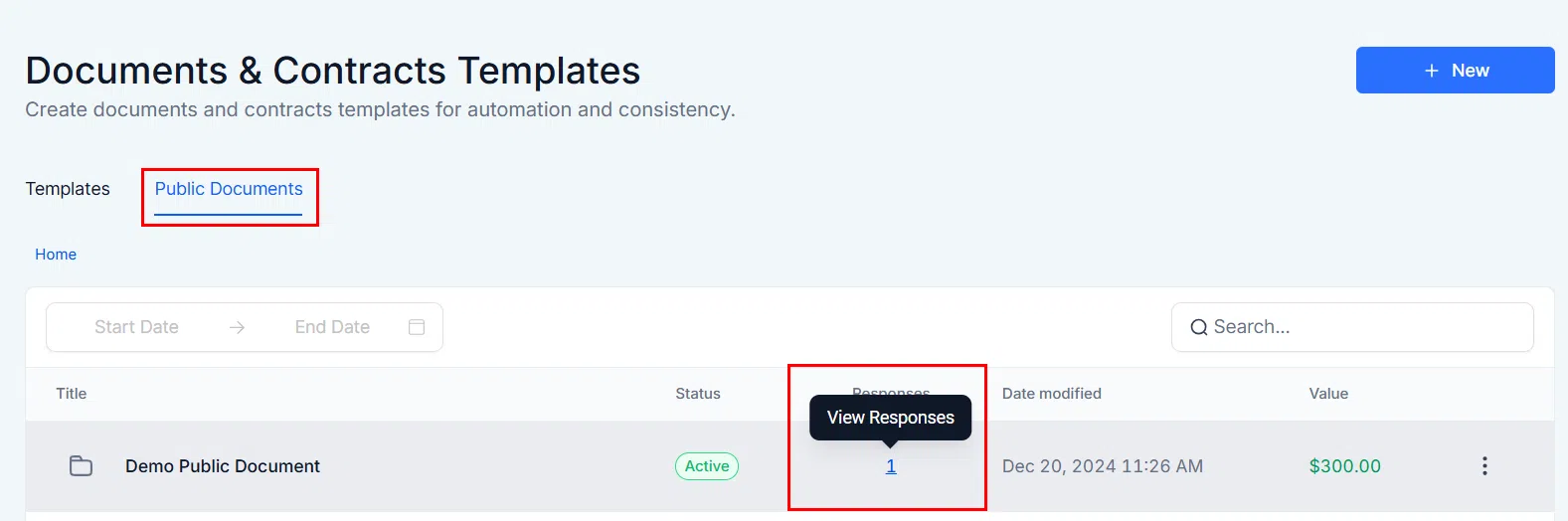
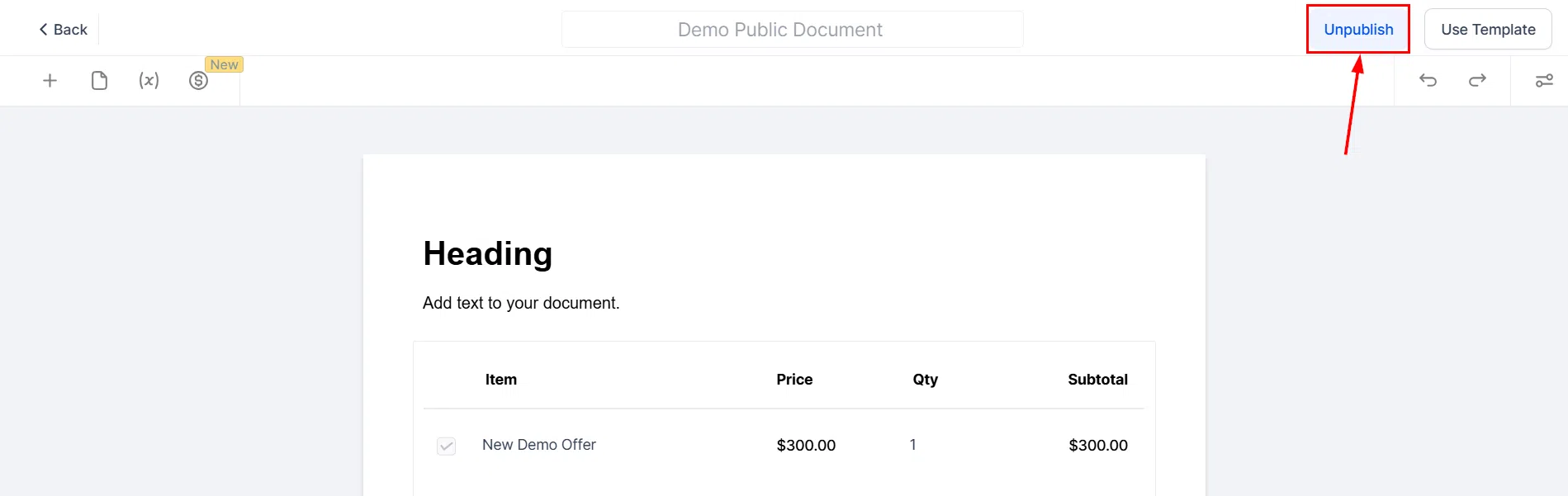
View submissions through the View Responses option on the template. Each signed submission is stored with the signer’s details, filled fields, and signature. You can also unpublish the document at any time to stop accepting new responses.
Payment Plans in Documents and Contracts
Payment plans let you structure an agreement where the client pays in instalments rather than a single upfront amount. This makes larger purchases more accessible for clients while keeping the full agreement and payment schedule in one document.
Setting Up a Payment Plan
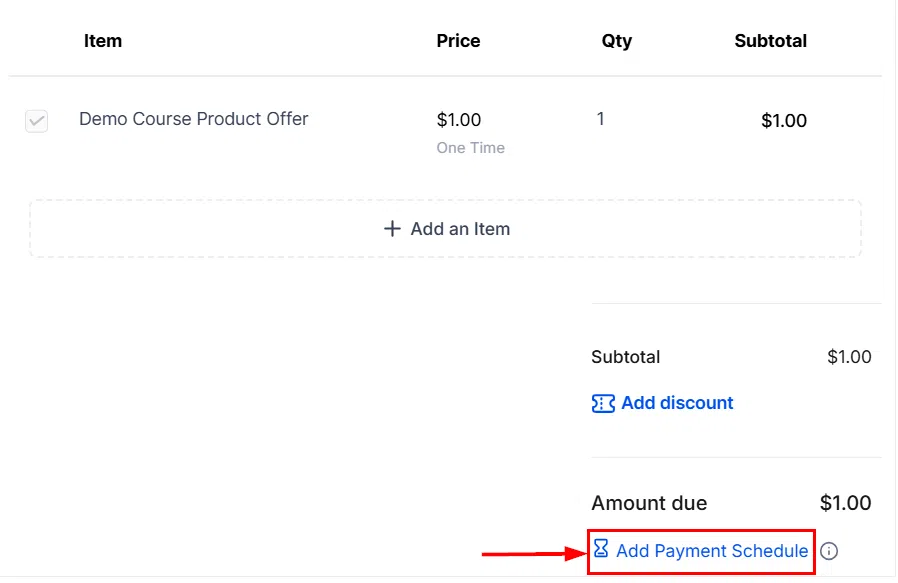
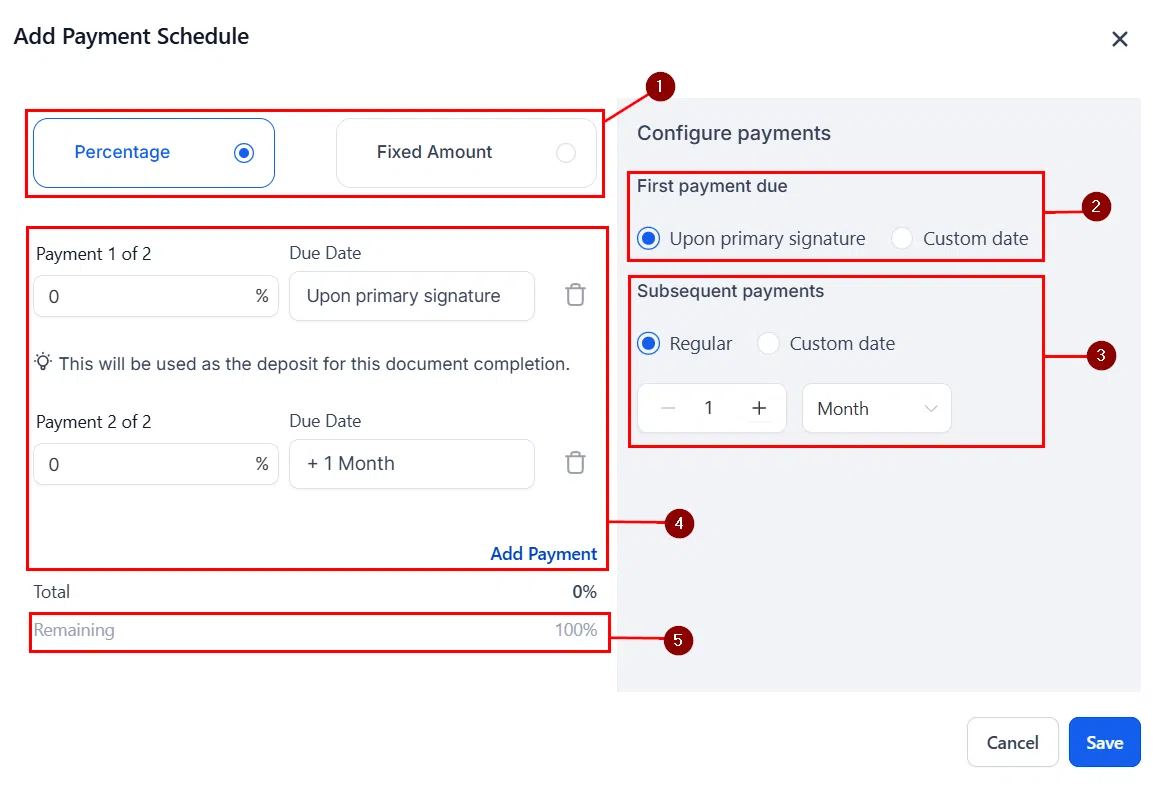
In the document builder, add a Product List element and include the products the client is purchasing. Then add a Payment Schedule element to define the instalment structure – set the number of payments, the frequency, and the amount for each instalment. The total across all instalments should match the product total.
Client Payment Experience
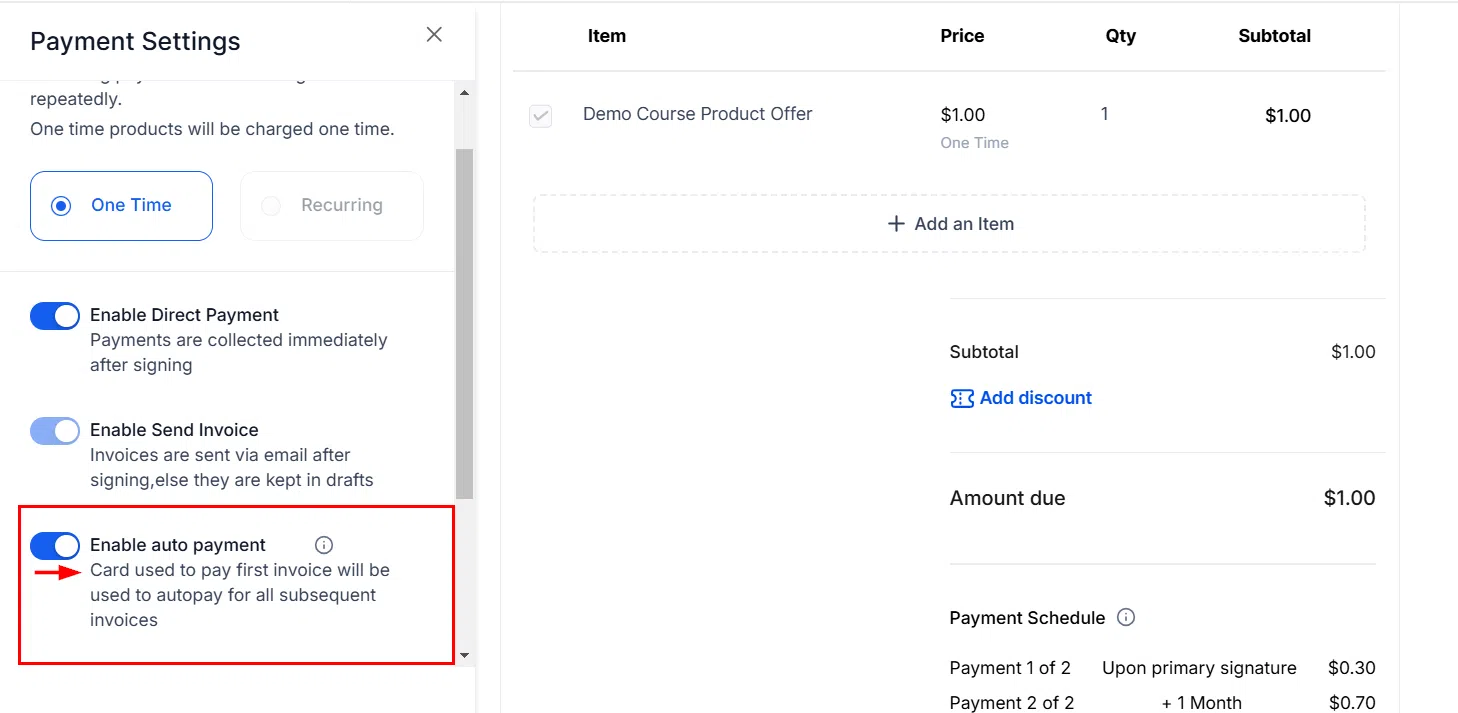
When the client signs, Growth360 generates the payment schedule automatically. Each instalment invoice is sent on the configured date. You can enable auto-payment so the client’s saved payment method is charged automatically, or leave it set to manual so they pay each invoice when it arrives.
Uploading PDFs for Documents and Contracts
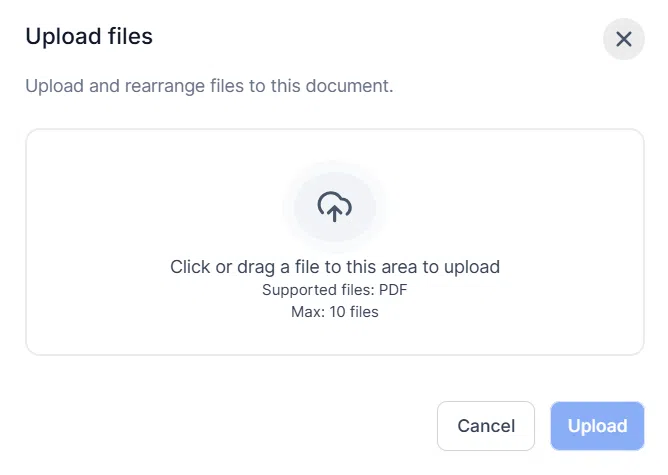
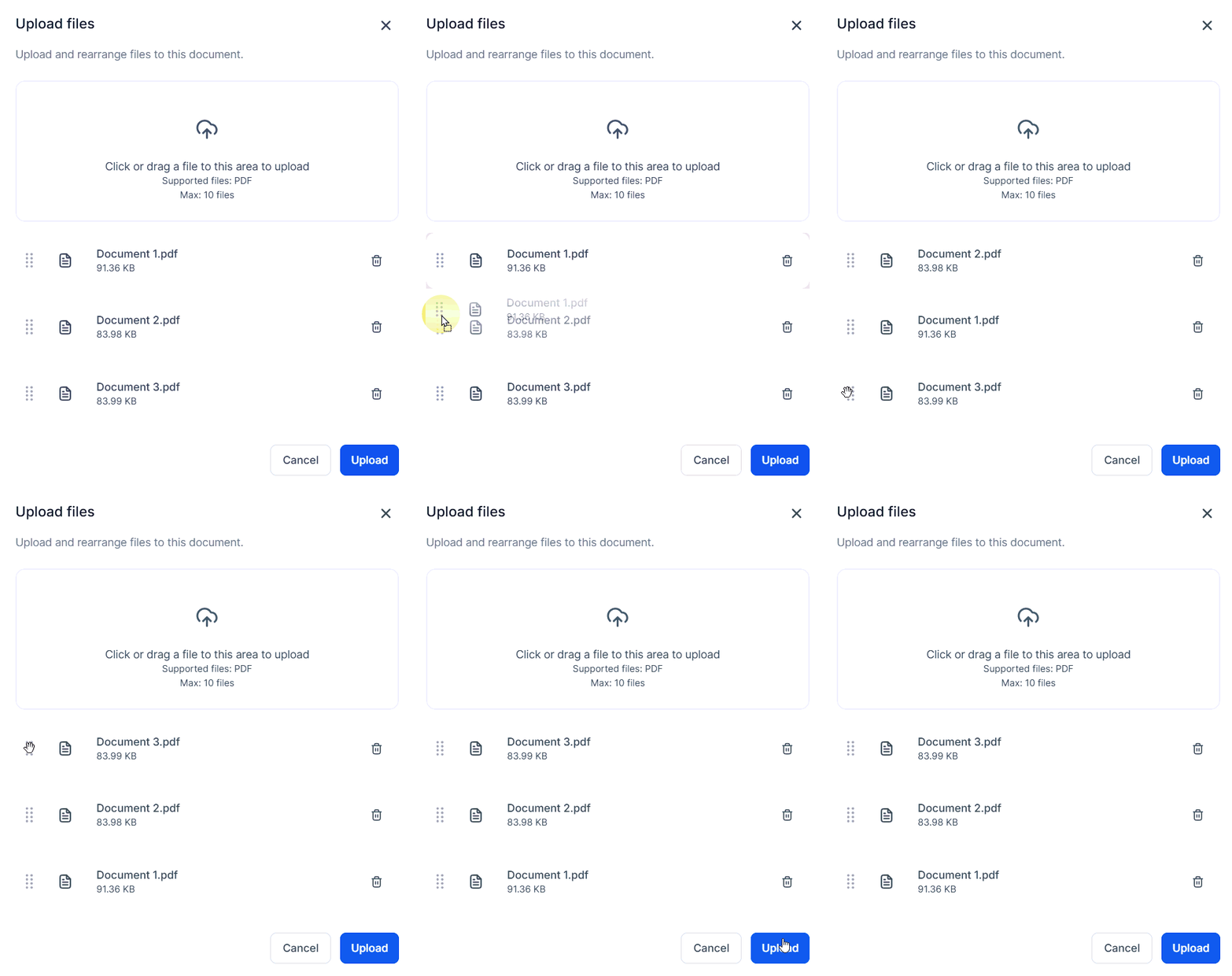
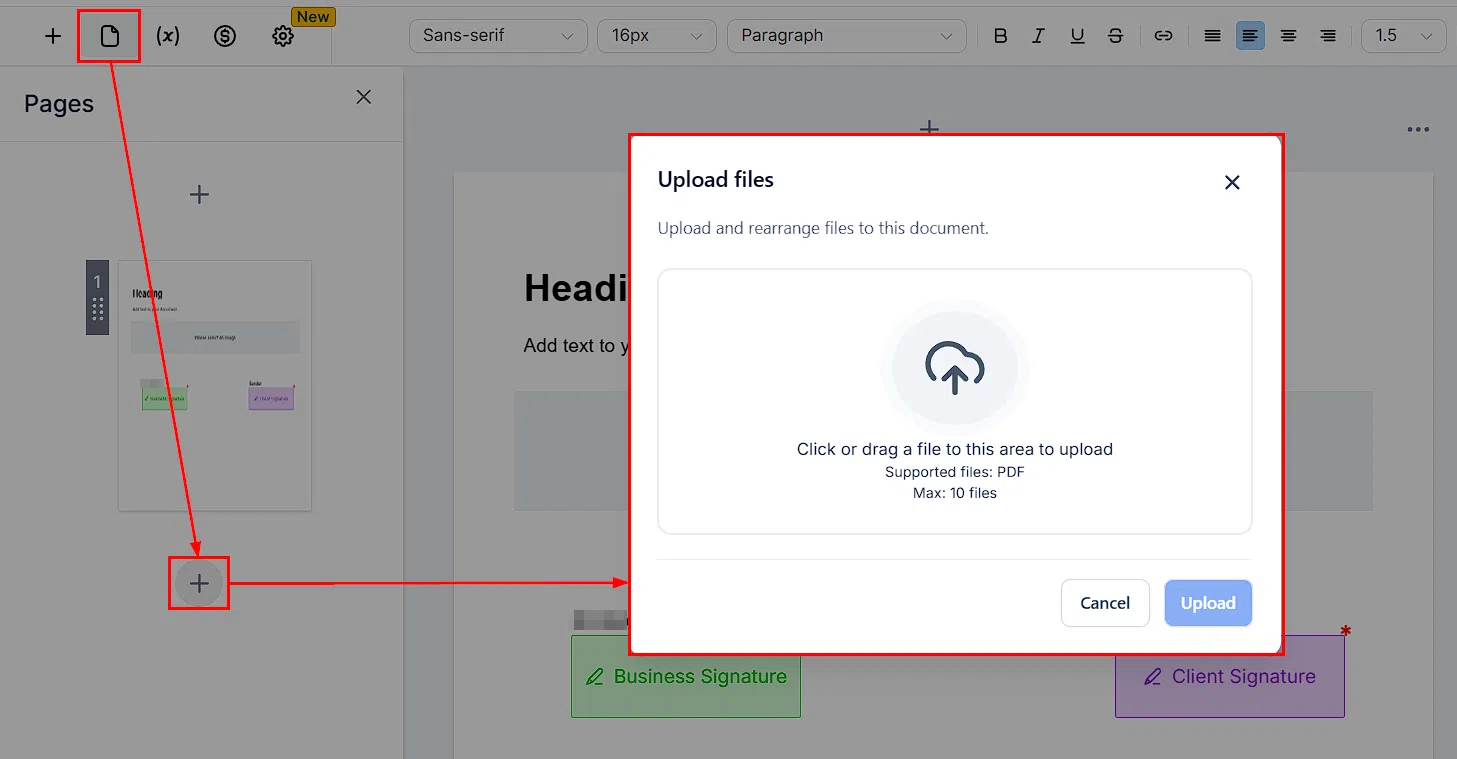
If you have existing contracts, agreements, or standard forms in PDF format, you can upload them directly into Growth360 and add signature fields without rebuilding the document from scratch. This is the fastest way to get existing paperwork into your digital signing workflow.
How to Upload a PDF
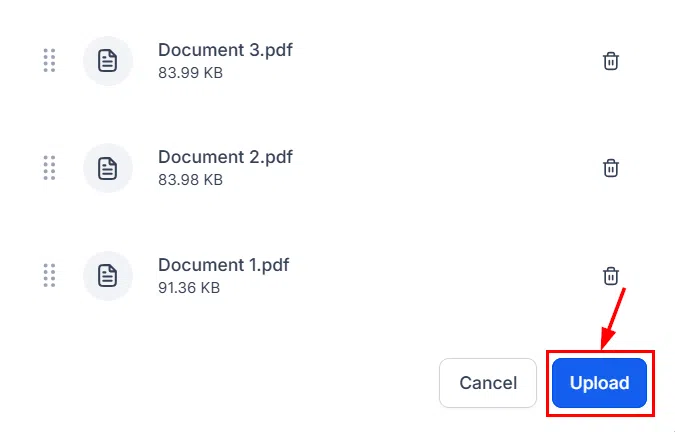
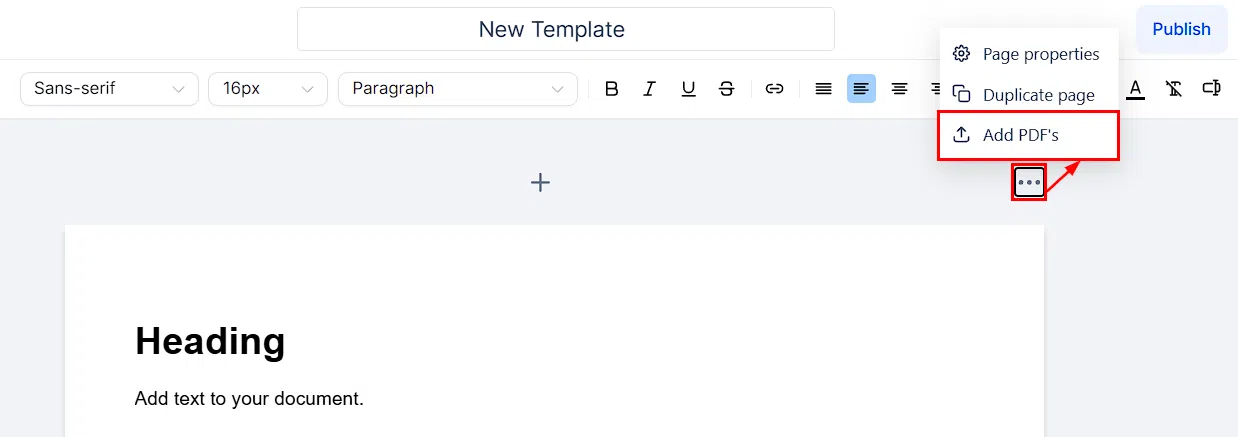
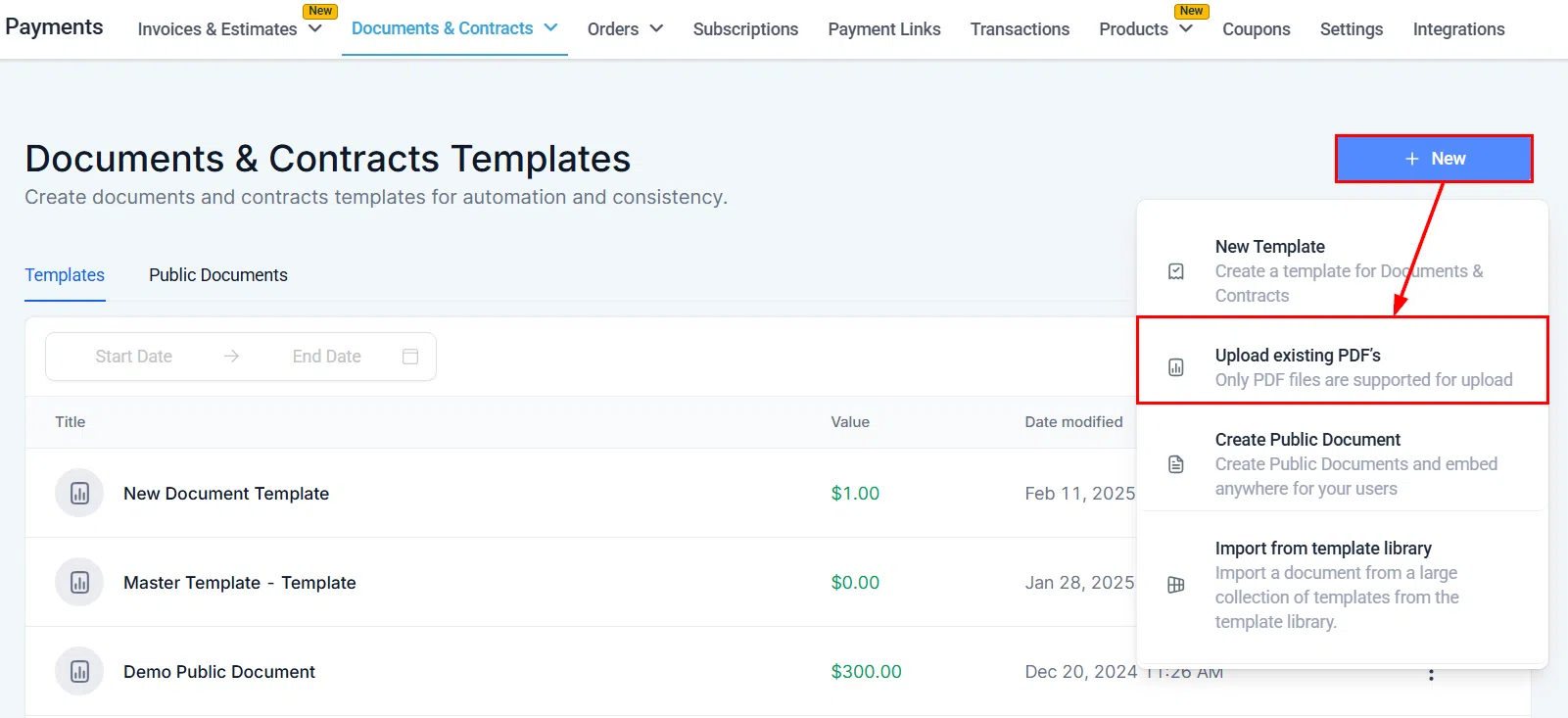
Navigate to Payments > Documents & Contracts > Templates and click New Template. Select Upload PDF, then choose the PDF file from your computer. Growth360 imports the PDF and opens it in the builder, where you can place signature blocks, initials fields, and any other interactive elements on top of the existing content.