Documents & Contracts in Growth360 is your central hub for creating, sending, and managing proposals, estimates, and contracts – complete with a full-featured builder, digital signatures, and flexible notification and payment settings.
Documents & Contracts Overview
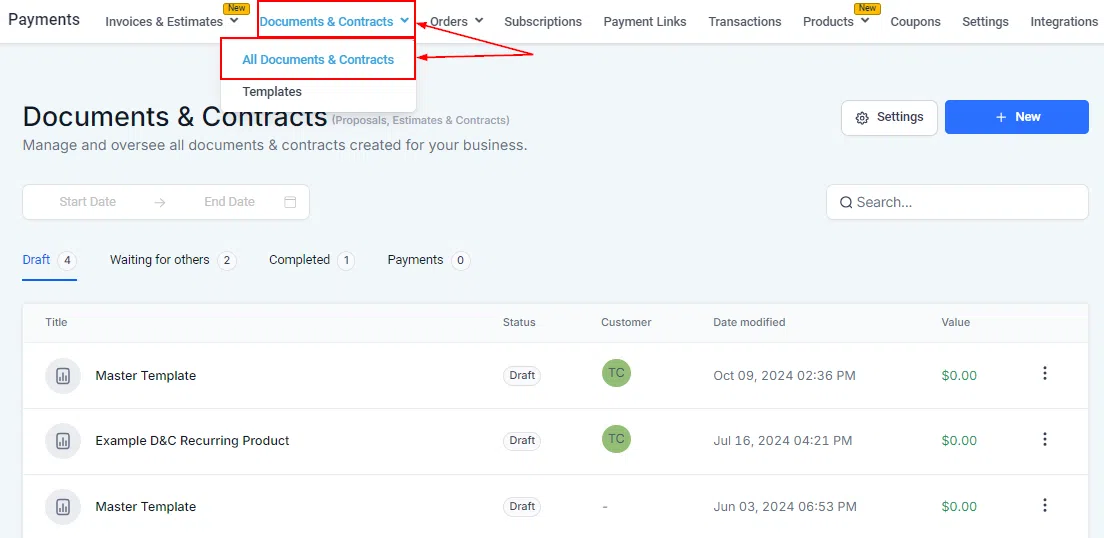
The Documents & Contracts section provides a complete workspace for handling all your business documents, from initial proposals through to signed contracts. Navigate to Payments > Documents & Contracts > All Documents & Contracts to access your document list.
Filtering and Searching
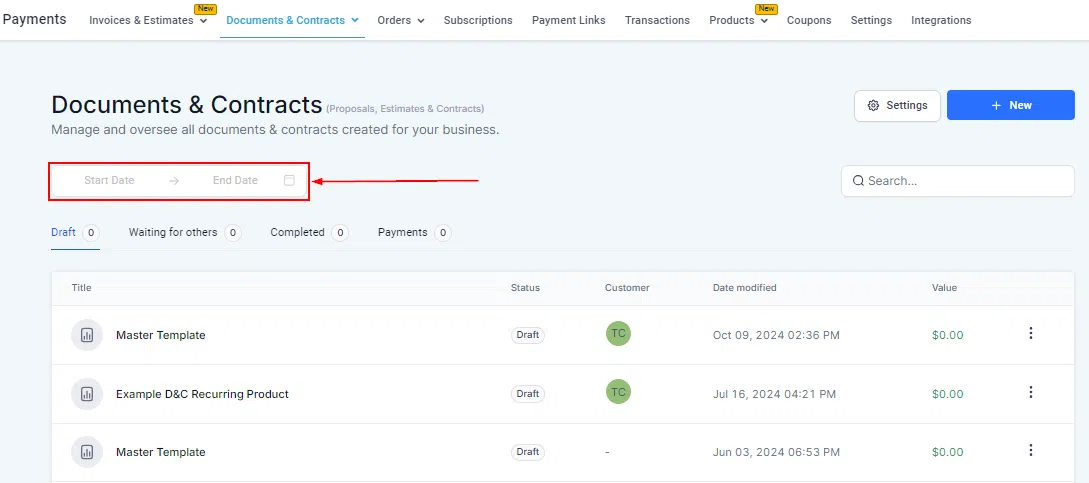
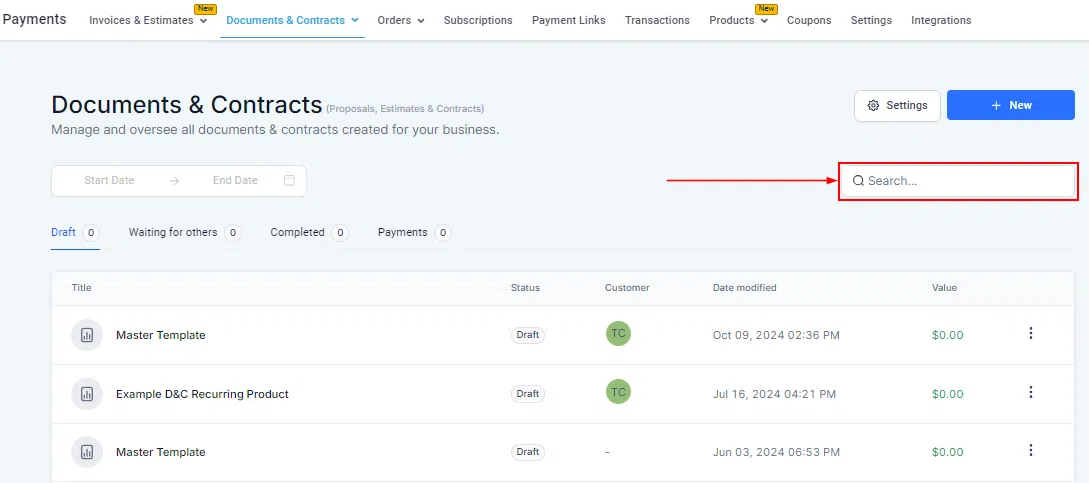
Use the Date Range filter to narrow the list to documents created or modified within a specific period. The Search field lets you locate documents quickly by name or associated contact.

Creating a New Document
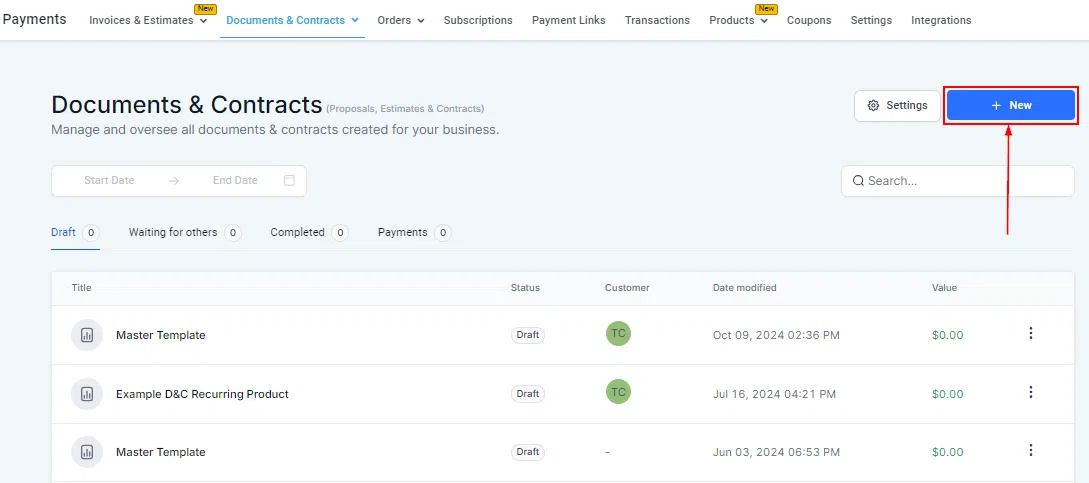
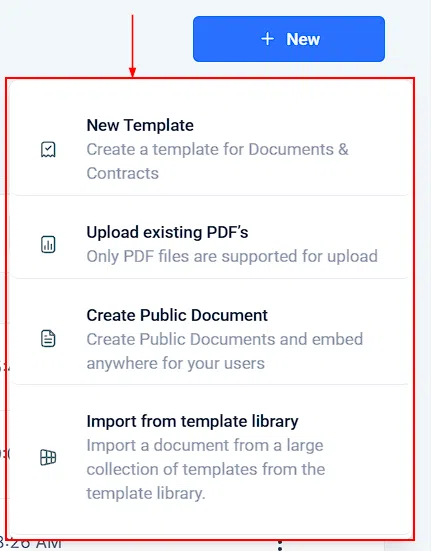
Click the New button to create a fresh proposal, estimate, or contract from scratch, or to upload an existing PDF. You can also access your saved templates from this menu.
Document Statuses
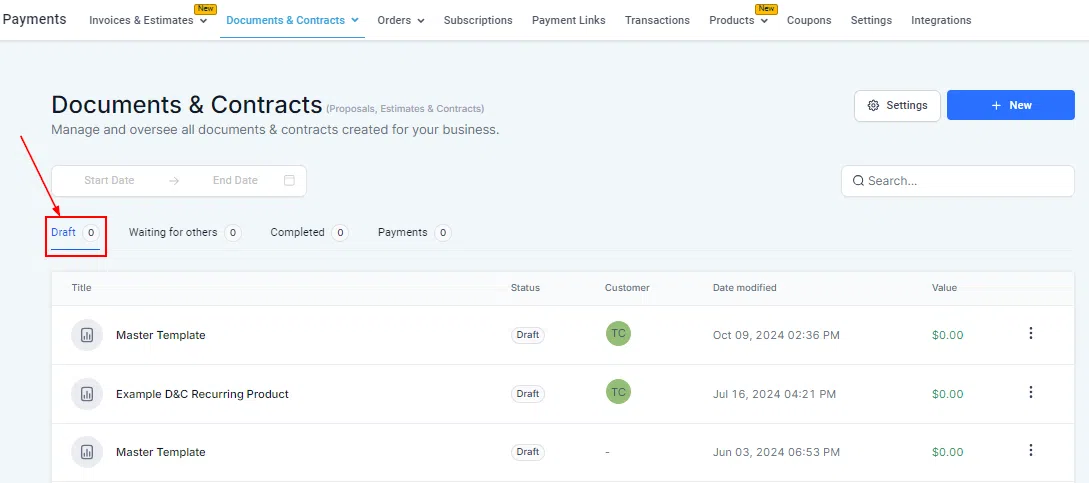
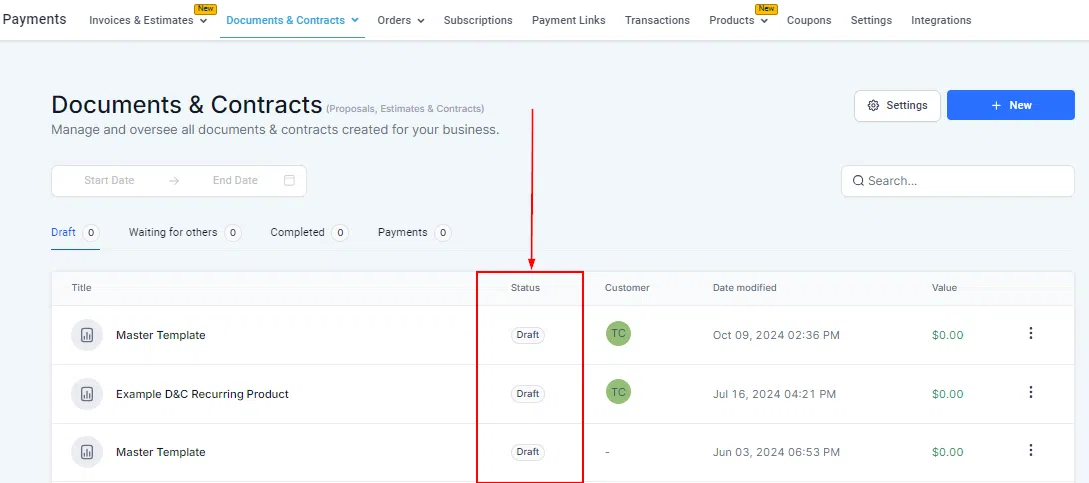
Each document moves through a series of statuses as it progresses. Growth360 tracks these automatically so you always know where each document stands:
- Draft: The document has been created but not yet sent to any recipient.
- Sent: The document has been delivered to the recipient for review or signing.
- Viewed: The recipient has opened the document.
- Signed: The recipient has completed and signed the document.
- Completed: The document has been finalised and requires no further action.
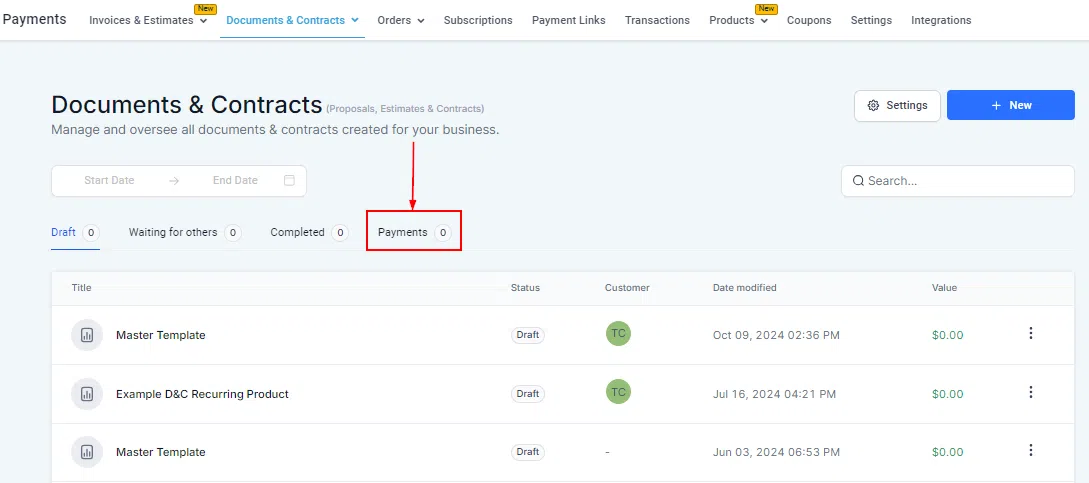
- Payments: Documents that include payment-related details or a payment collection step.
Document List Columns
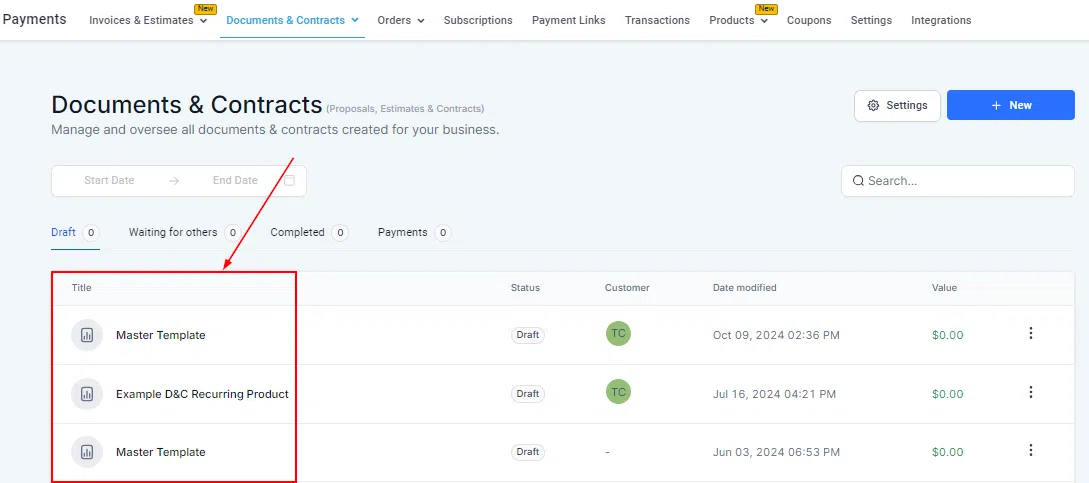
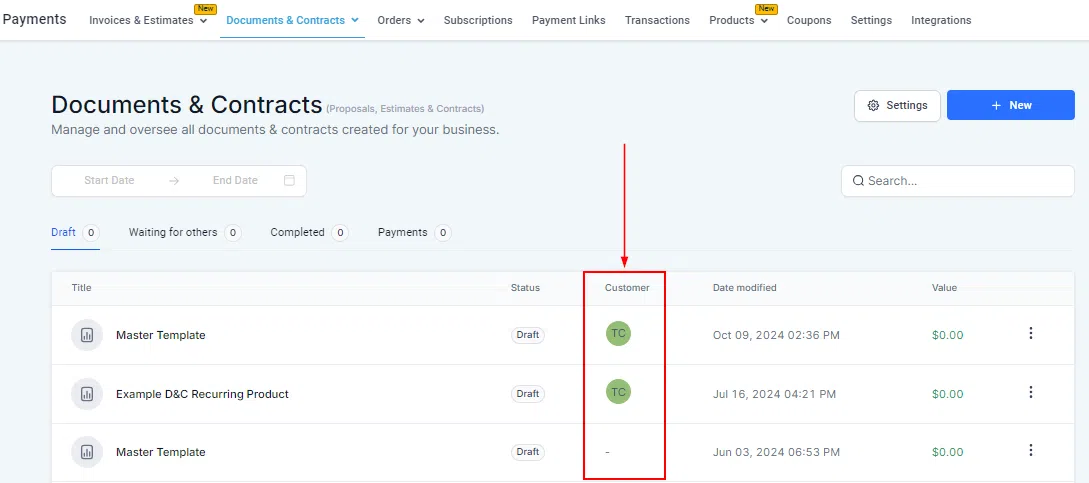
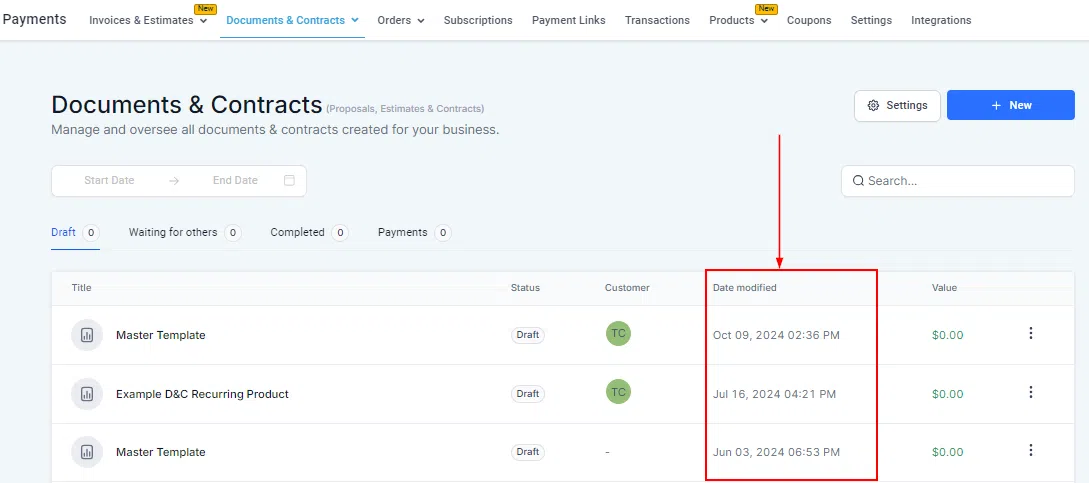
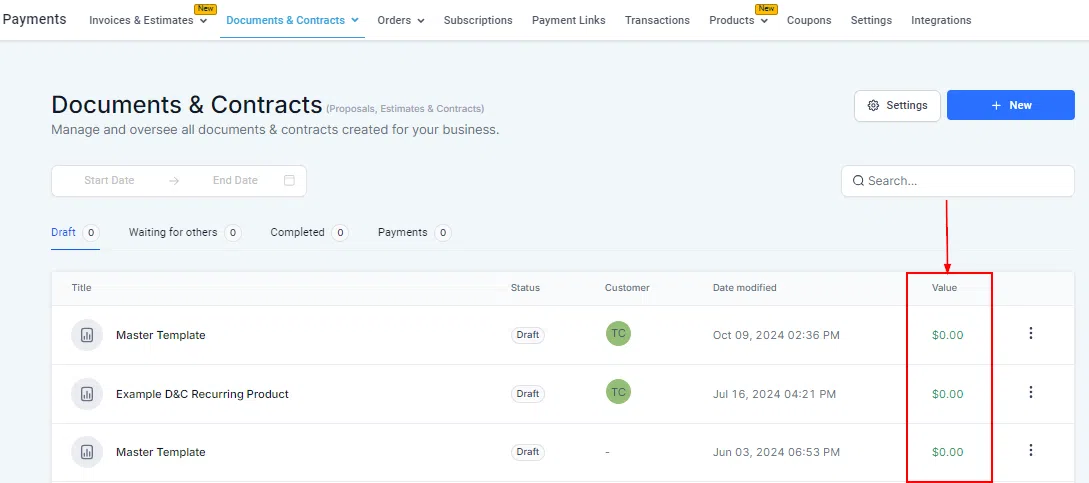
The document list displays key details for each item at a glance. The Title column shows the document name for easy identification. Status reflects the current state of the document. Customer displays the initials of the associated contact. Date Modified shows when the document was last updated. Value displays the monetary amount associated with the document, such as a contract total or estimated cost.


Settings
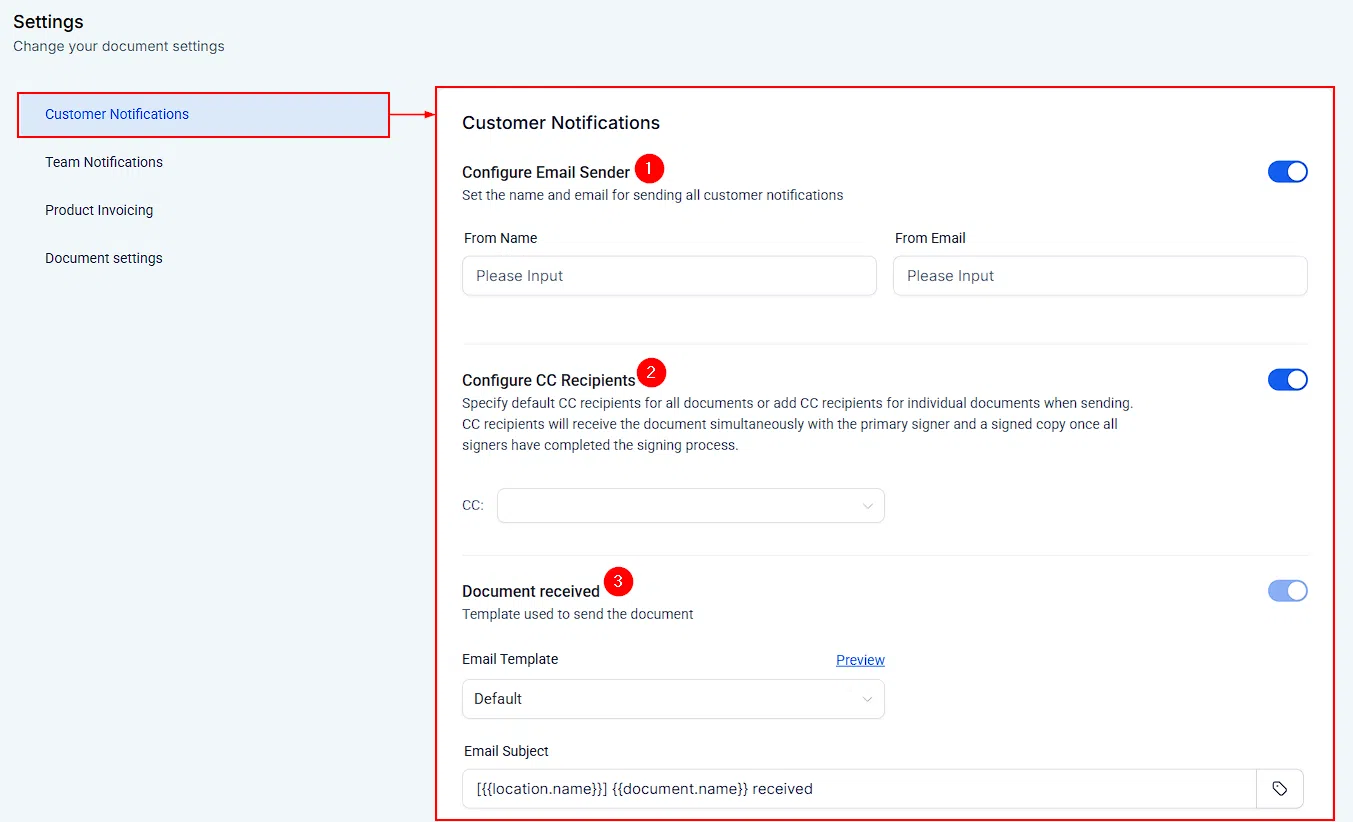
Click the Settings button to configure customer and team notification preferences, as well as product invoicing options that apply across all your documents and contracts.
Action Menu
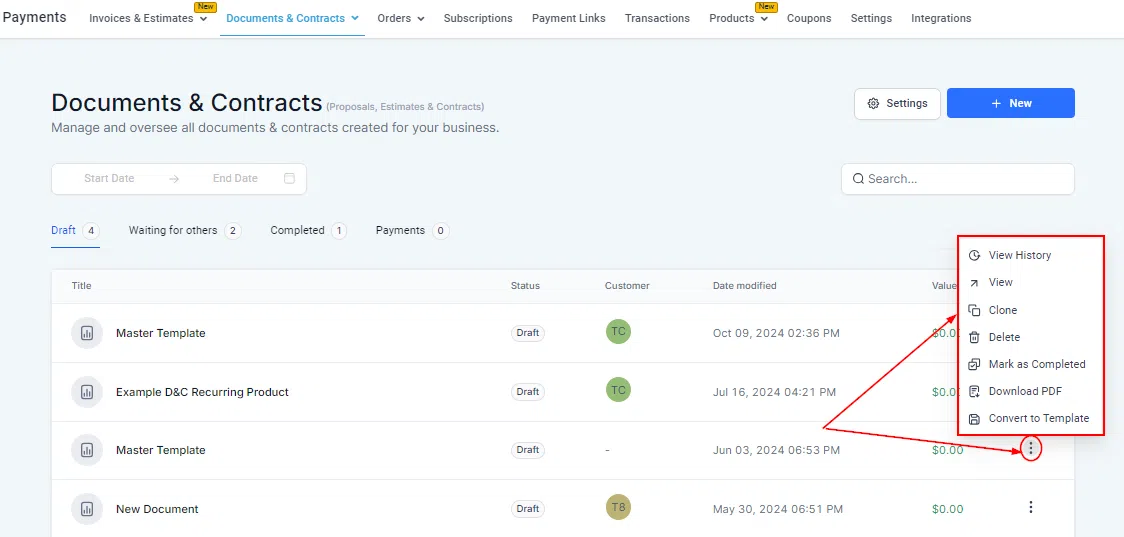
Every document in the list has an action menu giving you quick access to common tasks:
- View History: Access the document’s revision history to review past changes.
- View: Open and review the full document content.
- Clone: Create a copy of the document, useful for repetitive agreements or templated content.
- Delete: Permanently remove the document from the system.
- Mark as Completed: Set the document status to finalised, indicating no further action is required.
- Download PDF: Export the document as a PDF for offline use or distribution.
- Convert to Template: Save the document as a reusable template for future use.
Documents & Contracts Builder
The Documents & Contracts Builder is where you design your document and contract templates. It supports text, images, videos, tables, signature fields, and interactive fillable elements – giving you the flexibility to create professional documents that match your brand and capture everything you need from clients.
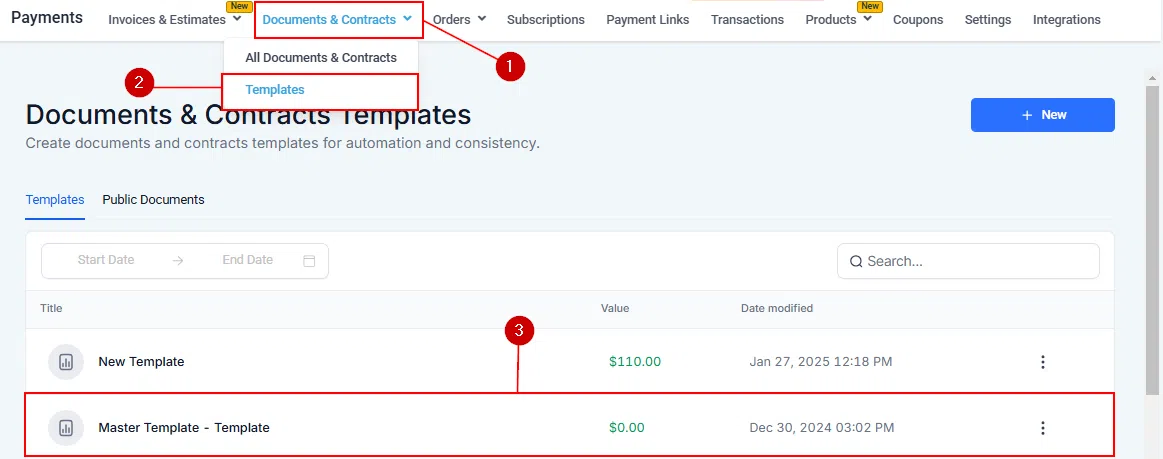
To open the Builder, navigate to Payments > Documents & Contracts > Templates and either create a new template or select an existing one. You can also access the builder from a draft document in the All Documents & Contracts view.
Template Name
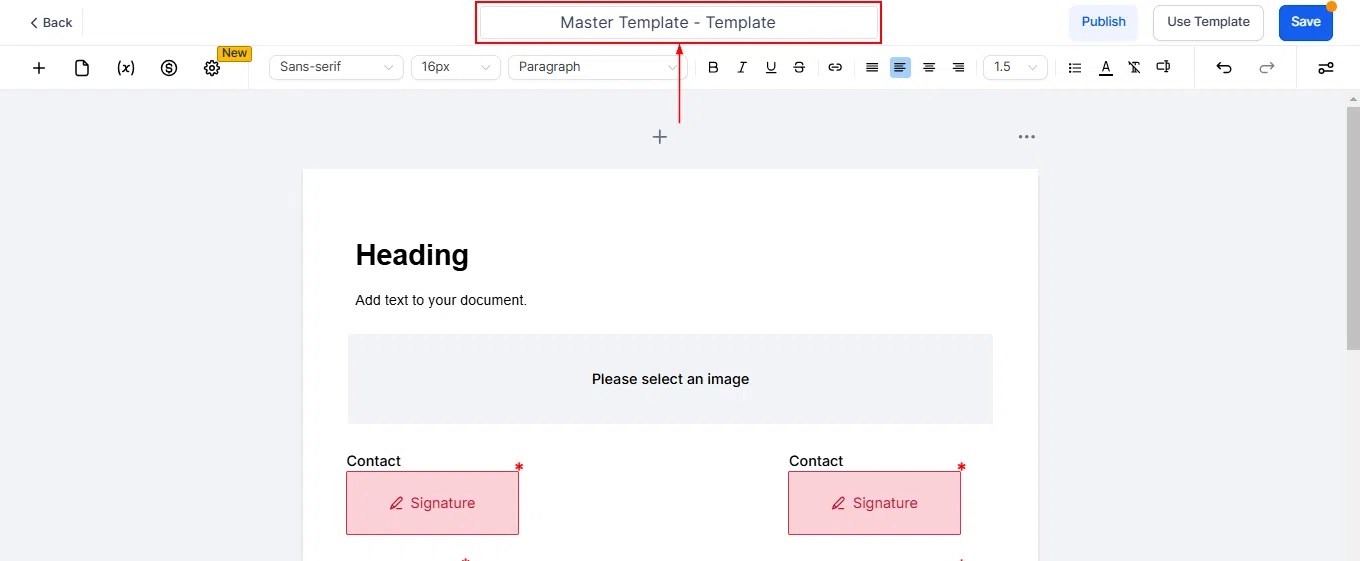
At the top of the builder, assign a name to your template in the Name field. This name helps you identify the template in your library and can be updated at any time.
Adding Elements
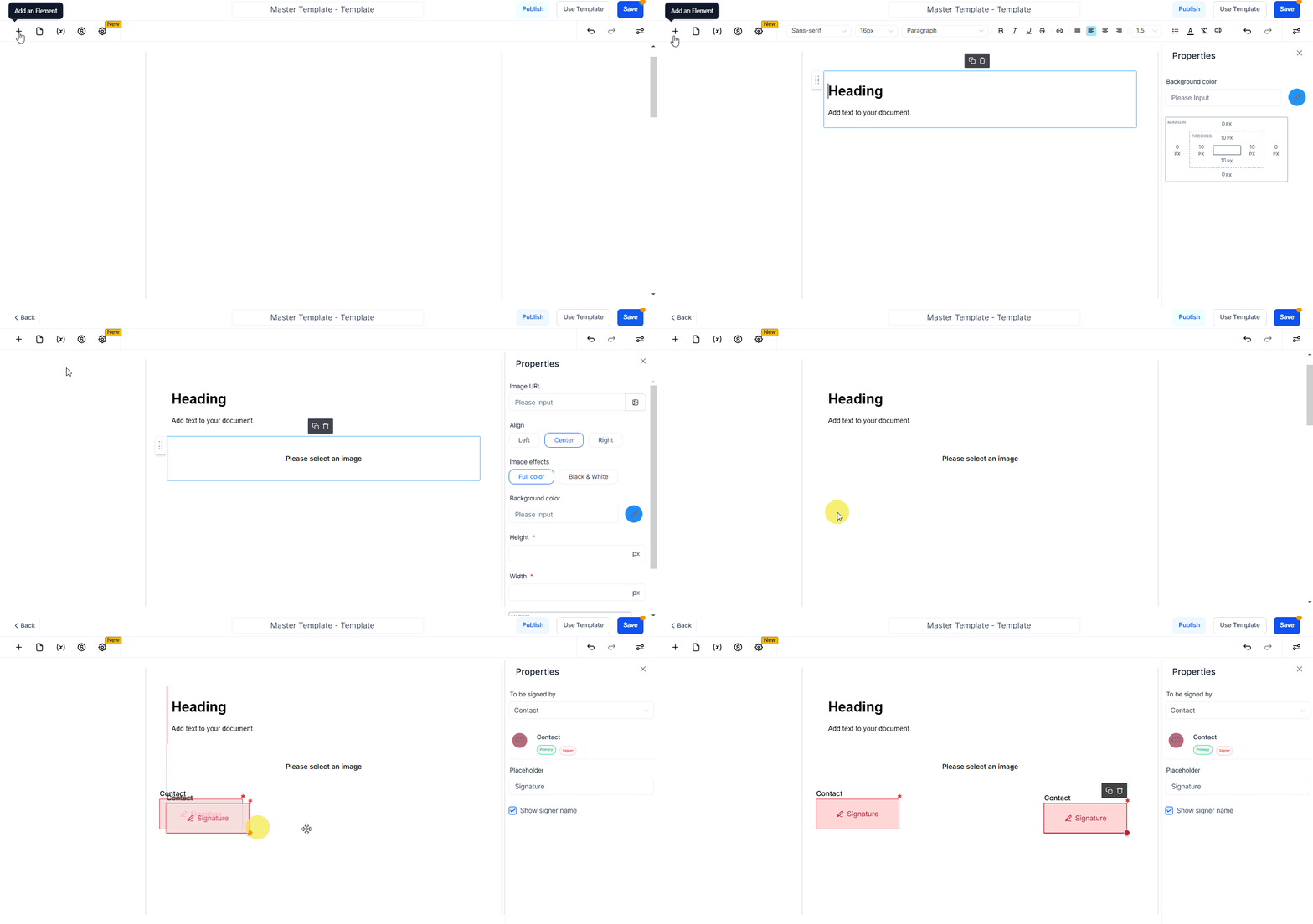
Use the Add an Element panel to insert content blocks into your document. Available elements include text blocks, images, videos, tables, signature fields, initials fields, date fields, and custom fillable inputs. Each element can be repositioned and styled independently.
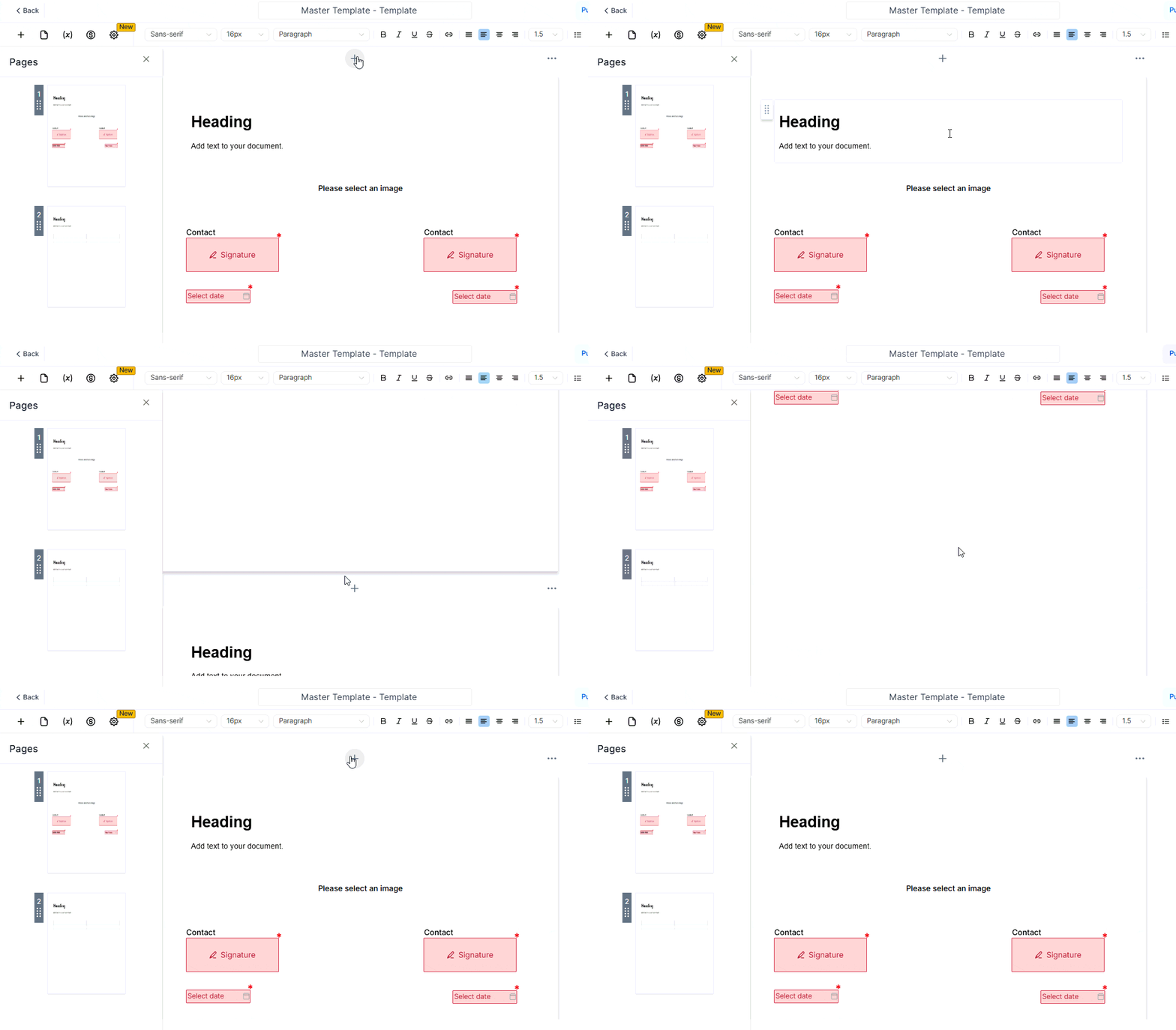
Page Management
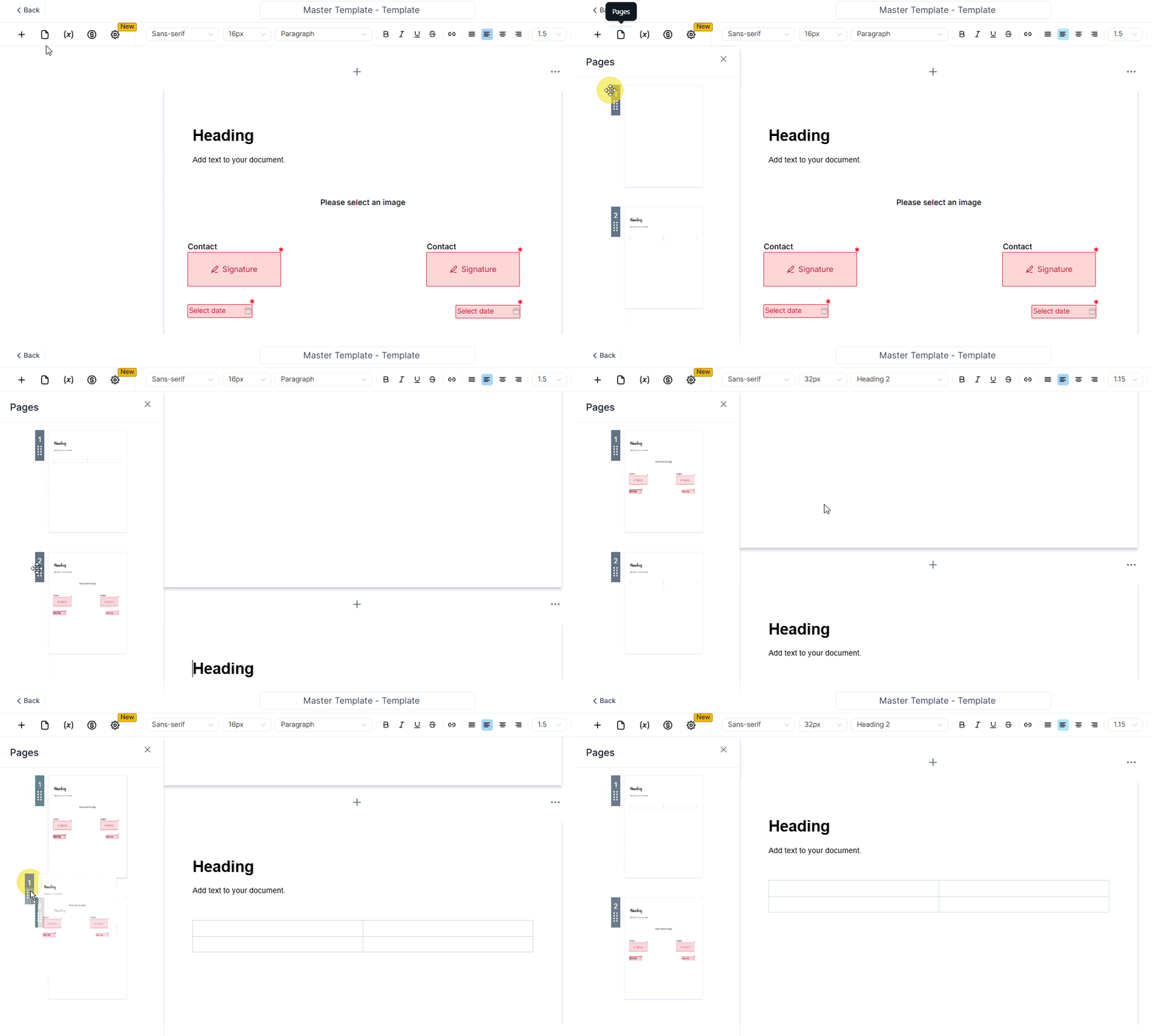
The builder supports multi-page documents. Use the page controls to add, remove, or reorder pages within your template, giving you full control over the structure and flow of complex contracts or proposals.
Typography and Styling
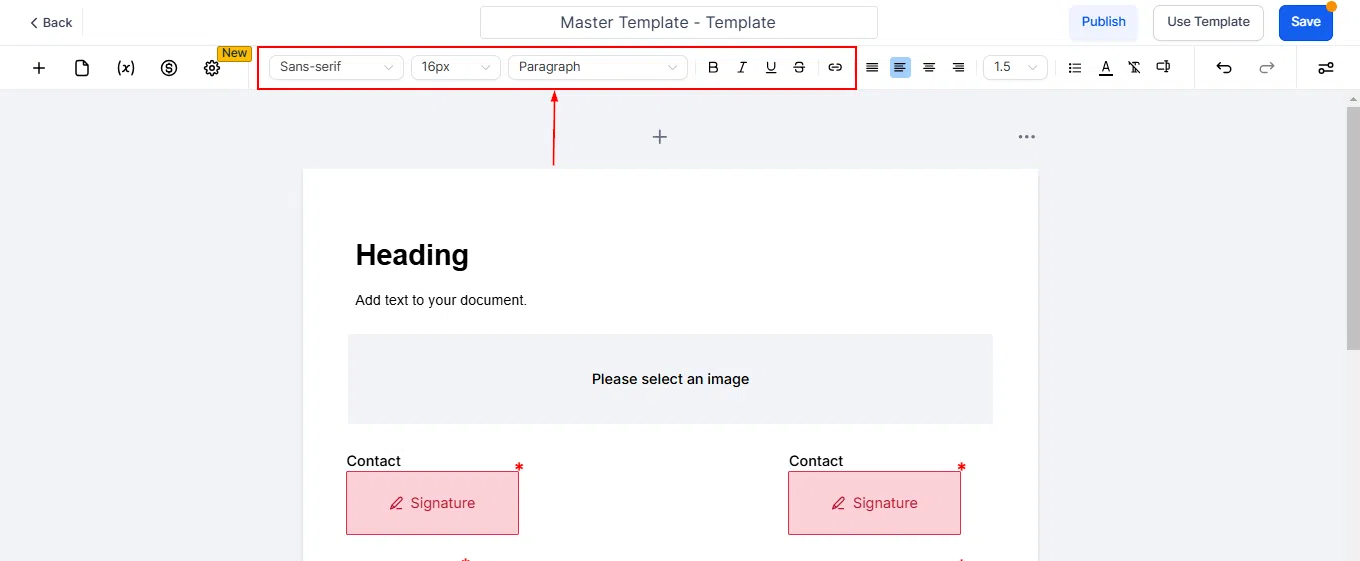
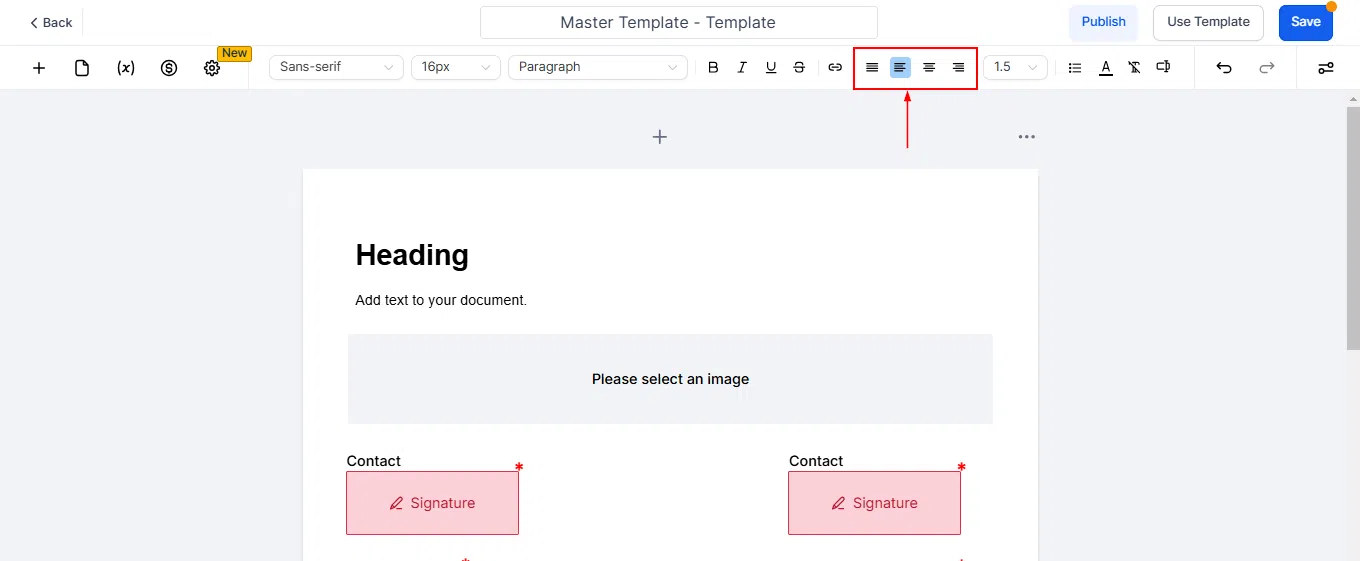
The typography panel lets you adjust font type, size, and styling for any text element. You can align content to the left, centre, or right, and apply additional formatting options including line height, bulleted lists, text colour, and custom formatting to match your brand’s visual identity.

Custom Values
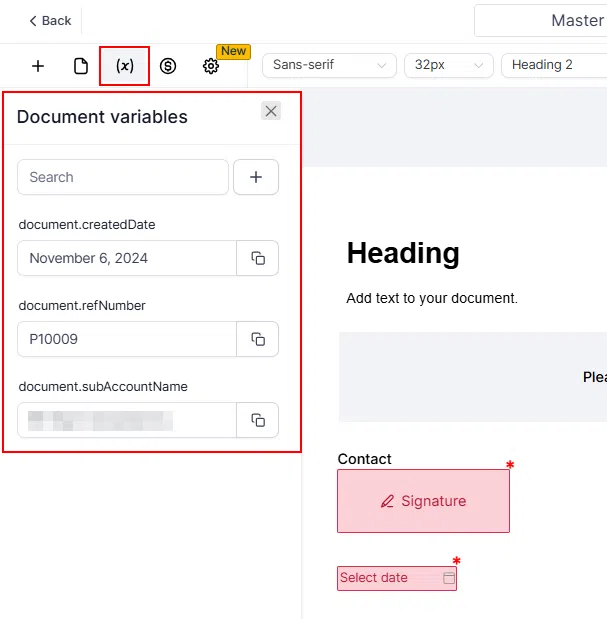
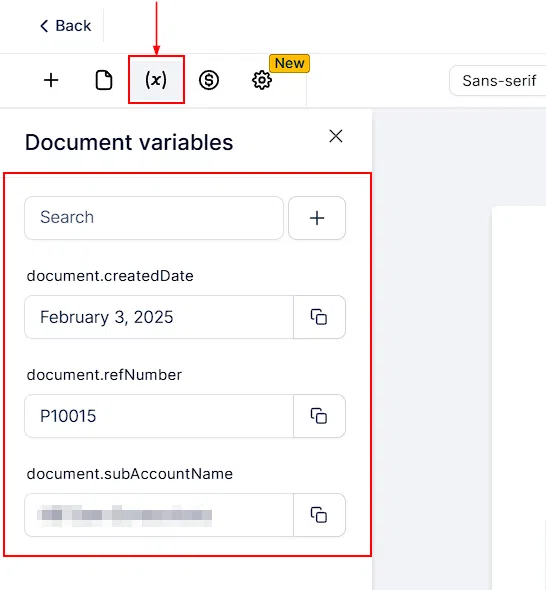
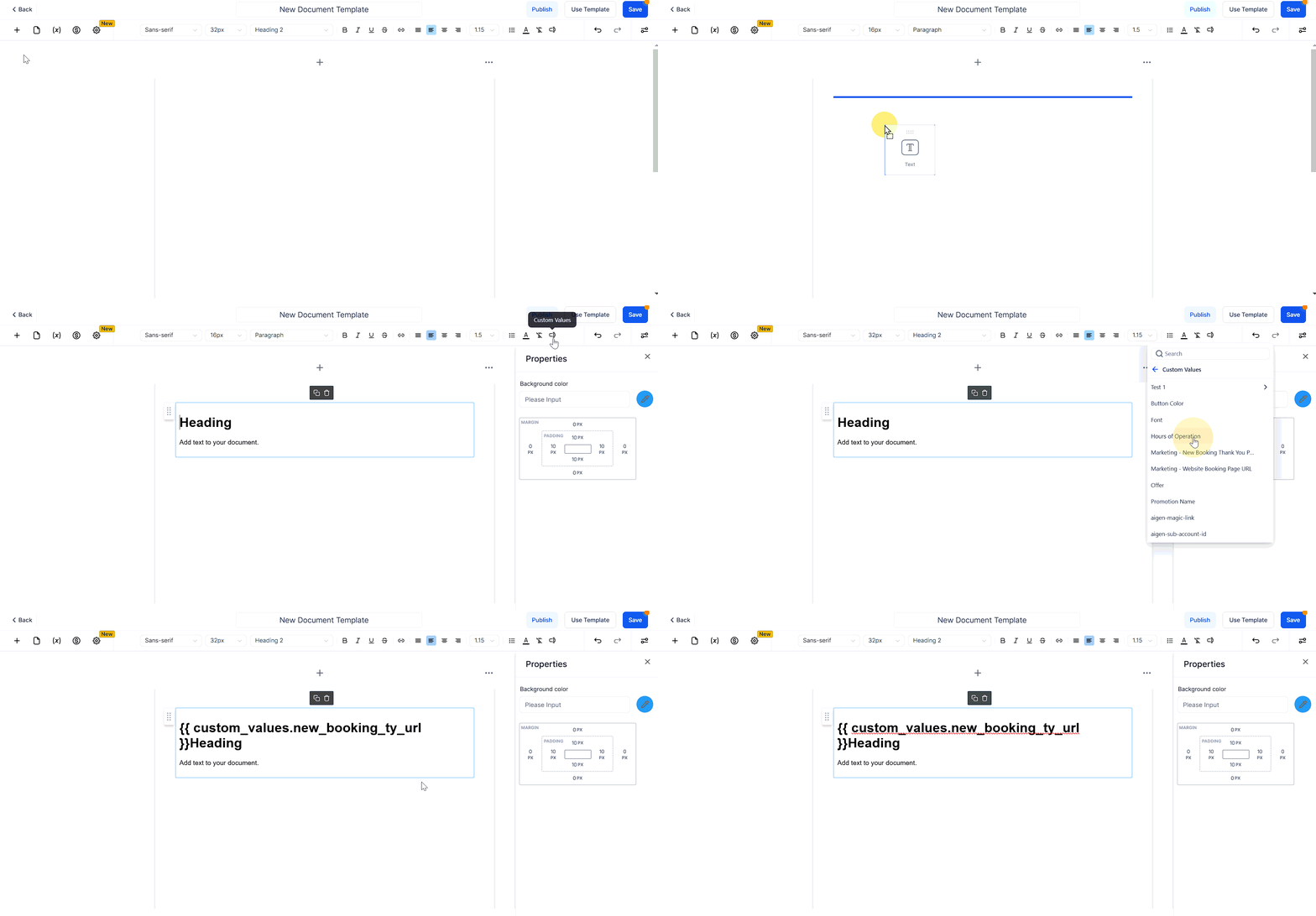
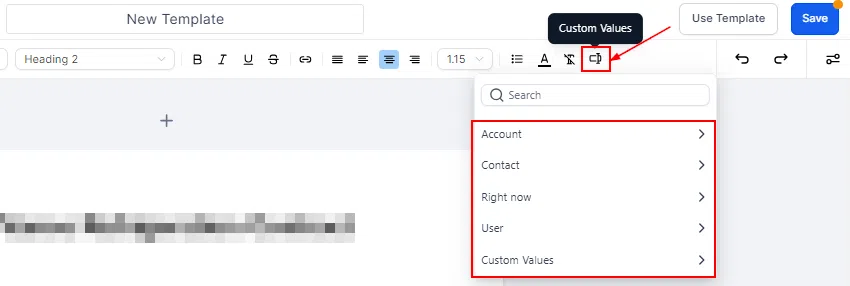
Insert dynamic placeholders using the Custom Values option. These are replaced automatically when a document is generated, pulling in details such as the contact’s name, business name, date, total amount, and other field data from Growth360. This saves time and eliminates manual personalisation for every document you send.
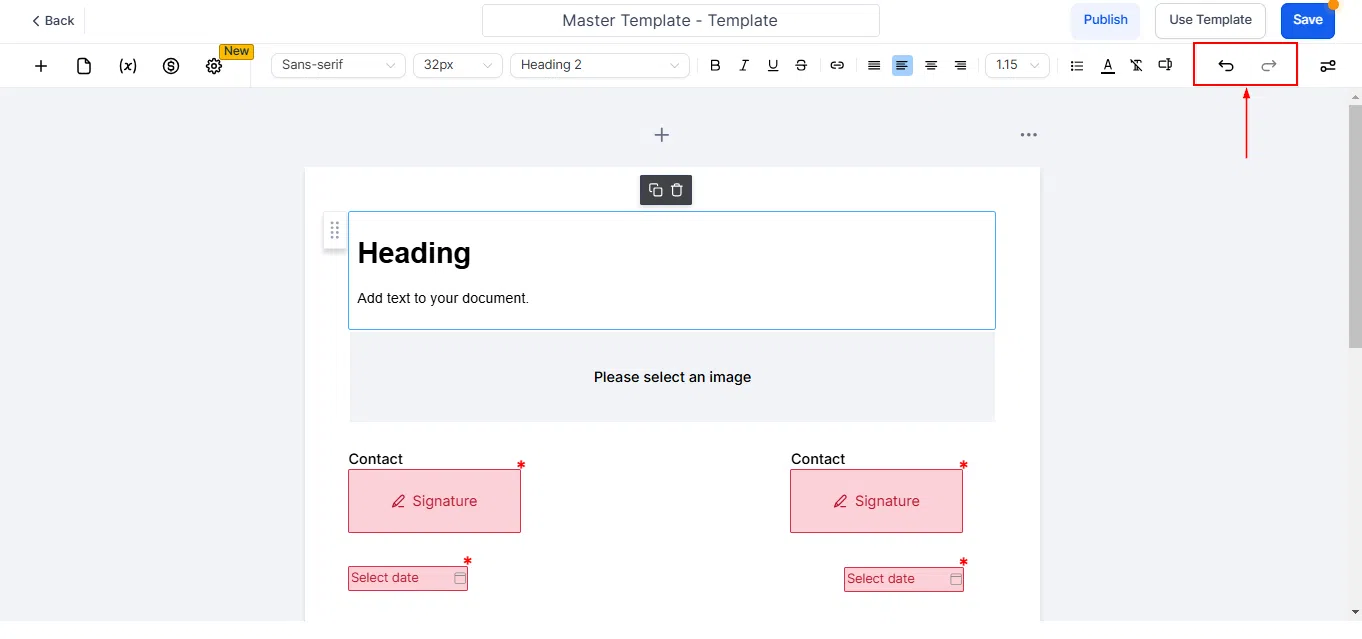
Undo and Redo
The builder includes full undo and redo functionality. Use these controls to revert or restore changes as you design, giving you confidence to experiment with layouts without losing prior work.



Documents & Contracts Settings
The Settings section lets you control how Growth360 communicates with your clients and team around document activity, and configure payment and template options that apply across your documents and contracts.

Email Notifications
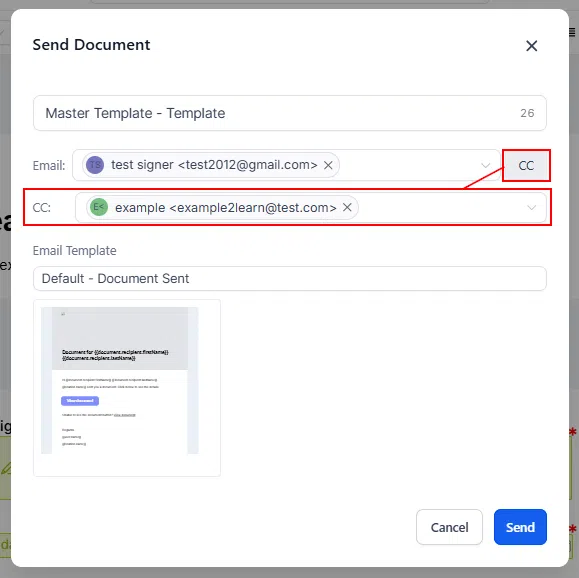
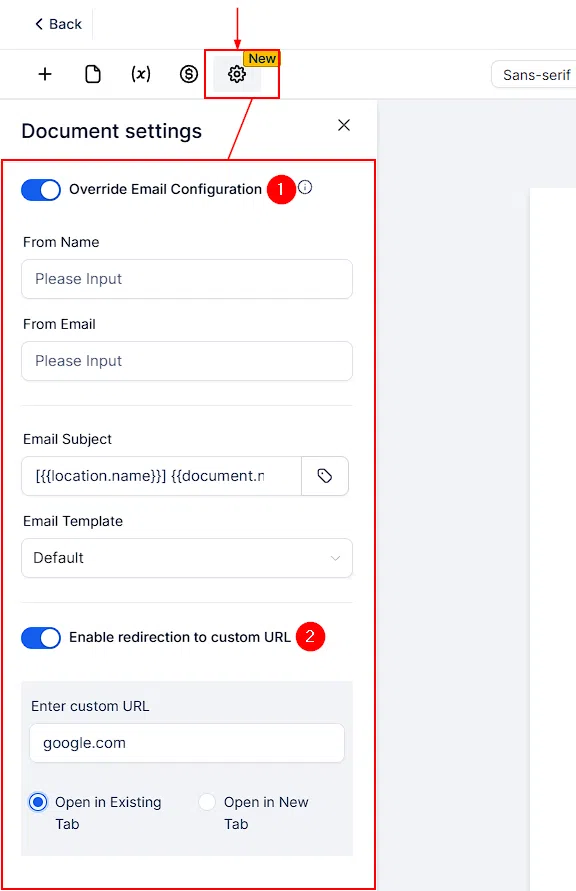
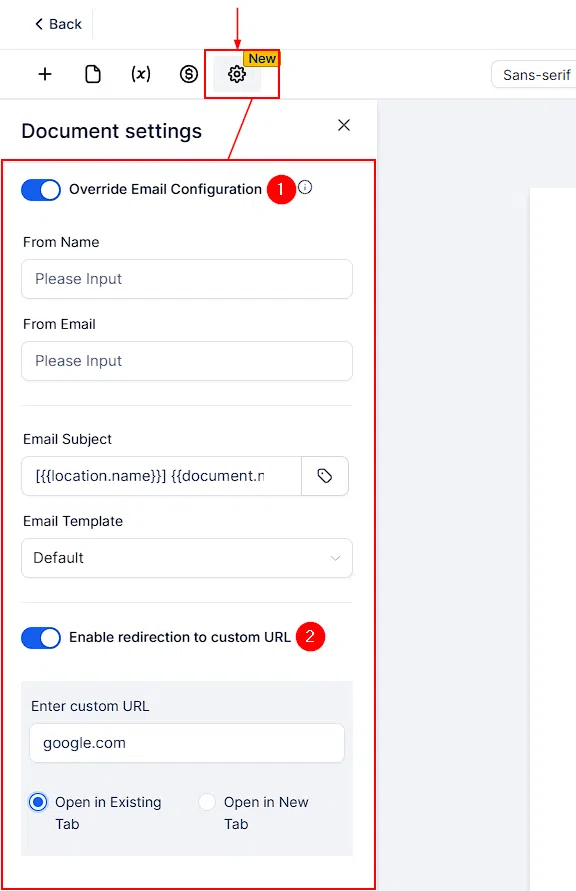
Customise the emails sent to customers and team members at each stage of the document lifecycle. Whether you prefer a professional tone or a more personal approach, you can tailor the subject lines, body content, and sender details for each notification type – including document sent, viewed, and signed emails.


Custom Redirect URL
Set a redirect URL that clients are taken to after signing a document. You can configure this globally for all documents, or override it on a per-template basis. Enter the destination URL and choose whether it opens in the current tab or a new one. This is ideal for directing clients to a thank-you page, onboarding steps, or a scheduling link after they sign.
Templates
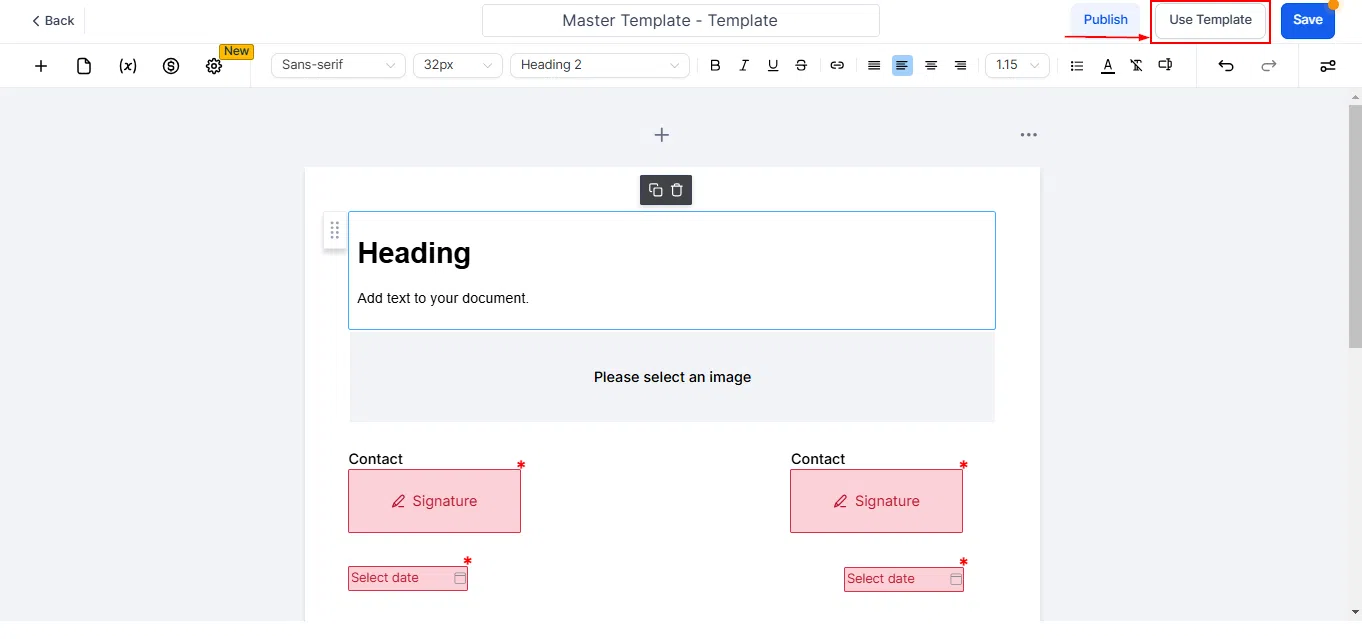
The Templates section is your library of reusable document layouts. Click New Template to start a document from scratch, upload an existing PDF, create a Public Document, or import from the template library. Templates you build here are available whenever you create a new document from the All Documents & Contracts view.
Document Variables
Document Variables allow you to define dynamic placeholders that pull in data automatically when a document is generated. Configure these in Settings to make your templates reusable across different contacts without manual editing each time.
Payment Settings
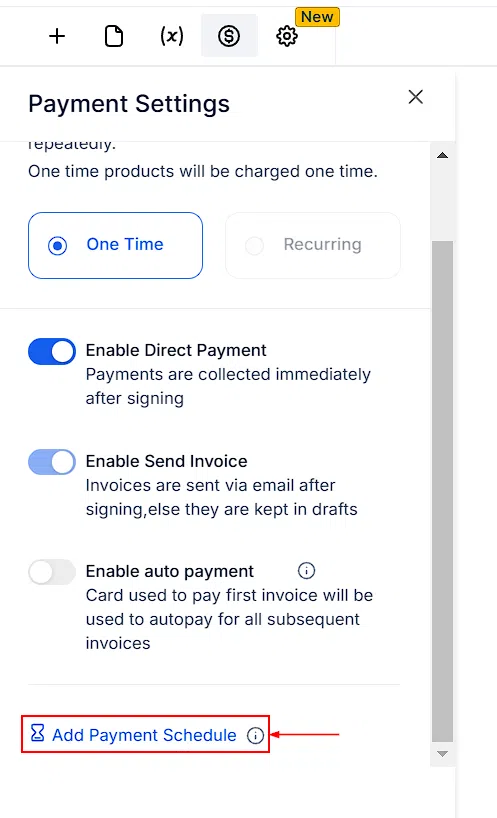
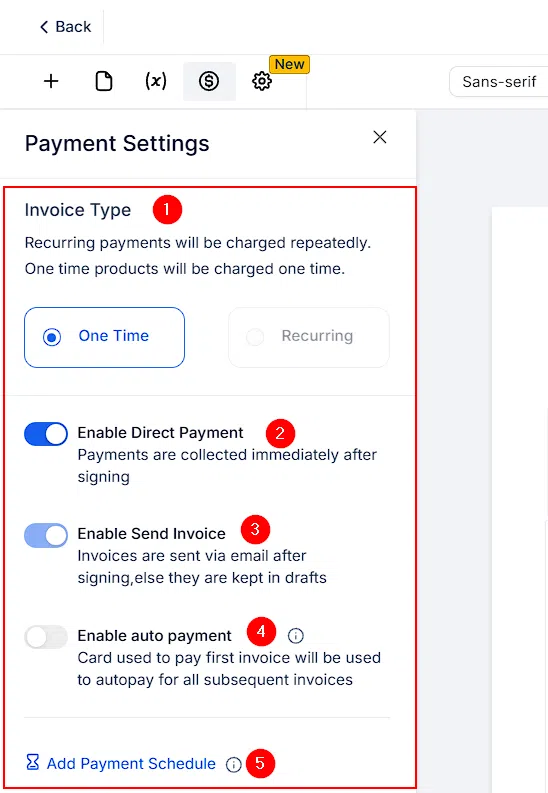
Control how payments are handled within your documents and contracts. The Invoice Type setting determines whether a document collects a one-time charge or sets up a recurring payment. Toggle Enable Direct Payment on to allow clients to pay directly within the document after signing, streamlining your lead-to-payment process without requiring a separate invoice step.