Connect Apple Pay, Google Pay, QuickBooks, and Wave Accounting to Growth360 to streamline payments, automate data syncing, and reduce manual data entry across your business.
Apple Pay and Google Pay
Offering Apple Pay and Google Pay as payment options on your order forms gives customers a faster, more secure way to complete their purchases. These digital wallet options are available through your Stripe integration and require no additional payment gateway setup beyond what you may already have configured.
Setting Up Apple Pay and Google Pay
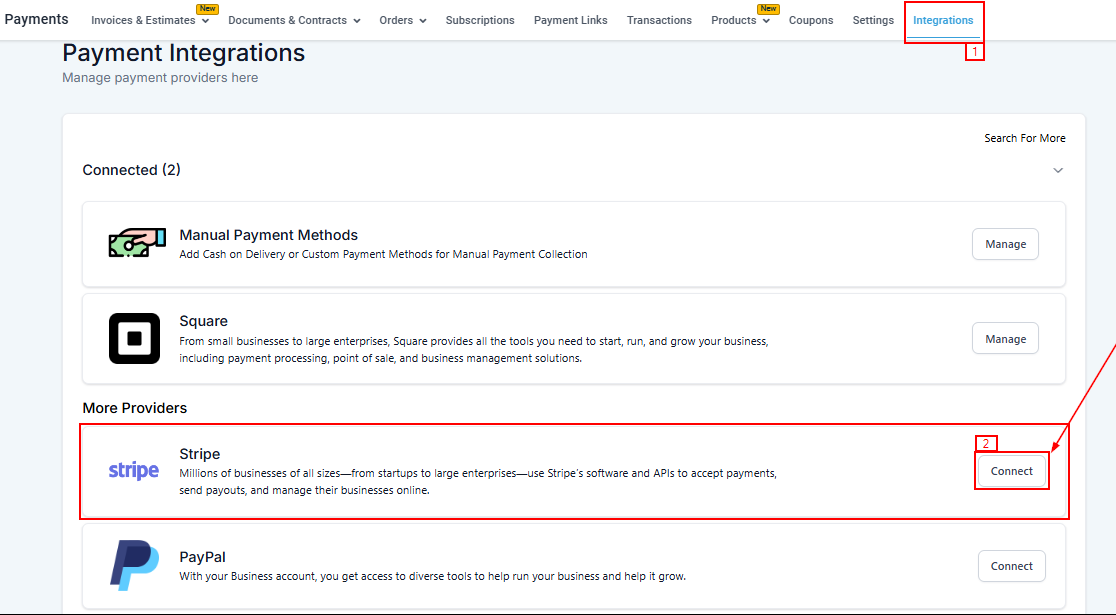
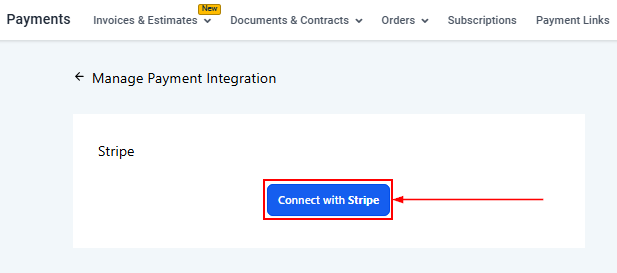
Apple Pay and Google Pay require Stripe as your active payment gateway. If Stripe is not yet connected, navigate to Payments > Integrations and link your Stripe account before proceeding.
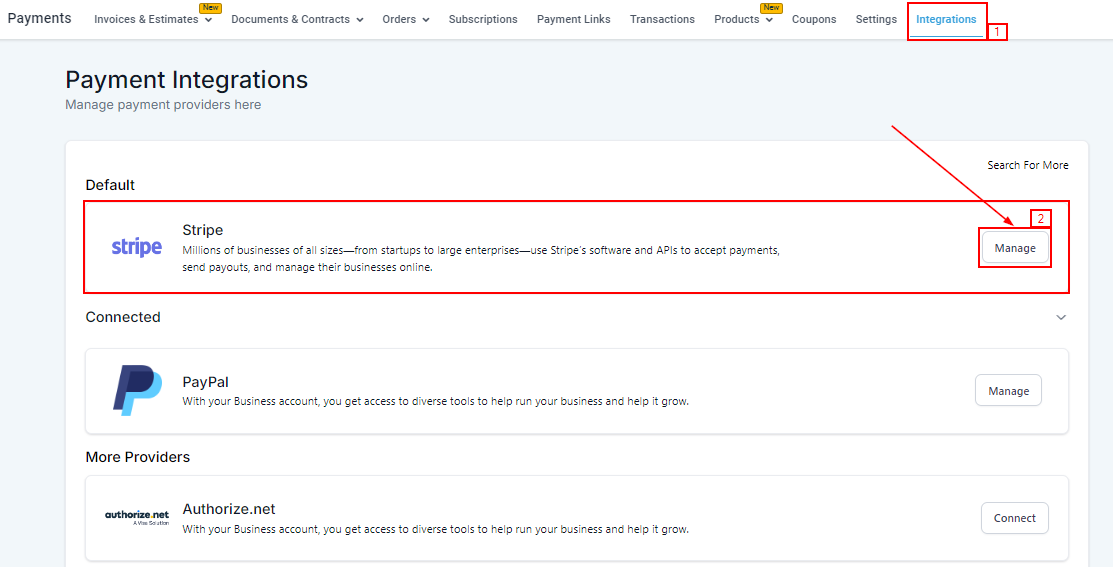
If Stripe is already connected, click the Manage button next to the Stripe integration to open your Stripe settings.
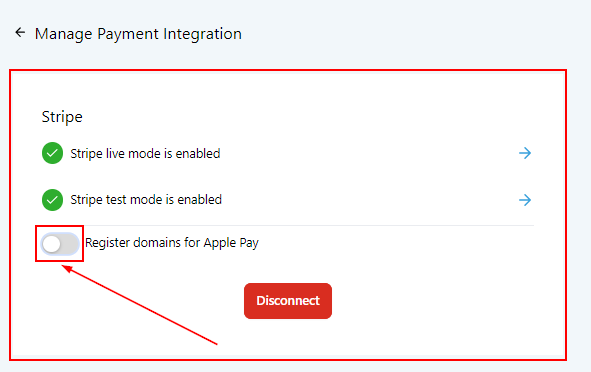
Within Stripe’s settings, locate the Apple Pay and Google Pay options. You will need to enable each payment method and verify your domain to allow Apple Pay to function correctly on your order forms.
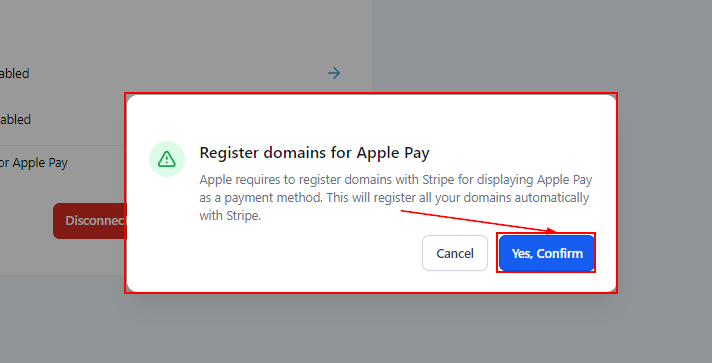
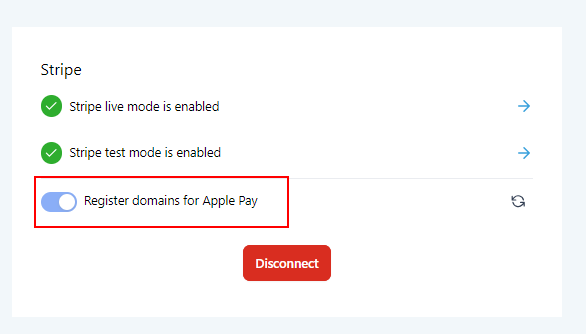
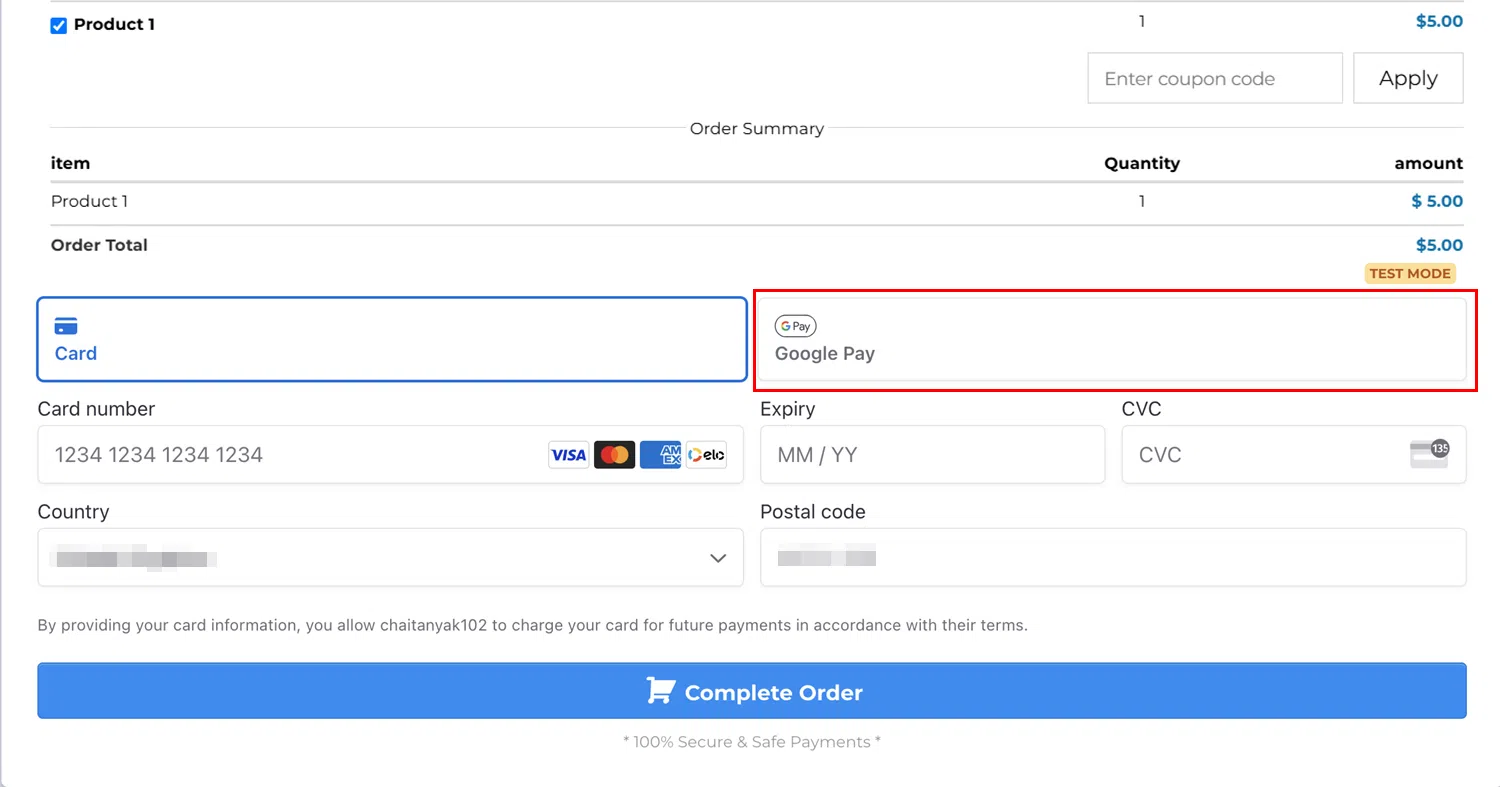
Once enabled, customers using compatible devices and browsers will see the Apple Pay or Google Pay option at checkout on your order forms.

Frequently Asked Questions
Will Apple Pay and Google Pay affect my transaction reports? No. These transactions are processed by Stripe as standard card payments and will appear on your Orders, Transactions, and Subscriptions pages exactly as other payments do.
Are the transaction fees different? No. Stripe charges the same rates for Apple Pay and Google Pay transactions as for regular credit card payments.
Can I add other payment methods like ACH or bank transfers? At this time, only Apple Pay and Google Pay are available through the Stripe integration. Additional payment methods are planned for future updates.
QuickBooks Integration
Connecting QuickBooks to Growth360 automates the transfer of financial data between the two platforms, eliminating the need to manually duplicate customer information, invoices, payments, and transaction records. Once connected, new contacts and invoice data sync automatically, reducing the risk of errors and saving significant time in your bookkeeping workflow.
Connecting QuickBooks
Navigate to Settings > Integrations and click the QB Connect button to begin.
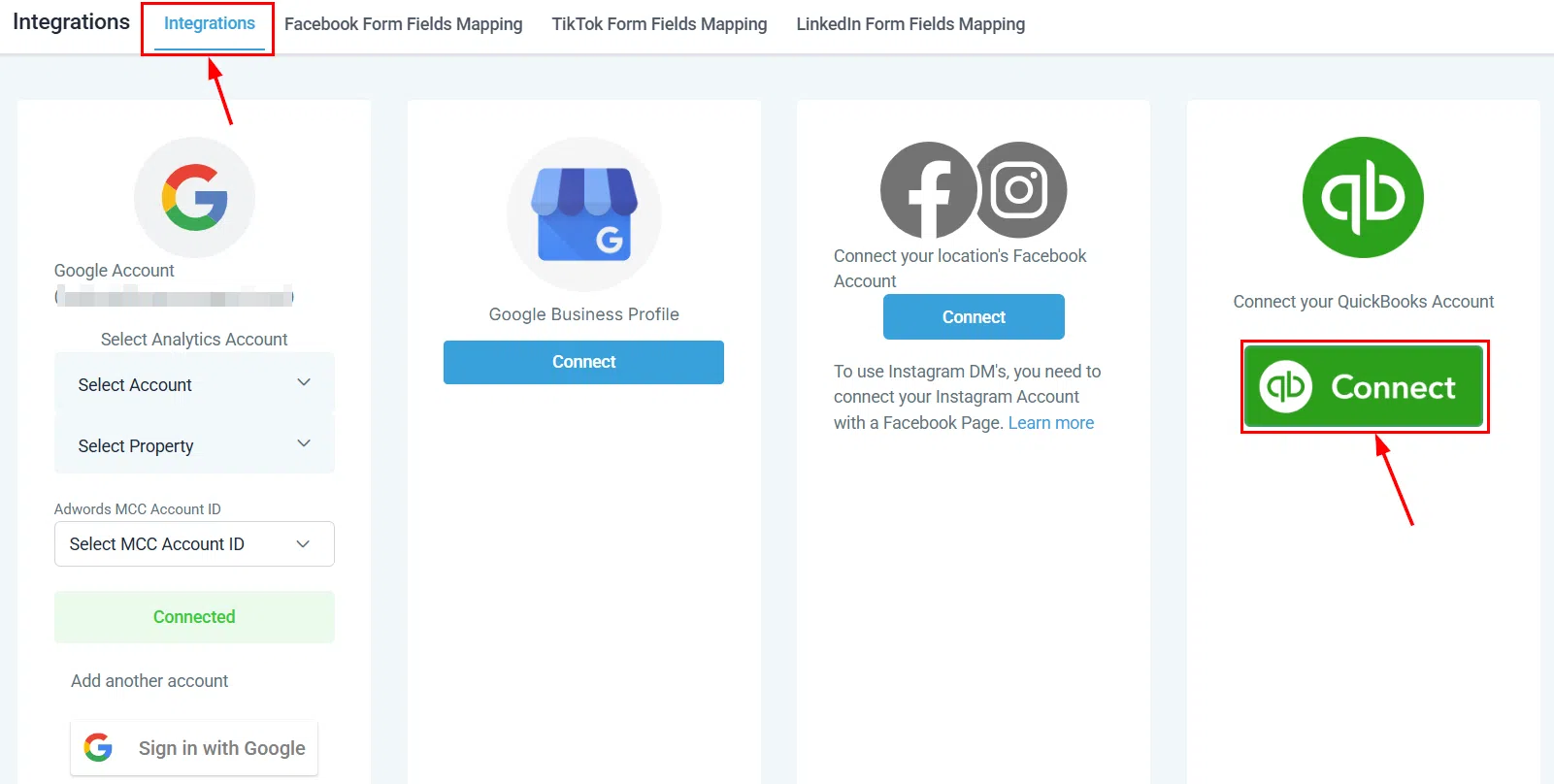
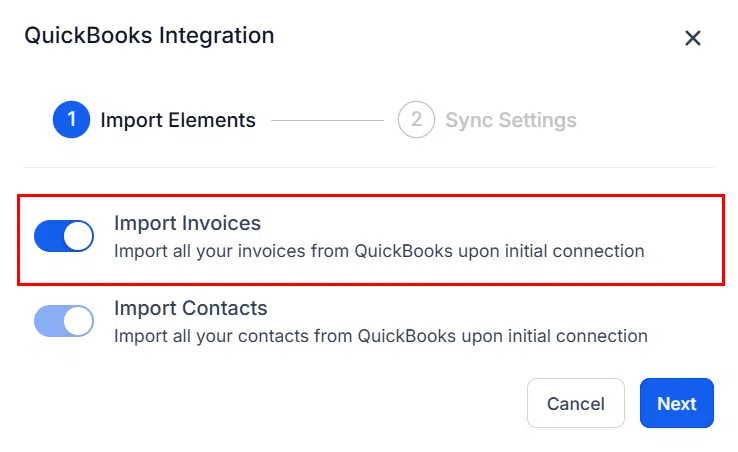
You will be asked whether to import all existing QuickBooks invoices on first connection. Toggle this option on or off according to your preference, then click Next to continue.
Next, configure the review request setting. By default, Send Review Requests is turned off. Leave it off if you do not want automatic review requests to trigger when an invoice balance reaches zero. Turn it on if you want Growth360 to automatically send a review request after each invoice is fully paid.
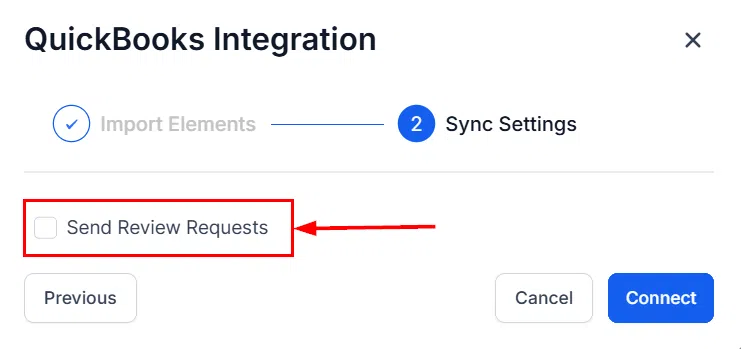
Click Connect to proceed. A new window will open prompting you to sign in to your QuickBooks account.
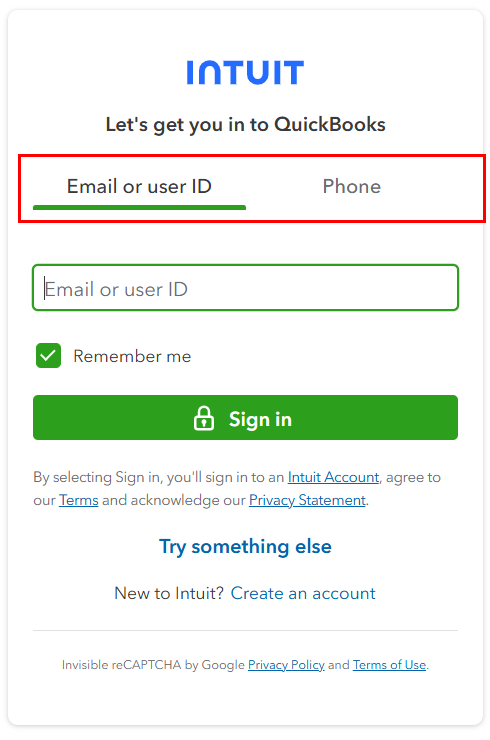
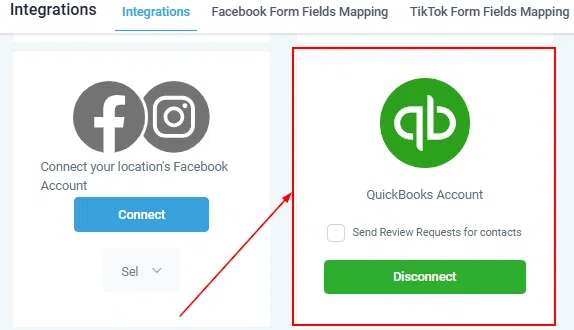
Follow the on-screen instructions to authorise the connection. Once complete, you will be returned to the Integrations tab where your QuickBooks account will show as connected. A Disconnect option will appear whenever you want to unlink the accounts.
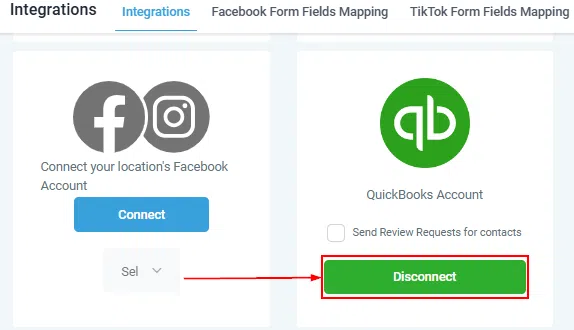
What the QuickBooks Integration Does
Once connected, the integration provides the following automated functions:
- Contact syncing: New contacts created in QuickBooks are automatically imported into Growth360.
- Review requests: A review request is sent via Growth360 after the first invoice for a contact is paid in full (if enabled).
- Sales receipt recording: Payments made through Growth360 (such as order forms, invoices, and subscriptions) are recorded as sales receipts in QuickBooks automatically.
Wave Accounting Integration
The Wave integration enables a one-way sync of invoices created in Growth360 to your Wave account, eliminating the need to manually duplicate invoices across both platforms. This is particularly useful if Wave is your primary accounting tool and you want your Growth360 invoices reflected there without extra effort.
Connecting Wave Accounting
Navigate to Settings > Integrations > Wave and click the Manage button to begin the setup.
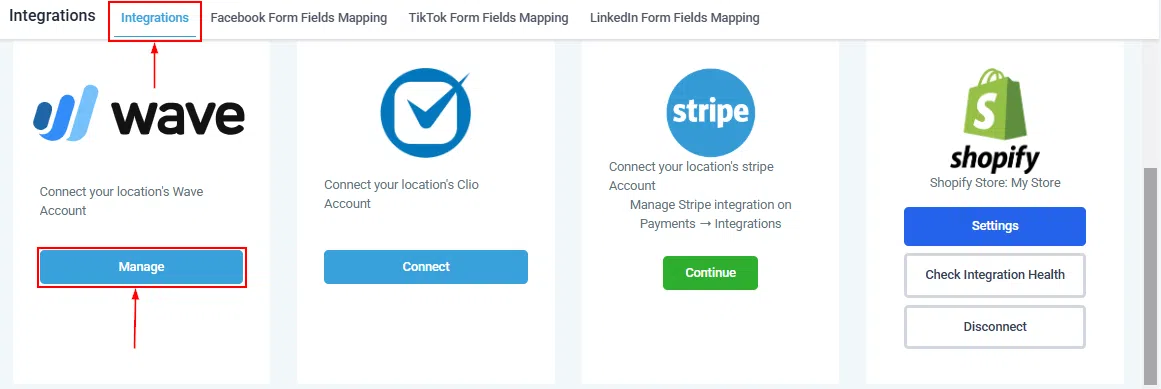
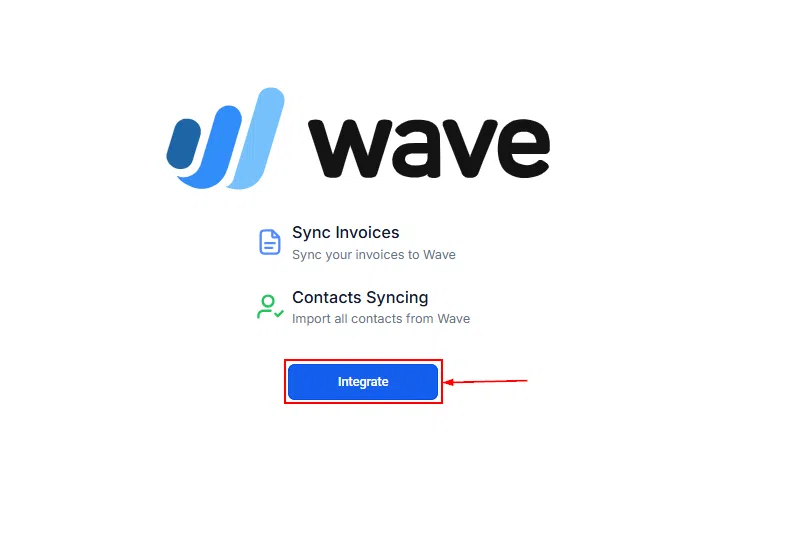
Select Integrate and enter your Wave credentials to log in.
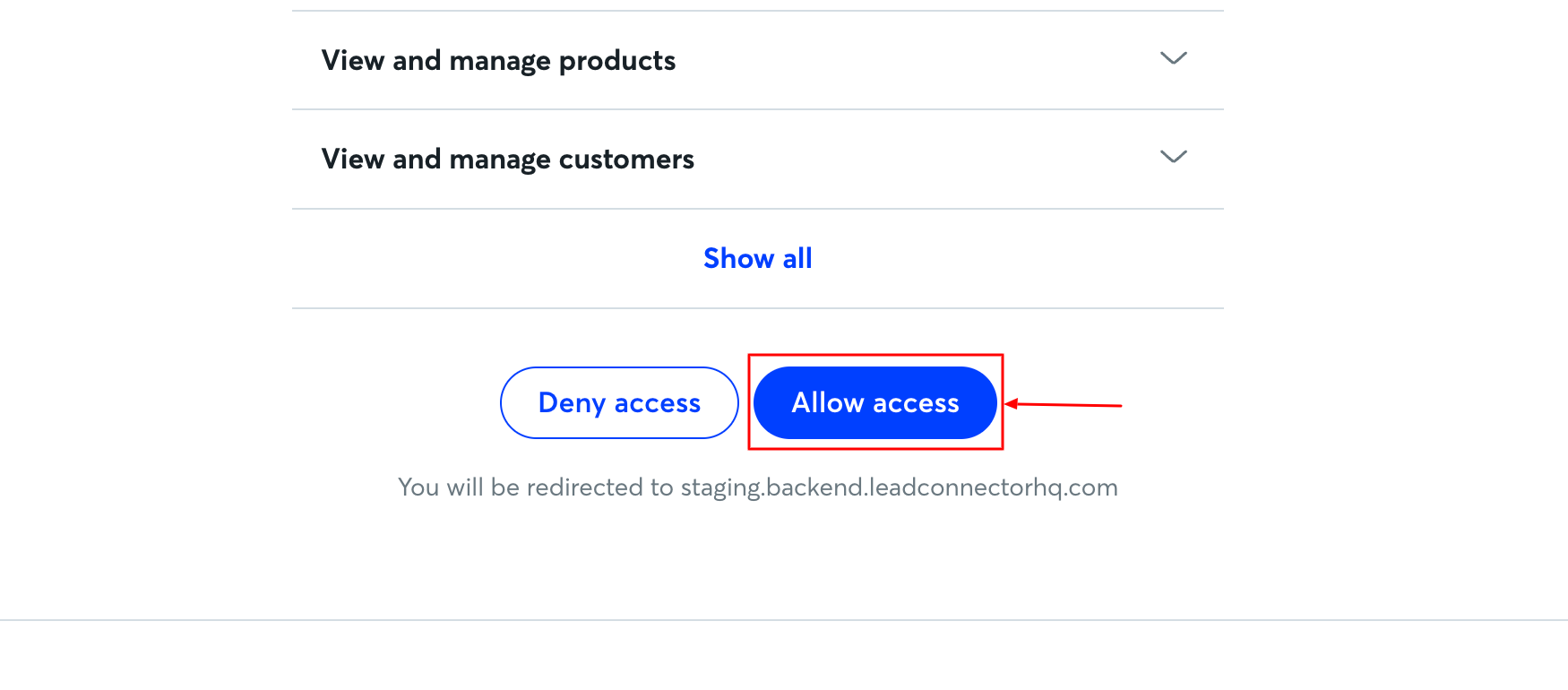
Once logged in, you will be prompted to grant Growth360 access to your Wave account.

Approve the permissions to enable the one-way invoice sync from Growth360 to Wave.
Select the specific Wave account where your Growth360 invoices should sync, then click Save to finalise the setup.
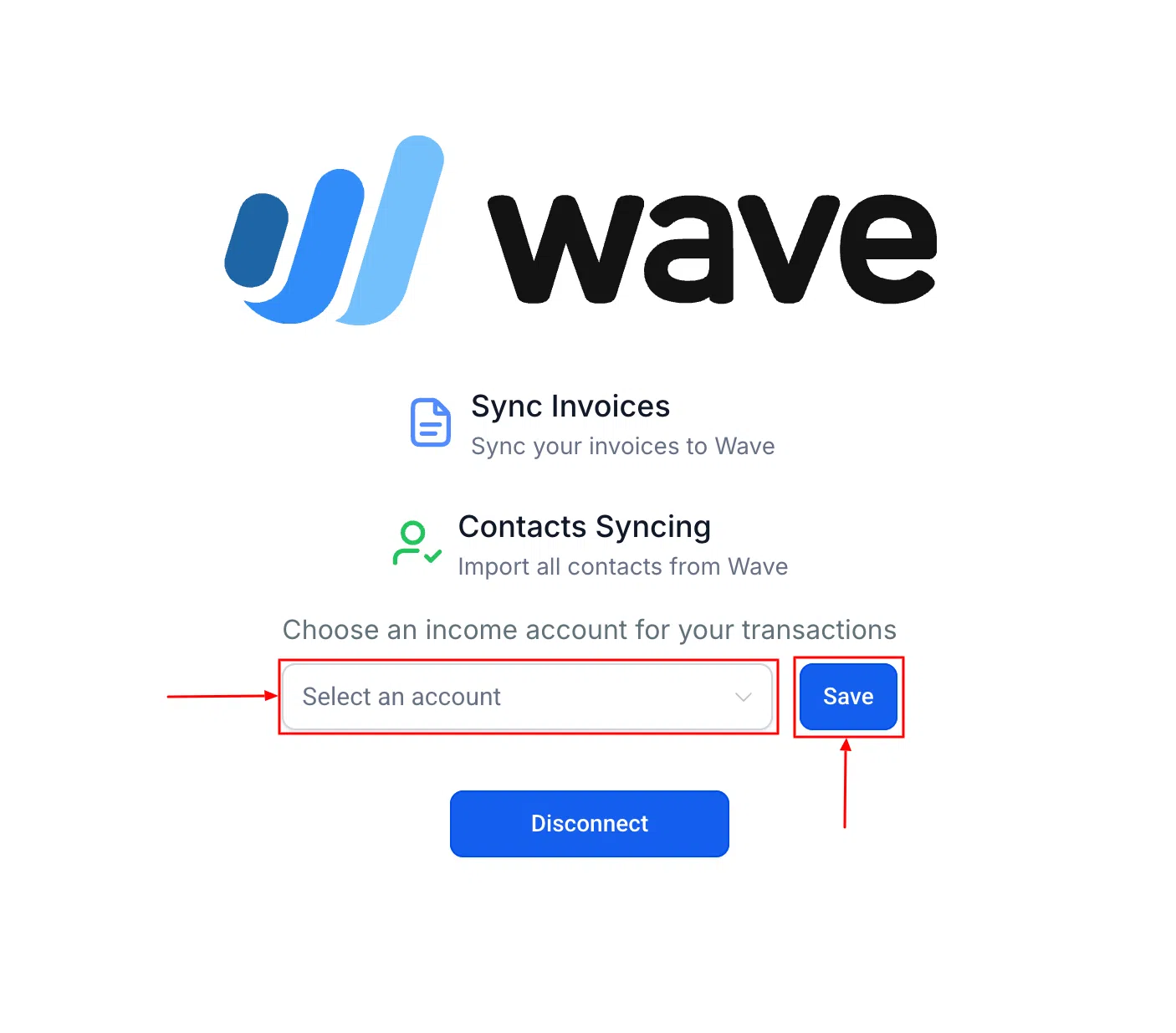
This integration is designed for users who rely on Wave for accounting and want their Growth360 invoices to flow through automatically. Only invoices created in Growth360 are synced – the integration is one-directional and does not push data from Wave back into Growth360.