
From a contact record in Growth360, you can charge a customer immediately using a saved card, and add up to 10 team members as followers so they can collaborate on the contact.
Apply a Manual Charge
The manual charge feature lets you process payments directly from a contact’s detail page – no need to switch to a separate payment tool. It also gives you a full view of that customer’s transaction history to help assess their lifetime value.
Processing a Charge
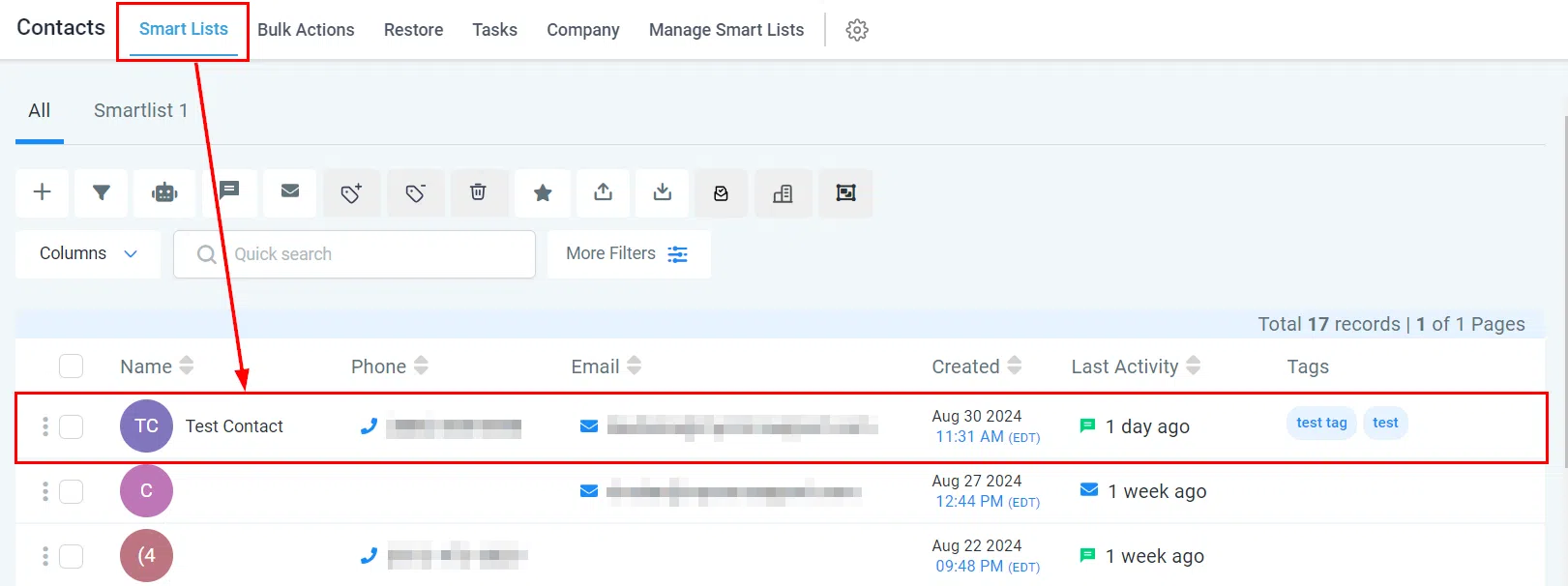
Go to the Contacts tab from the left menu and open the contact via Smart Lists.
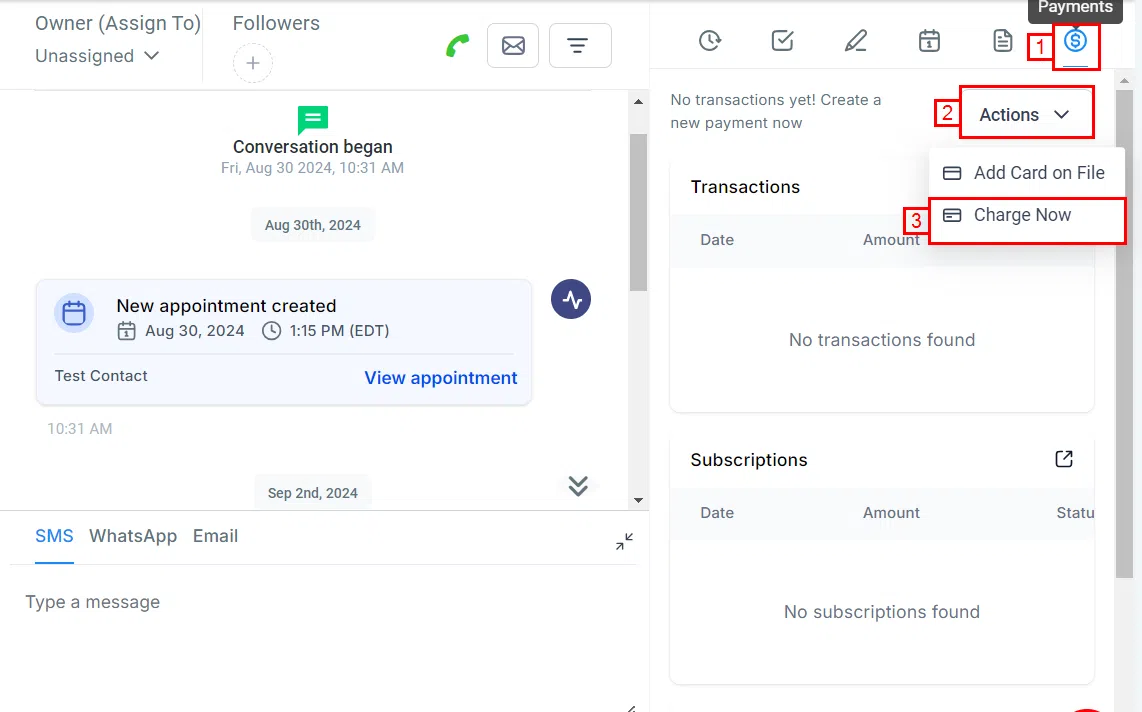
On the contact’s details page, go to the Payments section and click Charge Now from the Actions dropdown.
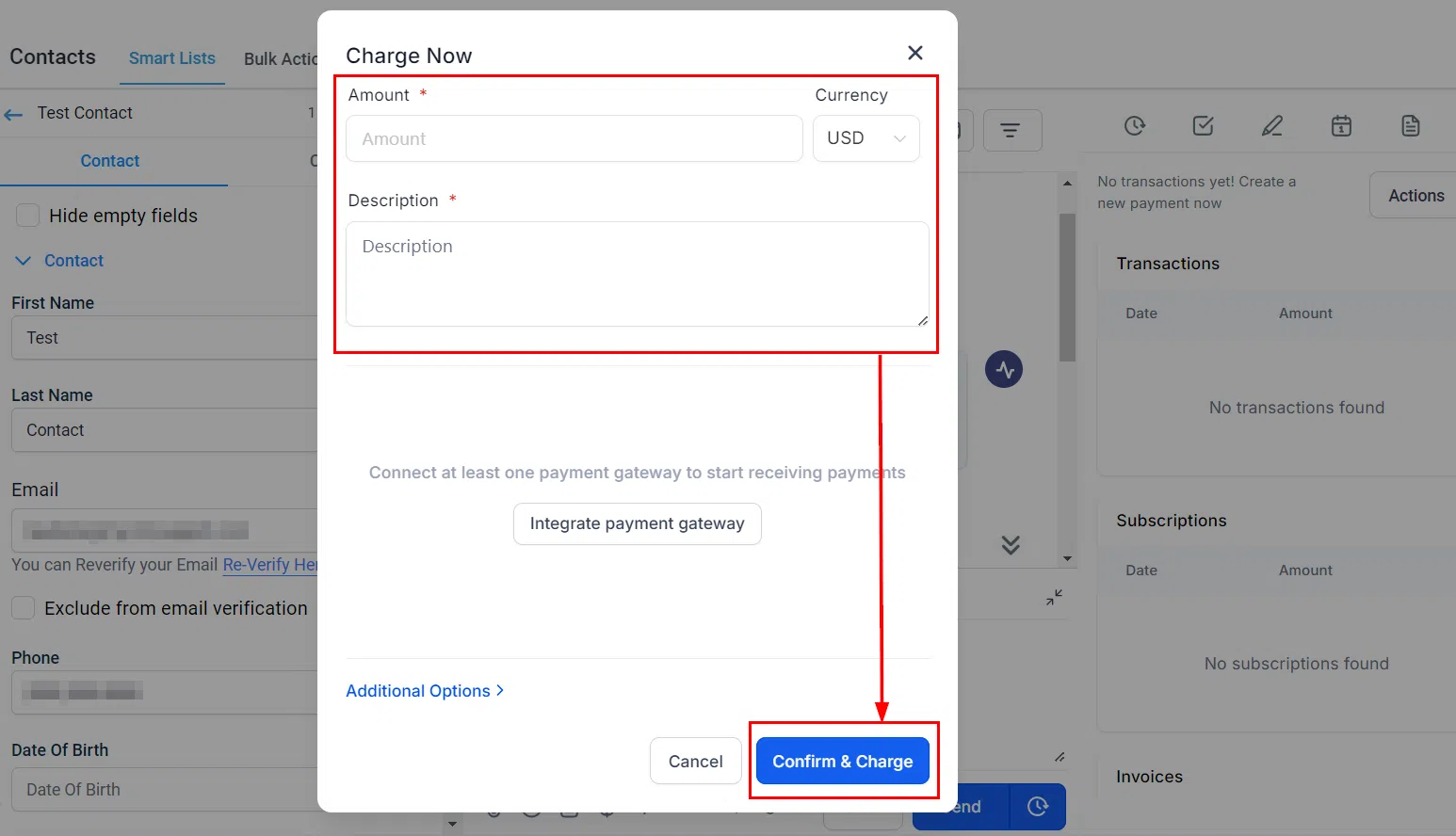
Enter the amount and a description, then select the payment method from the popup. Click Confirm & Charge to process.
If a charge fails, try a different saved card or contact the customer to update their payment details.
Viewing Transactions
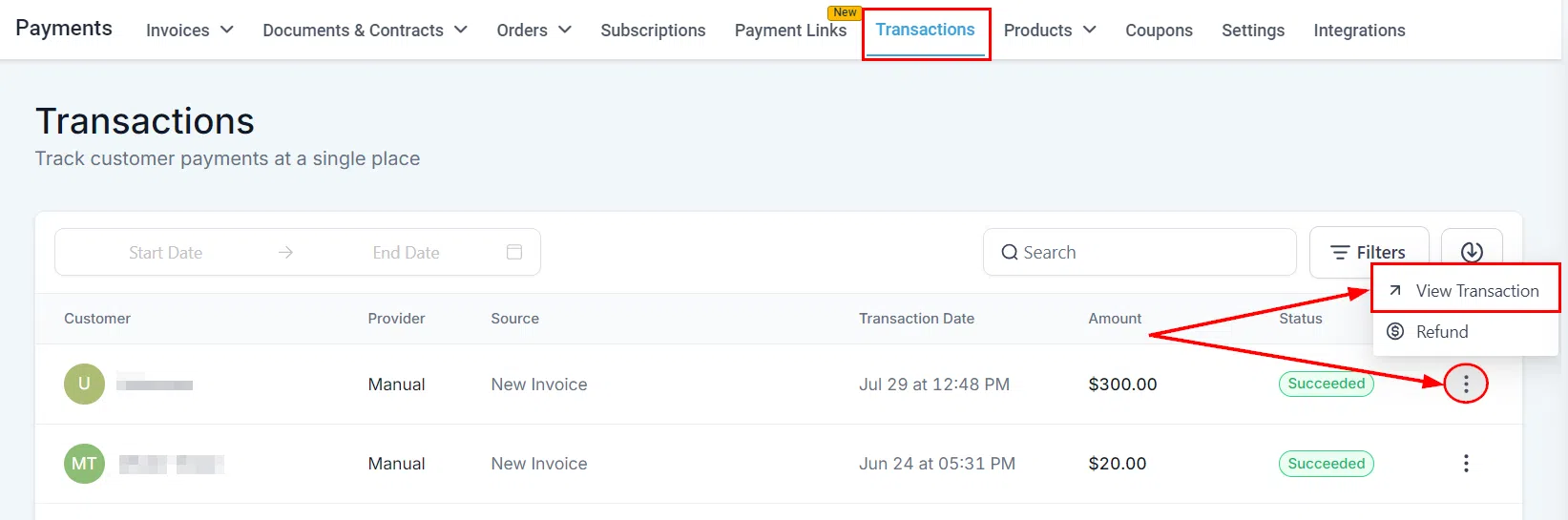
To review a transaction, go to Payments in the left menu, click the Transactions tab, find the contact, click the three dots next to their name, and select View Transaction.
Common Questions
What if a saved card fails?
Try a different saved card for the customer, or contact them to resolve the issue and update their payment details.
How do I add a new card for a customer?
In the contact’s Payments section, select Add New Card and follow the prompts to securely save the card.
Add Followers to a Contact
Followers are team members who can view and manage a contact alongside the assigned owner. This is useful for delegating responsibilities or involving multiple people in a client relationship.
Enable “Only Assigned Data” Setting
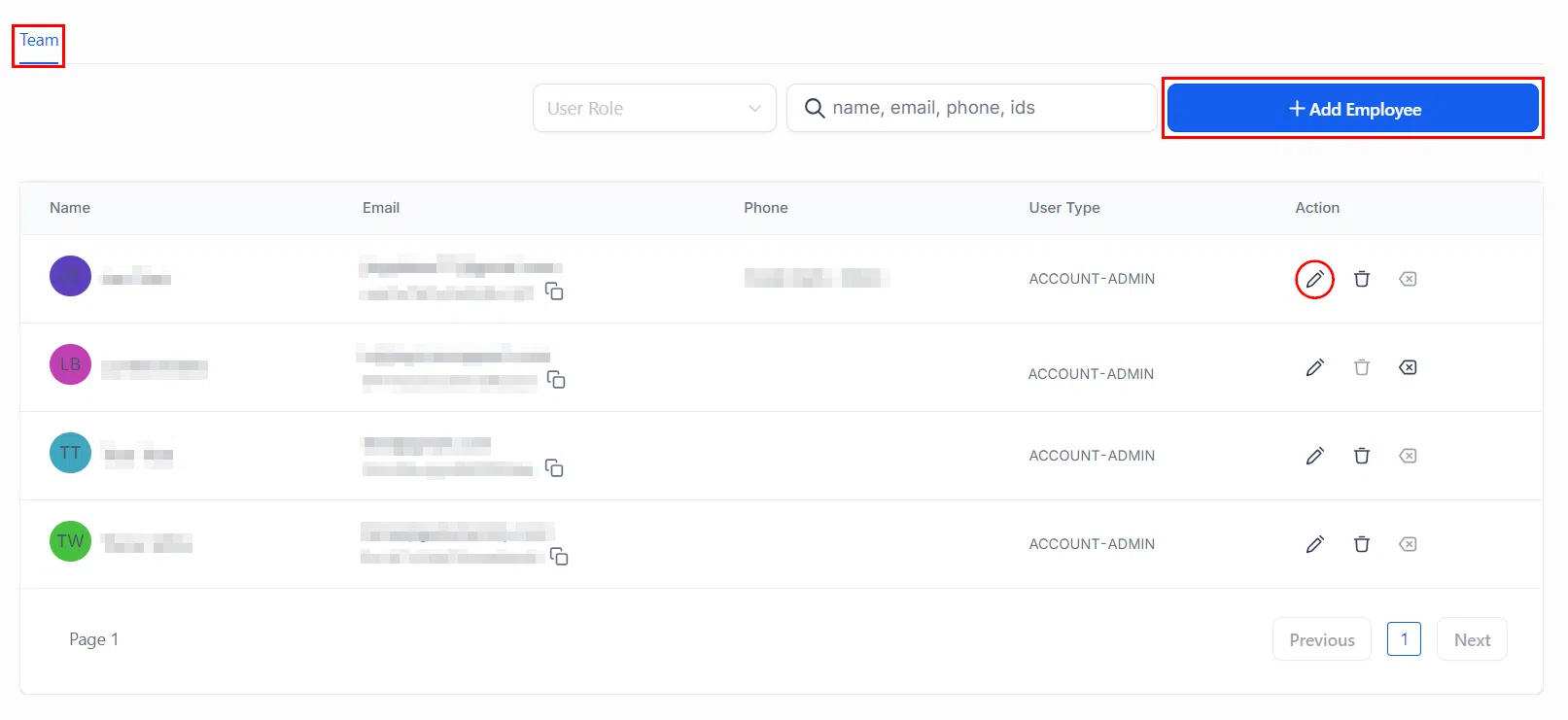
Followers only work when the “Only Assigned Data” permission is enabled for the relevant user. To set this up, go to Settings > My Staff > Team and edit the team member’s profile.
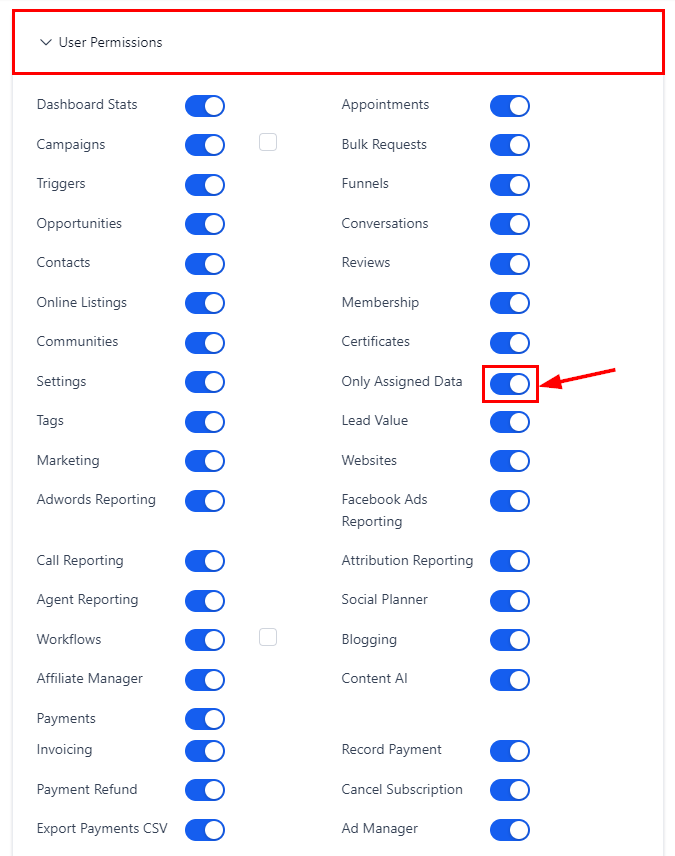
In User Permissions, turn on the Only Assigned Data toggle.
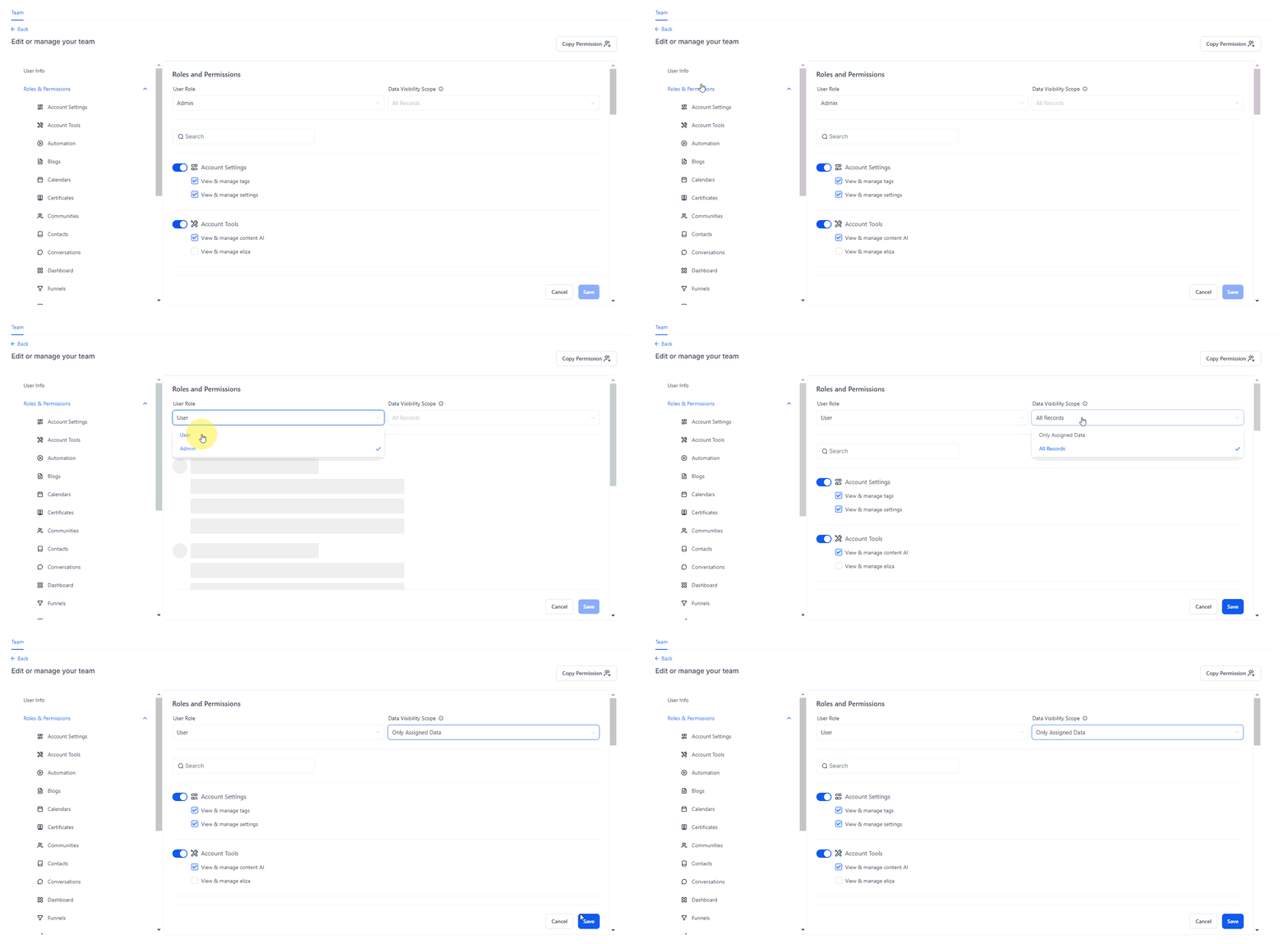
📌 If the toggle isn’t available, navigate to Roles & Permissions first and set the user’s role to User before adjusting Data Visibility Scope.
Adding Followers
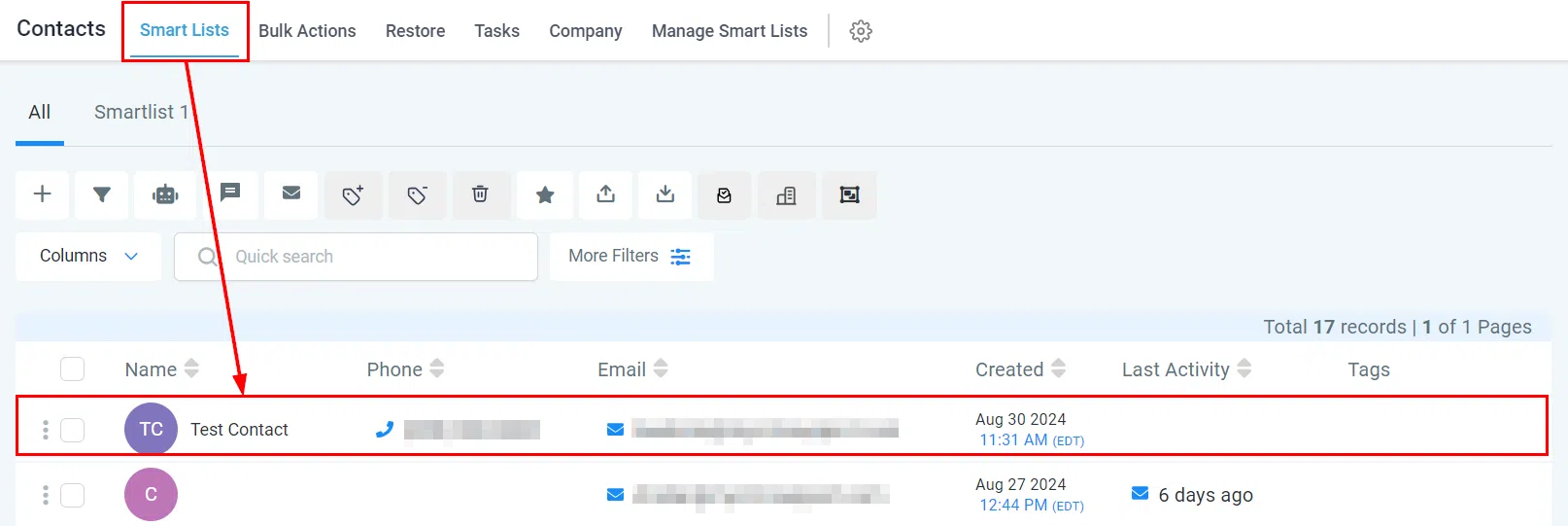
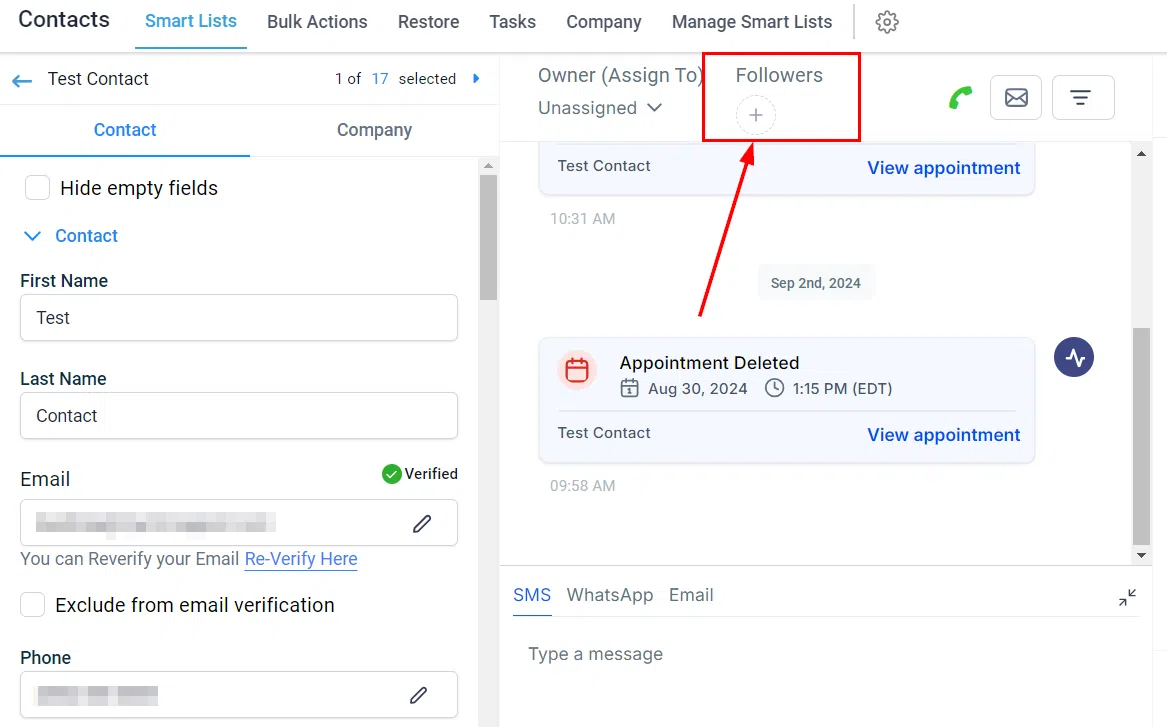
Go to Contacts > Smart Lists and open the contact you want to share.
Click the + next to the Followers option in the upper panel. A multi-select dropdown will appear – choose up to 10 users to add as followers.
Common Questions
Can followers edit the contact owner’s information?
No – followers have owner-level permissions to manage and edit the contact, but cannot change the assigned owner’s details.
How many followers can a contact have?
Up to 10 followers can be added to any single contact.
Why can’t a follower see the contact?
Check that the “Only Assigned Data” setting is enabled for that user.