Growth360 lets you reach multiple contacts at once through SMS, email, WhatsApp, and review requests – and verify email addresses in bulk. This article covers all five bulk messaging actions available in the Smart Lists view.
Send Bulk SMS Messages
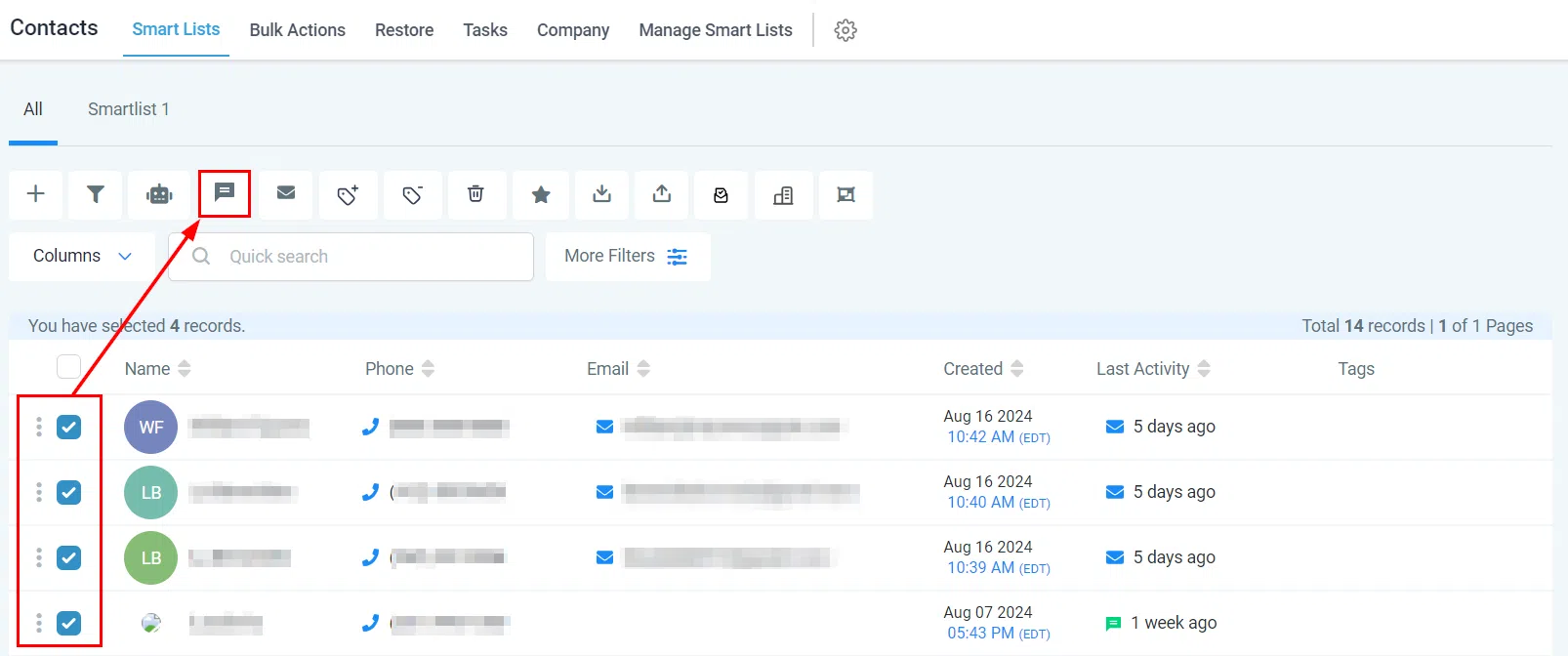
Select the contacts you want to message in the Contacts tab, then click the Send SMS button.
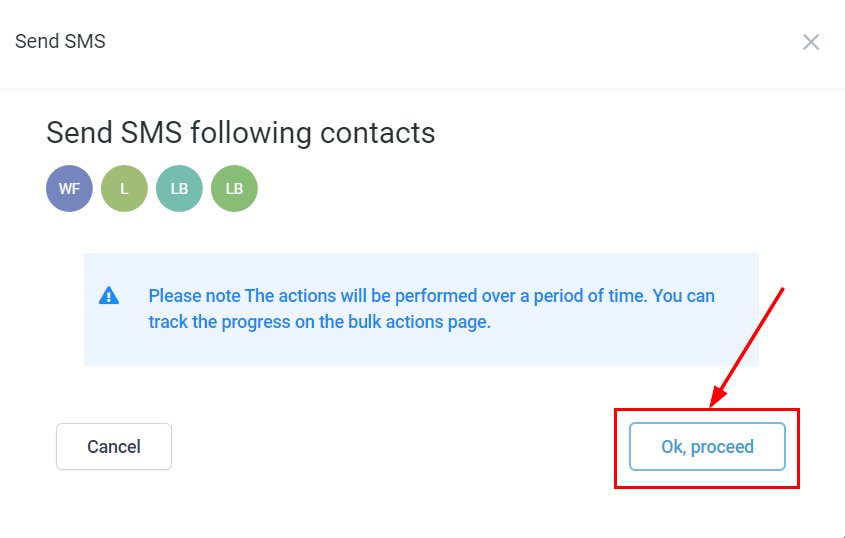
Review and Proceed
Confirm your selected contacts, then click Proceed.
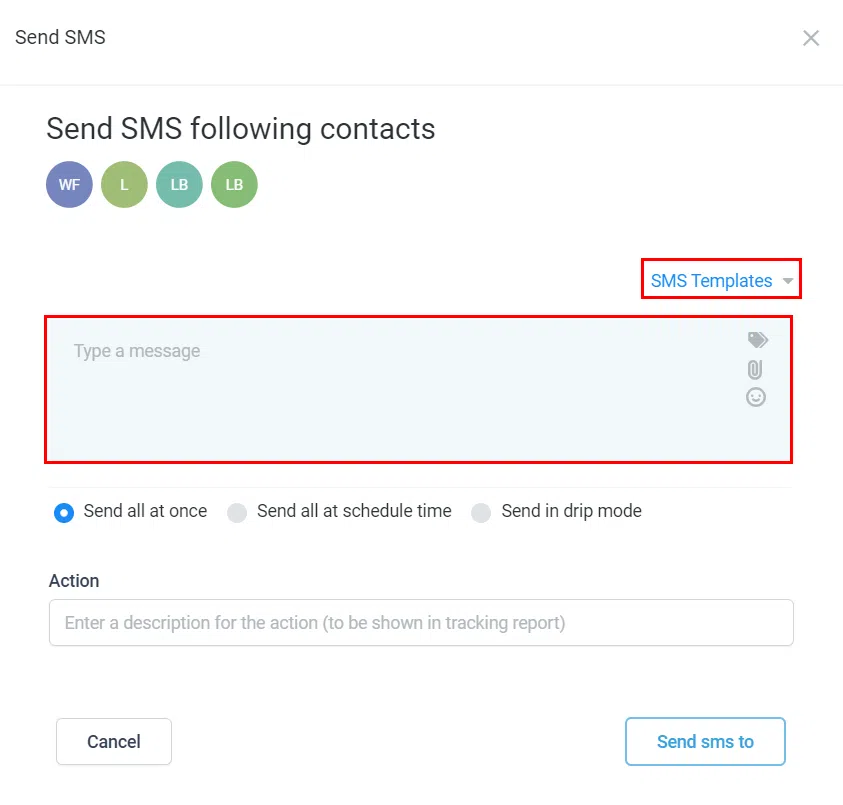
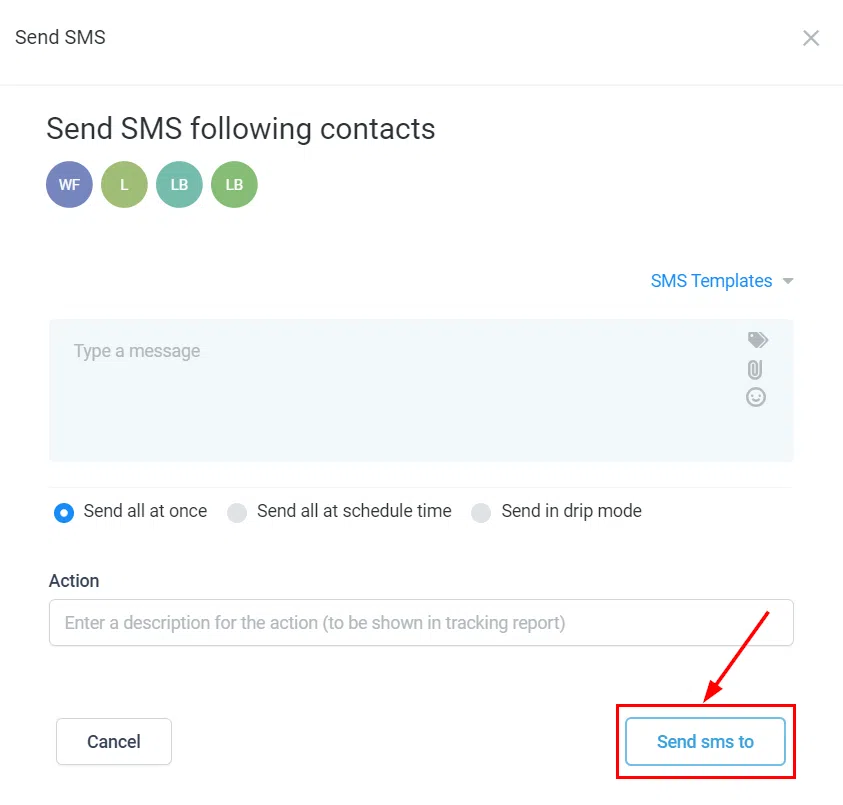
Compose Your Message
Write a message from scratch or select a pre-saved template.
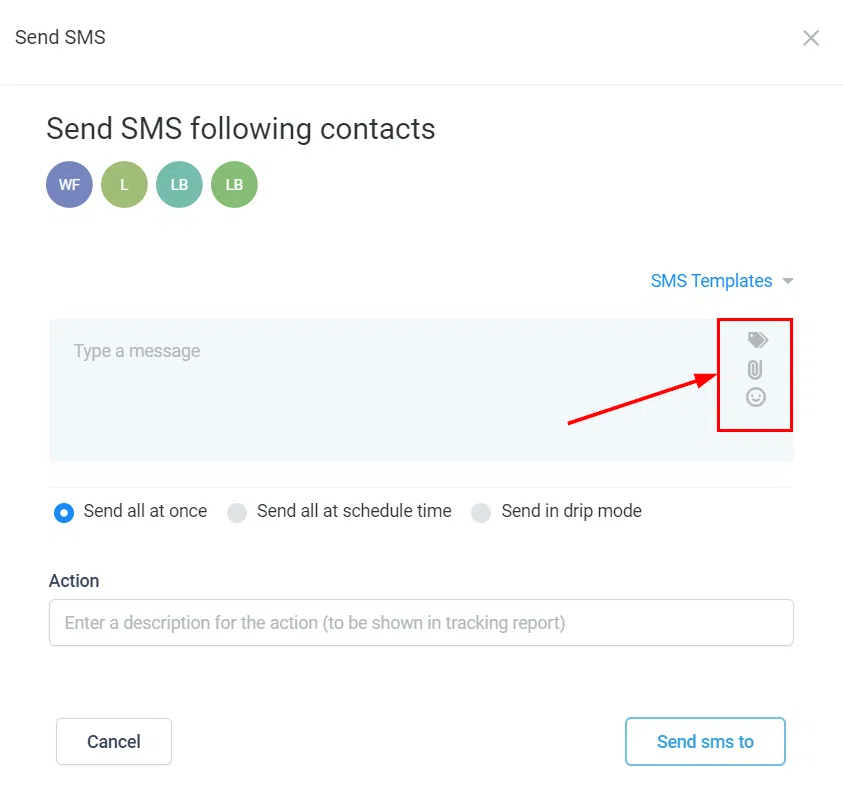
Personalise your message using custom fields (e.g. first name, email, phone number), and add attachments or emojis as needed.
Choose Timing
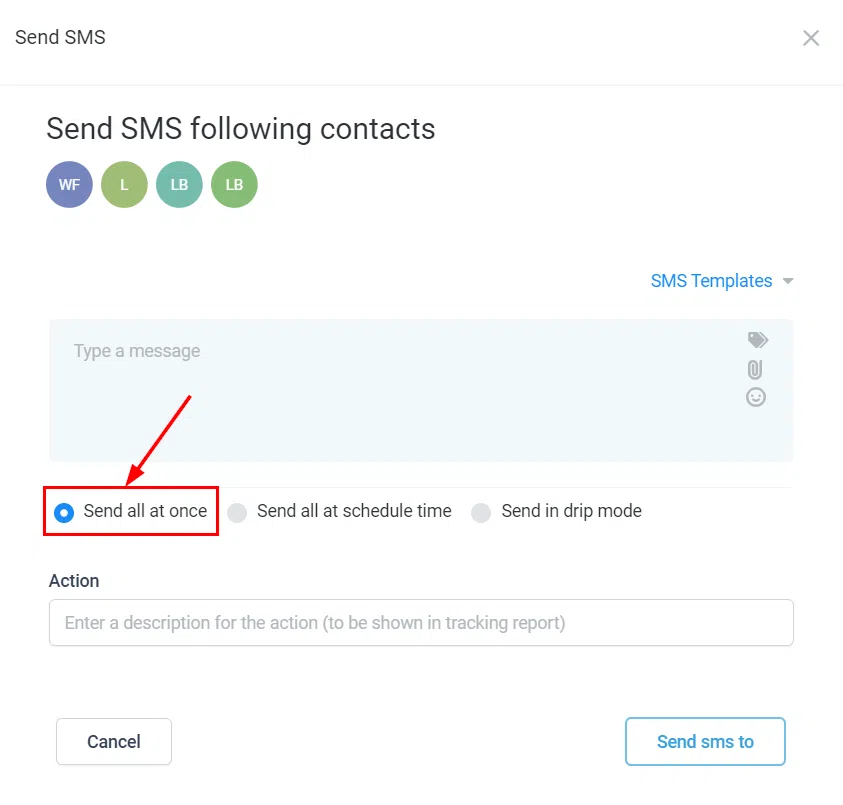
Send All at Once – immediately sends to all selected contacts.
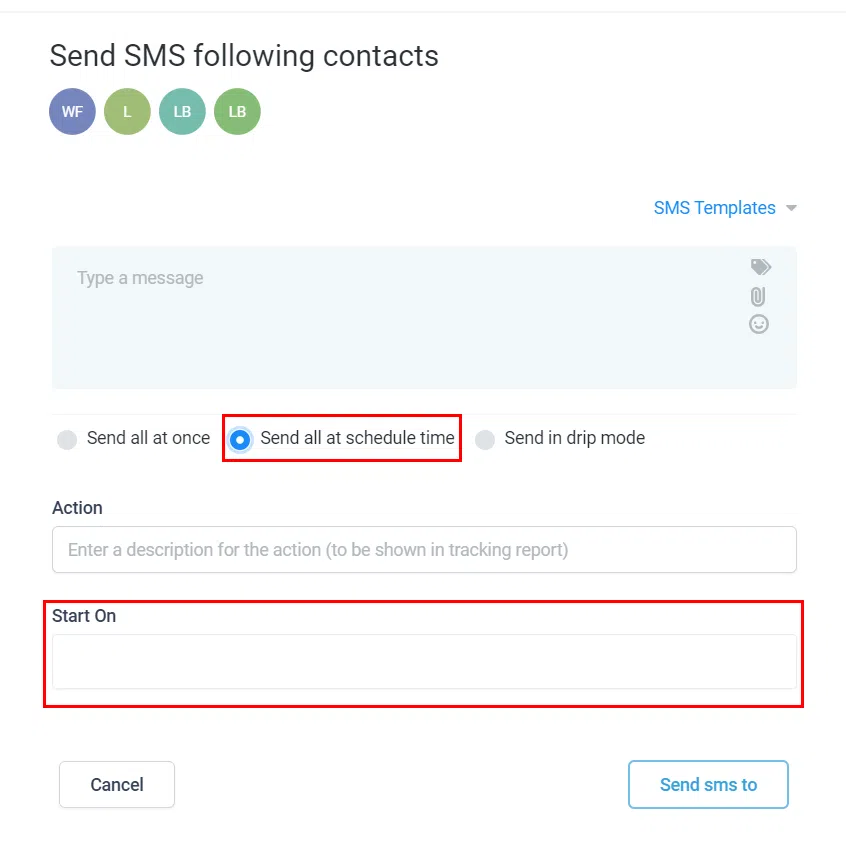
Send at a Scheduled Time – plan delivery at a specific date and time.
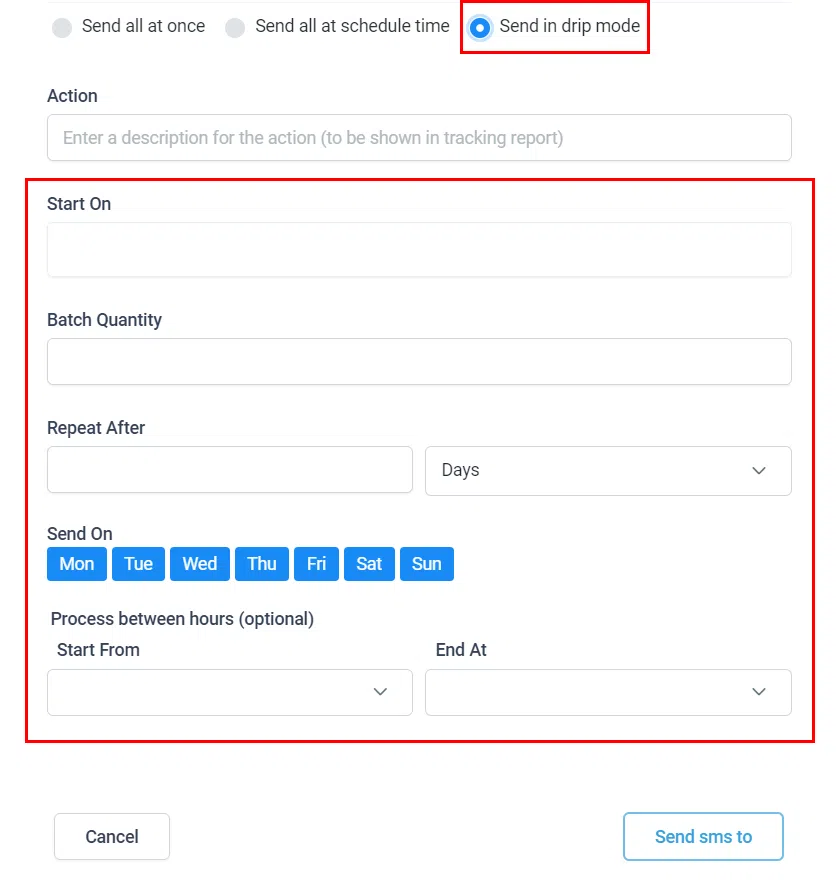
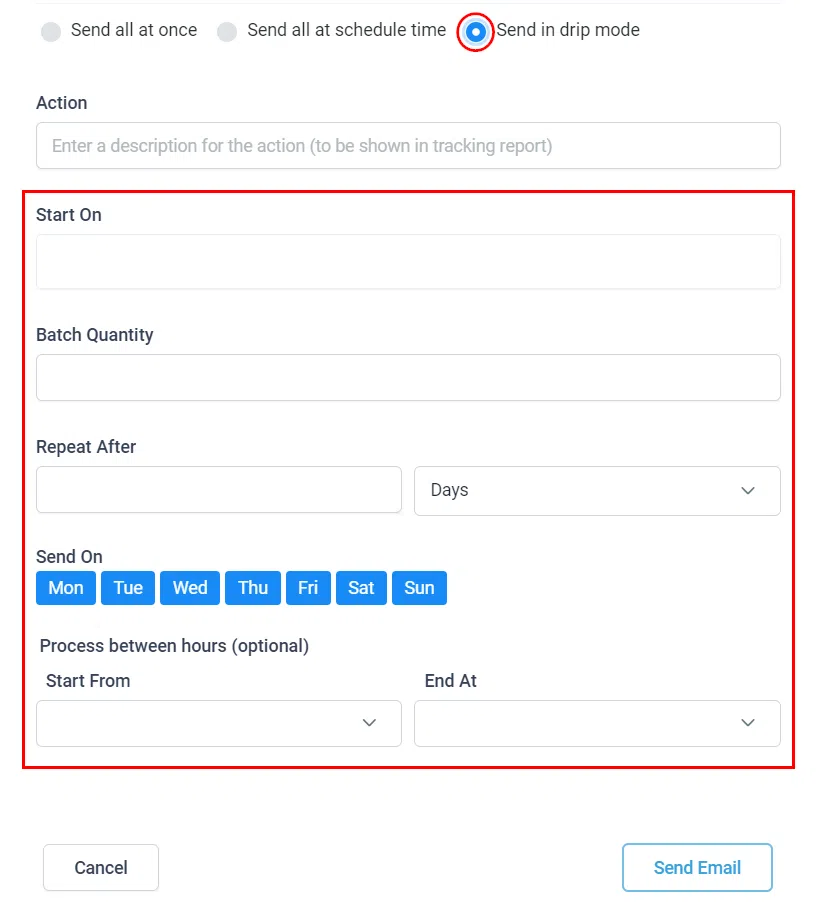
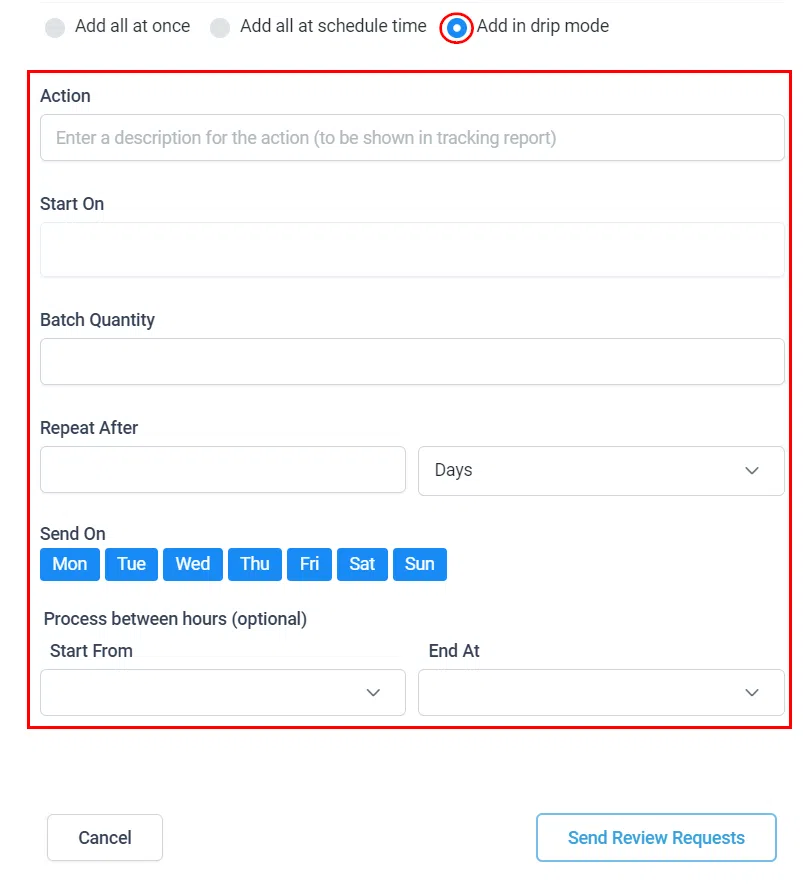
Send in Drip Mode – sends in smaller batches over time. Configure: Start On, Batch Quantity, Repeat After, Send On (days), and optionally Process Between Hours.
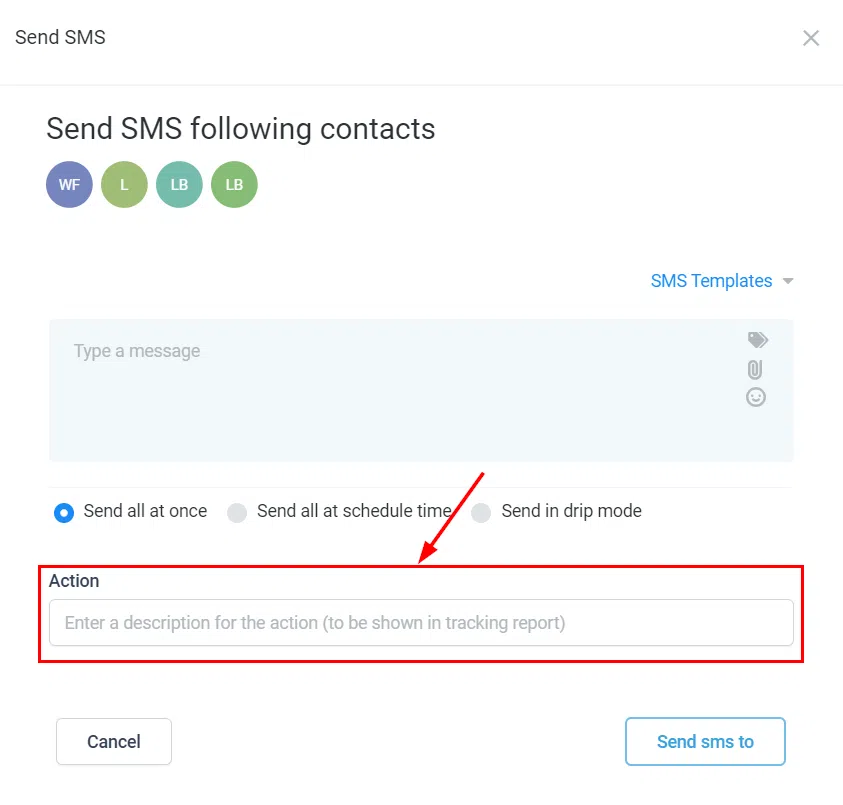
Action Name and Send
Enter a descriptive name for the action (it appears in the tracking report), then click Send to queue the bulk action.
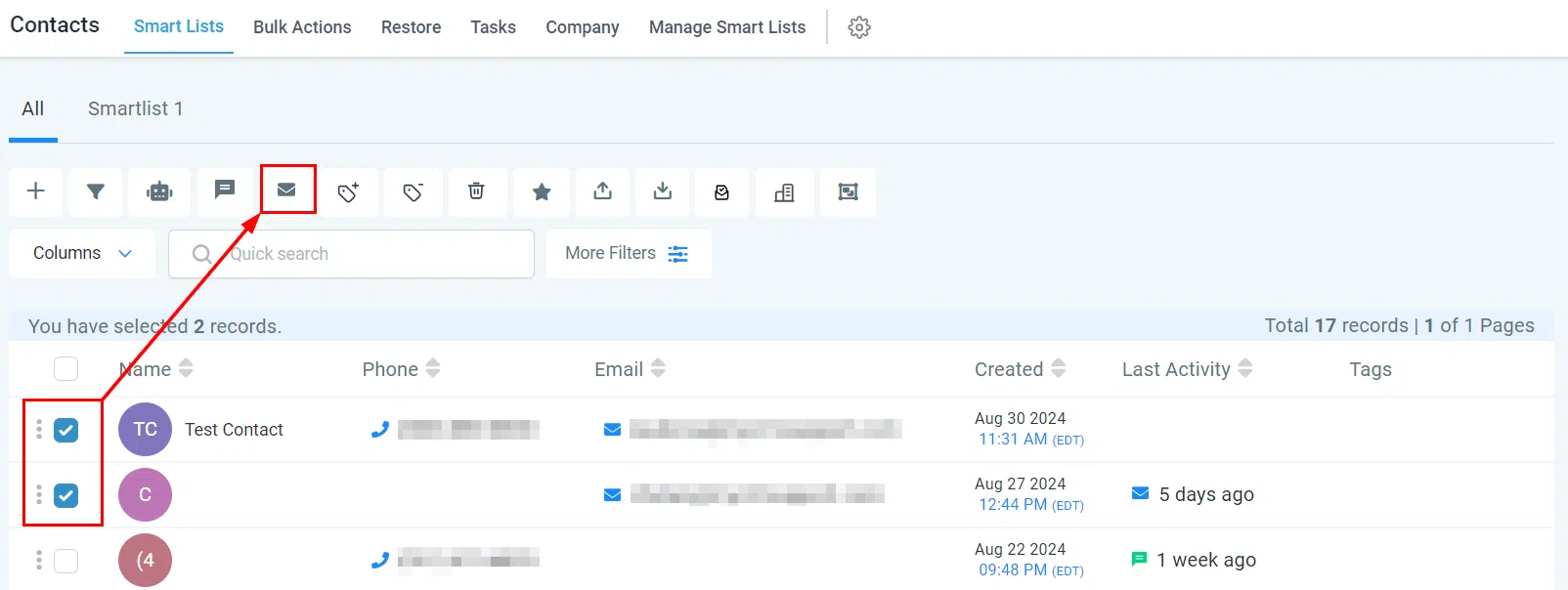
Send Bulk Emails
Select your contacts in the Contacts tab, then click the Send Email button.
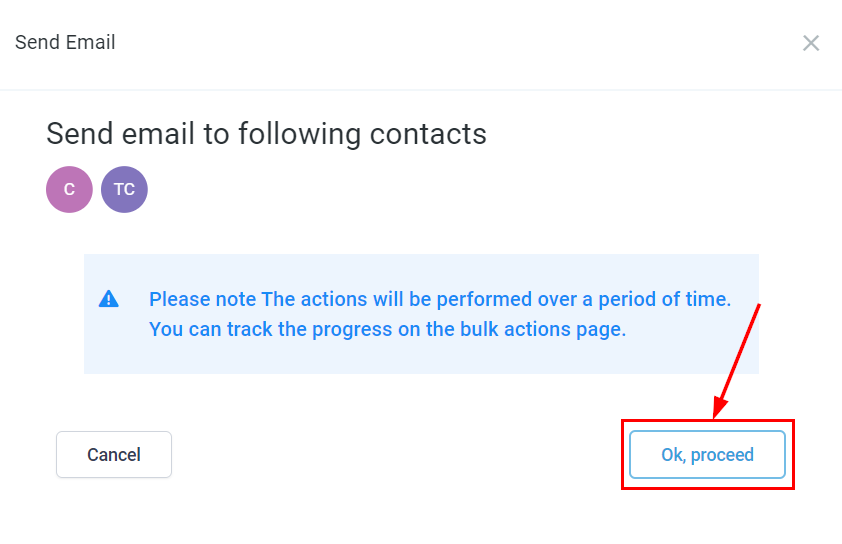
Review and Proceed
Confirm your selected contacts, then click Proceed.
Draft Your Email
Select an email template from the dropdown, or build your email from scratch using the editor.
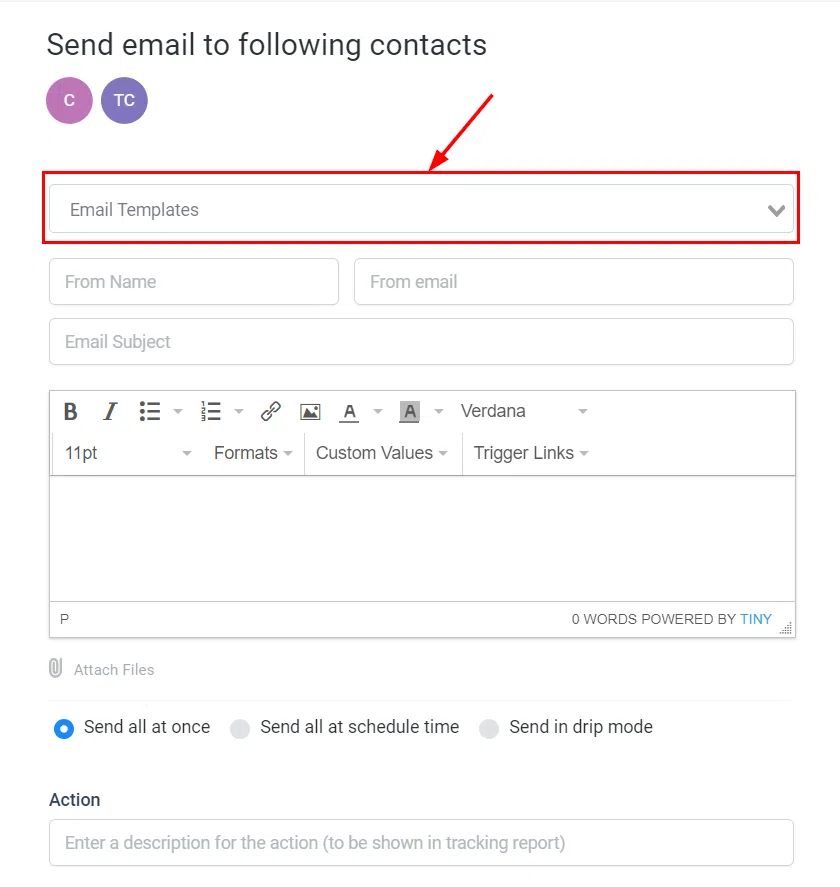
Enter the From Name and From Email address.
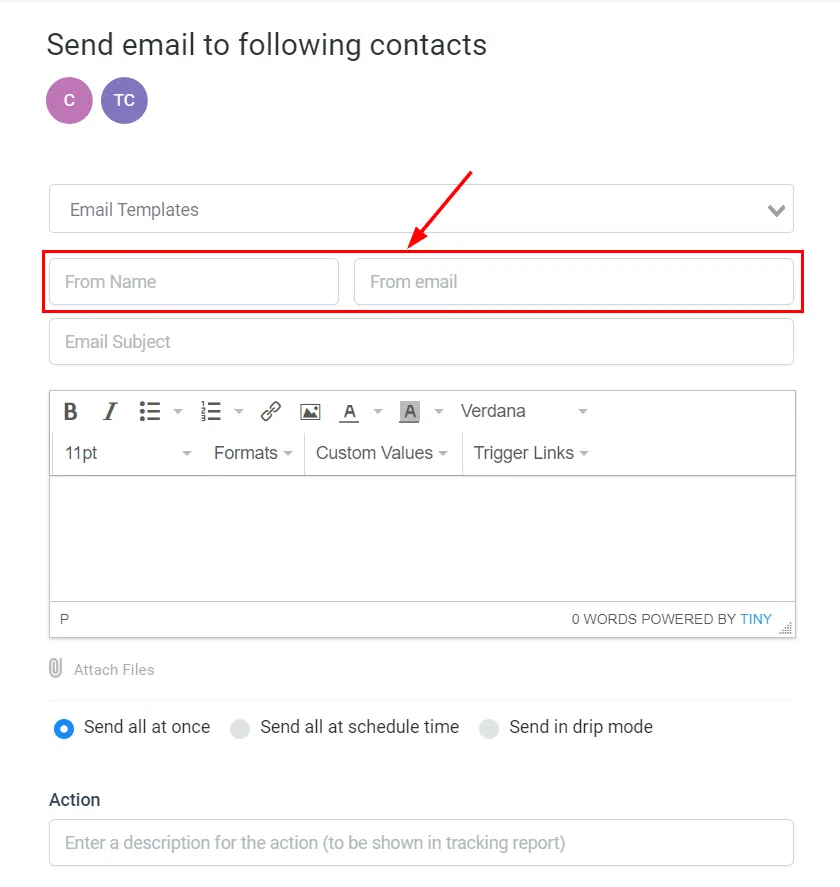
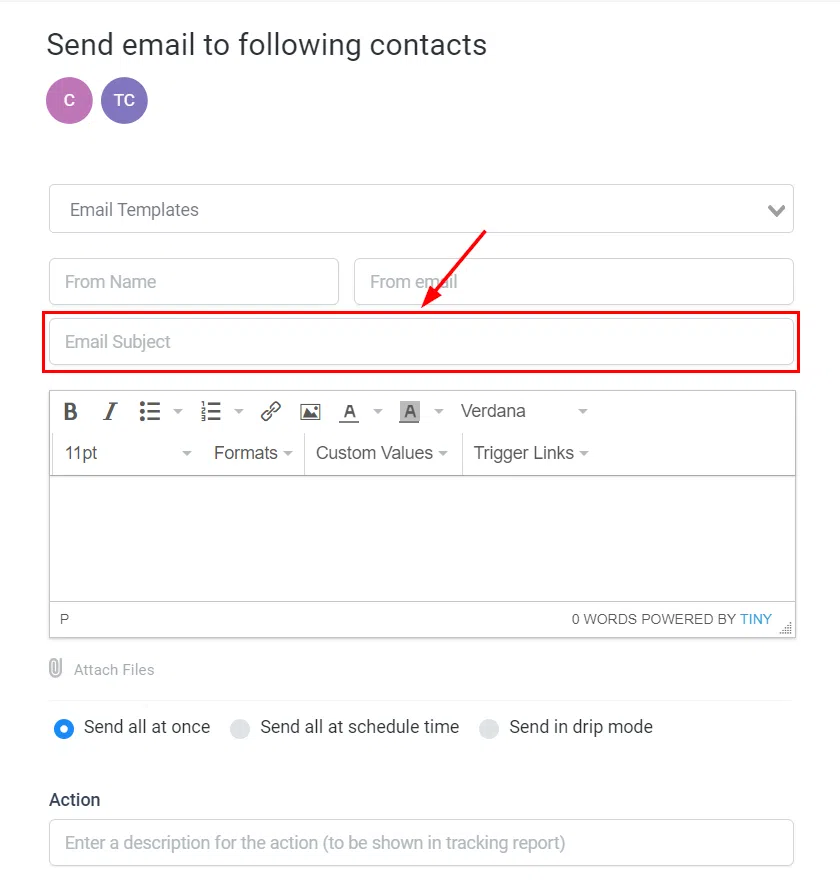
Add a subject line.
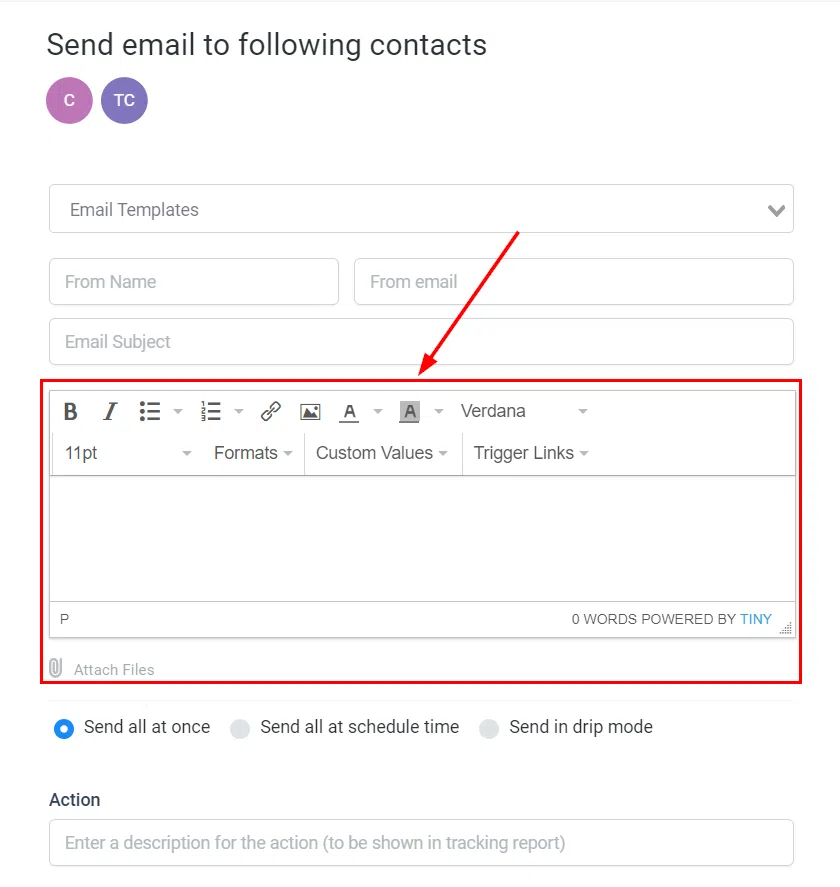
Customise the email content – adjust fonts, colours, sizes, and add files as needed.
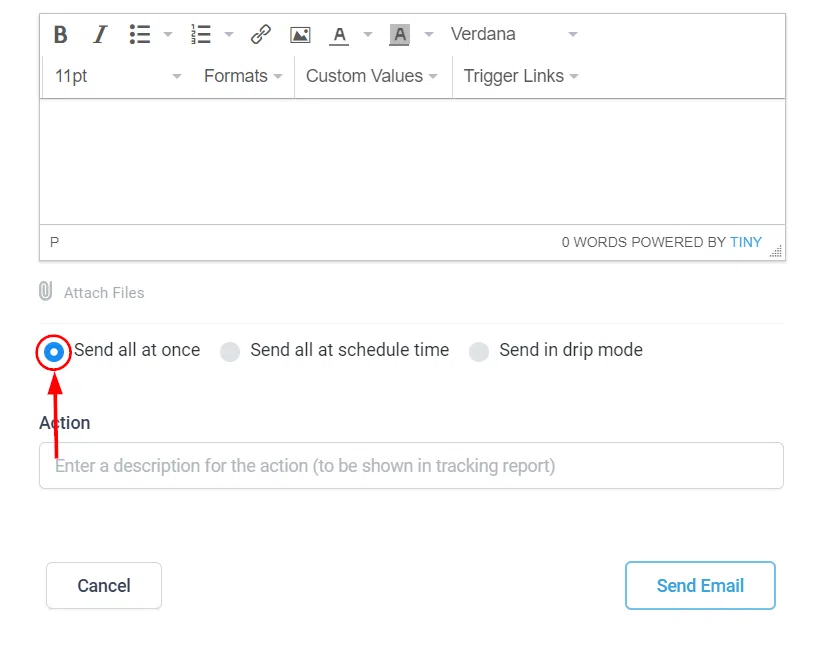
Choose Timing
Send All at Once – immediately emails all selected contacts.
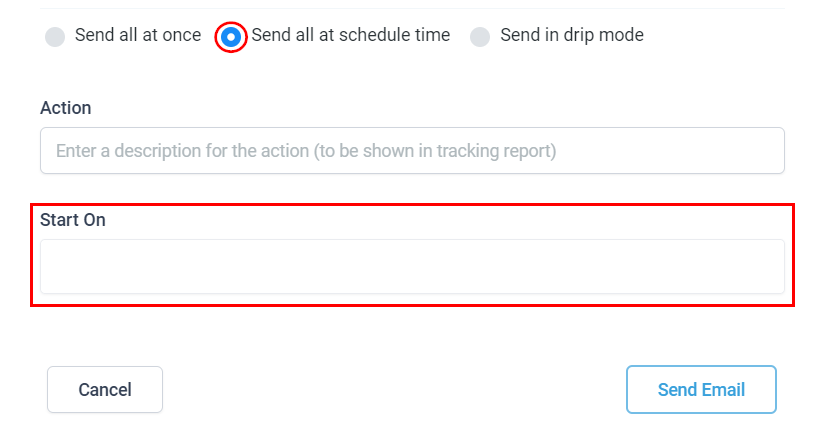
Send at a Scheduled Time – set a specific date and time for delivery.
Drip Mode – recommended for large lists. Sends in batches using the same settings as SMS drip mode.
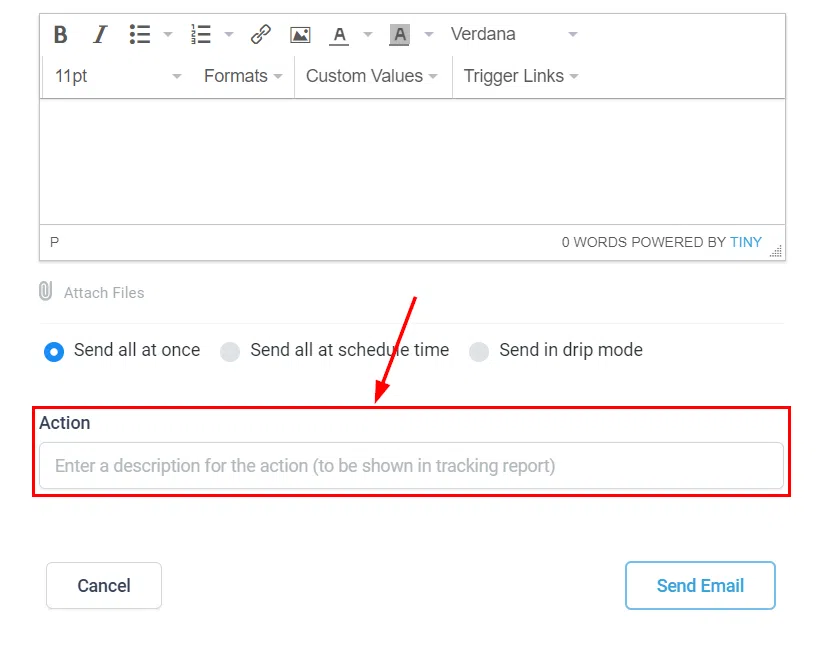
Action Name and Send
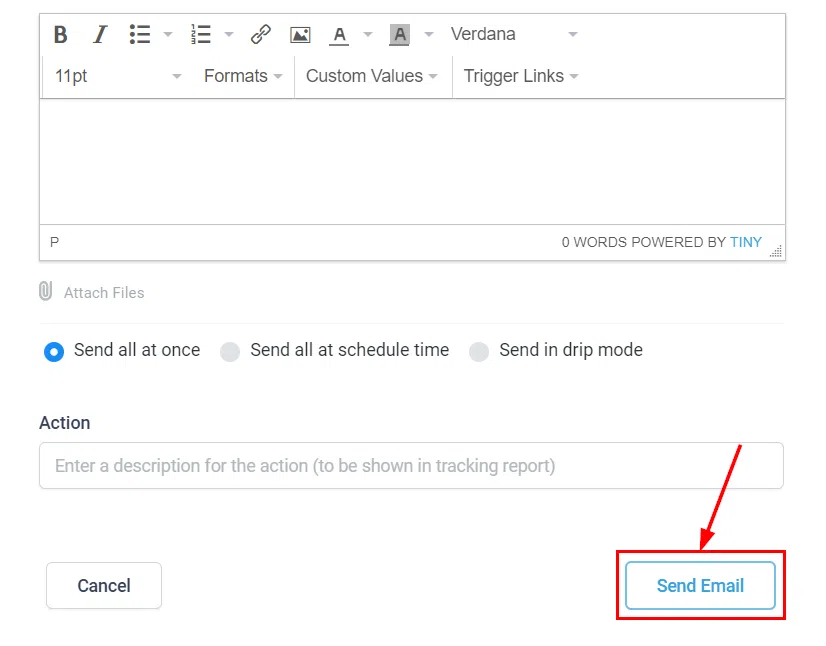
Label the action for your tracking report, then click Send Email to queue the bulk action.
WhatsApp Bulk Action
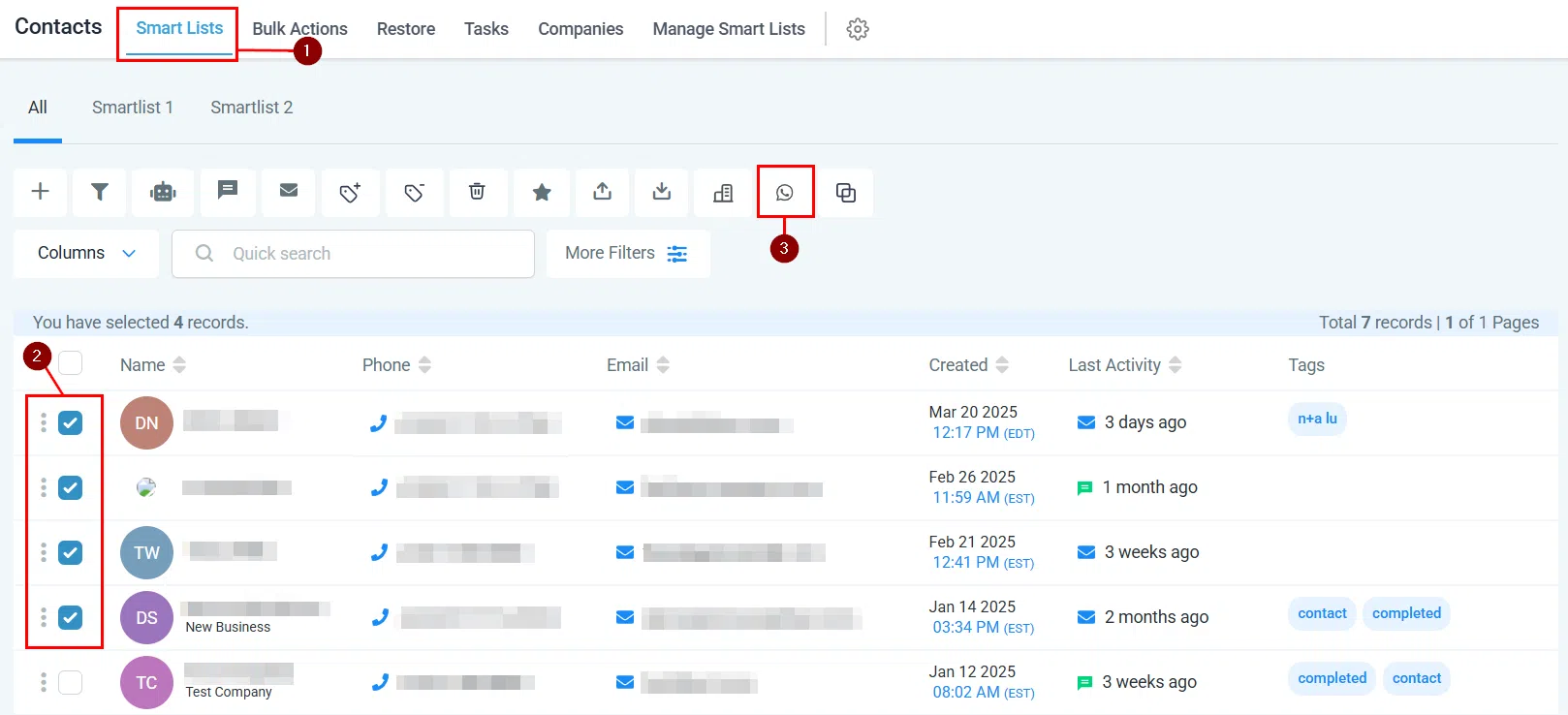
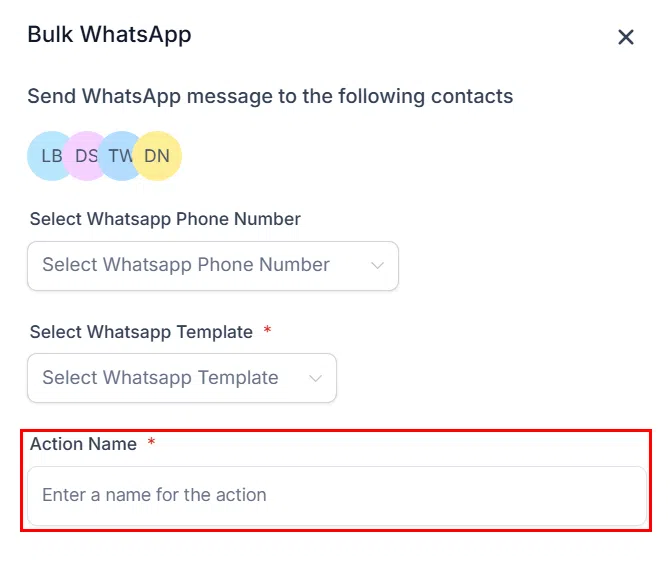
WhatsApp bulk messaging works similarly to SMS – select your contacts in Smart Lists, then click the WhatsApp icon to open the message settings.
Messaging Limits
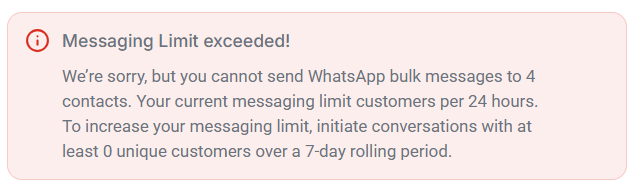
If you have exceeded your 24-hour messaging tier limit, a warning will appear. Messaging limits govern the number of business-initiated conversations within a 24-hour rolling window. You can upgrade from 250 to 1,000 conversations per day by completing the business verification process. Automatic scaling beyond 1,000 occurs when your phone number maintains consistent connection and a high-quality rating.
Select Phone Number
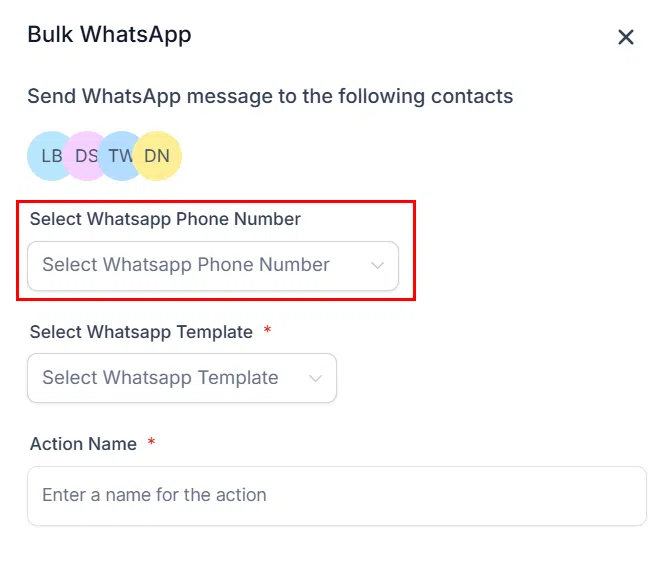
Once any limit issues are resolved, select the phone number you want to send from.
Select Template
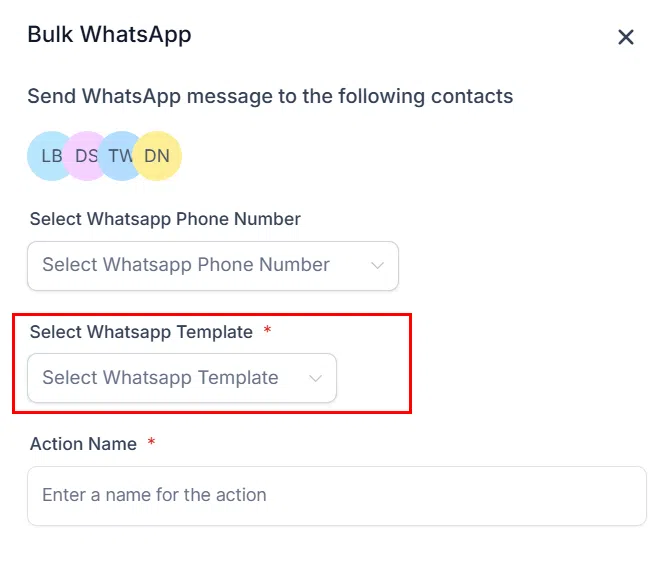
Choose an approved WhatsApp template from the dropdown. Only pre-approved templates can be used for bulk messaging.
Action Name and Confirm
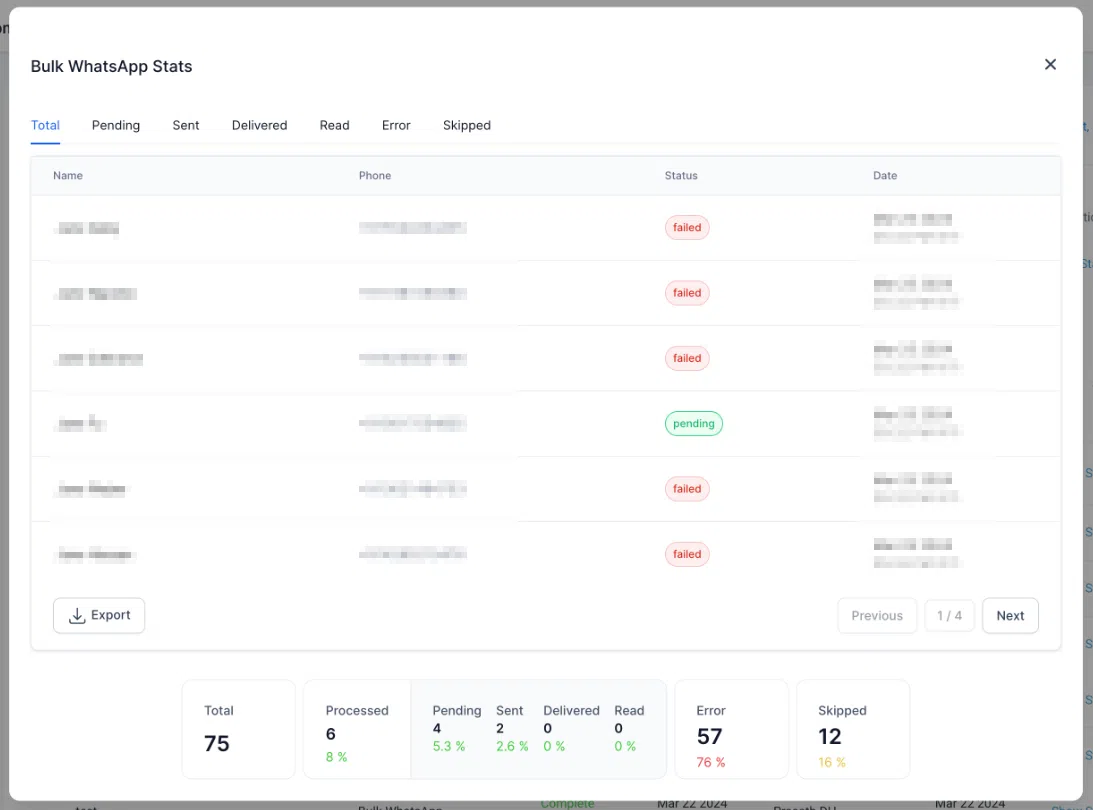
Name the action for reporting purposes, then click Confirm. The system will send messages in intervals until all contacts are covered. Monitor progress under Contacts > Bulk Actions.
Send Review Requests to Multiple Contacts
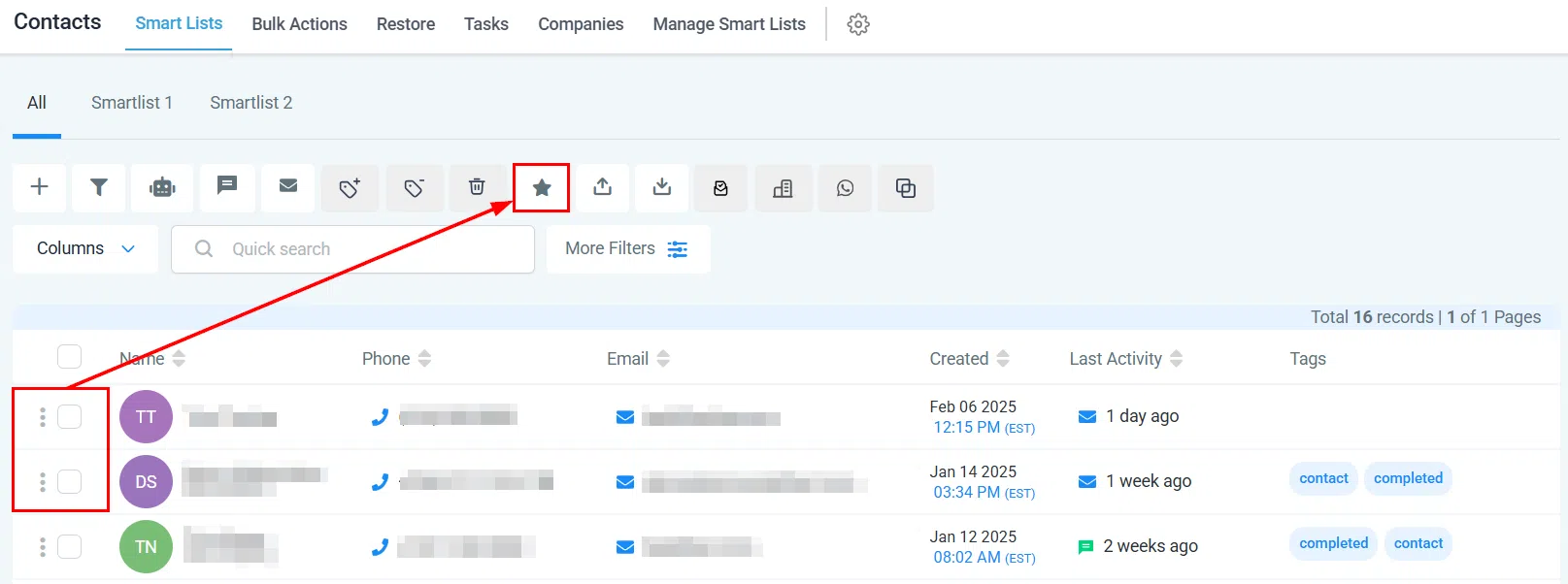
Select contacts in the Contacts tab, then click the Send Review Requests button.
Review and Proceed
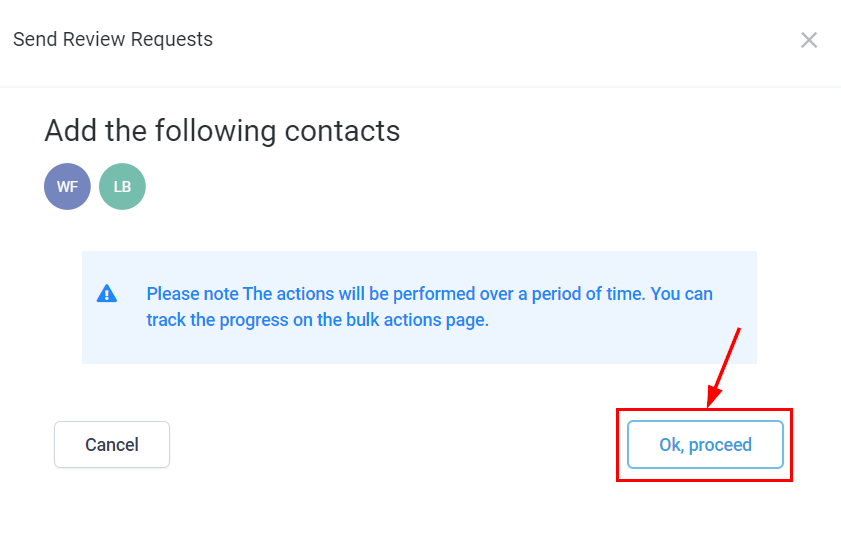
Confirm your selected contacts and click Proceed.
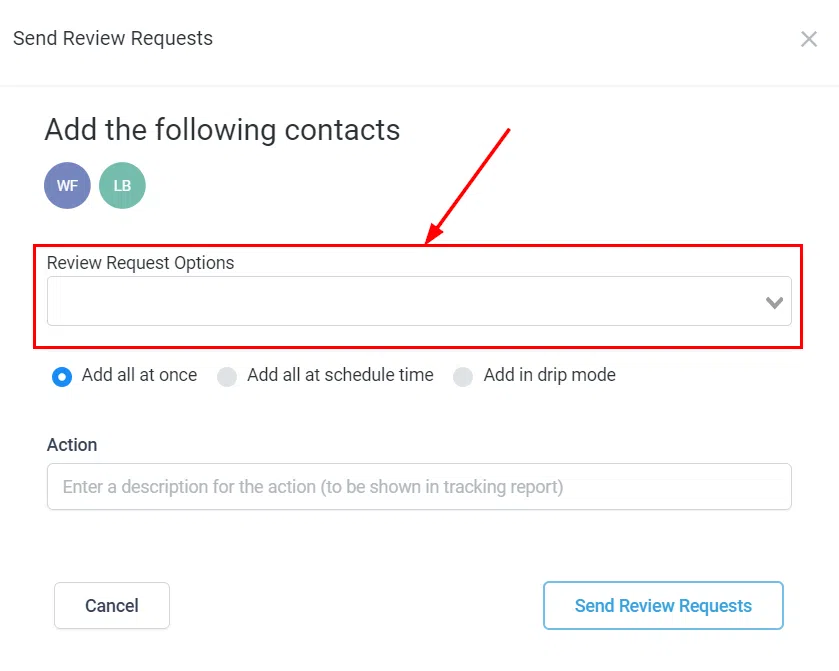
Choose Channel and Timing
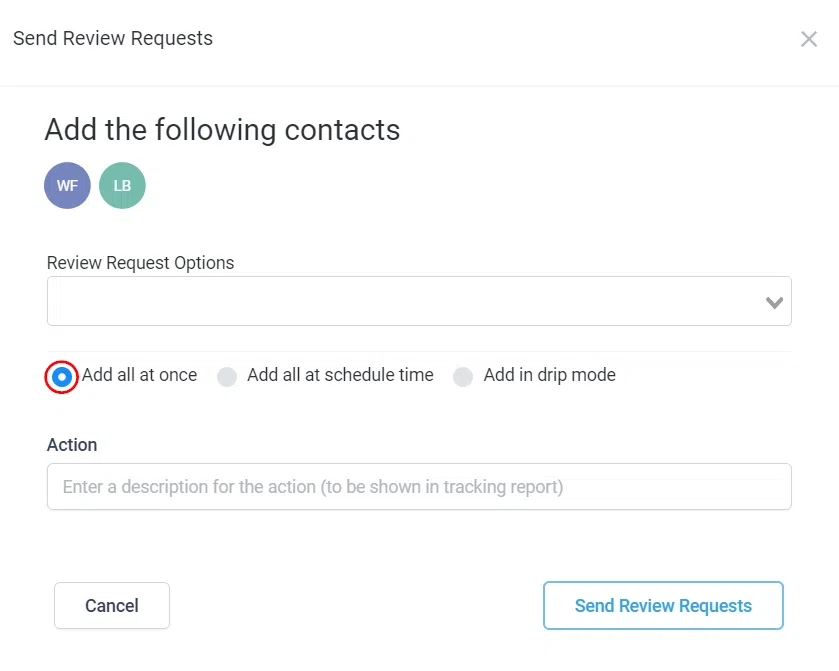
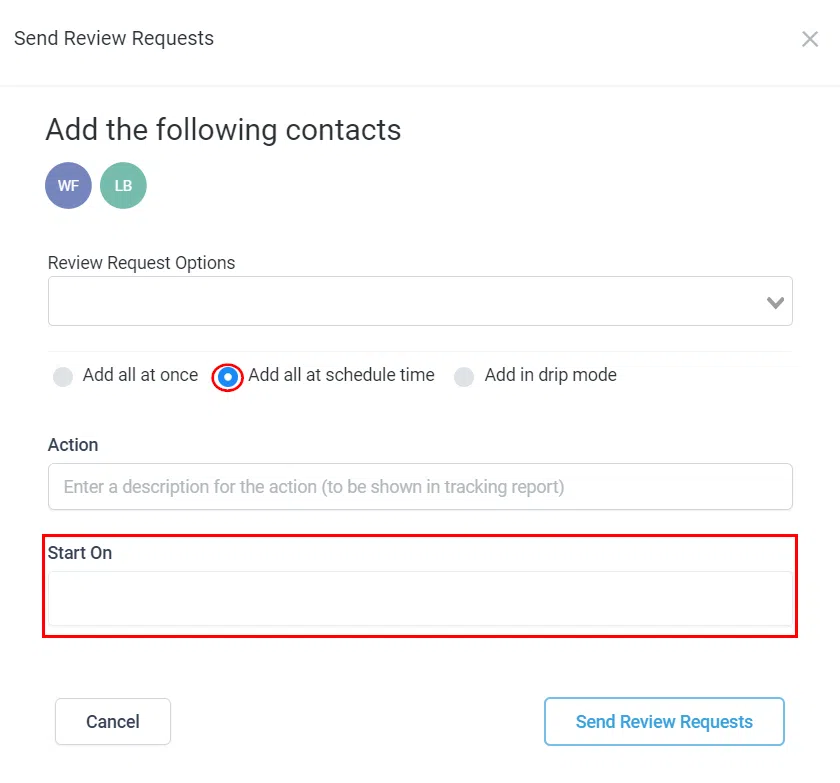
Select whether to send requests via email, SMS, or WhatsApp. Then choose your timing: Add All at Once, Add at a Scheduled Time, or Add in Drip Mode (with the same batch settings as other drip actions).
Action Name and Send
Assign a recognisable name to this action for easy tracking, then click Send Review Requests to initiate the bulk action.
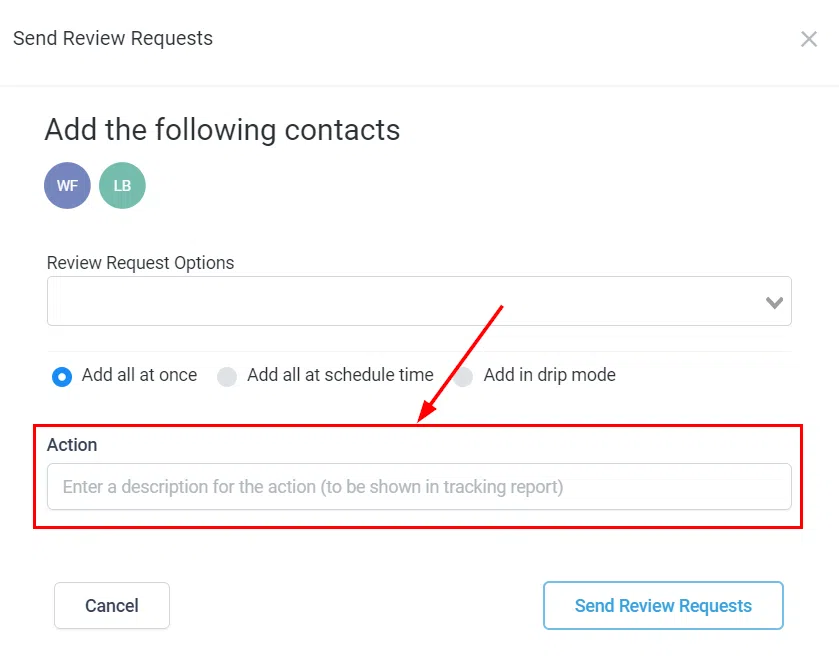
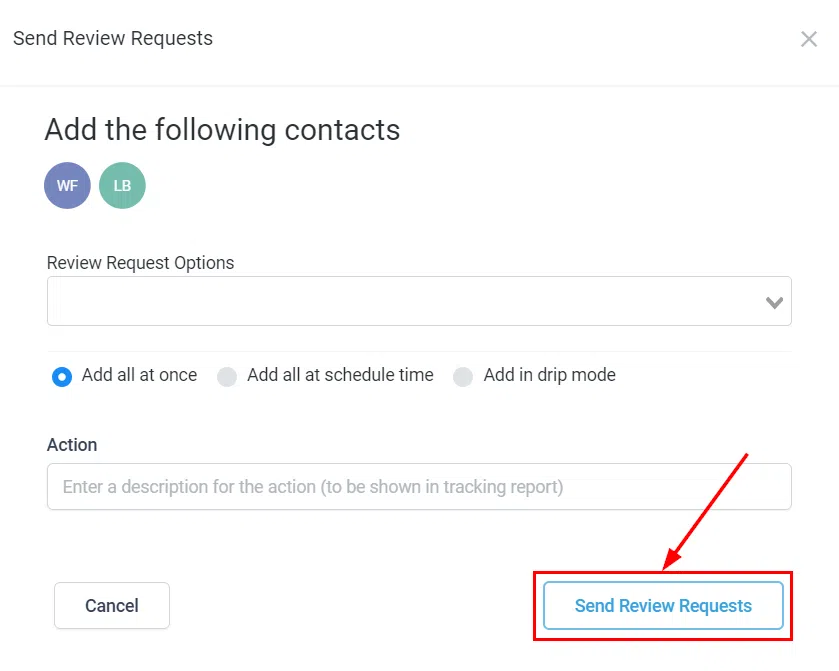
You can customise the review request format in the Reputation section for a more tailored experience.
Bulk Email Verification
Email verification checks your contacts’ primary email addresses for errors, improving deliverability and protecting your sender score.
Key Considerations
Email system requirement: Verification requires the LC email system. It is not compatible with Mailgun, Google SMTP, or SendGrid.
Cost: There is a small cost per email verified. Contact your CRM Administrator for pricing details.
Scope: Only primary email addresses are eligible. Secondary addresses cannot be verified.
Run Verification
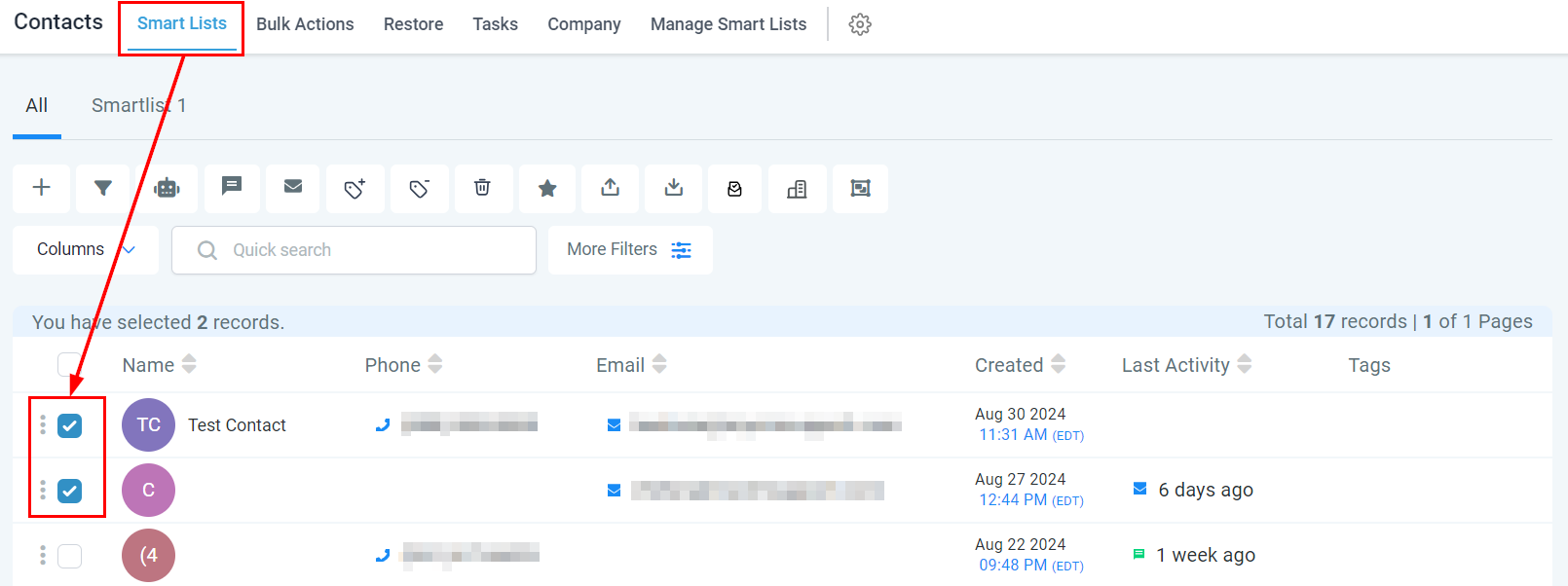
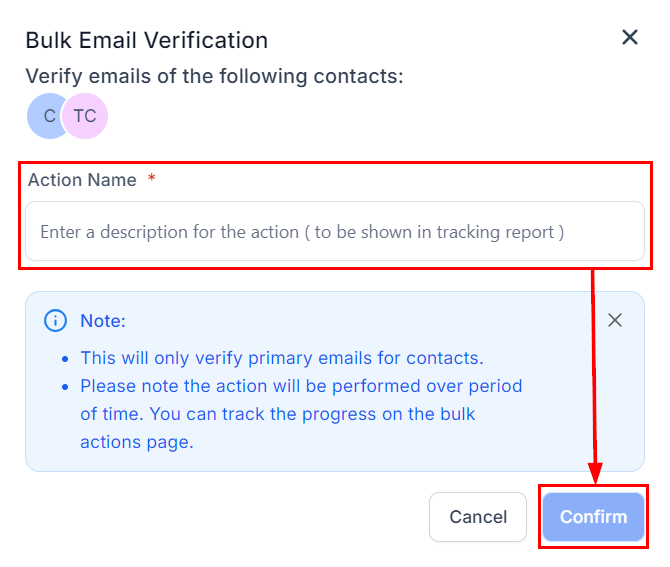
Navigate to Smart Lists, select the contacts to verify, then click the Email Verification bulk action button.
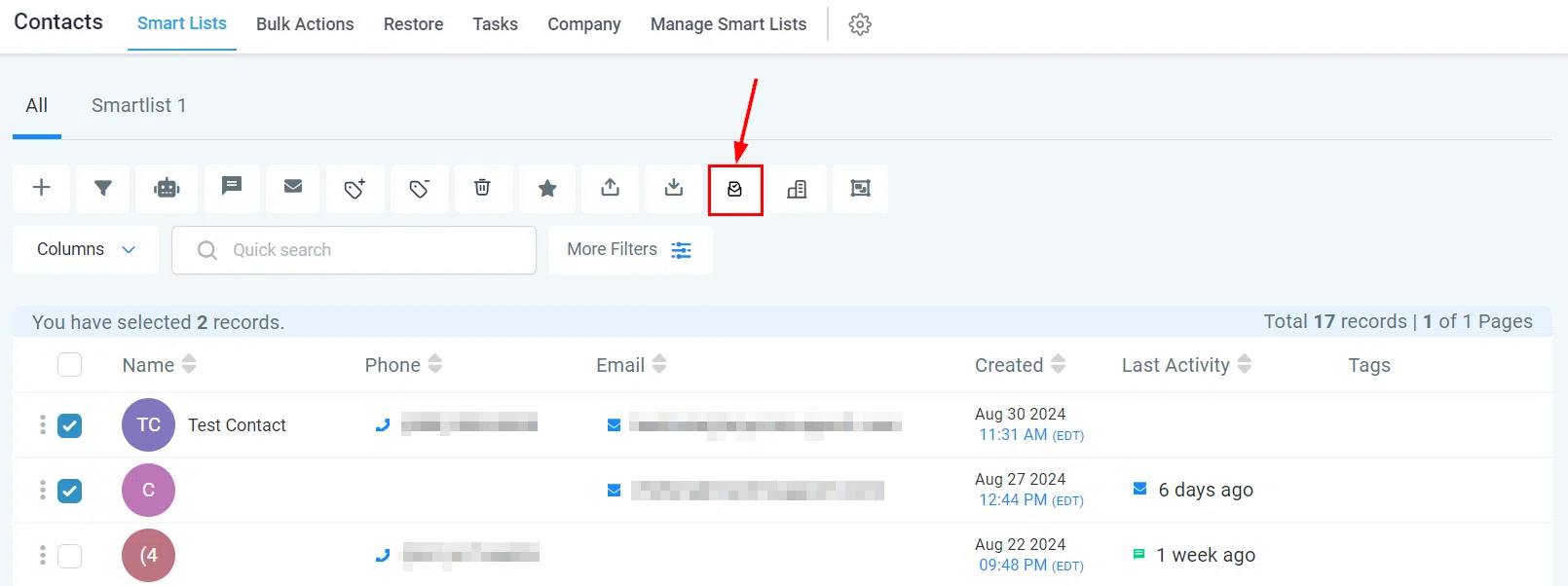
Assign a name to the verification batch, then click Confirm.
Review Results
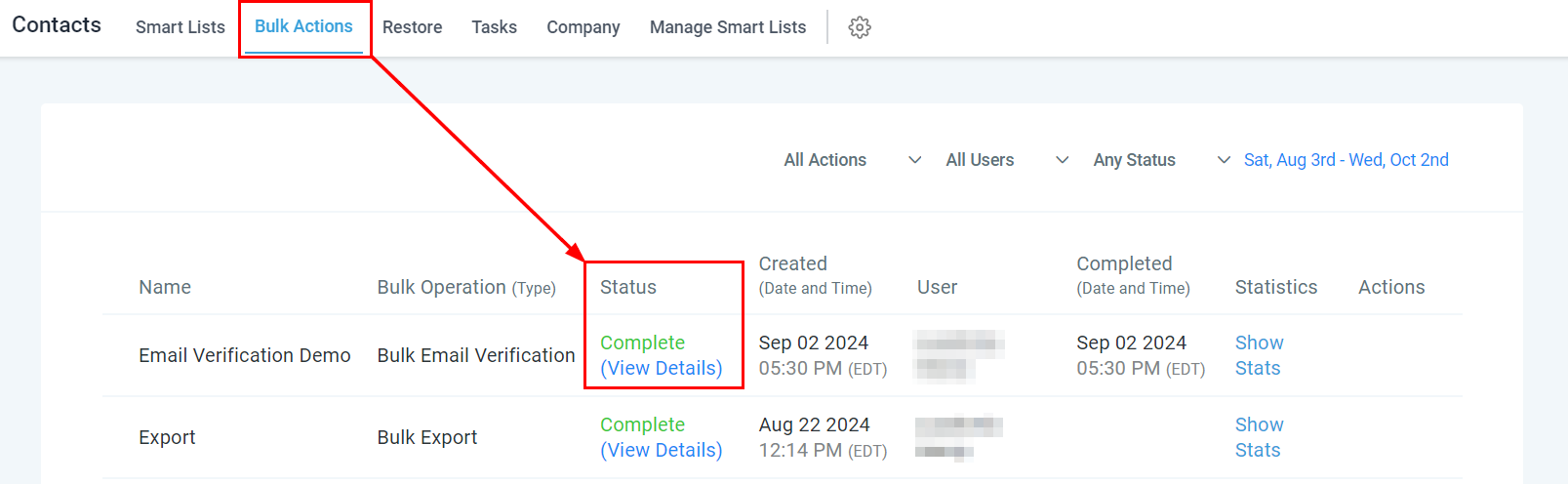
Go to Contacts > Bulk Actions to monitor the verification batch. Status options are: Complete, Processing, Canceled, or Failed.
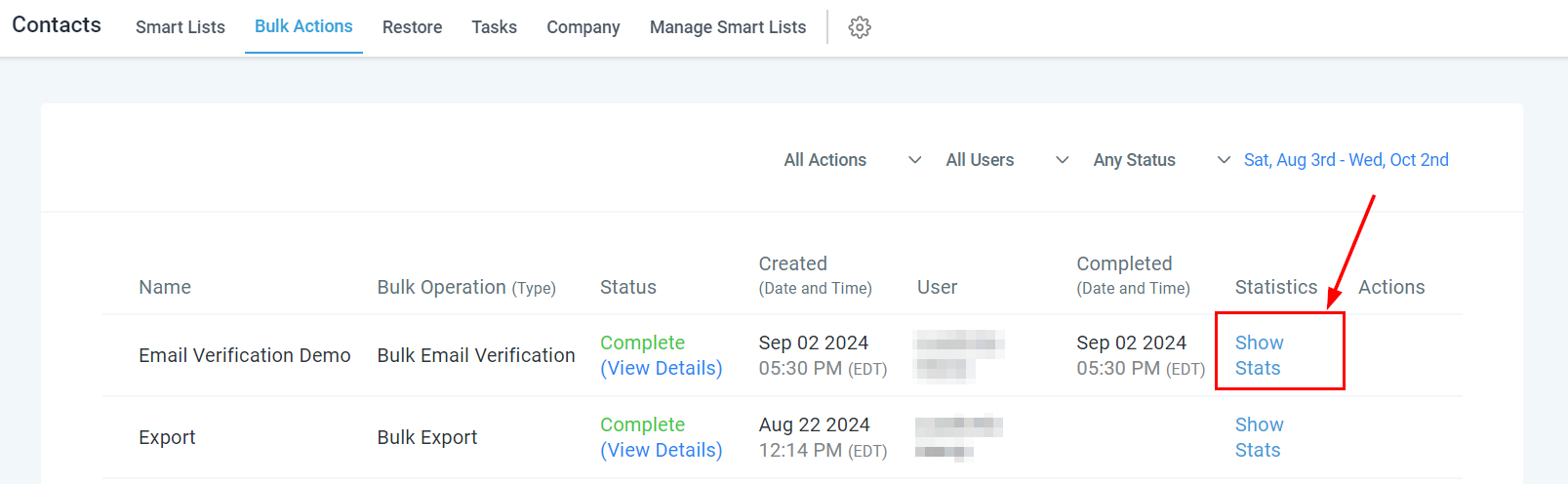
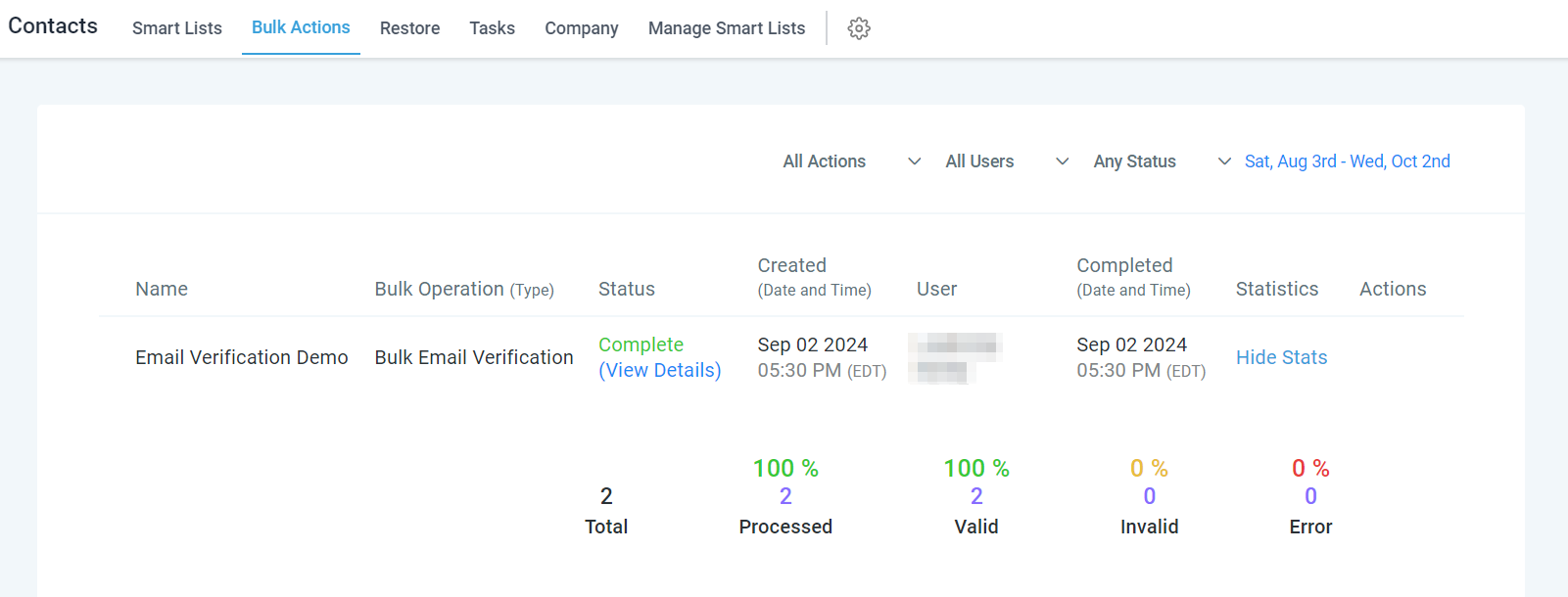
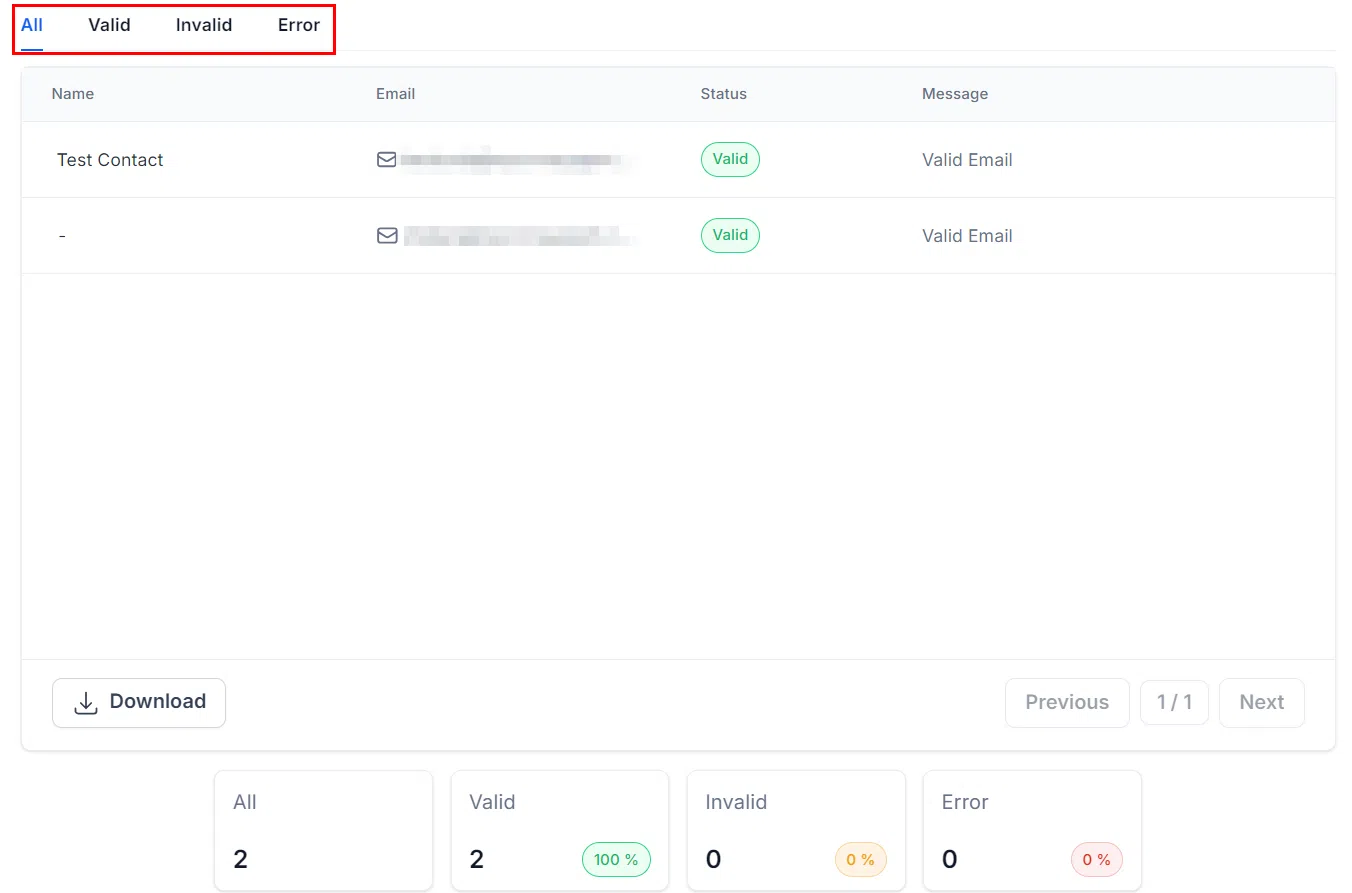
Click Show Stats to view the number of valid, invalid, and errored emails.
Click any data point to see a detailed breakdown – including contact name, email address, validity status, and any associated messages.
From this view you can take follow-up actions – such as removing contacts with invalid addresses or sending an SMS to request a corrected email.
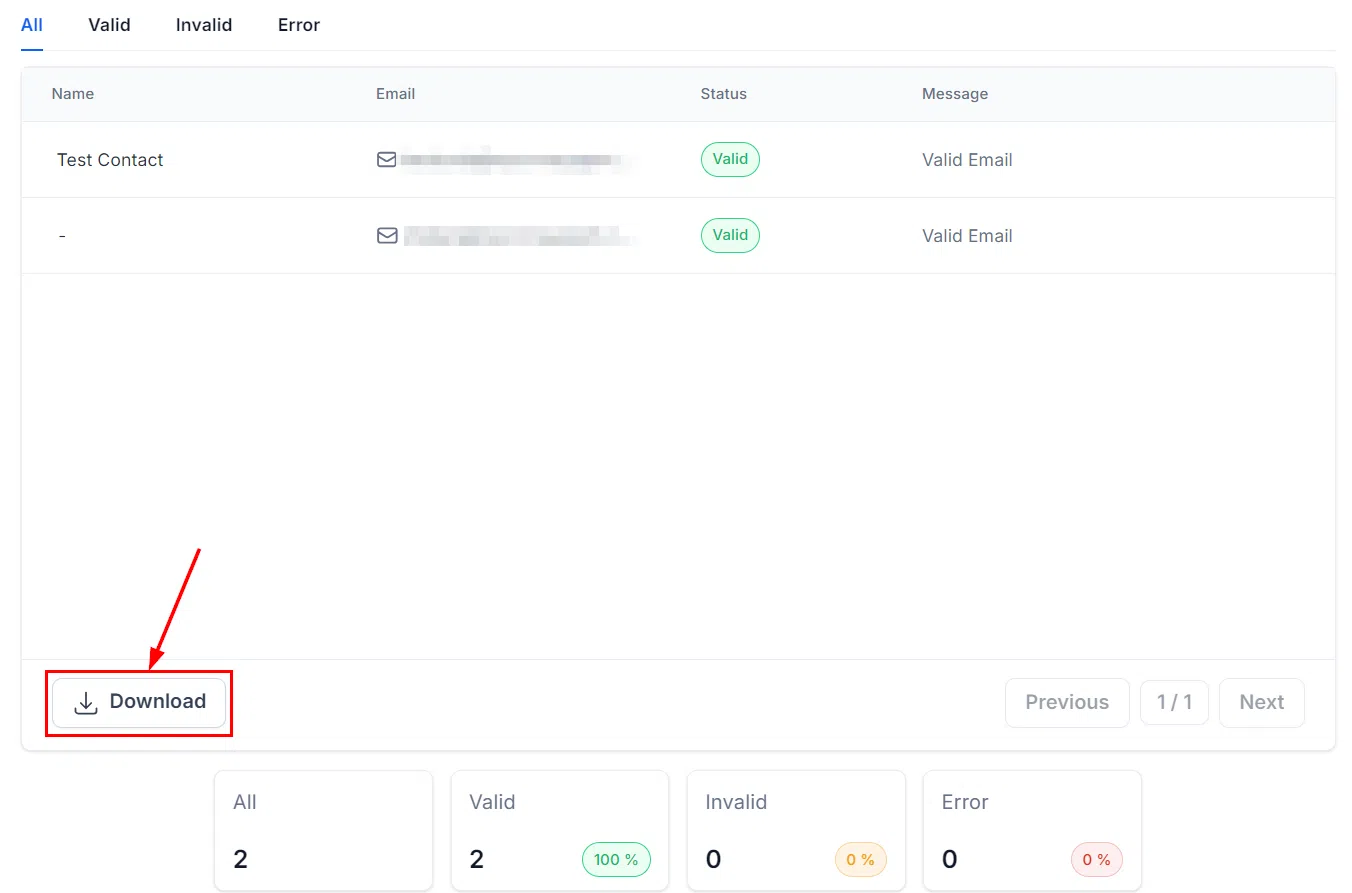
Click the Download button to export the verification list for offline access.
Frequently Asked Questions
Can I verify secondary email addresses?
No – only primary email addresses can be verified.
How long does bulk email verification take?
Processing time varies based on the number of emails. Larger batches take longer to complete.