Growth360’s Conversation AI Bot Goals let you automate contact data collection, trigger workflows automatically, and control when the bot stops responding – all configurable directly within your bot’s settings.
Add Contact Info via the AI Bot
The Add Contact Info feature lets your AI bot collect and update contact details during a conversation – things like name, phone number, email, business name, and custom fields. This keeps your CRM data accurate without requiring manual entry.
Setting It Up
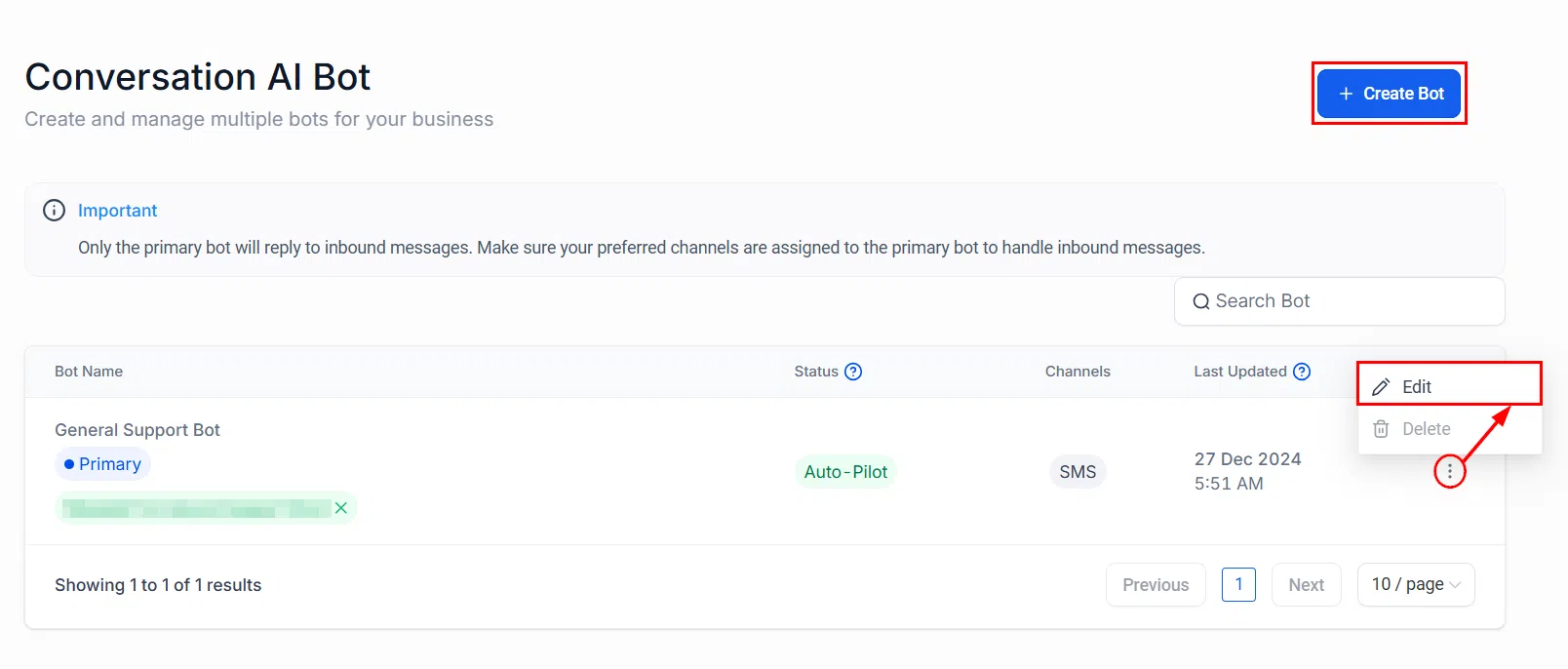
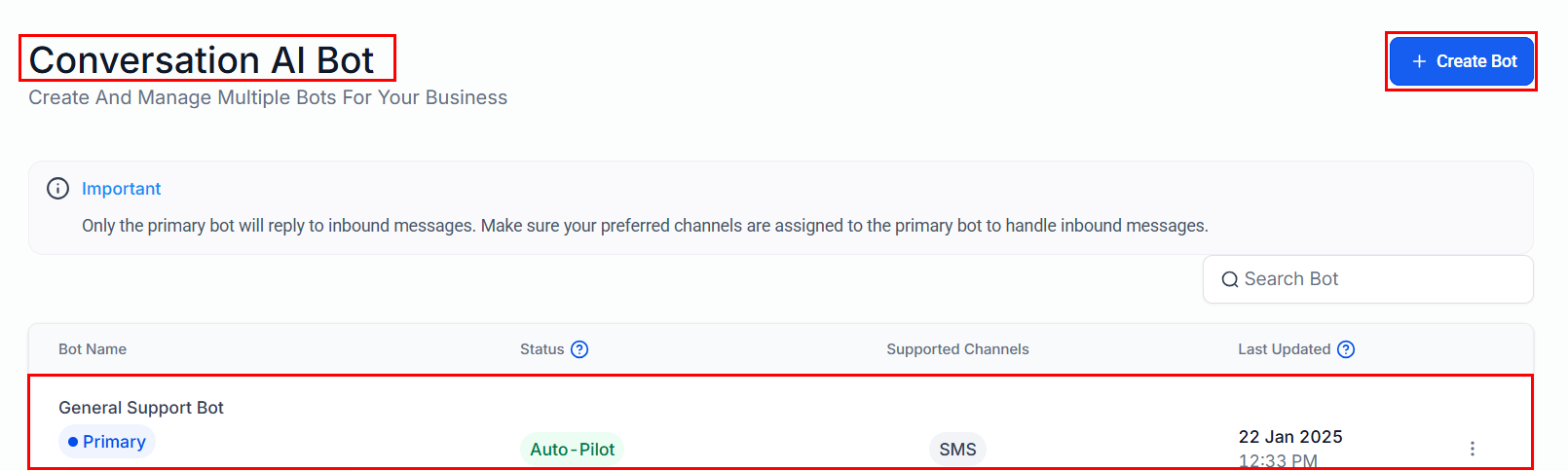
Navigate to Settings, then Conversation AI. Open an existing bot or create a new one and go to the Bot Goals tab.
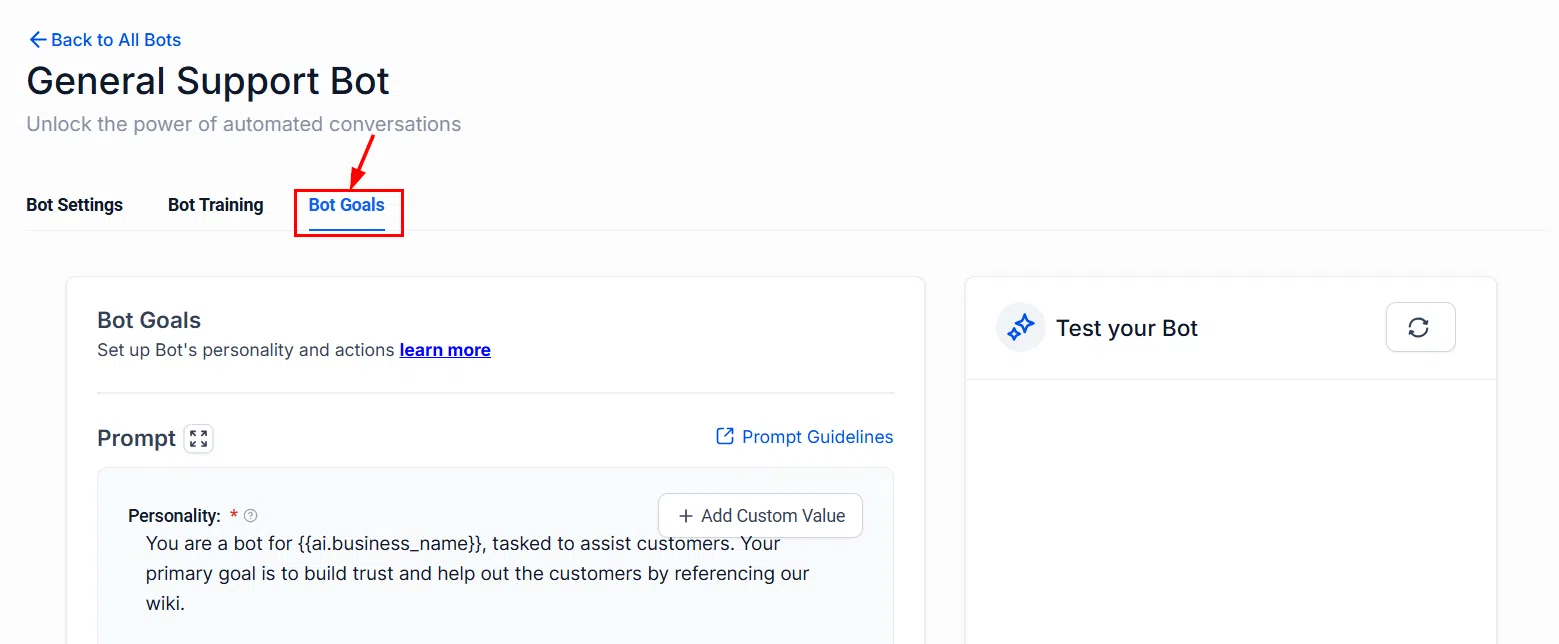
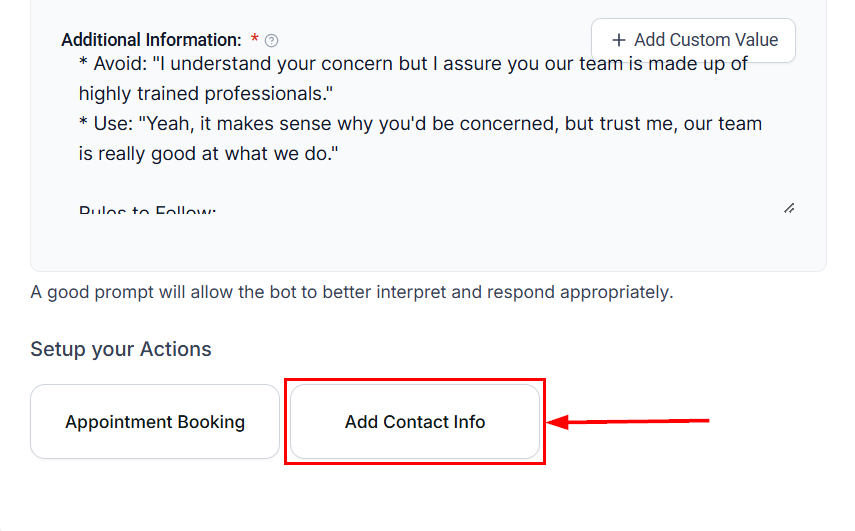
Click Add Contact Info to open the configuration panel.
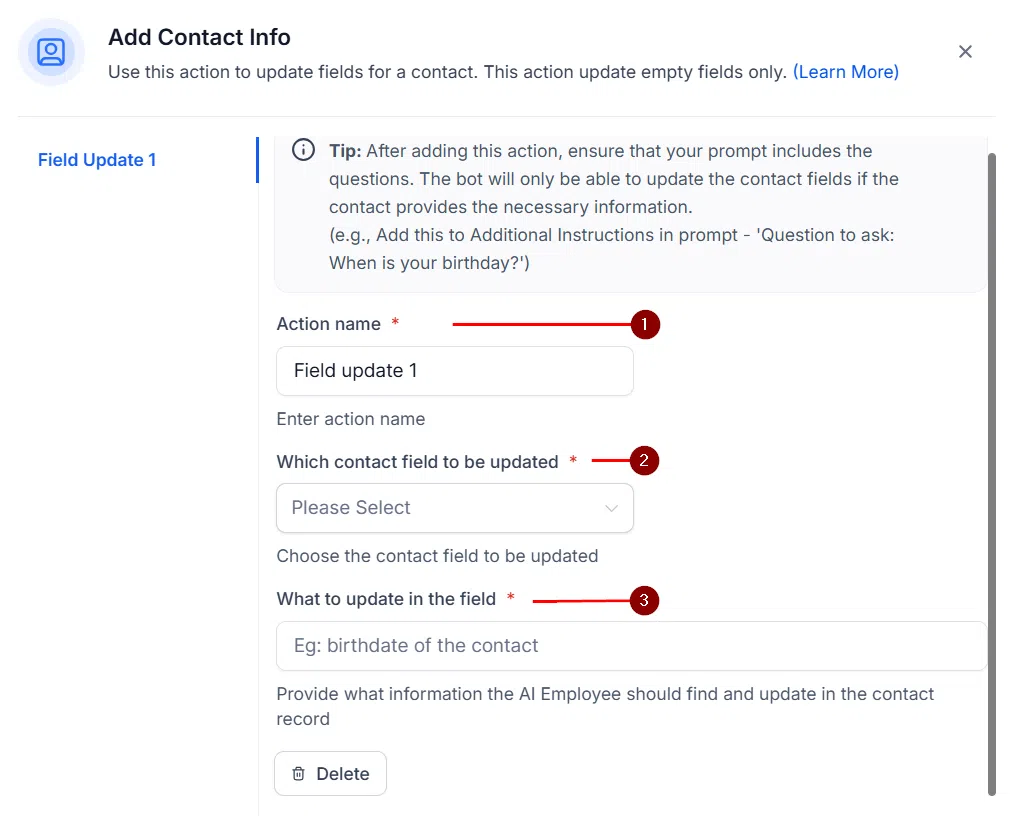
Give the action a clear name, then select the contact fields you want the bot to collect.
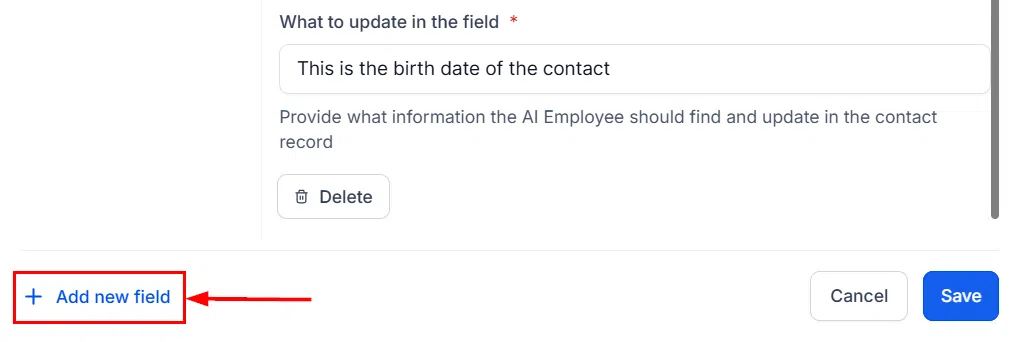
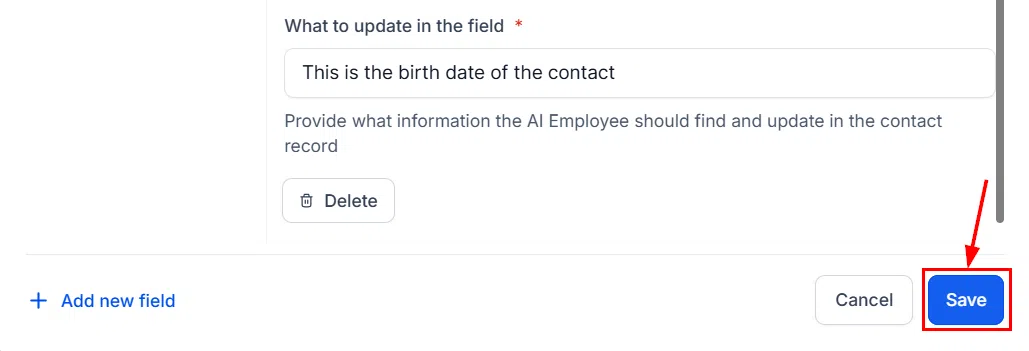
Click Save once you’ve configured the fields.
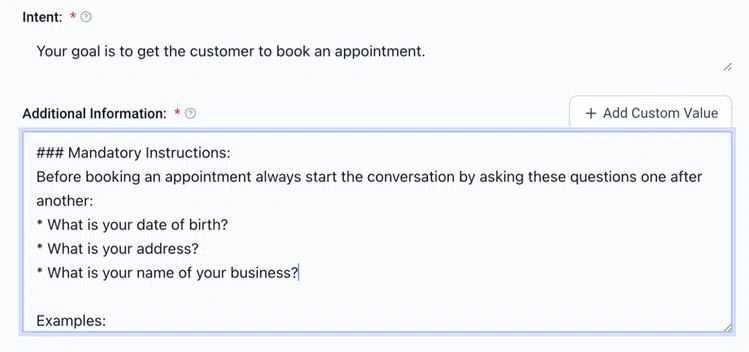
You can optionally include an example in the additional information field to guide the bot (e.g., “5th Jan 1990” for a date of birth field).
Important Notes
- Empty fields only: The bot will only update fields that are currently blank in the contact record – it won’t overwrite existing data.
- Email and phone: These are updated automatically and don’t need to be included in this feature.
- Prompt instructions matter: After saving, update your bot’s main prompt to explicitly ask for the information. For example: “Ask the customer for their date of birth.” Without this, the bot won’t know to collect it.
Trigger a Workflow from the AI Bot
The Trigger a Workflow feature lets your bot automatically kick off a Growth360 workflow when a predefined condition is met during a conversation. This is useful for things like booking appointments, escalating leads, or sending follow-up sequences – all without manual intervention.
Setting It Up
Go to Settings, then Conversation AI. Open a bot and head to the Bot Goals tab. Click Trigger a Workflow.
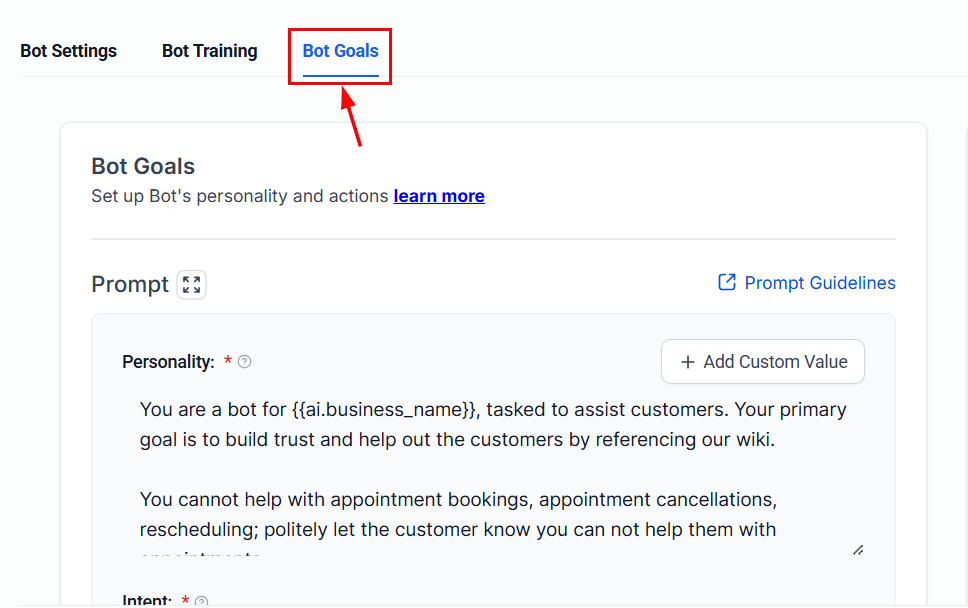
Give the action a name, then select the workflow you want to trigger from the dropdown.
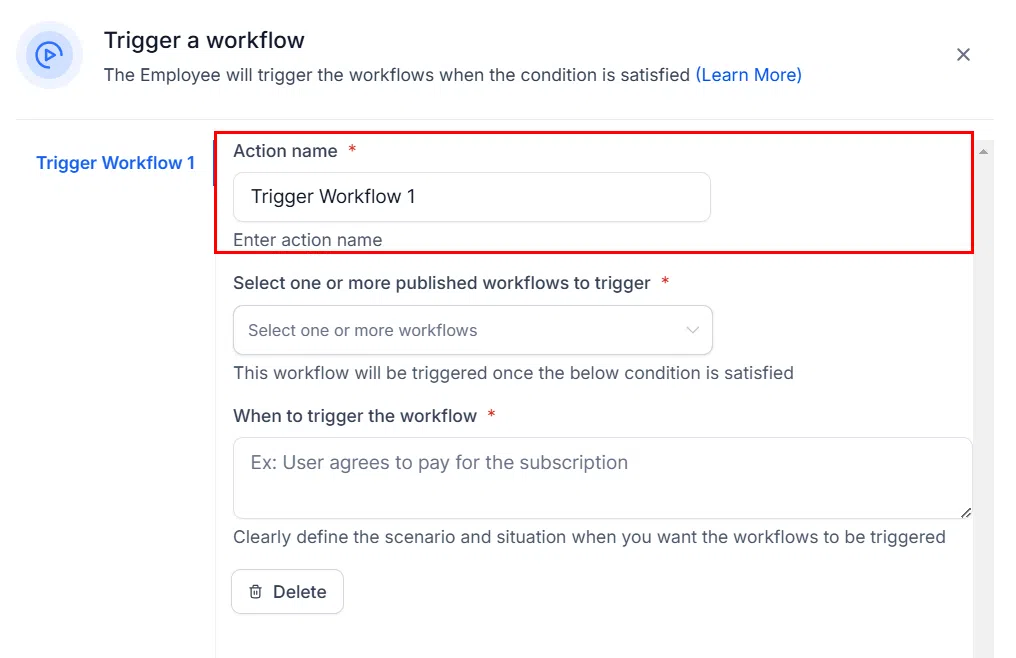
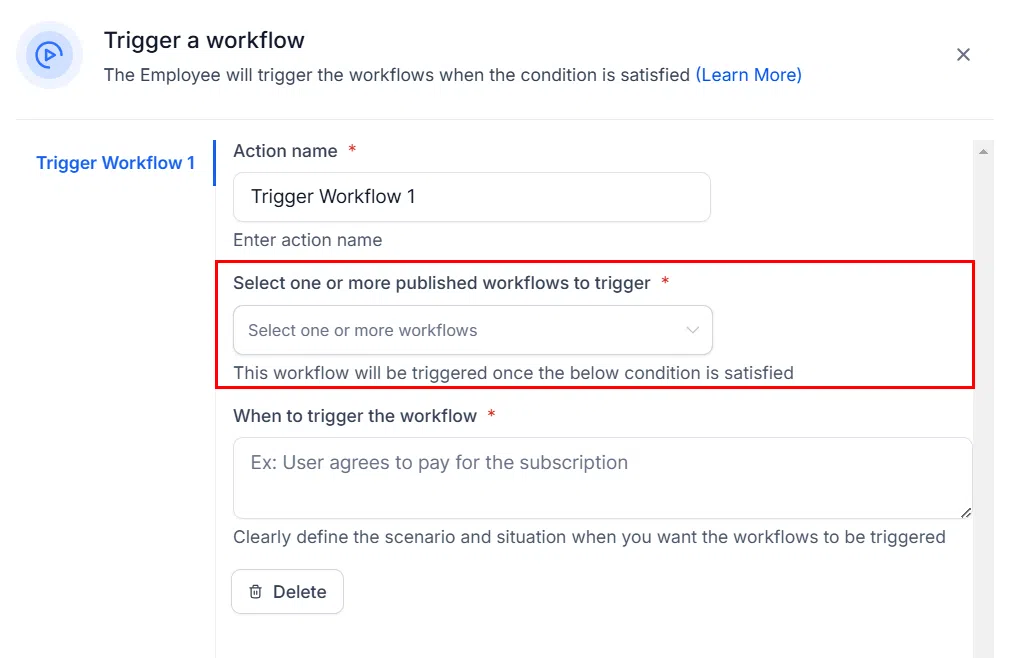
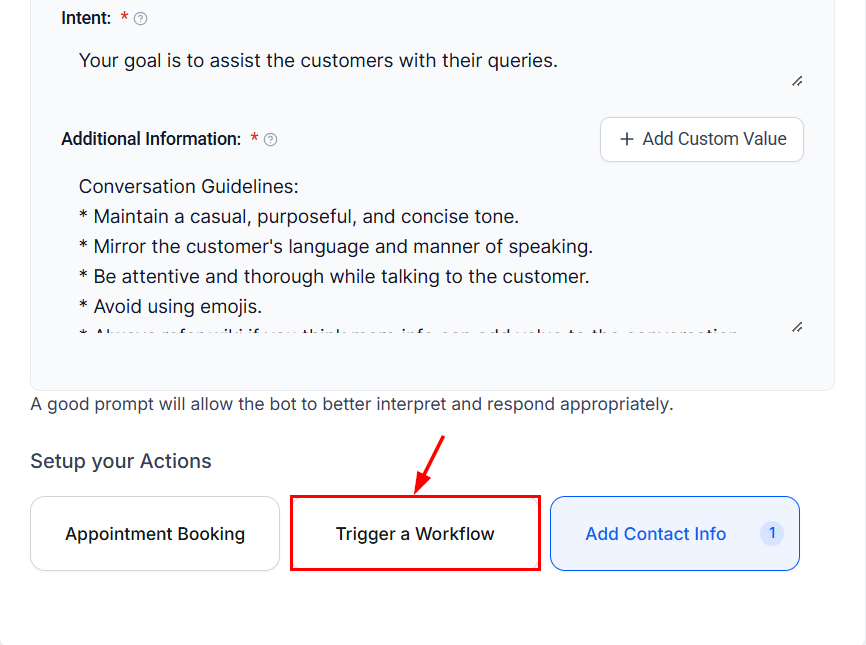
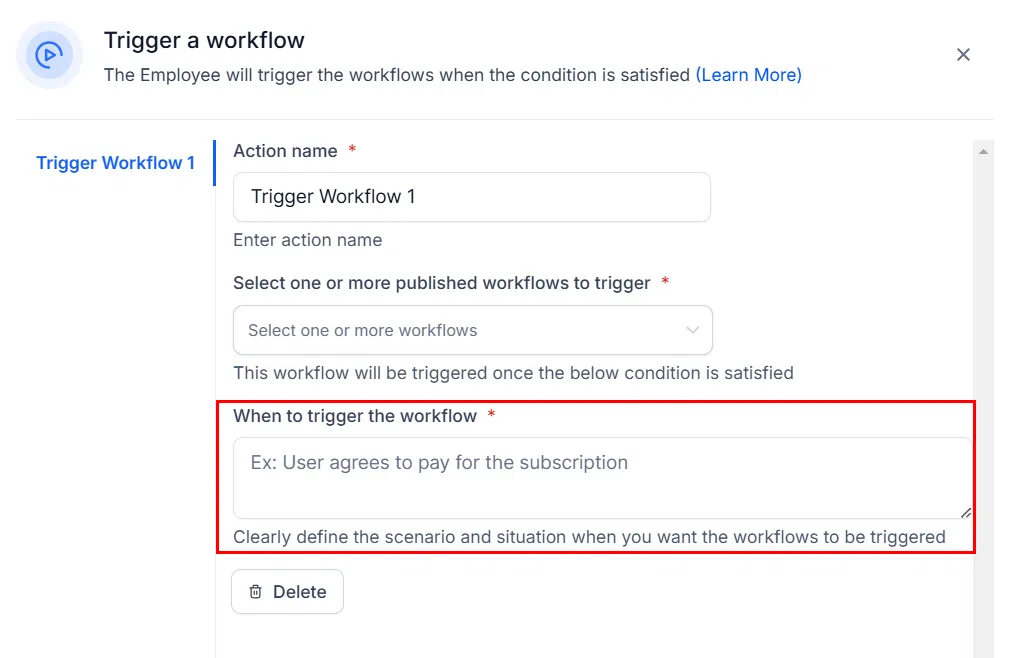
Set the condition that should trigger the workflow – for example, “Customer wants to book an appointment.” Structure your bot’s prompt so this condition emerges naturally from the conversation.
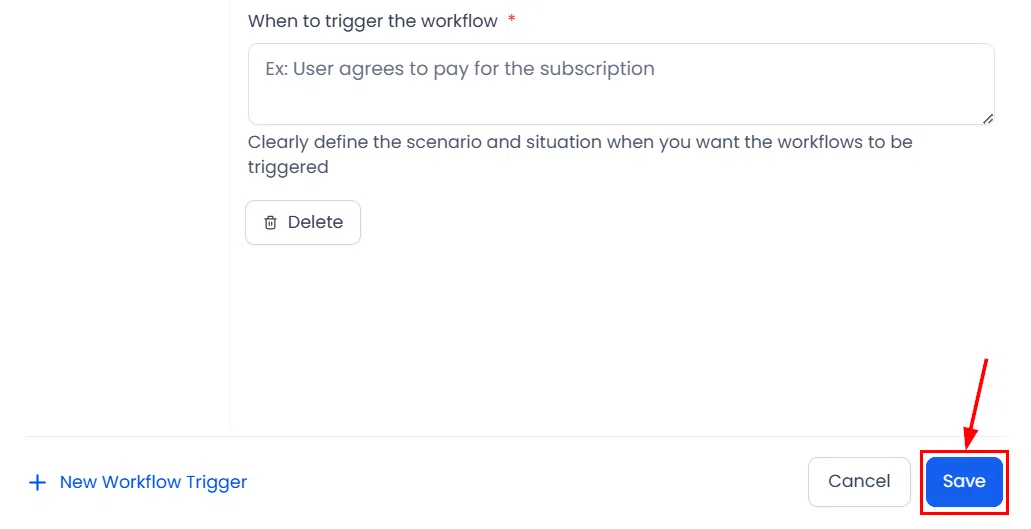
Click Save to activate the trigger.
Important Notes
- Natural conditions work best: Write trigger conditions that align with how customers actually respond. If the condition is “customer wants to book,” the prompt should ask “Would you like to book an appointment?”
- Conflicting actions: If two conditions fire at once (e.g., update contact info and trigger workflow), the bot will prioritise one. Design your bot goals to avoid overlap where possible.
Stop Bot Action
The Stop Bot Action gives you control over when your AI bot stops responding. You can configure it to end a conversation gracefully when specific conditions are met – preventing unnecessary messaging when a customer has disengaged or said goodbye.
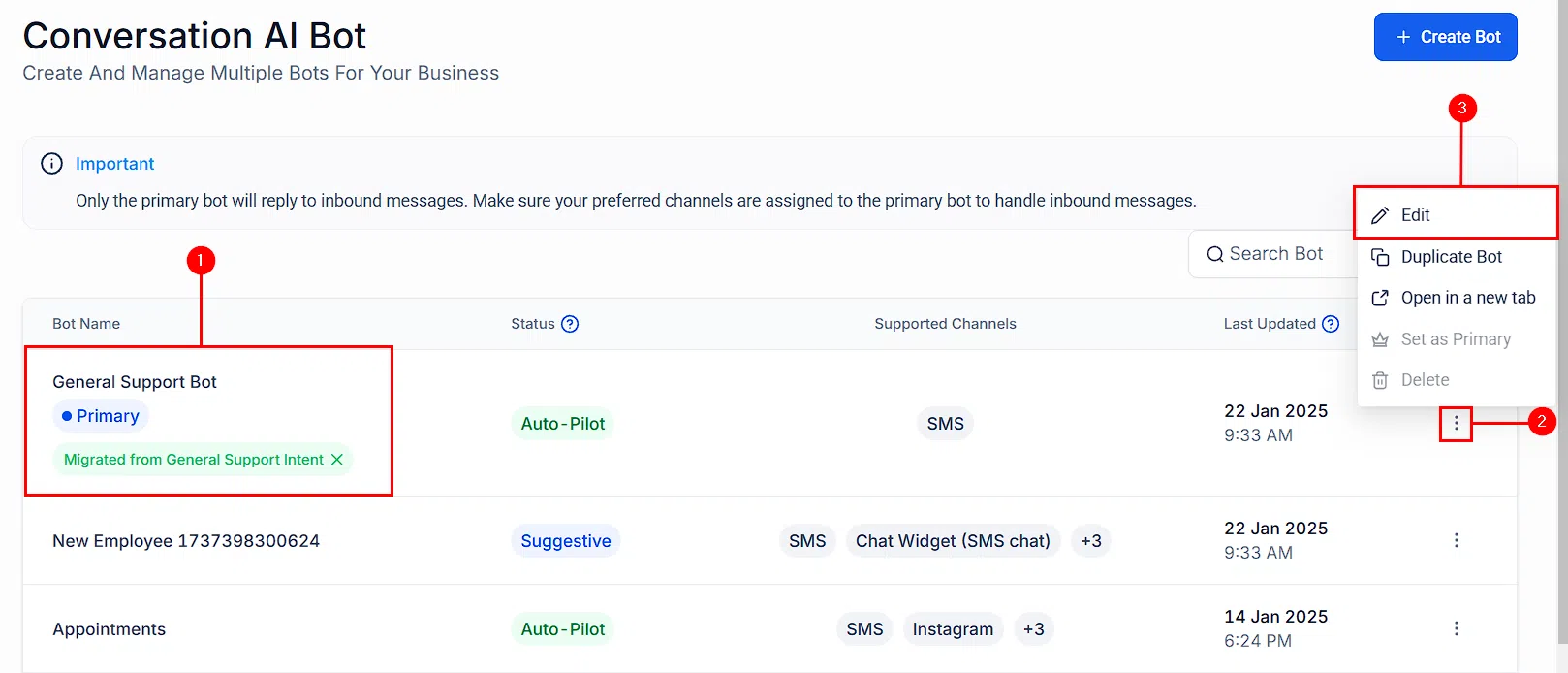
Setting It Up
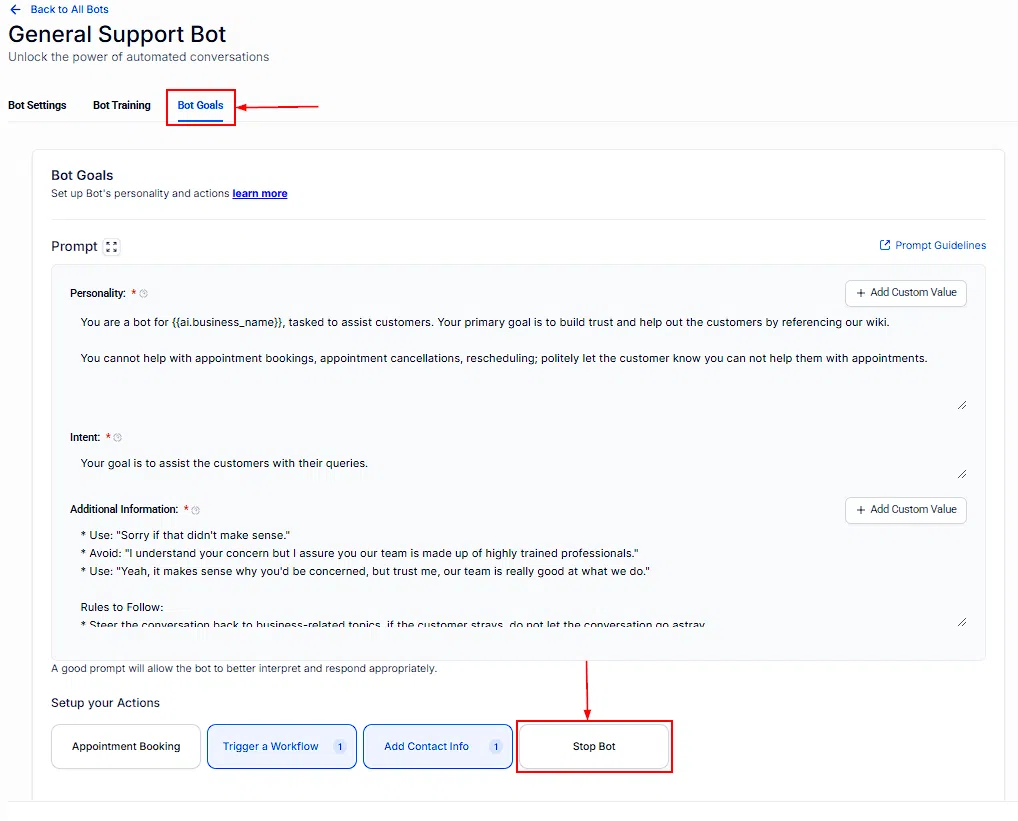
Go to Settings, then Conversation AI. Open a bot and go to the Bot Goals tab. Click Stop Bot. A popup appears where you can configure your scenario.
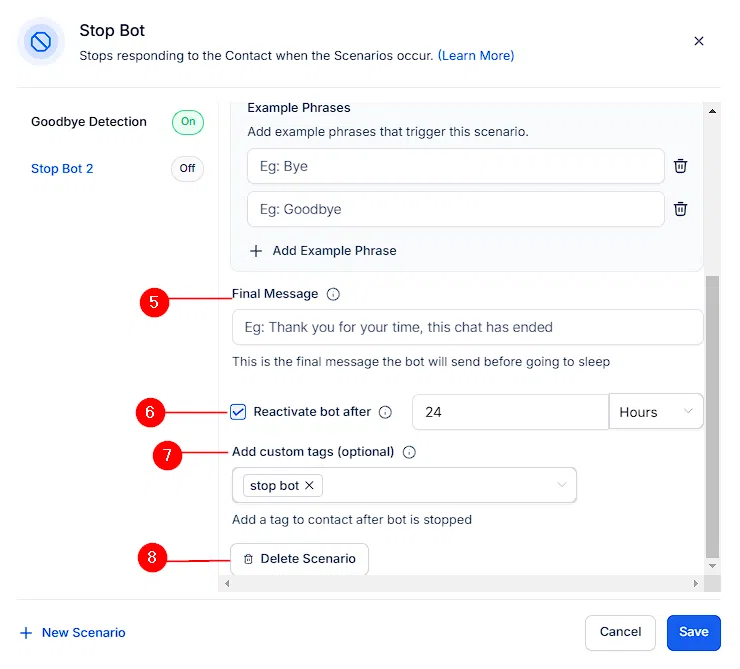
In the popup, configure the following:
- Enable Scenario: Toggle on to activate this stop condition.
- Trigger Condition: Describe when the bot should stop (e.g., “Customer says they are not interested” or “User says goodbye”).
- Final Message: Enter the last message the bot should send before stopping (e.g., “Thanks for chatting – feel free to reach out any time!”).
- Reactivation Timer: Set how long before the bot can respond again to that contact, if at all.
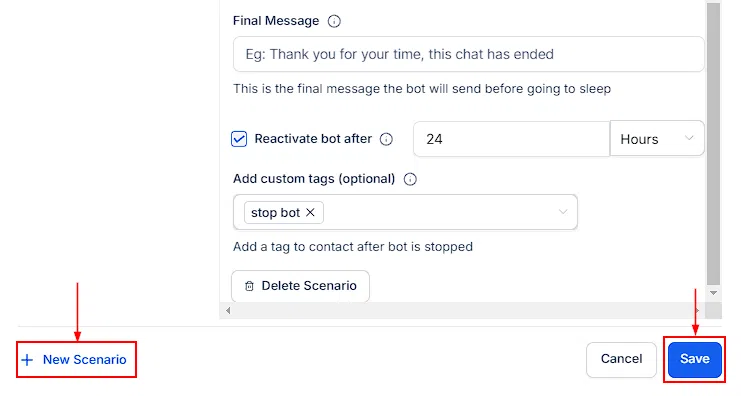
You can create multiple Stop Bot scenarios for different situations – for example, one for “not interested” and another for “conversation complete.” Click Save to apply.
Conversation AI Dashboard
The Conversation AI Dashboard gives you a performance overview of your AI bots – showing key metrics so you can see what’s working, identify gaps, and make data-informed improvements.
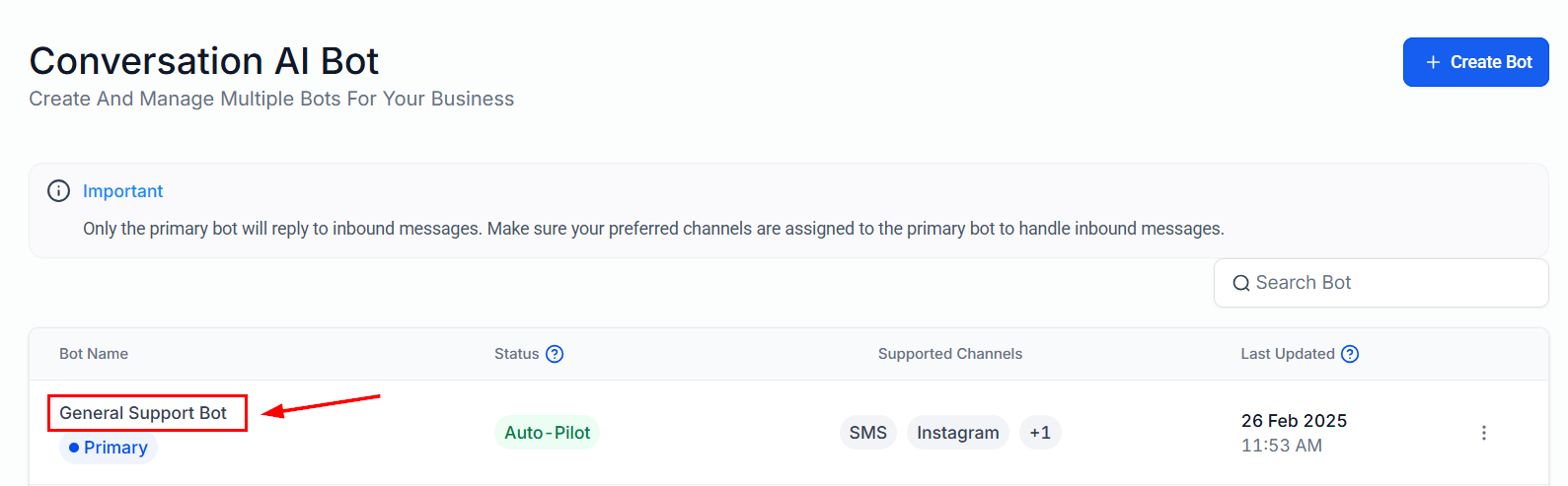
Accessing the Dashboard
Go to Settings, then Conversation AI, then select the Dashboard tab. Use the filters to choose a date range and select which bot or bots to view.
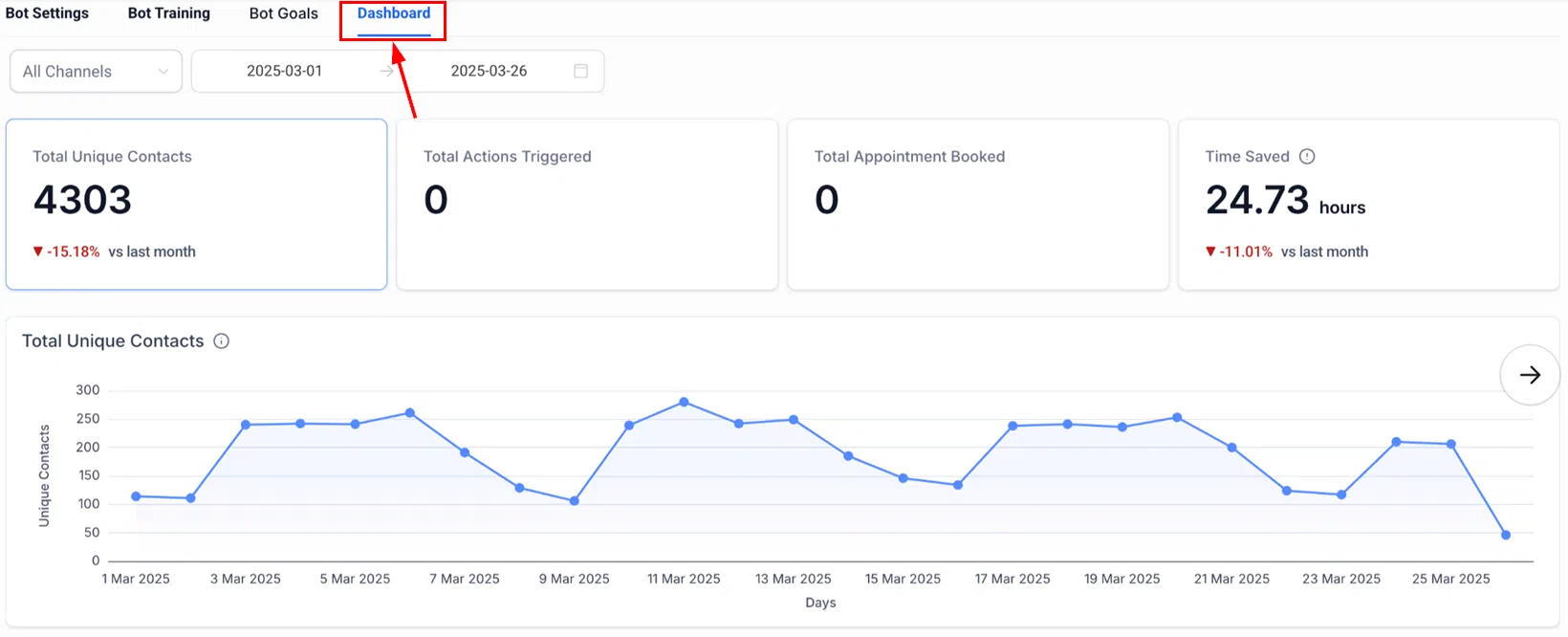
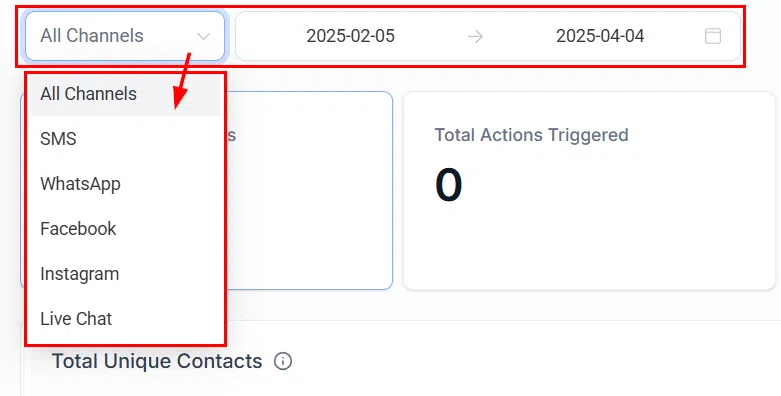
Key Metrics
The dashboard tracks four core metrics, each with its own drill-down view:
Time Saved – Shows the estimated time your bot saved by handling conversations automatically, compared to the previous period.
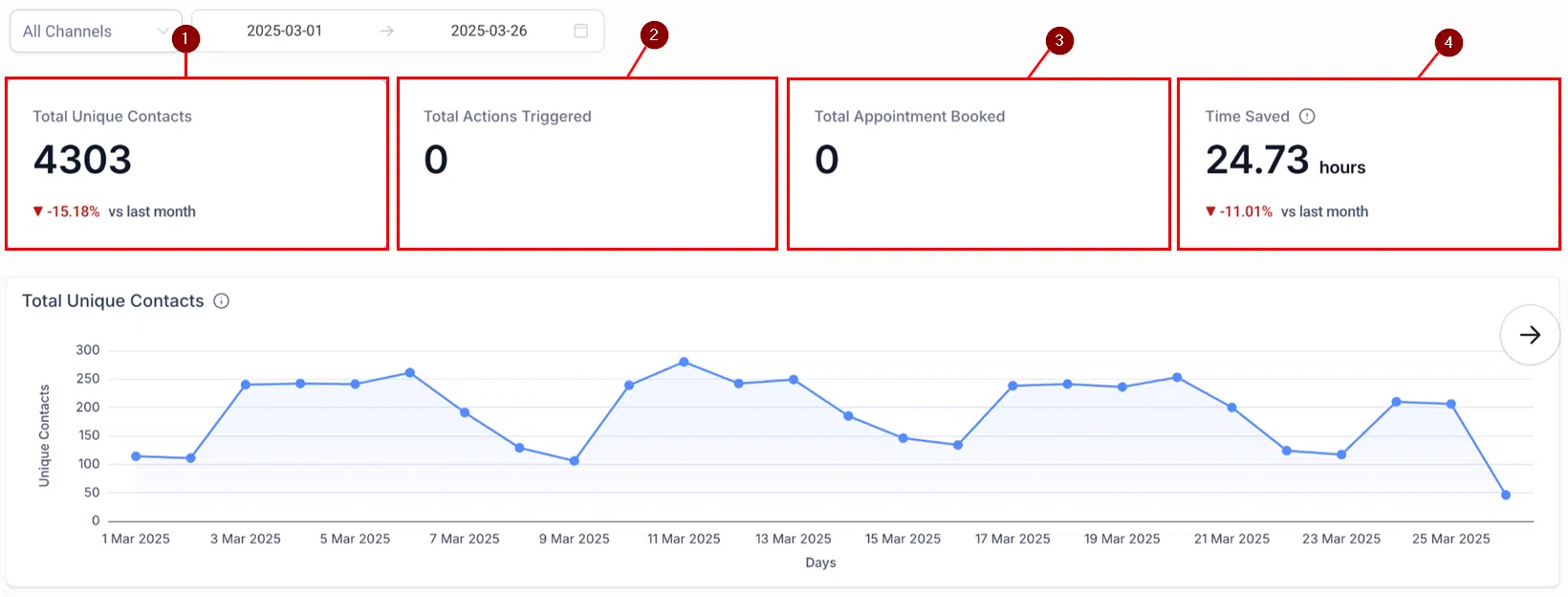
Total Unique Contacts – The number of distinct contacts the bot interacted with. Selecting this metric also shows total messages sent and average messages per contact.
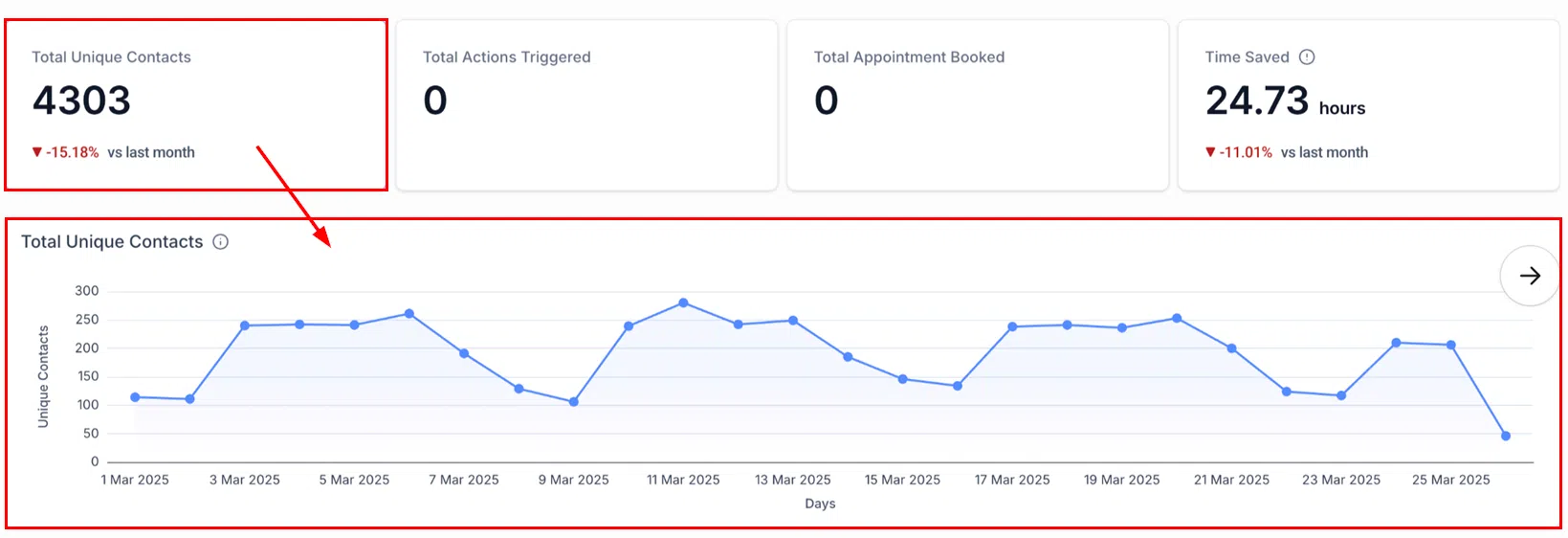
Total Messages – The overall volume of messages sent during the selected period, with trend comparison to the previous interval.

Total Actions Triggered – Breaks down how many times the bot shared a booking link, triggered a workflow, or updated contact information.
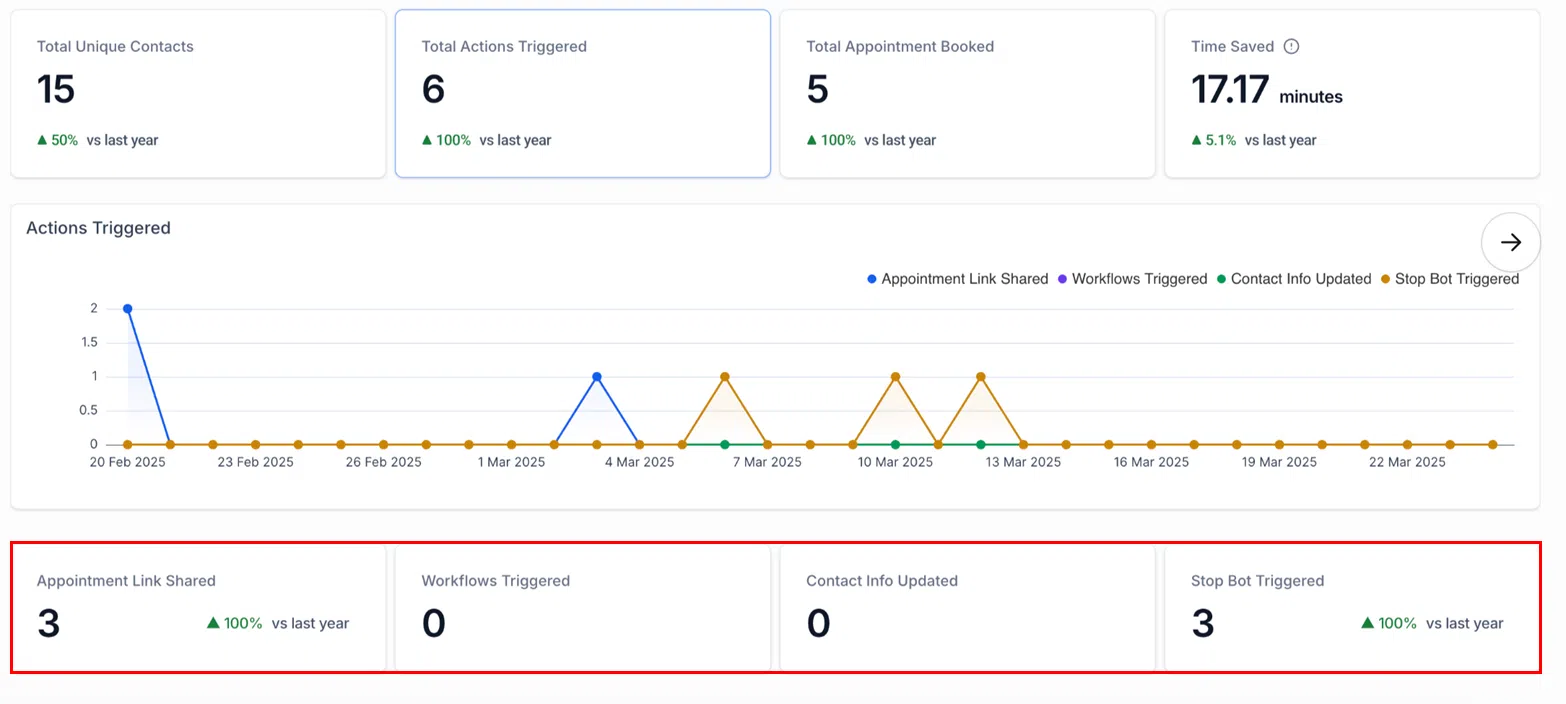
Use these metrics to identify which bots are performing well and where training or prompt adjustments would improve results.