Growth360 Payment Settings lets you configure automatic sales receipts, set up abandoned cart email recovery, and manage subscription payment retry behaviour – all from Payments > Settings.
Payment Receipts
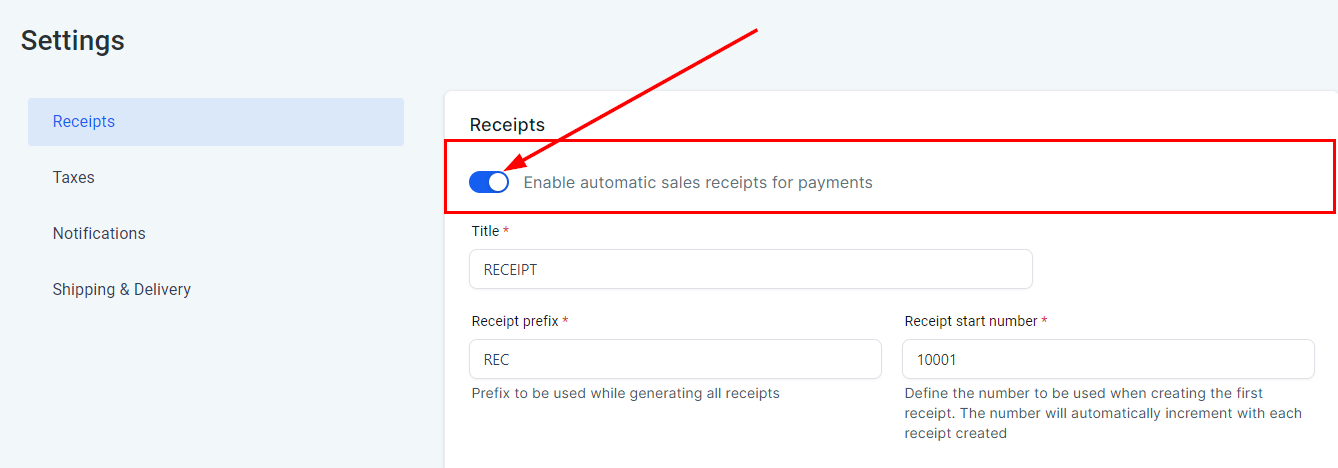
Automatic receipts send a downloadable PDF to customers whenever they complete a purchase through an order form, pay an invoice, subscribe, or book a calendar appointment. Enable this feature under Payments > Settings > Receipts.
Receipt Customisation
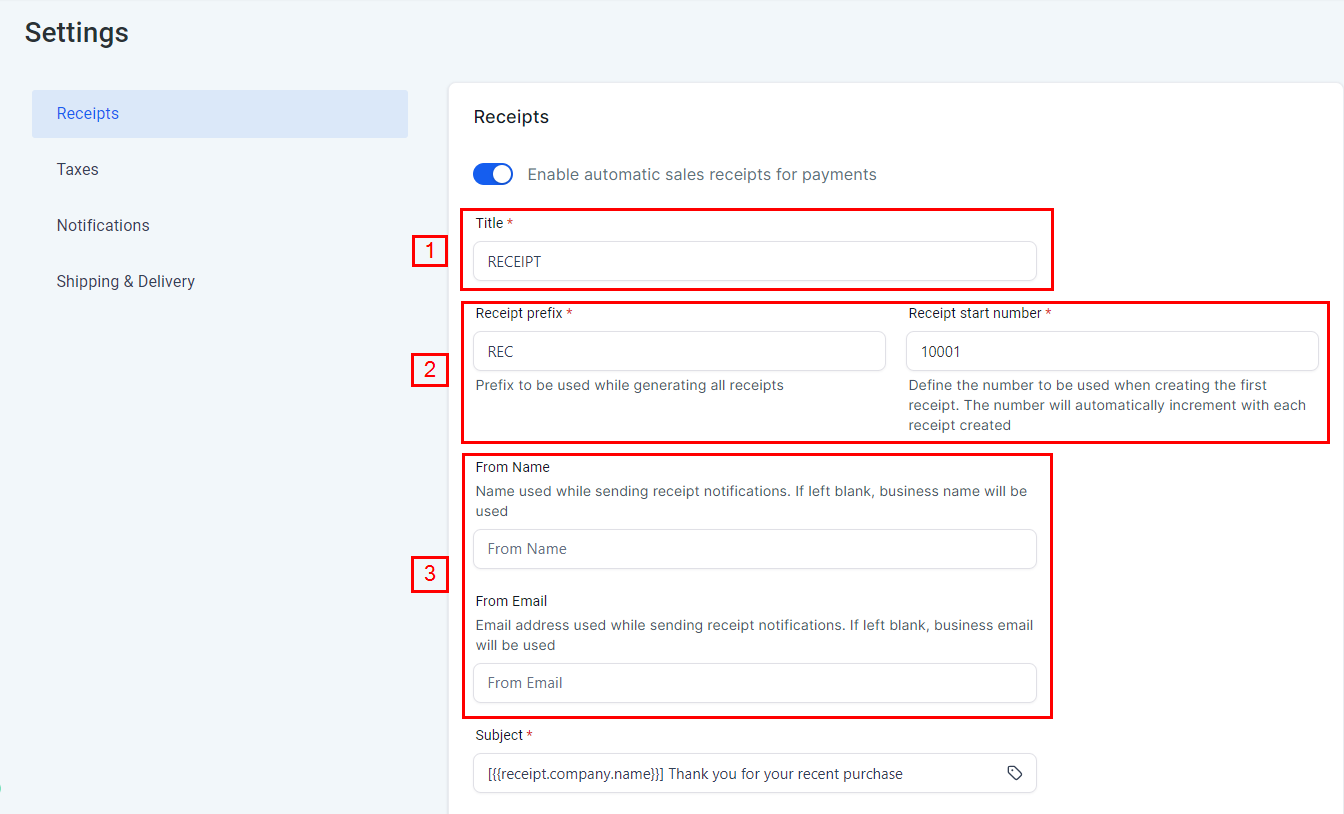
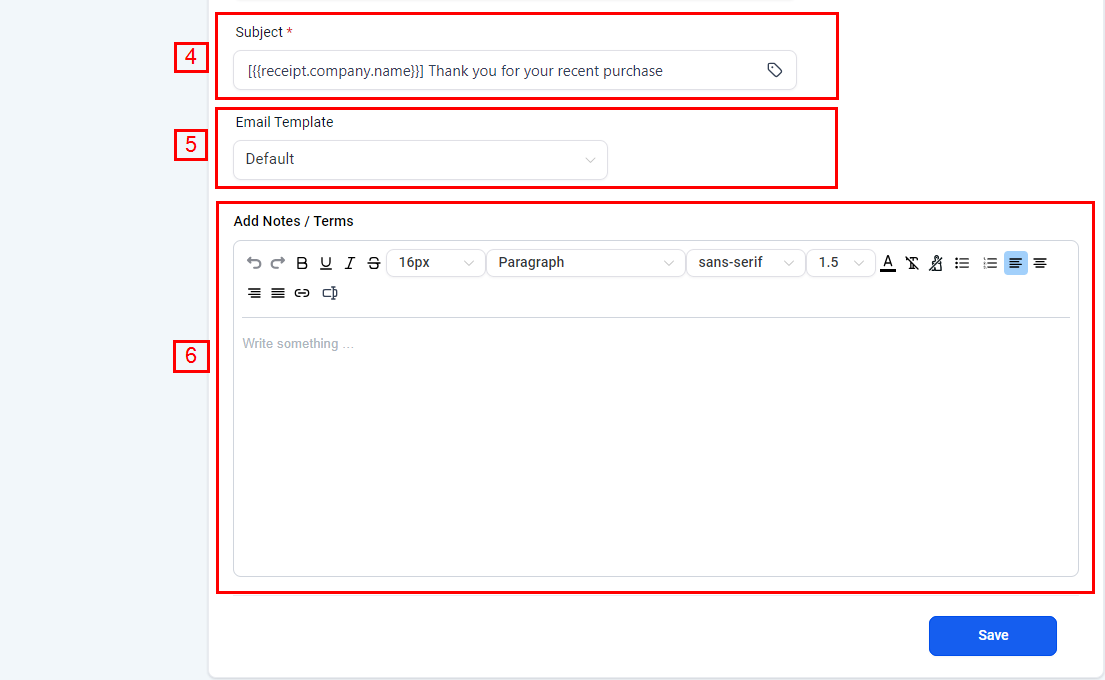
Once enabled, you can customise the receipt title, set your receipt numbering sequence, and select the email template used to deliver the receipt. The receipt content itself is generated automatically from the transaction details, including any coupon discounts applied.
Frequently Asked Questions
Will invoice payment notifications still go to the contact? Yes. Enabling automatic receipts does not affect the existing invoice payment notification emails – both will be sent.
Abandoned Cart Emails
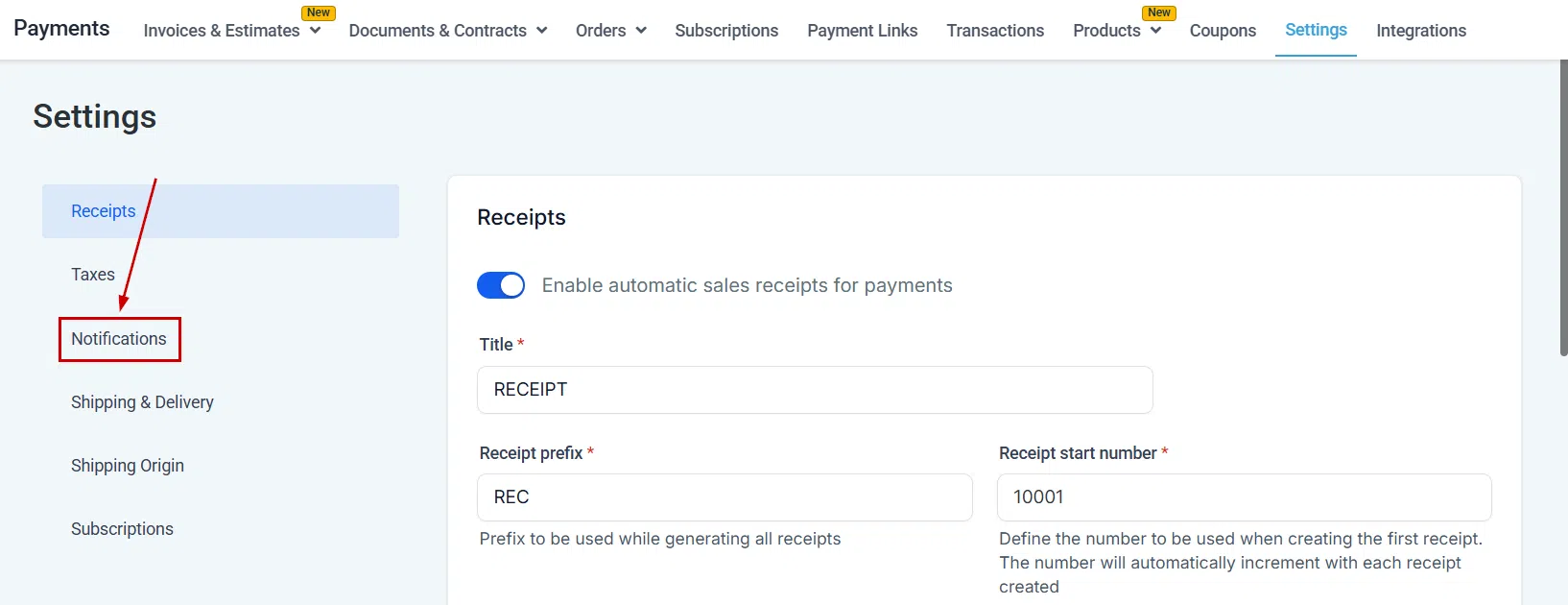
When a customer starts checkout but doesn’t complete their purchase, Growth360 can automatically send a follow-up email to bring them back. Configure this under Payments > Settings > Notifications.
Setting Up Abandoned Cart Emails
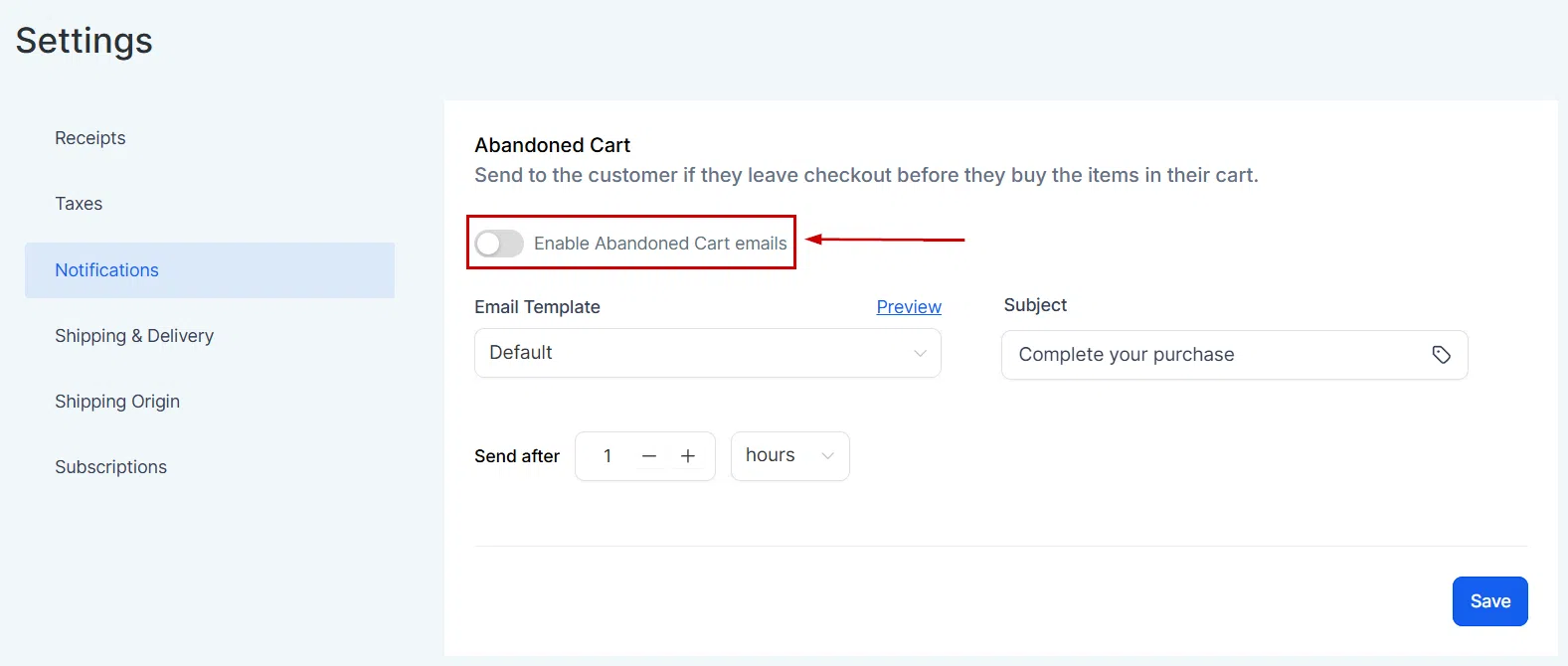
Toggle on abandoned cart emails to activate the feature.
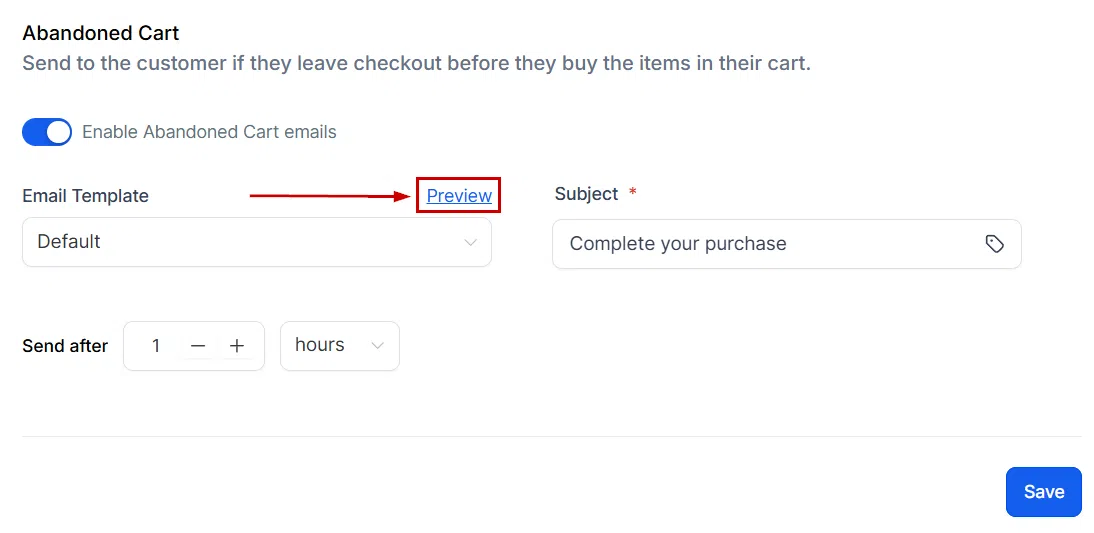
Select the email template to use from the dropdown. Click Preview to open and edit the template if needed.

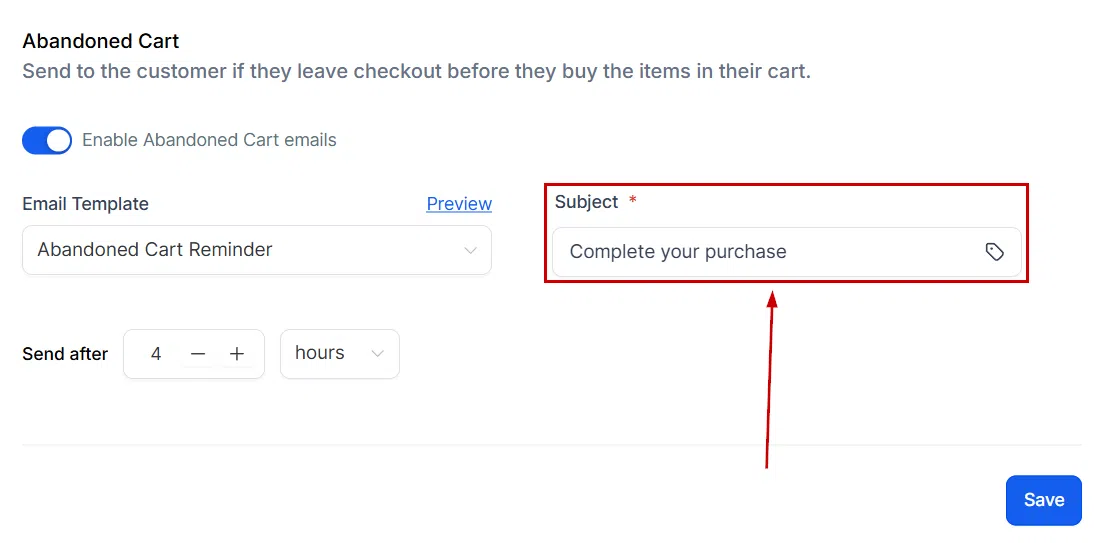
Customise the subject line. You can personalise it using custom values by clicking the tag icon.
Set the delay: choose how long after cart abandonment the email should send, using the drop-down time unit and the +/- buttons to set the exact amount.
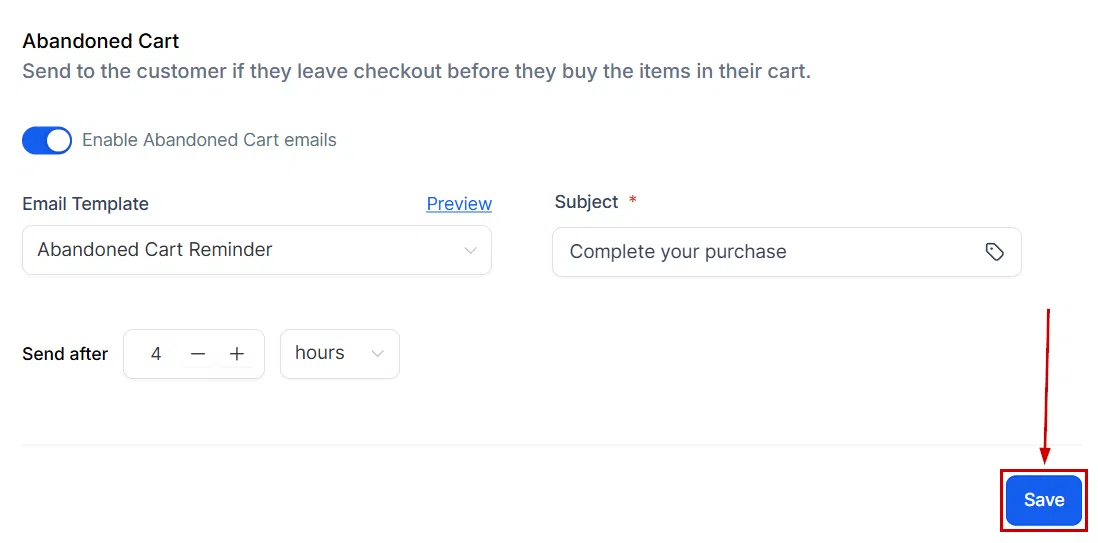
Once configured, the abandoned cart email will send automatically at the interval you set.

Subscription Settings
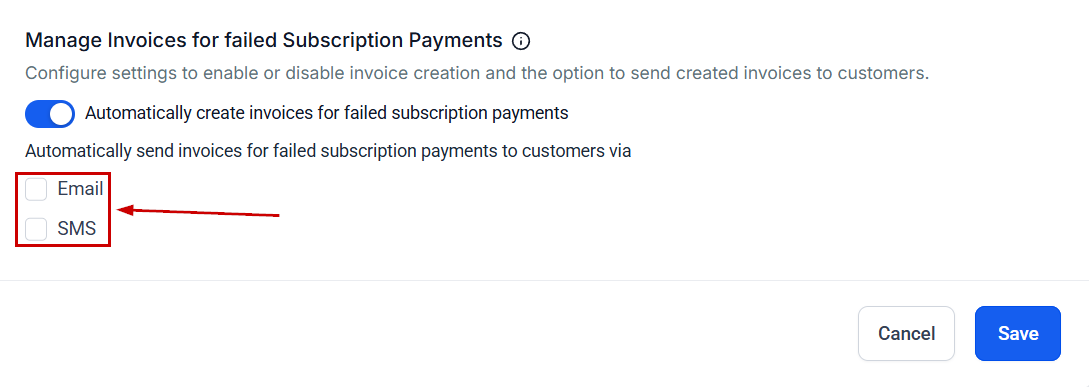
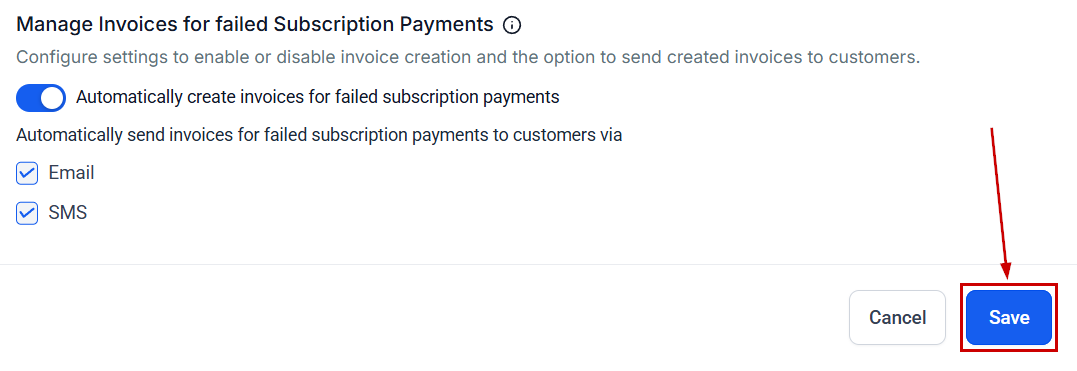
Configure how Growth360 handles failed subscription payments under Payments > Settings > Subscriptions. Automated payment retries minimise service disruptions while giving you control over retry frequency and scheduling.
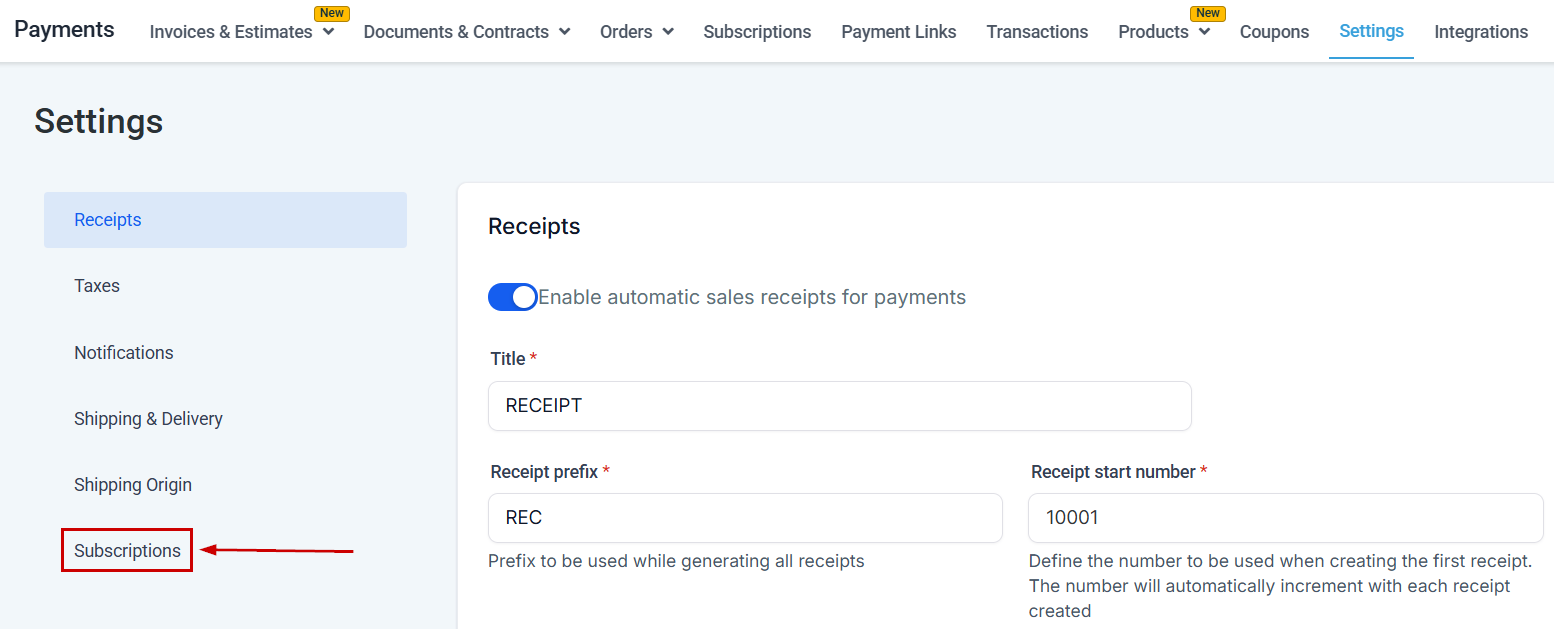
Payment Retry Configuration
Enable automated retries and set how many times Growth360 should attempt to collect a failed payment before taking further action.
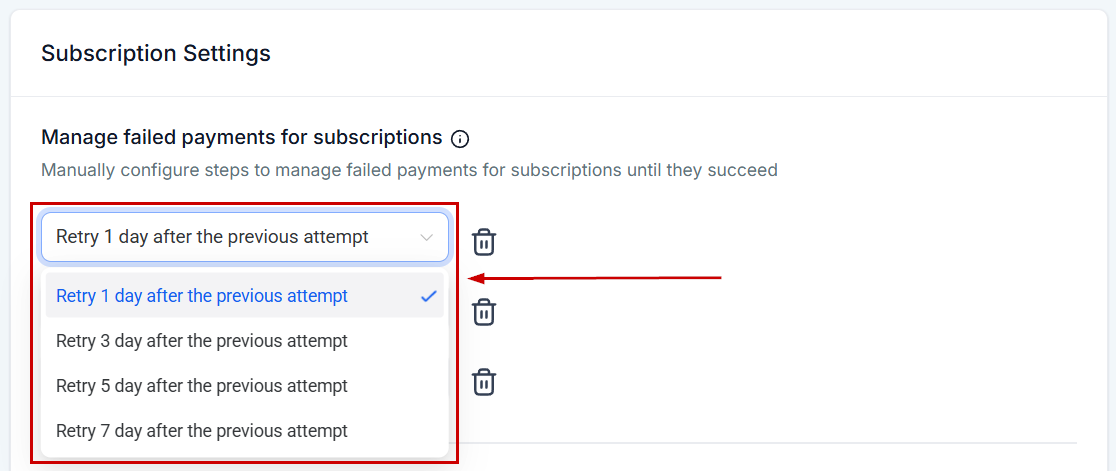

Retry Scheduling
Define the interval between retry attempts – for example, retry every 3 days for up to 3 attempts. This gives customers time to update their payment method without immediately losing access.
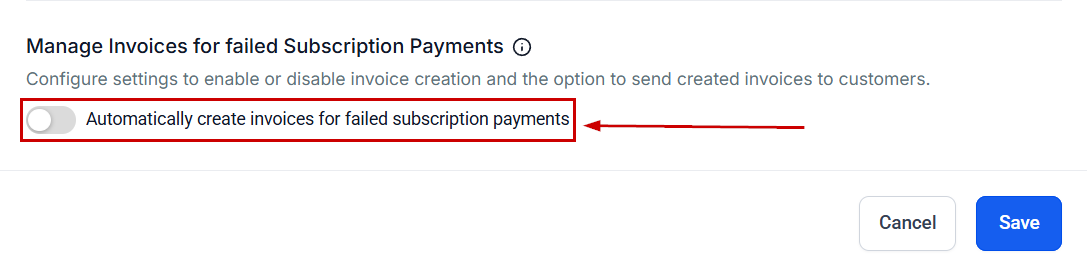
After Failed Retries
Set what happens once all retry attempts are exhausted – for example, cancelling the subscription or pausing access.