
The “Send Email” bulk action allows you to efficiently send an email to one or multiple contacts in a single step.
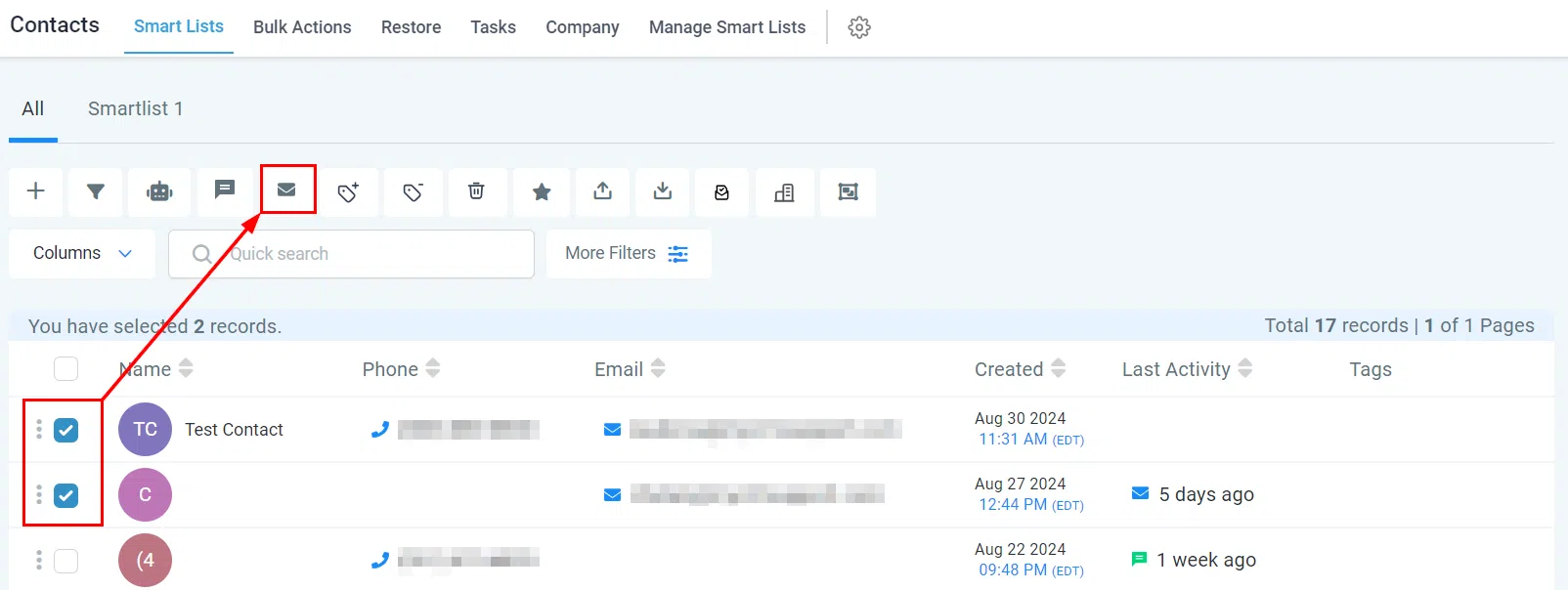
1. Select the contacts you’d like to send the bulk email to on the main Contacts tab and click the “Send Email” button to begin.
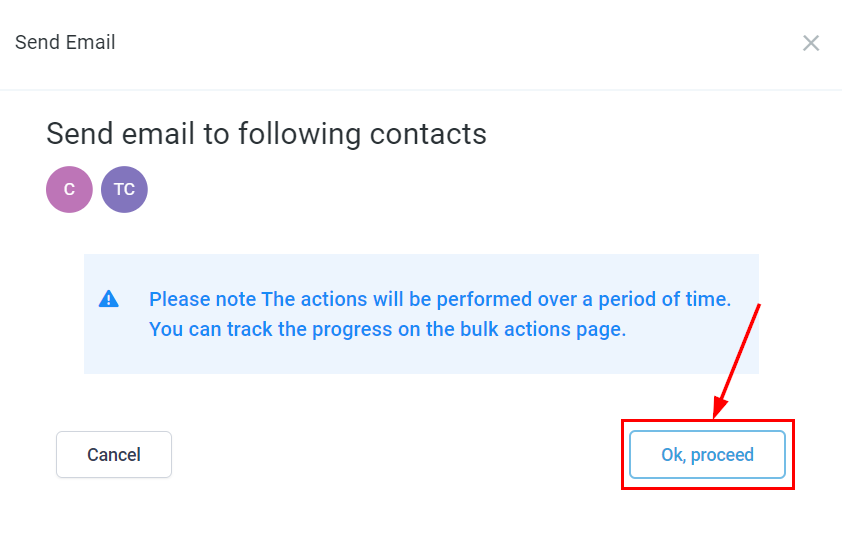
2. Review your selected contacts and proceed once you have confirmed your choices.
3. Drafting Your Email
Begin by selecting either an email template:
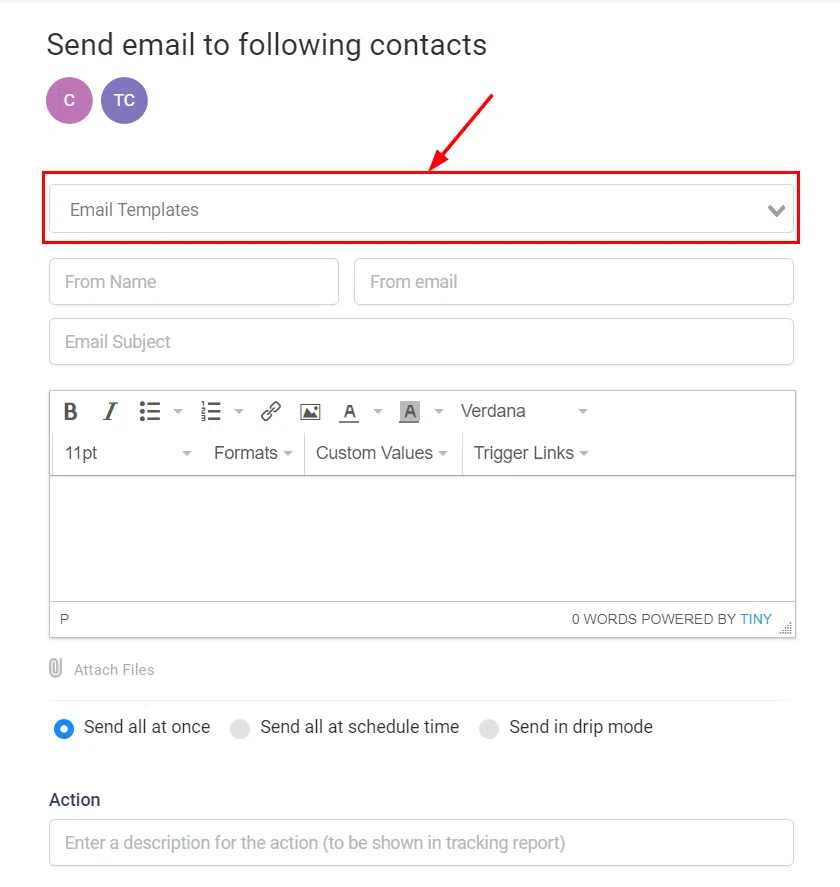
or you can create a custom email in this step.
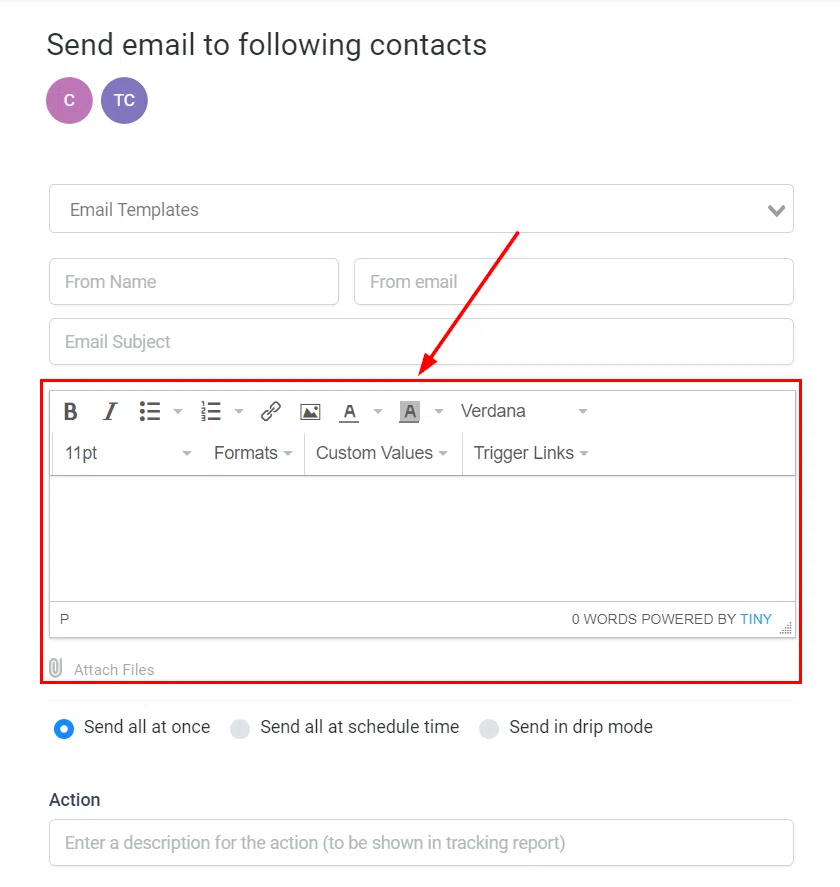
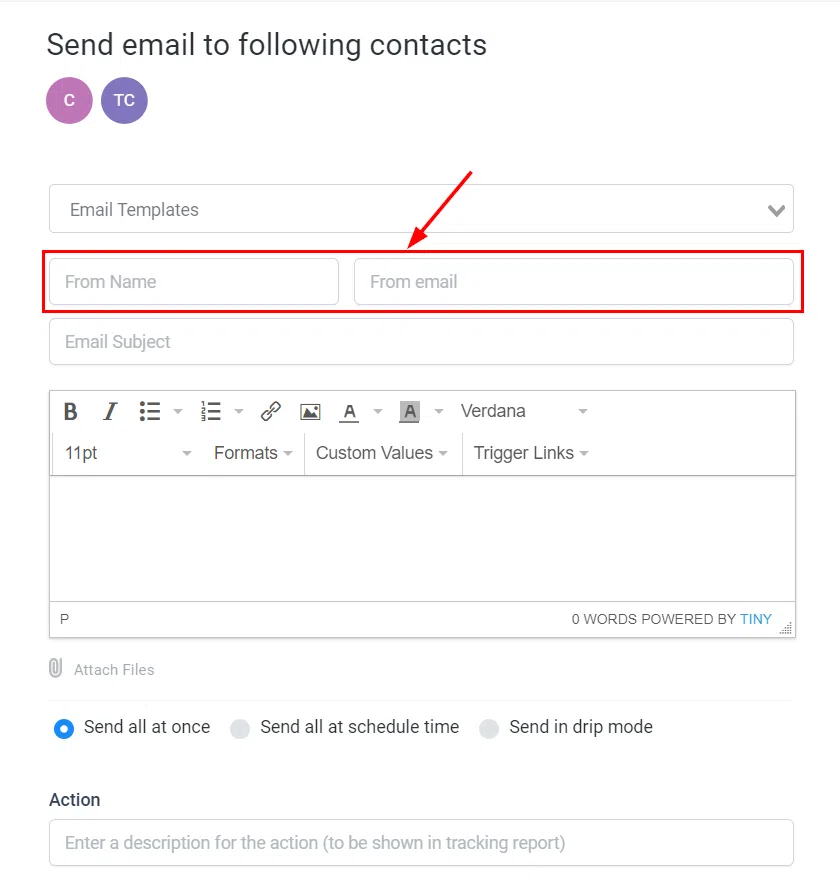
Next, fill in the following fields if you are not using a template, or if these were not set up:
- From Name: the sender’s name that recipients will see
- From Email: the sender’s email address
- Subject Line: add a compelling subject to improve open rates
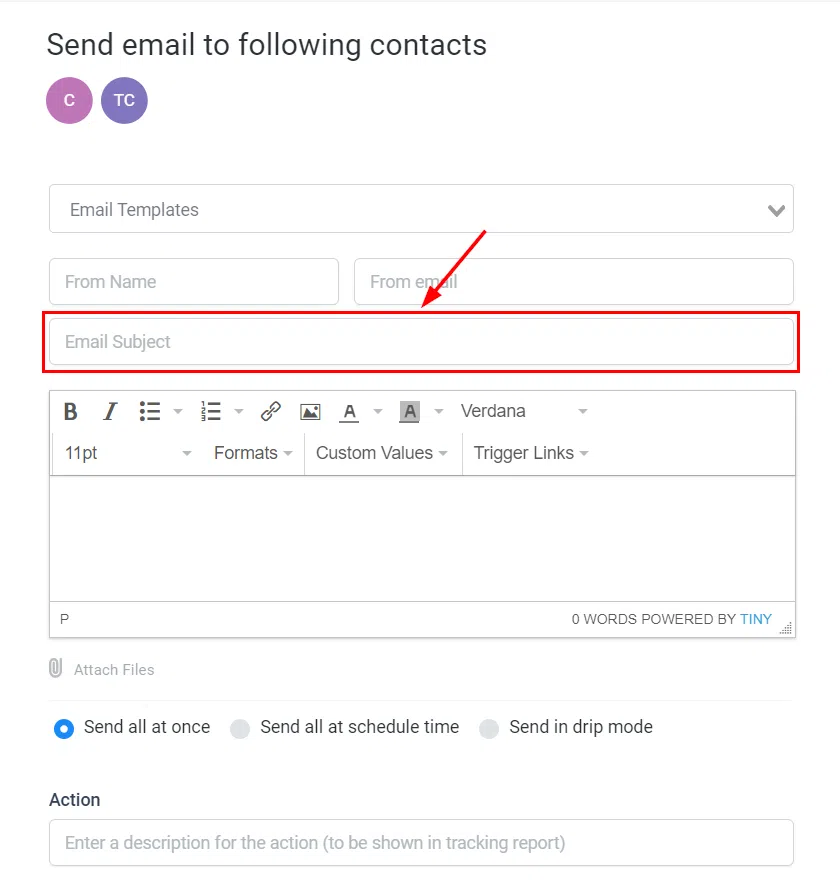
Use the built-in editor to customise your email with fonts, colours, sizes, file attachments, and more.
4. Sending Options
The sending option you select will depend on how many contacts you have selected.
Send All at Once
Best when you have 10 contacts or less:

Select “Send All at Once” to instantly send your email to all selected contacts, ensuring timely communication with your audience.
Send at a Scheduled Time
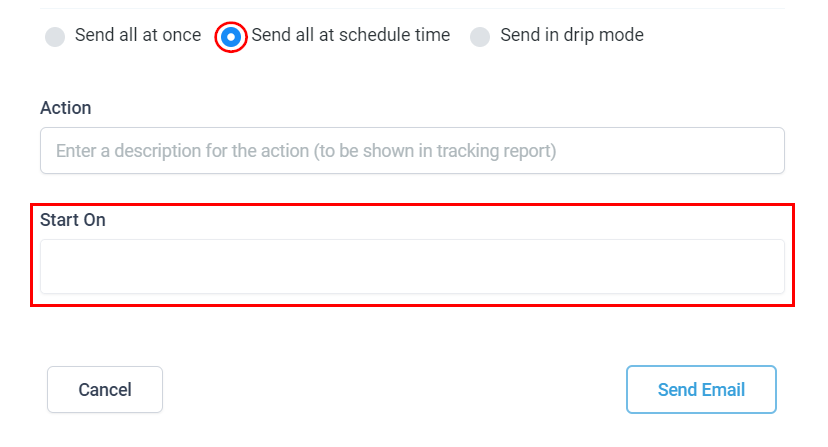
Choose “Send all at Scheduled Time” to plan your email delivery at a specific date and time.
Set the Start On date and time for when the email should be delivered.
Add in Drip Mode
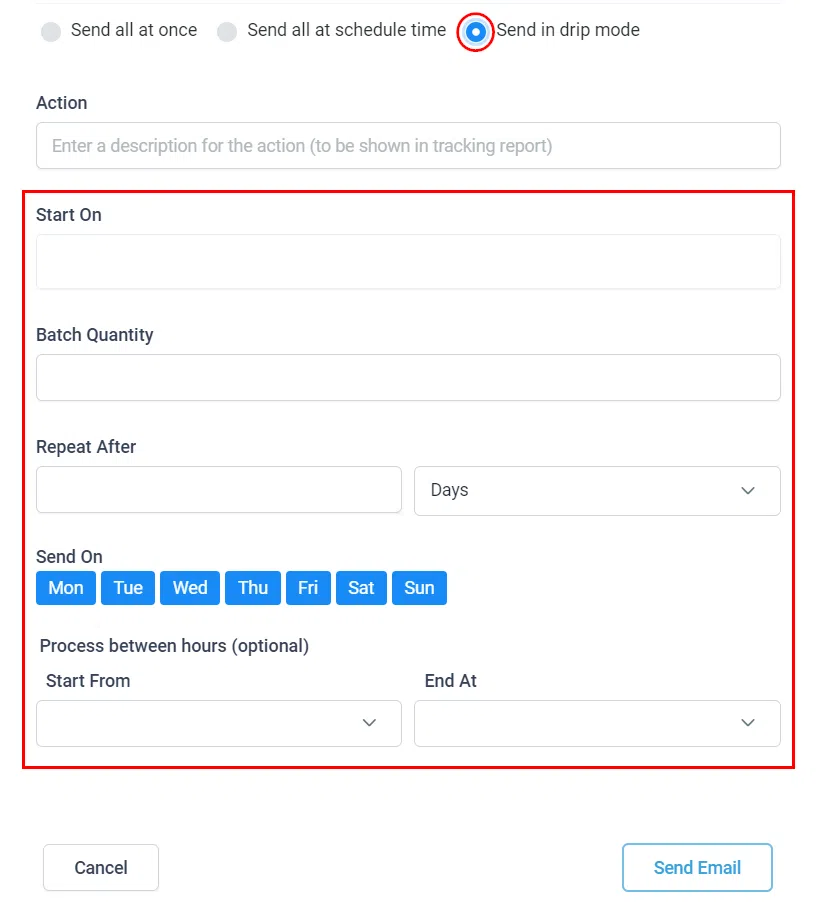
When sending emails to a large number of contacts, “Drip Mode” is recommended.
This sends emails in batches for a controlled and organised delivery.
Configure:
- Start On: select the date and time for the sending action to begin
- Batch Quantity: specify the number of contacts to send the email to in each batch
- Repeat After: choose the interval between batches (seconds to days)
- Send On: select the specific days of the week to send the batches on
- Process Between Hours (optional): define the time range during which the batches will be sent
5. Label (Name) This Action
Enter a descriptive name in the Action text box.
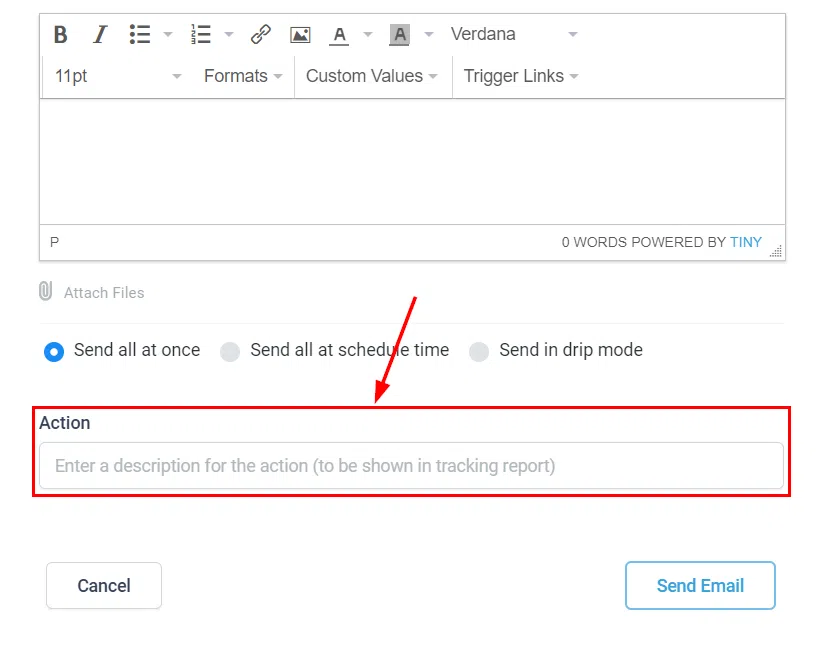
This label will appear in your tracking report, allowing you to monitor the progress and effectiveness of your email campaign.
Send Email
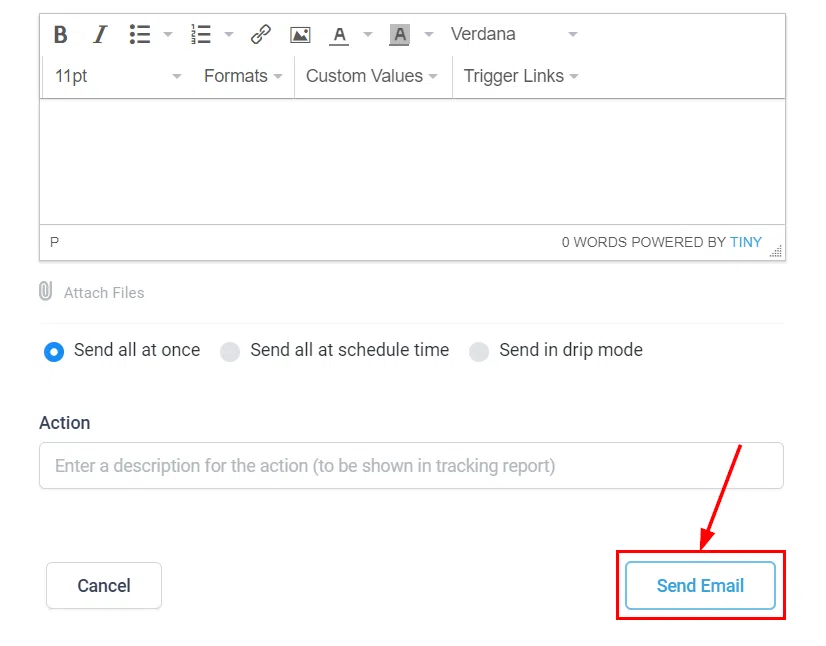
Click “Send Email” to queue the bulk email action according to your selected preferences.